🌡️ Room Temperature & Humidity Monitor Using Arduino, OLED & DHT Sensor
by Jhuman in Circuits > Arduino
19 Views, 0 Favorites, 0 Comments
🌡️ Room Temperature & Humidity Monitor Using Arduino, OLED & DHT Sensor
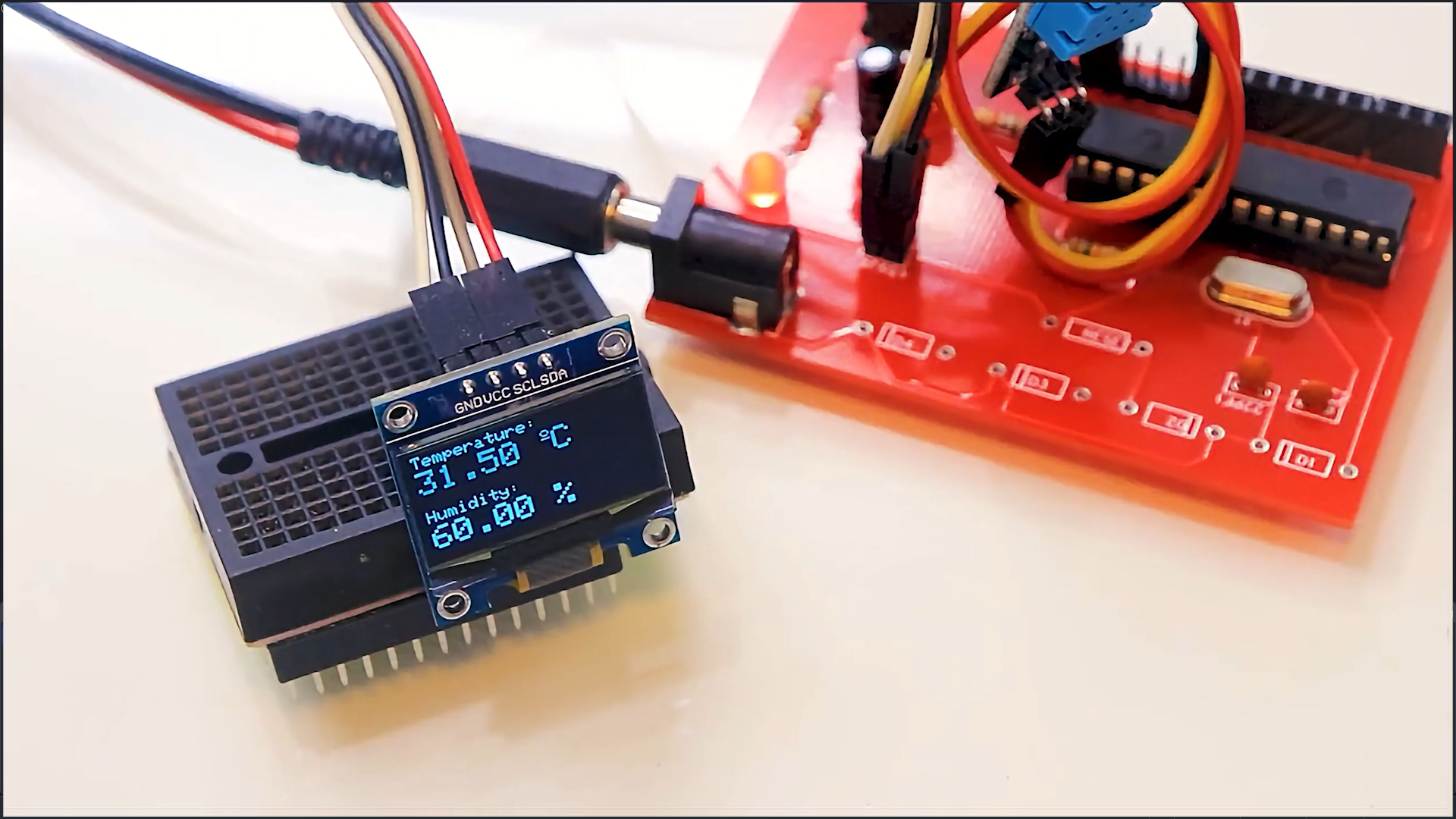
This Instructables guide shows you how to build a Room Temperature and Humidity Monitor Device using Arduino, a DHT sensor, and a 0.96” OLED display. This is a perfect beginner-friendly project for learning sensors, displays, and real-time environmental monitoring.
Supplies
Electronic Parts
- Arduino Uno / Nano
- DHT11 Temperature & Humidity Sensor
- 0.96" OLED Display (SSD1306, I2C)
- Jumper wires
- Breadboard
- USB cable
What You Will Make
In this project, you will make a compact digital device that:
- Measures room temperature (°C)
- Measures humidity (%)
- Displays values clearly on an OLED screen
- Updates readings automatically every few seconds
This project is ideal for:
- Home room monitoring
- Electronics beginners
- School & college projects
- DIY & STEM learning
Understanding the Circuit
Discover Easy, Affordable, and Reliable PCB manufacturing with JLCPCB!Register to get $70 New customer coupons:https://jlcpcb.com/?from=EST Special Deal: Get a $30 coupon for JLCPCB premium 6-layer PCBs: https://jlcpcb.com/6-layer-pcb?from=getcoupon
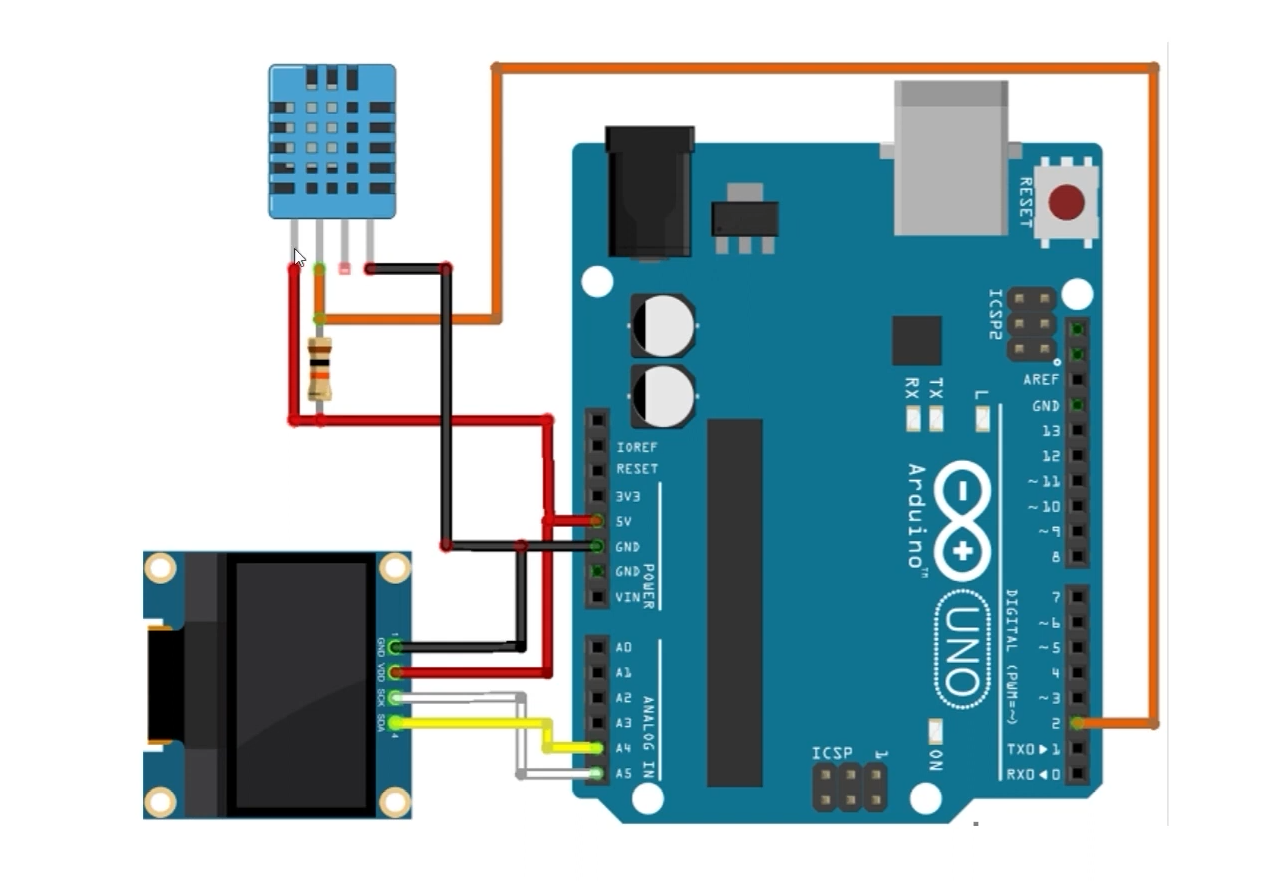
🔌 Power Connections
- Arduino provides 5V power to both the OLED and DHT sensor
- All GND pins must be connected together
🖥️ OLED Display (SSD1306 – I2C)
The OLED display shows temperature and humidity data.
Connections:
- VCC → 5V
- GND → GND
- SDA → SDA (A4 on Uno/Nano)
- SCL → SCL (A5 on Uno/Nano)
Why I2C OLED?
- Uses only 2 data wires
- Saves Arduino pins
- Fast communication
🌡️ DHT11 Sensor Connection
The DHT sensor measures temperature and humidity digitally.
Connections:
- VCC → 5V
- GND → GND
- DATA → Digital Pin D2
The sensor internally sends calibrated digital data, so no ADC conversion is needed.
This setup reads temperature and humidity data using a DHT11 sensor and displays it on an OLED screen, all controlled by an Arduino Uno.
⚙️ Arduino Uno
• Acts as the central controller
• Reads data from DHT11 via digital pin 2
• Sends display commands to OLED via I2C (A4/A5)
🧠 How It Works
1. Arduino powers up and initializes both the DHT11 and OLED.
2. It reads temperature and humidity from the DHT11.
3. It formats the data and sends it to the OLED screen.
4. The OLED displays the values in real-time.
Install Required Libraries
Open Arduino IDE → Library Manager and install:
- Adafruit GFX Library
- Adafruit SSD1306 Library
- Adafruit Unified Sensor
- DHT Sensor Library
These libraries simplify OLED graphics and DHT sensor communication.
Upload the Arduino Code
- Connect Arduino to PC
- Select correct Board and COM Port
- Upload the provided code
- OLED screen should turn ON after upload
#include <Wire.h>
#include <Adafruit_GFX.h>
#include <Adafruit_SSD1306.h>
#include <Adafruit_Sensor.h>
#include <DHT.h>
#define SCREEN_WIDTH 128 // OLED display width, in pixels
#define SCREEN_HEIGHT 64 // OLED display height, in pixels
// Declaration for an SSD1306 display connected to I2C (SDA, SCL pins)
Adafruit_SSD1306 display(SCREEN_WIDTH, SCREEN_HEIGHT, &Wire, -1);
#define DHTPIN 2 // Digital pin connected to the DHT sensor
// Uncomment the type of sensor in use:
#define DHTTYPE DHT11 // DHT 11
//#define DHTTYPE DHT22 // DHT 22 (AM2302)
//#define DHTTYPE DHT21 // DHT 21 (AM2301)
DHT dht(DHTPIN, DHTTYPE);
void setup() {
Serial.begin(115200);
dht.begin();
if(!display.begin(SSD1306_SWITCHCAPVCC, 0x3C)) {
Serial.println(F("SSD1306 allocation failed"));
for(;;);
}
delay(2000);
display.clearDisplay();
display.setTextColor(WHITE);
}
void loop() {
delay(5000);
//read temperature and humidity
float t = dht.readTemperature();
float h = dht.readHumidity();
if (isnan(h) || isnan(t)) {
Serial.println("Failed to read from DHT sensor!");
}
//clear display
display.clearDisplay();
// display temperature
display.setTextSize(1);
display.setCursor(0,0);
display.print("Temperature: ");
display.setTextSize(2);
display.setCursor(0,10);
display.print(t);
display.print(" ");
display.setTextSize(1);
display.cp437(true);
display.write(167);
display.setTextSize(2);
display.print("C");
// display humidity
display.setTextSize(1);
display.setCursor(0, 35);
display.print("Humidity: ");
display.setTextSize(2);
display.setCursor(0, 45);
display.print(h);
display.print(" %");
display.display();
}
Arduino Code Explanation
📚 Library Section
The code starts by including required libraries for I2C, OLED graphics, and the DHT sensor.
- Wire.h → I2C communication
- Adafruit_GFX.h → Graphics functions
- Adafruit_SSD1306.h → OLED driver
- Adafruit_Sensor.h → Unified sensor support
- DHT.h → DHT sensor handling
🖥️ OLED Configuration
The OLED resolution is defined as 128×64 pixels. An OLED object is created using I2C communication with address 0x3C.
🌡️ DHT Sensor Setup
- DHT sensor data pin is connected to digital pin 2
- Sensor type is defined as DHT11
- dht.begin() initializes the sensor
⚙️ setup() Function
Inside setup():
- Serial communication starts for debugging
- DHT sensor initializes
- OLED display initializes
- Display is cleared and text color set to WHITE
If OLED initialization fails, the program stops to prevent errors.
🔁 loop() Function Logic
- Program waits 5 seconds between readings
- Reads temperature and humidity values
- Checks for sensor reading errors
- Clears the OLED display
- Prints temperature in °C
- Prints humidity in percentage (%)
- Refreshes the OLED display
This loop runs continuously, updating data in real time.
Final Output
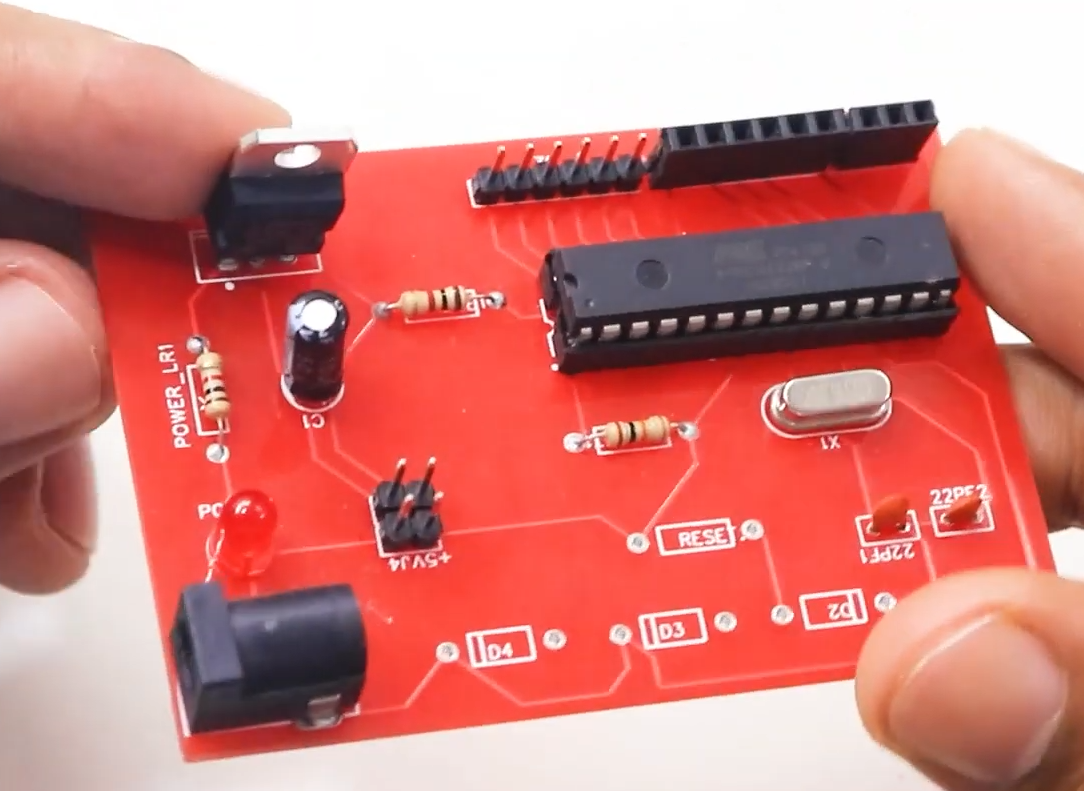
You now have a working Room Temperature & Humidity Monitor 📟
- Clear OLED display
- Accurate readings
- Compact design
Possible Upgrades
🌡️ Use DHT22 for better accuracy
📊 Add min/max temperature memory
🔔 Add buzzer for alert
🔋 Add battery power
📶 Add WiFi (ESP8266 / ESP32)
Conclusion
This project demonstrates how to combine sensors and displays with Arduino to create a practical monitoring device. It’s simple, educational, and easily expandable.
Perfect for beginners and makers who want to learn real-world Arduino applications.