🎃 Stained Glass Halloween Lantern (3D Printed & Resin)
by Lina Maria in Design > 3D Design
882 Views, 7 Favorites, 0 Comments
🎃 Stained Glass Halloween Lantern (3D Printed & Resin)
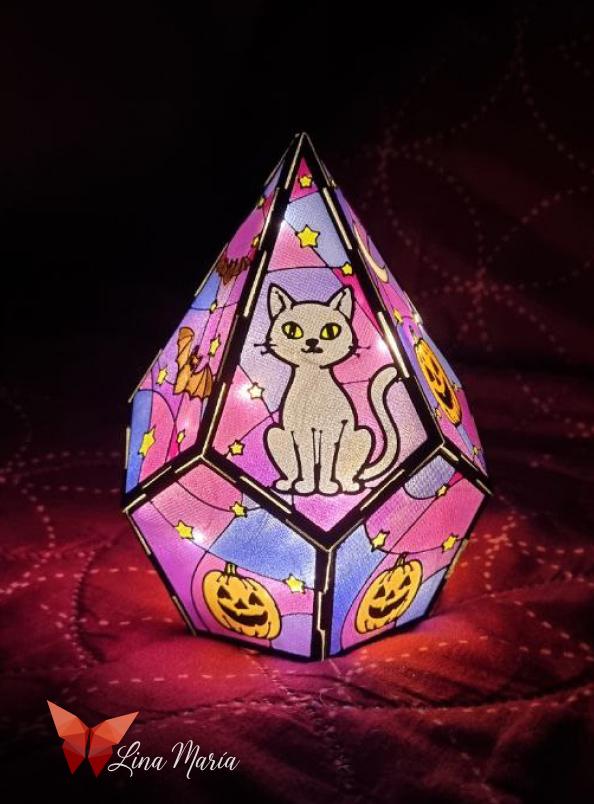
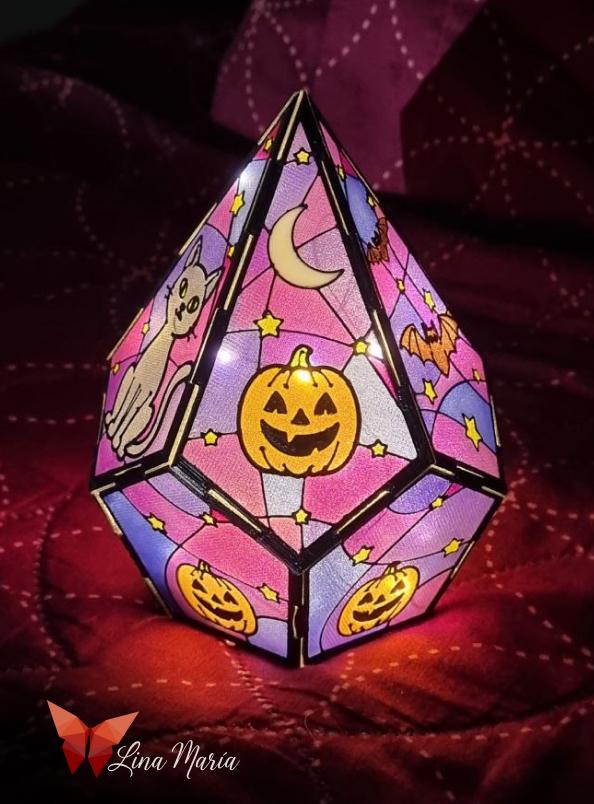
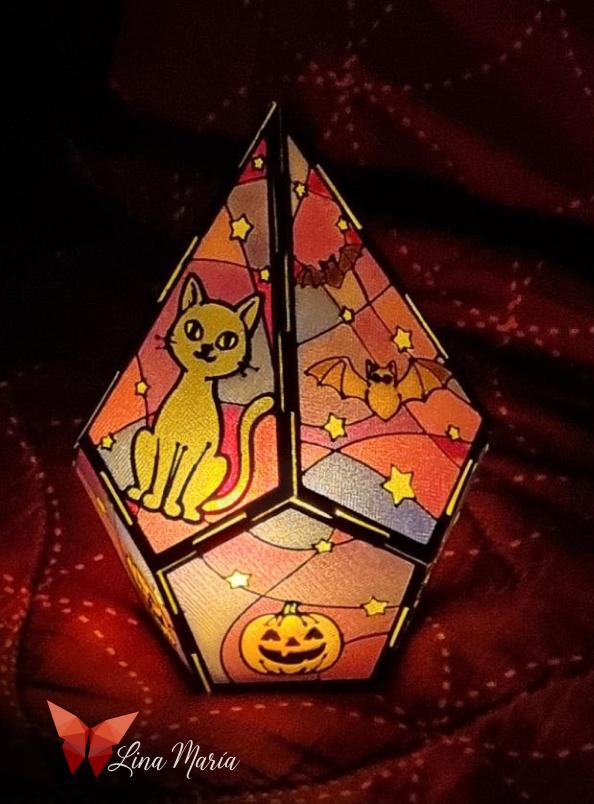
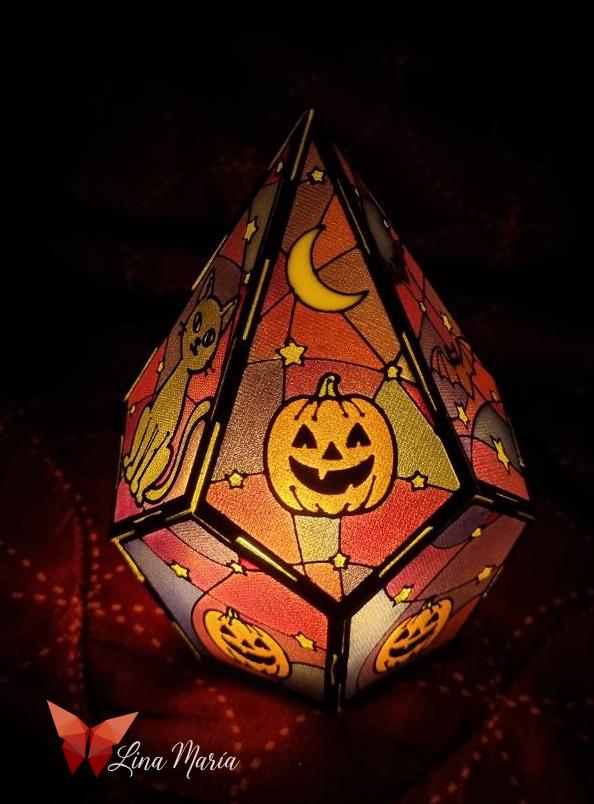
Get ready to spook up your space with this unique Halloween lantern! This project combines 3D printing and colored resin to create a beautiful, stained-glass effect. It's designed to be assembled like a puzzle and illuminated with LED lights, perfect for adding a hauntingly elegant touch to your décor.
Supplies
3D Printer and filament (Translucent and Black/Dark)
CAD Software (e.g., Autodesk Inventor)
Vector Graphics Software (e.g., Adobe Illustrator)
Epoxy Resin (two-part compound)
Resin colorants/pigments
Small mixing cups and stir sticks
LED lights (tea-light candle or small LED strip)
Design the Base Shape (Bottom)
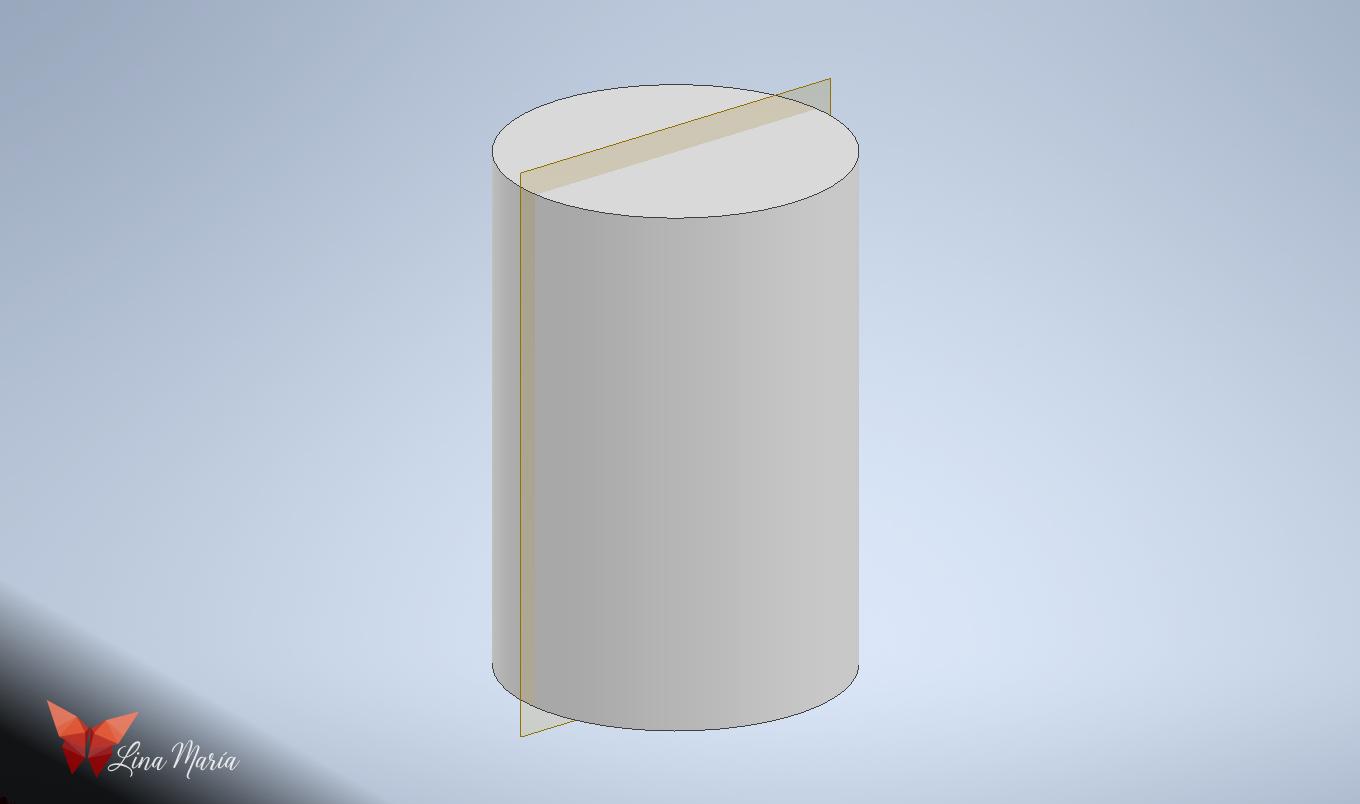
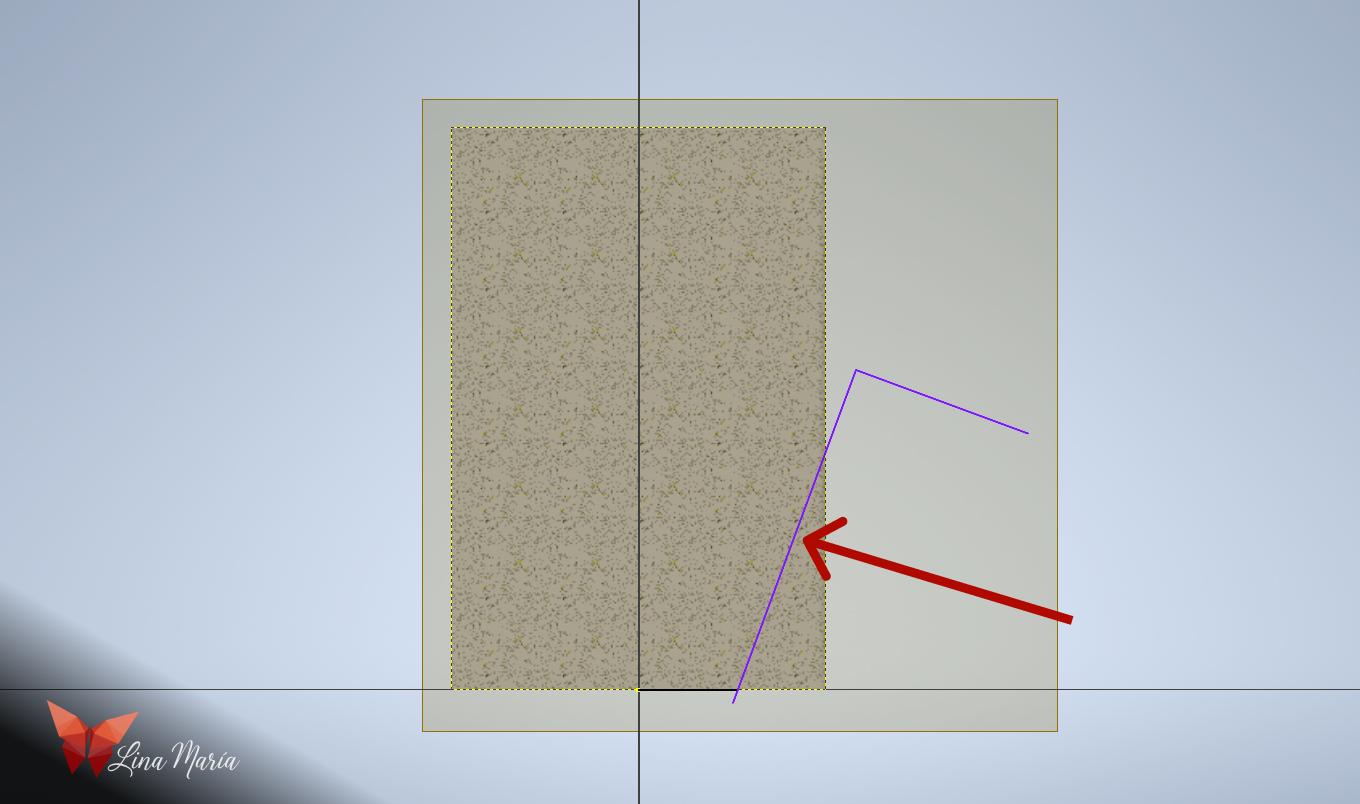
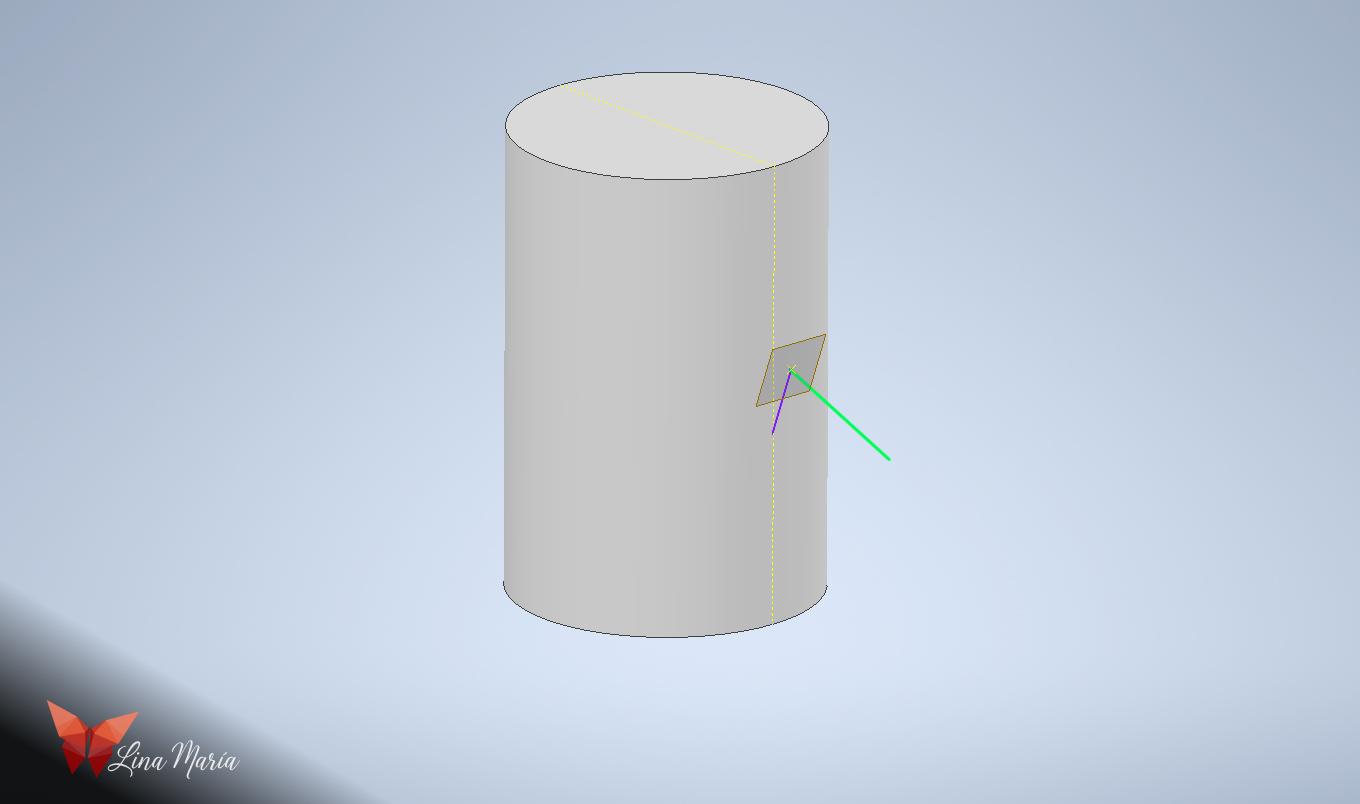
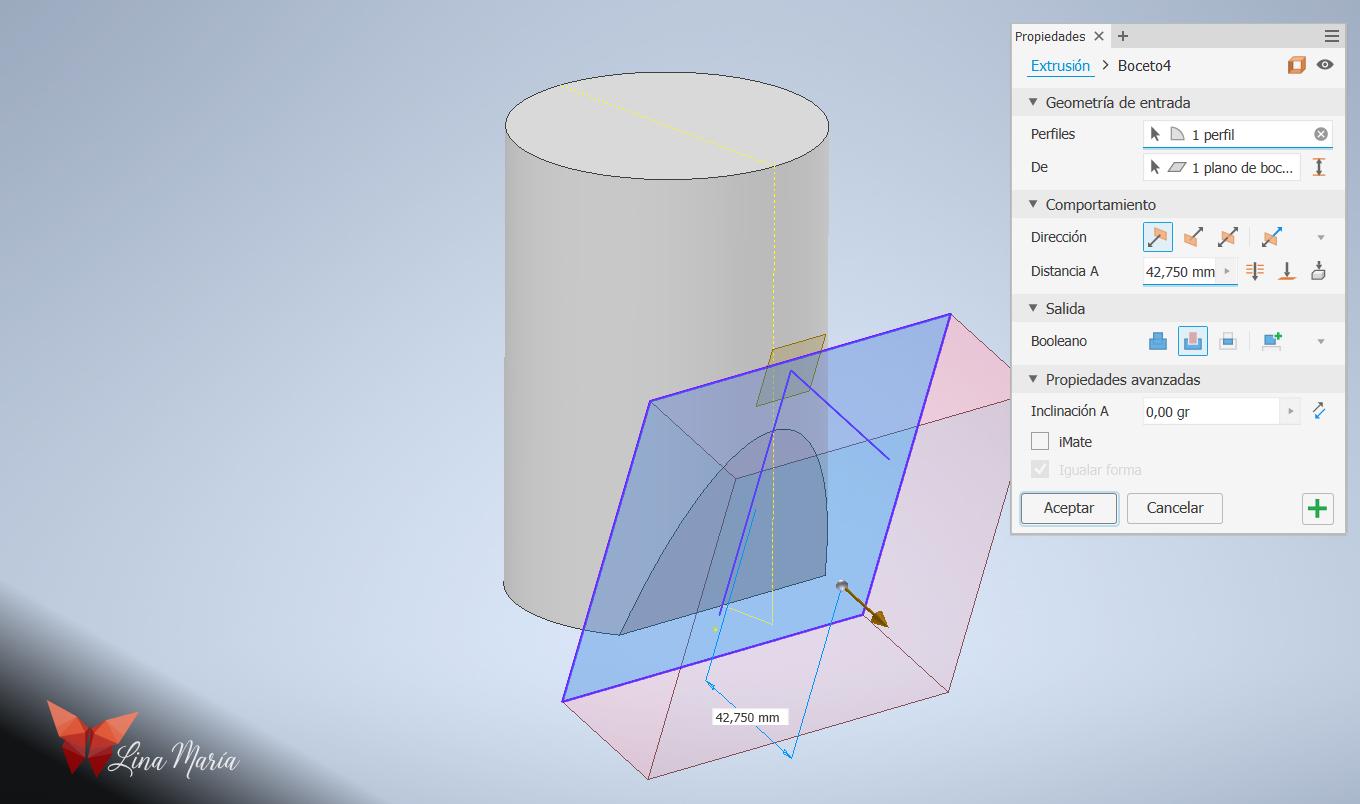
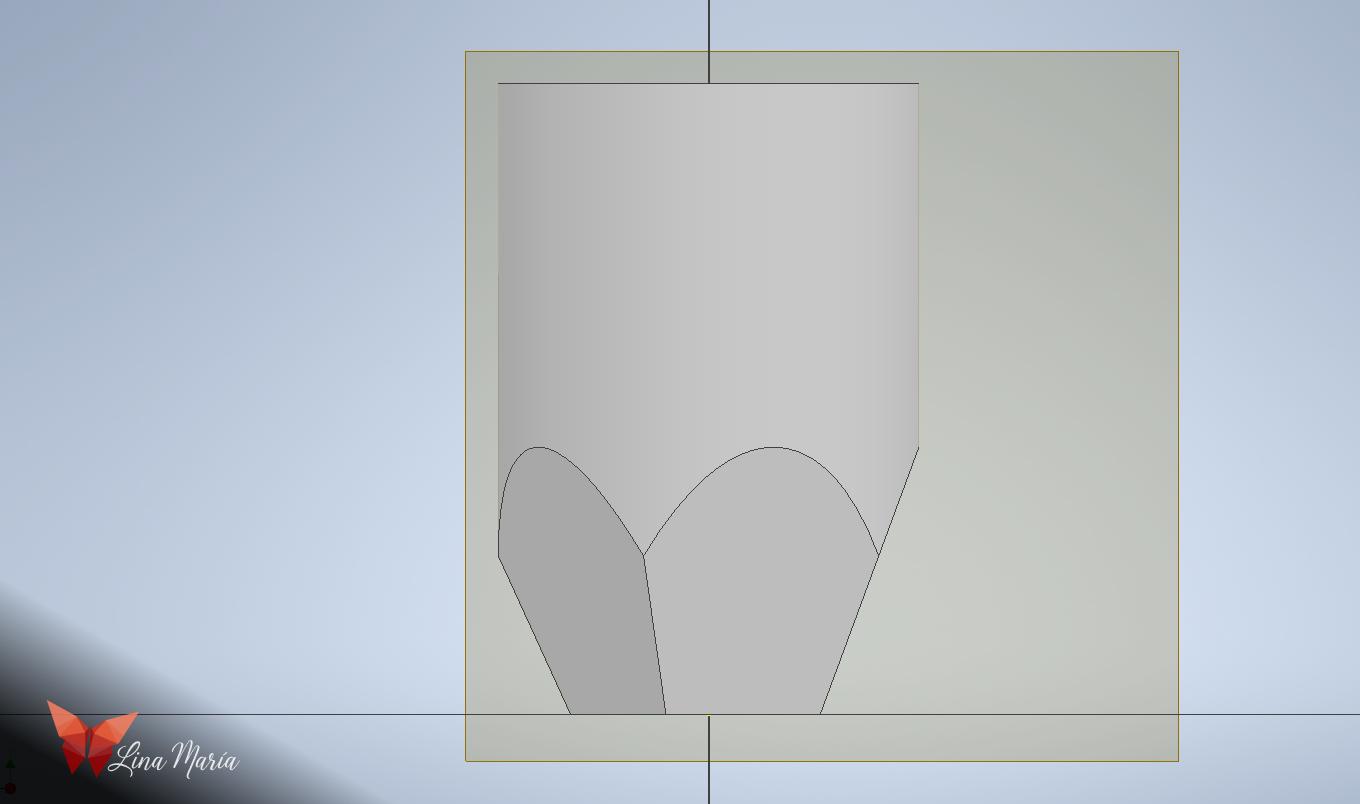
- Start in Autodesk Inventor by creating a sketch with a circle and then extruding it to form a cylinder.
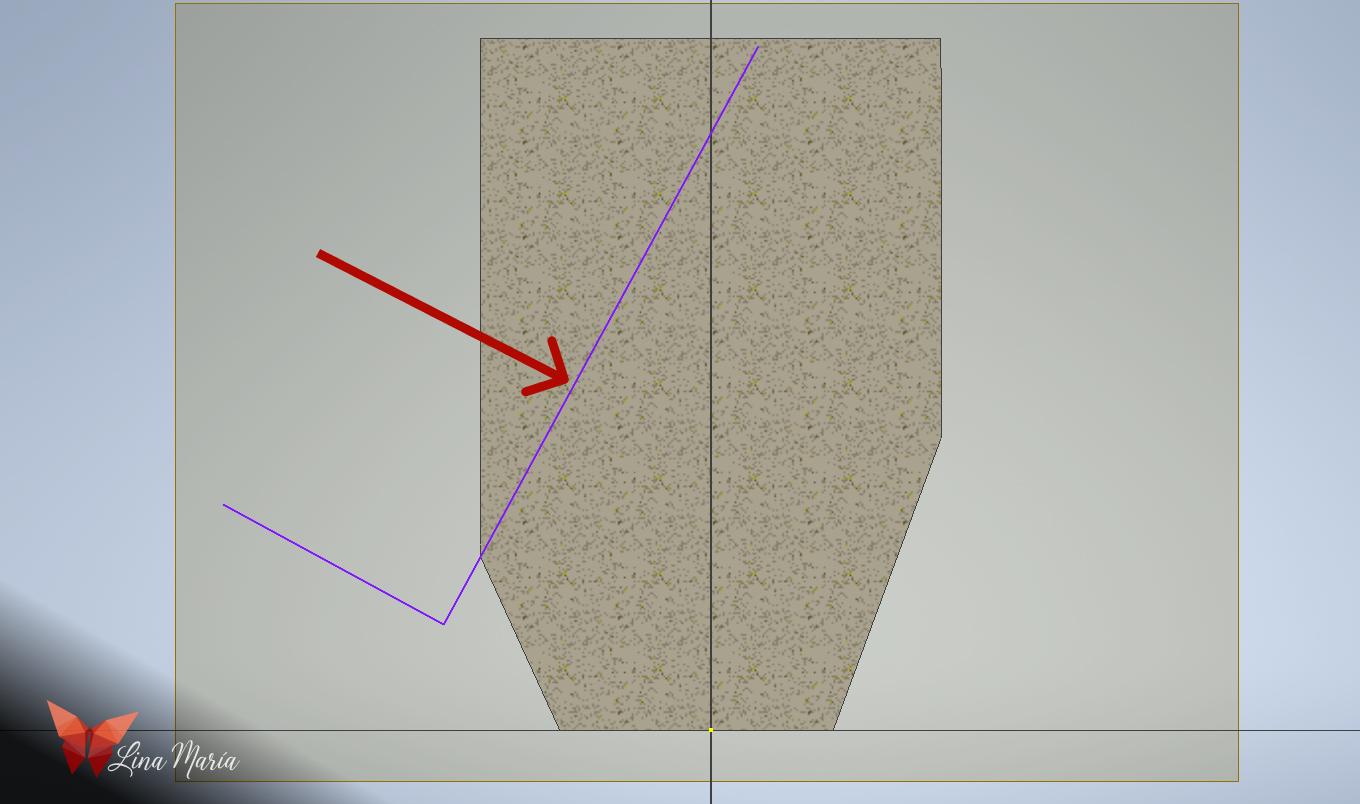
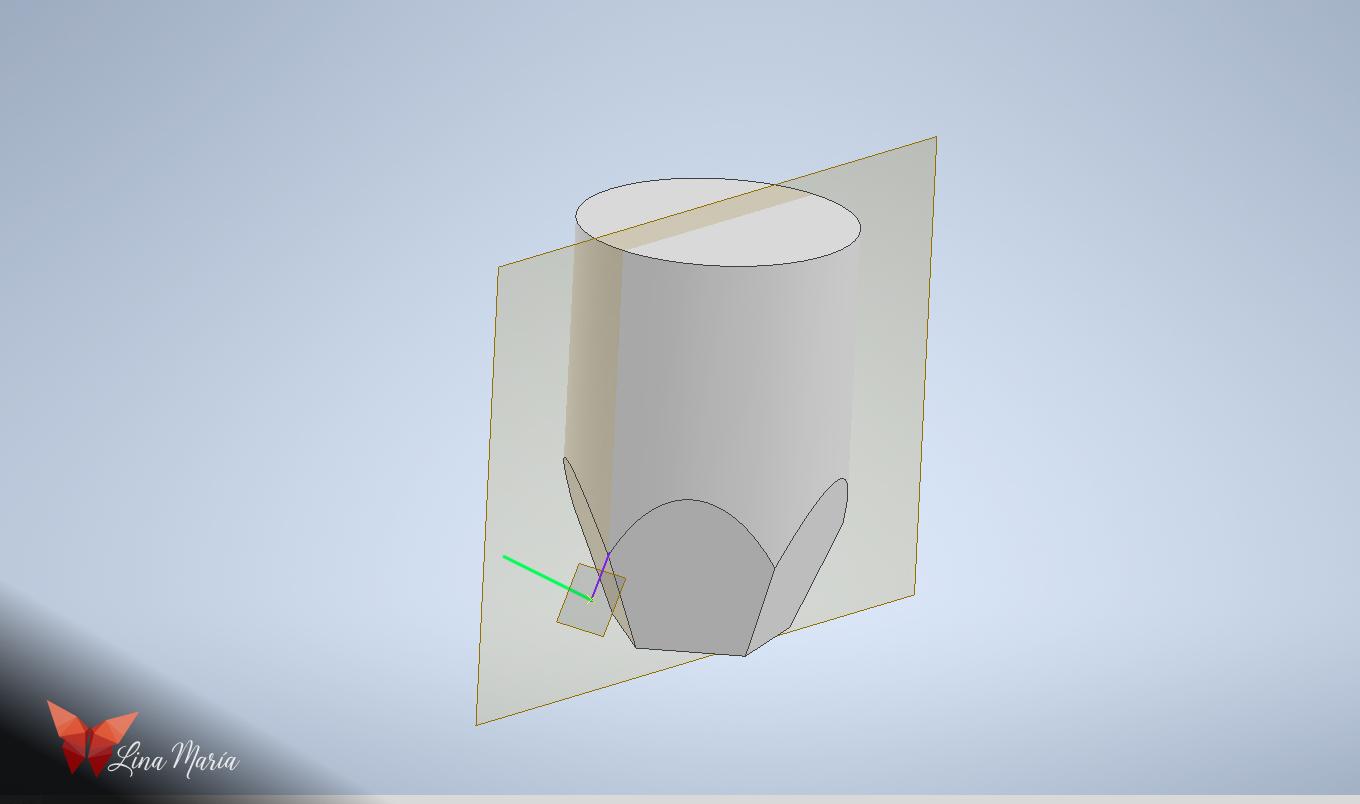
- Create a new sketch on a vertical plane that passes through the center of the circle, and draw some lines. (The red arrow in the images points to a line with the desired incline for the bottom faces of the lantern. At the upper end of this line, draw a perpendicular line. This is used with the "create plane" option to create a plane at a point, perpendicular to a line.)
- Select this new plane for a new sketch. Draw a large square on it and extrude it as a void/cut outwards.
- Use the circular pattern tool to repeat this extrusion process. Select the cylinder as the axis and select to repeat it 5 times.
Design the Base Shape (Top)
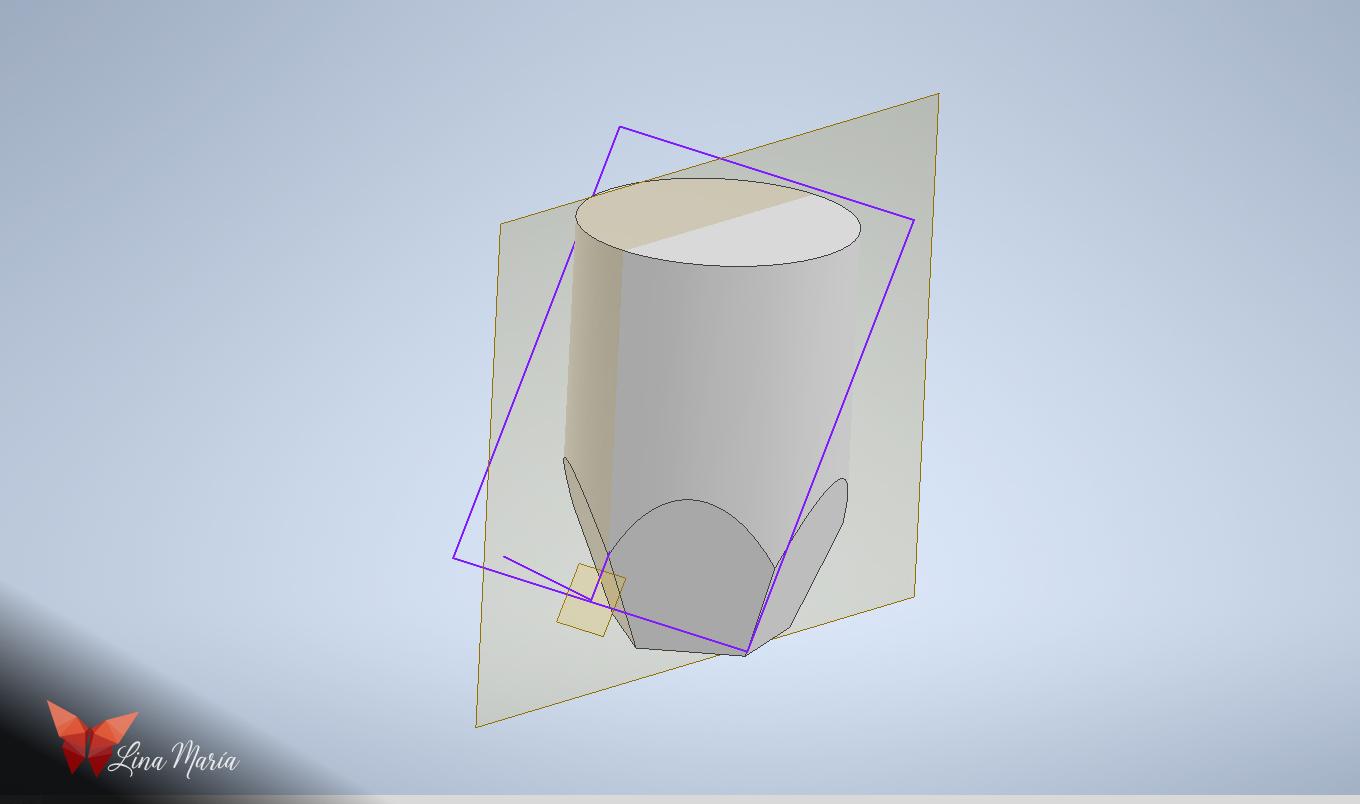
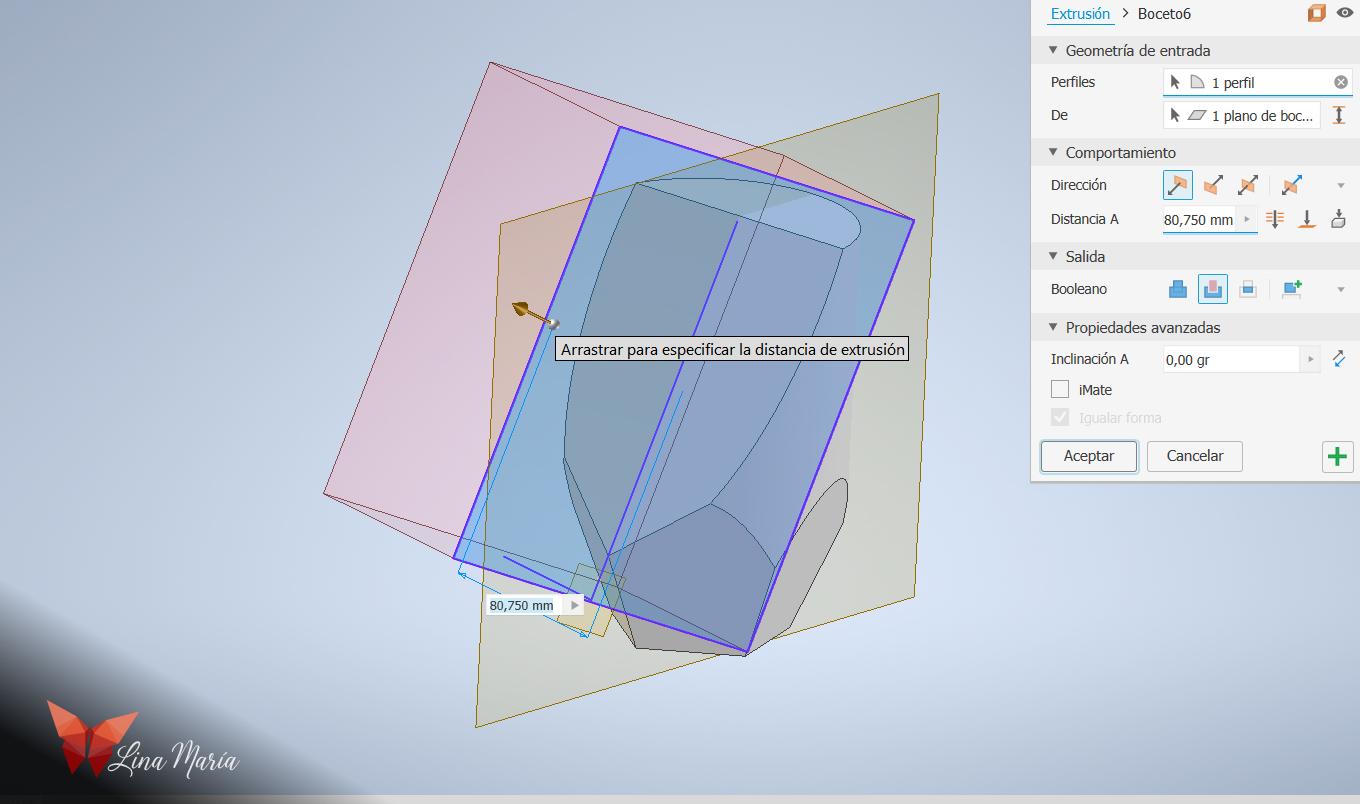
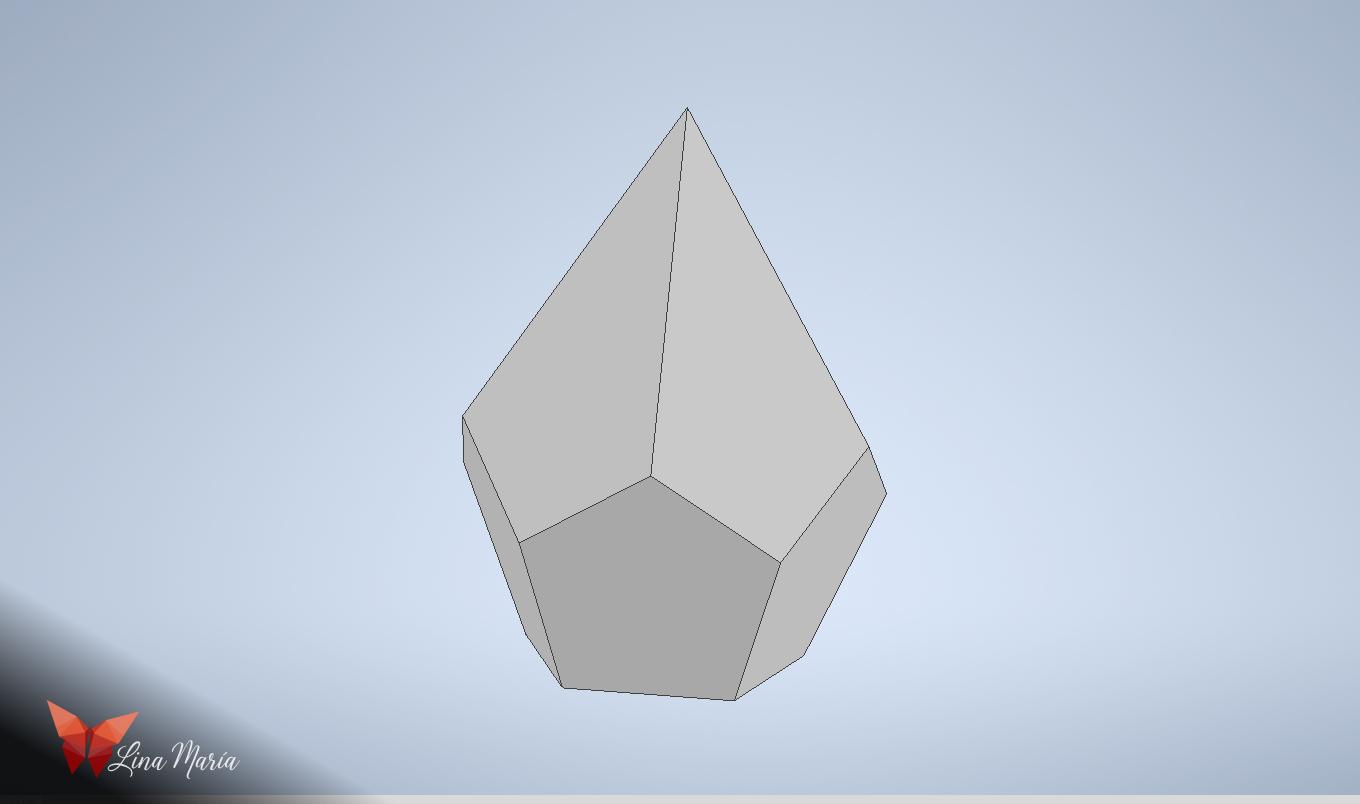
Repeat the same process for the top part. Use the same plane you used the first time for the lines you drew. Create a new sketch on this plane, but this time draw the lines on the left side instead of the right. Repeat the exact same extrusion and circular pattern steps you performed in Step 1.
Create the Frames and Inner Shell
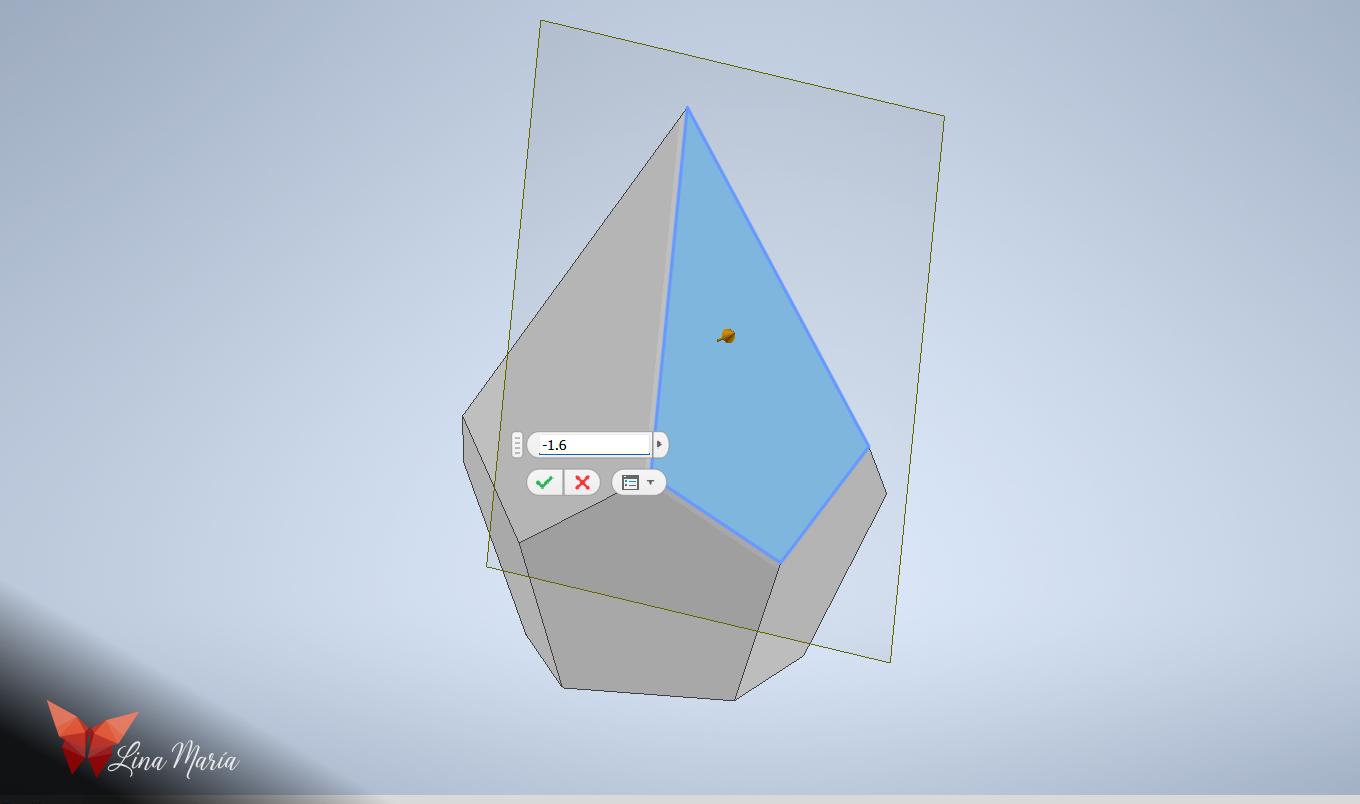
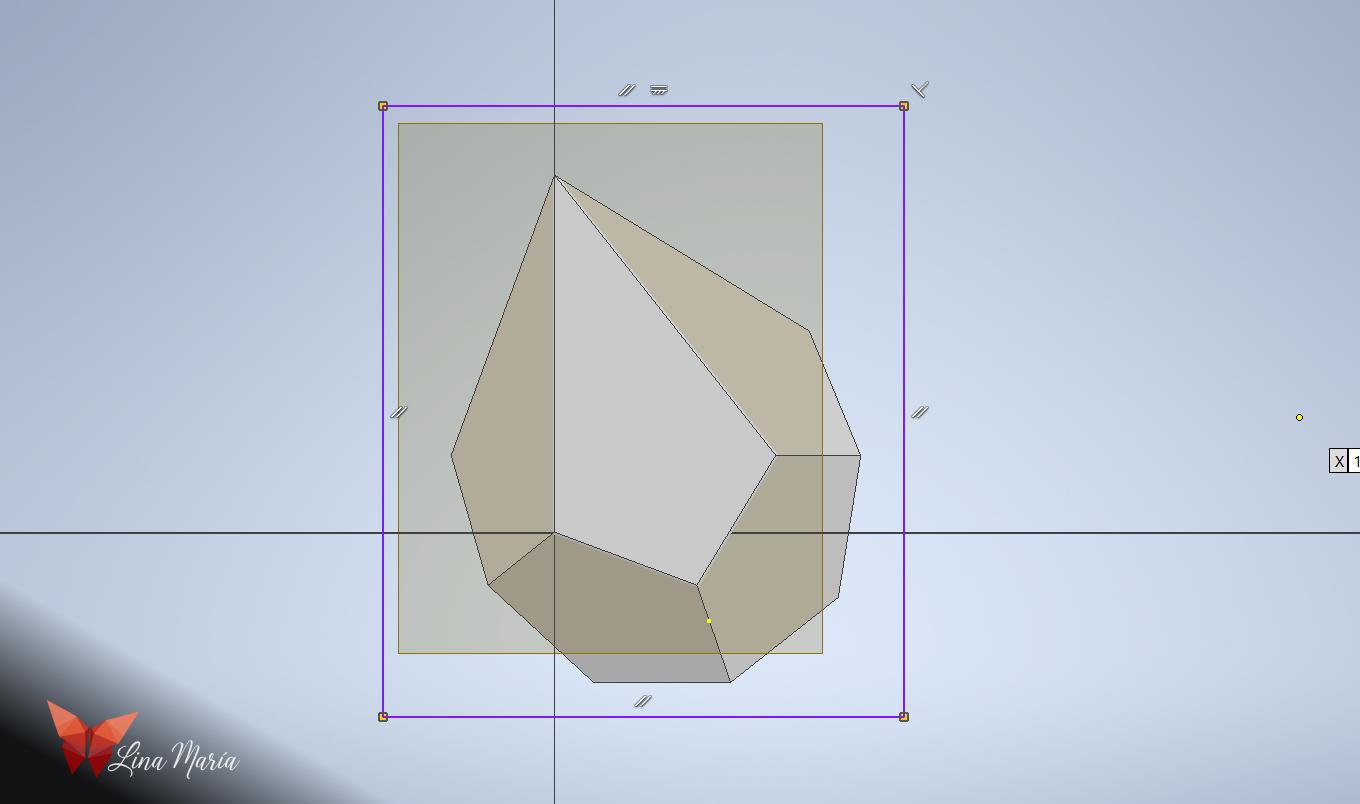
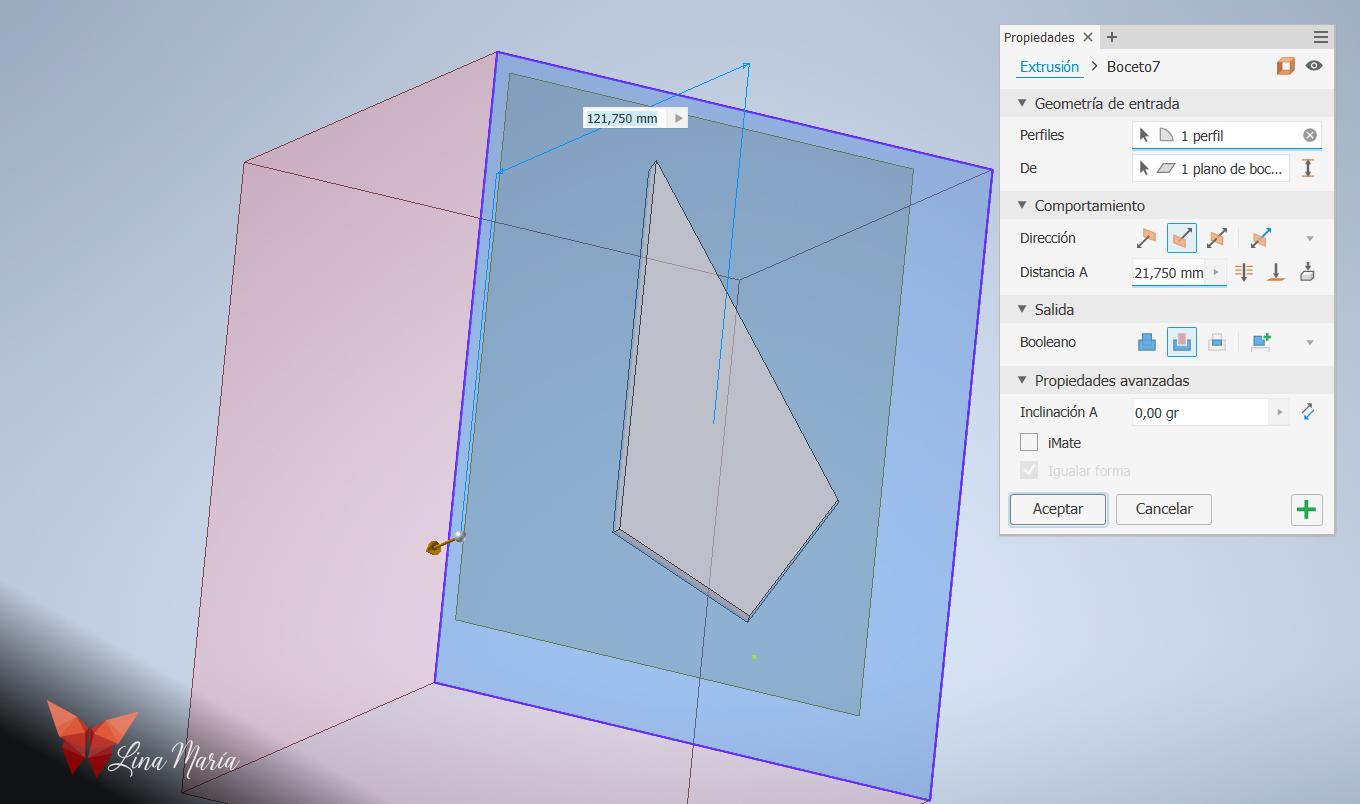
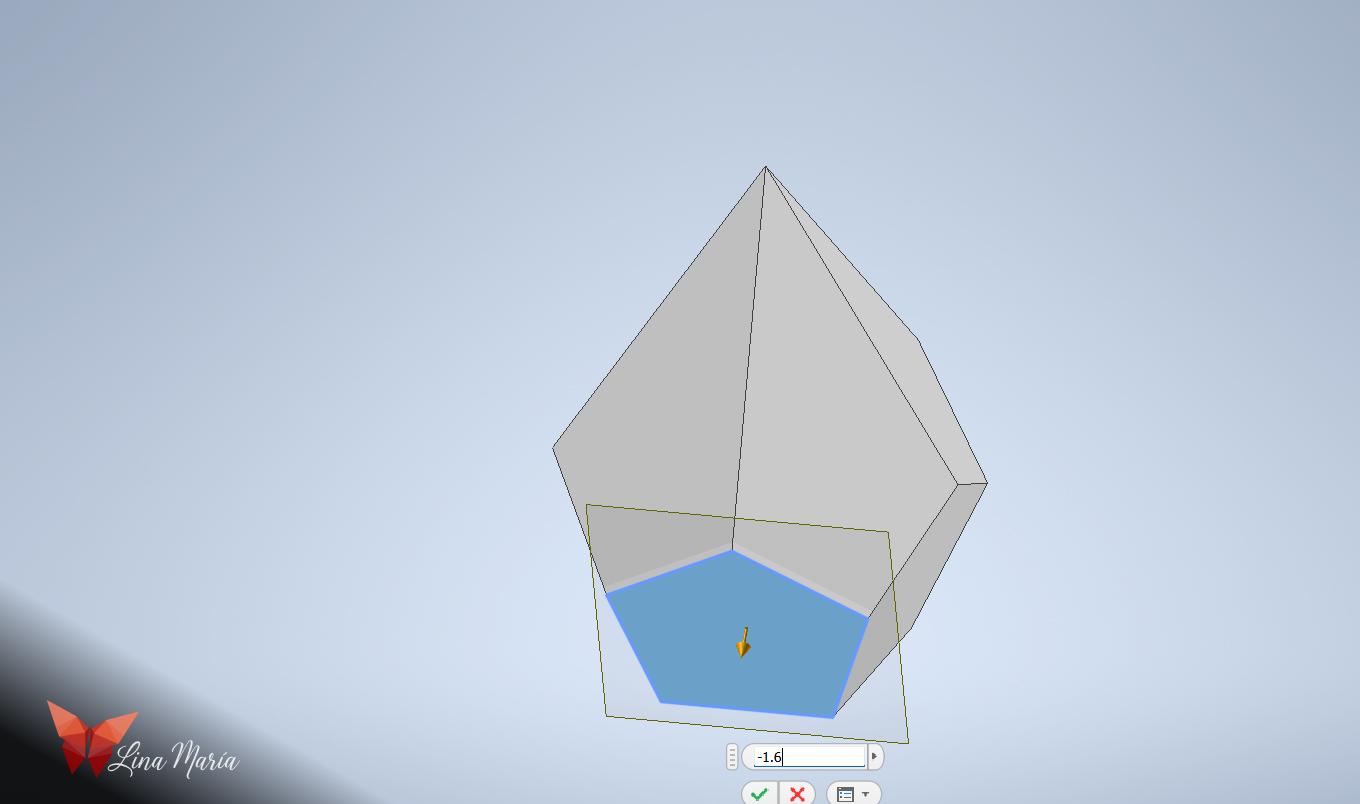

- Once the desired lantern shape is complete, choose one of the faces (side panels) and create a plane parallel to it. Create this new plane with an offset of 1.6 mm.
- Draw a square in a sketch on this new plane and extrude it as a void/cut. This creates the hollow frame outline.
- Save the file with a different name.
- Repeat the process with one of the bottom faces.
Design the Top Face Piece (Face A)
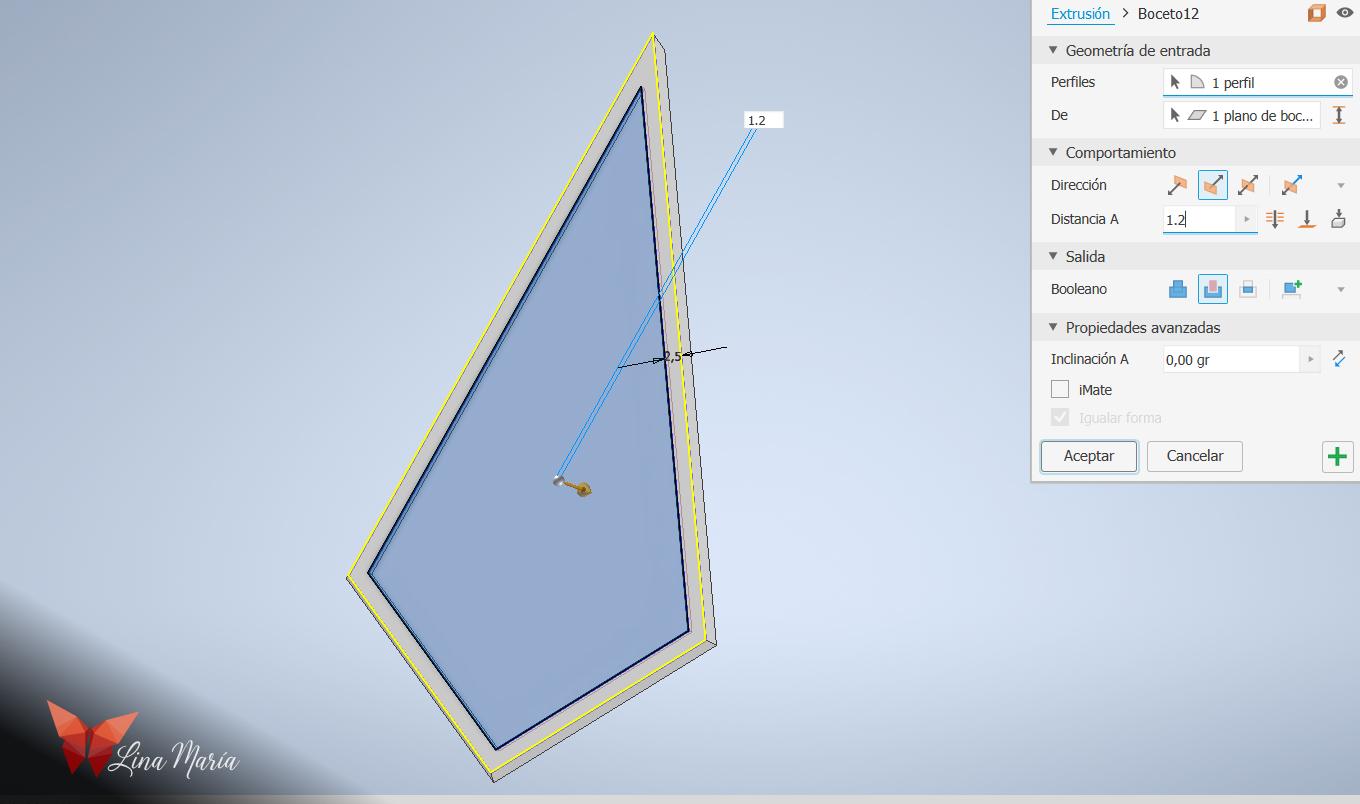
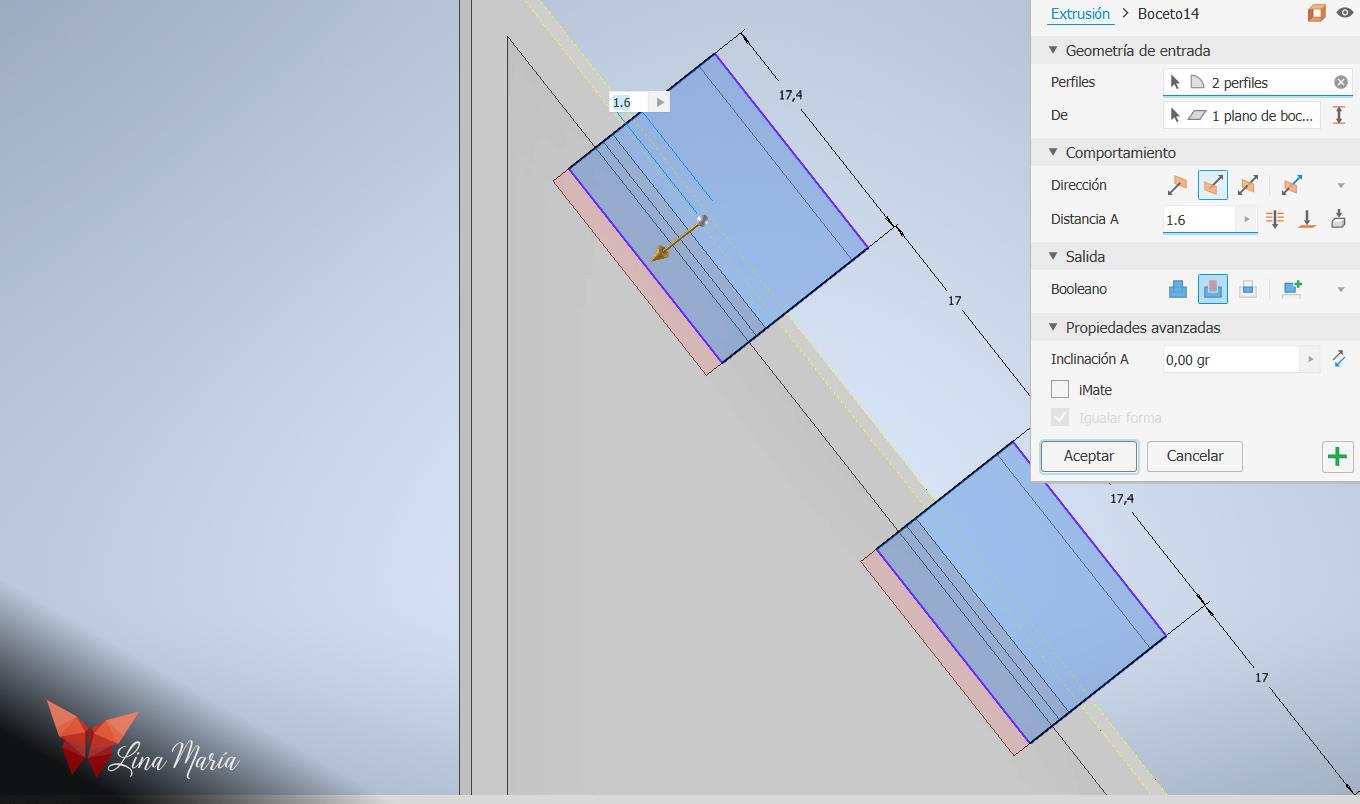
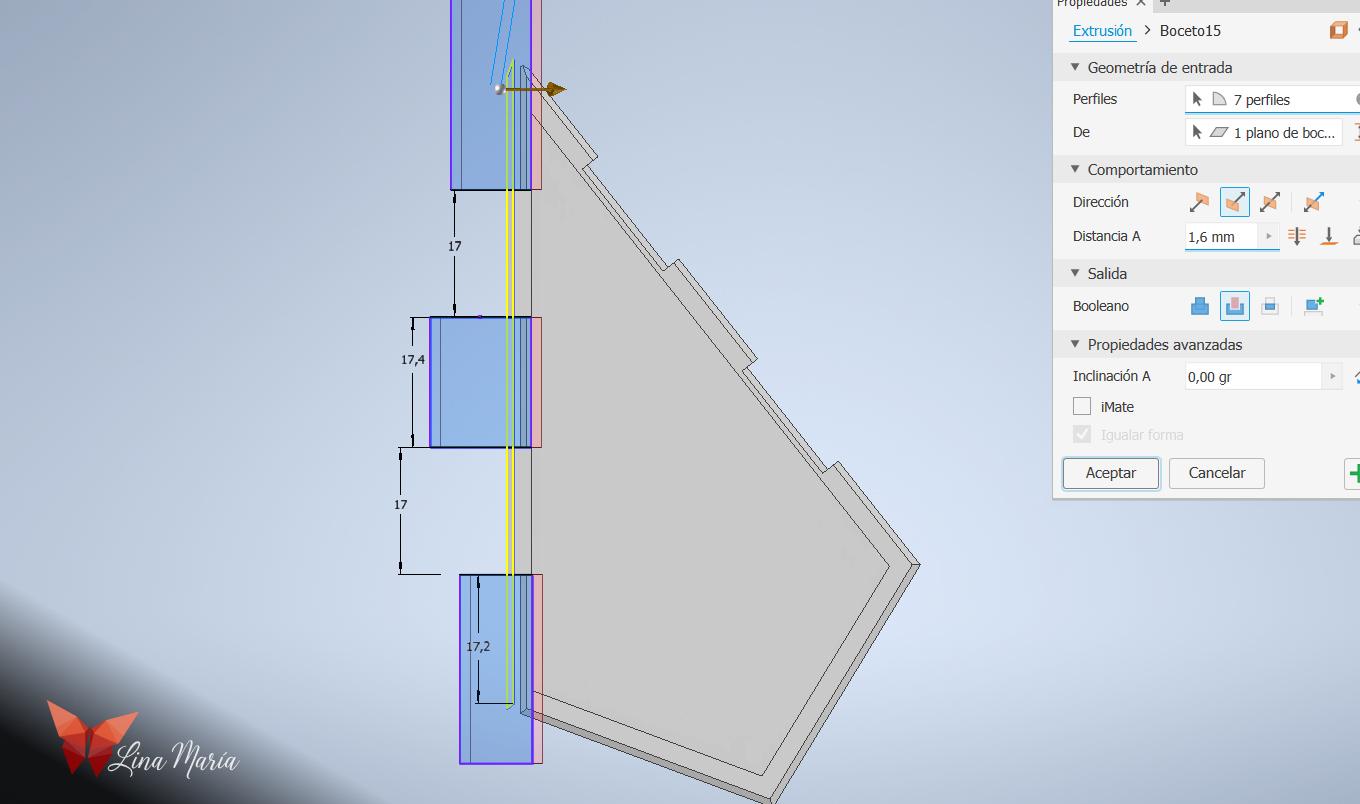

- Using the file for the top faces (which we will now call Face A), cut out some rectangles on the two upper sides. This is to create a puzzle-like joint for assembly.
- Open a new assembly file to test the fit and ensure they connect properly.
Design the Bottom Face Piece (Face B) and Joints

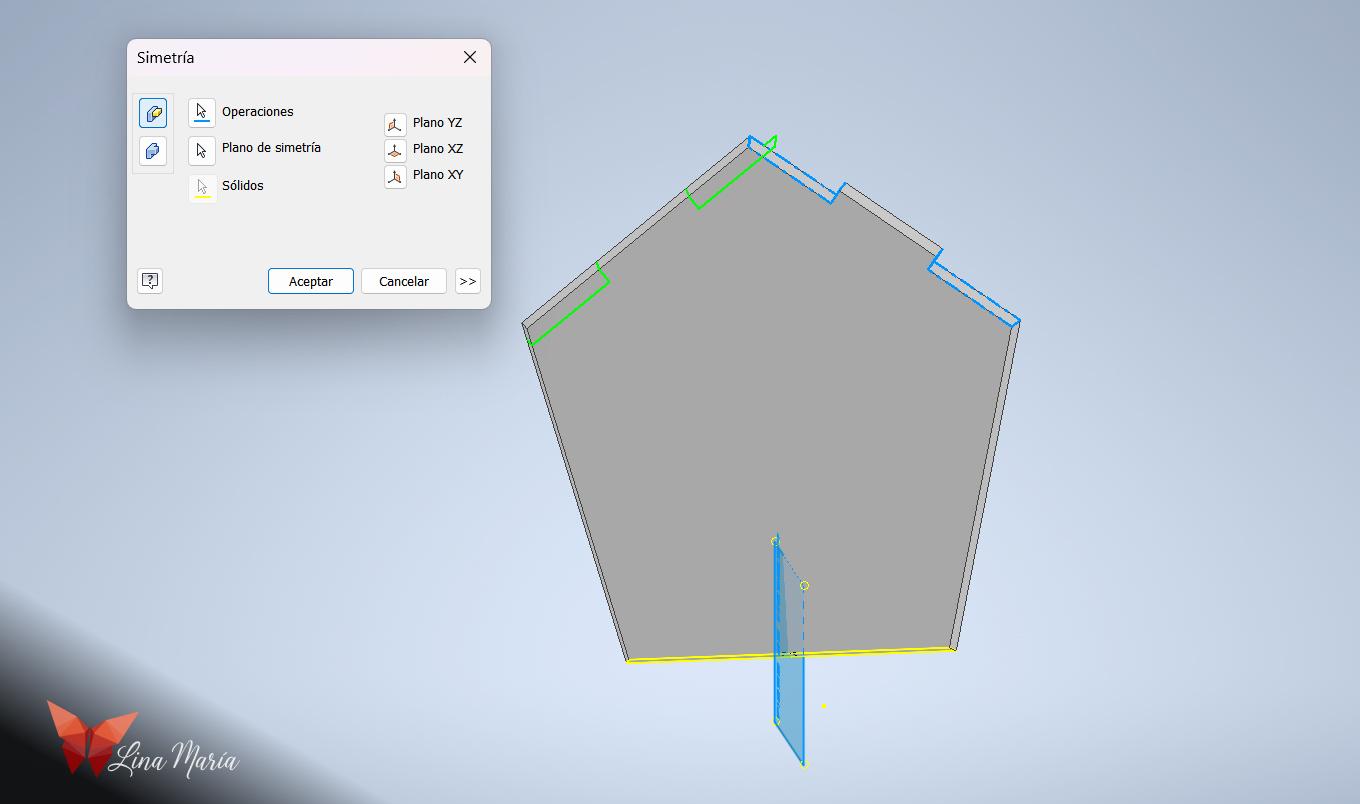
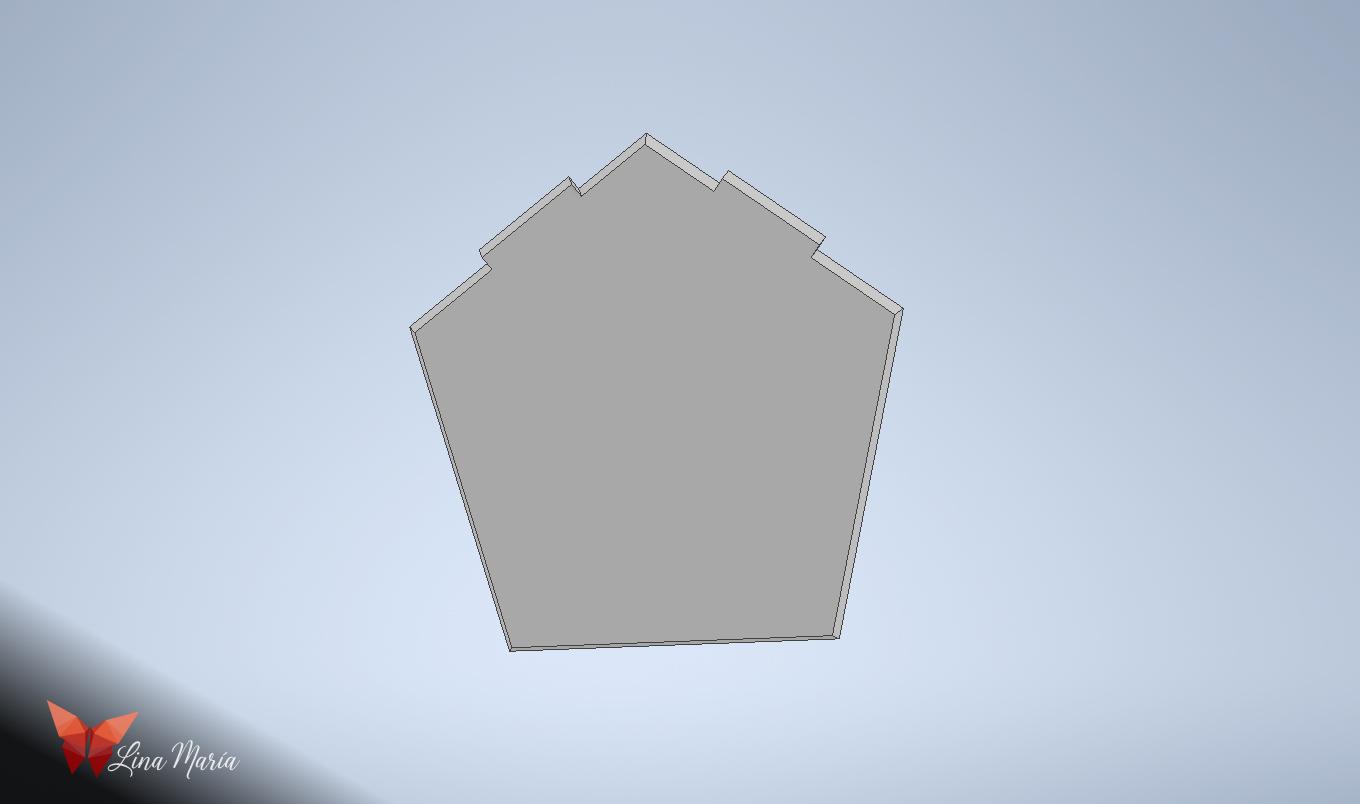
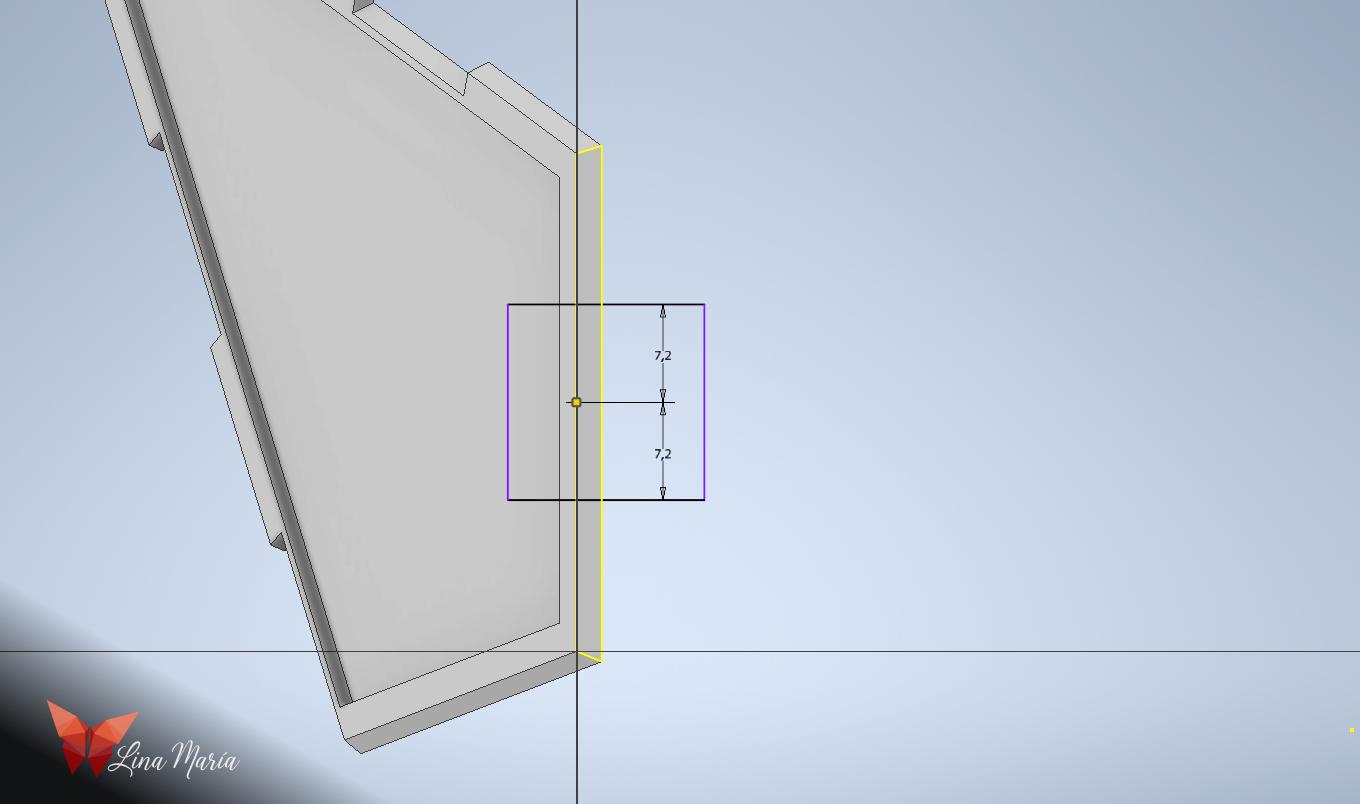
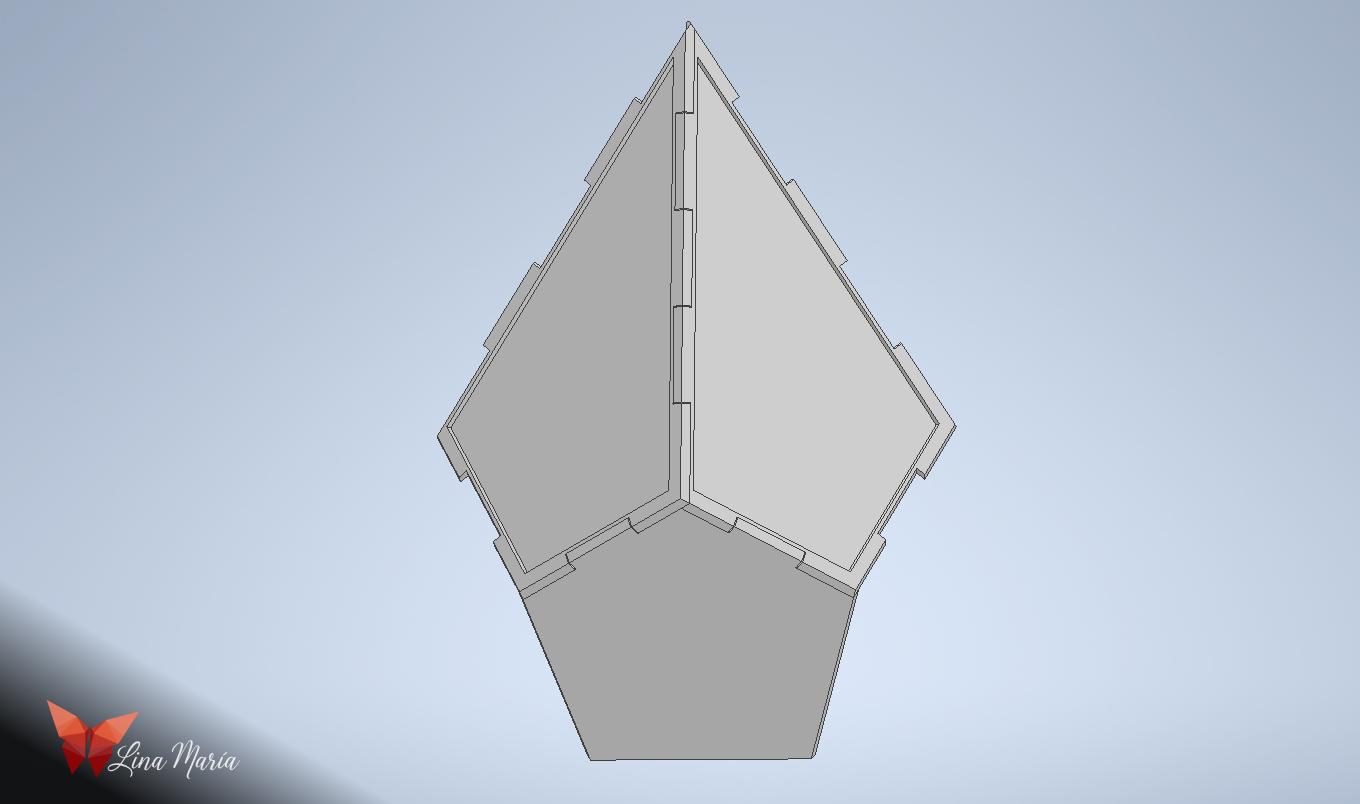
- Using the file for the bottom faces (which we will now call Face B), cut out rectangles again on the upper part of the figure.
- To ensure both sides are identical, use the symmetry tool to repeat the process.
- On Face A, make some corresponding cuts on the bottom part so they can assemble with the cuts on Face B.
- Test the fit again in the assembly file.
Join Face B Pieces
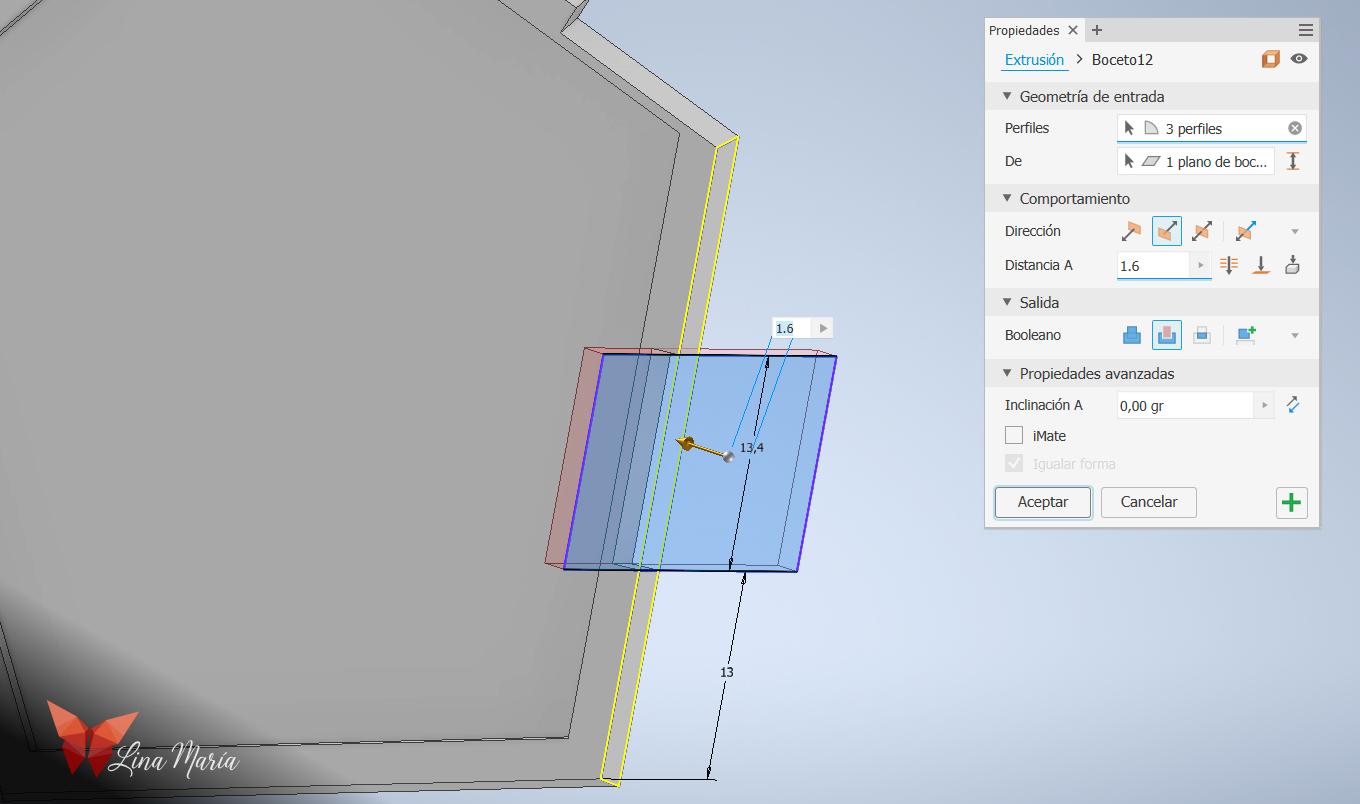

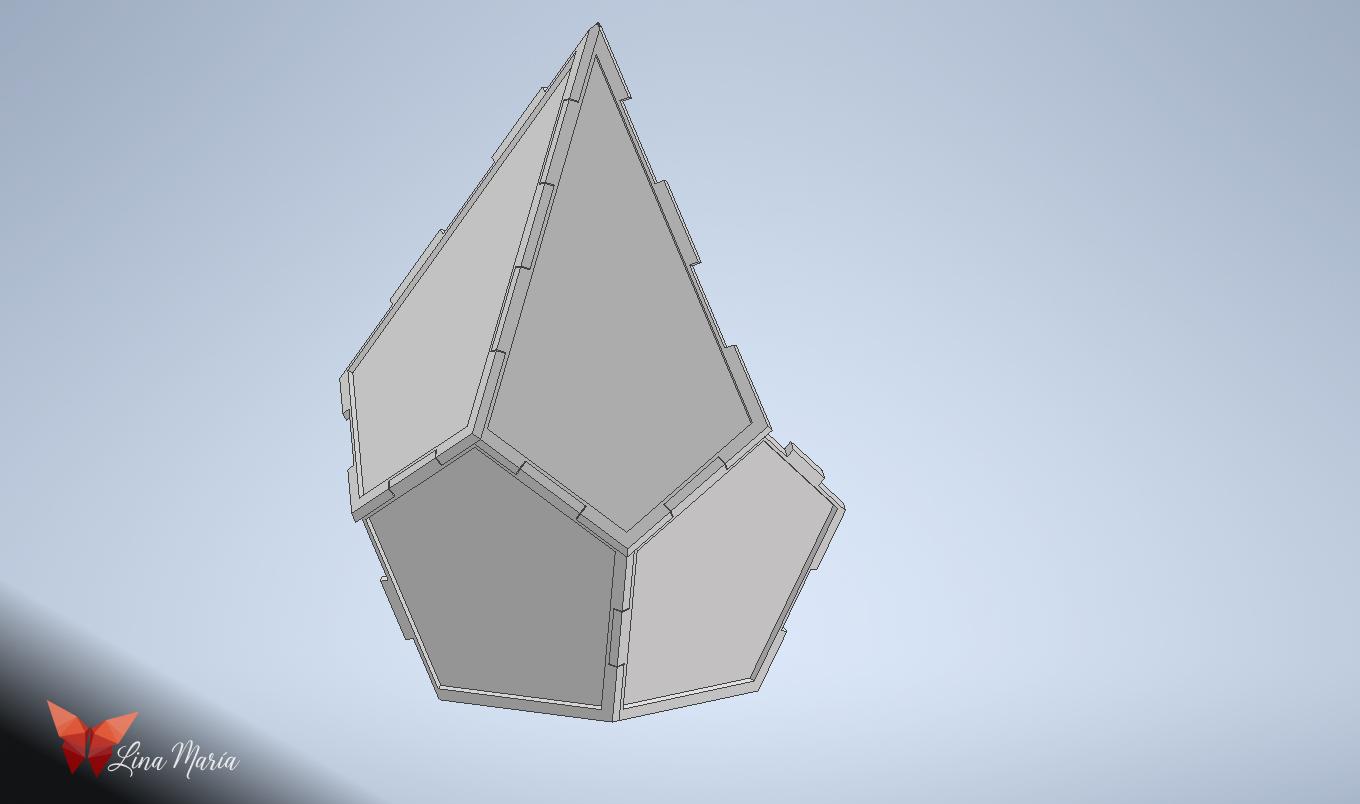
To allow the Face B pieces to join with each other, perform a similar process to Step 4.
- Create cuts with rectangles that allow them to join together like a puzzle.
Prepare the Halloween Design in Illustrator
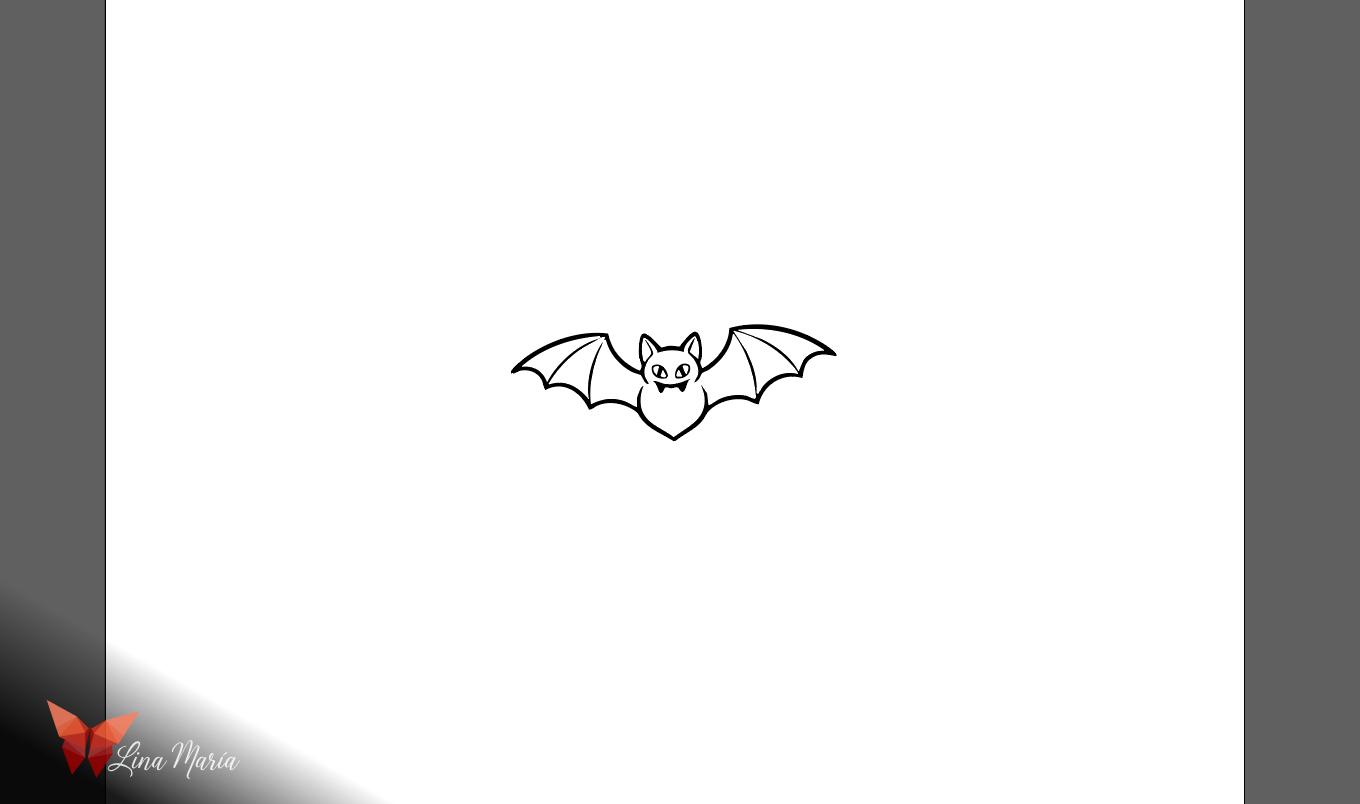
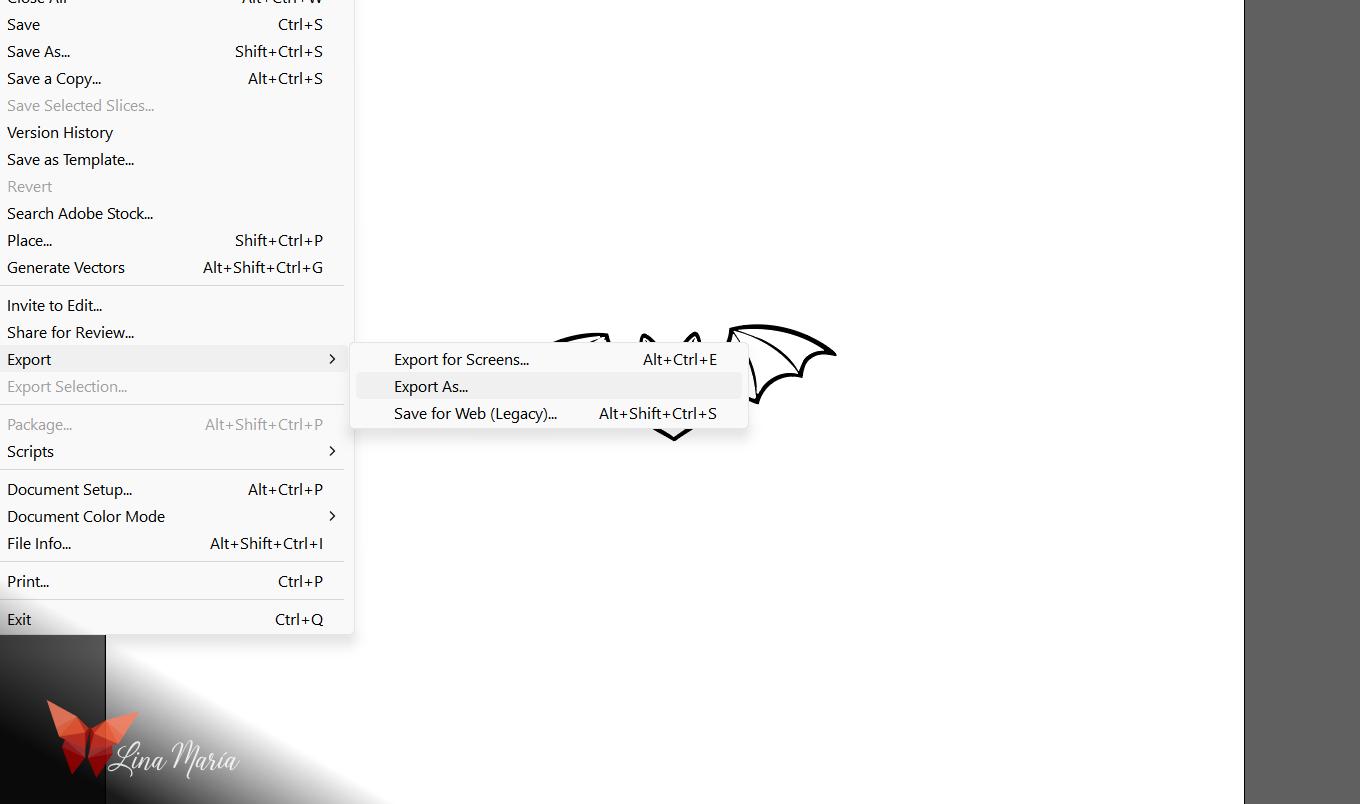
- In a program like Illustrator, open, trace, and draw some Halloween figures that you like.
- Export the figures with the DWG extension.
Import the Design to Inventor
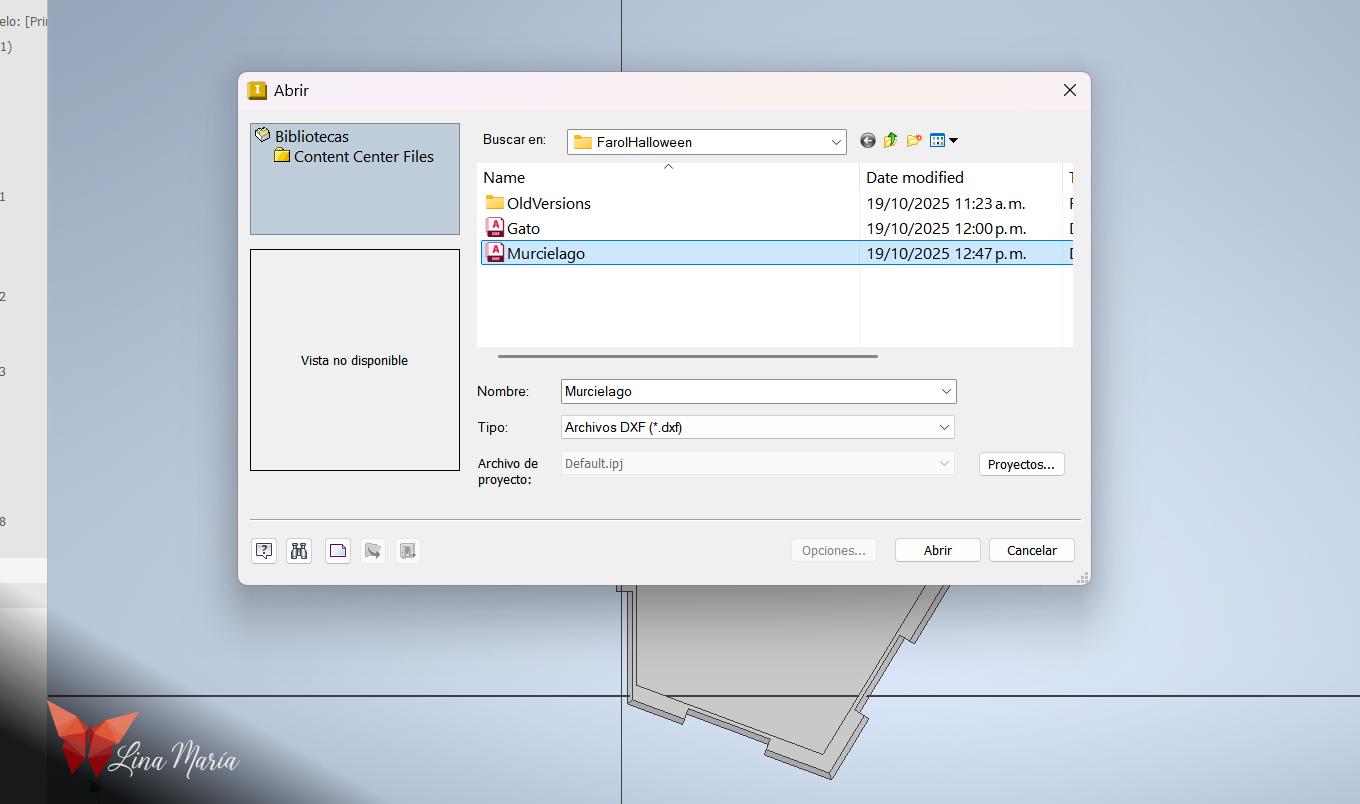
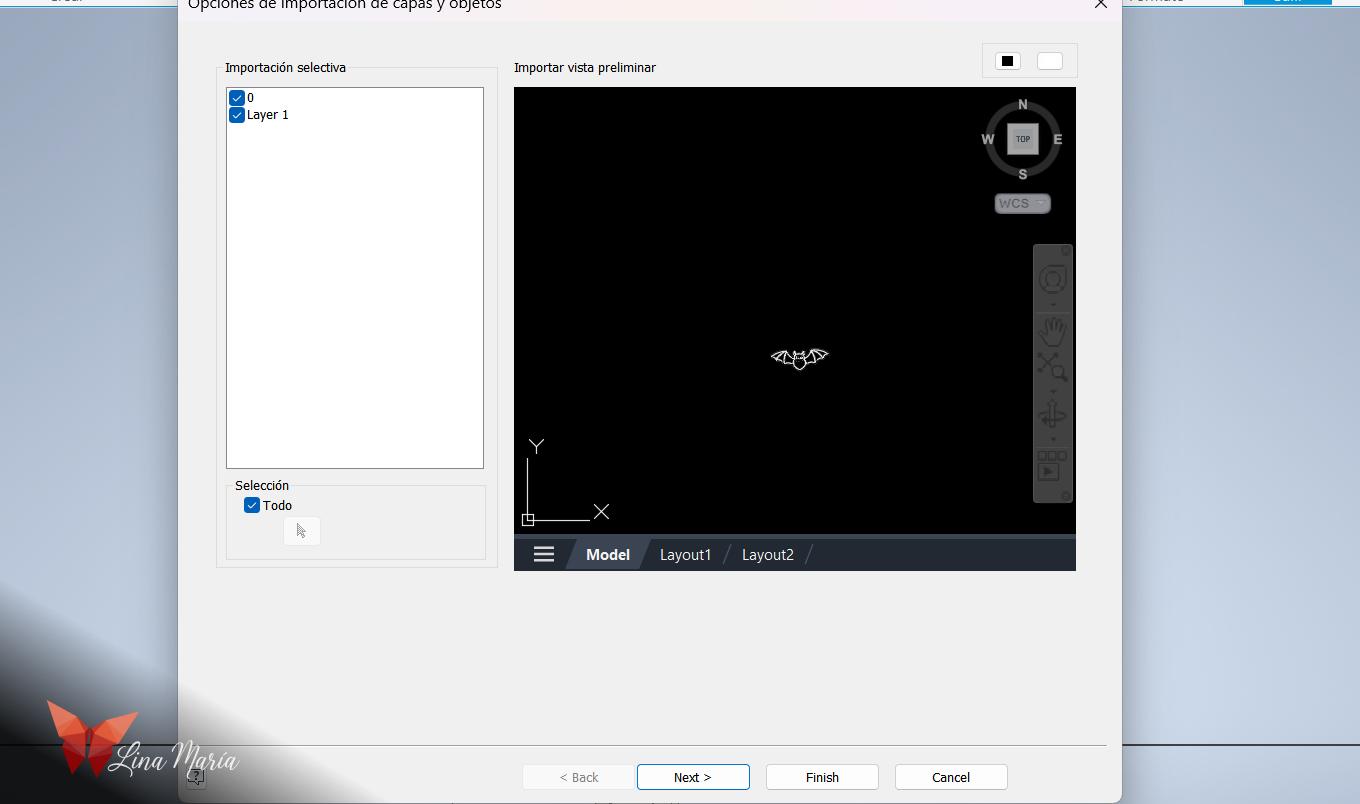

- In Inventor, choose the option to create a sketch on the surface where you want the design to go.
- Select the ACAD option and choose the figure you created in Illustrator.
- Use the scale and move options to position and size the figure until you are satisfied with the look.
Extrude the Design
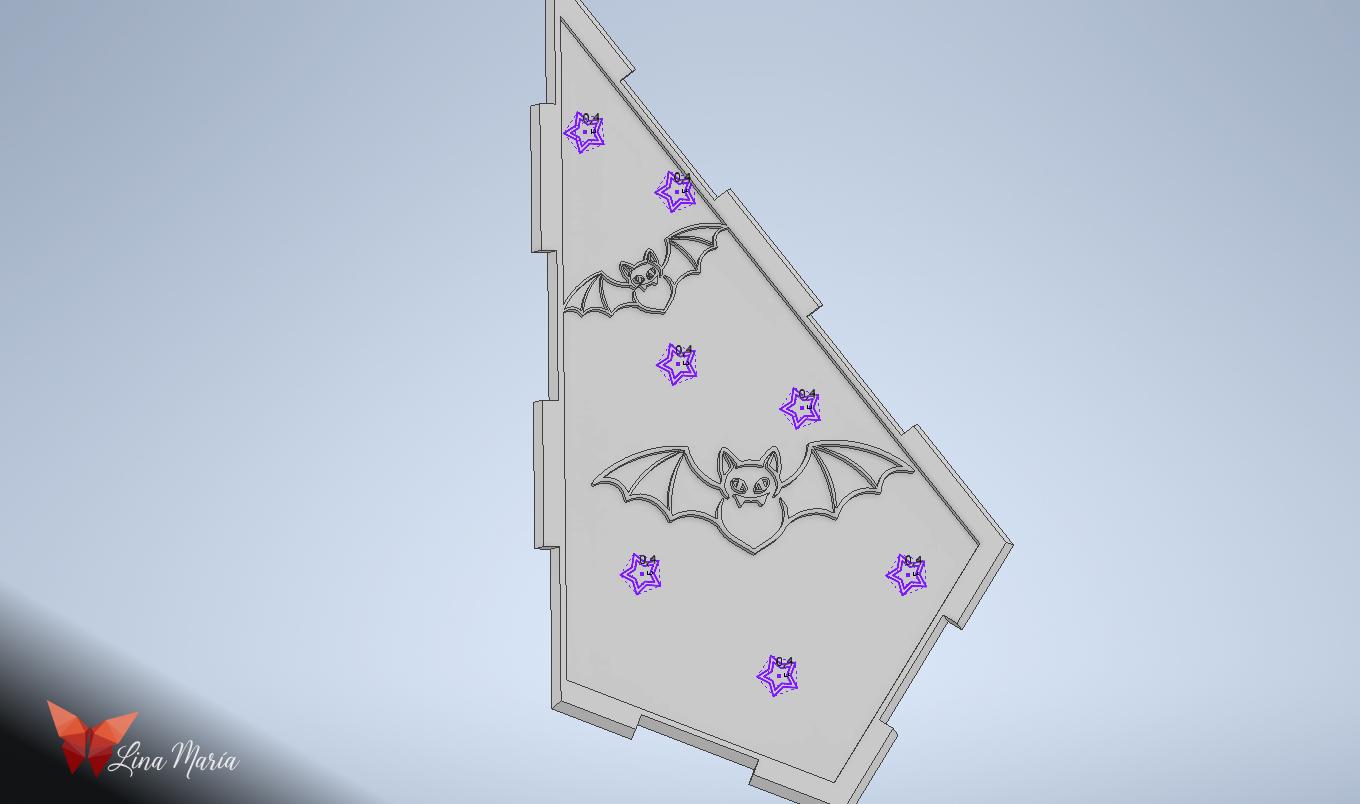
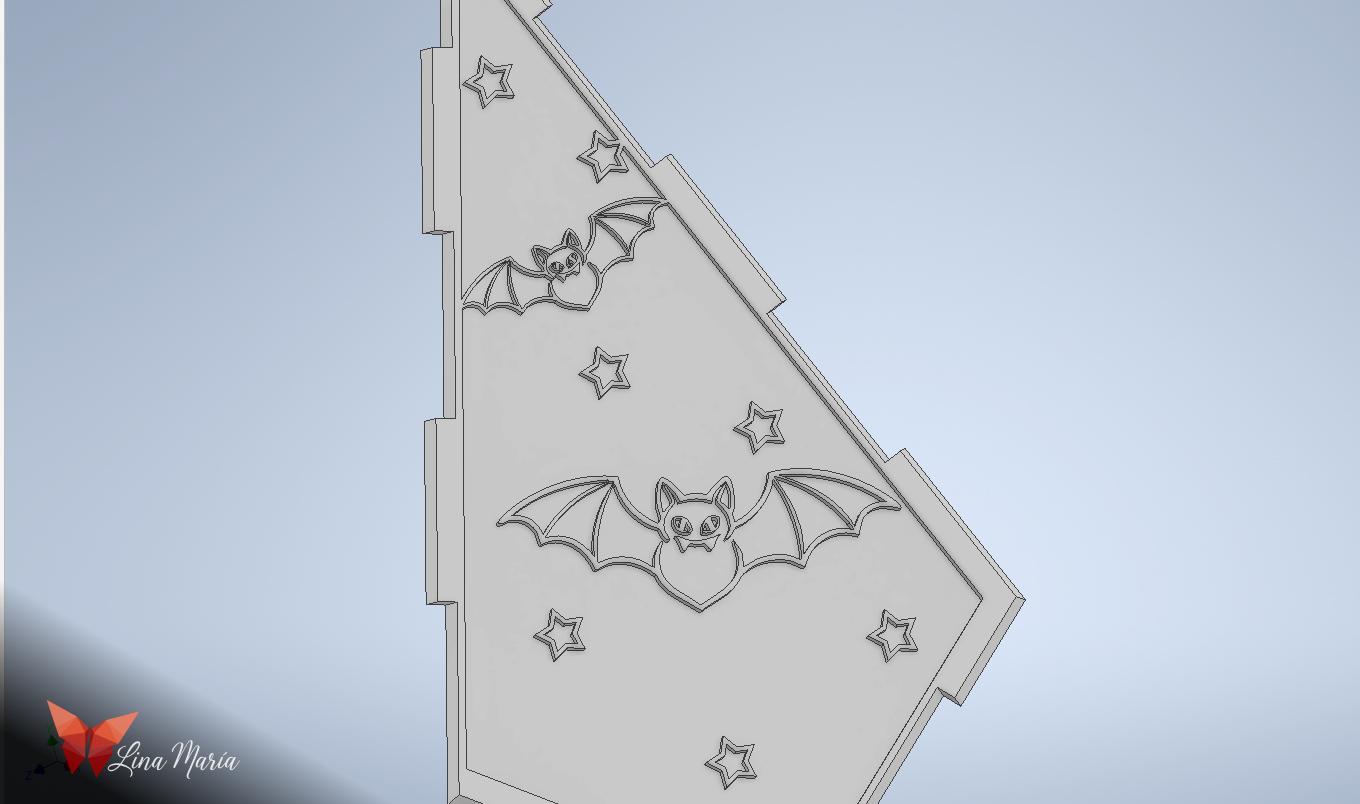
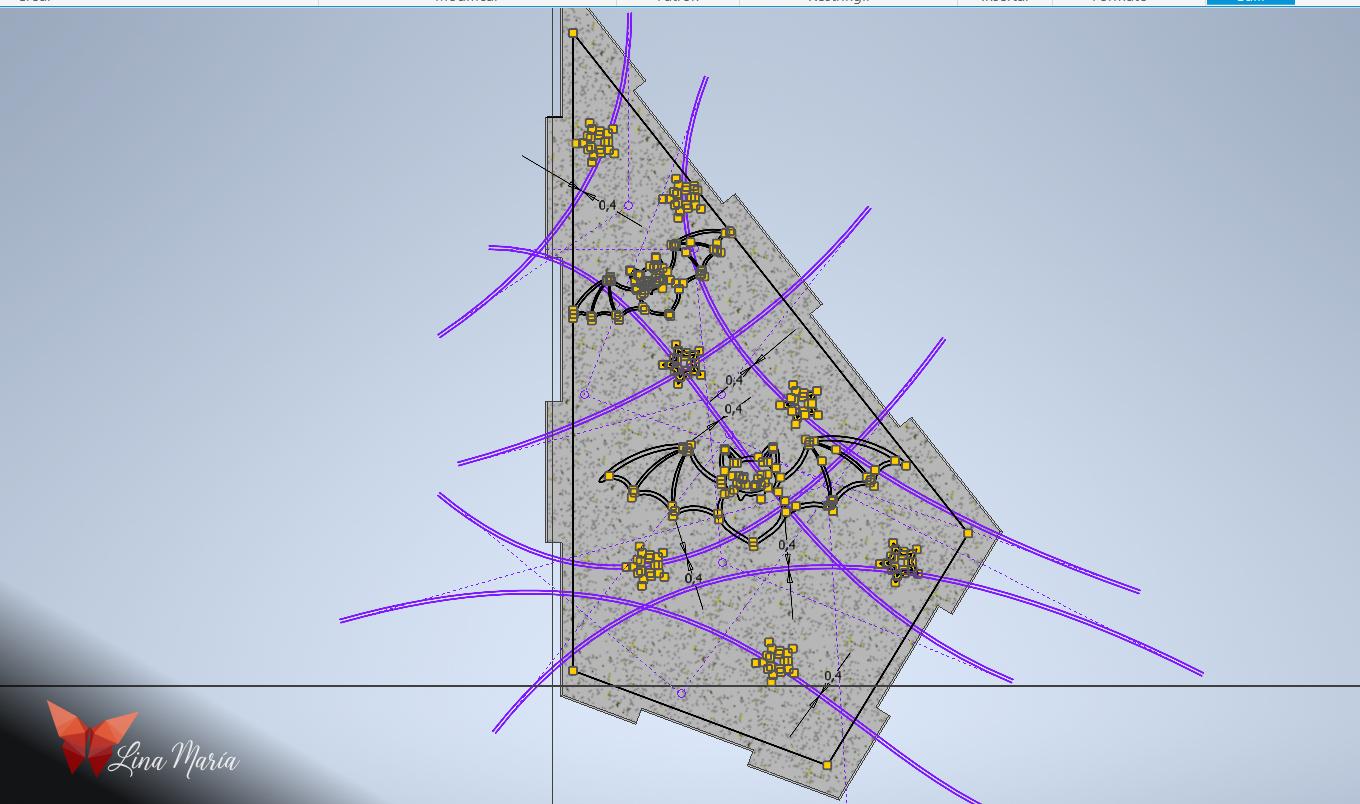
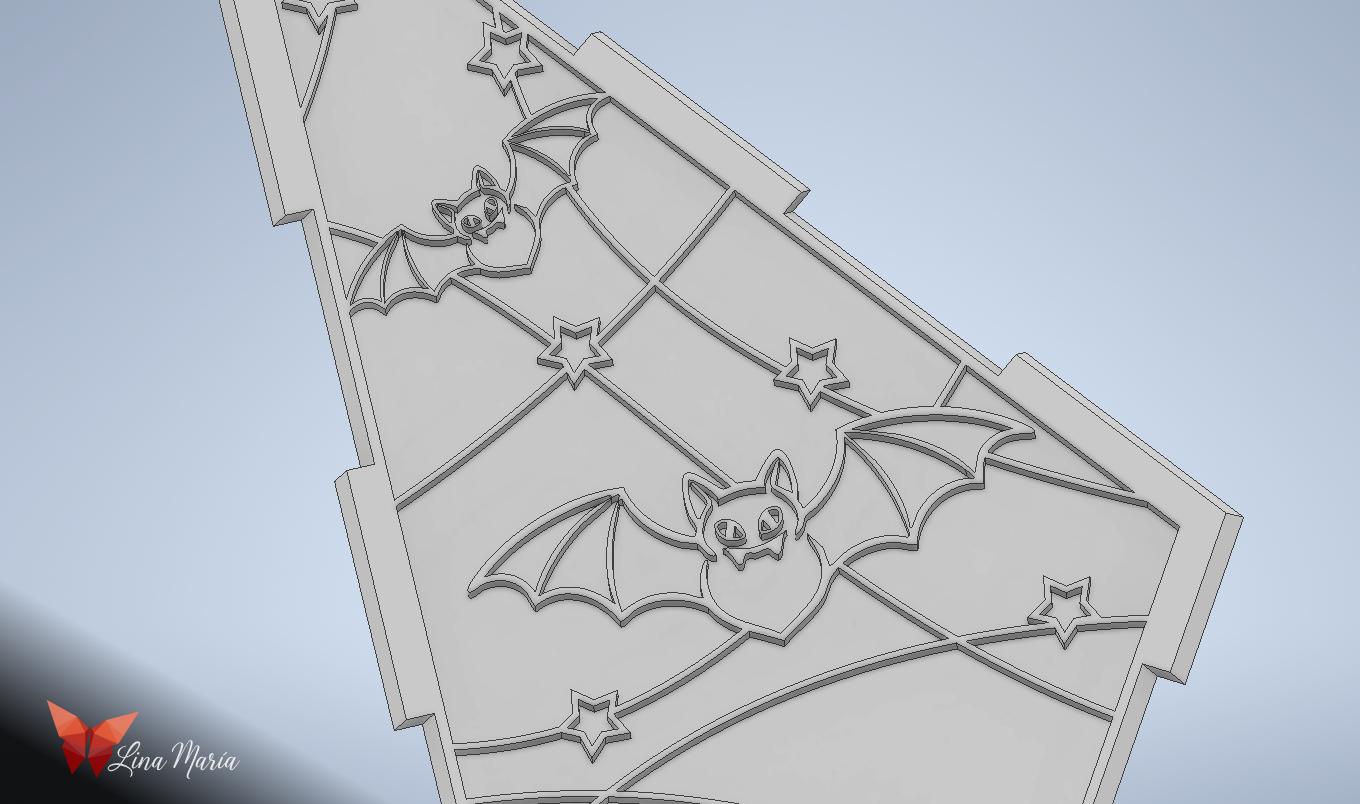
- Extrude the imported Halloween figures.
- Afterwards, draw and extrude stars.
- Finally, draw and extrude curved lines. This entire process creates the look of a leaded stained-glass pattern.
3D Print the Faces

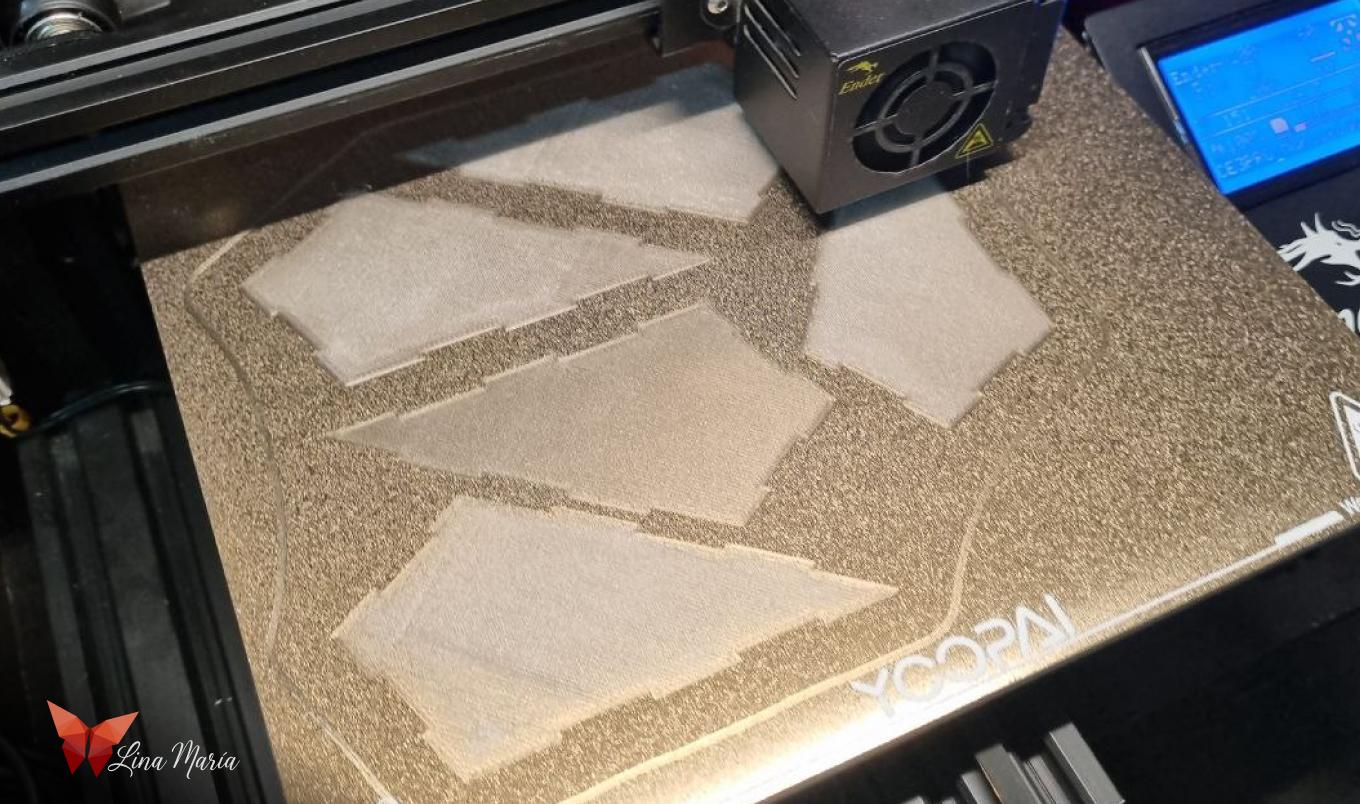

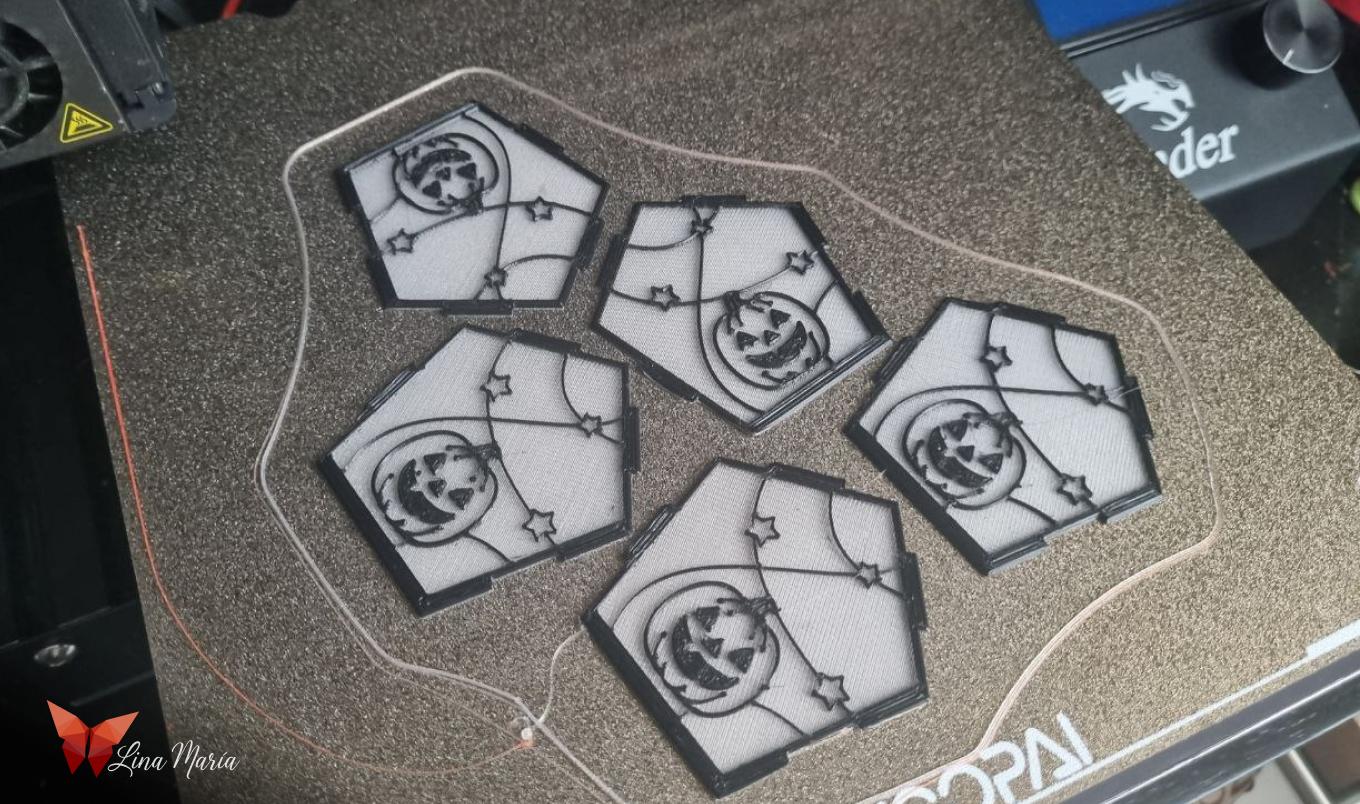
- Save multiple copies of Face A, adding different Halloween figures to each one.
- Now, you are ready to print 5 of these faces.
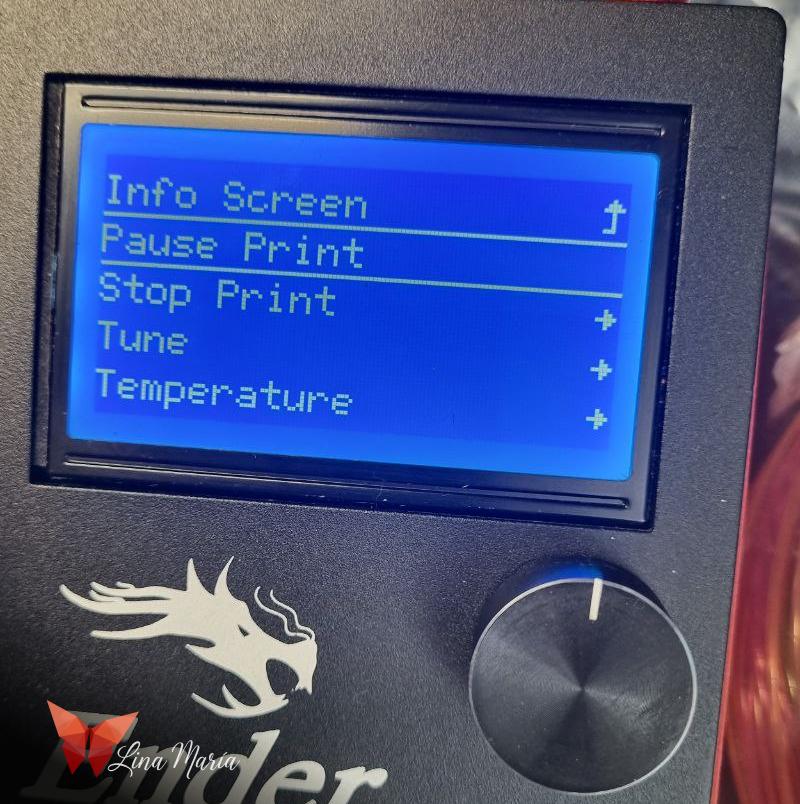
- If your printer only uses one color of filament, start printing with translucent filament.
- When the printer begins the Halloween figures (the outline), pause the print and change the filament to black. Allow the print to finish with the new color.
- Repeat the same process for the 5 Face B pieces.
Apply the Resin Color
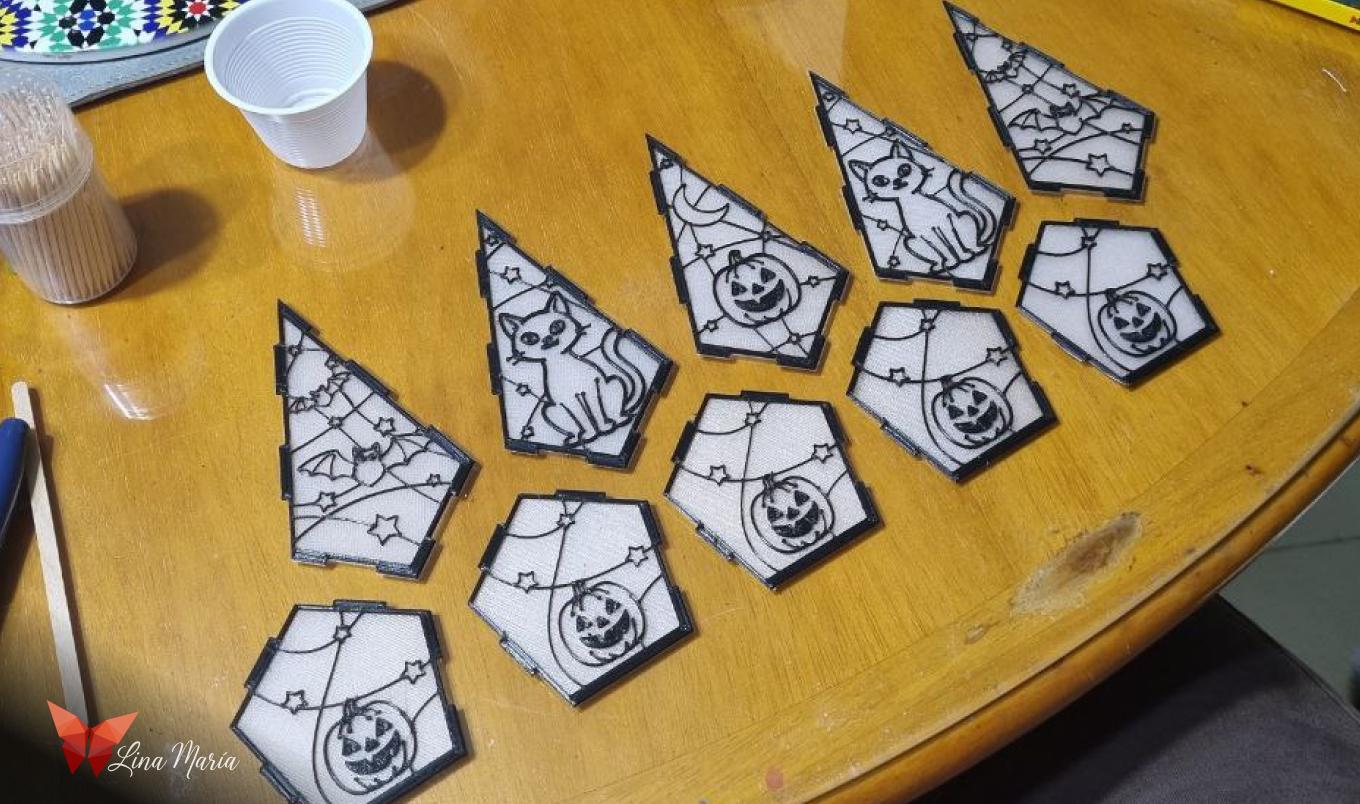
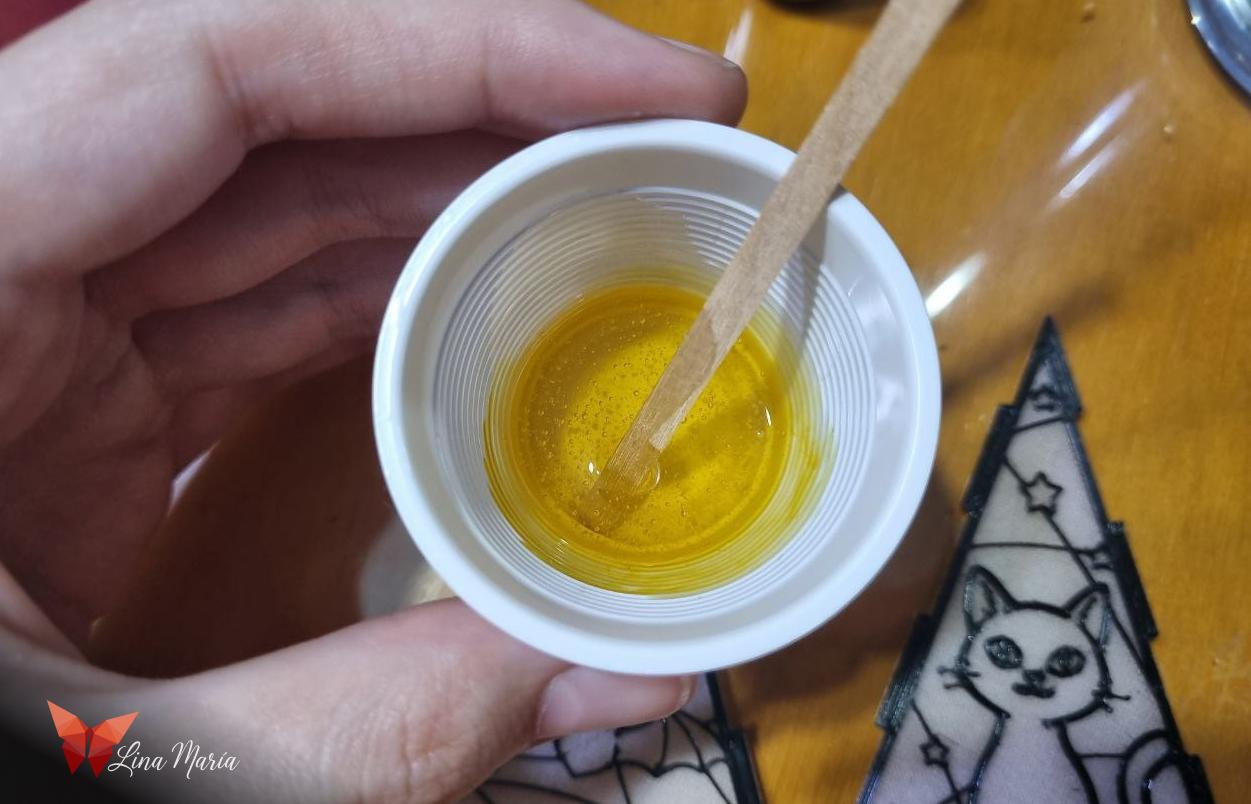
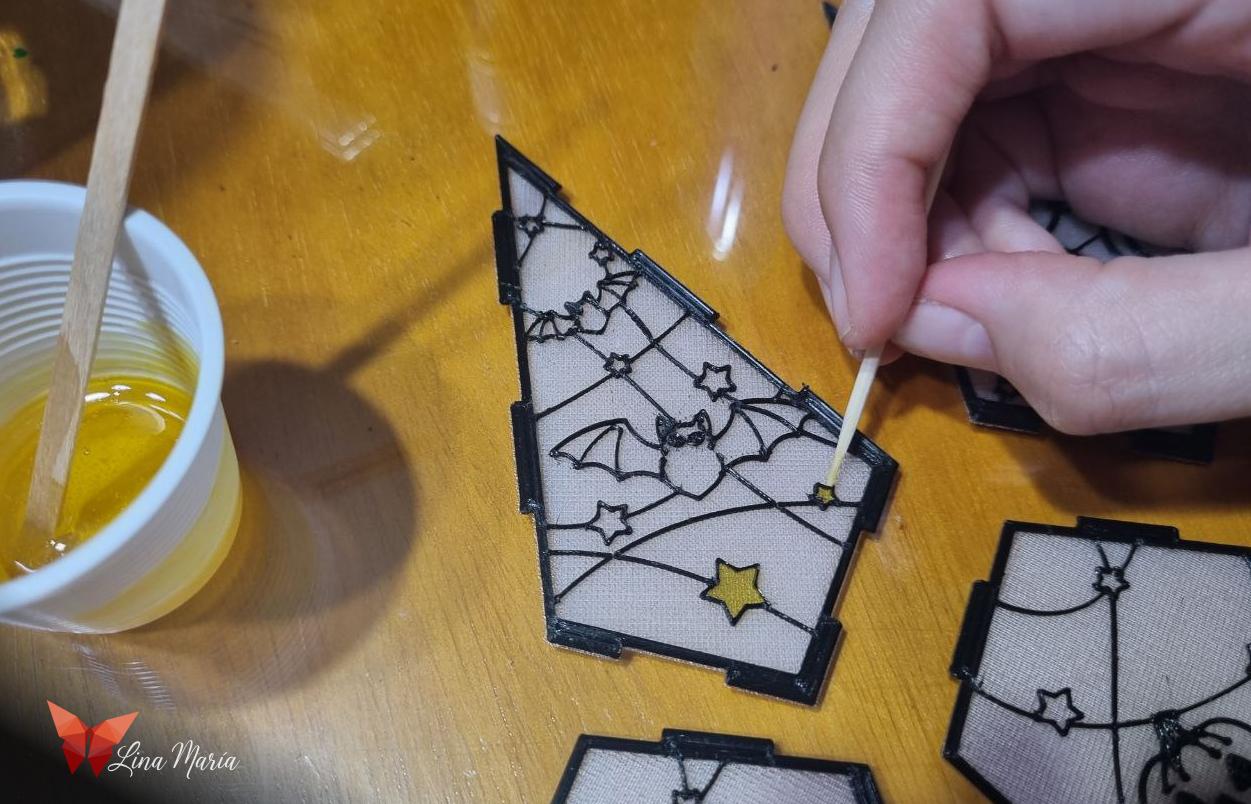
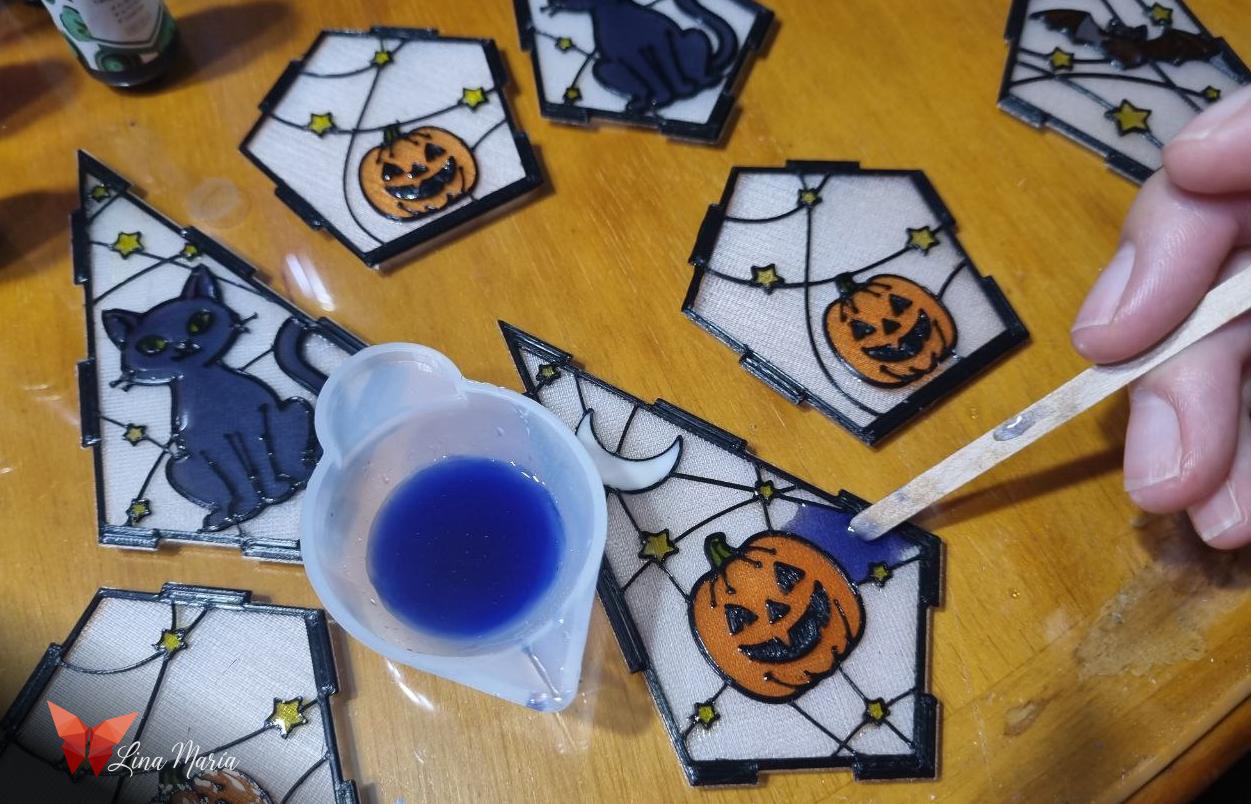

- With the prints ready, prepare the resin by combining two compounds in equal quantities.
- Apply colorant/pigment to the resin.
- Carefully use a stick (or toothpick) to fill each zone of the design with color.
- Once all the spaces are colored, let the resin dry for at least 20 hours.
Assemble the Lantern
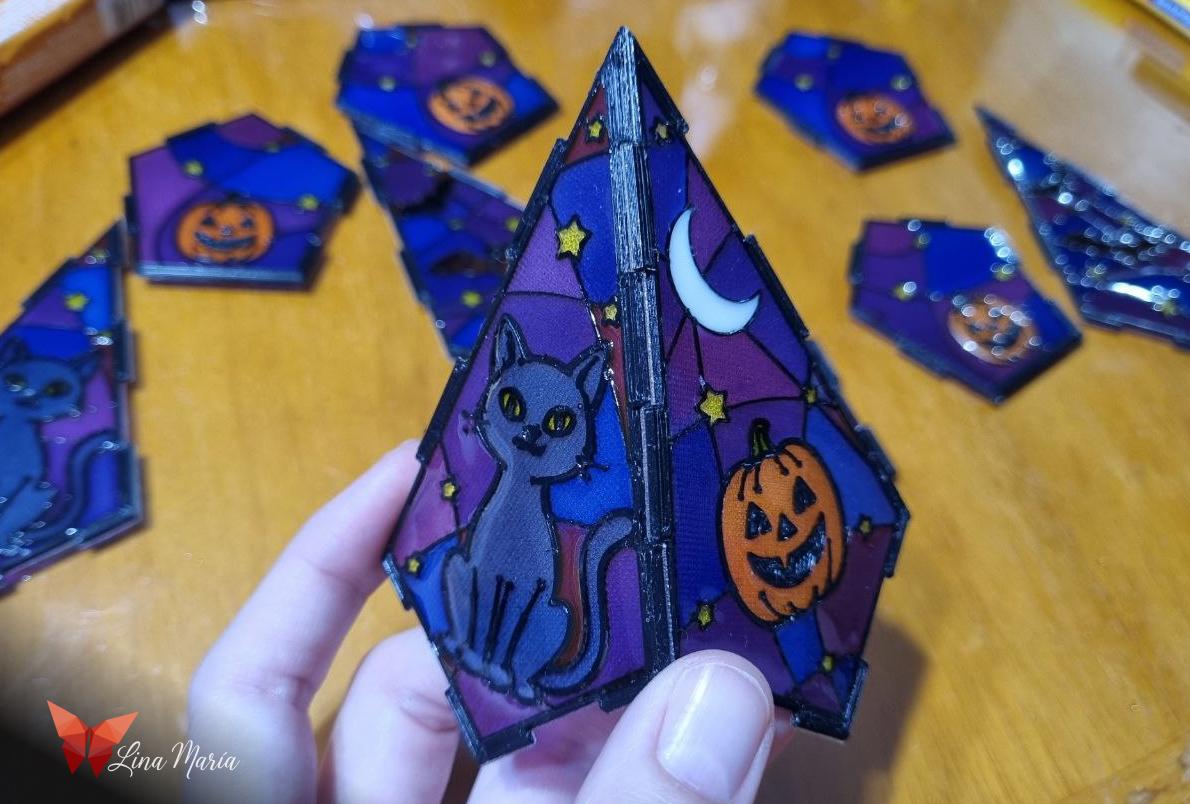
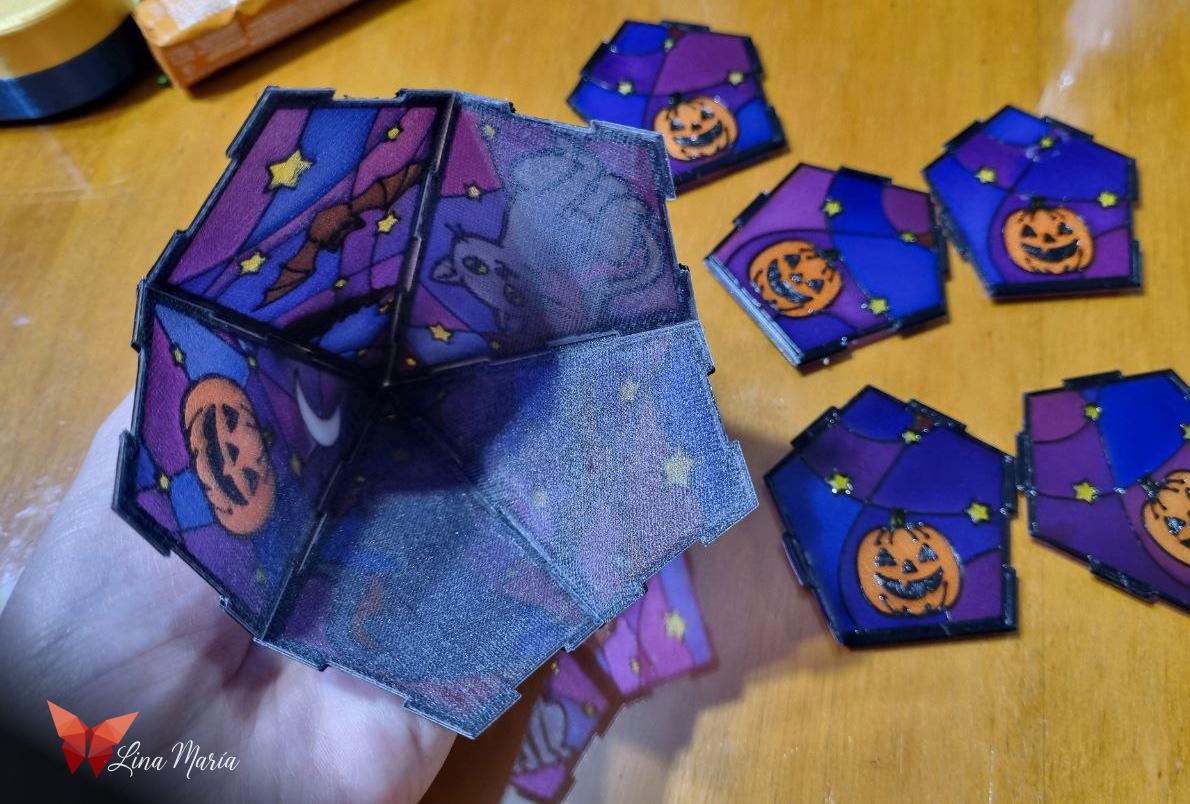
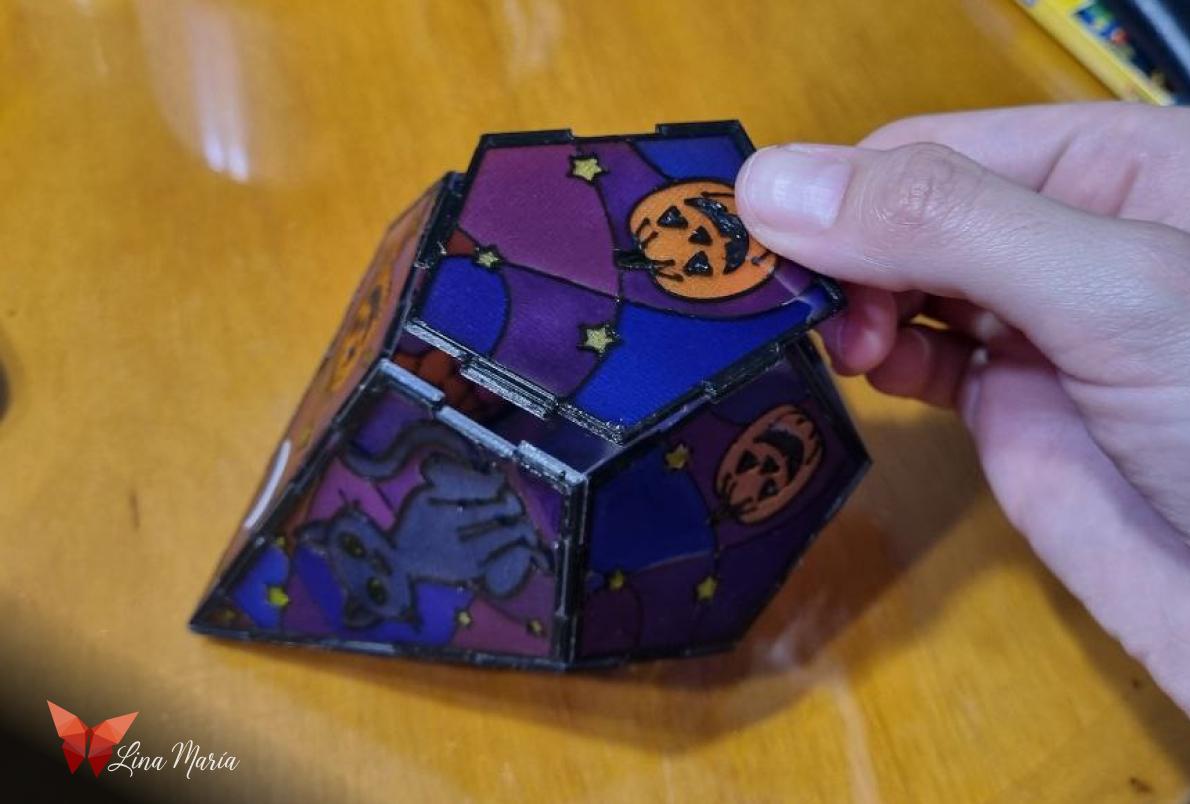
Now it's time to assemble the lantern.
Join each piece together as if it were a puzzle, using the joints you designed.
Test Lighting Option 1 (LED Candle)
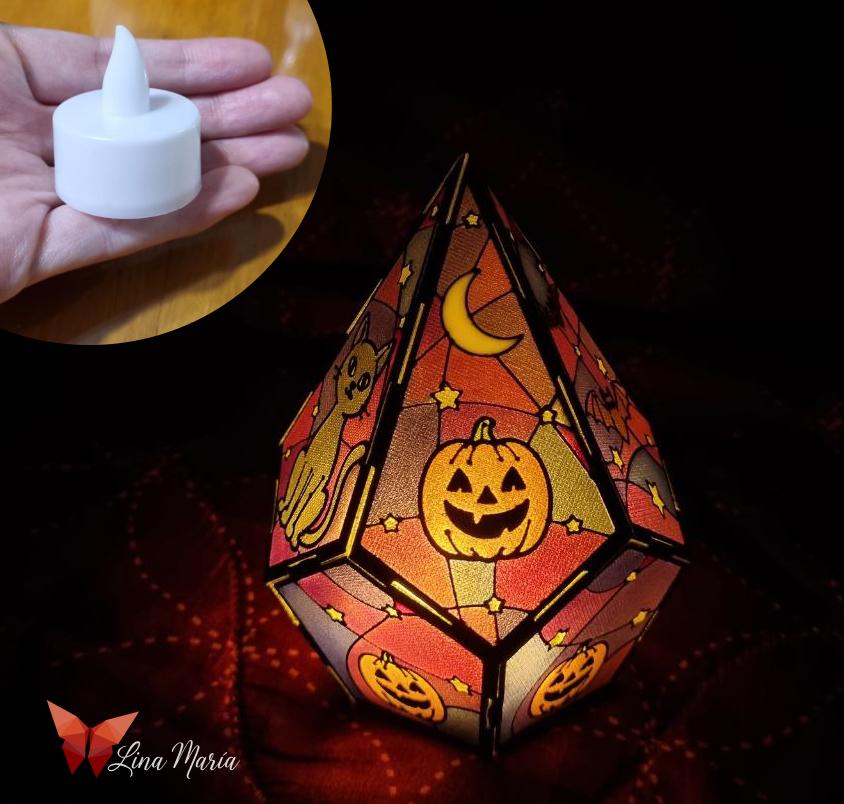

Test the lantern by placing an LED candle-style light inside.
In my case, the result was pleasant, although the colors became a bit yellowish and the light output was not very strong.
Final Lighting Choice (LED Strip)
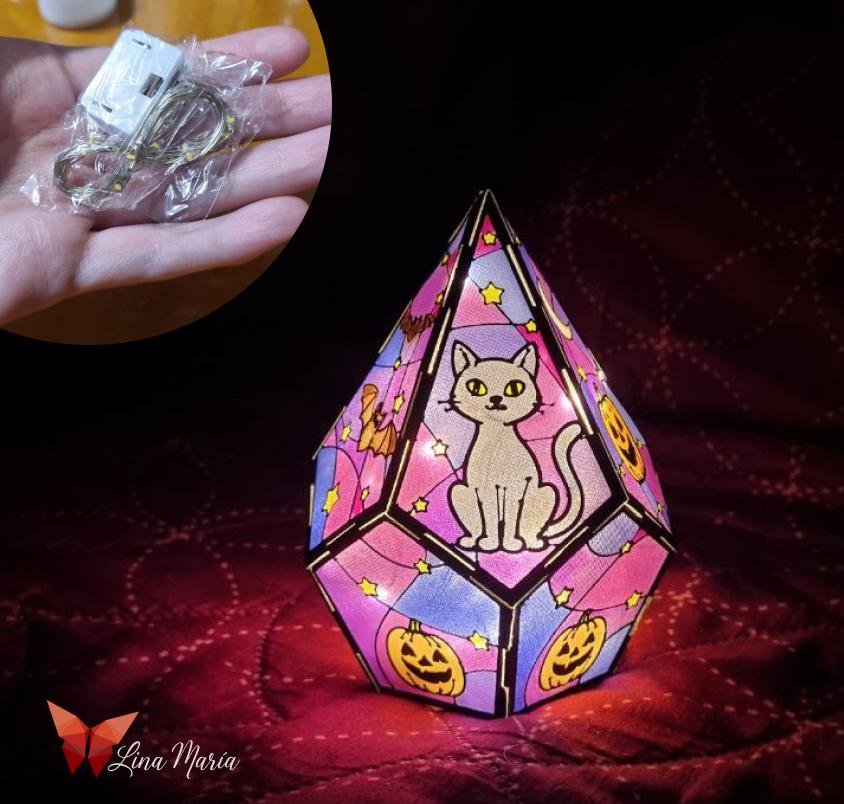

Next, I tried using a strip of many small LEDs.
With the LED strip, the colors were much more vivid, and the lantern became significantly brighter.
I decided to keep the strip lights as the final lighting for a more vibrant effect.
Enjoy Your Halloween Decor!
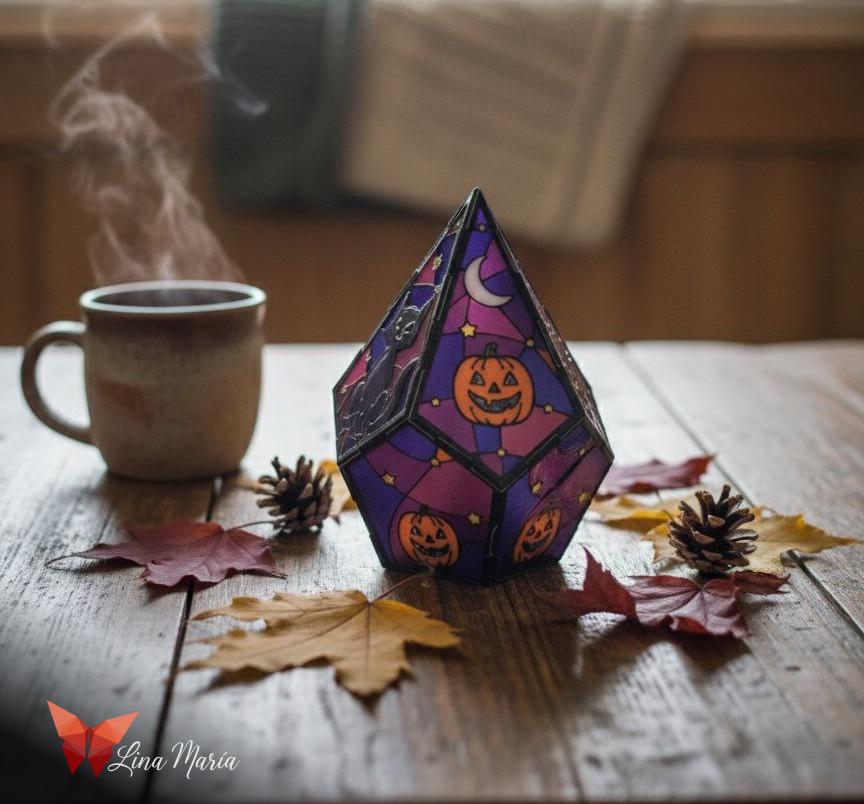
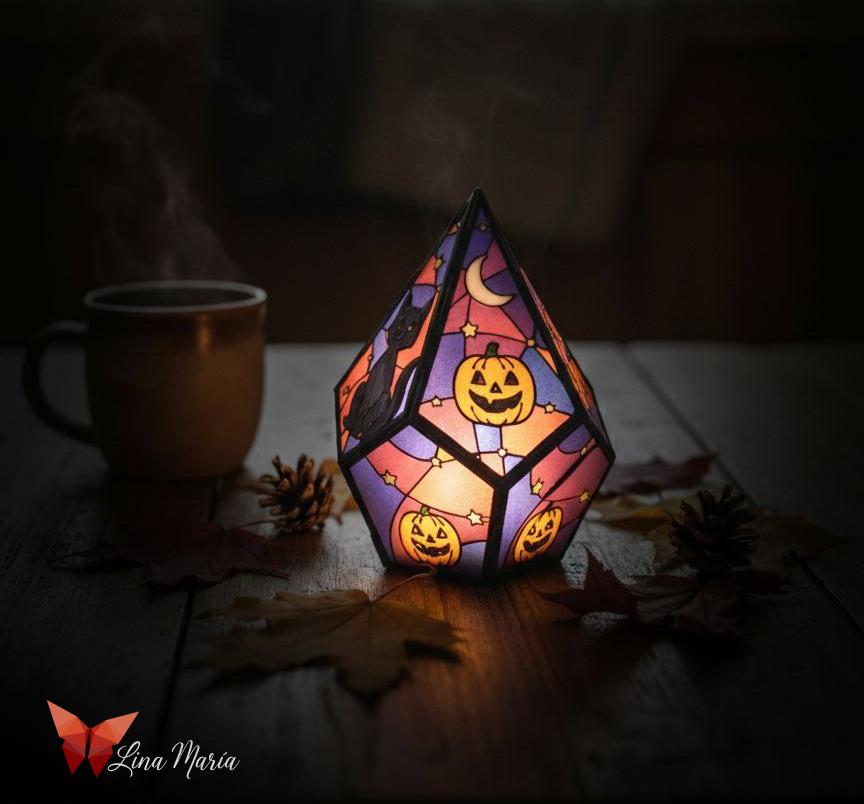
Finally, it's time to decorate and add a Halloween touch to your spaces.
Happy making!