10 Mad and Wacky Hats!
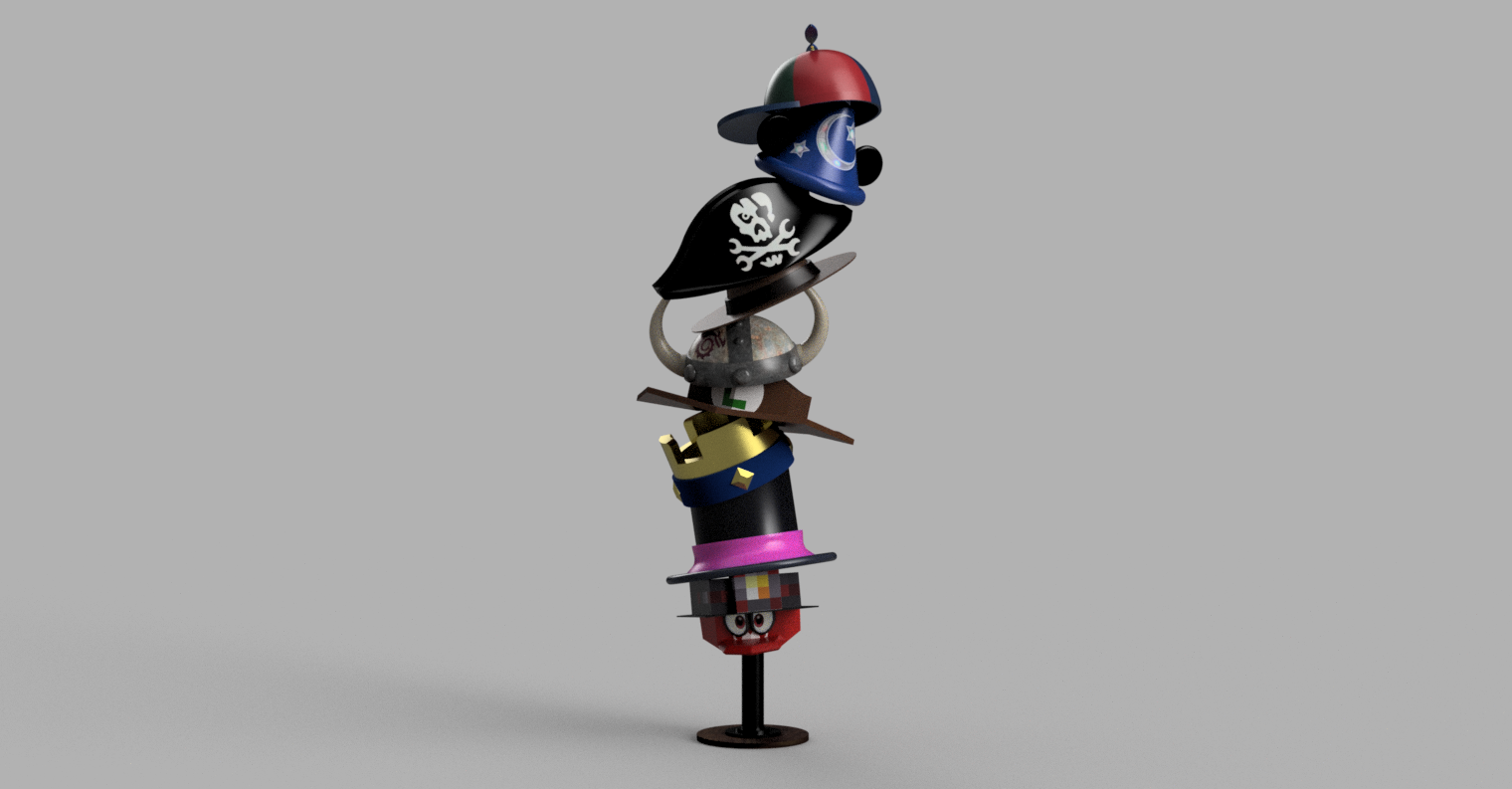
Hey! This contest asks for some crazy hats, and "No idea is too outlandish or over the top"... So, for this Instructable, I decided to model 10 fan-made hats inspired by my favorite shows and video games! The more hats there are, the crazier it will be!
If you want to model these hats as well, there is a video (all dimensions are in inches) on each step for you to follow along with the explanation of what I am doing to create the hat. I will also have images of the hat I have modeled, and explain the background of the hat and how the hat is important to me, as all of these hats have a special meaning. The 10 hats that I have chosen are from Super Mario Odyssey, Minecraft, Brawl Stars, Clash Royale, Mario Party 2, Roblox, Phineas and Ferb, LEGO, and Mickey Mouse. All of these hats have impacted my life, and I enjoy telling stories with each hat that I modeled.
I also created the Mario 64 Hat out of cardboard and construction paper. But for now, most of these hats are only modeled in Fusion 360. I would want to be able to have better materials to create these hats in the future, and I might show the process in another Instructable. :)
Now let's start the mad hat madness!
Supplies

This instructable used Fusion 360 for modeling all 10 hats. I have been using Fusion for around nine months, and the features you will see a lot of are extrusions, lofts, and a ton of offset planes and sketches.
The materials I used for creating the Mario 64 Hat from Super Mario Odyssey are cardboard, construction paper, cardstock, glue, tape, scissors, and markers.
Mario 64 Hat (Super Mario Odyssey)
Background:
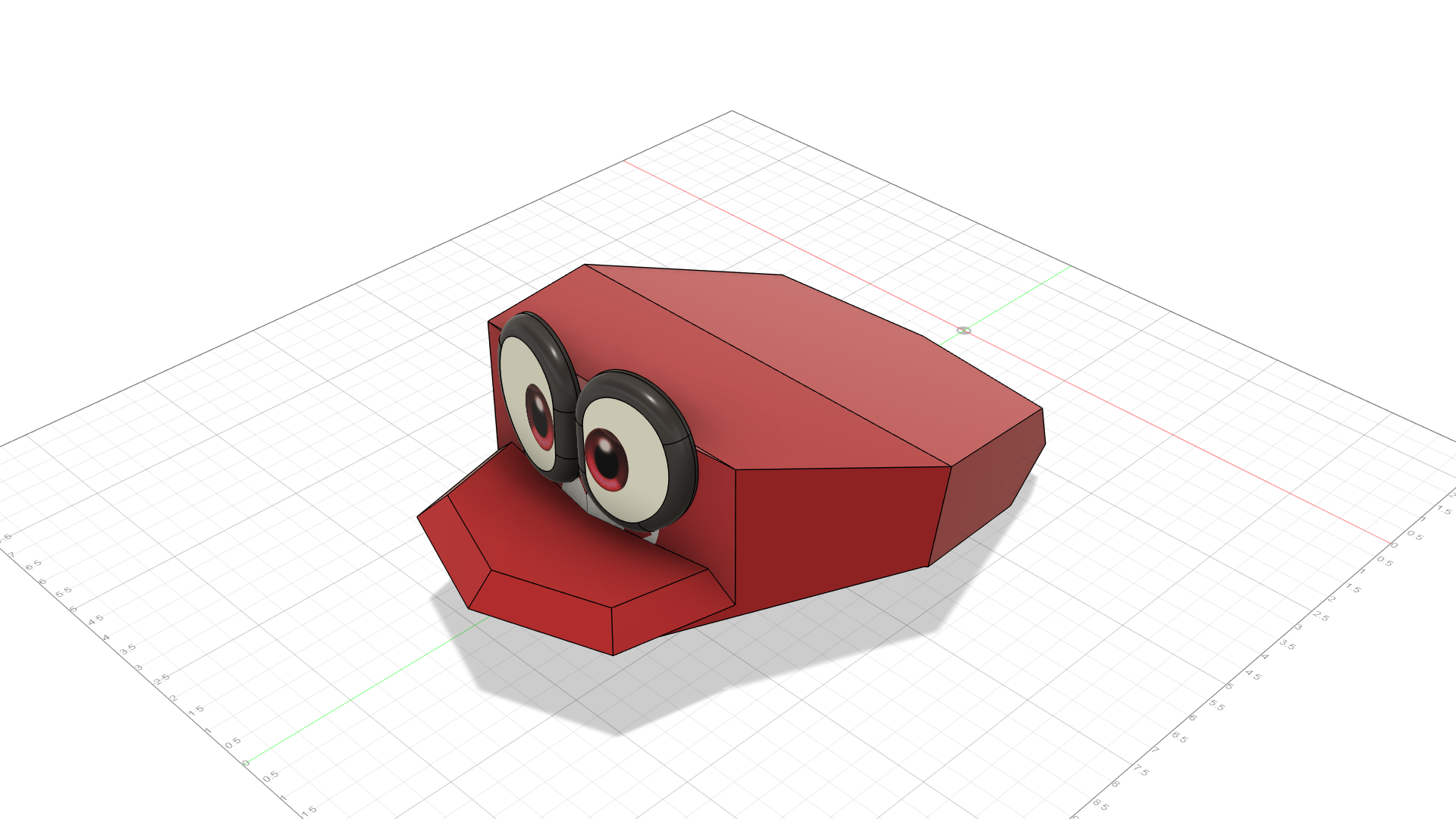
The hat originated from Super Mario 64 in 1996, when 3D games were still new to everyone (and the quality of models was terrible). The hat returned in Super Mario Odyssey with the same low-poly hat for people who played on the Nintendo 64 to reminisce on. As a child, I used to play Super Mario 64 on my Nintendo 64 a lot. I enjoyed figuring out new glitches and ways to speedrun the game, which made me replay the game hundreds of times. Now, Super Mario Odyssey is one of my favorite games to play. There is so much to do in the open world that makes it fun and new. This hat represents both games from the past and the present, which is why I wanted to include it.
Design Process:
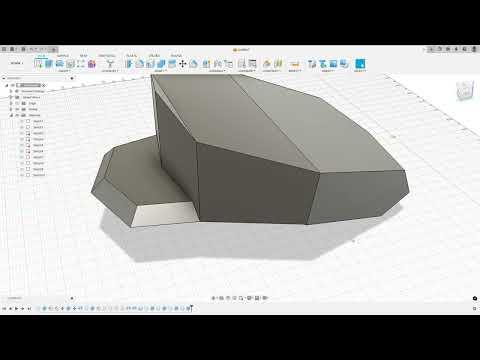
The video above shows the design process of creating the hat. I wanted to create the same low-poly feeling with the sharp edges, so I first planned on using many bodies and rotating them to create the shape, but it did not work. It was difficult to begin modeling, but I ended up using a sketch on the top view to be able to get the edges around the hat, and then extrude it and move the bodies to create the angle from the front to the back of the hat. When modeling, the top of the hat was flat, so I used sketches of the faces at the front and lofted them to make the hat continue to rise up. For Cappy's eyes, I just created the eyes with an extruded sketch and filleted the edges to make them round. Then it was just making it look good by adding decals and changing the appearance.
(Note: After creating the video, I scaled the eyes by 1.5 at the center of the two eyes to make it bigger.)
Downloads
Creating the Mario 64 Hat


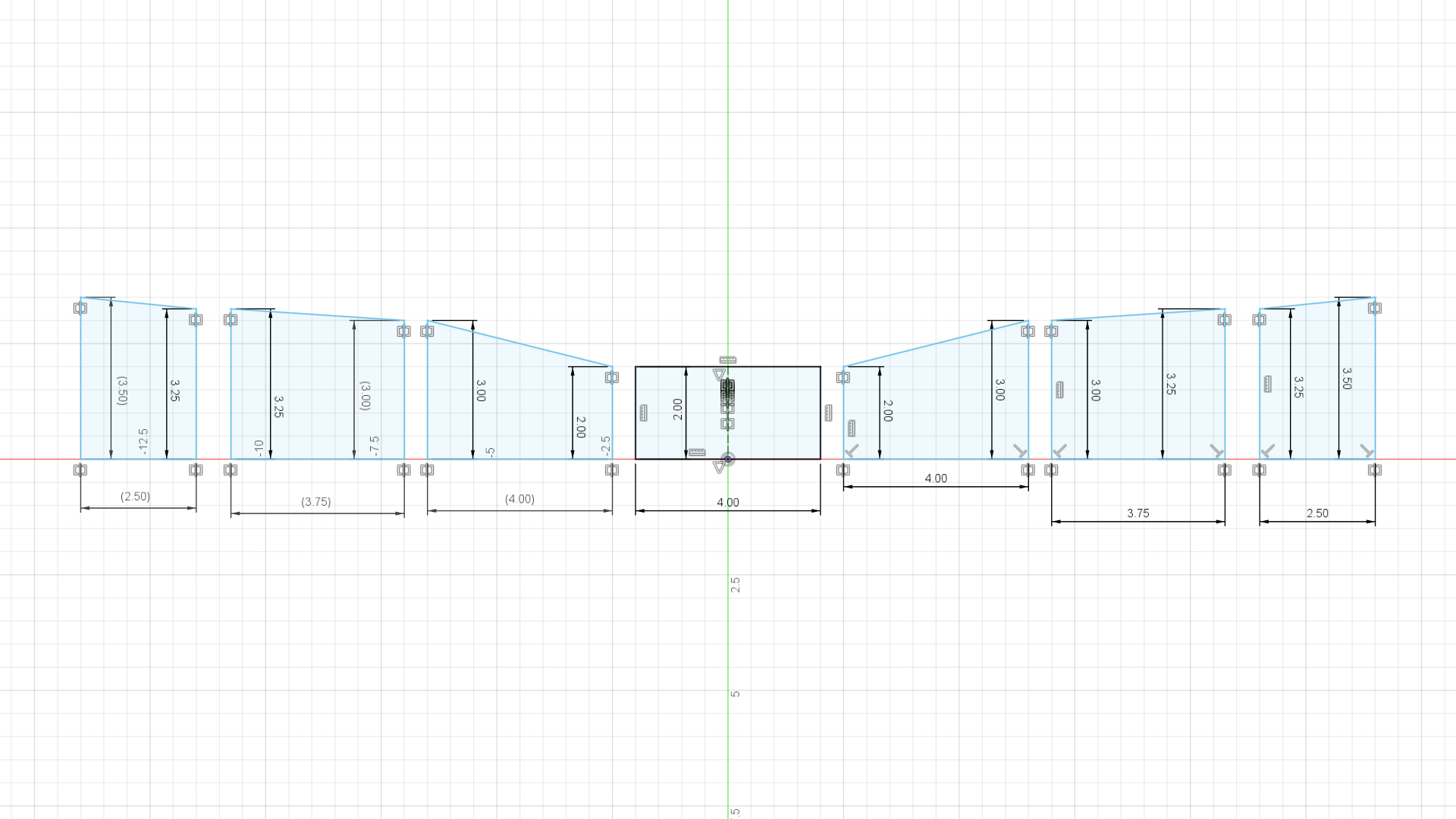

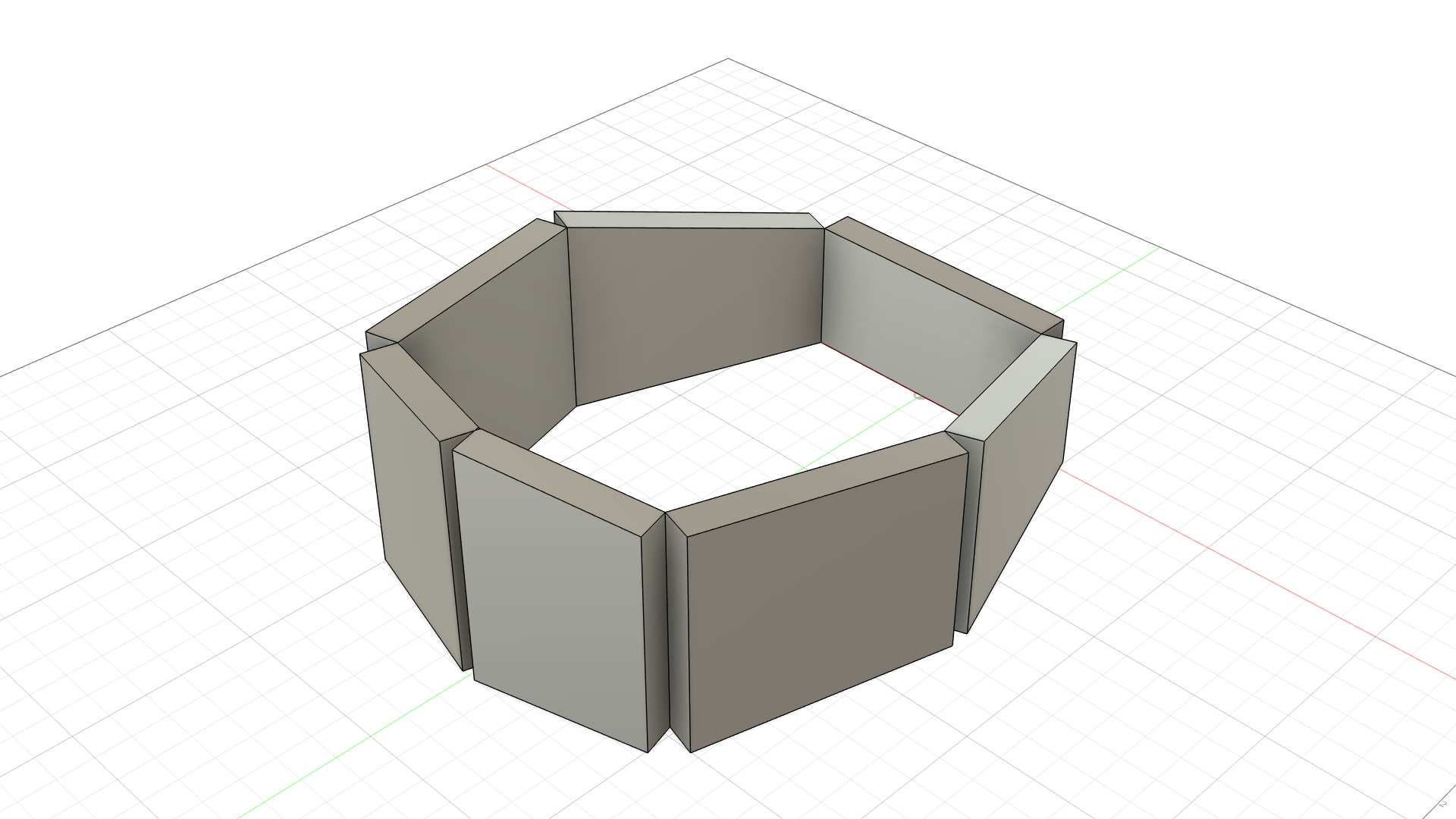


To create the hat, I used cardboard and cut it into seven different pieces. The image above with the sketch shows all the dimensions in inches for the hat. Once I had the seven pieces of cardboard, I taped each one in order and shaped it to create a 7-sided shape (heptagon). Then I put the brim of the hat by cutting a cardboard in the shape of the brim and taping it to the bottom of the hat. For the top of the hat, I put a cardstock on top and cut off the excess pieces around the hat, and taped it down onto the cardboard. Then I covered everything with red construction paper and created the eyes and logo with cardstock and markers. I was done!
Redstone Headlamp (Minecraft)
Background:
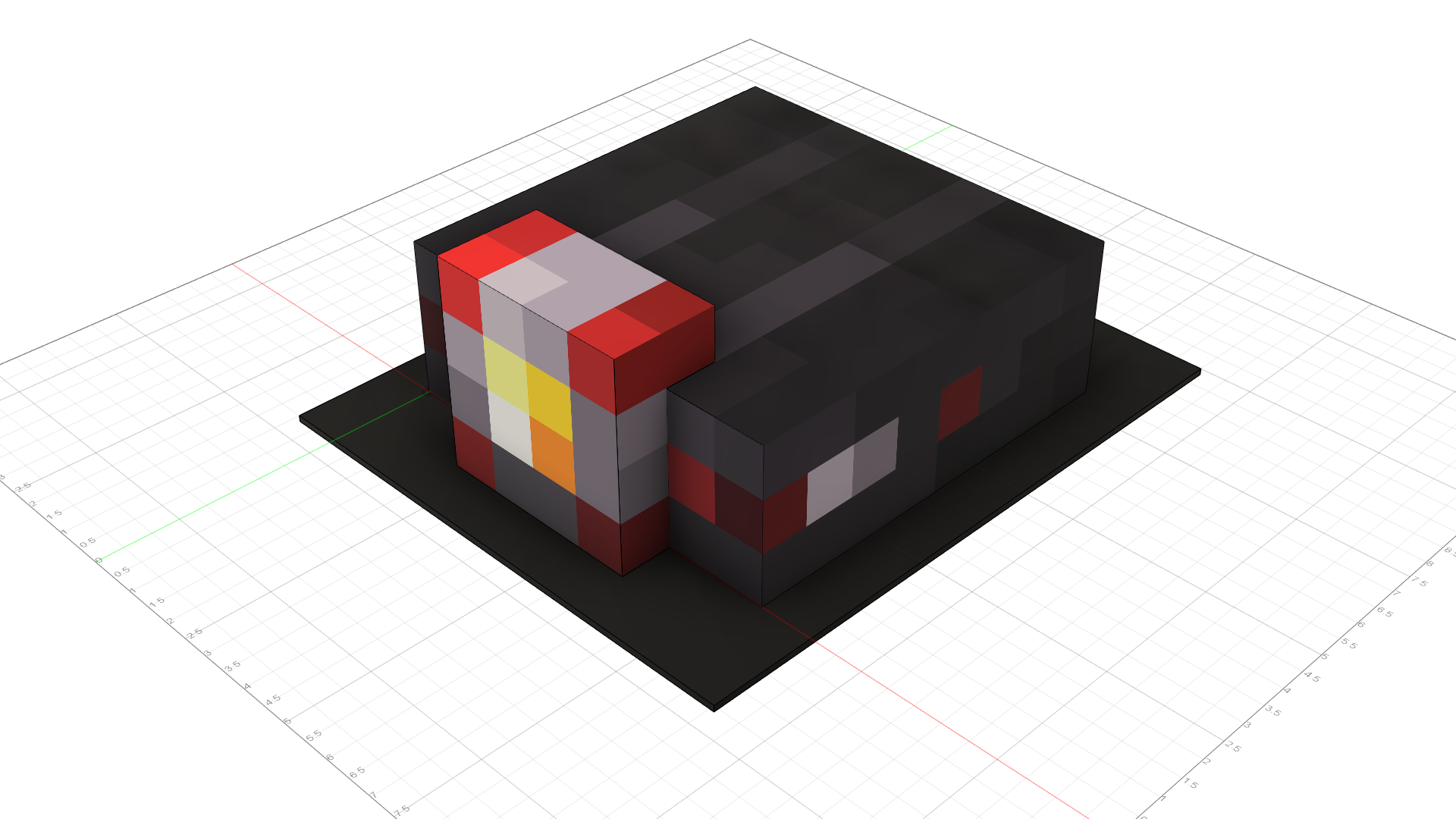
The helmet is from Minecraft Bedrock Edition when customizing your character (is a helmet a hat?). Powered with redstone, it is for people who are mining in the caves. In Minecraft, I enjoy exploring the caves and mining for ores. Finding different structures and biomes inside the caves also makes it beautiful with the scenery, and challenging with all the mobs around. I always play Minecraft with my brother with the same Minecraft world that we created years ago. Including this hat shows my enjoyment of playing with my brother and the caves.
Design Process:
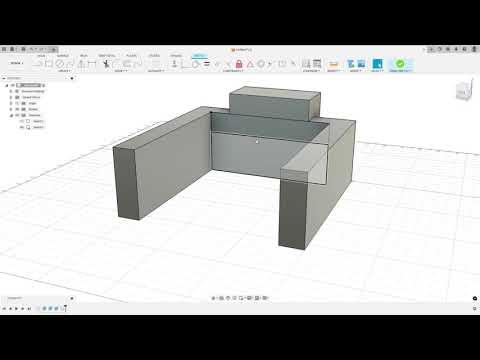
This hat is very simple to model because Minecraft is made out of blocks and pixels. I used a few sketches and extruded them to create the whole hat (very simple!). Then I custom made the decals and added them to the faces to create the pixels on the hat.
Downloads
Top Hat (Brawl Stars)
Background:
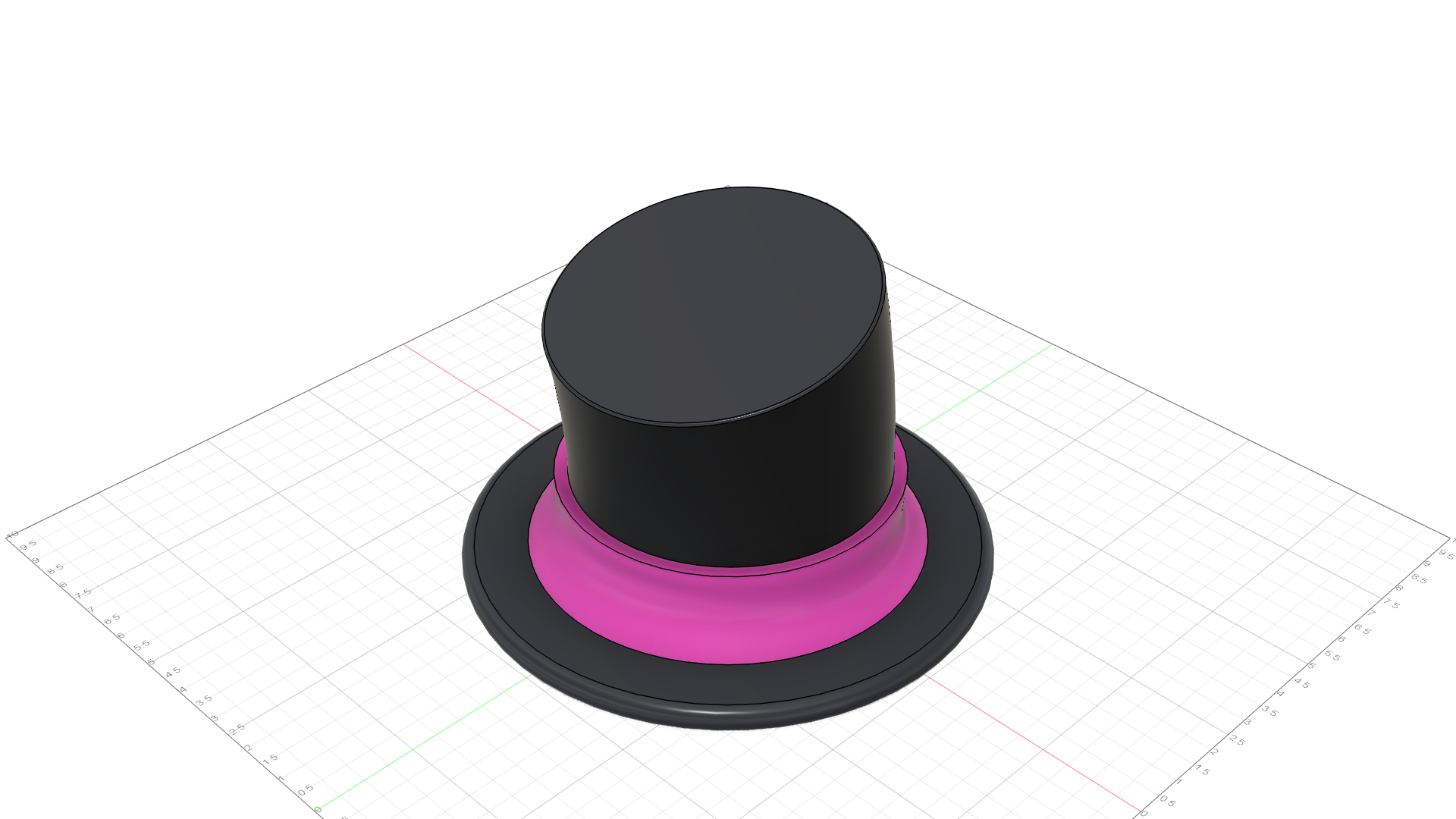
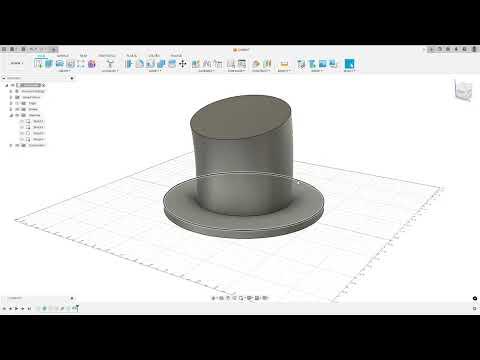
This is the top hat from Mortis in Brawl Stars. Mortis was released in 2017 when Brawl Stars was in beta. He later got a redesign in 2018, where his hat was removed. The community was outraged, so the developers added it back. This makes Mortis the only character to have two base skins due to the community asking for a change. I have been playing Brawl Stars for over four years, and a few months ago, I got all 90 brawlers to 1000 trophies. This accomplishment takes years to do, and I am happy that I am part of the thousands out of hundreds of millions of people. Mortis is one of the iconic characters in Brawl Stars, which is why I wanted to include his hat.
Design Process:
I started with extruding a circle and filleting the edges to create the rim of the hat at the bottom. For the top of the hat, I lofted (sweep also works) two sketches and used an arc as the centerline rail to create that little curve instead of it being straight up. To create the pink band around the hat, I lofted three sketches of circles that have a bigger radius than the top hat and used the rail as the centerline. Last, I changed the appearance of the hat for the color.
(Note: After the video, I separated the brim of the hat and the top of the hat as separate bodies to be able to create the hole in the hat. This was possible by shelling the top of the hat and extruding a hole at the bottom of the hat, since shelling the whole body would remove the brim as well.)
Downloads
Royale Crown (Clash Royale)
Background:
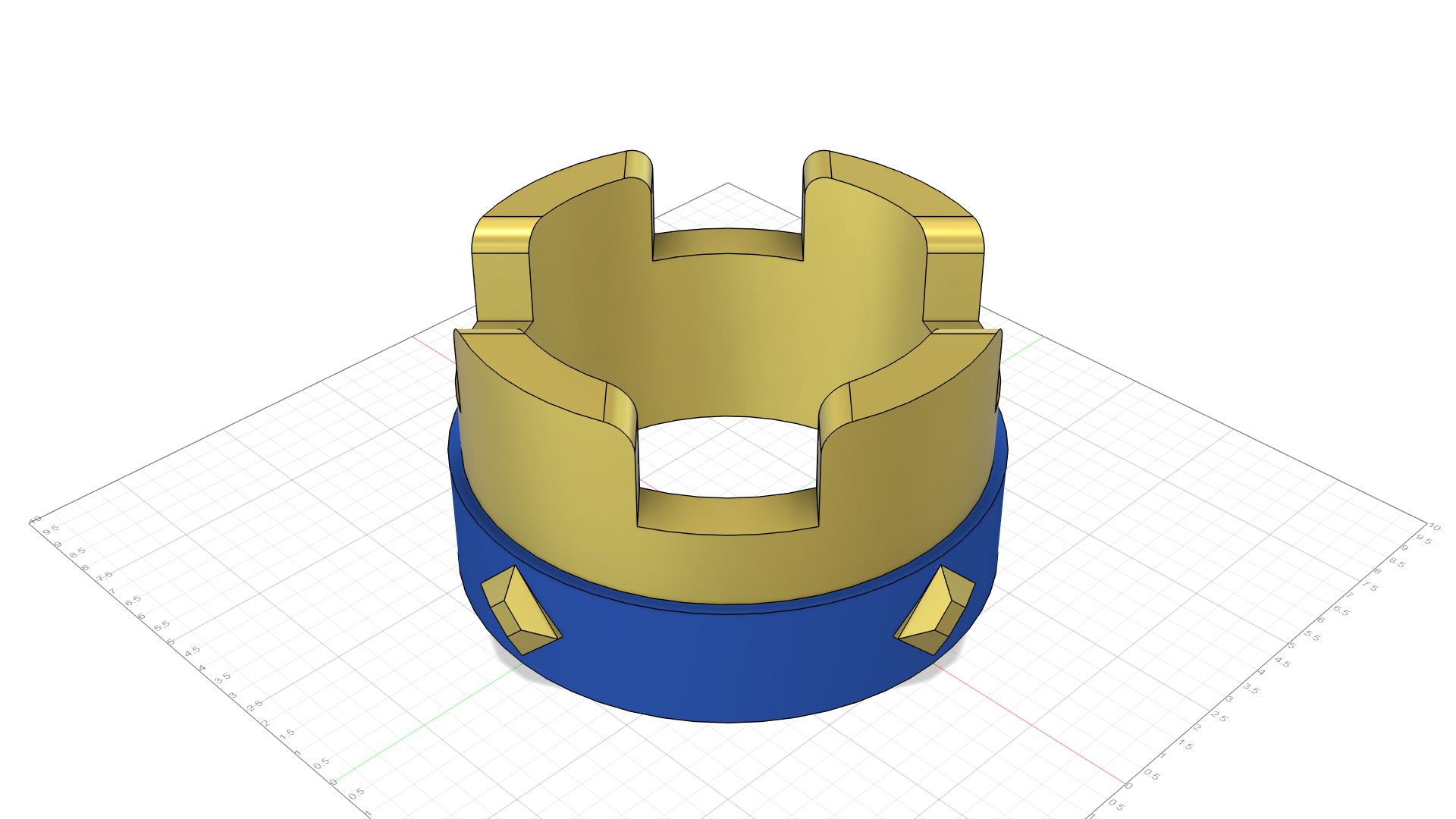
The Royale Crown is from the Clash Royale. Like chess, the Royale King is very important to protect, as it makes you win or lose a game. I have played Clash Royale for around 9 years, and the game also introduced me to Brawl Stars. With 10,000 trophies, Clash Royale can be fun and annoying, but that's what makes a good game! I was really competitive in Clash Royale, which made me continue playing. I am taking the Royale's crown and adding it to this project.
Design Process:
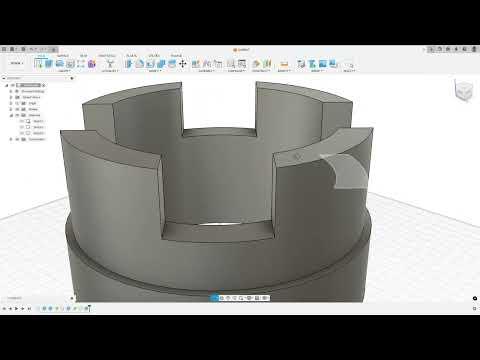
To model the crown, I extruded two circles with different radii at different heights to create the crown and the blue ring around it. I put a tangent plane onto the side of the crown and cut the cylinder out to create the ridges on top of the crown. I fillet it to make it look smoother. To create the diamonds around the crown, I used a tangent plane on the blue band and lofted it to a point to create the pyramid shape. I tried embossing it, but it would warp the body. Then I used a circular pattern to make it all around the crown and extruded it into the crown so it would join as one body. I also changed the physical material of the blue band so that it does not reflect and changed the appearance to color the crown.
(Note: After the video, I used a sketch to cut the tip of the diamonds so it has a flat diamond top instead of being sharp at the end.)
Downloads
Luigi's Cowboy Hat (Mario Party 2)

Background:
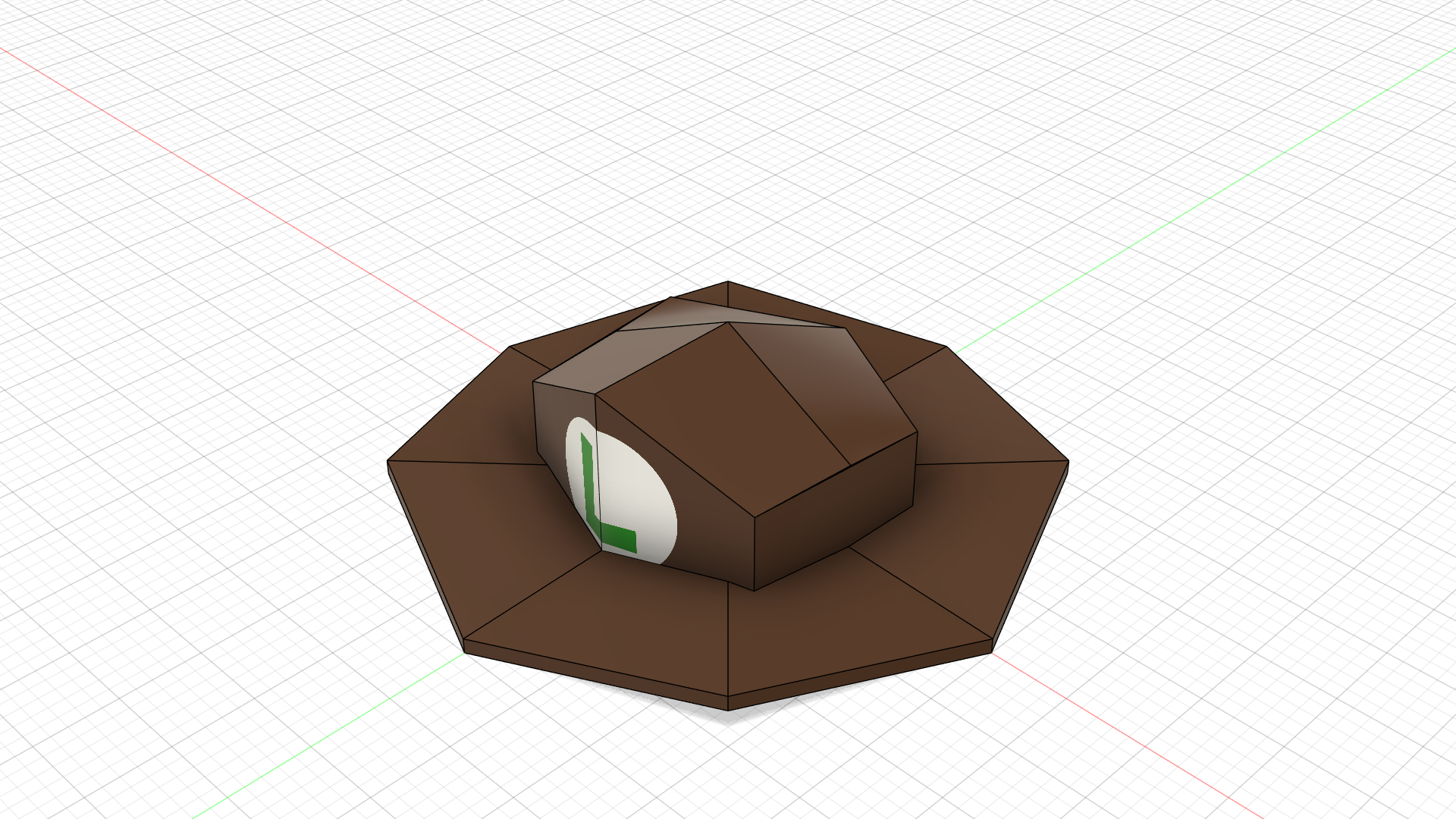
Another Nintendo 64 game!? Along with Super Mario 64, I also play Mario Party 2 on the Nintendo 64. In Mario Party 2, the maps allow the characters to wear different clothes to match the theme of the map. In Western Land, the characters get a cowboy hat. I specifically chose Luigi's cowboy hat because Luigi is my favorite Mario character, and if Mario is in this project, why not include Luigi? My family and I used to play Mario Party 2 a lot, which brought us together. It can also separate us when someone steals a star. For my favorite Mario character, I modeled his hat in this project.
Design Process:
I used similar steps from the Mario 64 Hat to be able to create this hat. I started at the top view with a sketch and created the outline of the hat and extruded it. Then I create sketches on the faces at the front of the hat and loft it. This is to make the top of the hat angled and not flat. In game, that hat's brim is wavy. I created the brim of the hat by using a triangle and put a sketch on the front face. In the sketch, I used two lines that were not parallel to the triangle, but angled. This is so that when I cut the triangle, it would create a thinner triangle that is tilted, which is perfect for creating this hat. I then used a circular pattern to create the full octagon of the hat. I put the top part of the hat on and connected it. Last, I added the Luigi's logo decal and colored it brown.
(Note: After the video, I shelled the top part of the hat since it was a different body from the brim, and used a sketch to create the hole in the middle of the brim so that the hat would be open.)
Downloads
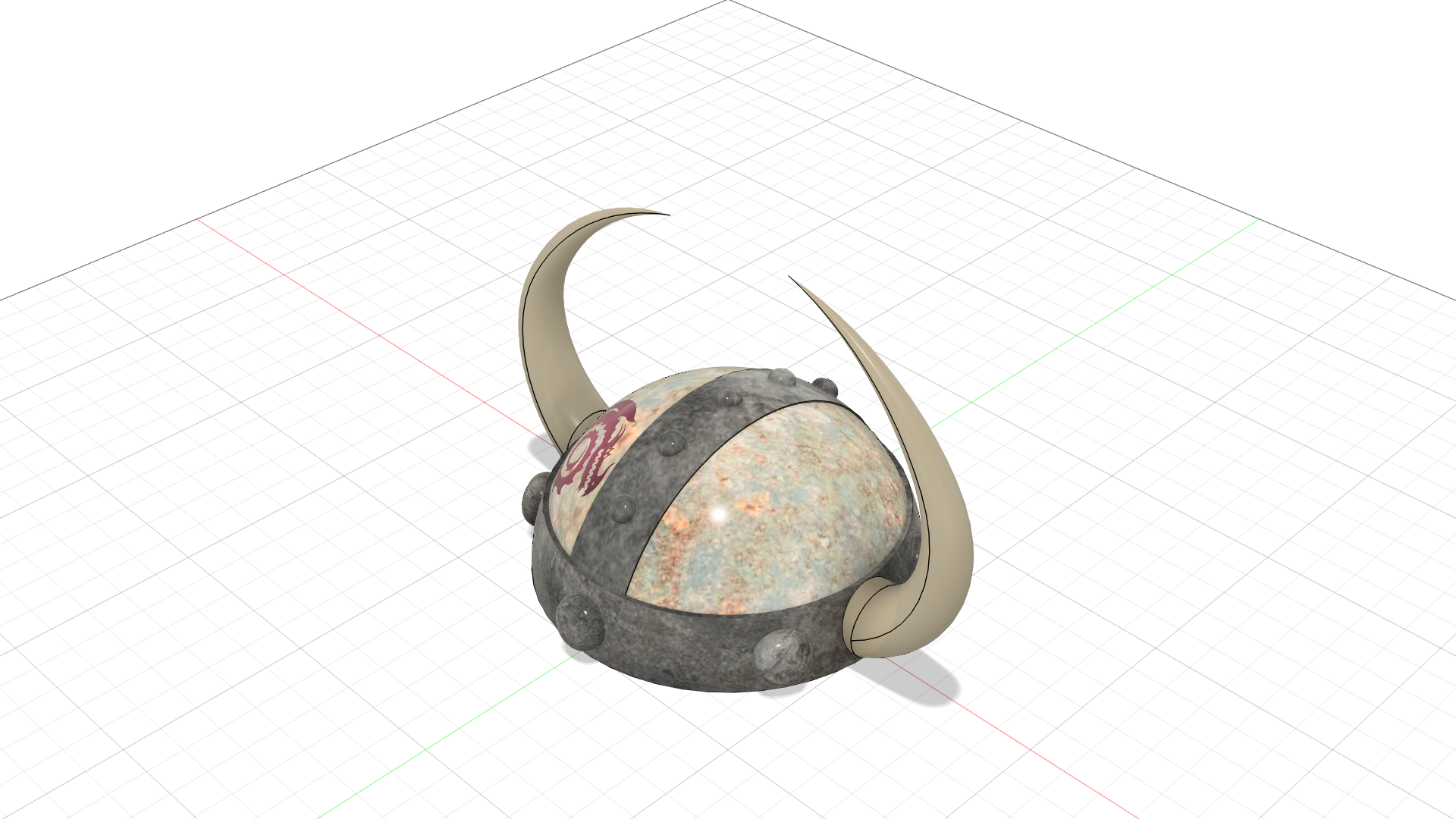
Hiccup's Helmet (Roblox)
Background:
This helmet is from How To Train Your Dragon in Roblox. It was released on June 26, 2015, and was only available for a month before it became limited. Luckily, I have been playing Roblox for over ten years, and this is the first hat that I got in my account. I have been playing Roblox for so long, I still remember the good old days with TIX. I always wear the helmet on Roblox because of its exclusivity, which is why I wanted to add it to this project as well.
Design Process:
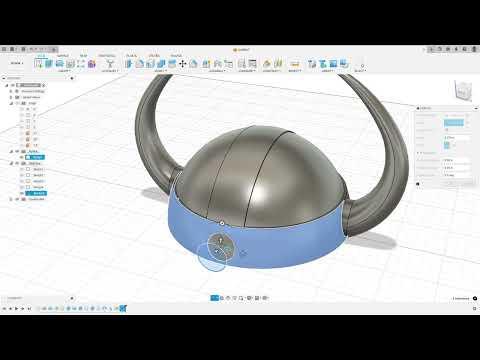
To start, I revolved a semicircle sketch to create a hemisphere for the dome of the helmet. Then I created another hemisphere larger than the last and cut half of the top off to create that metal band around the helmet. Then I created another hemisphere and used a sketch to cut the sides off the hemisphere to create the metal top part. For the horns, I used a cylinder on the sides of the helmet so it would have a flat surface for the horn to be lofted to. Then I used a sketch with an arc to create the path of the horn and lofted the circle face from the cylinder to the point at the end of the arc and using the arc as the centerline rail. Then I mirrored it across to create two horns. To create the round bumps around the helmet, I embossed a circle sketch and filleted it to make it round and used a circular pattern to repeat it across the helmet. Then it was just adding decals around the helmet and changing the appearance.
Downloads
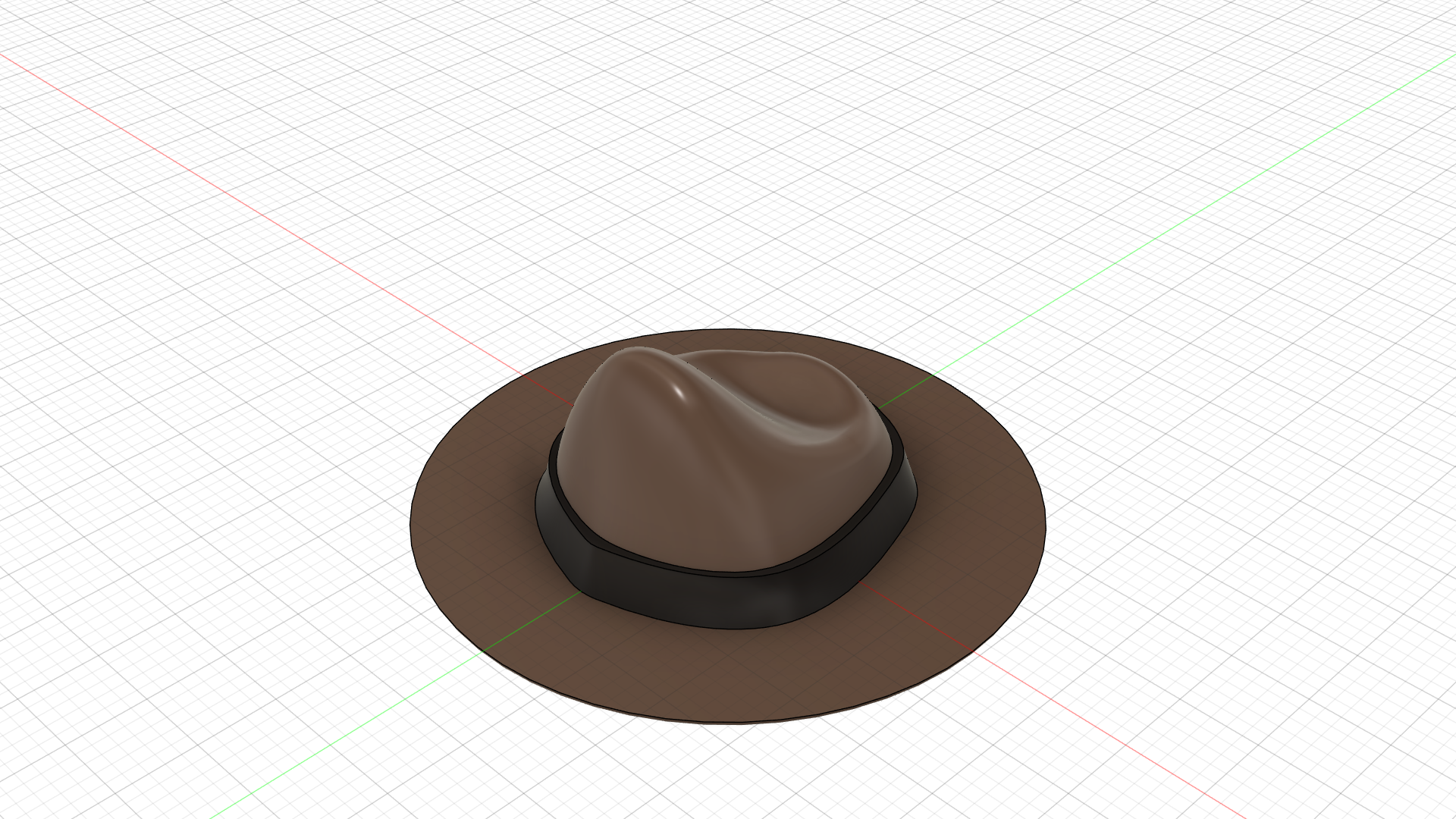
Perry's Fedora (Phineas and Ferb)
Background:
"A Platypus? PERRY THE PLATYPUS!"
This hat is from Perry the Platypus from Phineas and Ferb. Perry always wears this fedora whenever he is fighting Dr. Doofenshmirtz. As a big fan of the show, I am surprised that there are two different stories going on at the same time (with Perry vs. Dr. Doof and Phineas and Ferb vs. Candace) and that each episode has a similar structure but is still entertaining. The amount of entertainment and laughter from this show inspired me to create Perry's fedora.
Design Process:
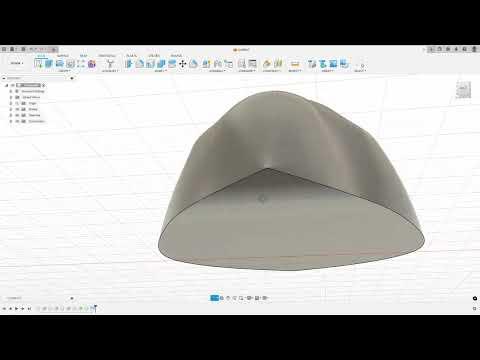
I started by lofting multiple sketches set apart from each other with offset planes to create the curve on the top of the fedora. This took a while to get to look good, and I used 5 different sketches to be able to get the top of the fedora to look good. When I was done modeling that, the rest was simple. The brim is just created from a cylinder with the edges filleted. Then I shelled the hat for a hole. I also changed the appearance of the fedora.
(Note: To create the black band around the fedora, I used the same technique as the Top Hat in step 3, by lofting sketches that are created by using the offset feature in the sketch. I also scaled it by 4 to make it a similar size compared to other hats.)
Downloads
Pirate Hat (LEGO)
Background:
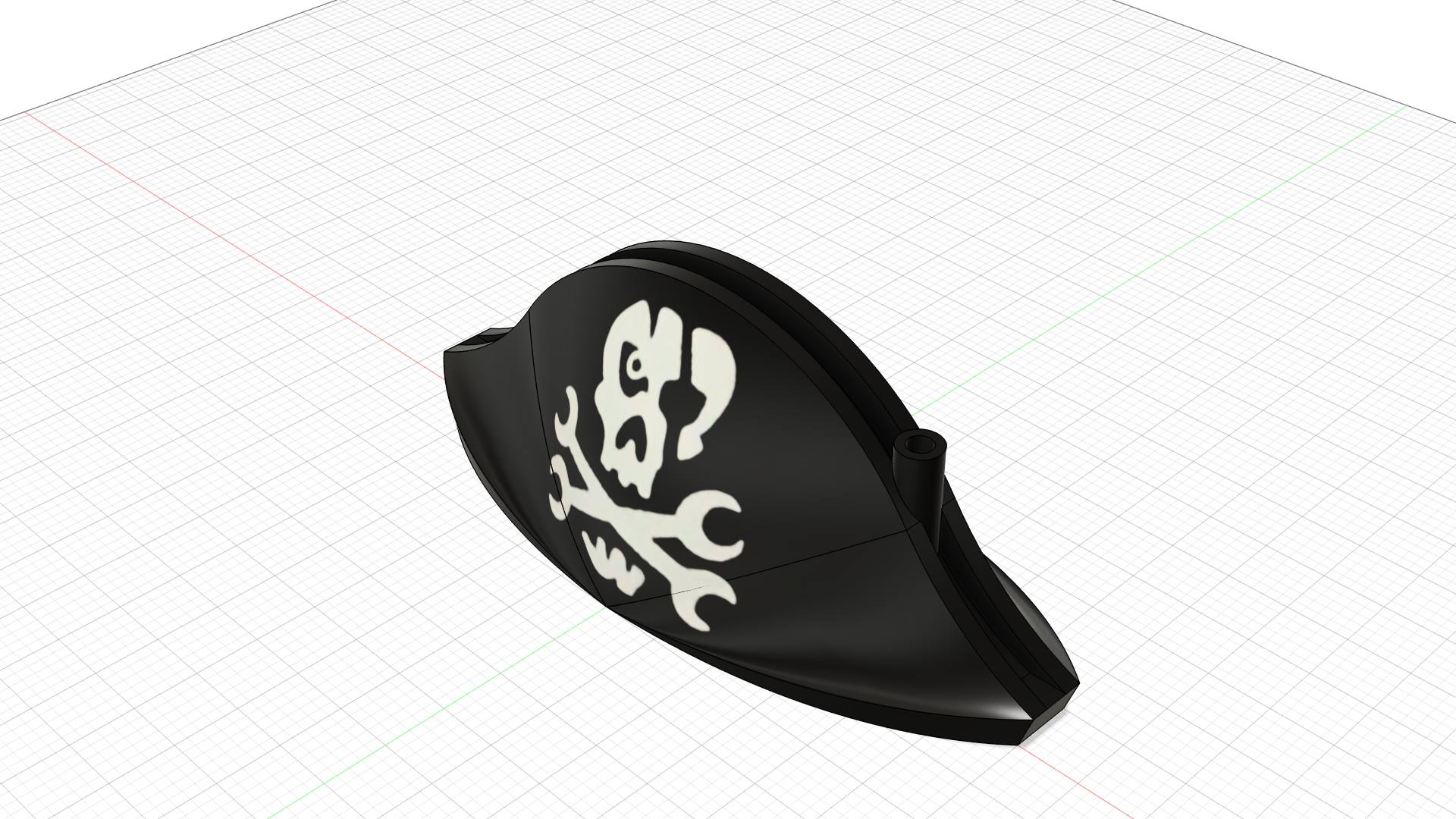
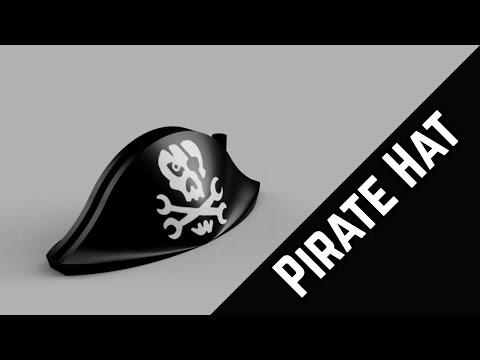
This hat is from a LEGO Ninjago Captain Soto, but it has a skeleton body. I figured this out because Captain Soto is the only minifigure to have this decal on the hat. I used to collect a lot of LEGO because I enjoyed building alternate builds, and I also liked figuring out how the set functions with the play features. A great example would be Zane's Mino Creature (71719). It amazes me how the mechanics can create the head of the mino to move. As part of my childhood, I want to include this pirate hat.
Design Process:
To create the pirate hat, I started with a sketch on the front plane and created the shape of the pirate hat. I just guessed many of the dimensions, as I don't have the proper tools to be accurate. I used an offset plane and copied the first sketch, but scaled it down so that it could loft to a round shape. Then I used another offset plane with a point and used the loft function with the three sketches. I mirrored it to create the other half, but I set the two bodies apart since there is a gap in the pirate hat. I connected the two bodies by extruding the face a bit and with a sketch. I also added a cylinder on the right with a hole on the top, which is used to put a red feather. Then it was just adding the decal and coloring it black to finish it.
(Note: After the video, I also created the hole on the bottom of the hat by using a circle and extruding it through.)
Downloads
The Sorcerer’s Hat (Mickey Mouse)
Background:
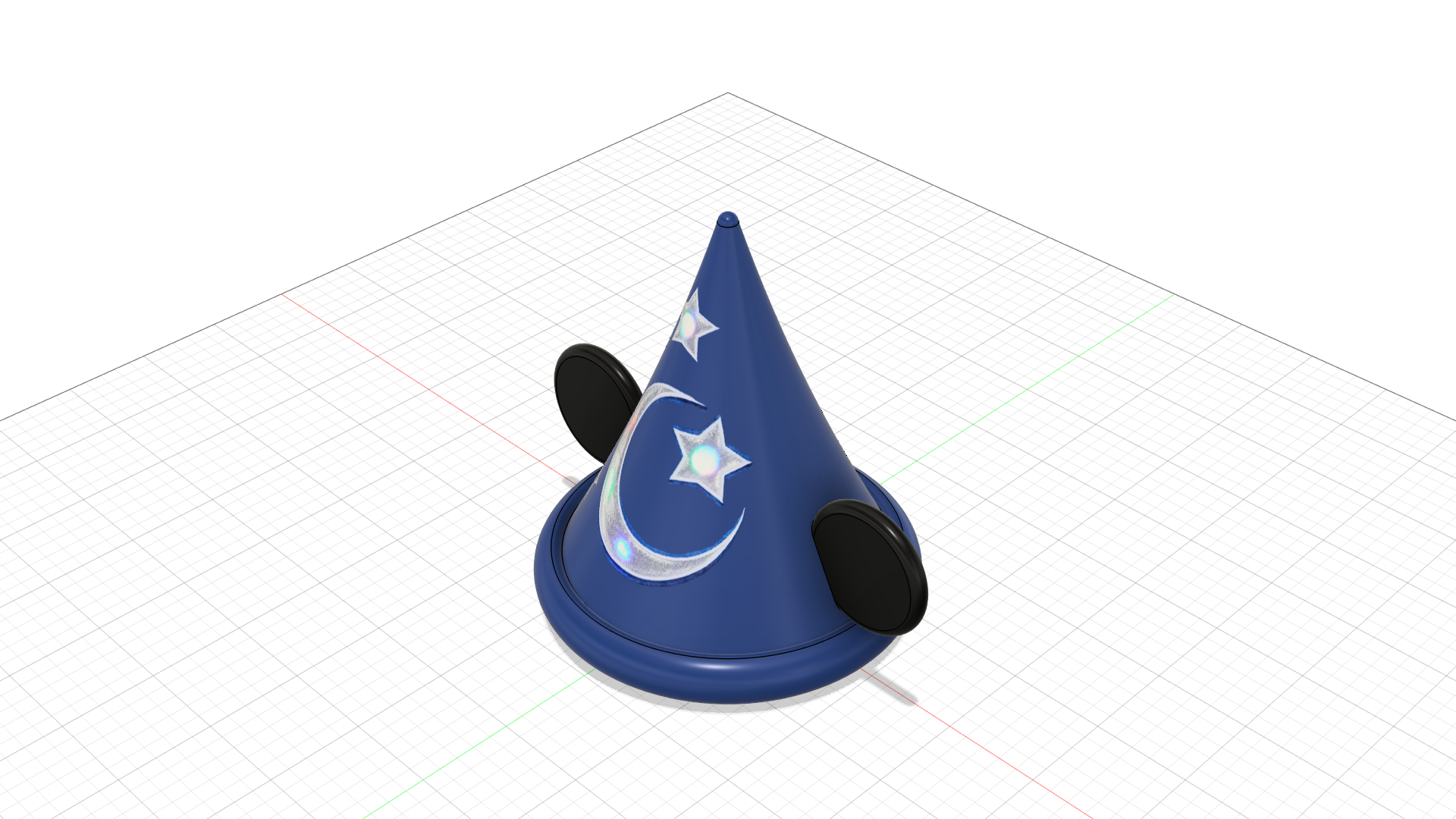
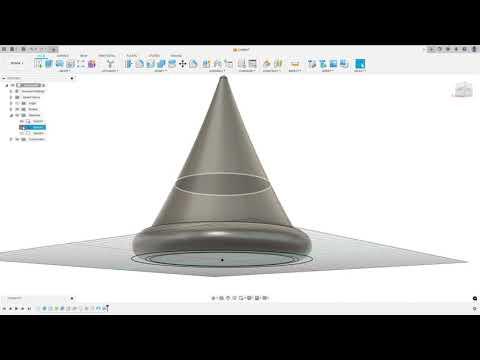
This is hat is from Mickey Mouse Fantasia. I used to watch this when I was a child, but I don't remember what happen. I wanted to add this hat to this project because it was part of my life as a kid and a wizard hat is distinct from the other hats used in this project.
Design Process:
I started by creating the brim of the hat by creating a cylinder. I filleted the edges of the cylinder to make it round and extruded the top face down to make it look like it curves inward. Then I used sketches on offset planes to create the cone of the hat (I recommend creating a sketch on the side view and revolving it to make it easier). Instead of shelling the inside of the hat, I used the offset tool in the sketches so that I could loft it and cut out the hole in the hat. Then I created the ears of the hat by using a sketch in the middle of the hat and using arcs that are connected to the hat. Then it was just extruding it and filleting the edges to make it look smooth. I also added decals and changed the appearance of the ears and the hat.
Downloads
Propeller Hat
Background:
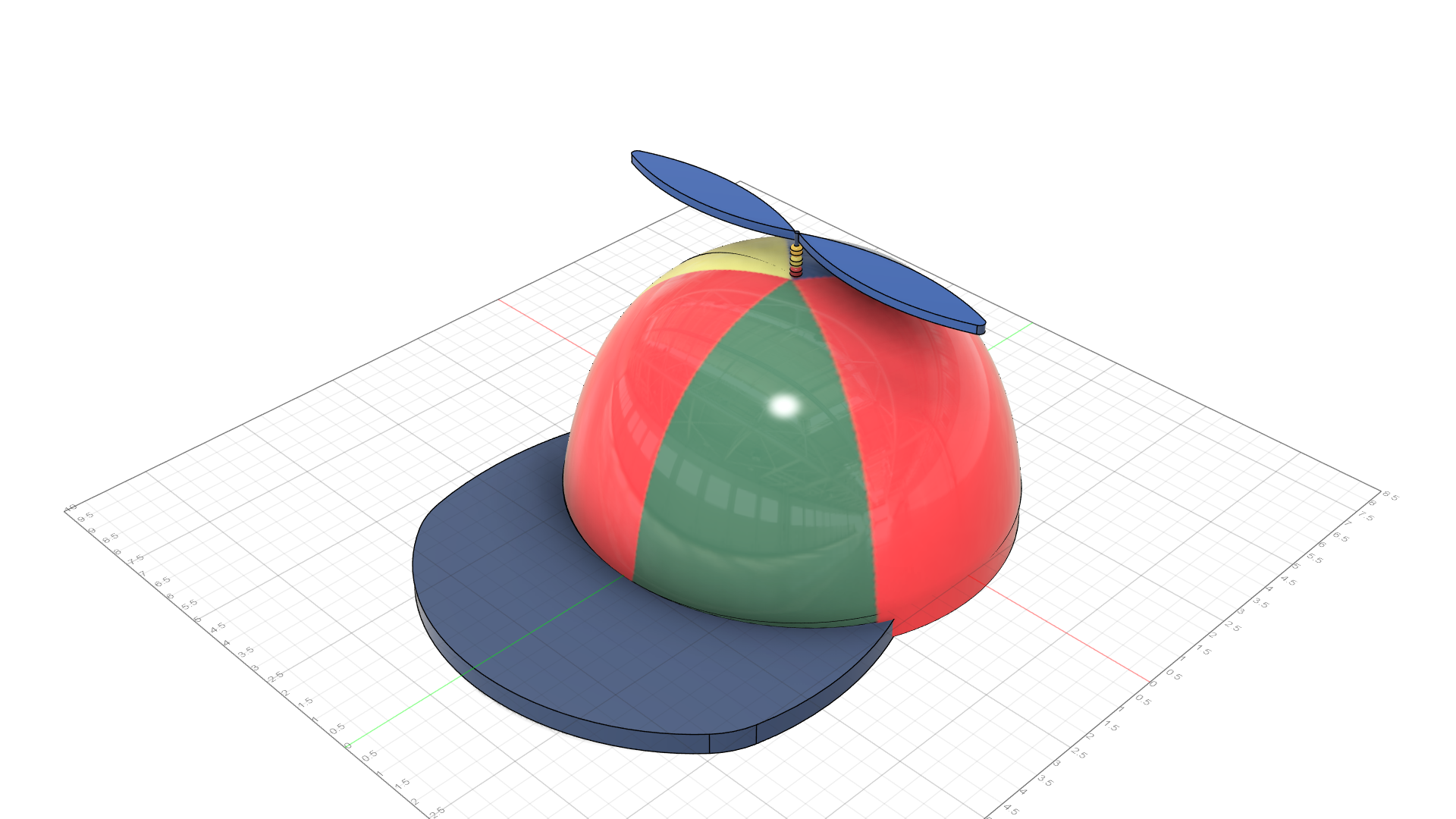
There is really no background behind this, but I wanted to have 10 hats instead of 9 for this project. I searched for some silly hats and I chose this one. :) The propeller hat was invented by Ray Nelson in 1947, and it also inspired the "Beany Boy" from "Beany and Cecil".
Design Process:
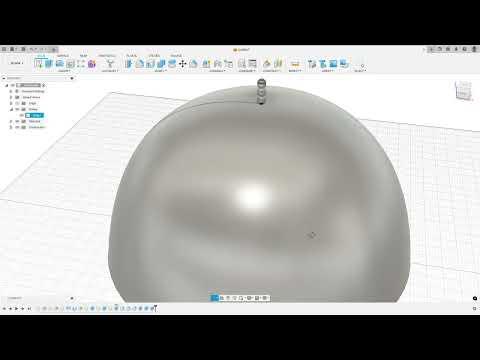
To create the Propeller Hat, I used sketches that are offset by different planes and lofted them because the hat is not a perfect sphere. I also shelled the hat for the hole. Another way I could model the hat is by revolving a sketch around the Z-axis. For the propeller on top of the hat, I created cylinders and then filleted them to make them look like the tiny beads on top of the actual hat. Then I create another cylinder and use a sketch with arcs to create the propellers. To create the front of the hat, I extruded a sketch down as well as the bottom of the hat so not have that 3D curve. Then I used a sketch at the front of the brim and cut out part of the front of the hat to create the bend. I used decals of triangles to create the different colors on the hat by making the top of the triangle go to the center of the hat. That was the last hat!
Downloads
Creating the Stand
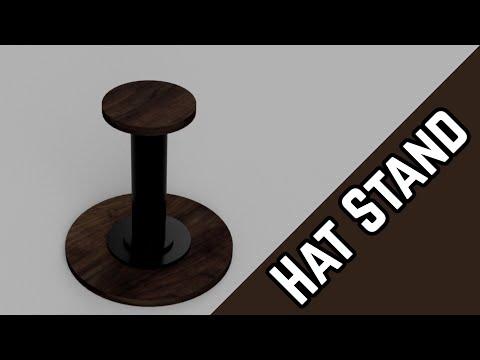
When completing all of the hats, I wanted to display the hats. I decided on modeling a hat stand to allow the hats to be displayed on. It was fairly simple to create the stand, using some cylinders stacked on top of each other and changing the physical materials of the bodies.
Downloads
Merging Them All!
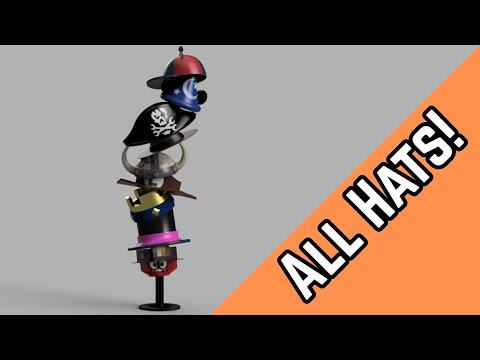
Now it is time, merging them all! I had the idea to merge them all as one massive hat for the thumbnail of this Instructable. Is this then considered the 11th hat? To be able to stack them all on top of each other, I used an empty file and dragged all the hats into it, making all of them components. This is so I can move them freely, and I also enabled all contacts under assemble to not allow the hats to go through each other. Now it was just spending time to make the hats stacked on top of each other, and making it look realistic by rotating the hats around.
Conclusion
You reached the end! 🥳
Overall, this project was fun to do. I love modeling on Fusion, and it was amazing bringing all of these hats from my favorite shows or games that I used to play as a kid, as one massive project. I didn't realize till today how hats are important to express yourself. If I could, I would make 1000 more hats! Please share your opinions or give your thoughts by leaving a comment.
But that's it! Bye-bye!
If you want to see the playlists of the videos in this Instructables, click here.
(decals)



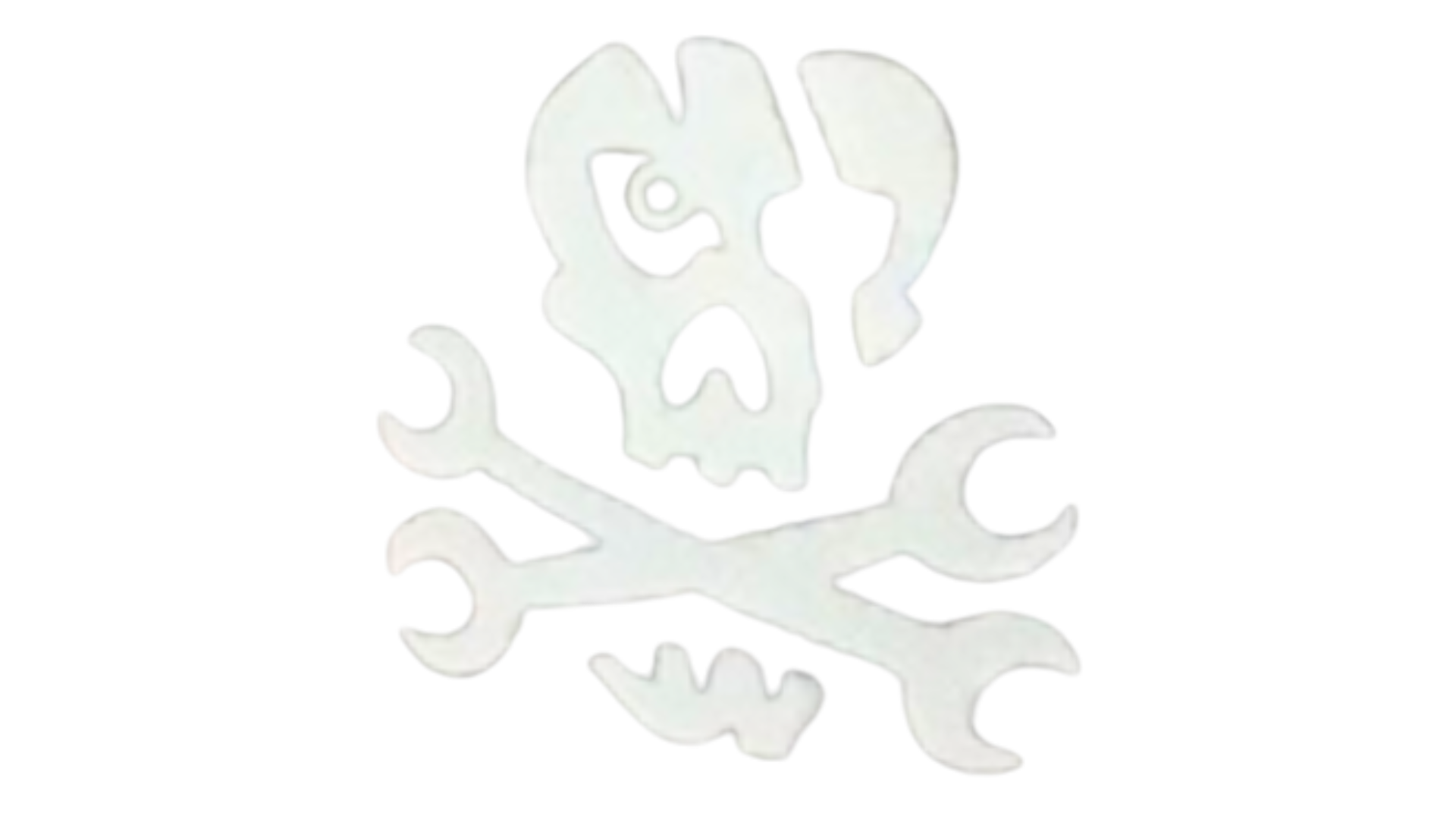

These are all the decals that I used during this project. Some of the decals used were found online and edited. All logos belong to their original creators.