16x2 LCD Screen With Arduino - Lesson #14
by lucascreator in Circuits > Arduino
173 Views, 3 Favorites, 0 Comments
16x2 LCD Screen With Arduino - Lesson #14
.png)
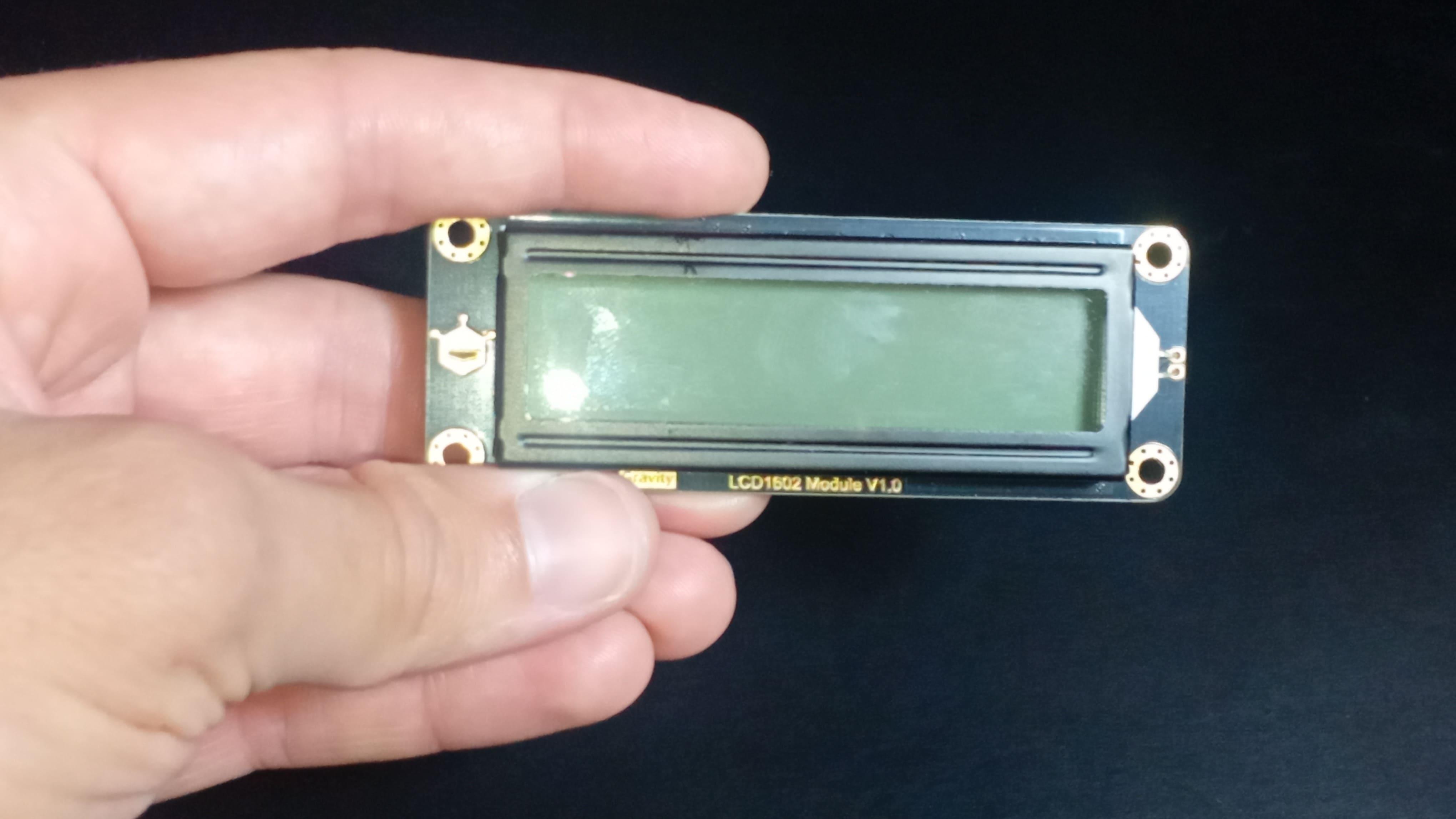
What if, instead of just blinking LEDs or moving motors, your Arduino project could actually tell you what it's doing?
In this lesson, you'll learn how to use a 16x2 LCD screen to display messages, understand what's happening behind the scenes, and make your projects feel much more polished and professional.
This is lesson 14 of the Arduino for Beginners series, and it's one of those lessons where things start to feel a lot more "real".
Let’s get started.
Supplies

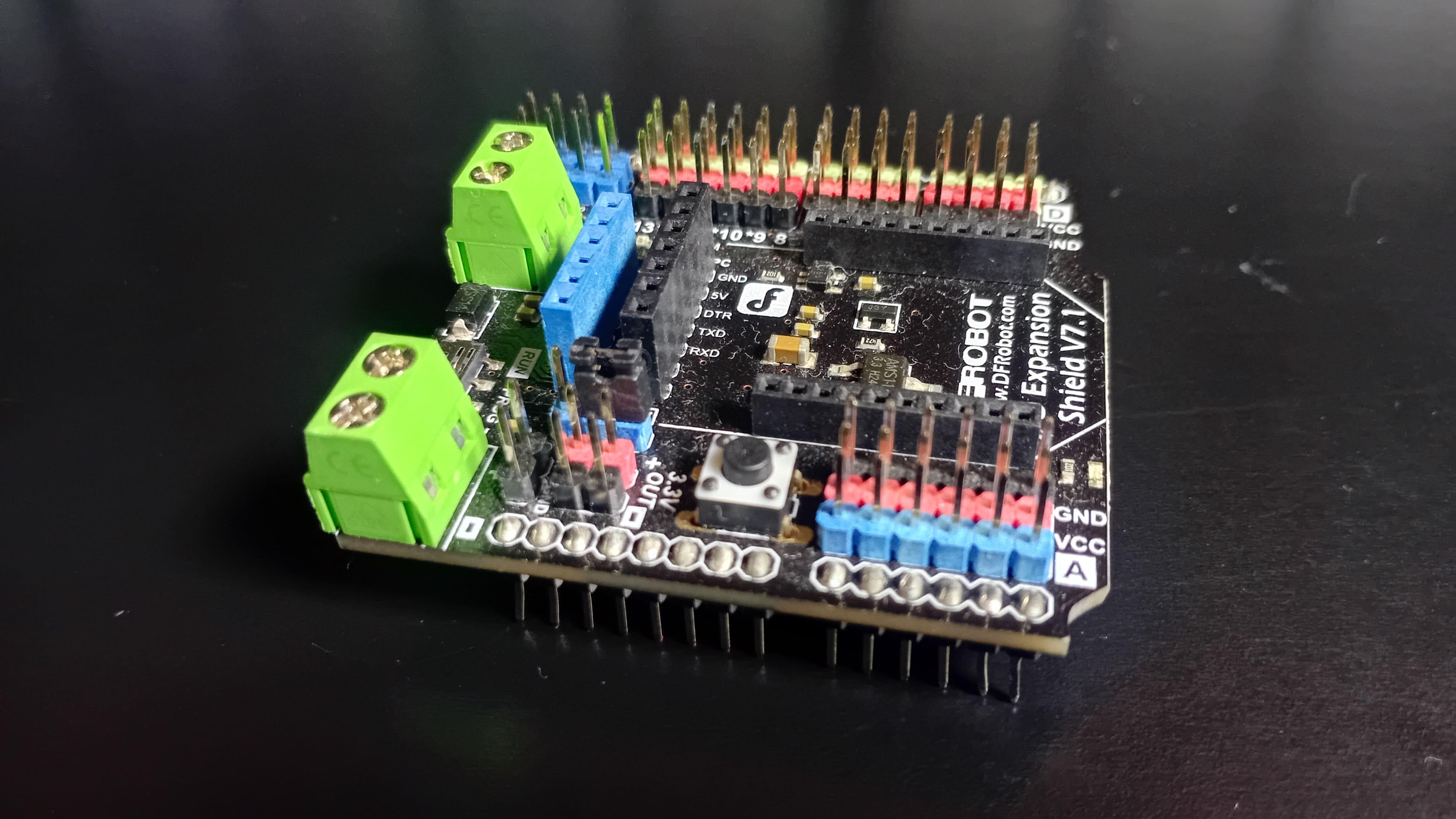
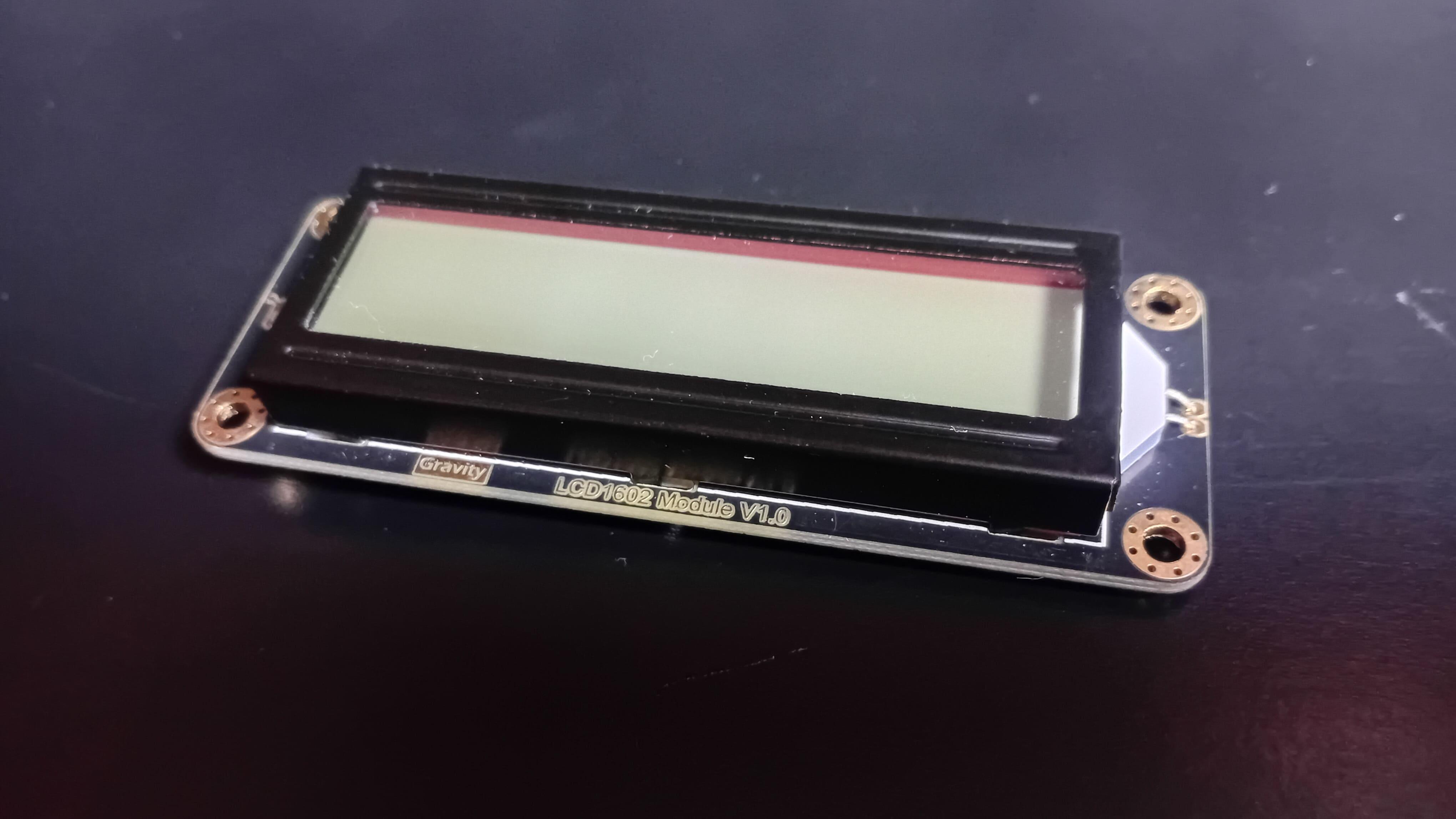

For this project, you'll need:
- DFRobot MindPlus Arduino Coding Kit
- Arduino
- I/O expansion shield
- LCD screen
- Four-pin wire
YouTube Tutorial
I've recently posted a tutorial about this project on YouTube explaining everything you can read on this article. You can watch it right above.
Understanding the LCD Module
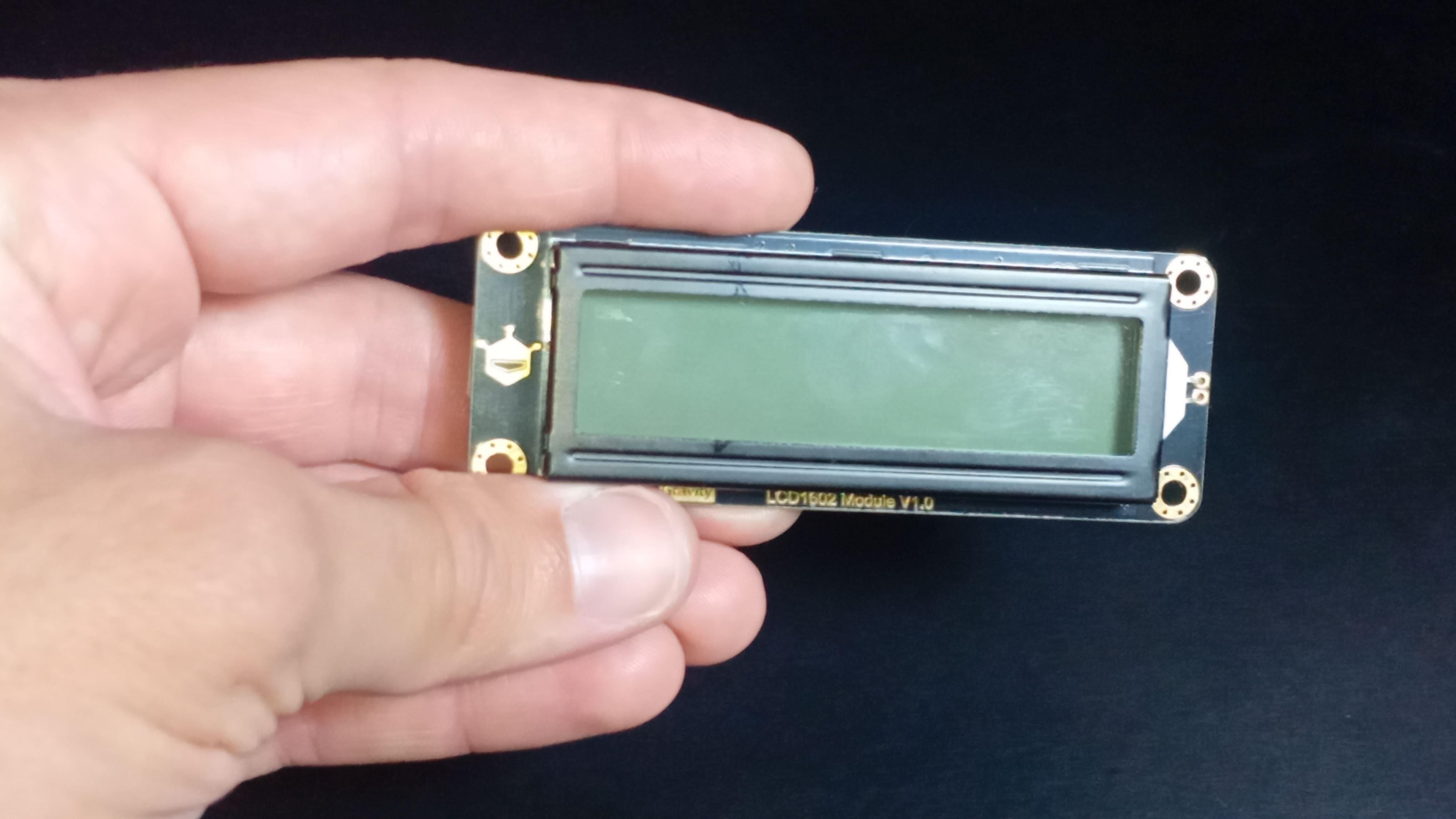


This is the LCD module that comes with the MindPlus Arduino Coding Kit, the same kit we've been using throughout this 24-part series.
At first glance, it looks almost too simple: a screen on the front (image 1), a few electronic components on the back (image 2), and a single four-pin connector that already hints at easy wiring (image 3).
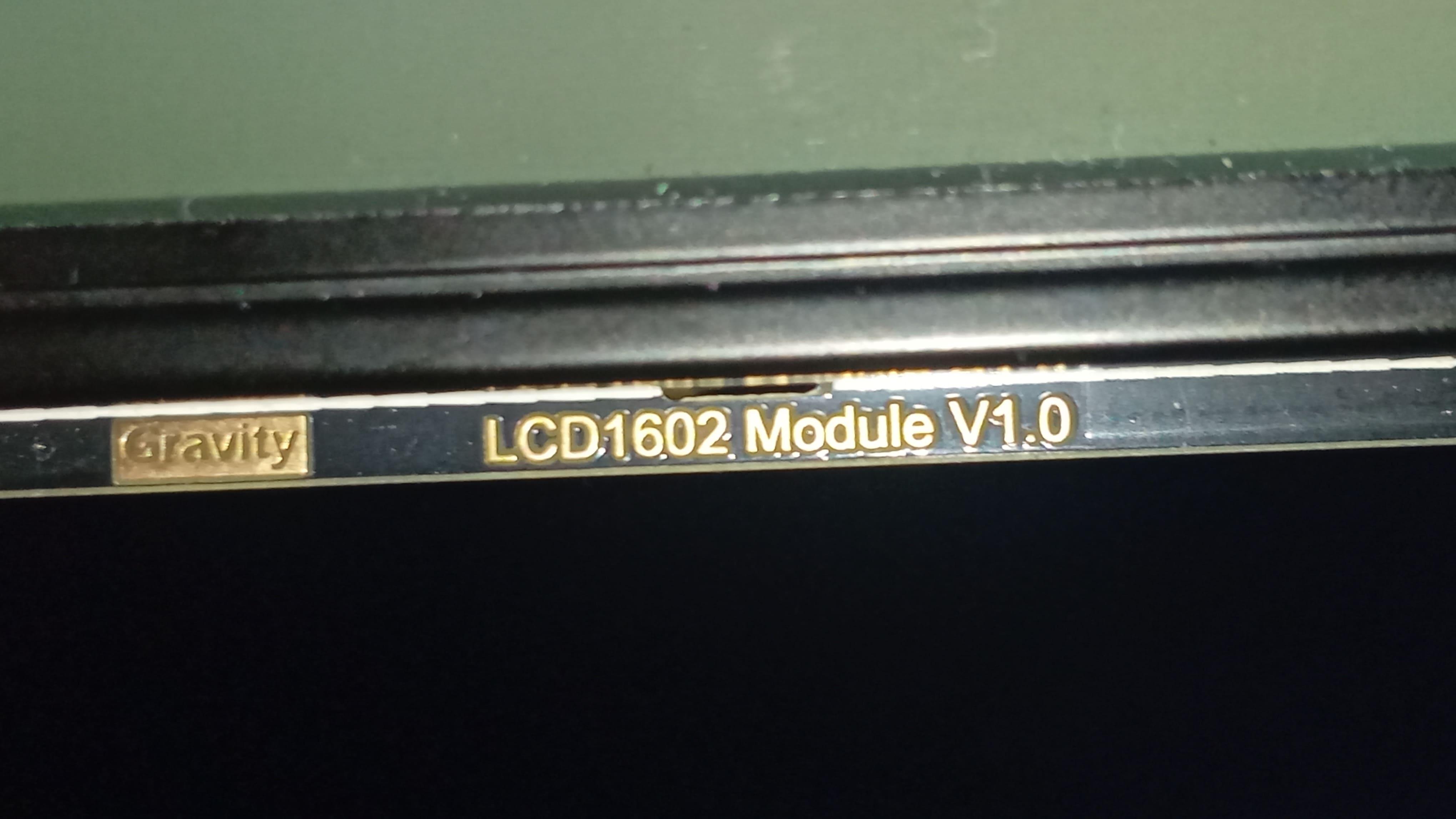
If you look closely at the bottom front of the display (image 4), you'll see "LCD 1602" printed on it. That name tells us exactly what kind of screen this is.
The "16" refers to the number of characters it can display per line, and the "2" refers to the number of lines. In other words, this display can show up to 16 characters on the first row and 16 on the second.
Even though we call it a "character display", each character isn't a single solid block. If you power the screen and observe it closely (image 5), you'll notice that every letter or number is built from a grid of tiny dots.
Specifically, each character is formed using a 5 by 8 pixel matrix. By turning different pixels on and off, the LCD can draw letters, numbers, and symbols.
Once you understand this detail, many of the display's limitations, and possibilities, start to make sense.
You'll also find LCDs in other formats. Some are smaller, like 16x1 displays, while others are larger, like 16x4. They also come in different colors, such as green or blue. Despite these variations, the underlying idea remains the same.
I2C Communication and Why It Matters
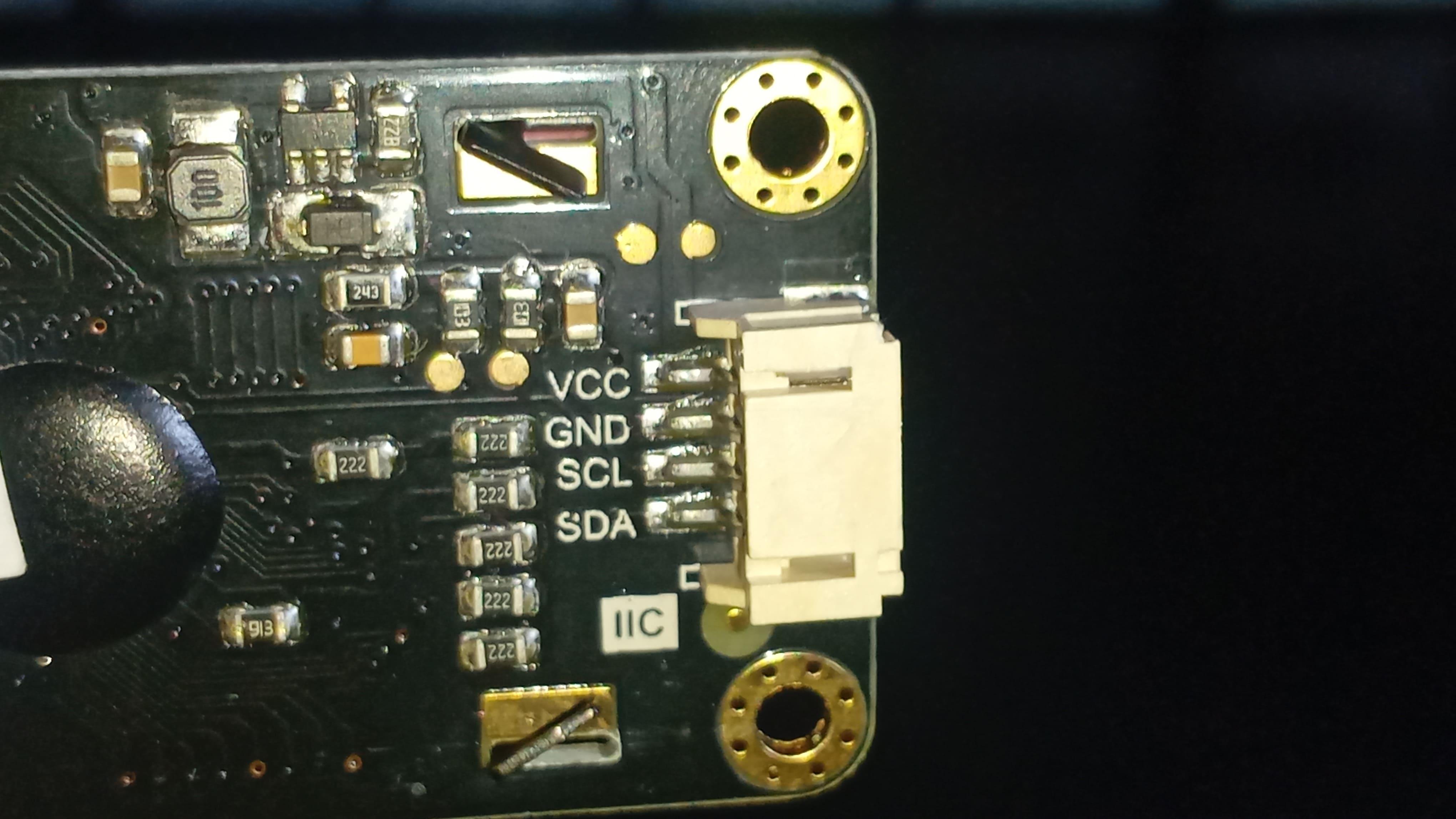
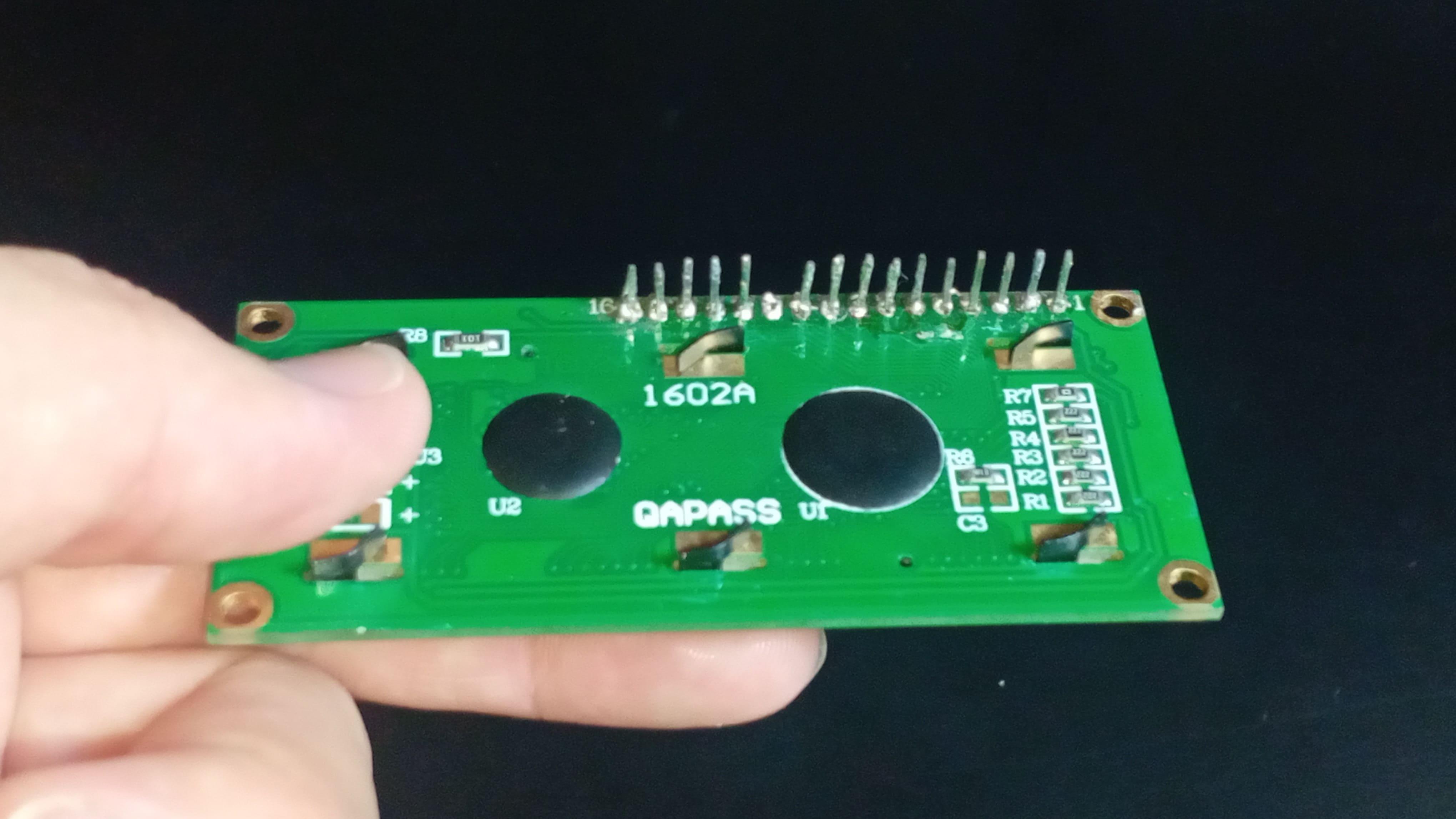
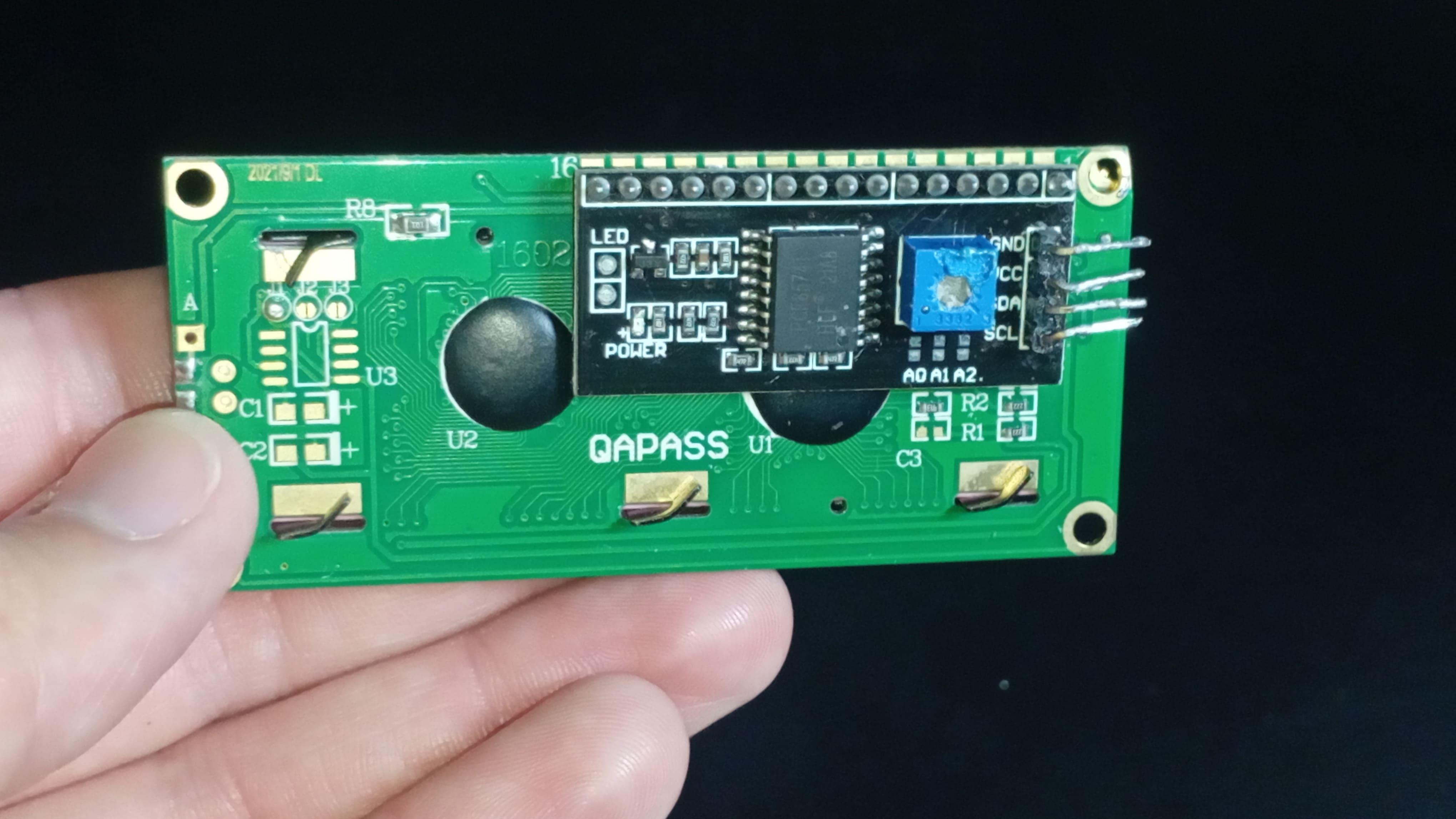

If we flip the module around and focus on the connector (image 1), two labels immediately stand out: SDA and SCL. These labels tell us that this LCD uses I2C communication.
In an I2C setup, the SDA pin is responsible for data, and interestingly, it carries data in both directions.
The SCL pin carries the clock signal, which is generated by the master device. In our case, the Arduino acts as the master, controlling the communication.
One of the biggest advantages of I2C is that it allows multiple devices to share the same two wires. You can connect several sensors, displays, and modules to the same SDA and SCL lines, as long as each device has its own unique address.
This is incredibly powerful, especially for beginner projects, because it keeps wiring clean, simple, and easy to troubleshoot.
If you've worked with Arduino before, you may have seen another type of LCD that doesn't use I2C. Those displays usually have many pins, and connecting them requires a lot more wiring and configuration (image 2). Because of that, many people end up buying an I2C adapter and soldering it onto the back of a standard LCD (image 3).
That adapter typically includes a chip called the PCF8574 (image 4). This chip acts as an I2C input/output expander. In simple terms, it's what adds I2C communication to the display. And it's worth noting that this chip isn't limited to LCDs - it can also be used to control LEDs, sensors, and other modules.
That's enough theory for now. Let's actually build something.
Sponsor
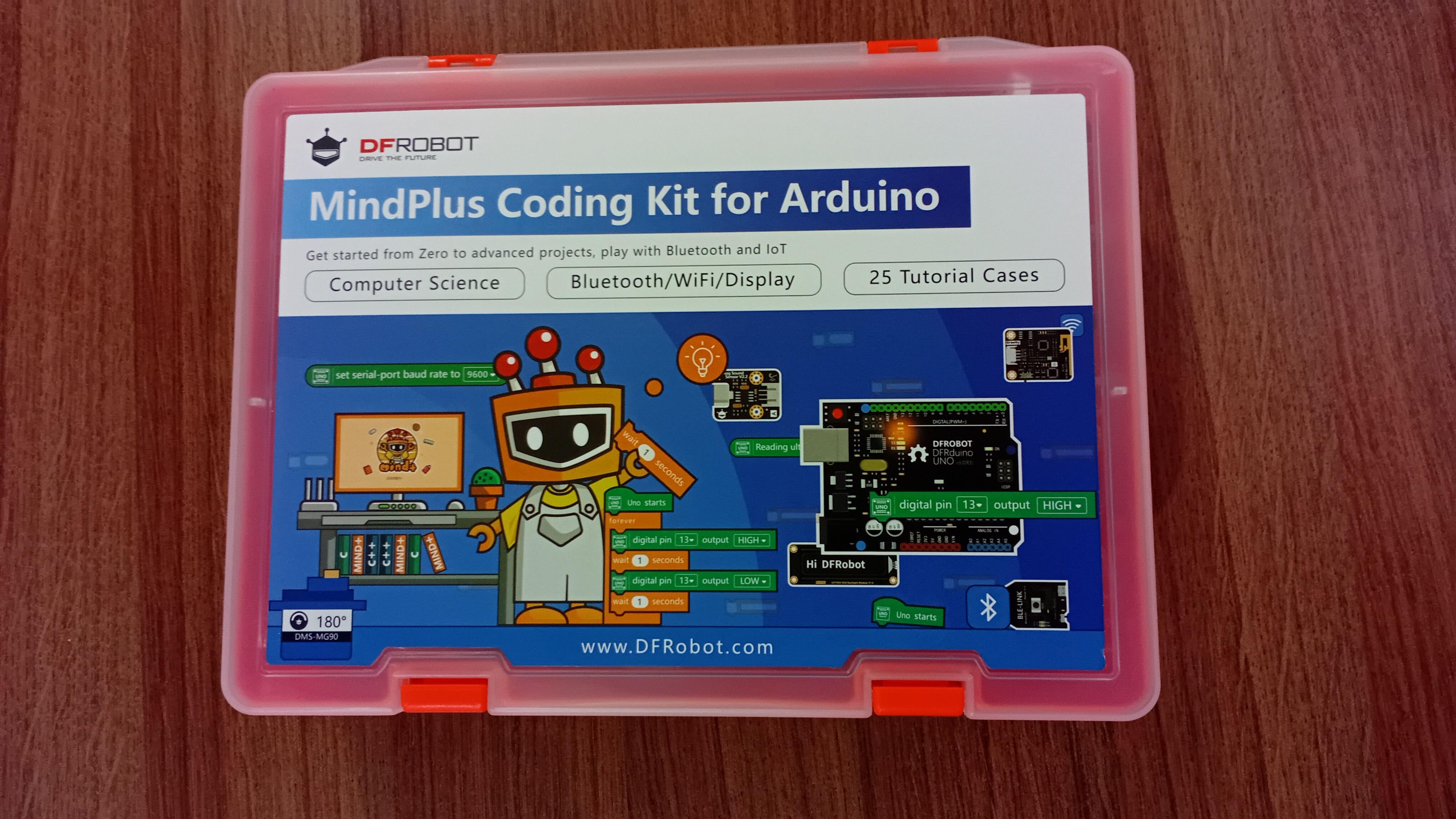
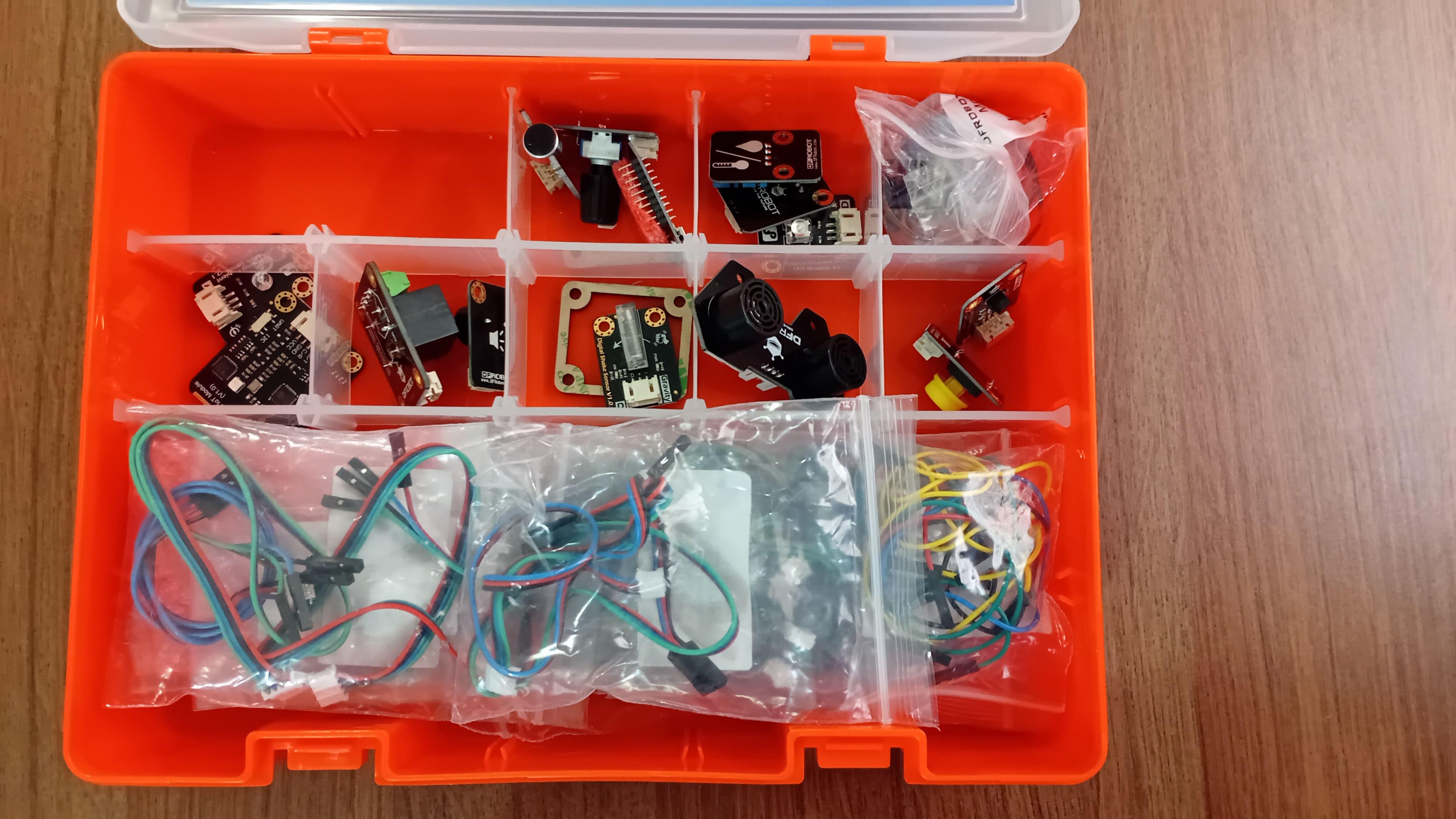

Before we jump into the project, I'd like to thank DFRobot for sponsoring this lesson.
DFRobot is one of the leading global providers of hardware for makers, educators, and engineers.
In their online store, you can find almost everything you need for your next project, from motors, sensors, and microcontrollers to single-board computers, AI devices, and much more.
If you're planning to build something cool, I highly recommend checking them out. Their products are high quality and very reasonably priced.
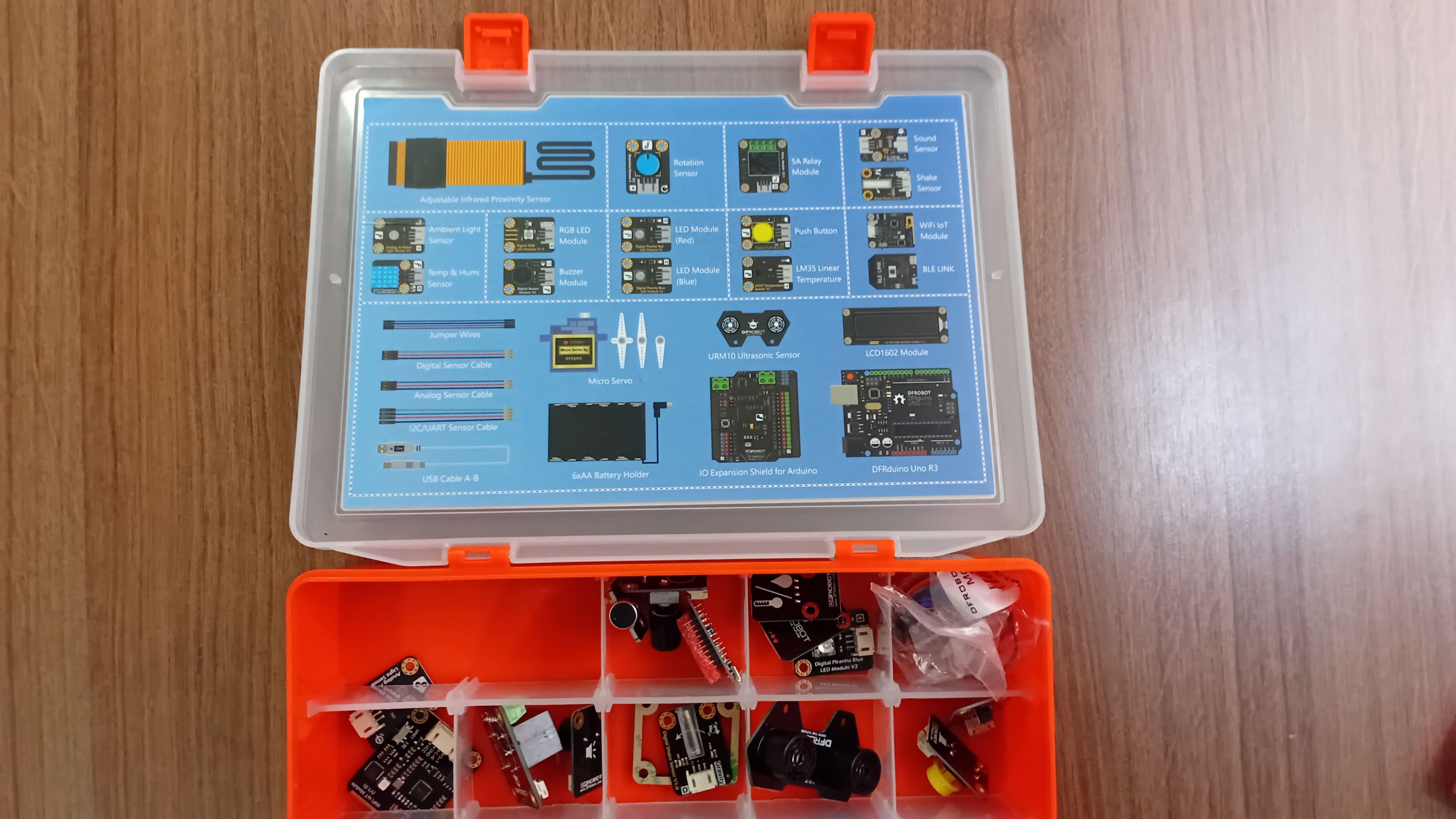
Throughout this series, I'm using the MindPlus Arduino Coding Kit (see the photos above) because it includes everything you need to take your first steps into the Arduino world.
Thank you again to DFRobot for supporting this series and helping make STEM education more accessible to everyone.
Build the Project
Let's move on and assemble our first LCD project.
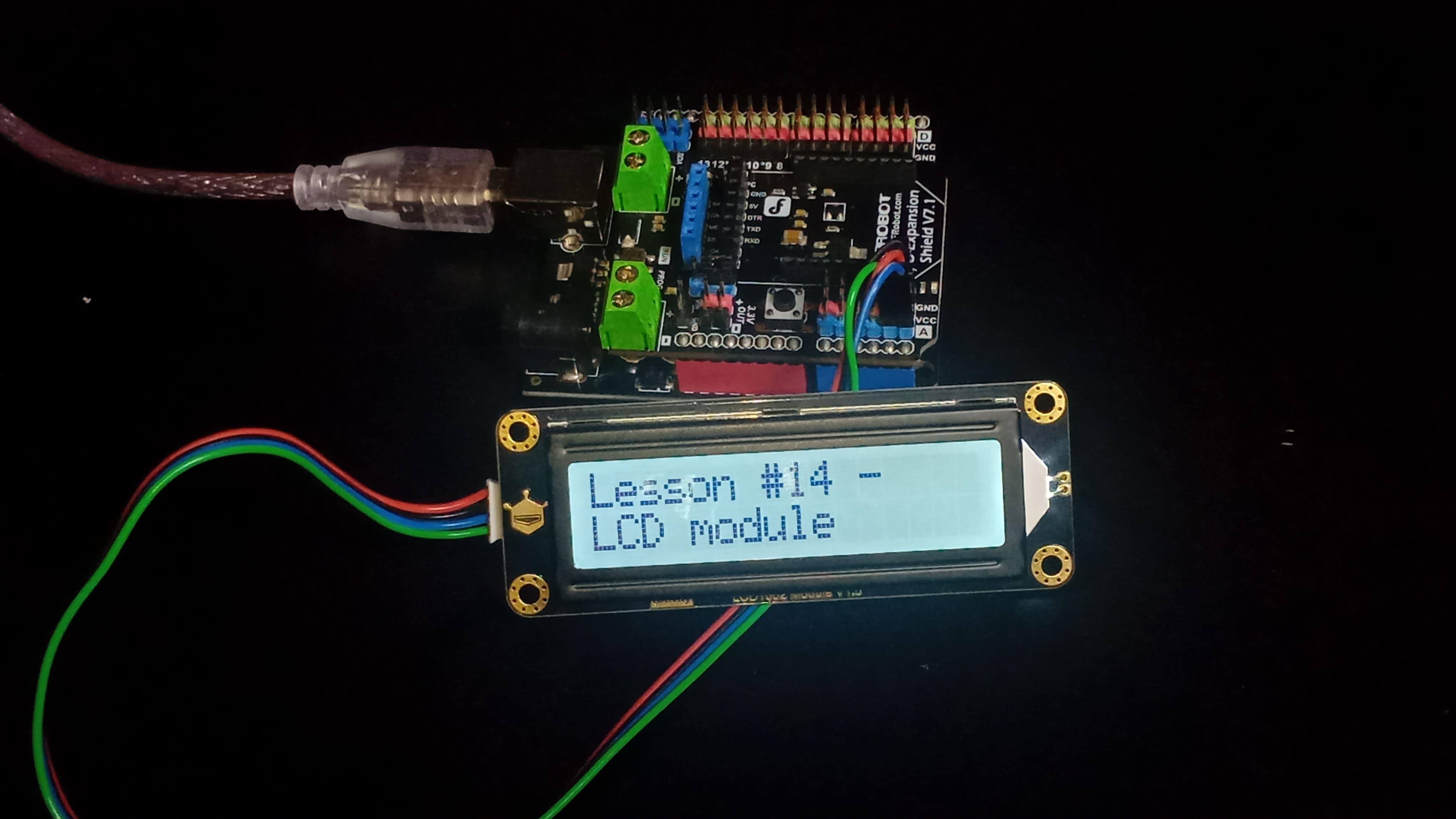
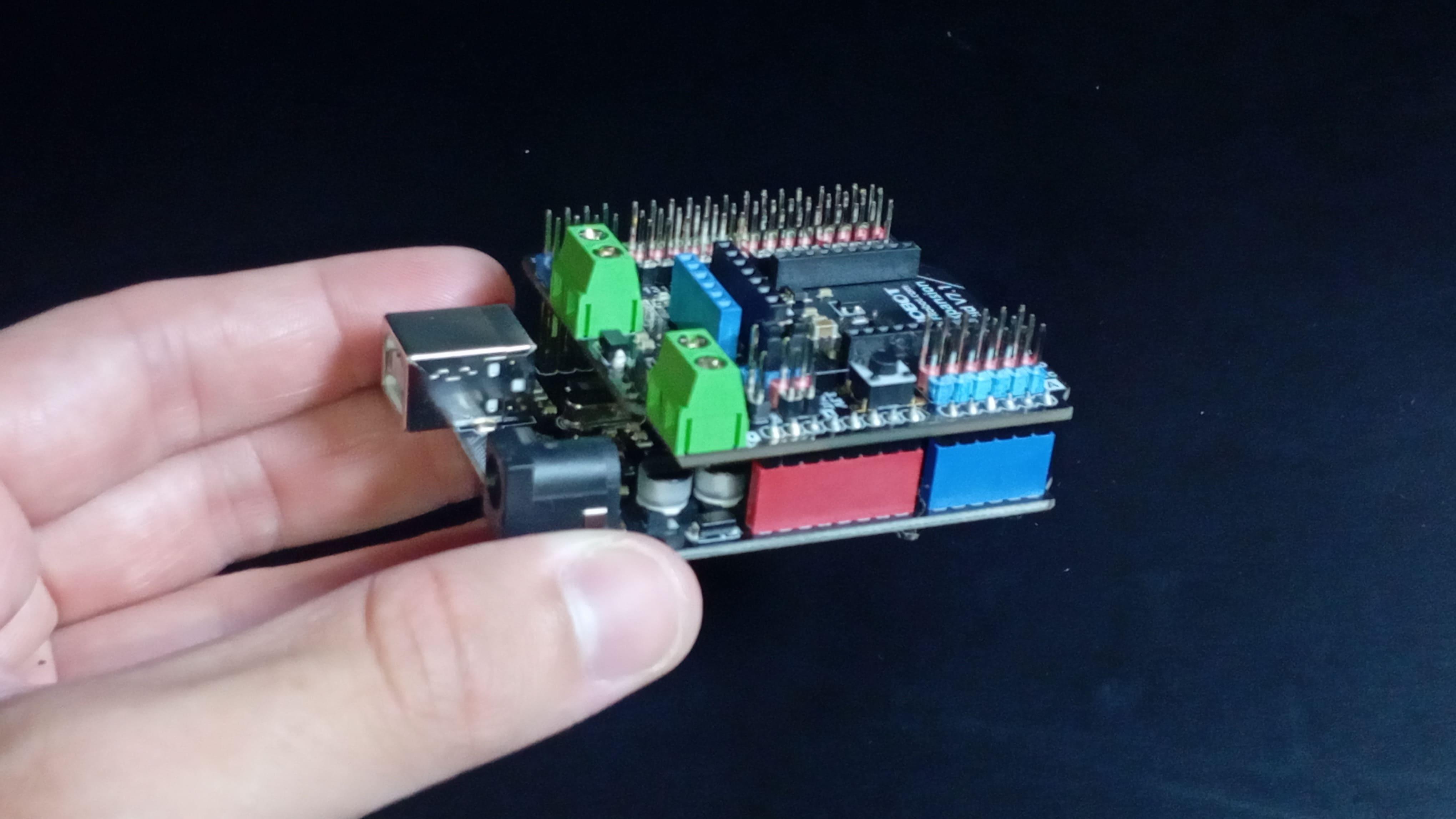
Start by attaching the I/O expansion shield to your Arduino UNO (image 1). This shield makes connecting modules much easier and keeps everything organized.
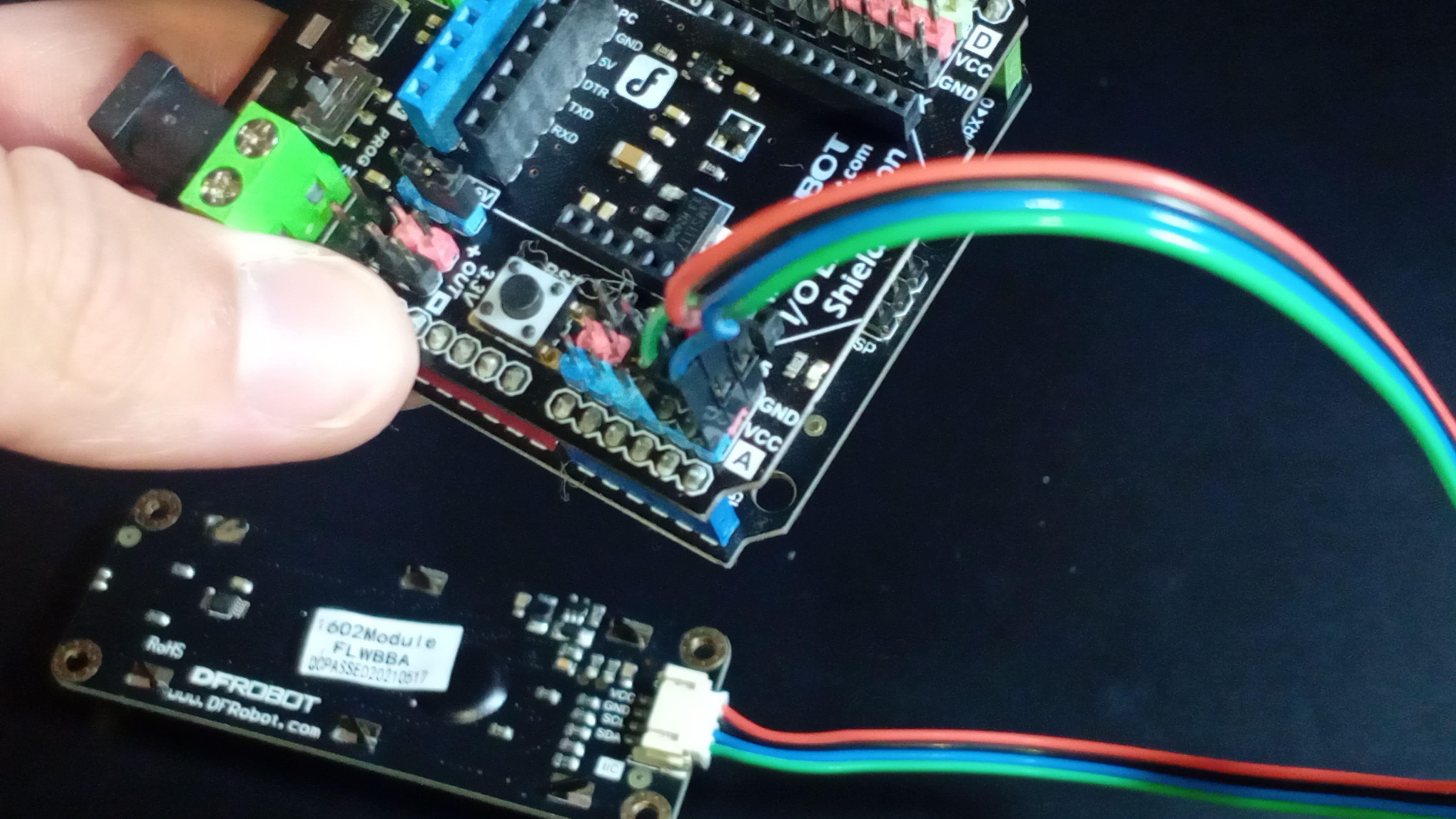
Next, connect the LCD module to the shield using the four-pin cable. The SCL pin connects to A5, and the SDA pin connects to A4 (image 2). This display works with voltages from 3.3 to 5 volts, so it's safe to use with most Arduino boards.
Once the hardware is ready, head over to the GitHub repository for this series. You'll find the link in the description. Open the folder for lesson 14, copy the file called test-lcd, and paste it into your Arduino IDE.
Before uploading the code, make sure you've installed the DFRobot_RGBLCD1602 library. After that, click upload.
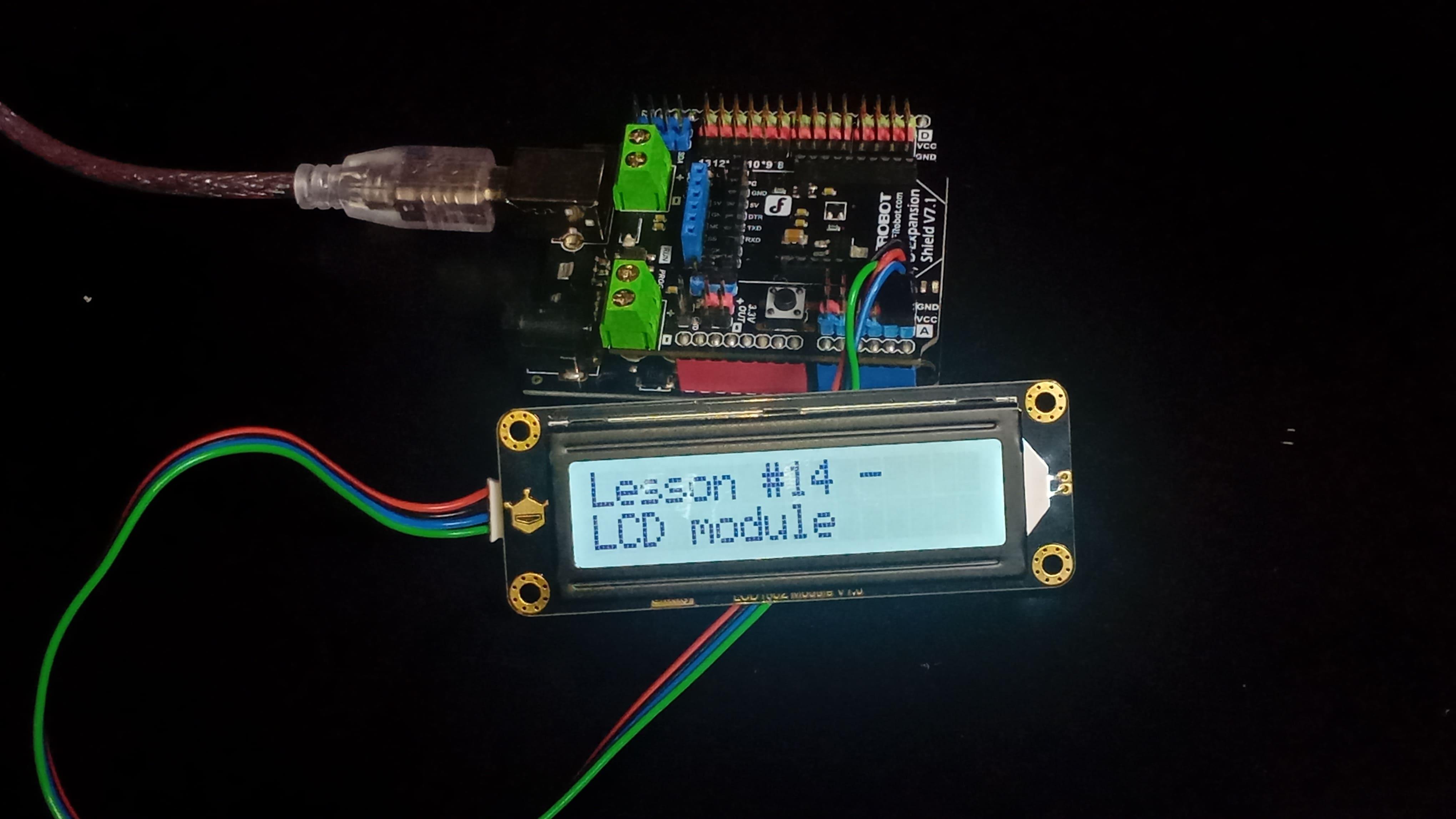
If everything is connected correctly, you should see the message "Lesson #14 - LCD module" appear on the screen. That's our first success (image 3).
Understanding the Code
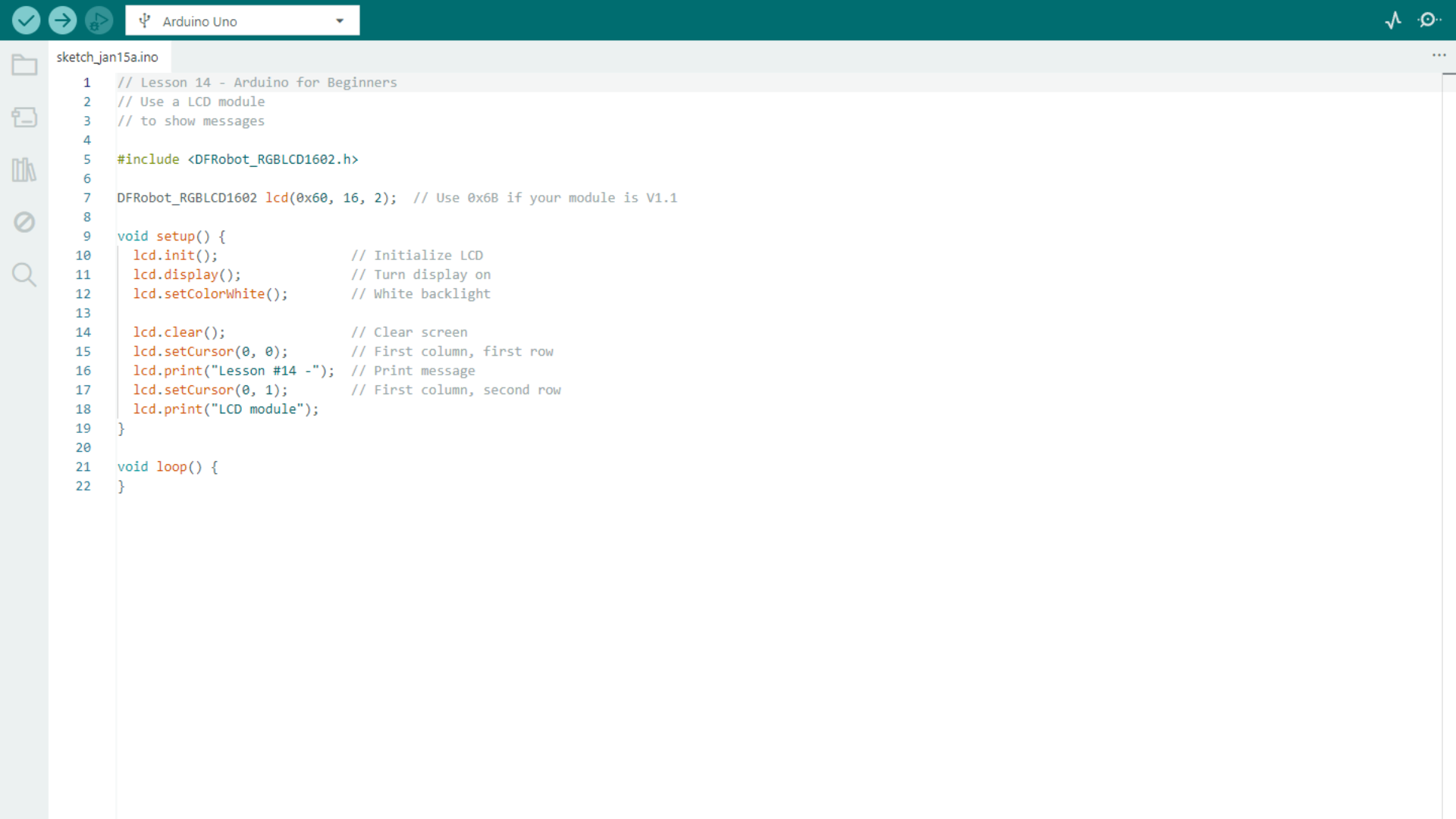
Now let's slow down and look at what the code is actually doing.
First, we include the correct library and create an object that allows us to control the LCD. You can think of this object as our direct way of communicating with the screen.
Inside the setup() function, we initialize the display, clear any old data, and print our message. One important detail to remember is that each row can only display 16 characters. If your message is longer than that, you need to split it across two rows, which is exactly what's happening below.
If this part still feels confusing, don't worry. I have a full lesson on Arduino programming basics, and it's worth reading if you want a deeper understanding.
But now comes the interesting question: what if your message is too long even for two rows?
Creating a Scrolling Text Effect
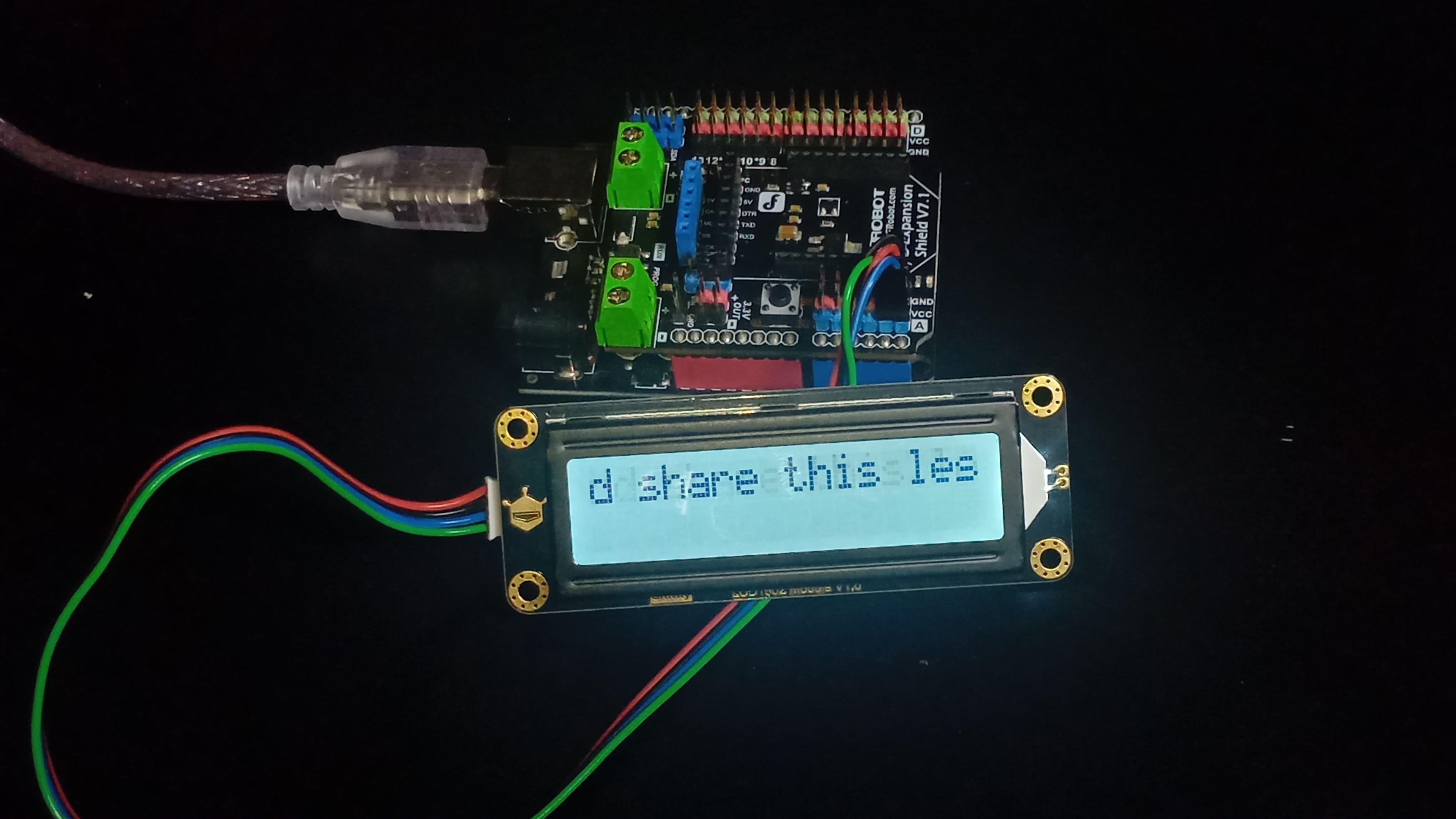
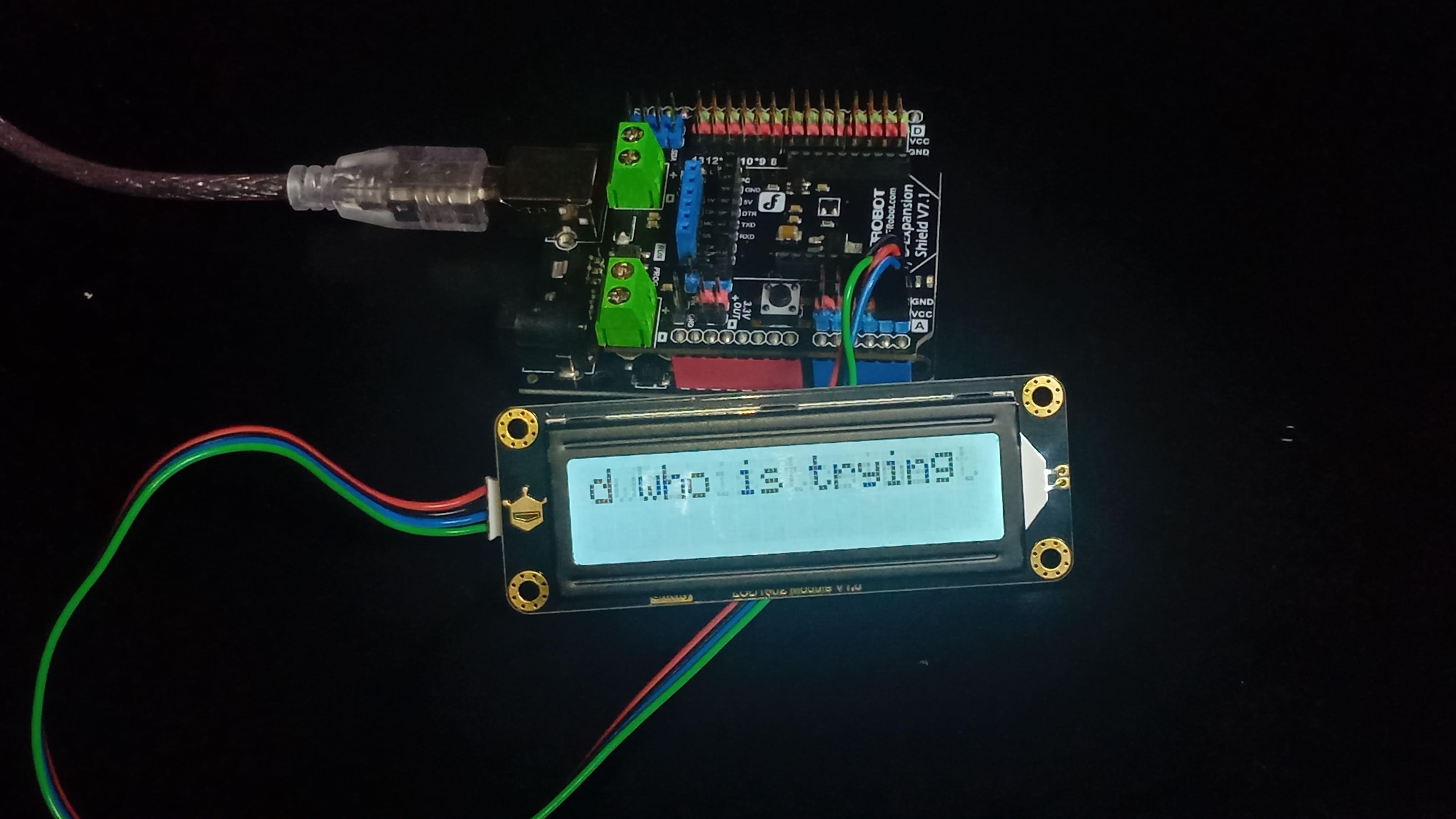
Instead of trying to show everything at once, we can create a sliding or scrolling effect where only part of the message is visible at any given time. This technique is used in many real-world devices, from printers to industrial control panels.
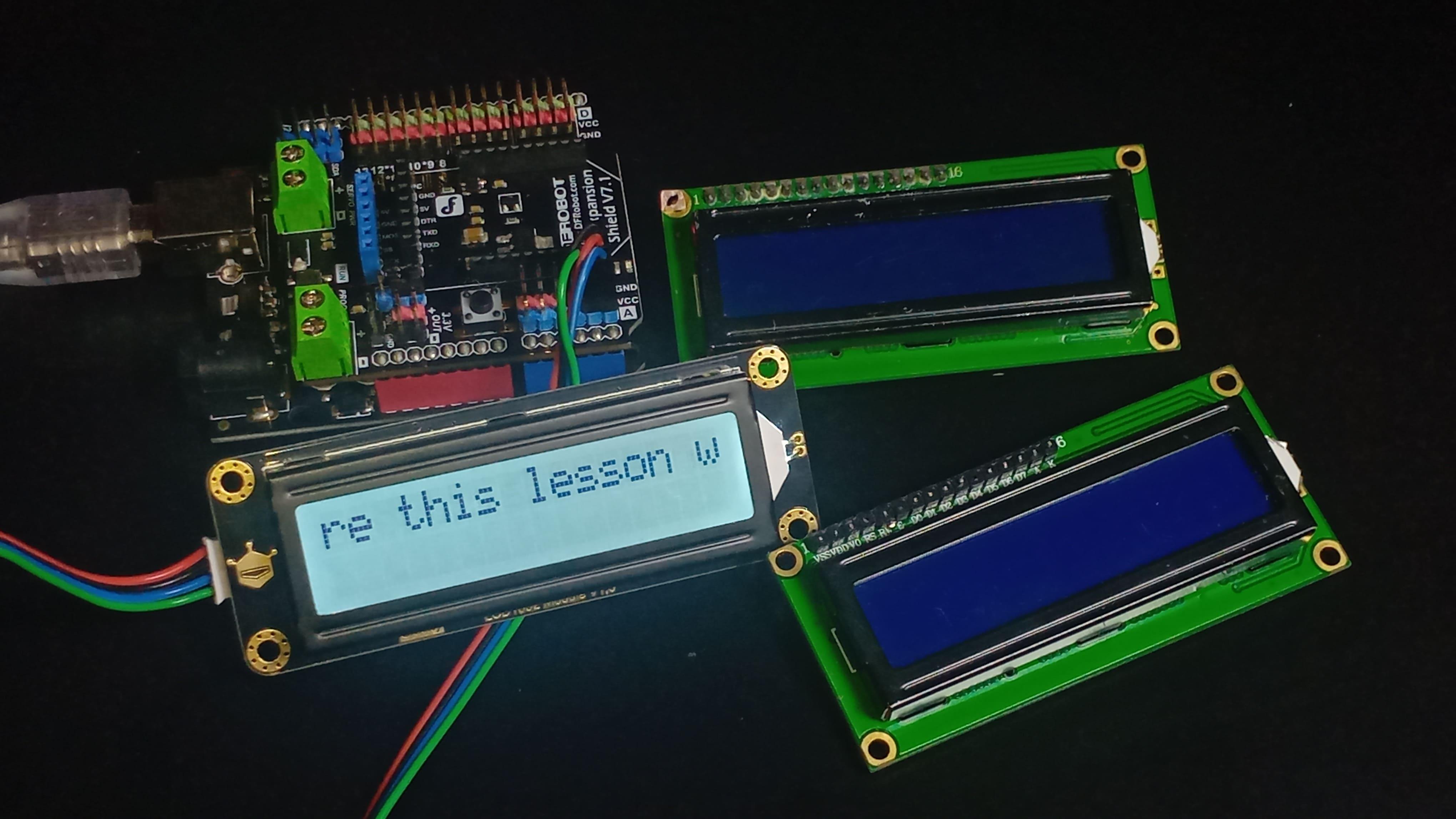
To see this in action, go back to the GitHub repository, copy the sketch called sliding-text, upload it to your Arduino, and watch the LCD. You'll see a long message smoothly scrolling across the screen (images 1 and 2).
So how does this work?
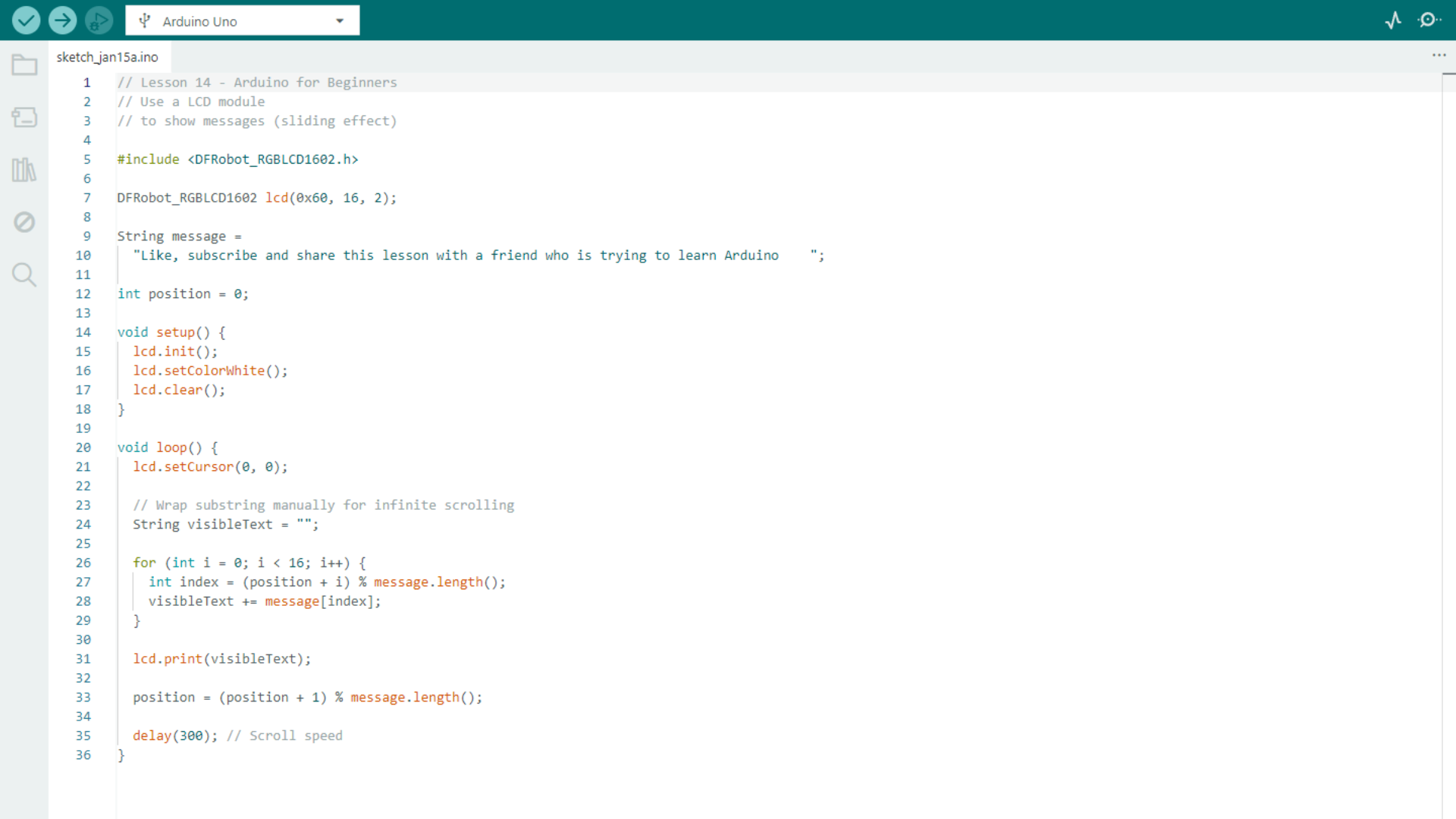
The beginning of the sketch and the setup() function are almost identical to the previous example (image 3), so the real focus is on the loop() function. This is where the logic lives.
The key idea is to treat the message not as a straight line, but as a circle. Imagine the text written on a ring. When you reach the end, you immediately wrap back to the beginning. This approach allows us to create an infinite scrolling effect without worrying about where the message starts or ends.
Since the LCD can only display 16 characters at a time, the code builds a temporary string called visibleText. This string represents exactly what should appear on the screen at that specific moment.
A for loop runs 16 times, once for each column of the display. On each iteration, it selects the next character from the message.
Modular arithmetic is used to wrap around when the end of the string is reached, which is why the modulo operator is so important here. It guarantees that the code never goes out of bounds and that the text scrolls smoothly.
After building the 16-character string, the code prints it to the LCD, moves the position forward by one character, and waits for a short delay. Adjusting that delay changes the scrolling speed.
The result is a clean, smooth, and continuous scrolling message.
Conclusion
That's it for today's lesson.
I hope you enjoyed it and learned something new. In the next lesson, we’ll explore infrared sensors and use them to build a really cool project.
If you found this lesson useful, consider following me.
Each lesson builds on the previous ones, and things are about to get even more interesting. Also, if you haven't already, go back and read the earlier lessons so you don't miss any key concepts.
Thanks a lot for reading until the end, and I'll see you in the next one.