3D Modelling of a Structure | an Abandoned Turkish Bath Turned Into a Mandolin Maker Studio
by eyildiri in Design > 3D Design
275 Views, 5 Favorites, 0 Comments
3D Modelling of a Structure | an Abandoned Turkish Bath Turned Into a Mandolin Maker Studio
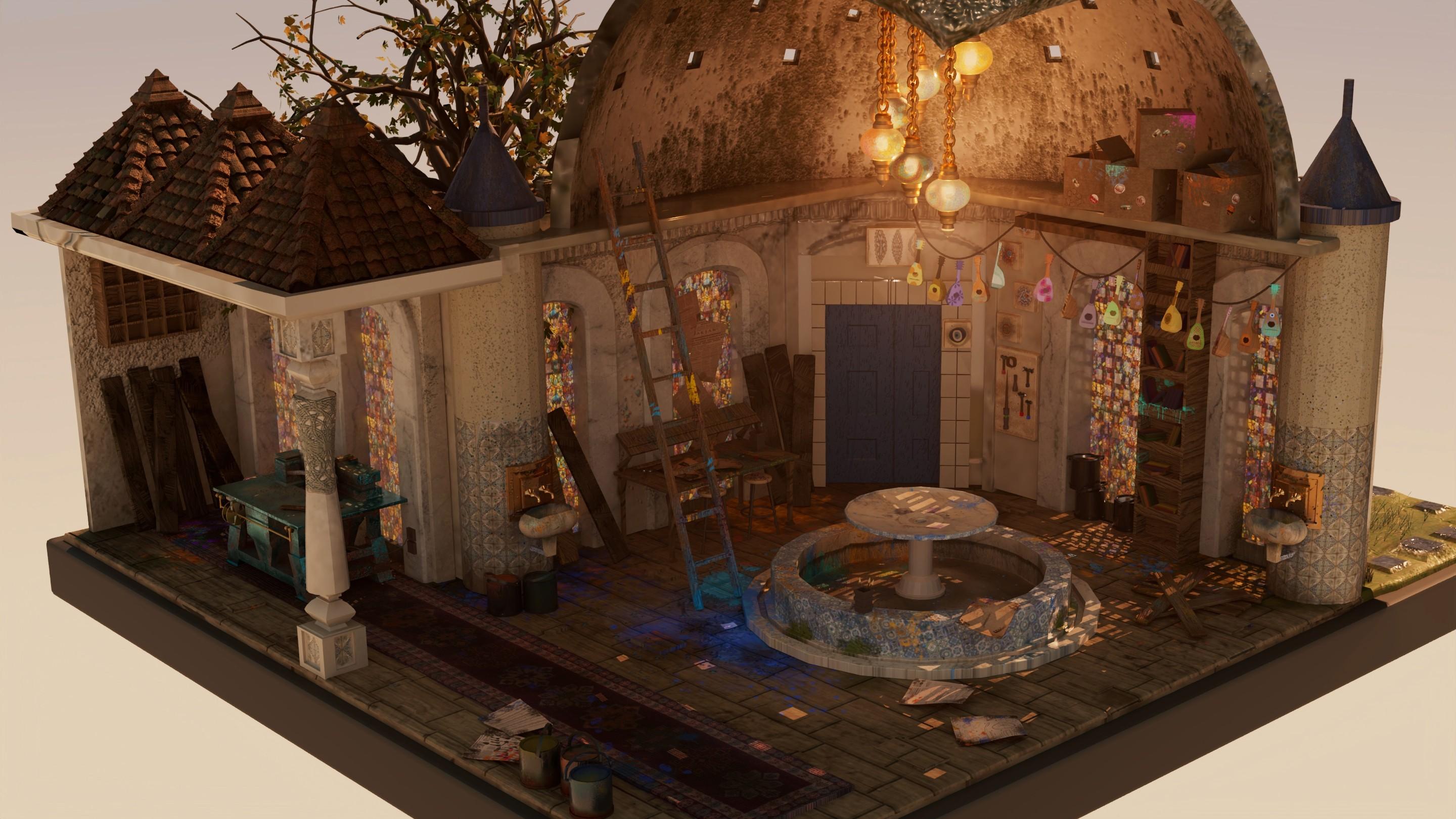
Hello everyone,
In this first Instructable, I will show you how to create a model using Autodesk Maya 2025. I'm new in here and applying as a student to the First-time author contest.
This work I made was inspired by my culture, specifically a Turkish bath, and the mandolin I learned to play at school when I was a child. In my projects, I like to draw inspiration from my own culture and traditional motifs. I believe that when I add something personal to my work, it gains its own story and becomes more unique to me.
For this modeling project, I wanted to create an abandoned Turkish bath because I wanted the tiles I used and the designs on the walls to reflect something personal to me. However, you can make this project in any way that comes to your mind. The creativity is all yours :)
Supplies

To model we are going to use Autodesk Maya 2025
To paint we are going to use Adobe Substance 3D Painter
To sketch out the ideas we are going to use Adobe Photoshop
Research

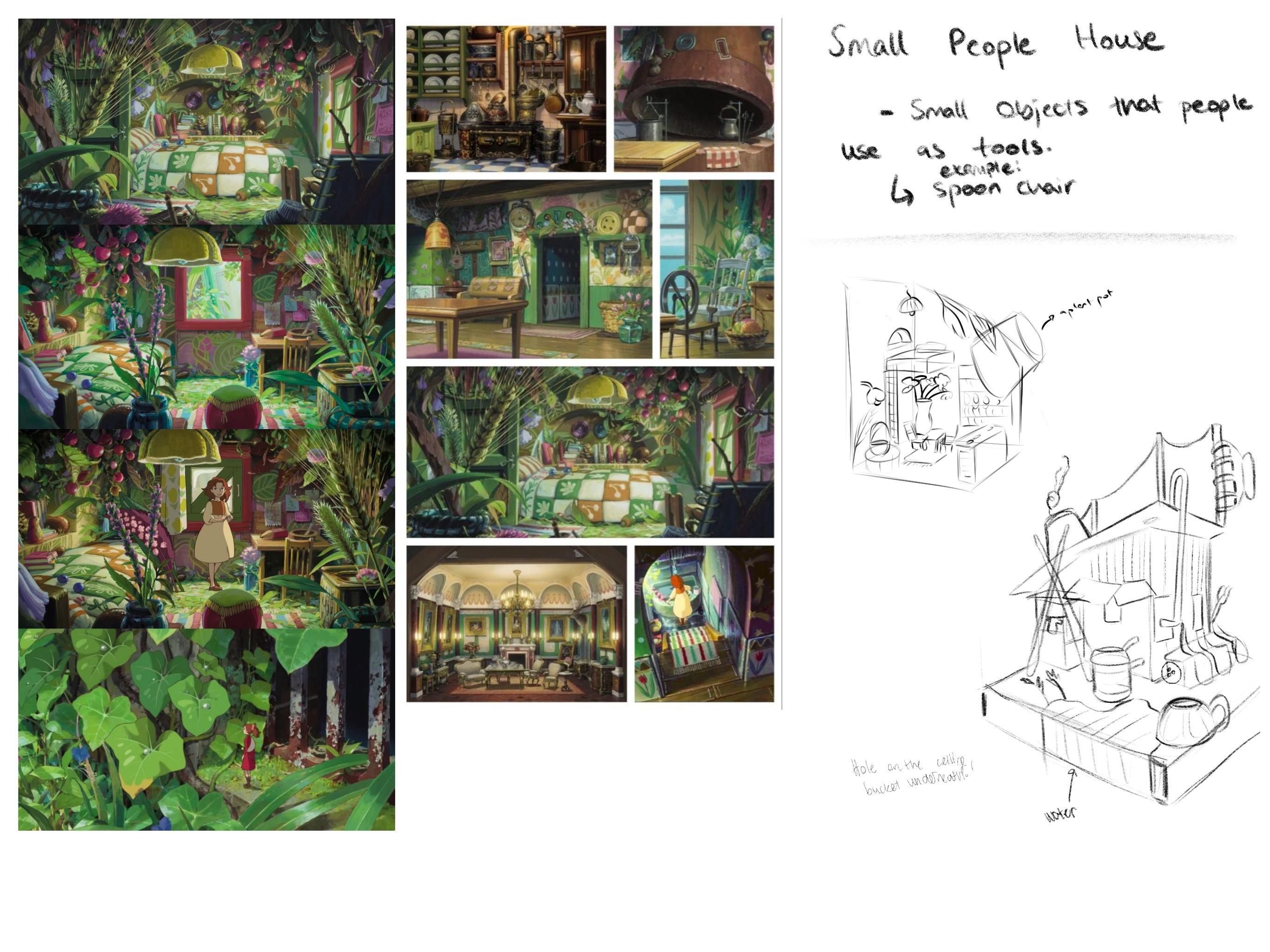

The best part of creating your own design is that you have complete creative freedom and can bring it to life however you want. Before you start modeling your design, it’s important to have a clear idea in mind. For that, we should do in-depth research online and use references.
For this reason:
- Do research online related to the structure idea you’ve chosen, and write down 3 ideas on 3 separate pages. I'm using Adobe Photoshop but you can use other available options.
- Find reference photos, these will help you achieve a realistic look that matches today’s standards once your design is finished.
- Add the photos you found to your pages. We won’t copy them; they’ll simply serve as tools to guide us along the modeling process.
- Sketch out your ideas, and take some notes. That’s the most important part. Imagine your work on a 3D level.
Block-Out


- Choose one design that you liked and go for that one. Do more research and have a clearer idea.
- Now while using Maya block-out every detail using small squares. Your objects don't have to seem realistic. We need to have the simplest to see if the design is working or not.
- Start blocking-out. You can use create- polygon primitives- cube as shown in the picture.
- After seeing the clearer picture start adding more detail, more shapes. Just go for it!
Using the Tools

- You can use rotate and move tool to see the objects clearer.
- You can select vertexes and shape the objects as you want. To do that we are going to use left click-vertex. And now, you are able to move the dots as you want.
- Move, Rotate, Scale: Core transform tools to change an object’s position, orientation, and size.
- Extrude: Extends a face or edge to create new geometry and add shape complexity.
- Insert Edge Loop: Adds additional edge loops to increase mesh detail or control shape flow.
- Bevel: Rounds or chamfers sharp edges for a smoother, more realistic look.
- Soft Selection: Moves vertices or faces with a falloff effect for smooth, organic adjustments.
- Sculpting Tools: Push, pull, smooth, or pinch surfaces like working with digital clay.
- UV Editor: Unwraps and arranges a model’s UVs for accurate texture placement.
- Hypershade: Visual node-based editor for creating, editing, and assigning materials/shaders.
- Outliner: A list-based hierarchy to organize, rename, and select objects in your scene.
Blocking-Out Continues
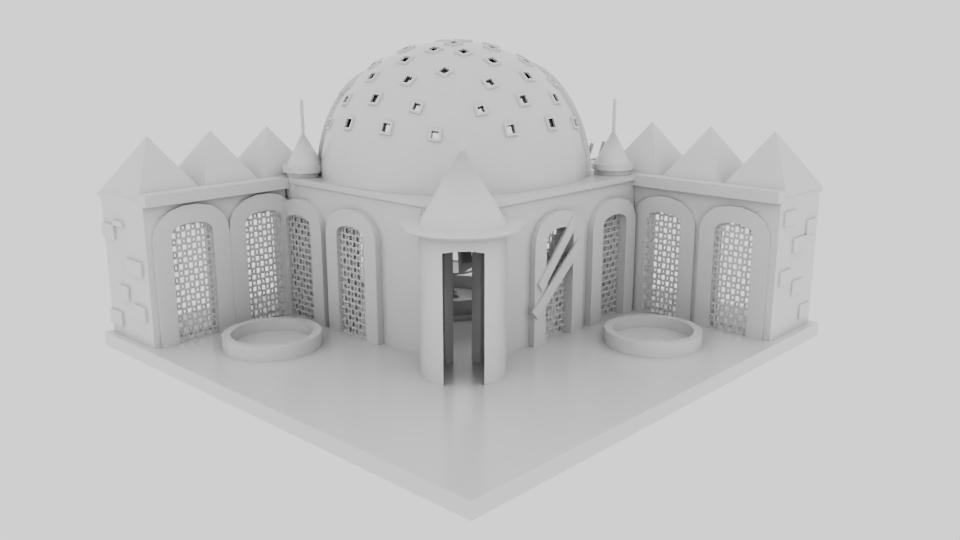

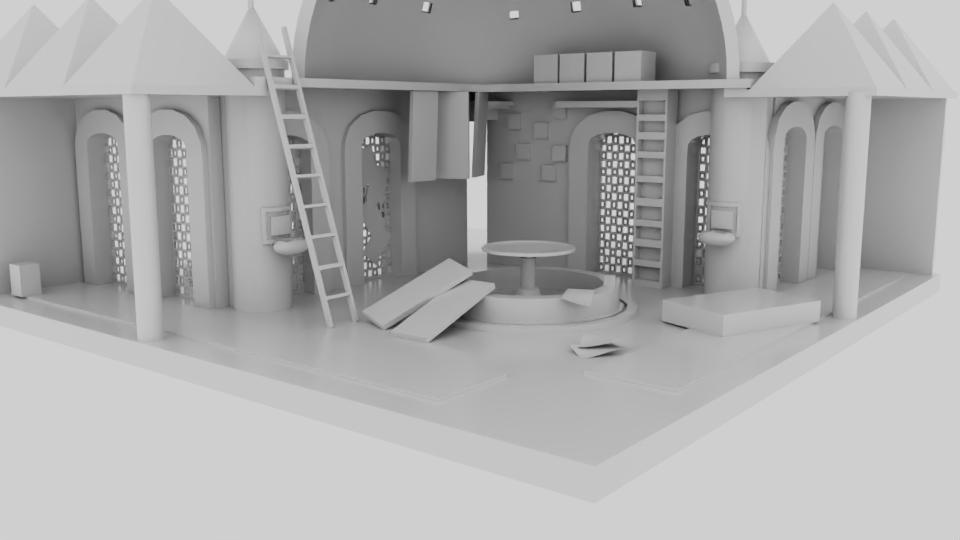
- After adding detail, we continue working on our project. For now, our modeling appears gray. If you’re curious about how the model will look once it’s lit, you can simply add a light from the Light menu and use Render to see the realistic result.
- Move around with the Move tool to check every detail and see if they are working properly.
UVs and Substance

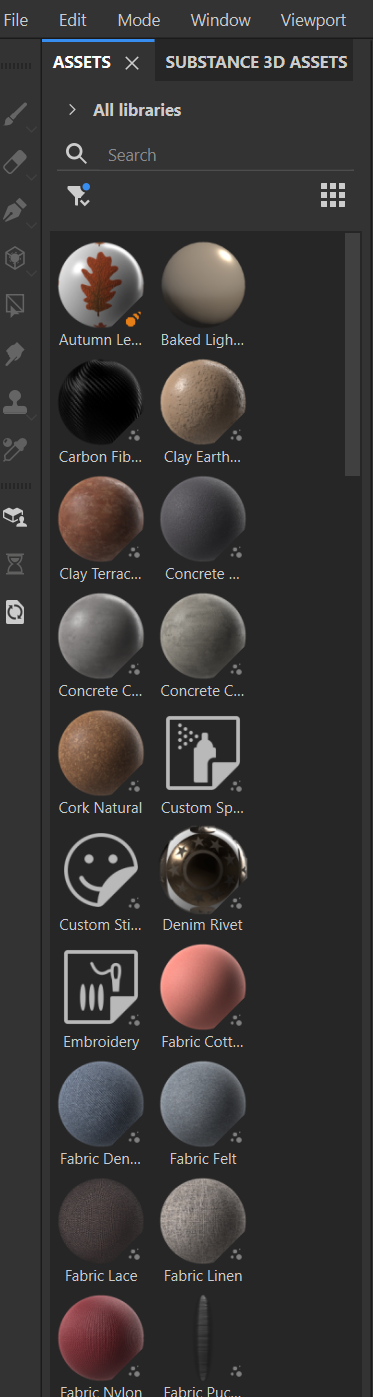
- After finishing your modelling simply cut your objects to parts by using Uv tools. The most important tool that you are going to use is 3D Cut and UV sew tool. Choose it and click on the lines that you're seeing.
- Now it's time to open the file on Adobe substance 3D Painter.
- After opening the file, bake it. So, the textures will be clearer.
- Use the circle textures to paint your objects.
Export
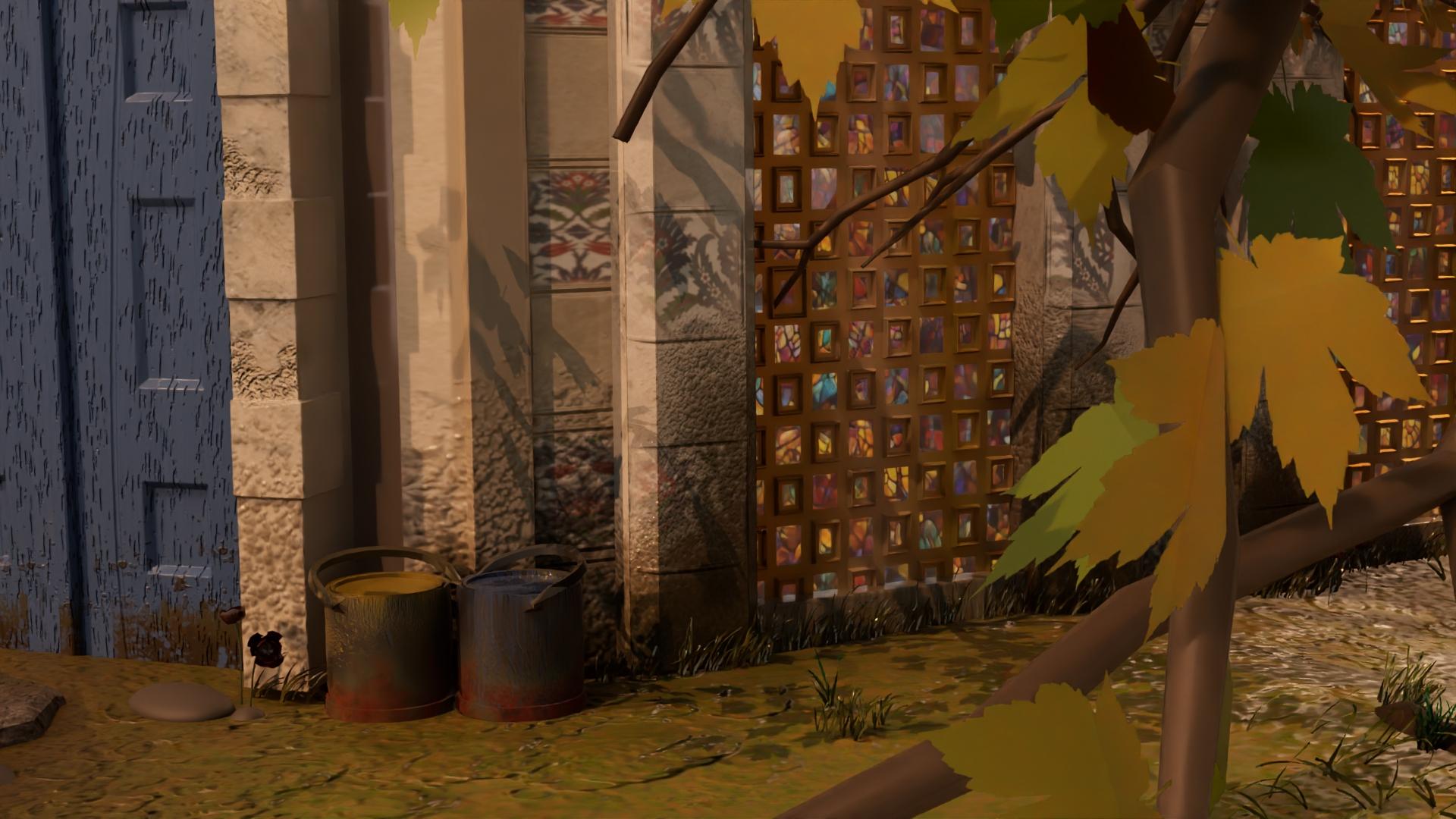
- Export your textures. By clicking on file export textures.
- Go back to maya and choose your objects and add your textures. Make the right arrangements as you want.
- Render again with the lights that you added before.
- The textures will be clear.
Finish


Add a camera.
Choose from the maya render option box that you want to see the file through camera.
Now, you are all set.
Take the pictures as you want.
You're all done!!
At first you can have a hard time while learning all the functions so try with simple designs. And then add more and more while doing new projects. Everything comes with the practice, you will get through the hard times trust me!!!:)
feel free to reach out and ask questions. I'm willing to help.