3D Printed Adaptive Makey Makey Switch Button Controller for Computer
by aidananselmo in Design > 3D Design
25 Views, 0 Favorites, 0 Comments
3D Printed Adaptive Makey Makey Switch Button Controller for Computer

This project is a large, 3D-printed adaptive button designed to help individuals with limited fine motor control play computer games using a Makey Makey controller. Specifically, this button allows a user to play the Chrome T-Rex game by activating the jump input with a large, easy-to-press surface instead of a small keyboard key.
Many people with motor disabilities or limited fine motor precision may find it difficult to press small keyboard keys accurately. Standard keys require precise finger placement and controlled force, which can make gameplay frustrating or inaccessible. This adaptive button solves that problem by providing a much larger input surface that can be pressed using a hand, palm, or other movement.
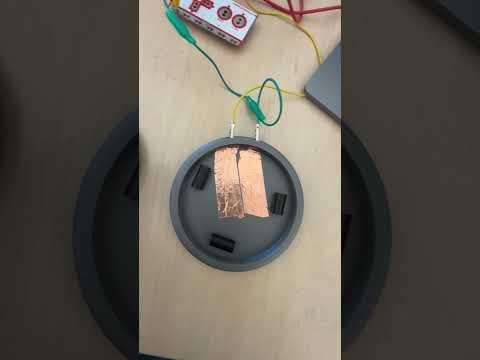
When pressed, the button completes an electrical circuit using copper tape and the Makey Makey controller, triggering a key input on the computer. The design was created using CAD software, then 3D printed and assembled using conductive copper tape and alligator clips.
Supplies
Materials:
• 3D printed button base (STL file)
• 3D printed button top (STL file)
• Copper tape
• Makey Makey controller
• 2 alligator clip wires
• USB cable (Makey Makey to computer)
Tools:
• 3D printer
• Slicer software (Cura, PrusaSlicer, or similar)
• Scissors (for cutting copper tape)
• Computer
Files:
3D Print the Button Parts

This project uses two 3D printed parts:
• The base housing
• The button top with center post
Download the STL files and import them into your slicer software.
Recommended print settings:
Material: PLA
Layer height: 0.2 mm
Infill: 15–25%
Supports: None required
Orientation: Print flat on the build plate
Print both parts and allow them to cool completely before removing from the printer.
These parts are designed so the center post of the button fits inside the base and moves up and down when pressed.
Cut and Glue the Straw Supports


Cut three equal pieces of a thick, plastic straw using scissors.
These pieces will act as supports to help guide the button movement and allow it to return to its original position after being pressed.
Apply glue to the bottom of each straw piece.
Glue the three straw pieces inside the base, spacing them evenly in a triangular arrangement.
Allow the glue to dry completely before continuing.
These supports help stabilize the button and ensure smooth vertical movement.
Add Copper Tape to the Side Holes for Alligator Clip Connections

Cut two small pieces of copper tape.
Place each small piece inside the rectangular side openings of the button base.
Make sure part of the copper tape is accessible from the outside so the alligator clips can connect to it.
Also ensure the copper tape extends slightly into the inside of the base so it can connect with the larger copper tape strips added in the next step.
These pieces act as connection points between the alligator clips and the internal copper tape.
Add the Main Copper Tape Contact Surfaces


Cut two larger strips of copper tape.
Place the strips flat on the bottom inside surface of the base so they connect to the smaller copper tape pieces in the side holes.
Next, apply copper tape to the bottom of the button post.
This copper tape will touch the copper tape inside the base when the button is pressed.
This creates the conductive surfaces needed to complete the circuit.
Connect the Makey Makey


Connect one alligator clip to the Earth (Ground) section of the Makey Makey.
Connect another alligator clip to the Up Arrow input on the Makey Makey.
Attach the other ends of the alligator clips to the copper tape inside the side holes of the button base.
This connects the adaptive button to the Makey Makey.
Assemble, Test, and Use the Adaptive Button

Place the button top into the base.
Make sure the center post sits inside the base and aligns with the copper tape contact area.
Press the button to confirm it moves smoothly up and down.
Connect the Makey Makey to your computer using the USB cable.
Press the adaptive button. When pressed, the copper tape on the button post touches the copper tape inside the base, completing the circuit. The Makey Makey detects this and sends an Up Arrow input to the computer, causing the dinosaur to jump.
Testing confirmed that the button reliably triggers the input when pressed. The large surface area makes it easier to activate compared to a small keyboard key, allowing users with limited fine motor control to interact with the computer more easily.
The button can be used in classrooms, therapy environments, or at home to improve accessibility and allow more people to participate in digital activities.
Demonstration Video