3D Printed Cell Model

We designed a 3D-printed cell model using Fusion 360 with the goal of creating a puzzle-like learning tool. The model consists of two components: an engraved cell body and detachable organelle pieces.
Supplies
Materials:
- access to Fusion 360
- 3D printing software such as Cura
- 3D printer
Setting Up and Creating the Base
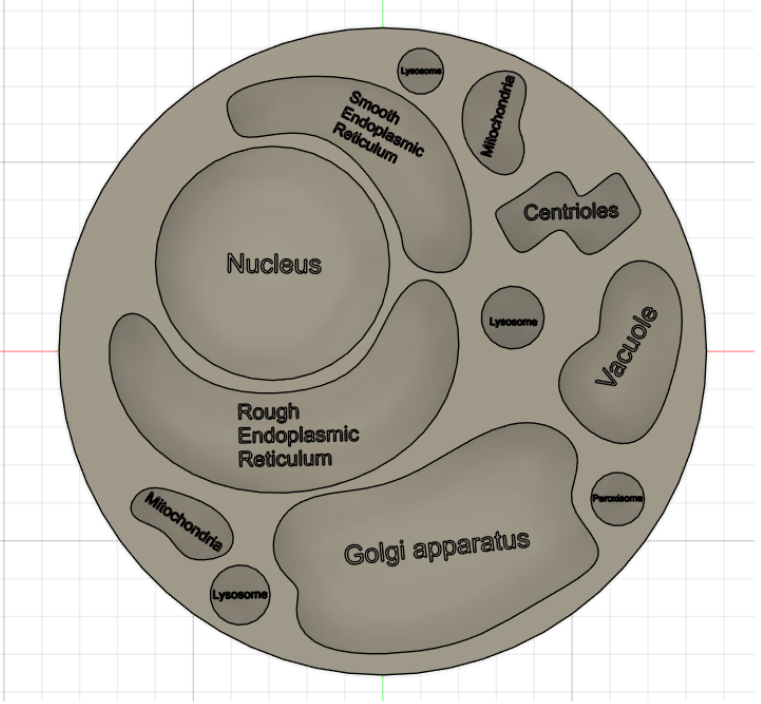

To begin this project, before opening Fusion 360, search online for a cell model to use as a reference (preferably one that is as circular as possible), or use the attached image. Make sure to save the image to a location you can easily find later.
Steps on Fusion:
- Open a new file.
- In this file, at the top right corner, click “Insert.”
- Hover over “Insert” to open several drop-down options and select “Canvas.”
- Locate your saved image file and open it.
The image you saved should now appear somewhere near the center of your Fusion screen. To adjust the size of the image, select it and increase the scale X and scale Y.
Now that your image has been successfully uploaded into Fusion, the following steps will help you construct the base.
- On the top left, hover over “Create.”
- Select “Cylinder.”
- Click the center of where your Canvas image is displayed, then slowly drag your mouse outward so the cylinder roughly covers the image.
- Set the height to 25 mm.
- Click “Finish Sketch” in the top right corner.
Creating the Organelles

- On the top left, hover over “Create.”
- Select “Create Sketch,” and instead of selecting a plane, choose the top surface of the cylindrical base.
- Hover over “Spline” and select “Fit-Point Spline.”
- Using Fit-Point Spline, create a set of dots that approximately match the shape of an organelle shown in the image.
- When finished, click “Finish Sketch.” If the spline does not look correct, you can still adjust the points after finishing the sketch.
- Type “E” for Extrude, and a textbox should appear.
- Enter "-5 mm" to engrave the section into the base.
- Select the sketch you just created and press “E” again for Extrude.
- Instead of intersecting, change the operation to “New Body,” and extrude the shape upward 9 mm.
- In the Data Panel, click the arrow next to “Bodies” to view the new bodies you have created.
- Select the bodies you just created (excluding the cylindrical base with the engraved sections) and click “Move.”
- Move the organelles upward the same distance so they float slightly above the base.
Repeat this process for the remaining organelles. By the end, you should have a cylindrical base with engraved sections and separate organelle pieces floating above the base.
Separating the Body and the Organelles
- Save your file in Fusion by clicking “Save” in the top left.
- After saving, create a new file and name it “Organelles” or something easy to recognize.
- Return to the original cell file and hover over “Insert.”
- Select “Derive.”
- For Destination, choose “Existing File.” For the objects, select every organelle body.
- Click “OK.”
- A screen will appear asking you to select the file. Locate the new file you just created.
After completing these steps, the organelles will be placed in the new file.
You can now export these files into any 3D printing software, such as Cura, to prepare them for printing.