3D-Printed Monowheel Robot With Gyro Balancing and IR Control
by nate4321 in Workshop > 3D Printing
831 Views, 6 Favorites, 0 Comments
3D-Printed Monowheel Robot With Gyro Balancing and IR Control
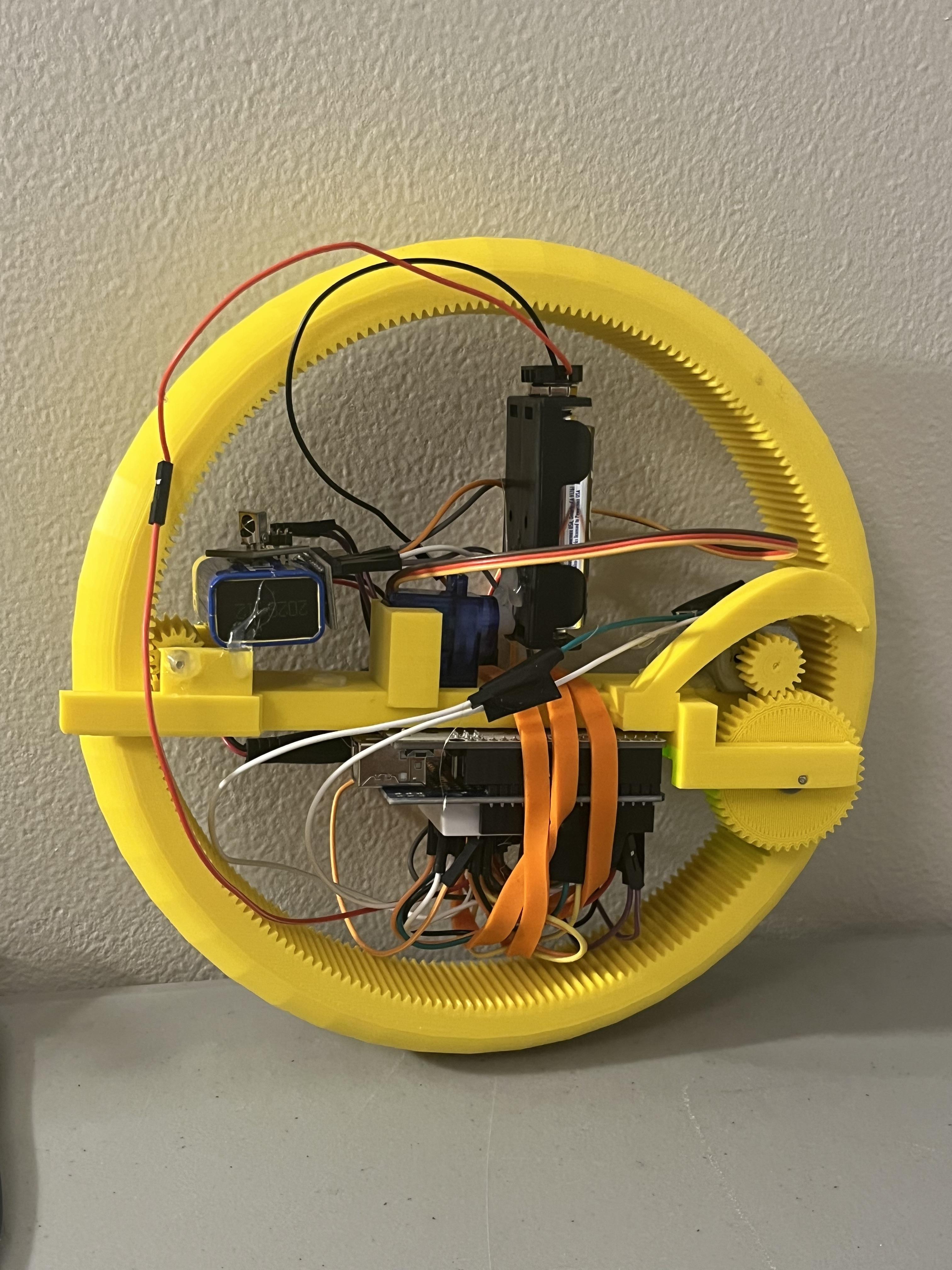
Hello there. Have you ever tried to make a robot that balances on one wheel? I have and it's by far my most challenging project. I am a middle school student and I love robotics, coding, and electronics. I have constucted some self balancing robots but never one with just a single-wheel.
In this project I have built a self balancing monowheel. A monowheel is a single-wheeled or single-tracked vehicle where the driver would usually sit inside or right next to the only wheel. In my case however, there is no human driver but rather electronics, sensors, and a lot of balancing. It works with a servo mounted balancing weight in the middle of the wheel that rotates the opposite way or the wheel's lean to keep the wheel upright. To turn the servo moves slightly to one side to lean the wheel while it is moving. The slight lean causes the wheel to turn.
Supplies
3D printer, filament and slicing software - for printing the wheel, body, gears, and motor/servo mounts.
(I used an ELEGOO Neptune 3 Pro and ELEGOO PLA+, but stronger filaments are recommended. I used Cura for slicing my design)
Gyro and accelerometer - used for steering and balancing.
(I used an MPU-9250.)
Arduino board and wires - used to control the motor and servo based on sensor readings.
(I used an Arduino Uno R3.)
50 mm long 2 mm diameter axles (2) - for connecting gears
Servo motor - to control the steering and balancing weight.
(I used an SG90 but stronger servos are recommended)
DC motor and motor driver - for driving the wheel.
(I used an L293D.)
2 Battery packs - one for the Arduino Uno (5–9V) and another for the motor
(voltage depends on motor specs but I used 3 volts for the motor and 9 volt for the Arduino).
IR receiver and remote - for remote control.
(I used the remote + receiver from the ELLEGOO UNO R3 complete starter kit.)
battery clip to Arduino - to power Arduino board
(I used 9 volt battery clip for an Arduino UNO R3)
Arduino board shield - for easy wiring + built in breadboard
(I used the prototype shield v.5 from the ELLEGOO UNO R# complete starter kit.)
Hot glue+hot glue sticks - for mounting Arduino, electronics, servo, motor, and batteries.
Spacers or washers(optional but recommended) - for less friction on gears
(I used VEX IQ spacers)
Rubber bands(optional but recommended) - to keep wires condensed
(I used VEX IQ rubber bands)
Electrical Tape(optional but recommended) -for connecting wires and holding wires in place
Printing and Designing Frame and Gears.
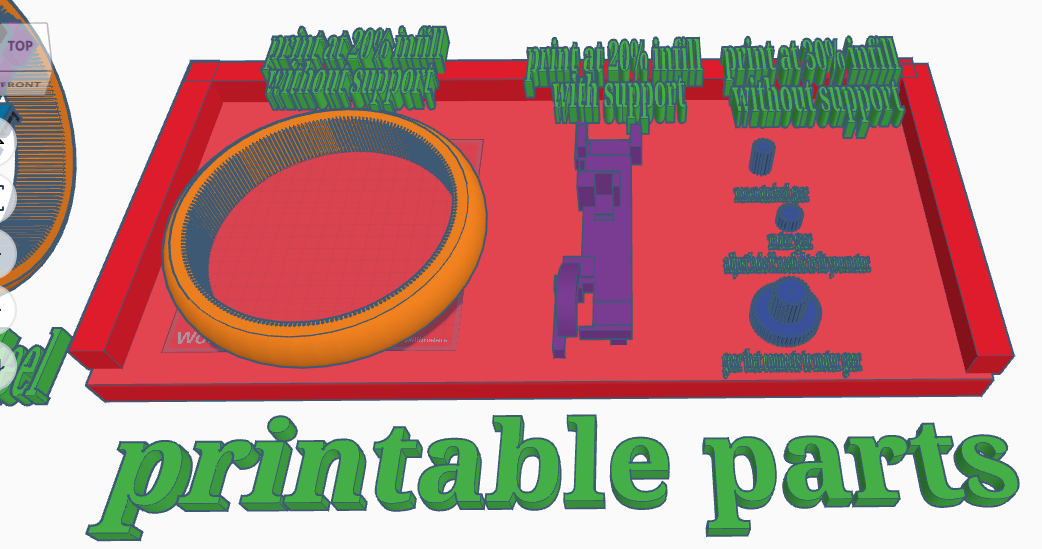
This 3D design was challenging to make. It required lots of precise measurements to get all the electronics to fit. One of the toughest parts was getting the gears to mesh properly
In my first iteration I used "Metric gear" by "this tinkerer" on Tinkercad which had automatic scaling when you adjusted how many teeth was on the gear. I used the Auto scaling and printed out all my gears. Sadly only after all my gears were printed did I realize that the Auto scaling was not correct. The measurements were a tiny bit off which caused the gears to not mesh properly.
To fix this I set the dimensions of the gears manually. To do this I multiplied the old dimensions by the new number of teeth divided by the old number of teeth(new dimensions = old dimensions *(new # of teeth / old # of teeth)). This means if there were 10 teeth and the dimensions were 5x5 mm, and I wanted the new number of teeth to 5 then the new dimensions would be 2.5x2.5 mm. After updating the design to fit the new gears and printing the gears; they meshed perfectly!
You can print the parts from this Tinkercad design.
Important Note:
If you are using a different servo or motor then me, you will need to adjust the design to fit you components. You can "Copy and Tinker" the design to do so.
Self-Balancing Monowheel with IR control
Printing order:
- Main Wheel
- Main Frame
- All gears
(Print settings are included in the Tinkercad design)
Wiring and Programming
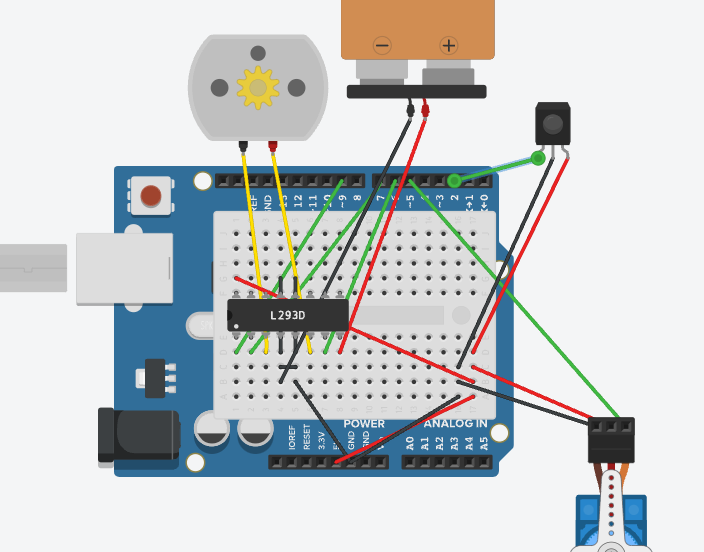
The above picture has all the wiring except for the gyro because in Tinkercad circuits there are no gyroscopes.
If you would rather read the wiring rather than look at it, here it is below.
I recommend using an Arduino shield so you have extra 5V and GND pins available.
motor driver
(I used l293D but more powerful drivers are recommended)
Enable 1 and 2 = Arduino pin 9
Input 1 = Arduino pin 7
Input 2 = Arduino pin 6
Power 1(logic) = Arduino 5V
Power 2(motor supply) = Motor battery positive
Output 1 = Motor wire 1
Output 2 = Motor wire 2.
Grounds = All grounds must be tied together
If the motor spins the wrong direction simply swap motor wires 1 and 2.
gyro
VCC = Arduino 5V or 3.3V (check your gyro)
GND = Arduino GND
SCL = Arduino SCL pin
SDA = Arduino SDA pin
IR receiver
VCC = Arduino 5V
Ground = Arduino GND
Signal = Arduino pin 2
Programming:
Balancing a monowheel is a very challenging control problem, and I was not able to get the monowheel fully stable in time. I used a PID control algorithm for better balancing. Pid uses proportional, integral, and derivative terms to calculate the correct servo angle based off of the angle of the lean and the rate of change of the lean.
Right now the servo reacts correctly (opposite direction of the lean) but it is not quick or strong enough to return the monowheel to its upright position before it falls. With more time I would continue tuning and improving the PID code. Also I would upgrade to a more powerful motor driver for faster speeds and easier balancing while moving.
Even so I have included my latest PID based code if you want to try and experiment further or improve it.
Motor control:
- If any IR signals are received > the motor turns on
- I recommend changing it so only certain buttons on your IR remote turn on the motor
- If you do not have an IR remote while testing you can type:
- on > motor on
- off > motor off
into the Arduino IDE serial monitor
Contructing
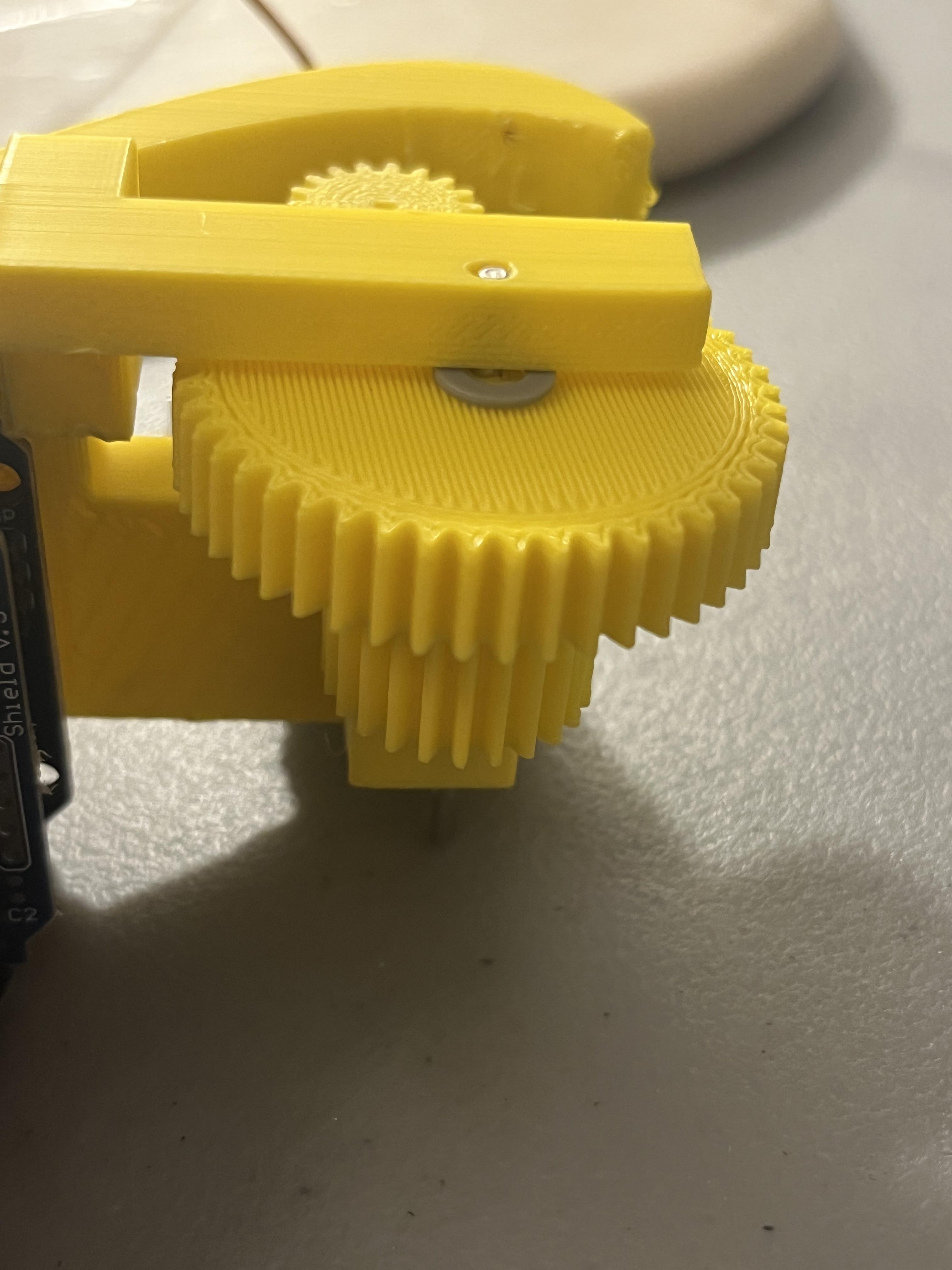
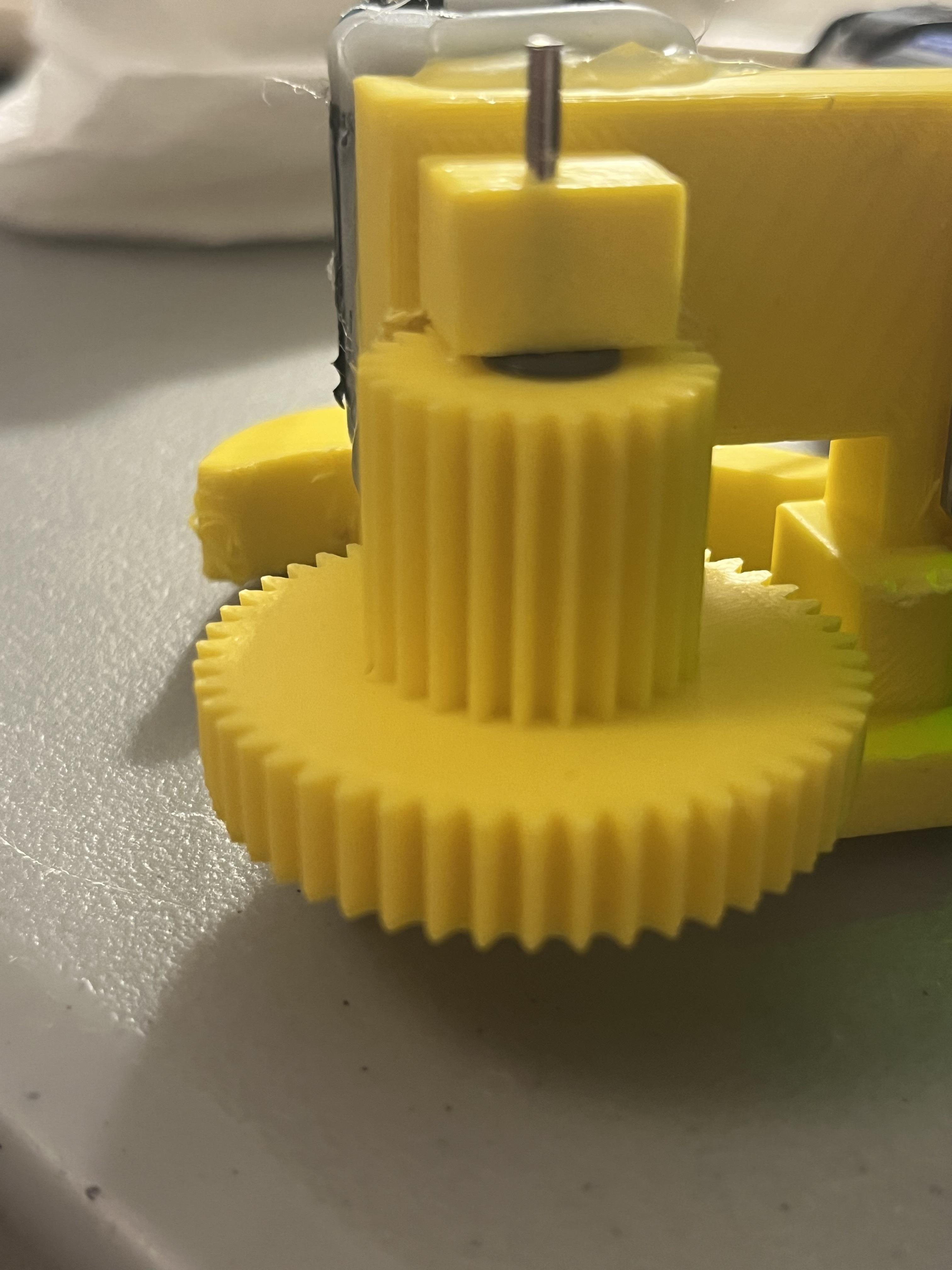
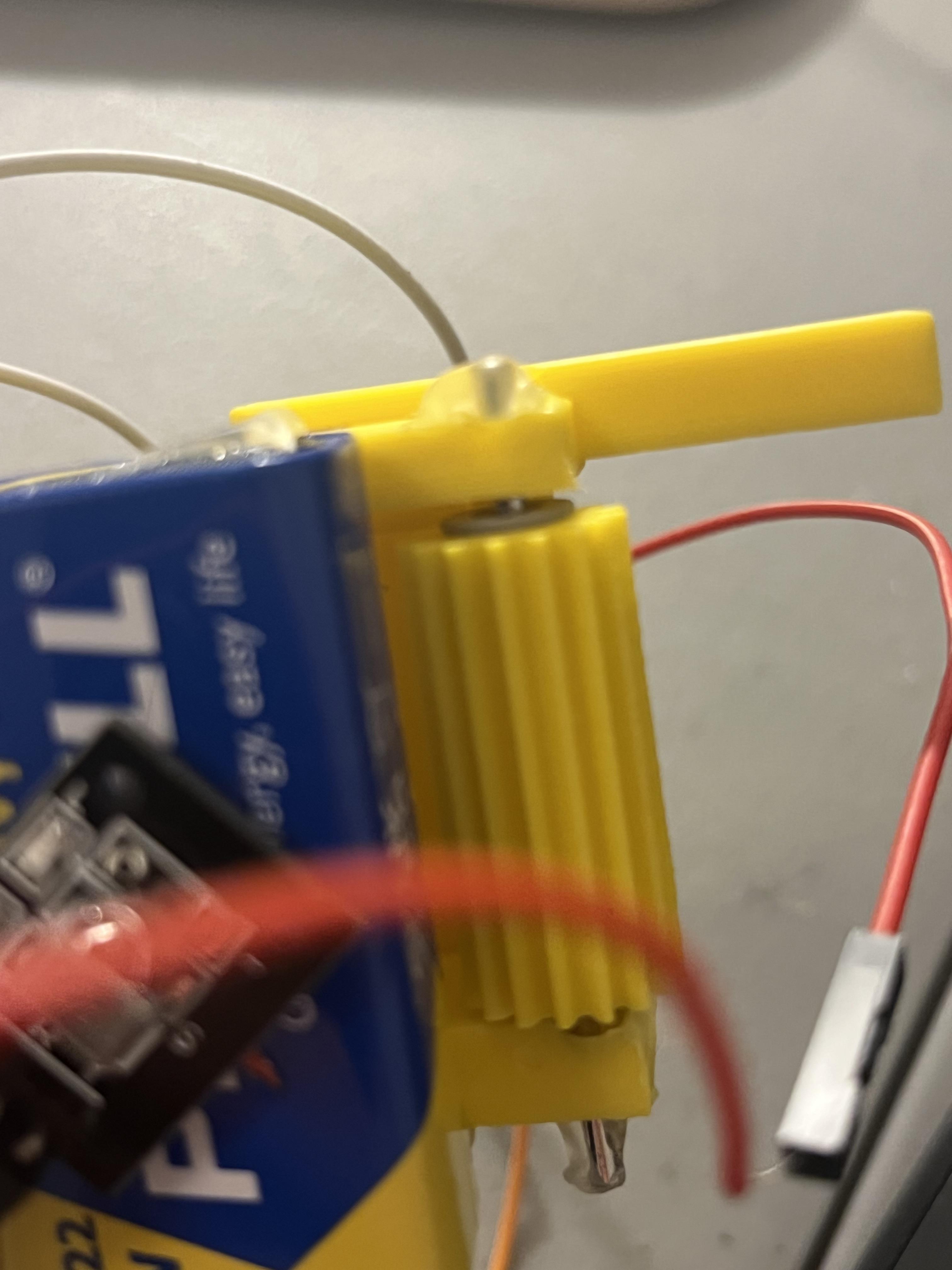
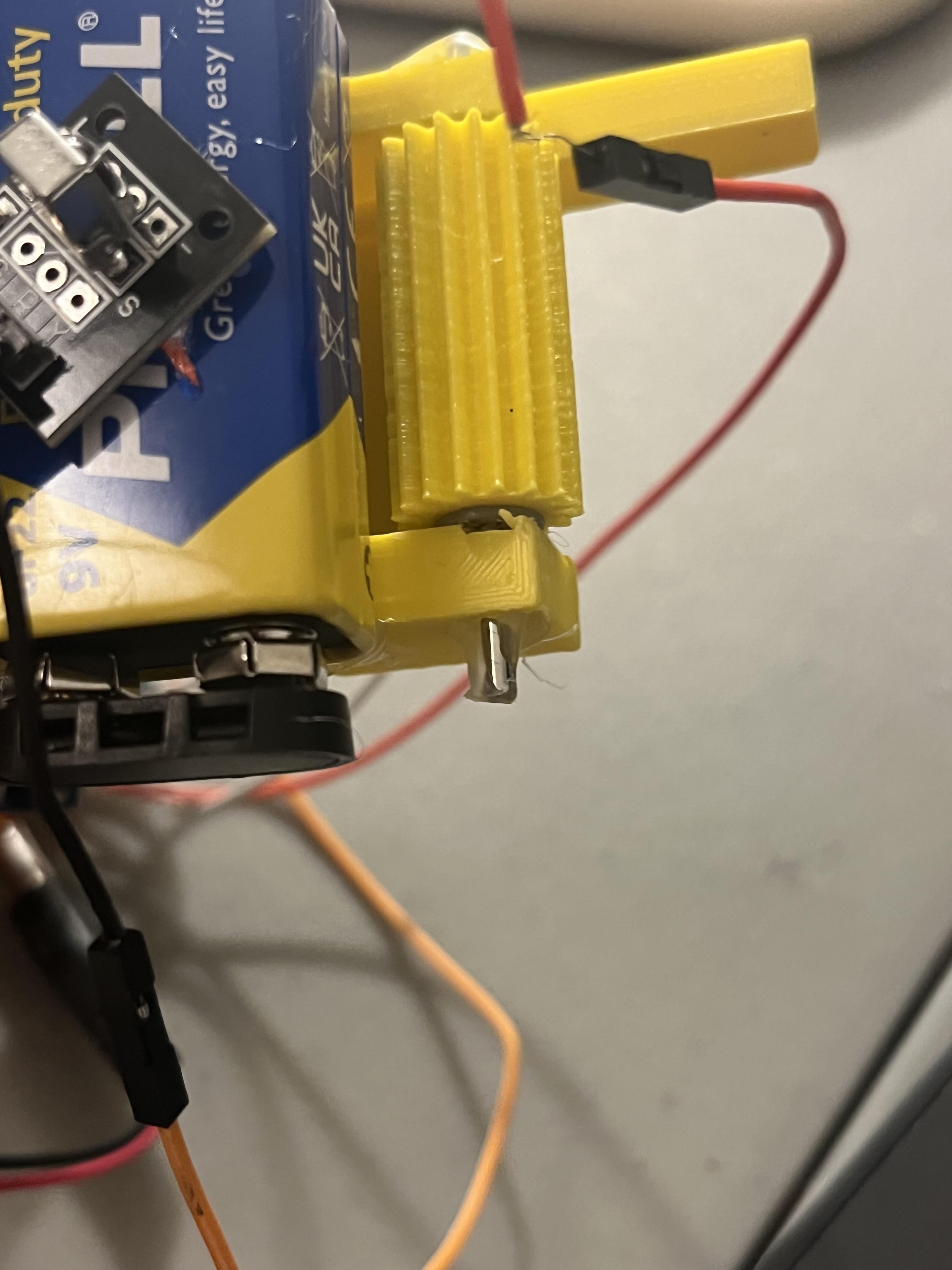
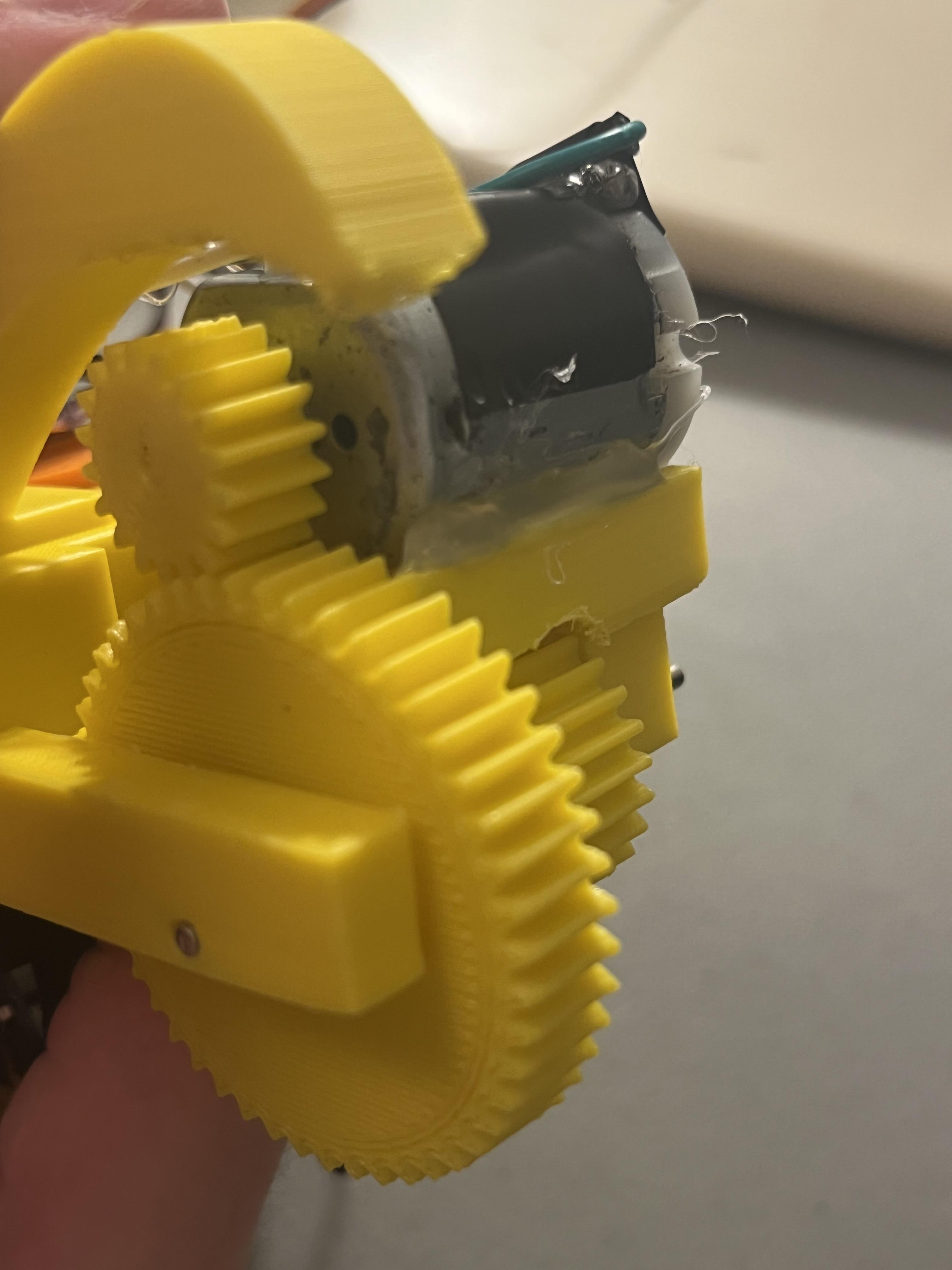
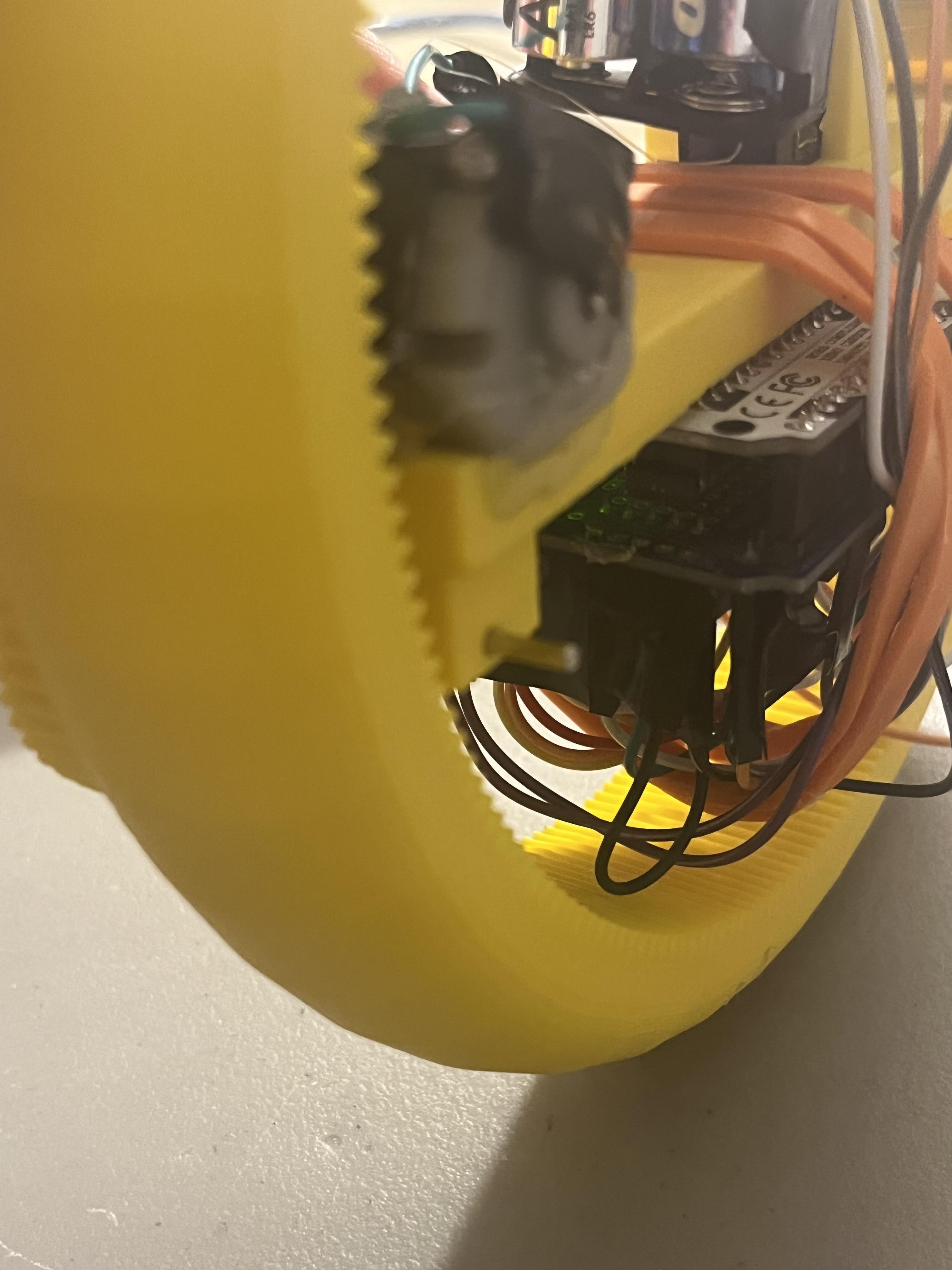
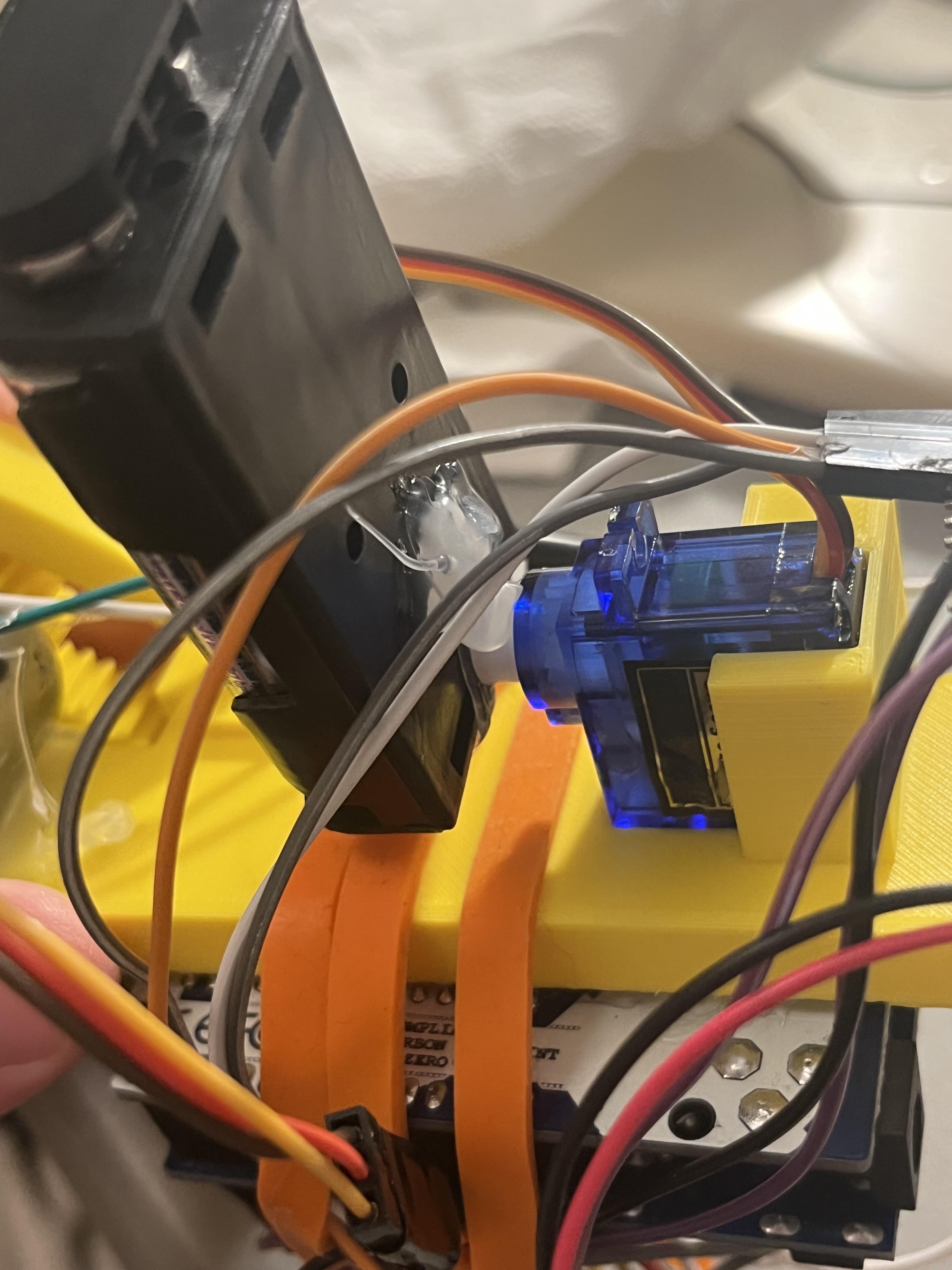
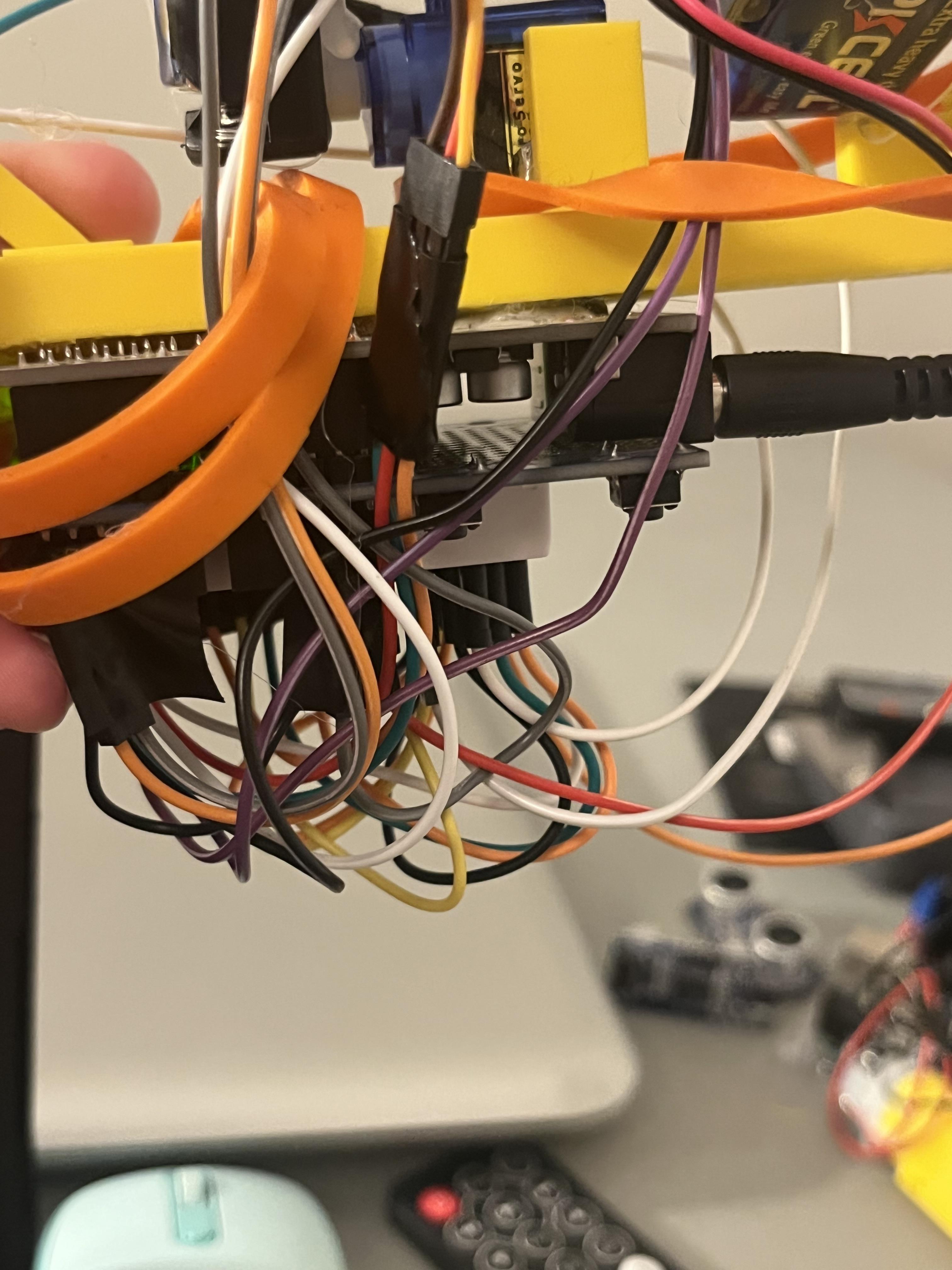
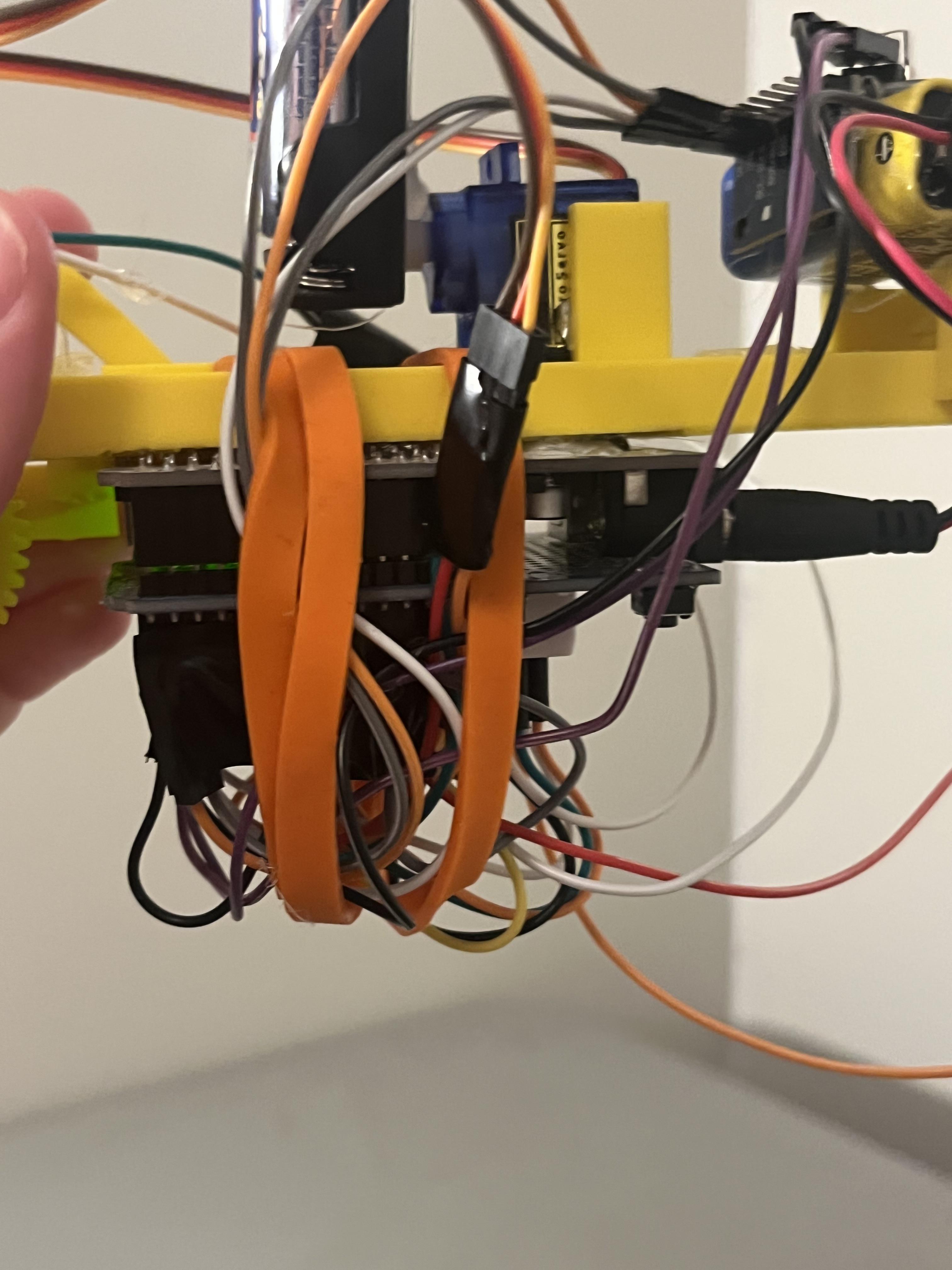
Once your prints are all done we can move onto the building phase.
Step 1: Attaching the gears
The first gear we're going to add is the gear that meshes with the motor gear. to add this gear slide your axle through the hole a small bit. Add 1 spacer or washer to reduce friction and rubbing. Then put the gear on the axle. Next put a washer or spacer on to the other side of the gear and slide the axle the rest of the way through. Add hot glue to each end of the axle to keep it from sliding off. Do the same thing for the non-motorized gear on the opposite end of the main frame.
The third gear we will add is the gear onto the motor as shown in the fifth picture. Slide the motor gear onto the motor axle.
Step 2: Mounting servo and motor
First we'll mount the motor. to do this all we have to do is glue the motor into the motor slot shown on pictures 5 and 6. If your motor is to small you may need to add something under the motor to raise it such as Popsicle sticks or 3D printed slabs.
For the servo, if you are using a SG90 the servo will just slide into place in my design with enough friction to keep it from sliding out. If you adjusted my design to fit a different servo you may need to add glue.
Step 3: Mounting the Arduino board
If you are using the Arduino Uno, mount the Board on the bottom side of the Main Frame with the power ports facing away from the motor as shown in picture 8. Add rubber bands or fasteners of your choice to keep wires neat and tidy. as shown in picture 9.
If you aren't using an Arduino Uno mount you board wherever it fits while still being able to be powered.
Step 4: Mounting batteries, Gyro, and IR sensor
For Mounting the battery servo, first upload the program and right at the beginning of it the servo will return to its center position. in this position you should glue the battery facing straight up onto the servo head.(Shown in picture 7)
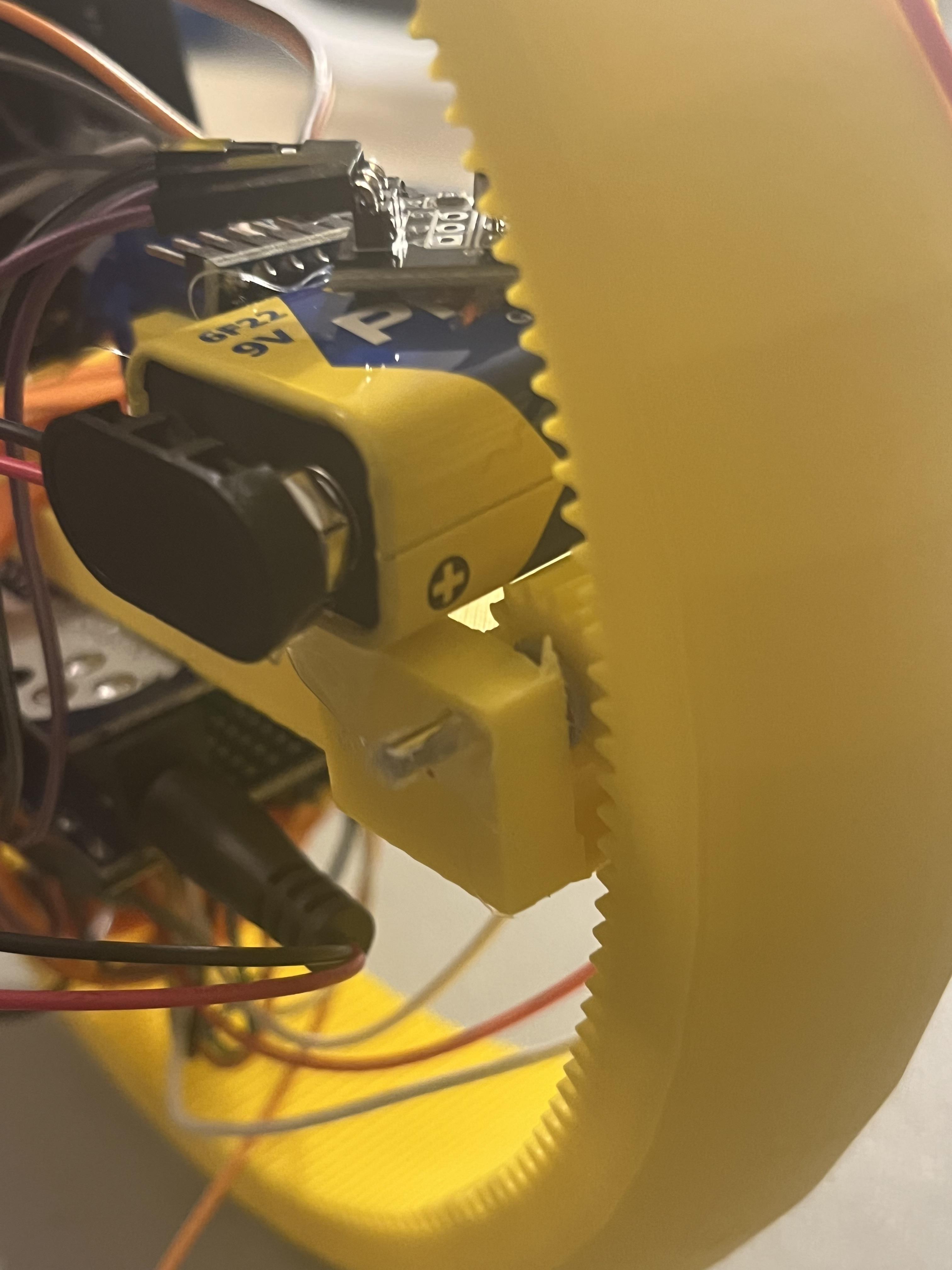
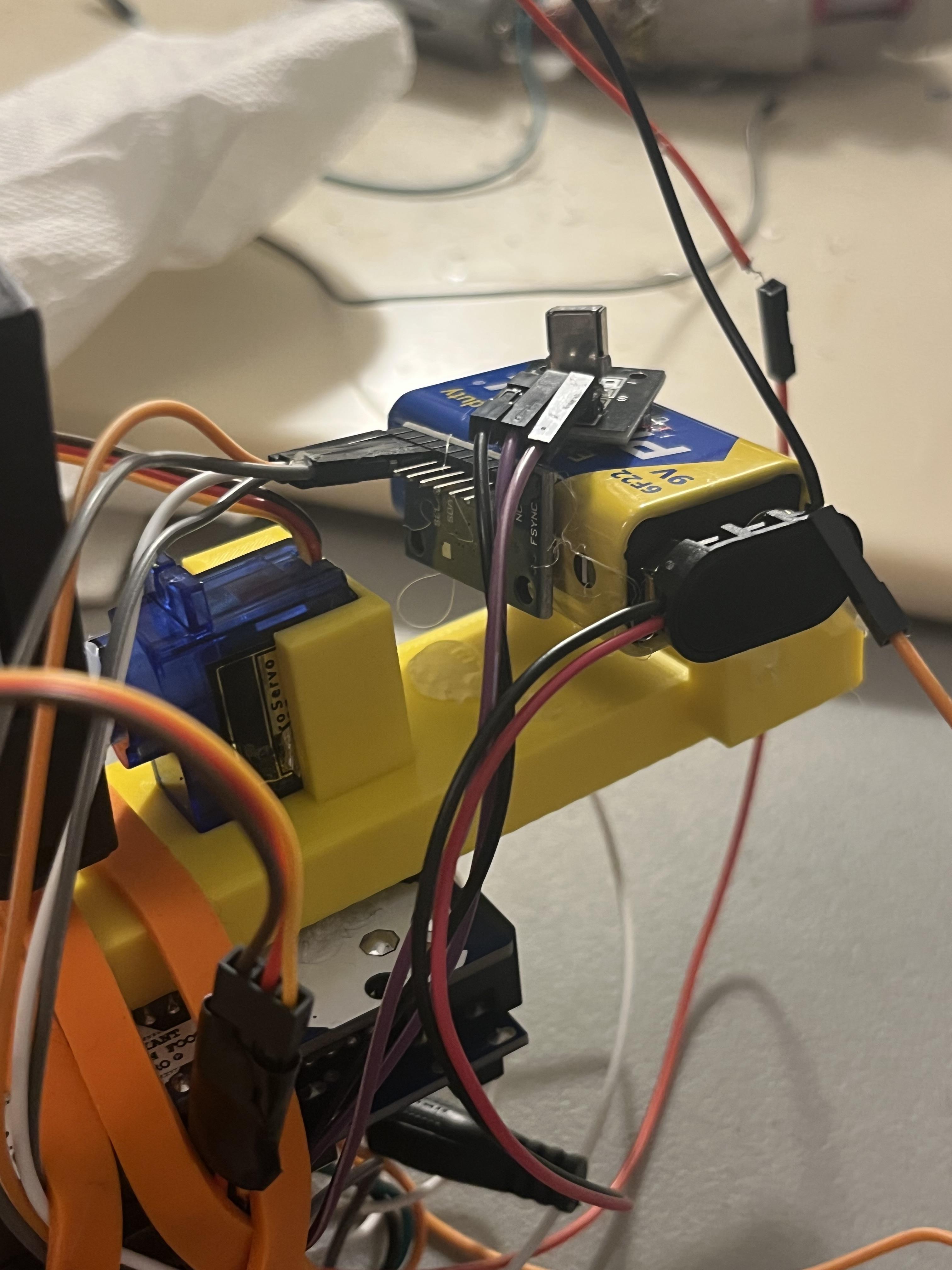
For the battery that powers the Arduino you should glue it onto the opposite side of the motor to help balance out the weight (picture 10). Make sure you leave enough room for the gear to spin freely without rubbing the battery. Glue the IR sensor on top of the battery and the gyro onto the side as shown in picture 11.
Note: If you get the program working you will need to add something to stop the main frame from sliding out of the main wheel. I recommend using Popsicle sticks or 3D printing a piece you can glue on. I have not added them yet because it is harder to upload the program with the main frame inside the main wheel.
Conclusion
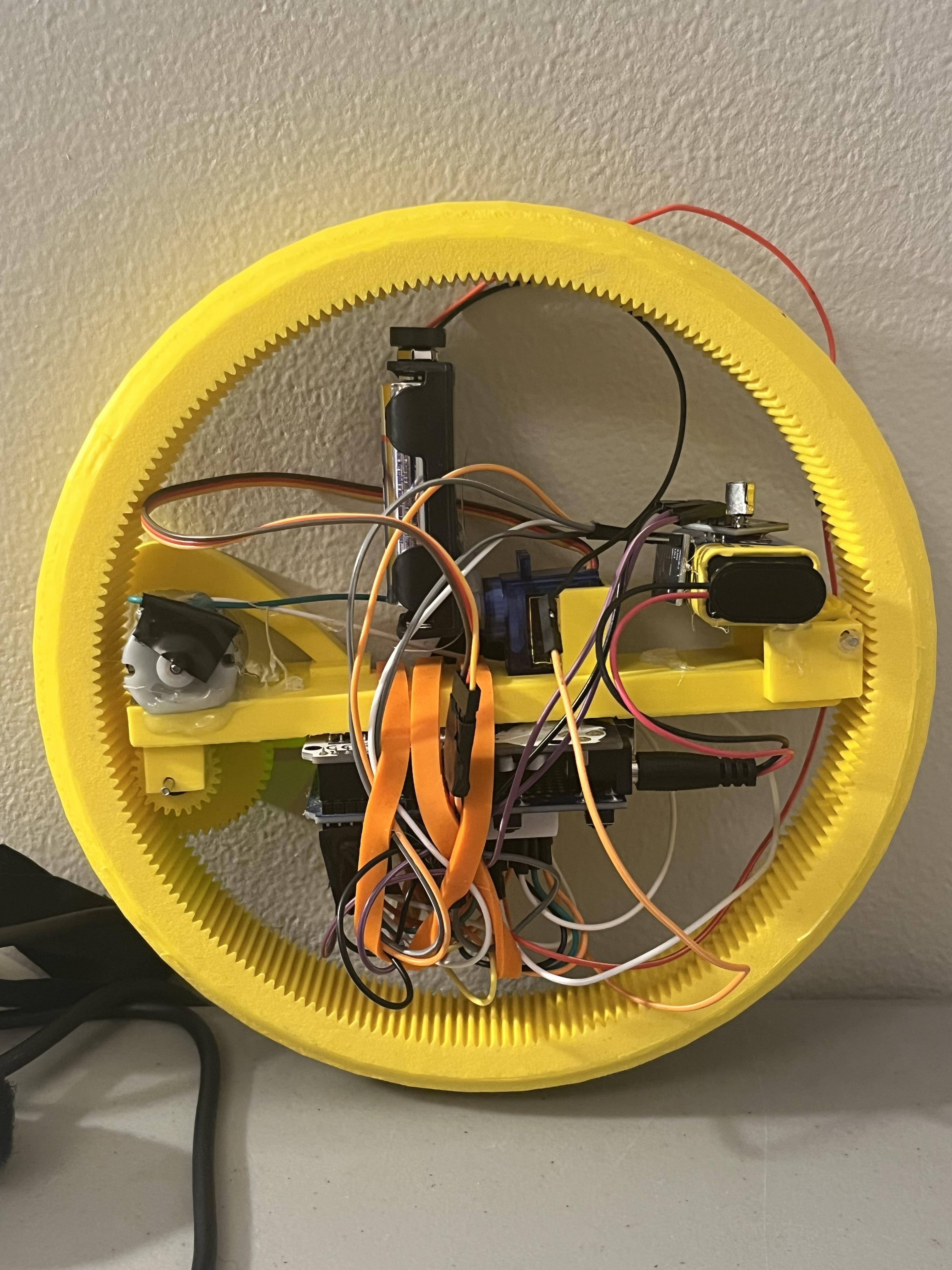
This is a very challenging project. Any balancing projects are. I encourage you to make it and try and get it to work and just know if you can't get it to work it does not mean you are unitelligent this is a very tough project and it will take time to get it working. I will continue working on this and when I get it I will update the code so everyone can experience how much fun monowheels are.
Happy Programming and building!!