3D Printed Tiny Rolling Ball Clock With ESP32 (Retro WiFi-Synced Clock)
8899 Views, 123 Favorites, 0 Comments
3D Printed Tiny Rolling Ball Clock With ESP32 (Retro WiFi-Synced Clock)

.jpg)
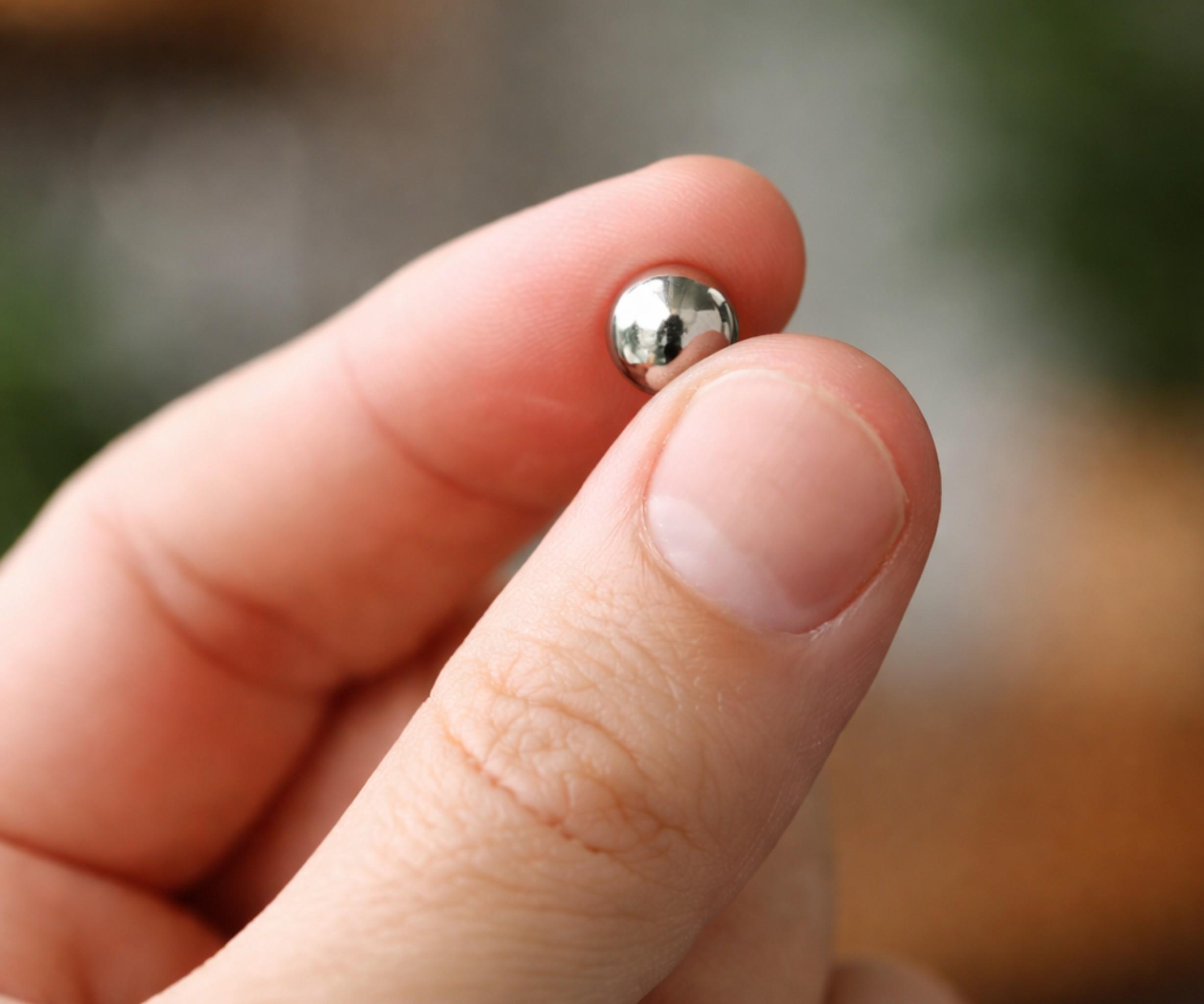
Time is one of the few things we can’t create, slow down, or recover — but we can choose how to observe it. Building a clock is more than assembling parts; it’s crafting a small machine that turns invisible minutes into something you can see, hear, and feel.
In 1976, the “Clock Apparatus” was patented in the United States, sparking a new era of mechanical art — the famous “Rolling Ball Clocks” from Idle-Tyme and Arrow Handicraft. These mesmerizing machines transformed timekeeping into a kinetic spectacle, where every minute is marked by motion. Watching each ball roll into place becomes a reminder that every moment has weight, rhythm, and purpose.
Many creative variations of these clocks exist online — including the excellent “Marble Clock” by user Görkem — but most of them are quite large and take up significant space.
This project is a compact reinterpretation of that concept — combining retro aesthetics, clean mechanics, and a fun visual way to display time.
In this Instructable, I’ll show you everything you need to build it.
Let’s start.
Supplies
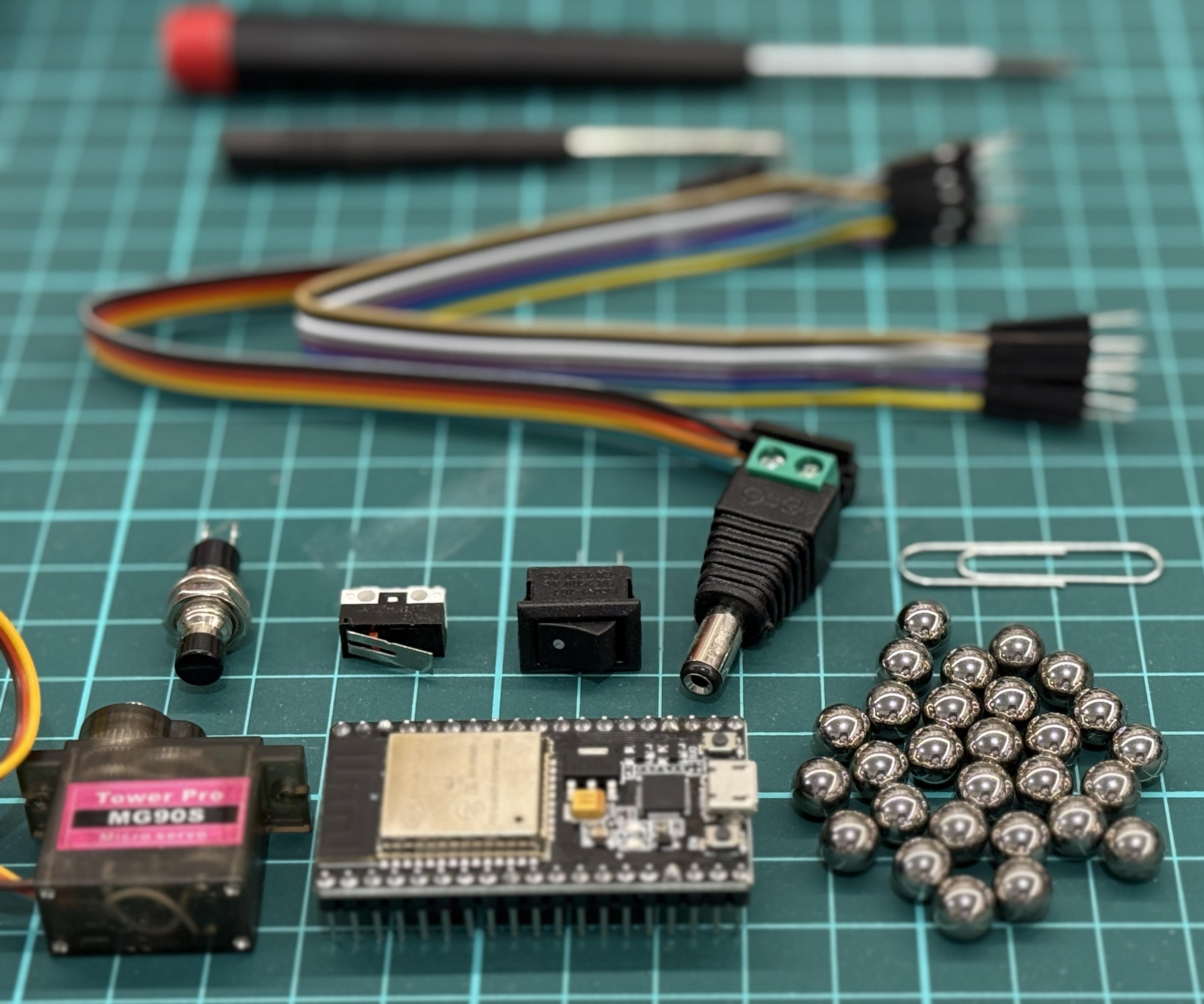
Materials and Tools (Everything You Need to Build This Clock)*

Materials:
 Orange & white PLA filament - as needed
 x1 NodeMCU-32S ESP-WROOM-32 (38-pin) or similar. Example
 x1 MG90S metal-gear micro-servo (with arm + mounting screws). Example
 x1 Power supply: 5V DC – 2.5A. Example
 x28 stainless steel balls, 9/32” (7.14 mm). Example
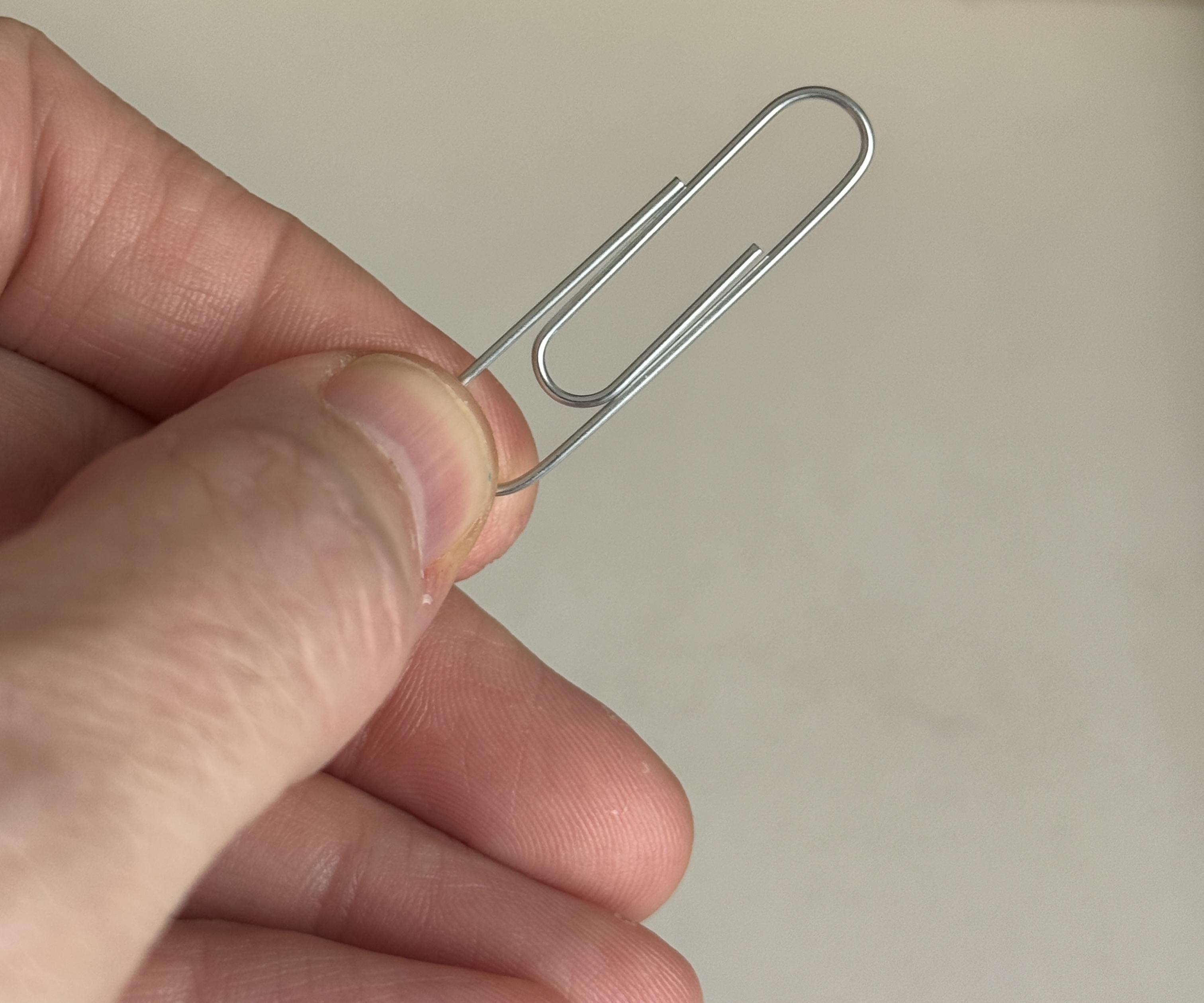
 x1 paper clip
 x1 Microswitch (COM+NC+NO), 12.5x6.5 mm Example
 x1 On/off switch (5V DC, black) 15x9 mm Example
 x3 mini push buttons Ø7 mm Example
 Female–female Dupont wires - as needed
 Female–male Dupont wires - as needed
 DC Female Connector Plug to Screw Terminal (2.1 × 5.5 mm) Example
 Heat-shrink tubing - as needed
 Electrical tape - - as needed
Tools:
 Utility knife
 Flush cutters
 Round nose pliers curved
 320 sandpaper
 Automatic Wire Stripper Cutter Crimper
 Reverse-action tweezers
 Screwdriver
 Electric soldering iron + solder
 Heat gun
(*) Some tools can be swapped for others. With a little creativity and resourcefulness, you can often achieve the same results using different methods.
How This Rolling Ball Clock Works (Simple Visual Logic)
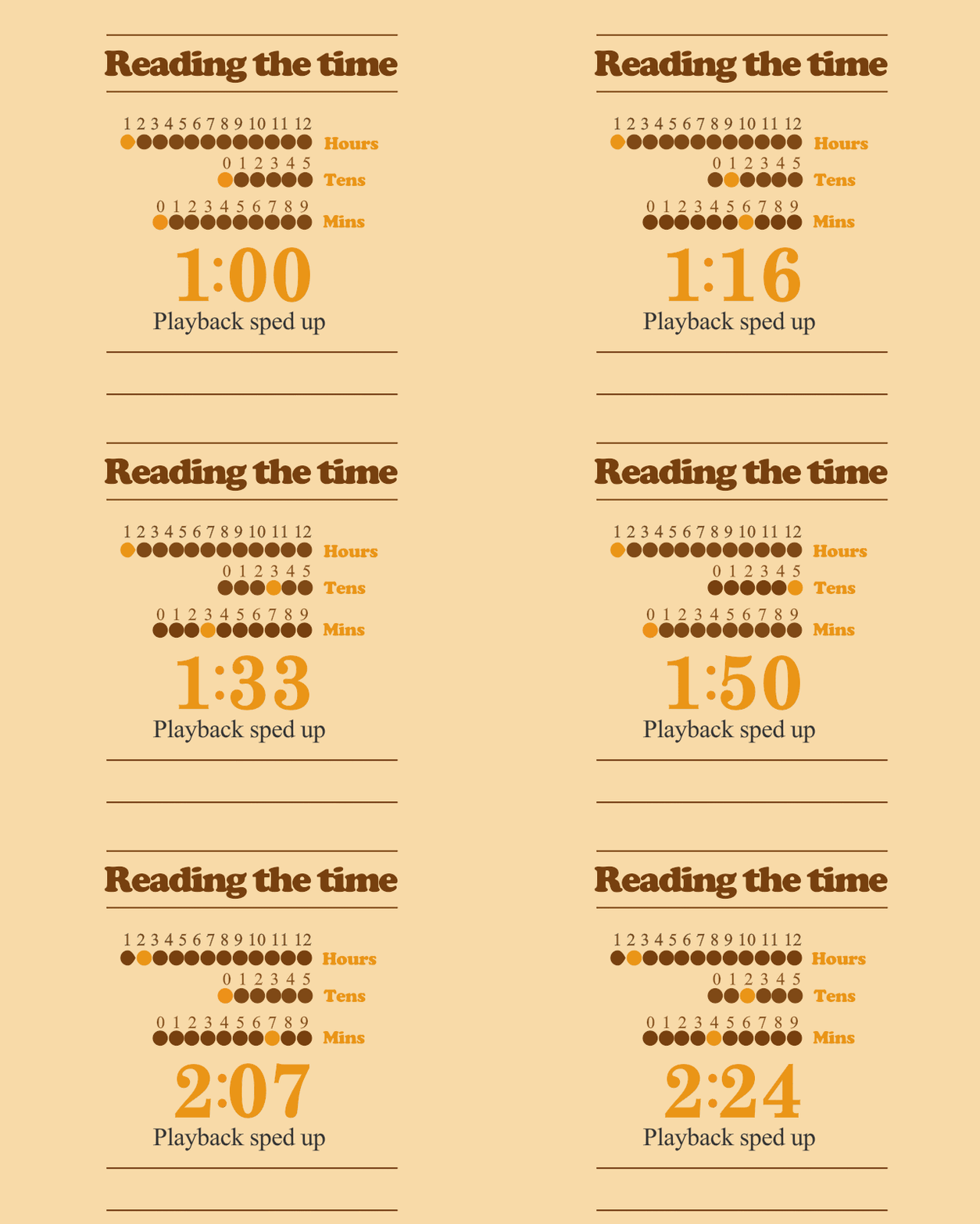
This clock uses three rows: hours, tens of minutes, and minutes.
Each row includes a single colored ball that marks the current digit.
In each row, all the balls travel from left to right and then return to the left end in a continuous loop.
The distinct ball (darker than the others) simply marks the current position within that cycle.
You’ll notice this is a variation of the traditional rolling ball clock, where balls “accumulate” in each row. In this design, the number of balls remains constant, and the single different-colored ball is the one that carries the time information.
The balls move through their cycle thanks to a mechanism powered by an MG90S servo motor and controlled by an ESP32, which also synchronizes the time over WiFi using global time servers — always accurate, always on time.
The animation shows the complete sequence, but in the cover image you can see the following moment in time:
 >
>- In the hours row, the distinct ball is in position 3
- In the tens-of-minutes row, the distinct ball is in position 2
- In the minutes row, the distinct ball is in position 7
The time is read as:
3 – 2 – 7 → 3 hours and 27 minutes
Design Overview (Retro Style + Compact Engineering)
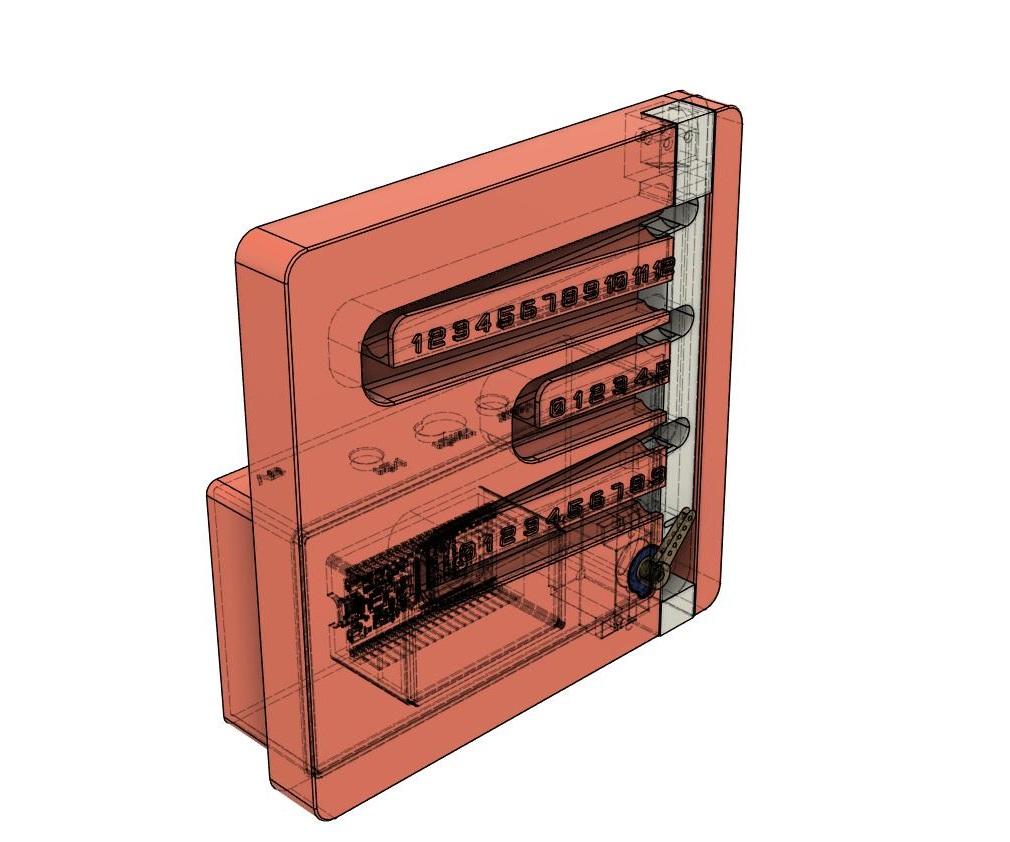
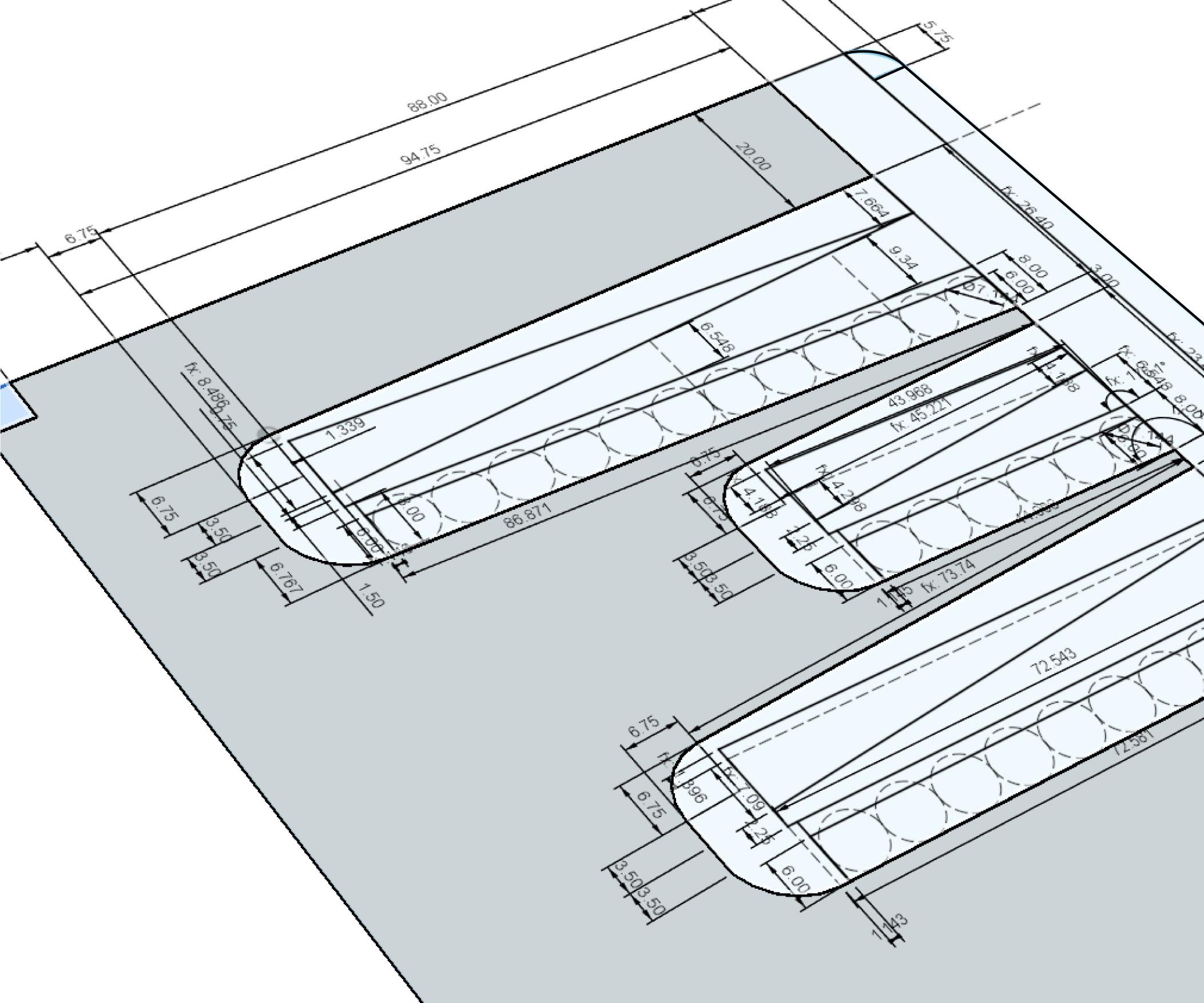
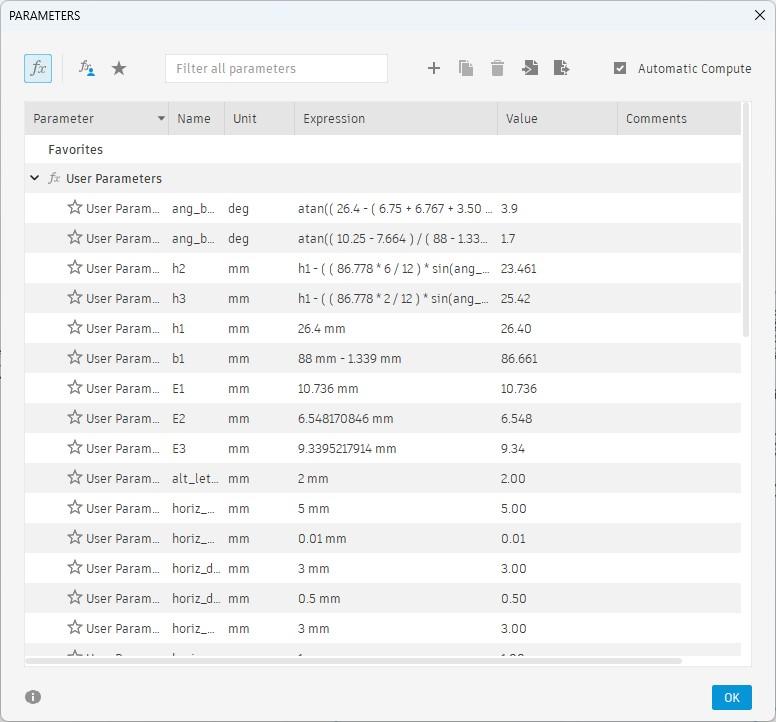
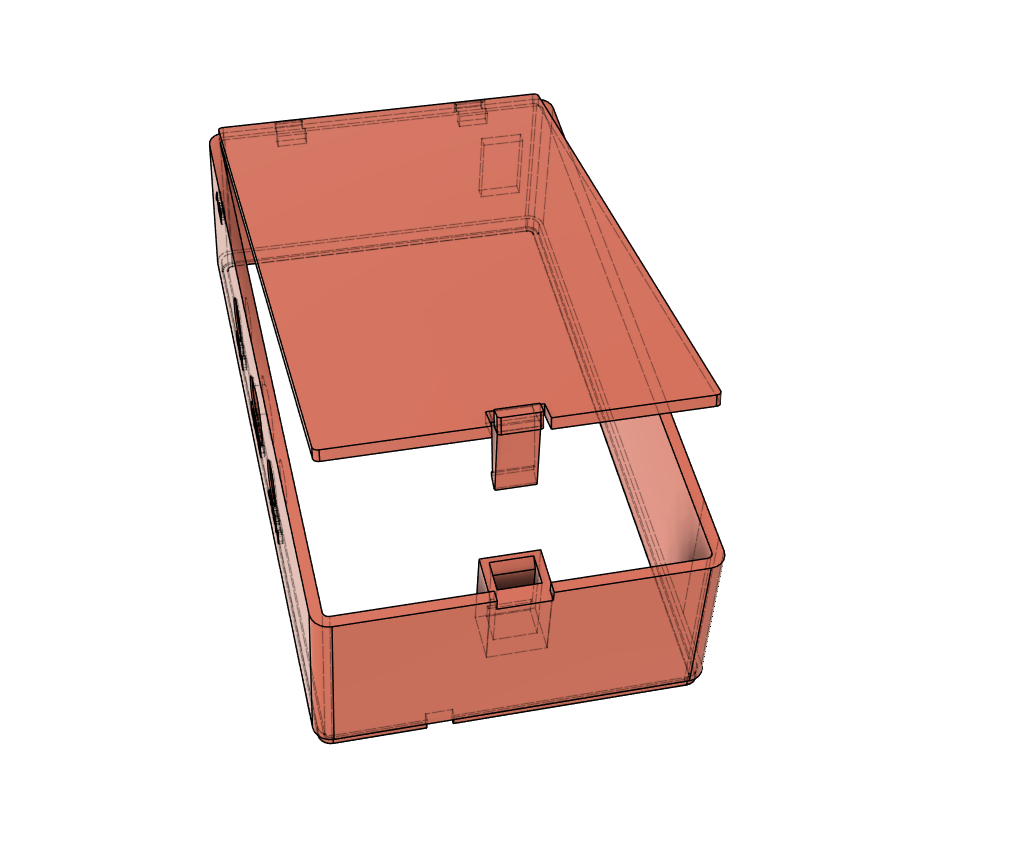
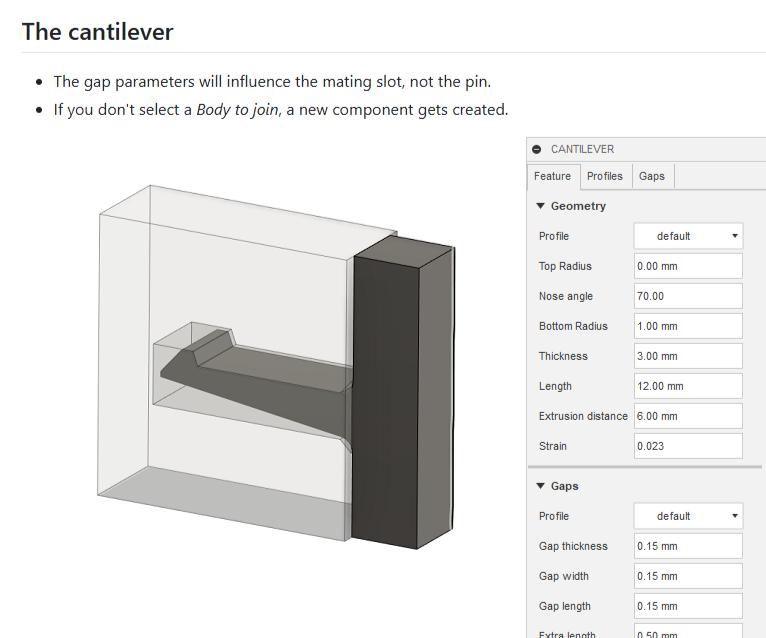
This project is based on an excellent wood-and-acrylic prototype that was shared with me years ago.
Consists of two fully 3D-printed main parts: the Clock Display Panel (13.5 × 13.5 × 1.6 cm) and the Electronics enclosure (11.5 × 6.5 x 3.5 cm), mounted as a rear module behind the panel.
I modeled all parts in Autodesk Fusion 360, testing tolerances extensively — tiny 1.5 g (Ø9/32"=7.14 mm) balls are more demanding than they look!
All components were designed to interlock through simple press-fit joints, allowing the entire assembly to come together without the need for glue or screws.
I think it’s important to highlight how essential it was to define Parameters when creating the main sketch, as well as the great and free Fusion 360 add-in “Snap Generator” by Alf Mikael Costantinou, which I used to design the snap-fit closure for the connection cover.
The design embraces a full 1970s retro aesthetic: rounded corners, smooth surfaces, soft rectangular shapes, and the classic orange + white color scheme. The Orbitron font completes that vintage-tech look for the numbers.
The choice of the MG90S servomotor, with its metal gears and higher torque, was made for its improved precision compared to the more common SG90 and SG92R models. Its increased mechanical robustness provides more consistent positioning, which is essential for the smooth operation of this mechanism.
Likewise, the decision to use stainless steel balls was driven by their greater weight relative to balls made from technical plastics such as POM (Polyoxymethylene). The added mass improves stability and mechanical response, helping the clock run more reliably.
3D Printing All Parts (STLs + Print Settings)
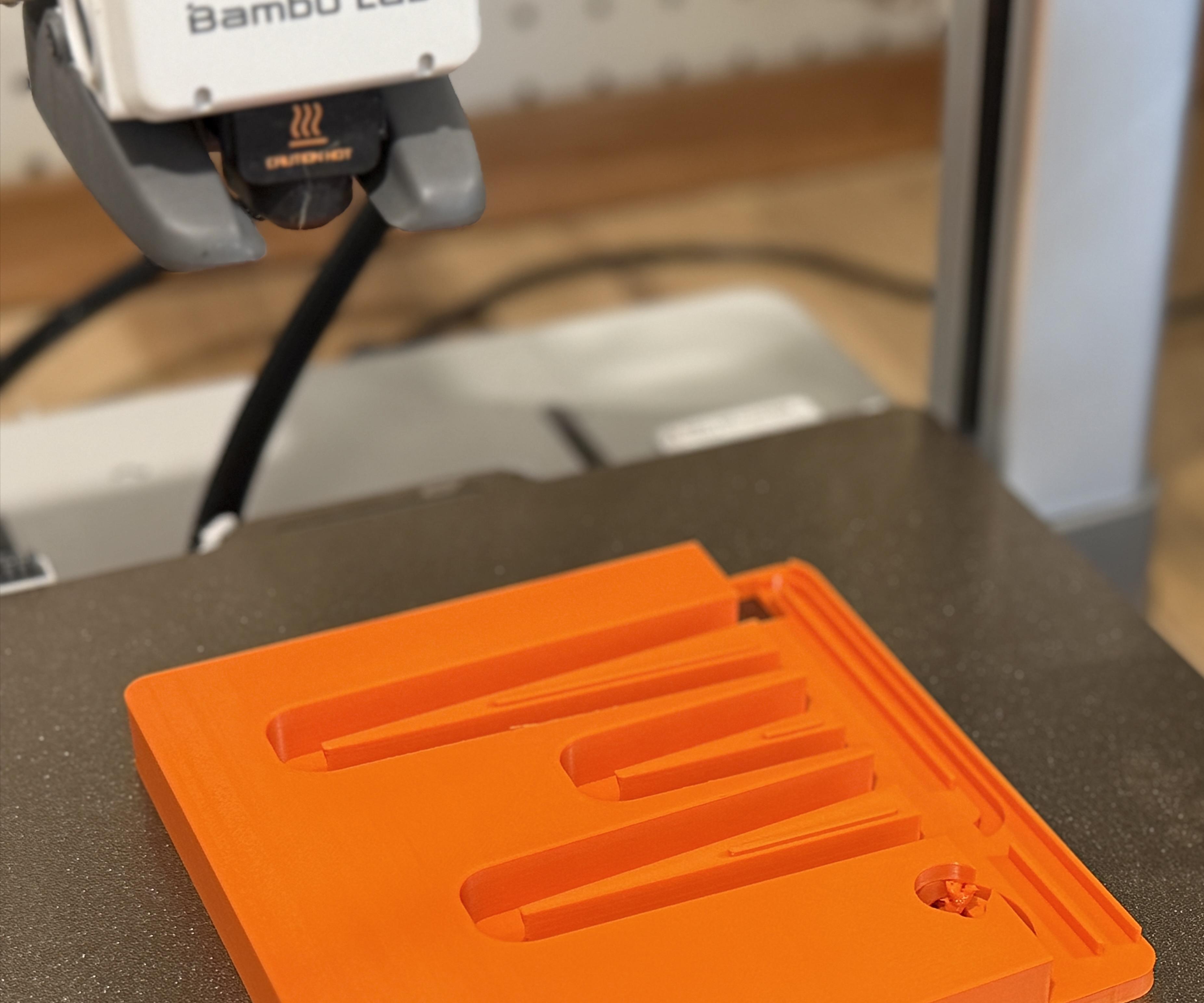
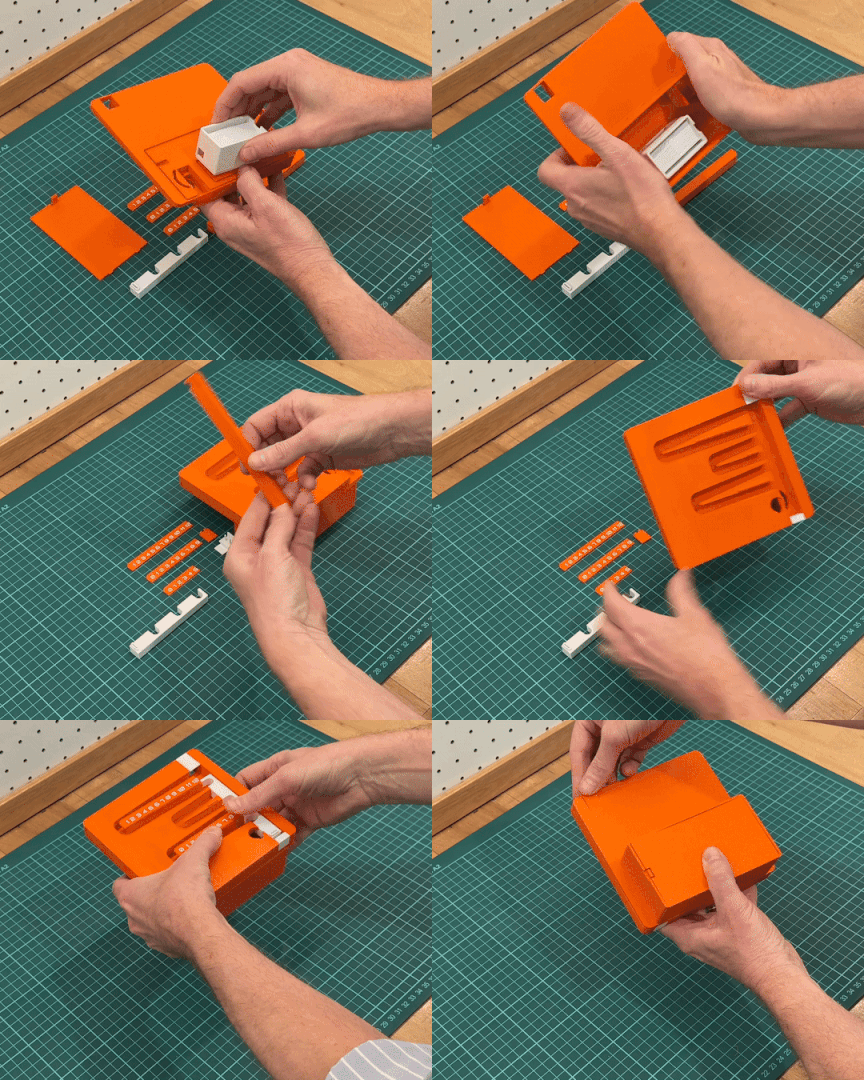
You’ll need PLA in two colors.
Once you’ve printed all the parts and removed any defects, supports, and so on, it’s a good idea to do a preliminary assembly of the whole set as shown in the video. Afterwards, you’ll need to take everything apart again to follow the instructions provided in the steps later in this Instructable.

Total parts: 13
Orange parts
 x1 Clock display panel
 x1 Side piece
 x1 Electronic enclosure
 x1 Electronic enclosure cover
 x1 Microswitch access cover
White parts
 x1 Elevator
 x1 Upper fixed elevator piece
 x1 Lower fixed elevator piece
 x1 Microswitch fixing piece
 x1 ESP32 Mounting Bracket
Two colors (orange + white)
 x1 Hours label
 x1 Tens-of-minutes label
 x1 Minutes label
Recommended slicer settings:
Layer height: 0.12 mm
Smoothing: “Top surfaces” for panel and elevator parts.
Supports: Use the “normal (auto)” support type for parts with very small grooves, and the “tree (auto)” type for larger pieces. Some printer models can print without supports when the bridges are small.
After printing, remove supports carefully and clean surfaces with utility knife, flush cutter, round nose pliers and 320-grit sandpaper.
Take special care and be patient when using tools to remove little support material such as piece.
Downloads
Panel Assembly (Mounting the Servo & Elevator System)
1) Mount the MG90S servo on the back of the panel using screws.

2) Connect wires to NC and COM on the microswitch.

3) Route wires through the cable channel.

4) Mount microswitch onto the upper fixed elevator piece.


5) Assemble upper/lower elevator pieces onto the side piece.

6) Attach the full side assembly to the panel.

Connection Box Assembly (Wiring the ESP32 + Buttons)
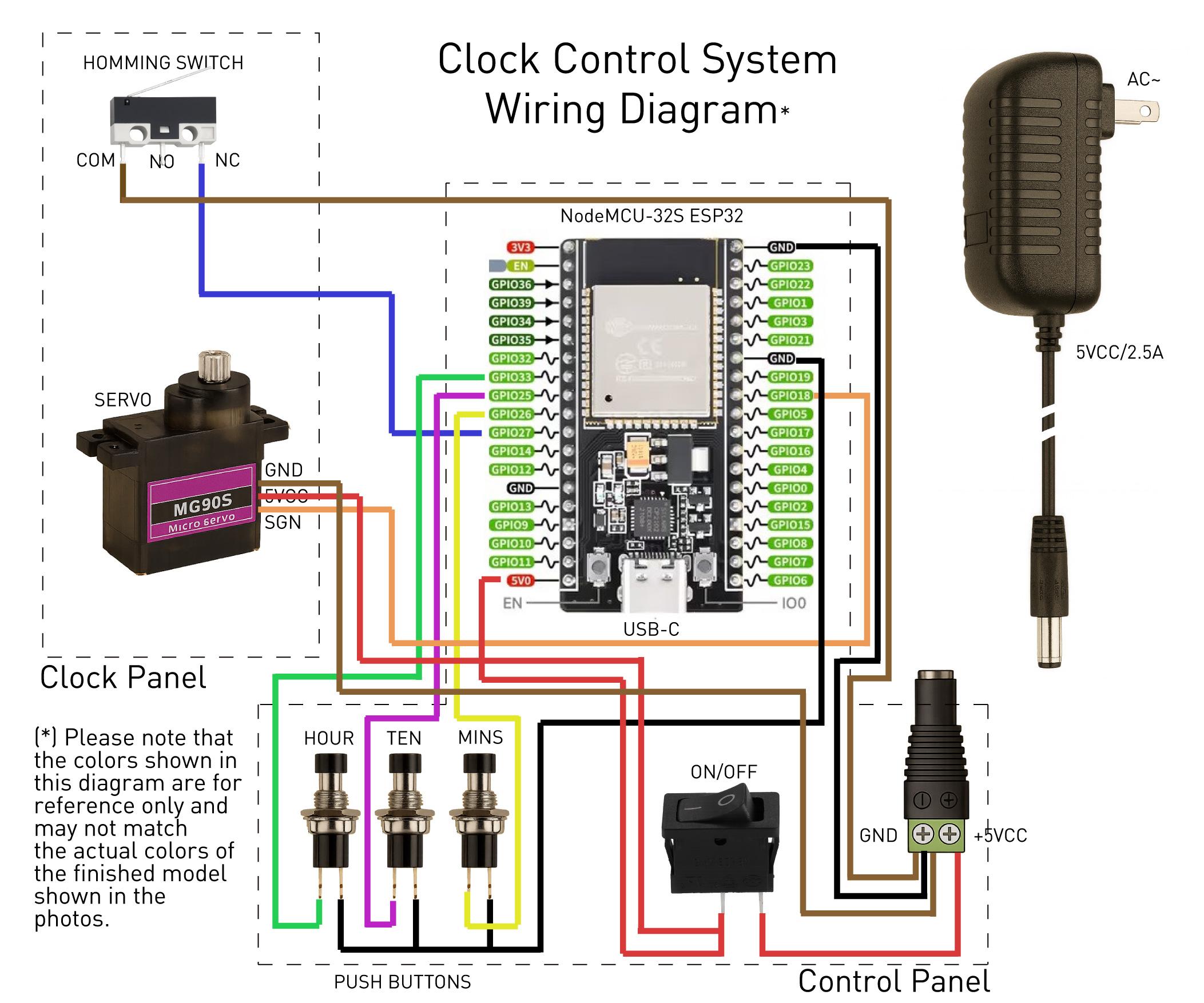
1) Insert the DC Power Female Connector (press-fit).

2) Install the black ON/OFF switch on the right side of the electronics enclosure.

3) Wire and mount the three push buttons.

4) Place the ESP32 board inside its mounting bracket only to check that it fits properly. Later, during the wiring process, keep the board outside the bracket to make it easier to attach the female Dupont connectors to each pin.

5) Plan cable routing using the rectangular slots into the ESP32 mounting bracket.
Required connections:
- Microswitch NC → GPIO 27
- Microswitch COM → GND
- Servo signal → GPIO 18
- Servo +5V → +5V terminal
- Servo GND → GND terminal
- Power terminal GND → ESP32 GND
- Buttons daisy-chain → GND
- Hour button → GPIO 33
- Tens-of-minutes button → GPIO 25
- Minutes button→ GPIO 26
- ESP32 +5V / GND → Power terminal block


Then:
5) Mount the ESP32 mounting bracket to the rear of the panel.
6) Attach the Electronic enclosure.

7) Organize cables (future-you will thank you).

8) Close the box.

9) Install Microswitch access cover.
Before closing the lid, use the printed microswitch fixing to secure it (see the little piece in step 3).


In my case, I used Dupont-style male and female connectors for all wiring, protecting exposed contacts with heat-shrink tubing. You’ll notice that the wiring is fairly simple; however, in the future I may publish an UPGRADE using terminal blocks or a small PCB to make the assembly cleaner and potentially reduce the size of the connection box.
Calibrating the Servo
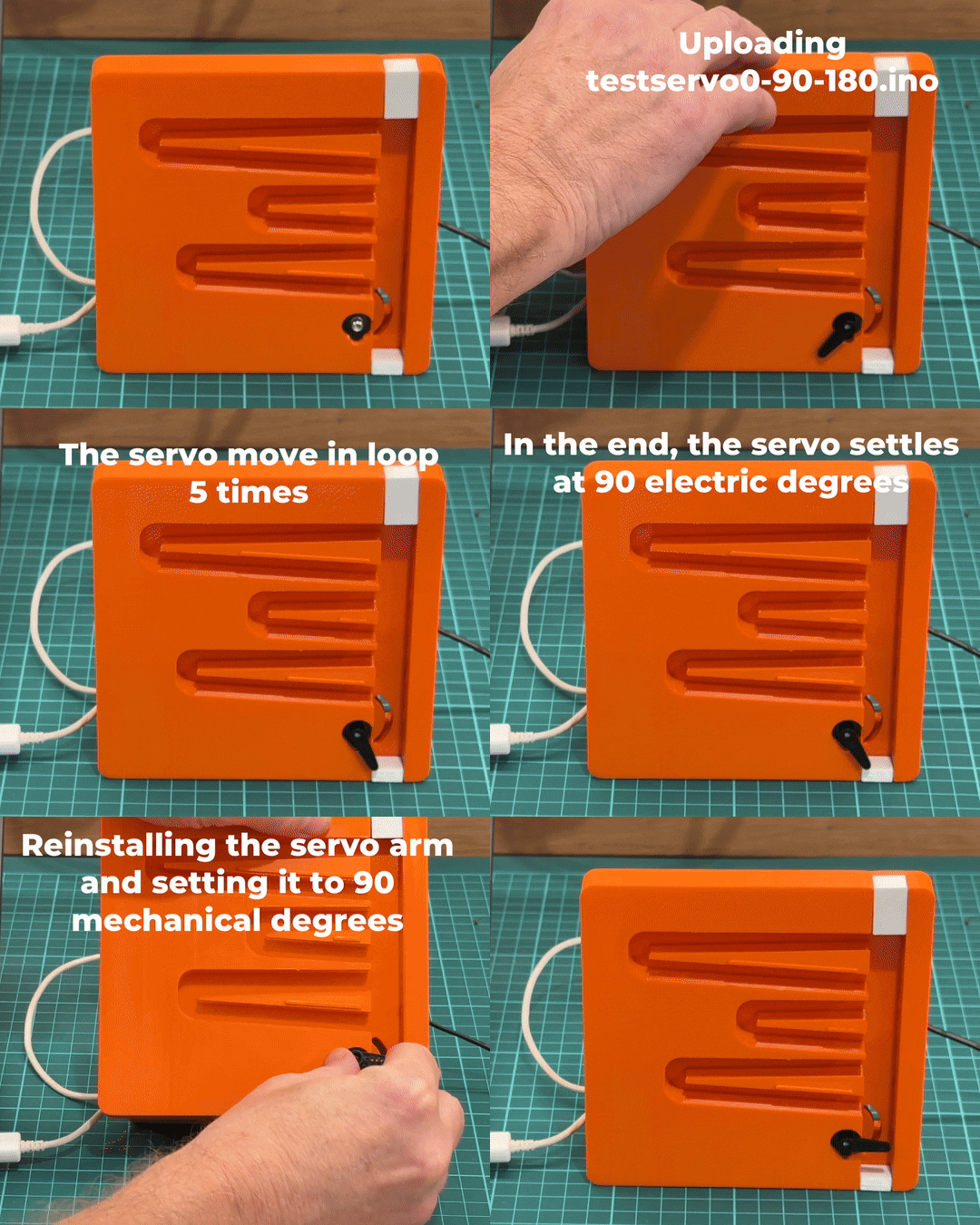
The MG90S servo rotates from 0 to 180 degrees. Before installing it permanently, we need to align the electrical 90° position (from the code) with the physical 90° position of the servo arm.
1) Run the Test Sketch
Attach the servo arm in any position (without his screw) and upload testservo0-90-180.ino to the ESP32 via USB-C.
The servo will slowly cycle:
0 → 90 → 180 → 90 → 0
This sequence runs five times and then stops at 90 degrees.
2) Align the Arm
Remove the arm and reinstall it so it is parallel to the work surface (mechanical 90°).
3) Fine Tune with the Serial Monitor
Due to the servo shaft splines, the arm may not sit perfectly at 90°. This is normal.
Open the Arduino Serial Monitor and use these commands to fine-tune the angles:
Tip: ±5 microseconds is a very small step. The arm may not move at first, but small adjustments add up and allow very precise alignment.
When the arm is perfectly aligned at 0°, 90°, and 180°, press first "9" to move 90° and then "s" and copy the displayed values:
🛑 These values work for my servo. You should run the test and use the values you get (These values may vary depending on the manufacturer or other factors). These will be used in the main clock code in the next step.
Your servo is now correctly aligned and ready to install.
Now fix the plastic arm to the servo shaft with the small screw included with the servo.
Downloads
Uploading the Code to the ESP32 (WiFi Time Sync)

In this step, we will upload the final Arduino code 3DPrintedRBC_ESP32_1.0.7 that will operate the clock.
This firmware is configured for the pin layout described in step 5.
The ESP32 synchronizes time automatically using online servers (By default, it is configured in line code 345 arduino setenv("TZ", "America/New_York", 1);
You must enter into the arduino code:
- WiFi network name (SSID)
- Password
- Your time zone (*)
- SERVO_MIN_US (**)
- SERVO_CENTER_US (**)
- SERVO_MAX_US (**)
(*) To set the time zone for your location, the Arduino code uses the IANA Time Zone Database
(**) The previous step explains how to determine the values of these last constants in microseconds.
Steps:
1) Turn on the main switch.
2) Connect your computer to the ESP32 via USB-C.
3) Open, verify, and upload the code.
4) Disconnect USB, turn off switch, reassemble the box.
If you're familiar with ESP32 boards, this will be quick. If not, plenty of tutorials exist — and I’m happy to help.
Downloads
Mechanical Pre-Test & Homing Check (without Balls)
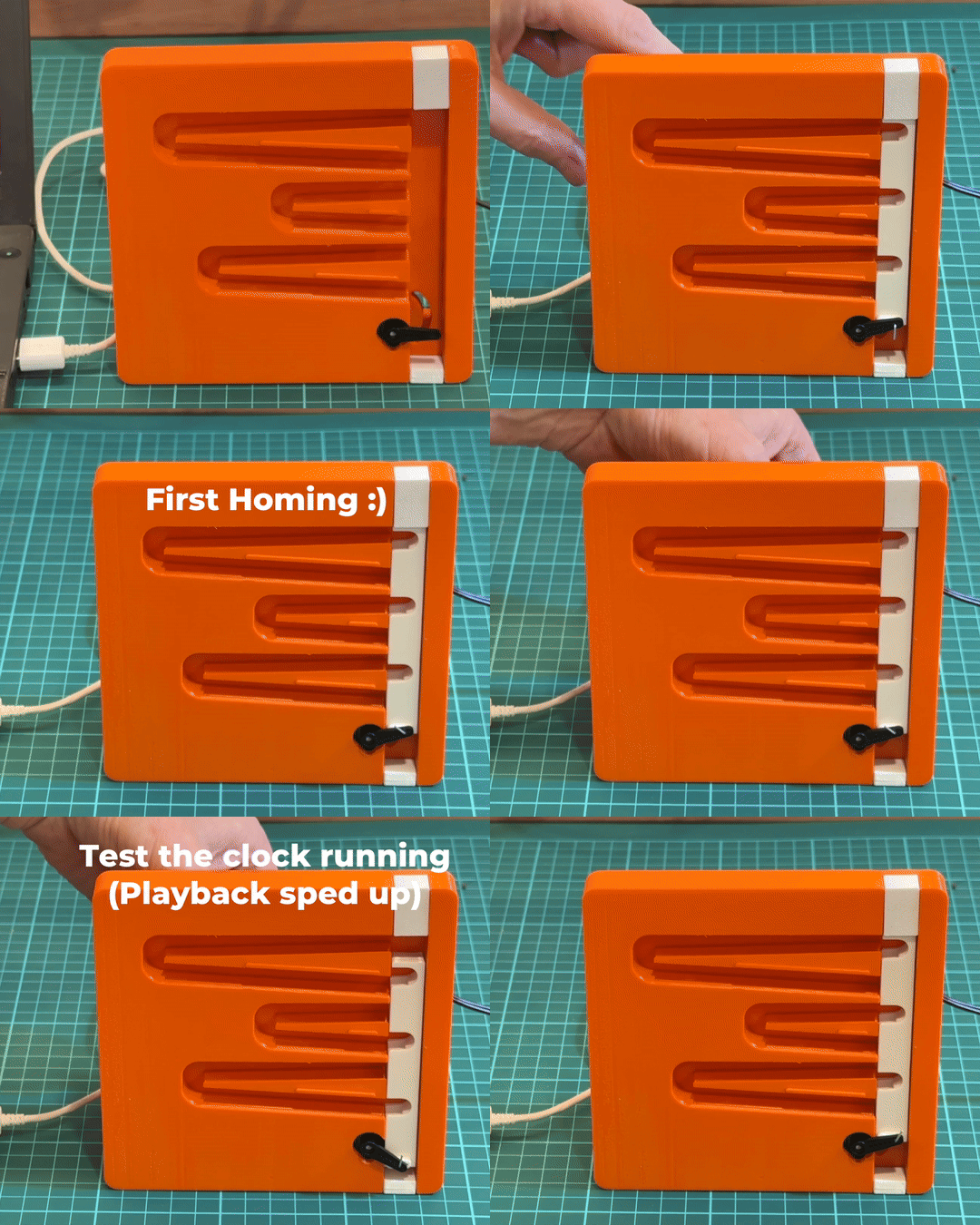
Before adding the steel balls, we’ll run a quick mechanical pre-test to confirm that the elevator, servo, and homing system work properly.
Homing is the process where the mechanism moves until it touches a reference switch—just like a 3D printer does—to recover its exact starting position.
Procedure:
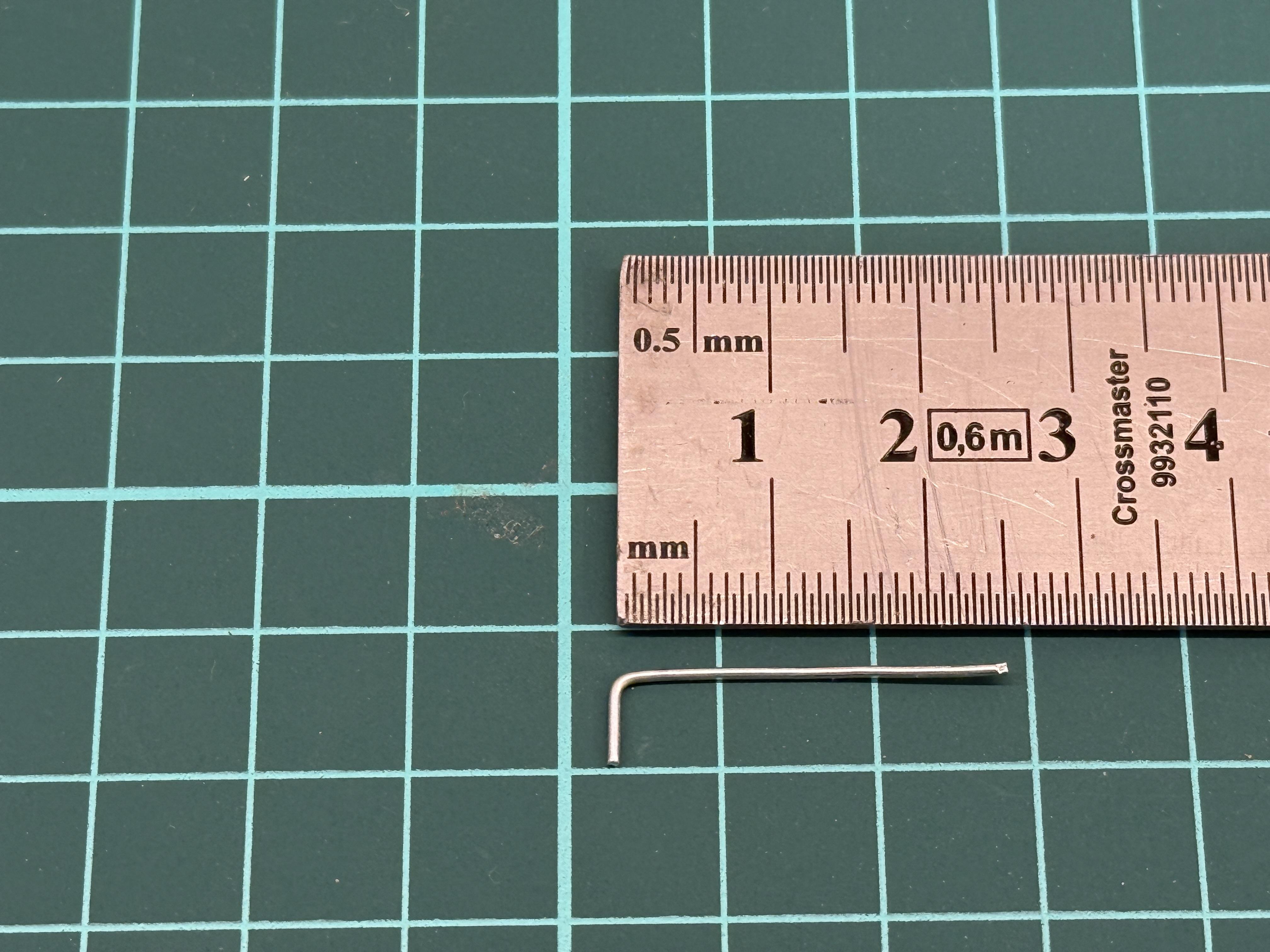
1) Lift the elevator and place a small wire piece underneath (see photo how to make it from a paper clip standard size 37 mm Øaprox.0.8 mm).
2) Turn on the switch and push the hour's button clock.
3) Elevator descends, activates the microswitch → servo stops → returns to rest.
4) ESP32 runs timed movements (one step every minute).
6) Test the buttons (Hours / Tens / Minutes).
7) Turn off the switch — pre-test complete.
If the ESP32 is connected to the computer, the firmware outputs clock status information to the serial monitor.
It’s Alive! (Placing the Balls + Final Calibration)
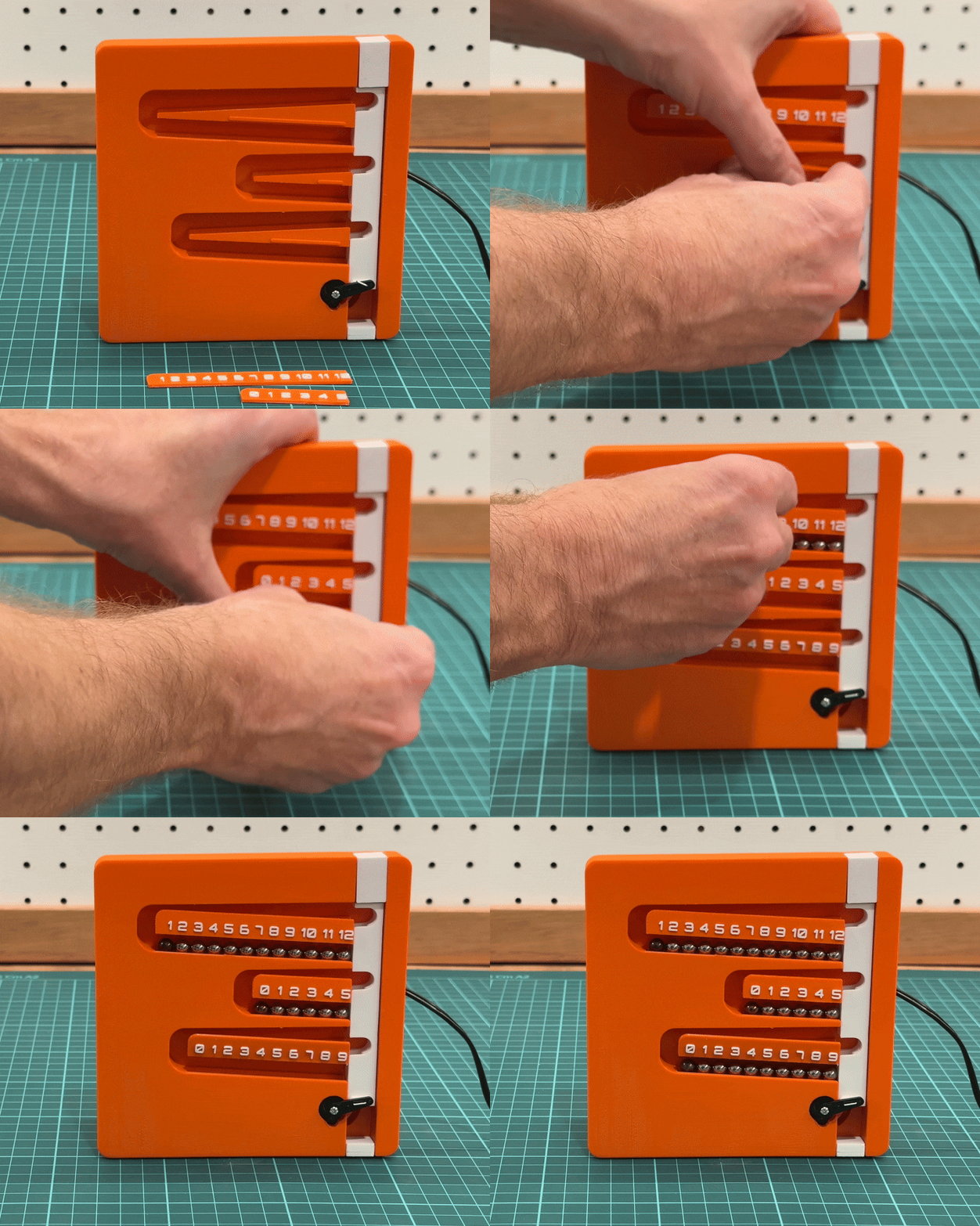
1) Check the current time (To simplify, I assumed the time is 1:11)
2) Install the 3D-printed hour, tens, and minute labels.
2) Place the balls:
- Hours row: 12 steel balls (1 colored ball at current hour) *
- Tens row: 6 steel balls (1 colored ball at tens digit)
- Minutes row: 10 steel balls (1 colored ball at units digit)
3) Turn on the clock and press the hour button. Homing runs automatically.
4) After resting position is reached, the clock begins normal operation.
5) If time is slightly off, adjust using the three buttons (Hour, Tens and Minutes).
👉 “In case of a power loss or if the ON/OFF switch is turned off, once power is restored the clock remains idle. To start it again, press the ‘Hour’ button to perform a homing sequence, then set the time.”
If your clock is running… Enjoy it — as much as I did while building it!
* See step number 11 to learn how to change the color of a stainless-steel ball using heat.
Bonus Ideas & Future Upgrades
Here are a few upgrade ideas I’m planning to explore in future versions — and they may inspire your own custom improvements as well.
✅Cleaner Wiring
Use small terminal blocks inside the connection box for a neater, more robust wiring layout — maybe even switch to a simpler ESP32 variant.
✅Status LEDs
Add a couple of colored LEDs to show WiFi connection, power status, or startup animations.
✅Acrylic Front Panel
Consider adding an acrylic cover to protect the balls and give the clock a more polished look.
✅Wall-Mount Version
Redesign the panel thickness to create a fully integrated, wall-mounted kinetic display.
✅Stepper Motor Edition
Scale up the size and use a stepper motor instead of a servo for smoother motion and bigger visual impact.
Miscellaneous – Coloring Stainless Steel Balls
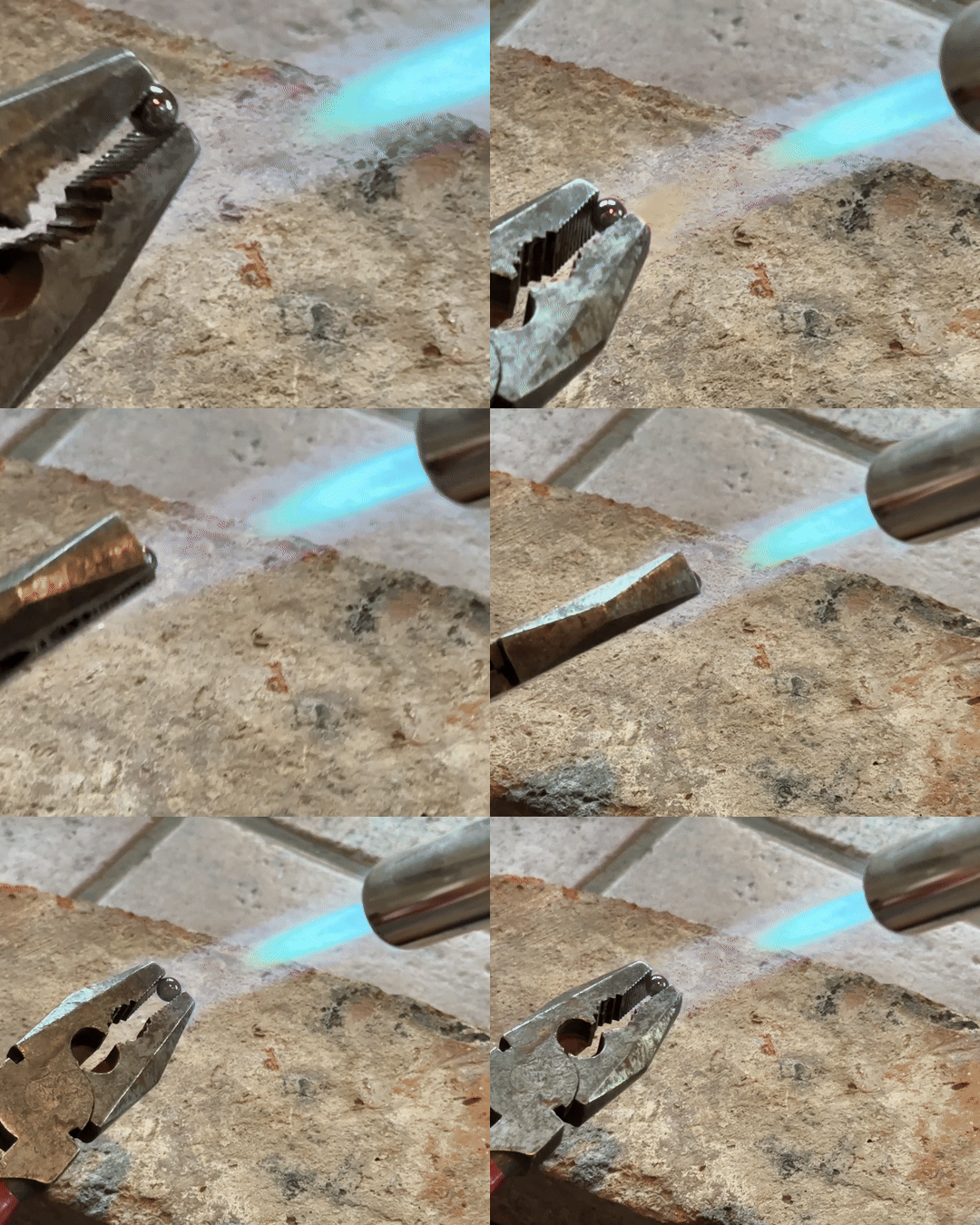
In this step, we’re going to add some color to three stainless steel balls so they stand out from the rest. This is done by heating them with a small gas torch. As the metal warms up, it naturally develops a thin oxide layer that changes color—no paint needed.
Before you start, make sure each ball is perfectly clean. Wipe them with alcohol or acetone to remove any oils or fingerprints. Hold the ball with metal pliers and gently bring it near the edge of the flame (not the hottest part). Keep it rotating so the color develops evenly.
You’ll see the colors appear in sequence: gold → brown → purple → blue → matte gold. When you reach the color you want, pull the ball away from the heat. It may keep shifting for a couple of seconds, so you can place it on a cold metal surface to “freeze” the color right where you like it.
This simple trick gives you bright, unique tones that work great for marking the hour, minutes, and tens of minutes in your project.
See this video for more details.
Adding Optional Guide Rails
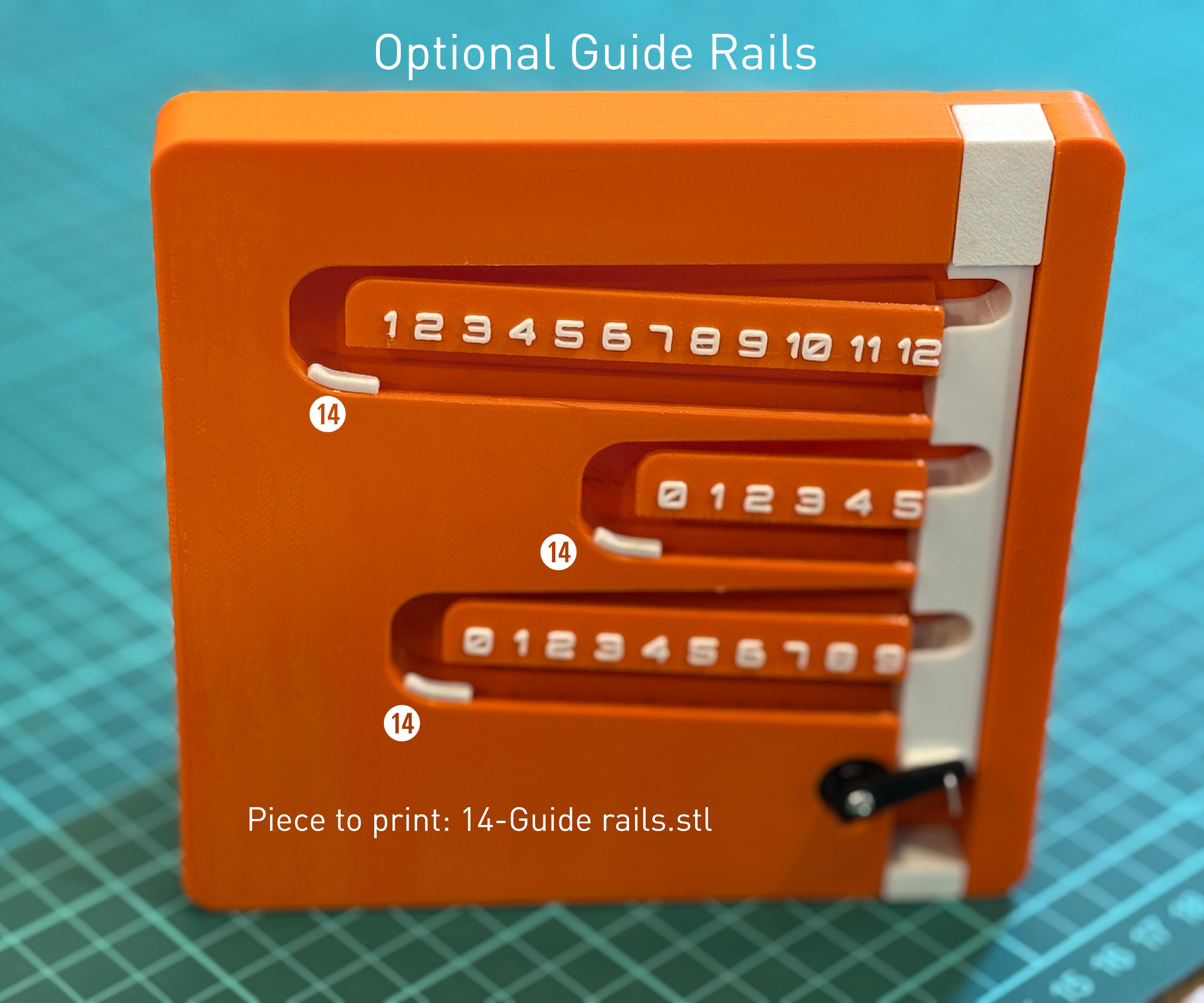
I left the clock running for many days and hours with excellent accuracy results. Occasionally, a few balls would fall out.
Since I’m a bit of a perfectionist 😁, and without changing the original channel design or its angles, I added a few small guide rails that are glued in place with super glue, with excellent results.
I recommend that you test the clock yourself and decide whether you want to print and add these three optional extra parts.
Downloads
Final Thoughts (Thanks & Share Your Build!)
Special thanks to Pieguy729 👏👏👏, who pointed me to the original online project that inspired this build.
Thank you for following this project all the way to the end!
If you build your own version, I’d love to see photos — feel free to share your results, ideas, or improvements.
Questions? Need help? Want to customize it?
Just ask — I’ll be happy to assist.
Enjoy your new clock, and thank you for being part of this maker journey!
cfb70 - Instagram @cfb70ok
PS: If you want to see my other works on instructables look here: