A 99.3% Accurate Earth, Moon, and Sun Celestial Orrery
by LqudIce404 in Design > 3D Design
57 Views, 1 Favorites, 0 Comments
A 99.3% Accurate Earth, Moon, and Sun Celestial Orrery


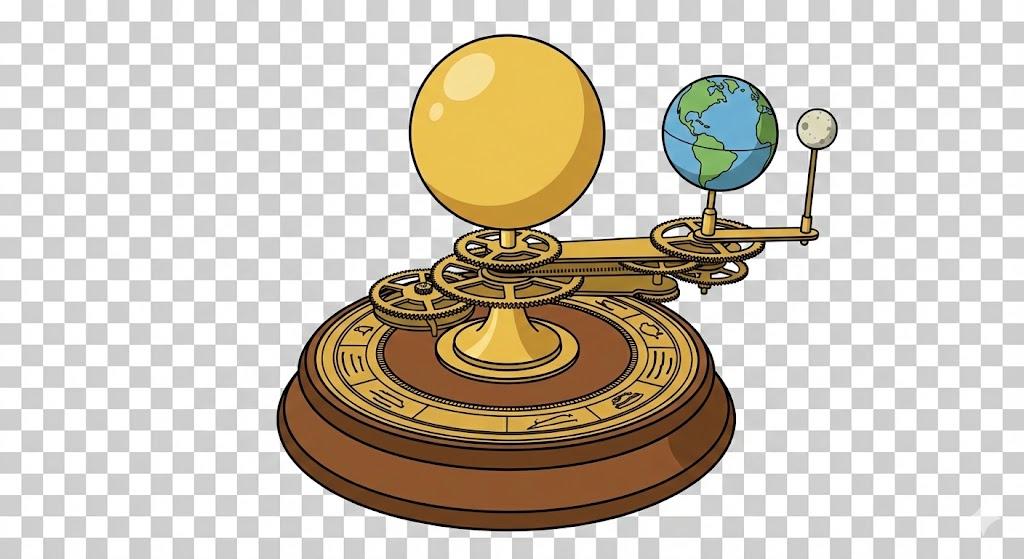
I’ve always been fascinated by the Solar system and how the moon and earth orbit around their respective centers (Earth and Sun). In my science class, I noticed my teacher had a model of the Earth, Moon, and Sun, so I decided “Why not 3D Print one?” I decided to embark on my journey to model maybe one of my biggest projects yet, and along the way, I learned So. Many. Things. I would like to take the time and opportunity to share my expedition with you, and hopefully give you inspiration or motivation to start or continue your own project.
Disclaimers: I used Fusion 360 Education License for this project; All parts were 3D printed on my Bambu Lab X1 Carbon using Bambu Lab PLA; Some images may be cropped due to Instructables aspect ratio. Please click on the image to see the full picture;
Supplies

Any 3D Printer/access to a 3D Printer
PLA Filament (Bambu Lab/Generic PLA recommended since test prints were done in PLA. Results cannot be guaranteed if other materials Used)
PETG Filament (Optional only for support interface if desired)
Grease or Lubricant - Highly recommended since gears may not spin without them
Glue - I Used Gorilla Gel Superglue but any strong glue should work
(Optional) Acrylic Paint or Acrylic Paint Based Markers - For aesthetic purposes to color the moon. If you don't have great artistic skills like me, I created a custom 2D printable template to cut and tape around the earth (Make sure you print it at 100% scale).
Background Information (Sidereal Vs Synodic)

First, we need to do the calculations on how many times the Earth rotates around the Sun and how many days it takes for the moon to take one revolution around the Earth. You might be wondering what sidereal and synodic are. They are two different ways to think about how many times something revolves around an object.
What if I told you that the Earth actually rotates 366 times a year? That’s because what we call one day is actually a little more than a 360 degree rotation. This is because we need to account for the revolution (movement around the sun) of the Earth. We call one day the time that it takes for the Earth to be aligned with the center of the sun again. A sidereal perspective is used to describe one day as a 360 degree rotation from the perspective of an outside observer. A synodic period states that 1 day is when the Earth rotates and points back at the sun. As mentioned above, this turn is a little more than 360 degrees due to the Earth moving.
The same phenomenon also affects the moon. It takes the Moon approximately 27.3 days to make one full 360 degree revolution (sidereal). However, every full moon takes approximately 29.5 days because the Moon needs to catch up to the rotation of the Earth around the sun.
If you don’t understand this topic, you’re not alone! Yes, I still am not able to completely grasp the concept so that’s why I’ve provided you with a visual that will make it easier for us to understand (see above). In the video, the first point I stopped at was a sidereal perspective and the second was a synodic. As you can see, the synodic period takes about 2 extra Earth days.
So now, this brings up the question of which one should we use? To sum it up, we will need to use synodic periods of time for both the Earth and the Moon in order to produce an accurate result. This means we will need to create a 1:365 gear ratio and a 1:~30 ratio for the moon
Overall Basic Design Plan

For the orrery, I planned to keep the biggest first gear lock in place. It would serve as an anchor point for the rest of the gears which will be connected to a rotatable arm. That way, when you push the arm (representing the Earth orbiting), the gears would also rotate.
When we create the gears, we need to keep the rotation and orbiting patterns in mind. This is because every time we add a gear, the direction switches, so we need to make sure that it aligns to the actual solar system. The Earth rotates and revolves around the sun in the same direction. This means that we need to have an odd number of gears after the anchor gear (the Sun). So, in total, we will need an even number of gears including the main sun gear for the Earth’s gear chain.
For the moon, it also revolves around the Earth in the same direction as the Earth rotates. To account for this, the total number of gears connecting the Earth gear to the moon gear will need to be odd to keep the same rotation pattern.
Identifying Optimal Gear Ratios

When designing 3D printed gears, you don’t want to make the ratio between 2 gears really high, otherwise they won’t spin. You also don’t want too many gears because it will create too much friction and require a lot of torque to spin. For this reason, I settled for around a max ratio between any 2 gears as 1:4.
After spending some time tinkering around with different values, I came up with the finalized ratios. I would start with a 73 tooth gear, which will be the stationary sun gear, and it will drive an 18 tooth gear. The 18 tooth gear will be connected to a 48 tooth gear that will sit on top of it (it won’t drive the gear but it will spin at the same speed).The 48 tooth would drive a 12 tooth gear connected to a 36 tooth gear. The 36 tooth would drive another 12 tooth gear connected to a 36. The 36 drives a 12 tooth gear connected to a 30 tooth which drives the final 12 tooth gear. In total, this is the final gear ratio you get: 73/18x48/12x36/12x36/12x30/12=365. This means for one rotation of the 73 tooth gear, the last gear would spin 365 times.
For the moon, we needed a ratio of approximately 30:1, and it would’ve been easier to get it directly from the existing gear chain. I decided to use the last 3 gears from the existing gear set, giving me the ratio of 12/30x12/36 which puts us at 2:15. To make it a final 1:30 ratio, I added a 9 tooth gear to the 36 tooth gear (meaning it spins at the same rate as it), and made it drive another 36 gear tooth, adding a 1:4 ratio to get 2/15 x 1/4 = 2/60 = 1/30.
Meshing the Gears Together in Fusion 360

For this project, I used the built in Spur Gear command from the Scripts and Add-Ons section from the Utilities tab (in Fusion). After importing all the gears, I used the move command to place them in their respective positions. In between each gear, I added a small 0.5mm gap. Although this does increase backlash, it was a thought out trade-off to help reduce friction and improve tolerances. For all the gears, I used a module of 1 to make the teeth mesh better but also to reduce the size. For all the gears, I added a small 5 mm hole for the axle.
Building a Base for the Gears


The next step is to build a base for the gears and add the axles for them to spin on. I started by creating a sketch on the profile plane of one of the gears. I then created rough circles slightly larger than the gears themselves and extruded them about 5mm from their appropriate y-levels to create a basic base (Image 1).
Since we need our first gear to not move and the arm to rotate around it instead, we will need to create a second base for the 73 tooth gear. Since we don’t want it to rotate, we will make the axle and cutout square instead of circular. Inside the main base for the other gears, I added a circular cutout so it would be able to rotate. On the base, I added the circular axle, then added the square one on top of it so that the 73 tooth gear would go on top of the main base (Image 2).
Since our project is also going to be 3D printed, it is crucial to keep in mind that we need to reduce overhangs, and improve printability. For this reason, I had to split the base into 3 main parts. There were, however, still some overhangs in places. To combat this issue, I used a PETG support interface to ensure a clean support removal (the yellow is PETG and green is PLA in Image 3).
For the axles, after doing a few tests, I decided to use axles that are 4.6mm in diameter, for the holes that are 5mm. This ensured that the gears would have less contact with the axle so there would be less friction.
Another measure I took to reduce friction was to add a small lifted circle for the gears to rest on. That way, instead of the whole gear touching the base, only a small part would, reducing the friction and pressure of the gears.
Another small detail I added to the model was to add end caps to keep the gears in place. When they spin at high speeds, they sometimes tend to lift up and jump off the axle. To address this issue, I just added a small press-fit piece that you can put on top of each axle to lock the gear in place.
Aligning the Moon's Axle


Since the moon revolves around Earth, the axle that will hold the moon needs to be in the center of the Earth. Right now, the gear that is supposed to hold the moon has a distance of about 45mm away from the center. To solve this problem, we can use 2 identical gears to bridge the distance. Adding an additional gear would also fix the direction of the moon so it would rotate in the right direction.
If we added 2 22 tooth gears with a module of one, we would cover a distance of 44mm, meaning we would have a gap of 1mm in between the gears. However, using a gap on 1mm for gears that have a module of 1 would result in poor grip in the gears meshing together and potential slipping.
Instead, we can use 2 11 tooth gears with a module of two (Image 2, left is module 1, right is module 2). This means the individual teeth will be twice as large but it would still cover the same distance of 44mm. Since the teeth are larger, a 1mm offset won’t cause an issue because there is already enough meshing with the gears.
Adding the Earth, Moon and Sun


The last modeling step is just to add the spheres for the Earth, Moon, and Sun. I opted to have the Earth directly attached to the last 12 tooth gear (Image 1). For the 11 tooth gear which spun at the ratio for the moon, I added a long axle that went all the way up and through the Earth. Then, I created an arm that would connect to that axle as a separate piece. Finally, I added a hole for the moon to attach onto that arm (Image 2).
Slicer Settings

In the slicer, you need to pay careful attention to how you split the parts. Before you split the model to objects, you need to ensure you group the correct bodies together. Most of the pieces that need to be printed as one piece are made of 2 different components in Fusion, so they will split apart and will not print together. If you want to do it yourself, please pay attention to what pieces need to be grouped together by looking at the above screenshots. I'll also include a 3mf file from Bambu Studio with all the necessary changes, but make sure you change your printer settings.
There are a few other things that we need to change in the slicer before we print it. For the most part, I printed everything with default Bambu Studio settings for PLA Basic. It printed at 15% infill, 2 wall loops, ~2 top and bottom shell layers, and at 0.20mm layer height. For the most part, changing these settings shouldn’t impact anything but change them at your own risk.
For the Earth and Moon, I wanted to print them at lower infill to reduce weight. This wasn’t for saving filament, however, it would help reduce the pressure on the gears, especially since the moon is going to be suspended in the air by a small rod. I put them at 5% infill and left the other settings the same. (I also changed the infill of the rod that held the moon)
Additionally, there is a small L shaped cylinder that will hold the moon. Make sure to print it so that the hole in it faces upwards. Also, add a brim or ears to this part as the surface area touching the build plate is pretty small.
For 2 of the bases and the piece with 3 gears attached to it, I decided to put them on a separate build plate so I could use PETG for a support interface. This step is optional, but it will make the removal of supports much more easier because PETG doesn't stick to PLA very well.
For the 11-tooth gear with a very tall axle, I recommend putting 2 of them on the build plate far away from each other. After doing multiple test prints, the top layers of the axles started to collapse on each other and ended up warping due to inadequate cooling. Putting another one on the build plate ensures that the part will get some time to cool while the other one is printing.
Optional: If the holes are too small to fit the axles, I highly recommend turning on bed leveling as it can reduce something known as elephant's foot. 3D printed holes also have a tendency to shrink after printing, so you may need to adjust the tolerances on your own.
Assembly Instructions

I just created a simple Youtube video to help show the assembly a lot easier visually.