A Lounge Chair Design in Autodesk Fusion
by rschoenm in Workshop > Woodworking
291 Views, 2 Favorites, 0 Comments
A Lounge Chair Design in Autodesk Fusion


In this Instructable I present the design for an easy to build lounge chair made from construction lumber, plywood, or hardwoods. The design, especially the reclining angle between the seat and seatback is driven by the following ergonomics:
- Reclining Angle: 100° to 110° is best for reading or watching TV
- Reclining Angle: 120° to 150° (with legs elevated) is the “zero gravity” position best for rest and recovery
- Reclining Angle: 130° to 135° is the ergonomic "Sweet Spot" for maximum comfort
I choose an angle of 120 degrees for this lounge chair. By using the Fusion model you and I can easily change this angle and other measurements.
This Instructables' focus is on how to use Autodesk Fusion to design, tweak, model, and visualize the lounge chair. I went through numerous iterations before I settled on this specific design.
Using Autodesk Fusion to Design the Lounge Chair
For this Instructable I am assuming that you have a basic knowledge of how to use Autodesk Fusion. The design is broken down into creating the individual chair parts through sketches, extrusions, and assemblies. I am including the Fusion 'lounge chair.f3z' file which includes each component as well as the design history timeline. All part designs and assemblies use imperial units (inches). All image files that are shown in bold text in the steps below refer to the image gallery of that step.
Downloads
Supports
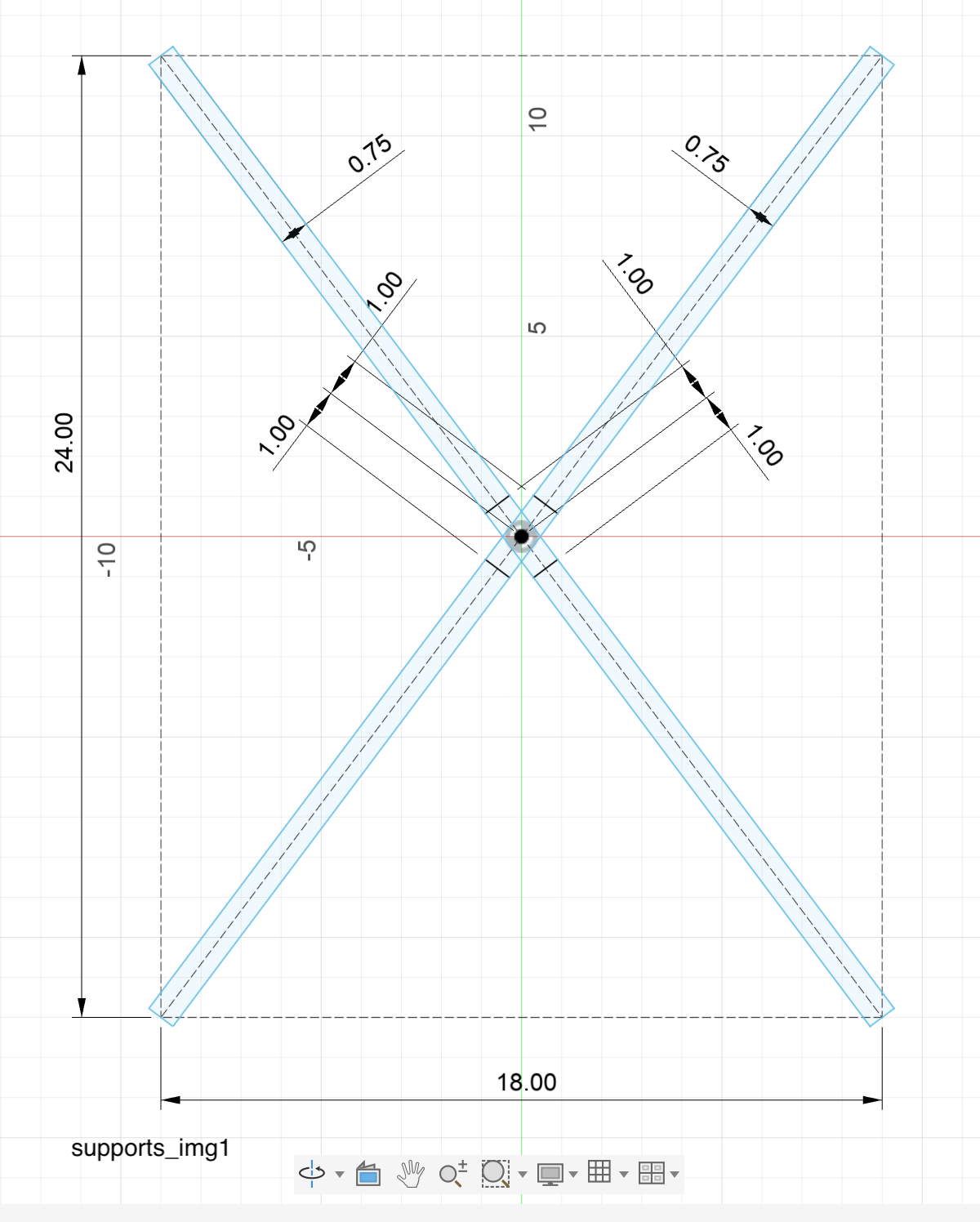


To start, create a new part design. Start a new sketch on the Top plane (XY Plane) and create the x-shaped supports outline as shown in the screenshot supports_img1. Note the construction lines which help in the drawing process.
Extrude in Z-direction for 25 inches, supports_img2.
Create a new sketch on the Right plane (YZ Plane) and draw the sketch as shown in the screenshot supports_img3. The two light blue rectangles are the projected bodies from the prior extrusion.
Now extrude this sketch profile as shown in supports_img4 to cut through the four support pieces. Remove the four top bodies from the design (supports_img5 and supports_img6).
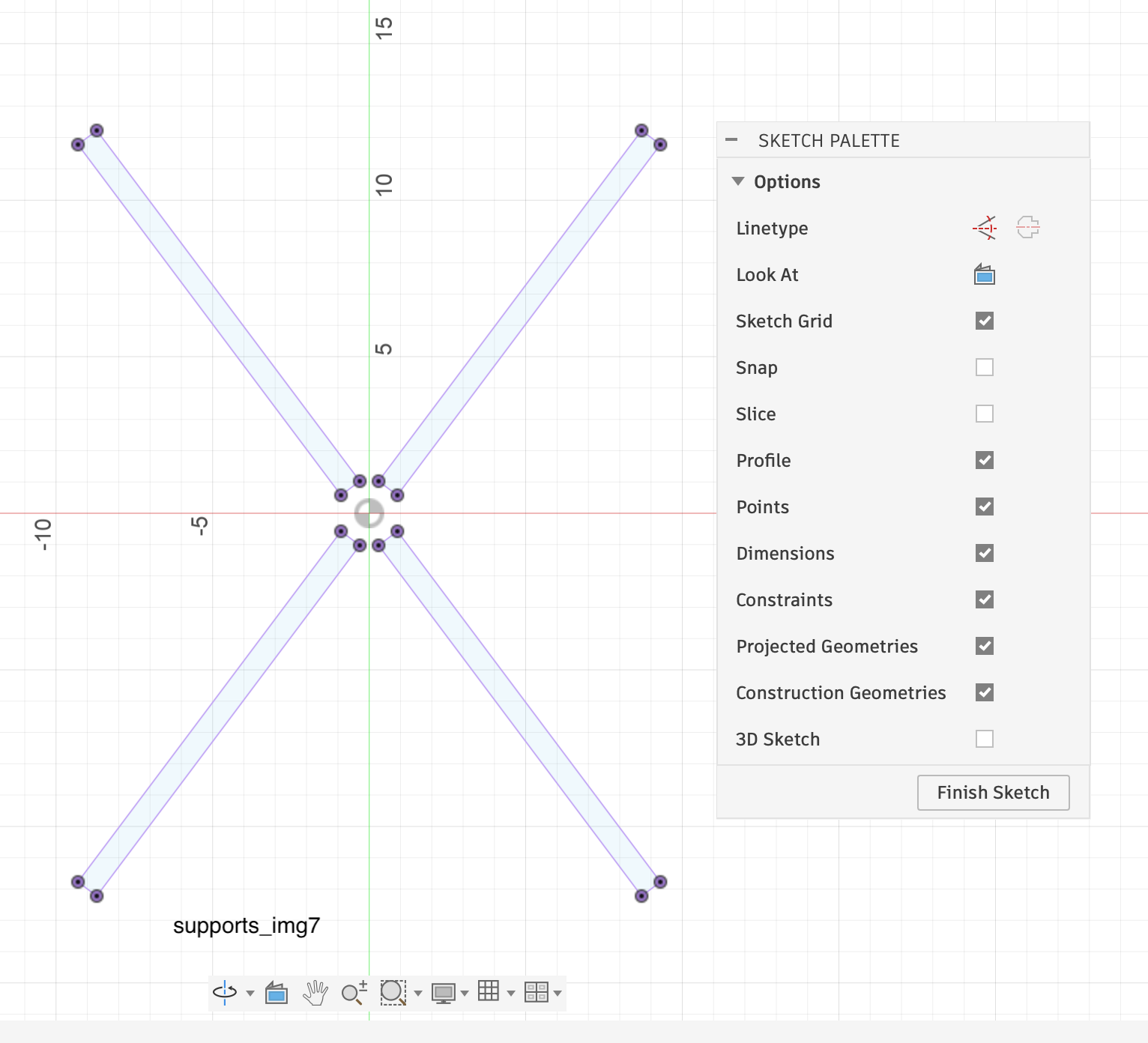
Lastly, create a new sketch on the Top plane and project the four bodies, supports_img7. You will need to copy this Sketch3 in the next step when making the center piece.
Save the file as ’supports’ for later use.
Center


The center piece ties the supports together. Create a new part design and create a sketch on the Top plane. Draw the 4” square (turned 45 degrees) as shown in center_img1.
Then reopen the supports file you created in the prior step 2, go to Sketch3, edit, select all, copy.
Return to the new Sketch1 for the center piece, and paste from the clipboard. Your sketch will look like center_img2.
Finish the sketch and extrude the center piece by 5 inches, see center_img3. Save file as ‘center’.
Legs

Reopen the supports file you created in step 2, then go to Sketch3, edit, select all, copy. Close the supports file.
Create a new part design. Start a new sketch on the Top plane (XY Plane). Paste in the supports sketch from the clipboard.
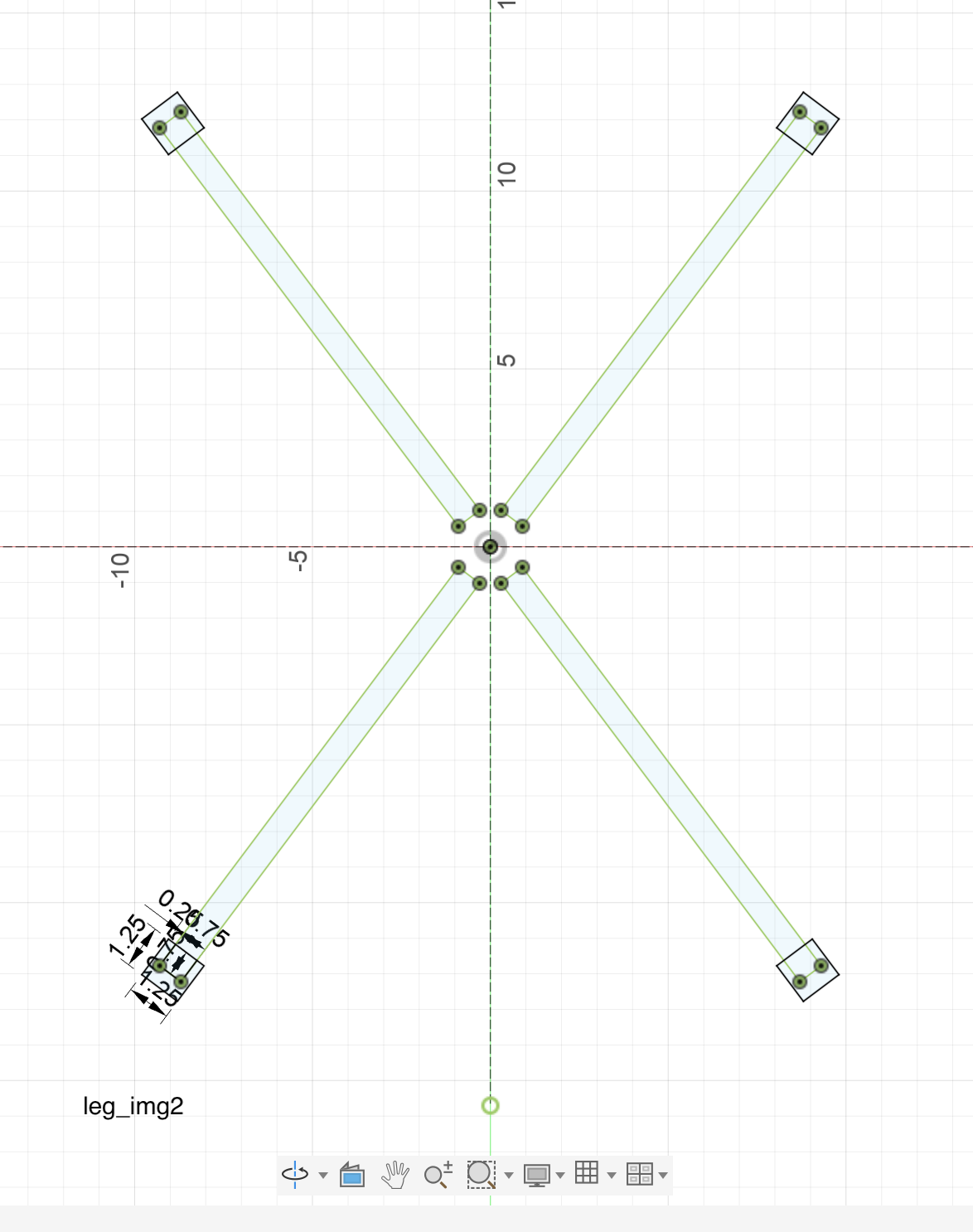
On the end of each support piece draw the leg profile like shown in leg_img1. It is a 1.25" square with a 0.75" by 0.75" notch. The mirror command and construction lines are helpful here to copy the profile to the end of each support. The completed sketch should look like leg_img2.
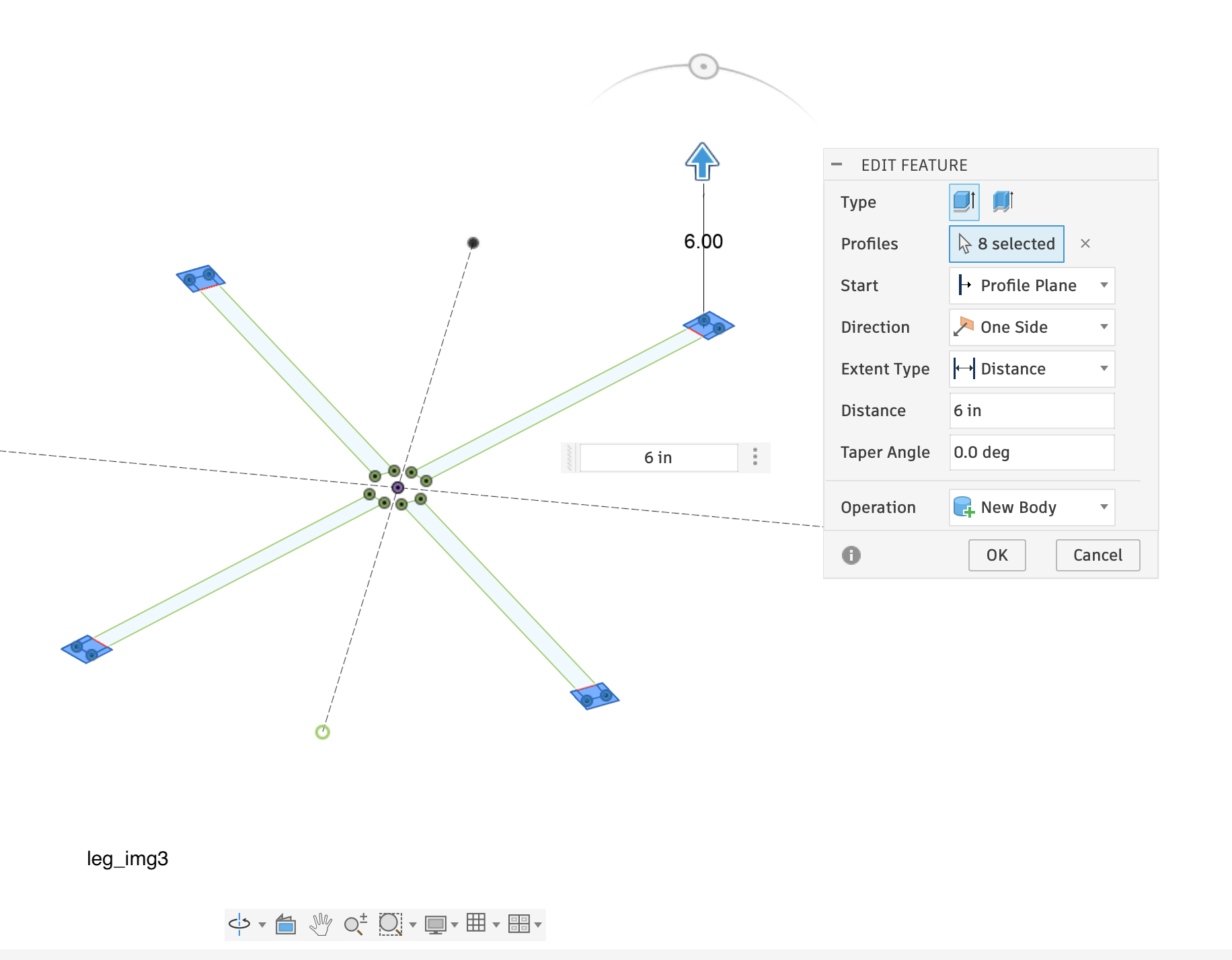
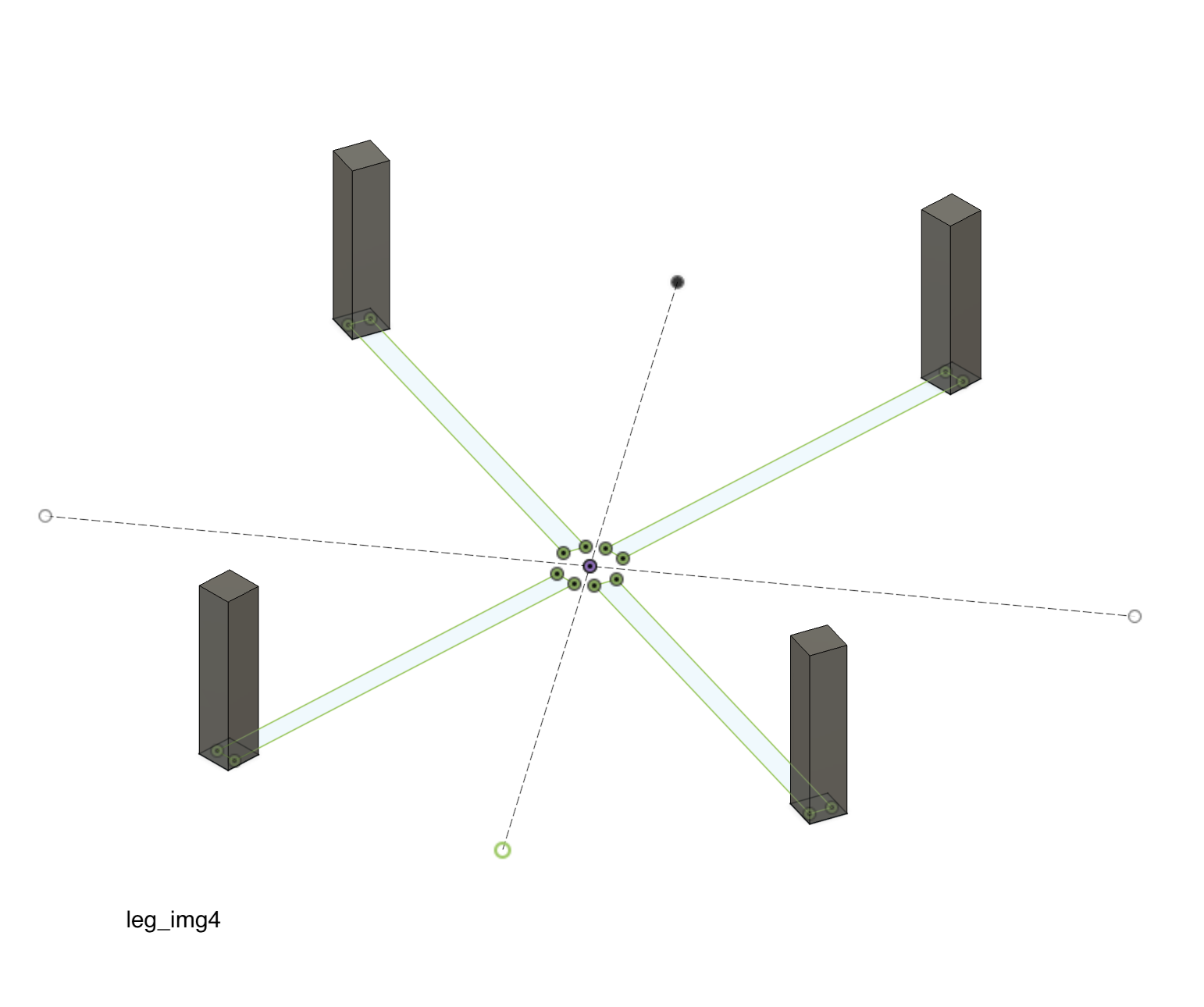
Extrude the legs in two steps. First, extrude all four complete 1.25” squares 6 inches upwards, see leg_img3 and leg_img4.
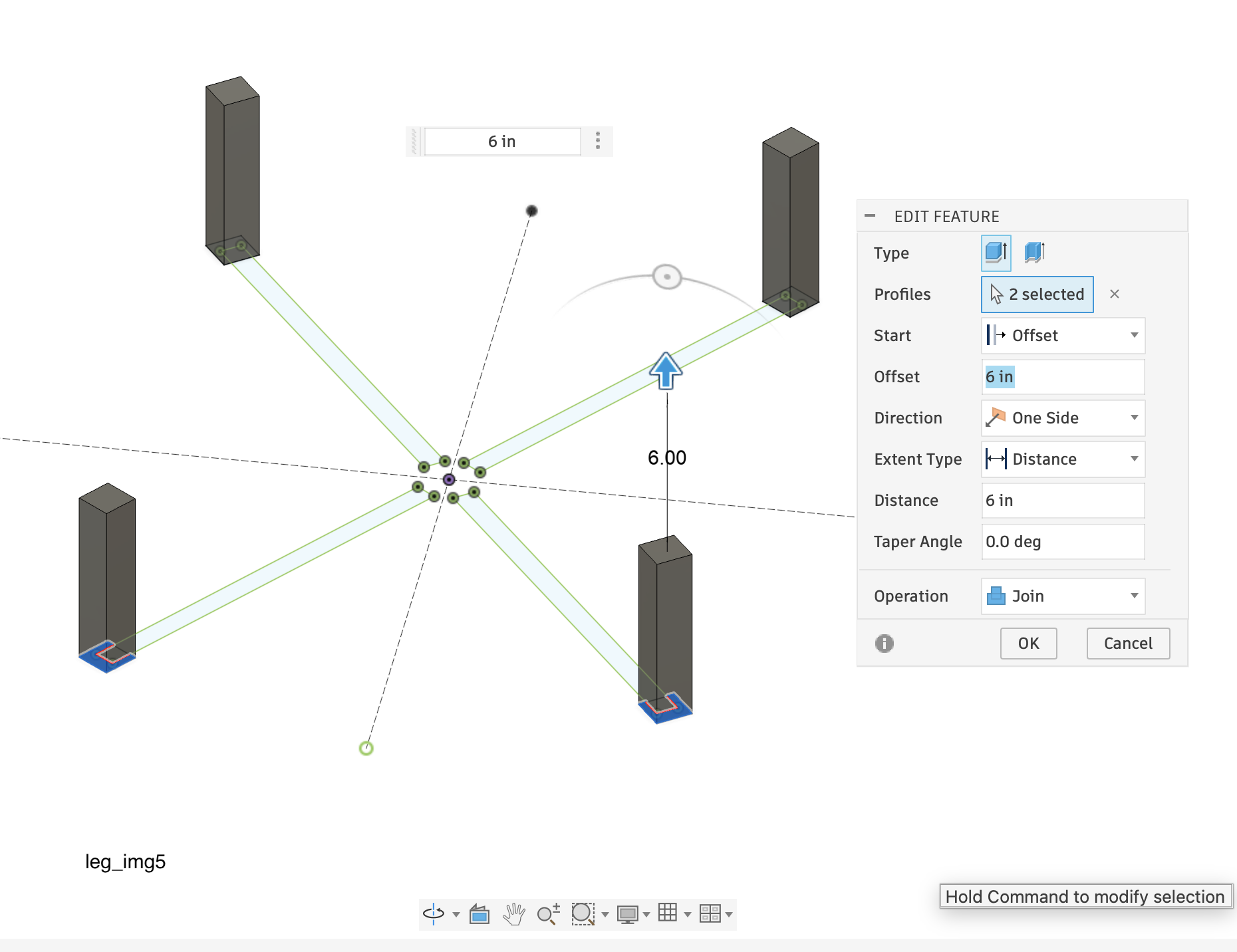
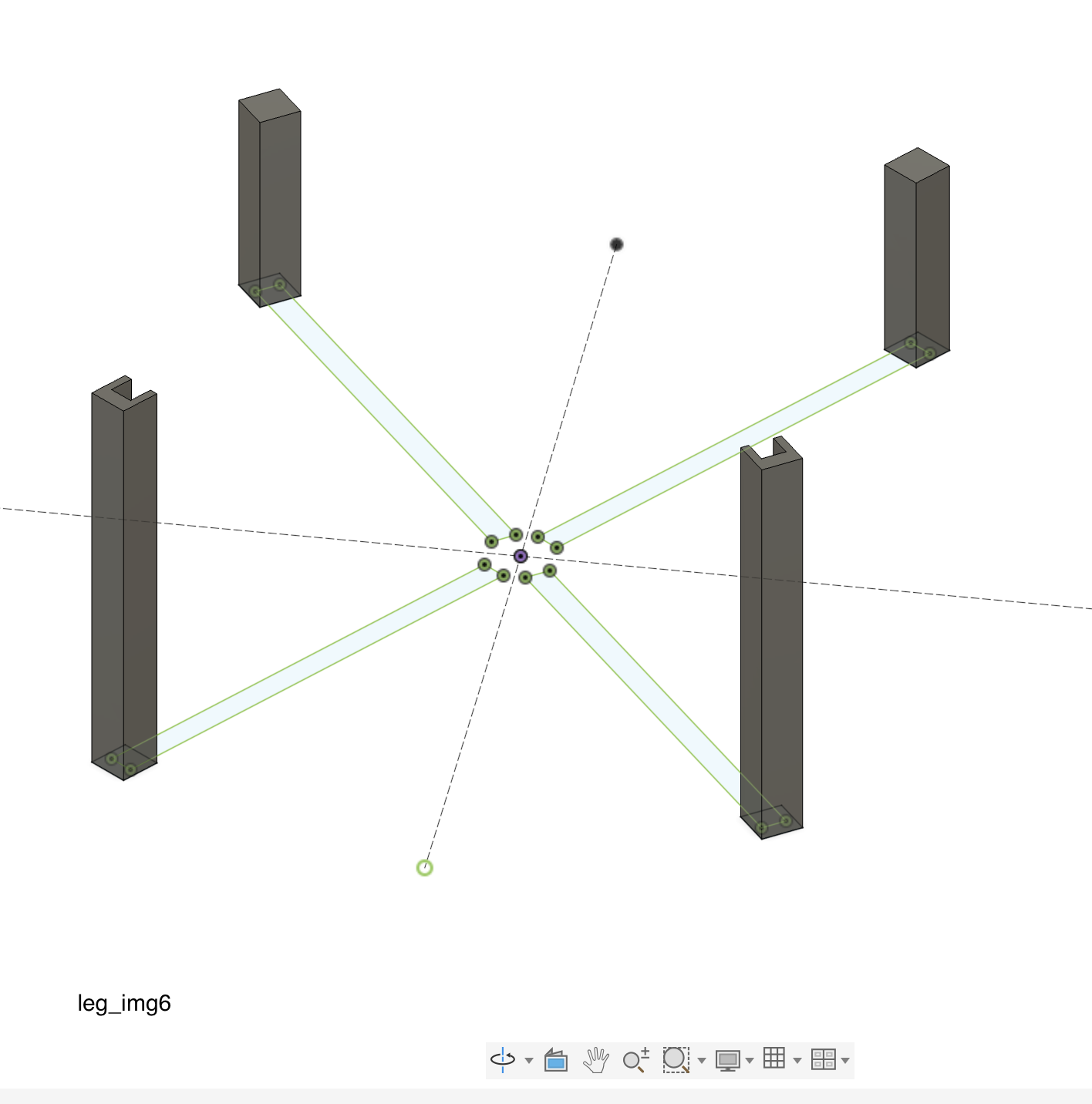
Next, extrude the front leg profiles - excluding the notch - by 6”, with a 6” offset, see leg_img5. This will create 12” long front legs with a groove to receive the supports. Screenshot leg_img6 shows the completed front legs.
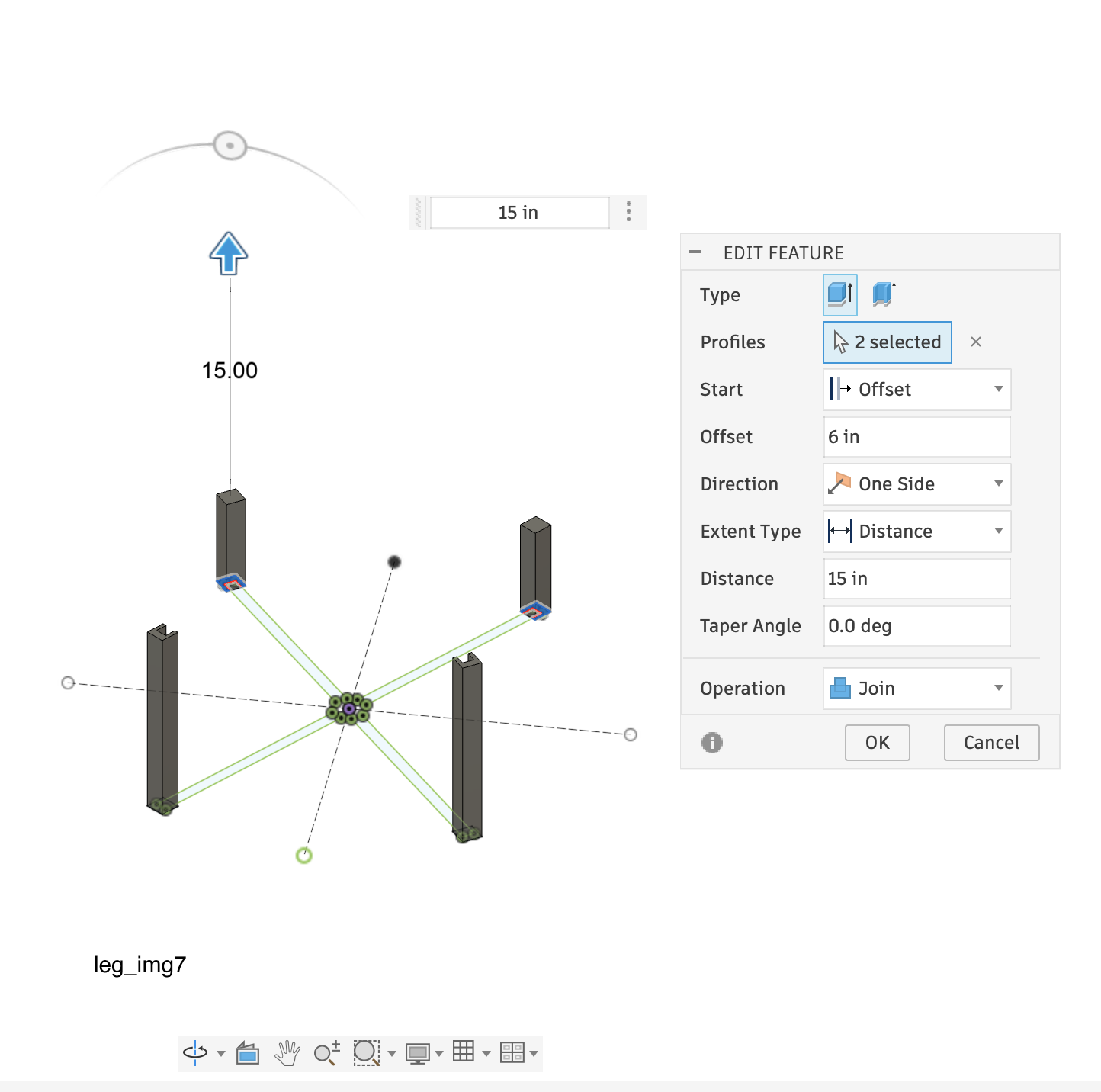
Follow the same step for the rear legs: a 15” extrusion - excluding the notch - at a 6” offset, see leg_img7.
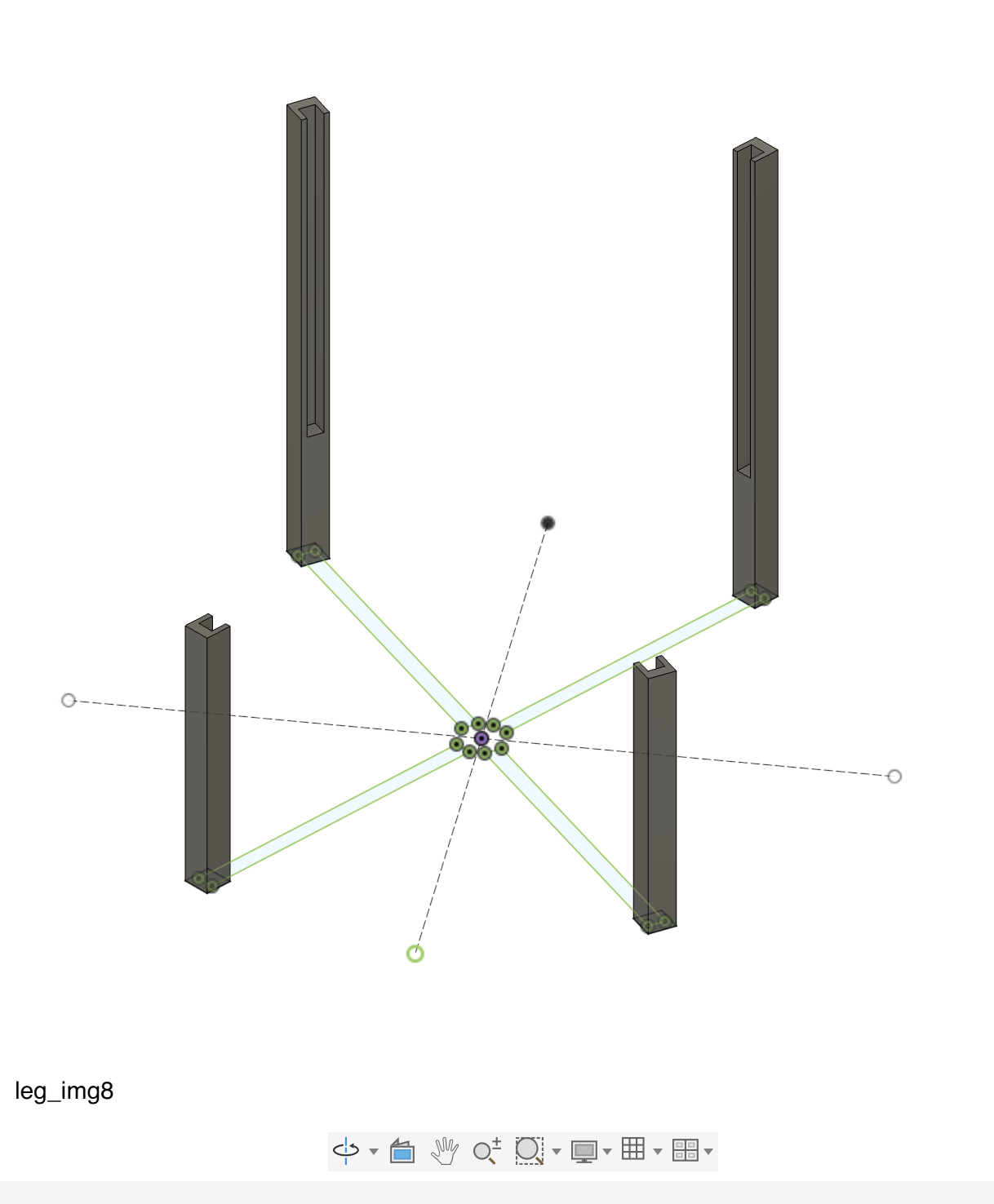
The completed leg set is shown in leg_img8. Save file as ‘legs’.
Seatback
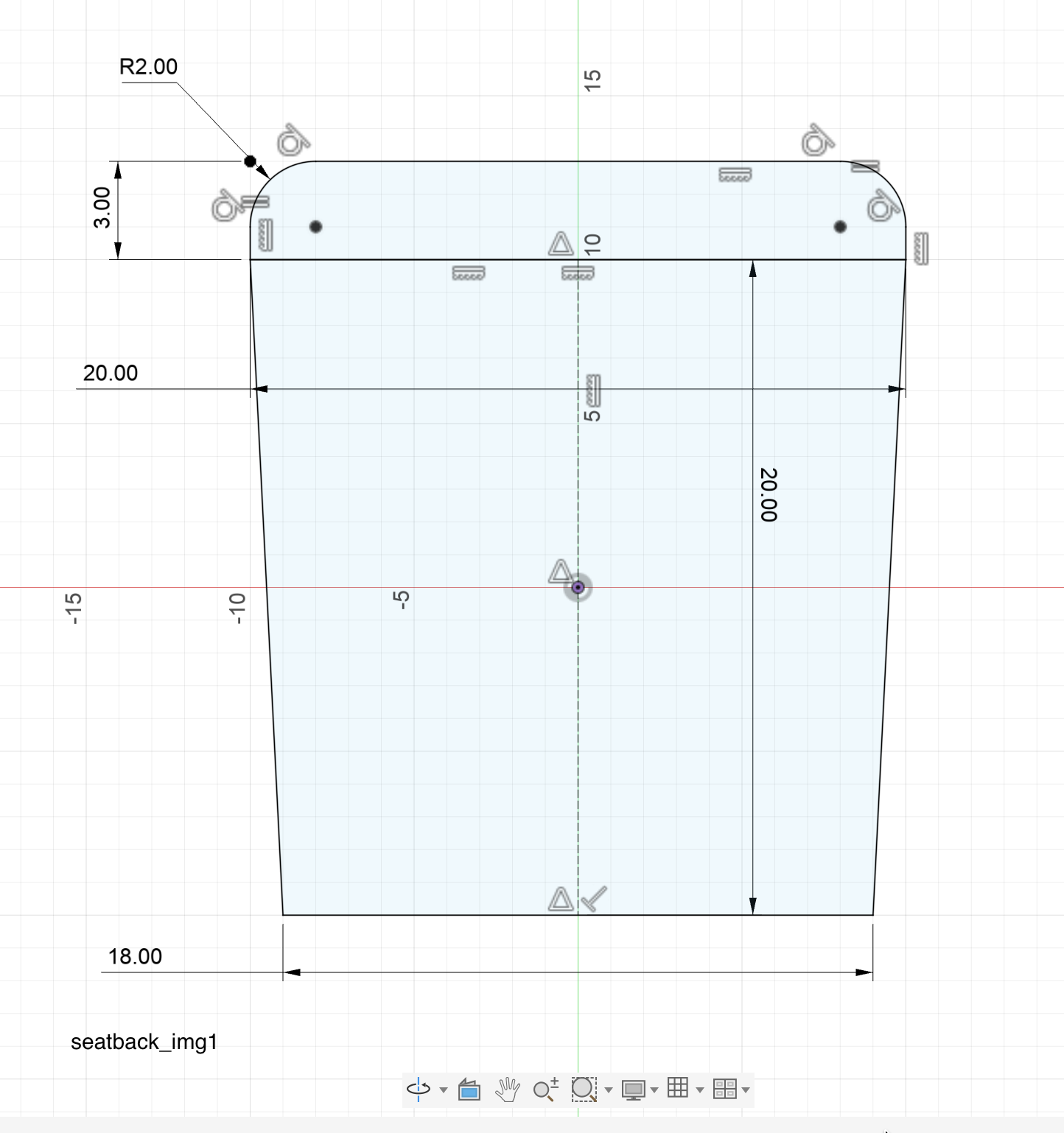
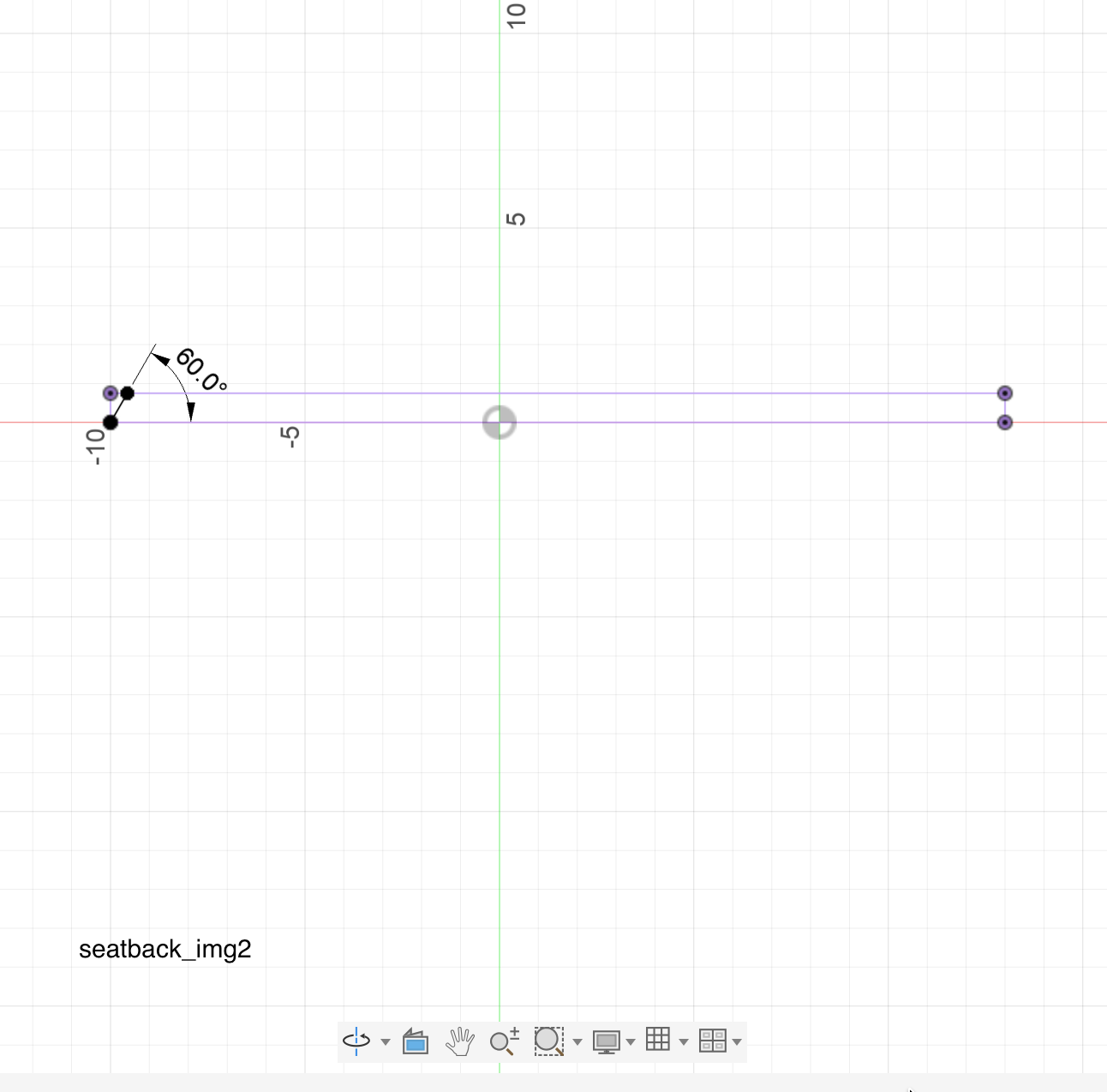
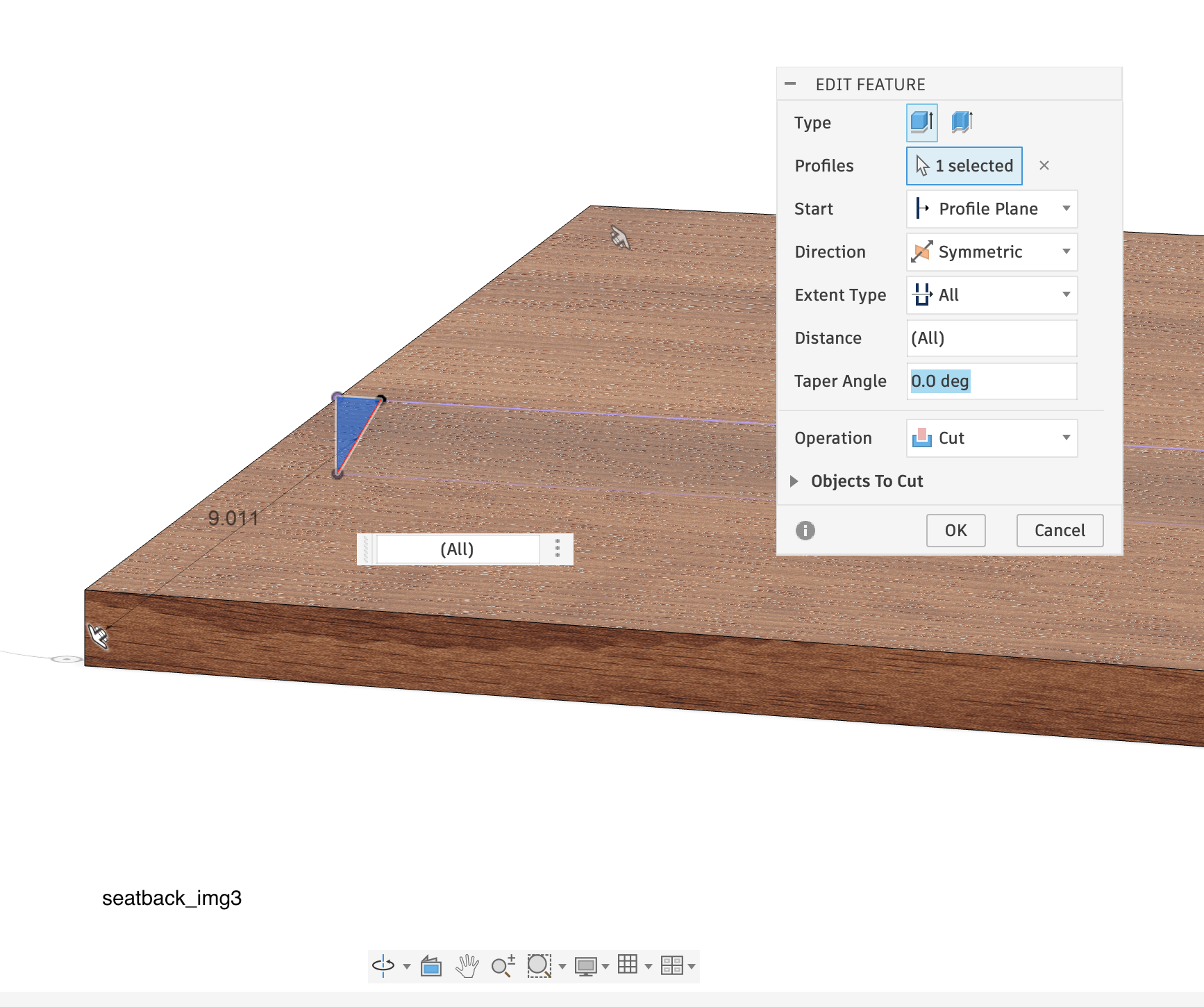

Create a new part design and create a new sketch on the Top plane. Draw the sketch as shown in seatback_img1. Extrude by 0.75 inches. Create a new sketch on the Right plane like this: seatback_img2 to make a 60 degree bevel along the rear edge of the seatback. Extrude: seatback_img3 and seatback_img4. Save file as 'seatback'.
Seat


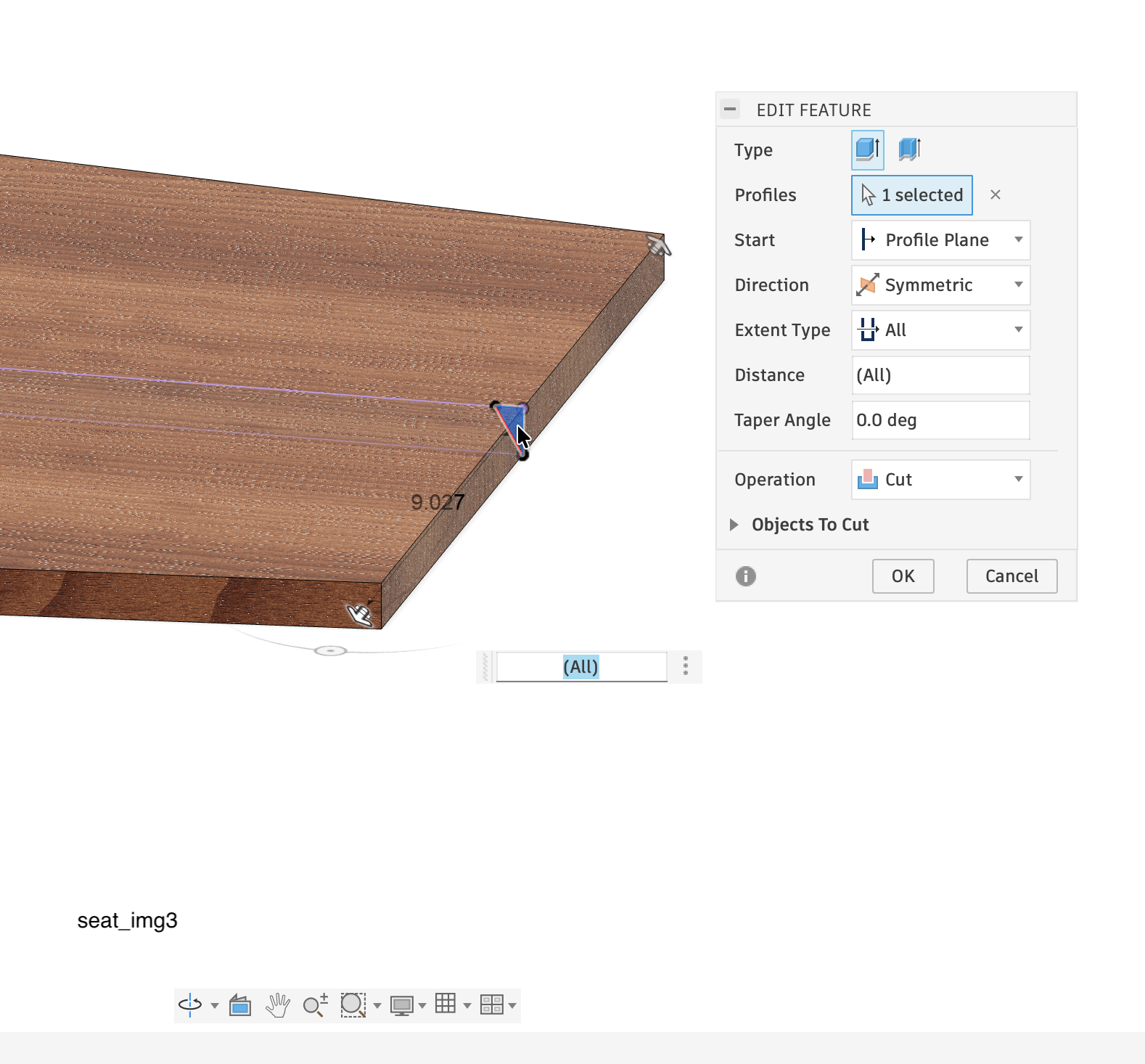
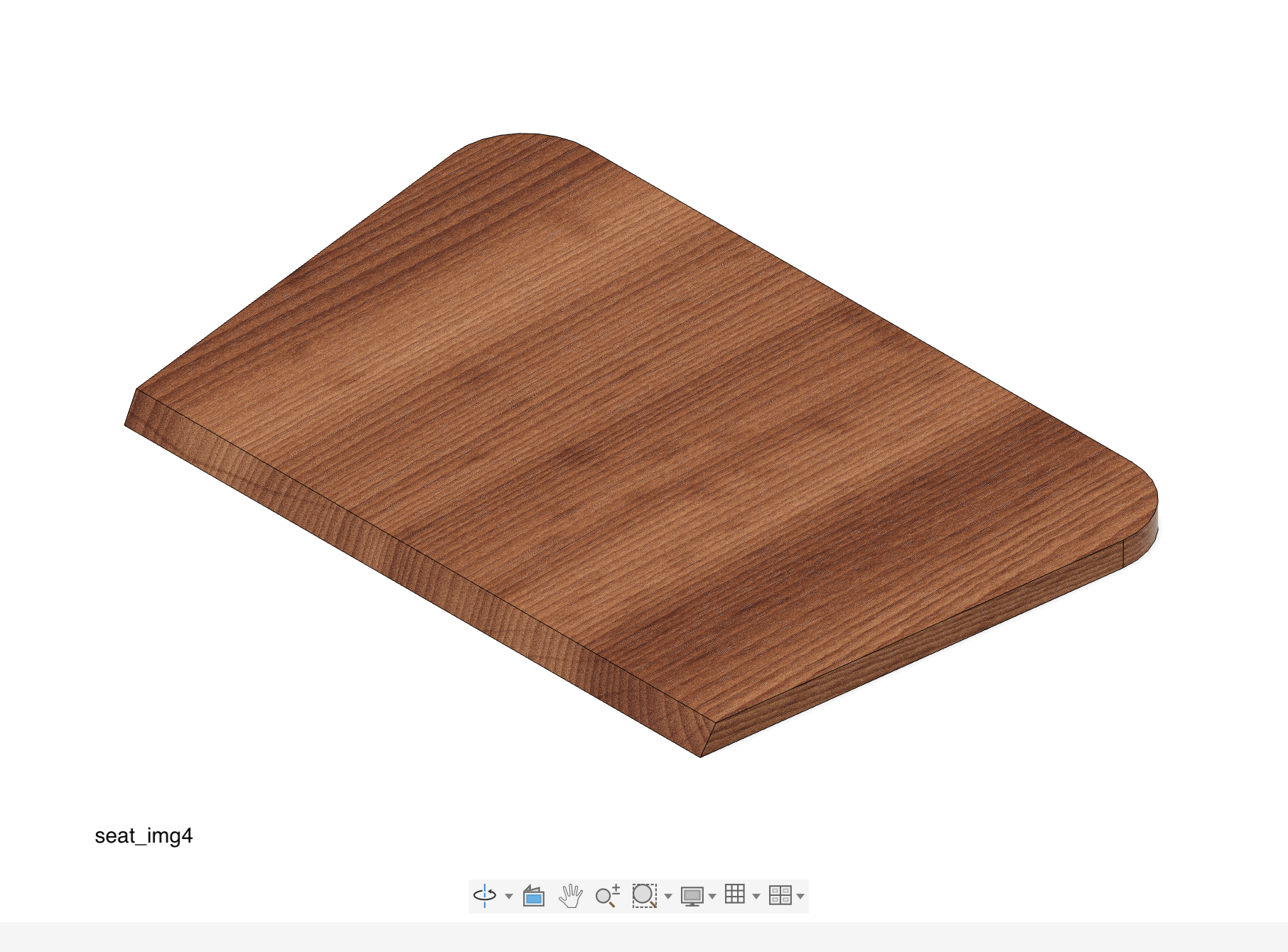
Create a new part design and create a new sketch on the Top plane. Draw the sketch as shown in seat_img1. Extrude by 0.75 inches. Make 2 inch fillets on the two front corners. Create a new sketch on the Right plane like this: seat_img2 to make a 60 degree bevel along the rear edge of the seat. Extrude: seat_img3 and seat_img4. Save file as 'seat'.
Assembly - Supports and Legs

Create a new assembly design, use imperial units, and save it as ‘lounge chair’.
Insert component ‘center’.
Insert component ‘supports’.
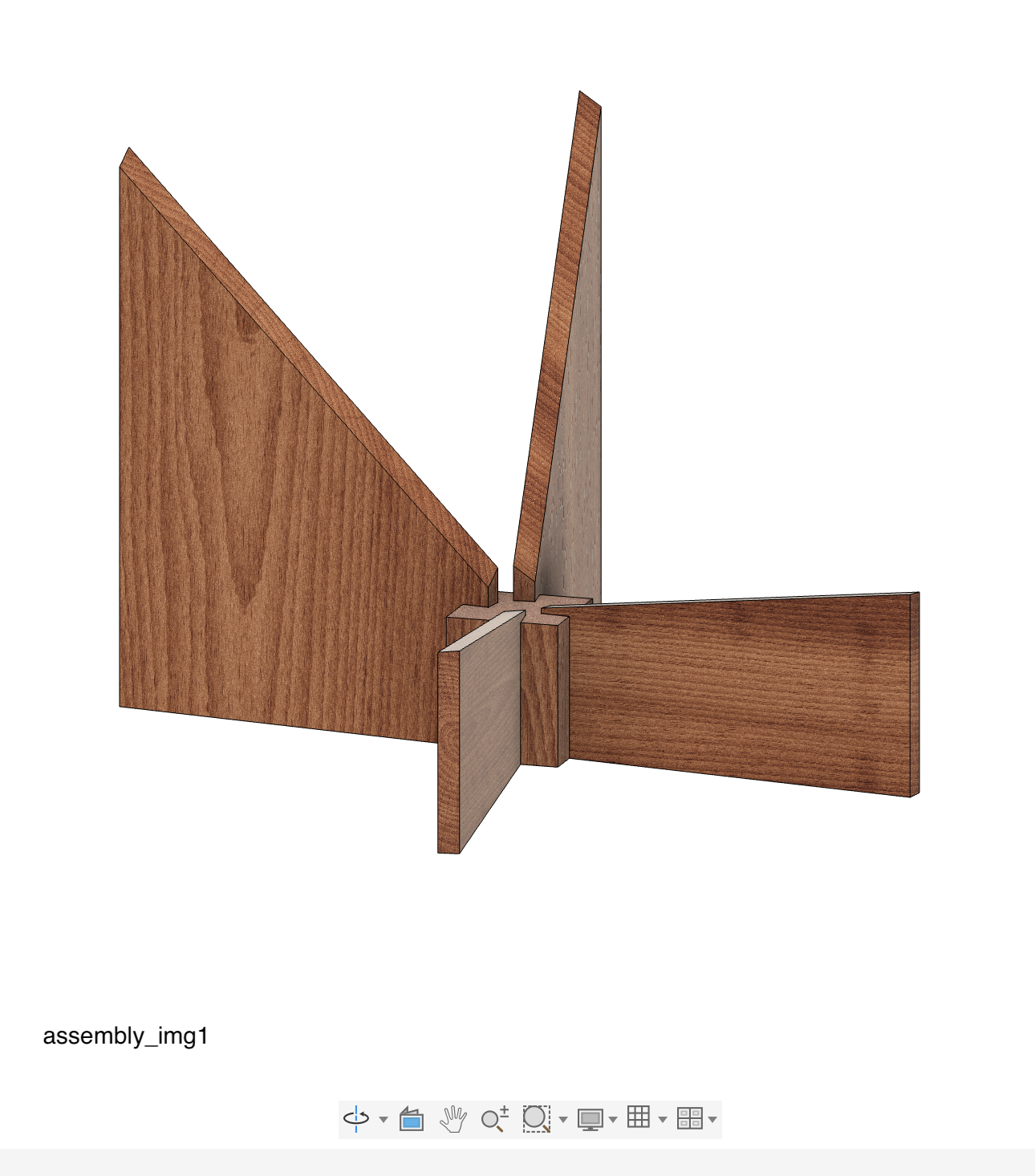
Due to the way we designed these components, the center and the supports are perfectly aligned. Fix this in place by creating an ‘As-Build Joint', Rigid. (Relationships > As-Built Joint). See assembly_img1.
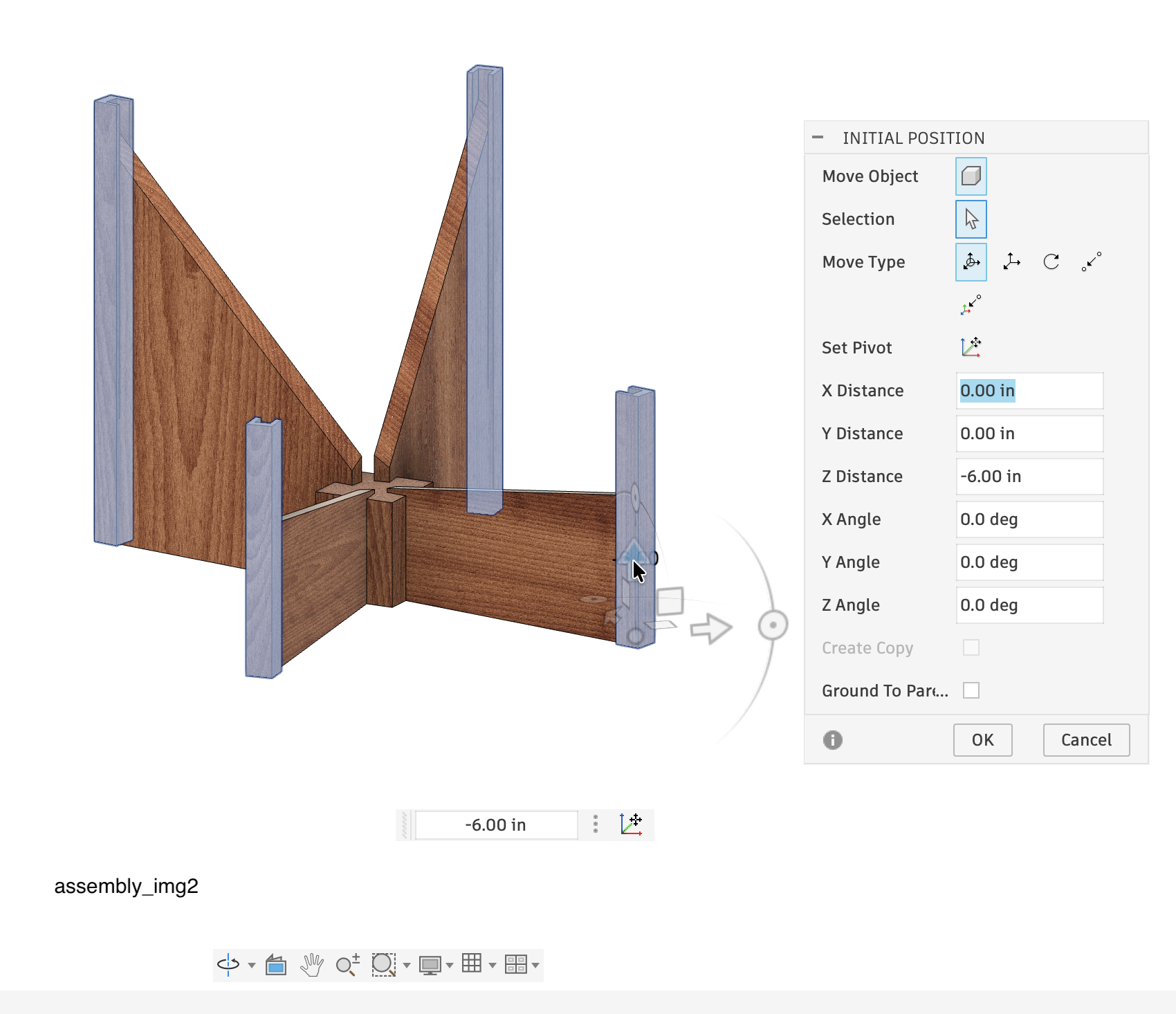
Insert the component ‘legs’. They 'arrive' 6 inches 'high'. Before you click ‘OK’ move the legs down by 6”, i.e. Z Distance = -6 inches. See assembly_img2. Click ‘OK’.
Create a rigid ‘As-Build Joint’ (Relationships > As-Built Joint) between the legs and supports. See assembly_img3.
Assembly - Seat and Seatback




Insert component ’seatback’.
The joint between the seatback and the support is a little more complicated.
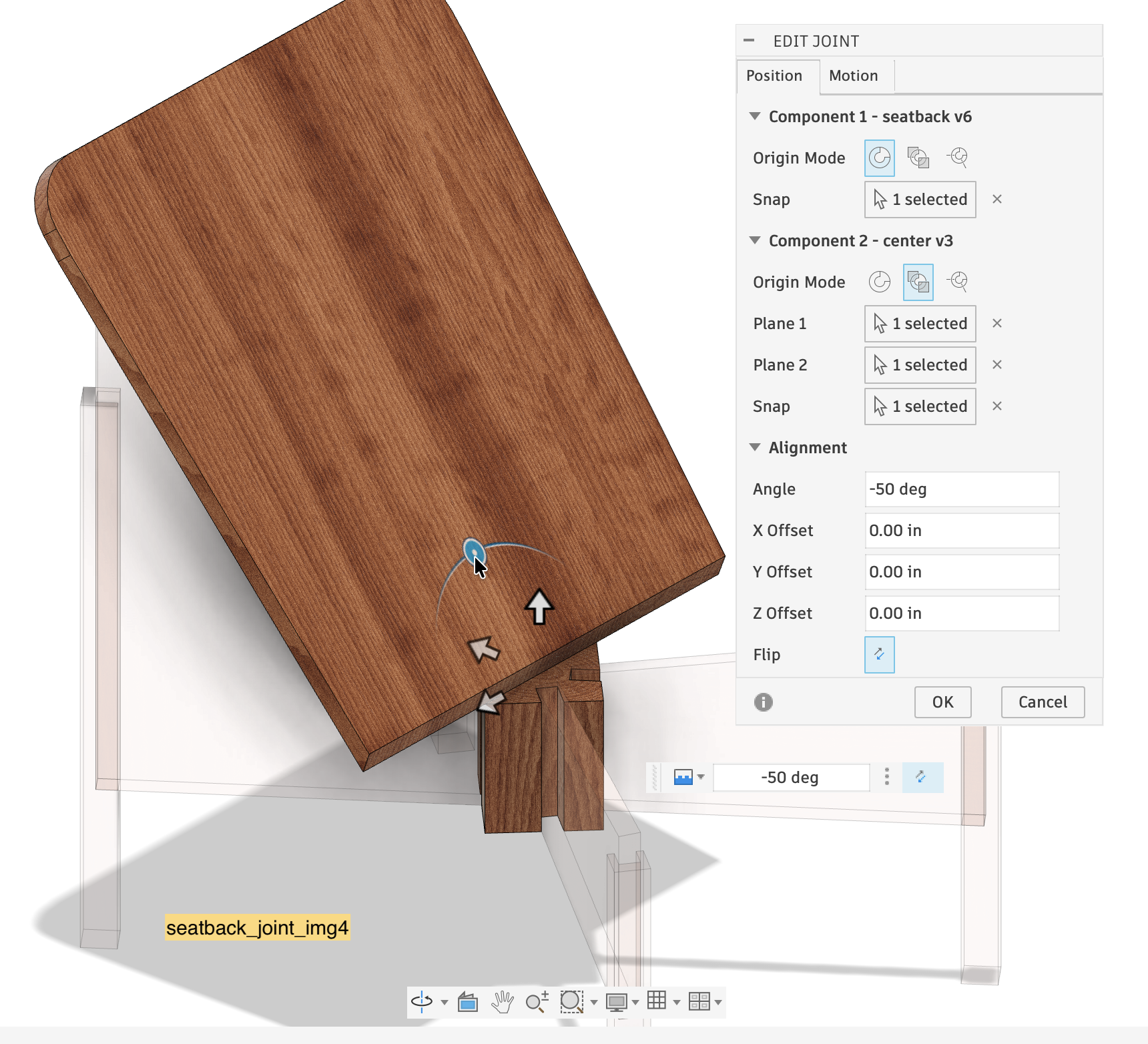
Create a new rigid joint: Component 1 is the seatback, Origin Mode is Simple, Snap is the center of the lower front edge of the seatback. See seatback_joint_img1.
Component 2 is the supports, Origin Mode is ‘Between Two Faces’. Select Plane 1 and Plane 2 as the outer faces of the rear supports (shown in blue), seatback_joint_img2.
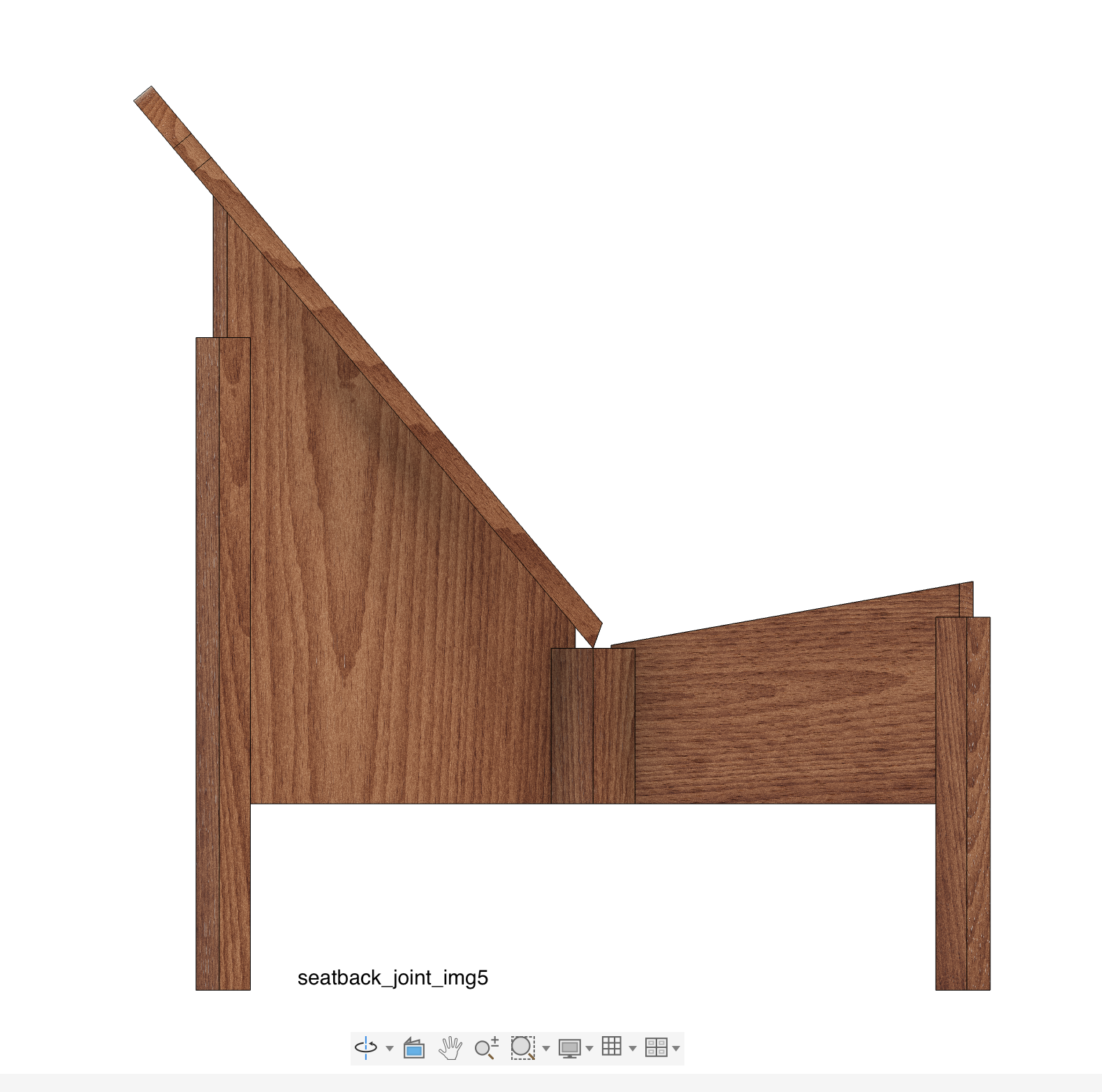
Select Snap as the middle top of the center piece, see seatback_joint_img3. Finally set the angle to -50 degrees (upward tilt), see seatback_joint_img4, and click ok. The seatback should now rest on the rear support pieces like shown in seatback_joint_img5.
Insert component ‘seat’.
This joint is similar to the seatback joint above.
Component 1 is the seat, Origin Mode is Simple, Snap is the center of the lower rear edge of the seat. See seat_joint_img1.
Component 2 is the supports, Origin Mode is ‘Between Two Faces’. Select Plane 1 and Plane 2 as the outer faces of the front supports (shown in blue), seat_joint_img2.
Select Snap as the middle top of the center piece, see seat_joint_img3. Finally set the angle to 10 degrees (upward tilt), see seat_joint_img4, and click ok. The seat should now rest on the front support pieces like shown in seat_joint_img5.
Save the file as ‘lounge chair’.
Textures and Rendering
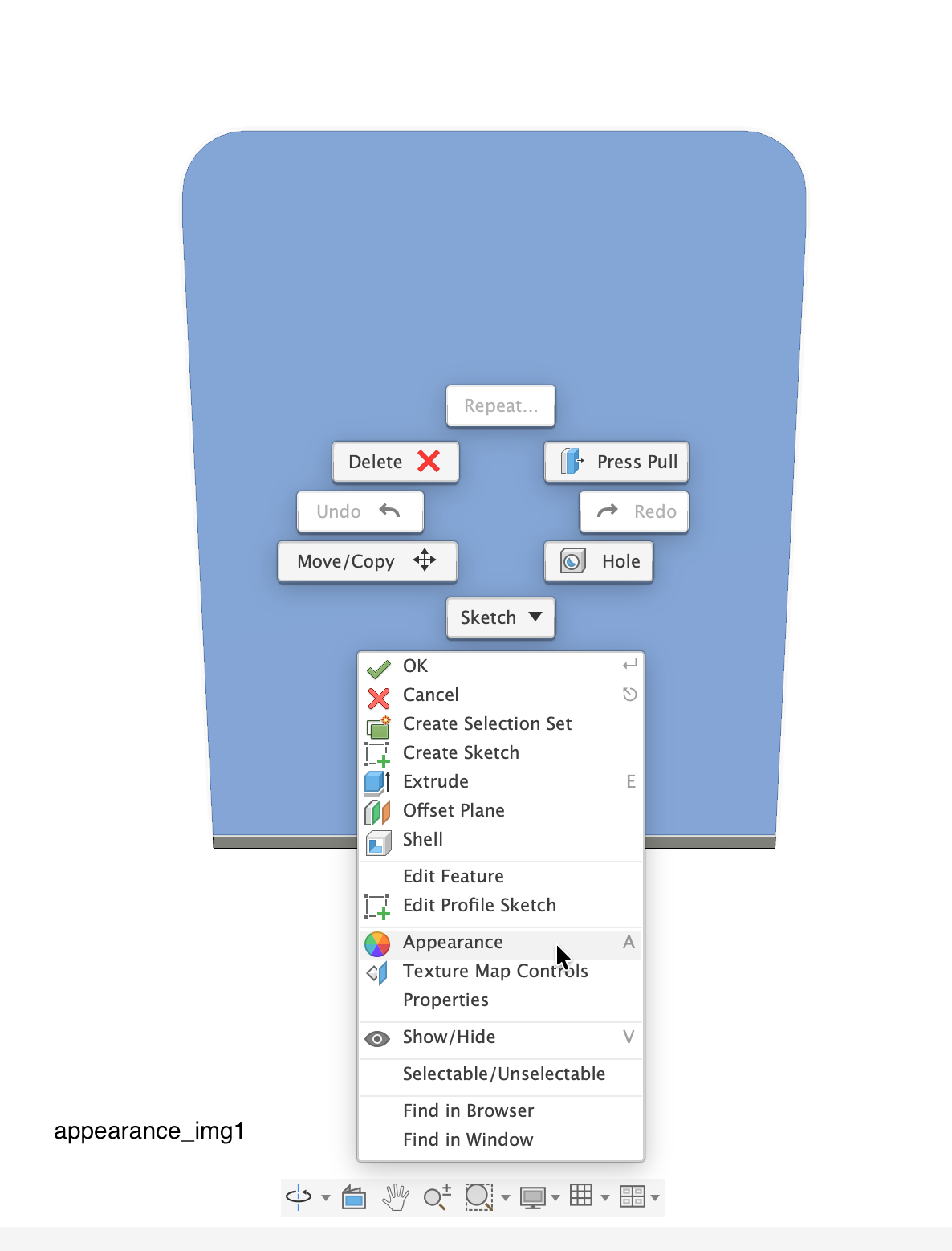
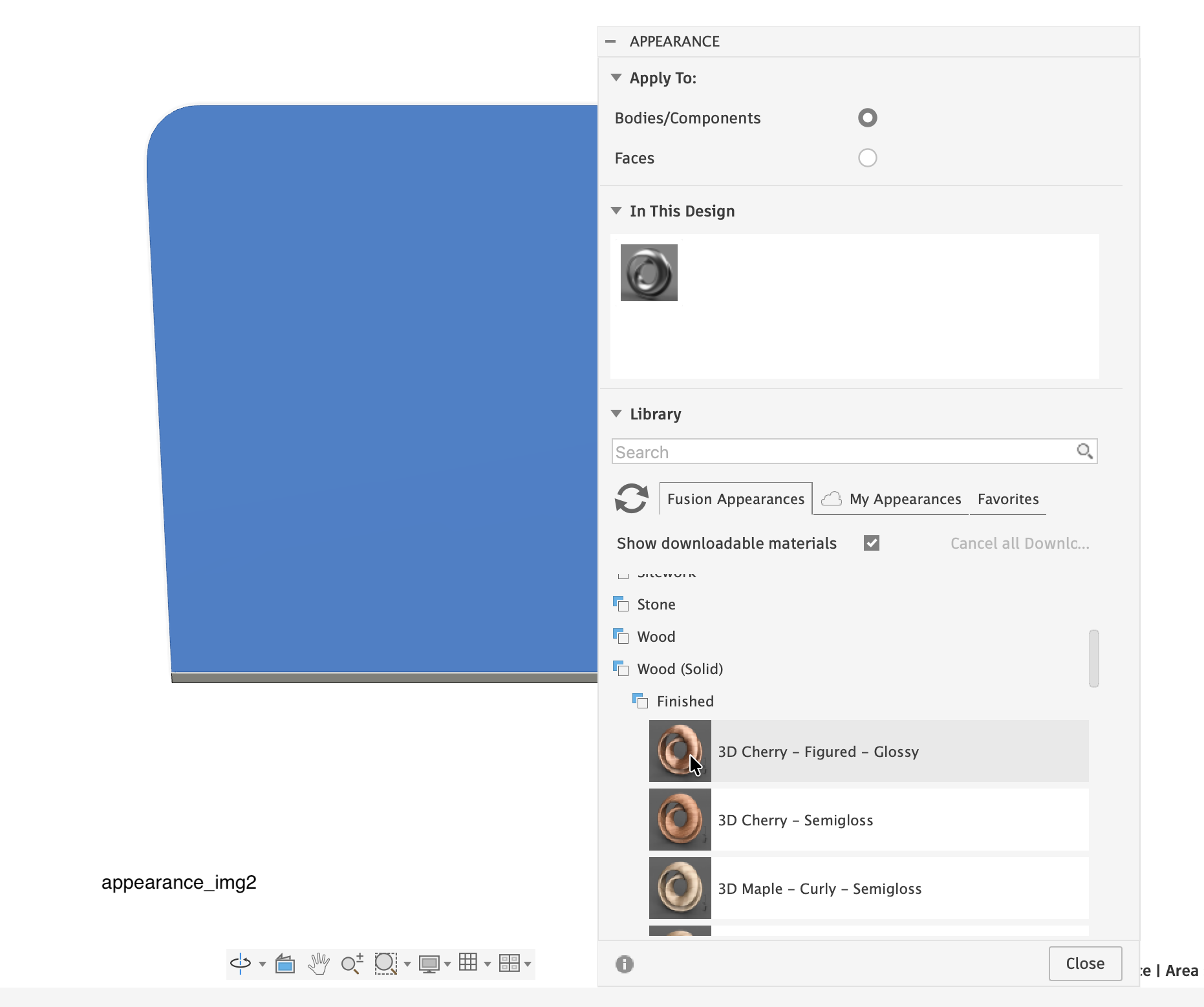

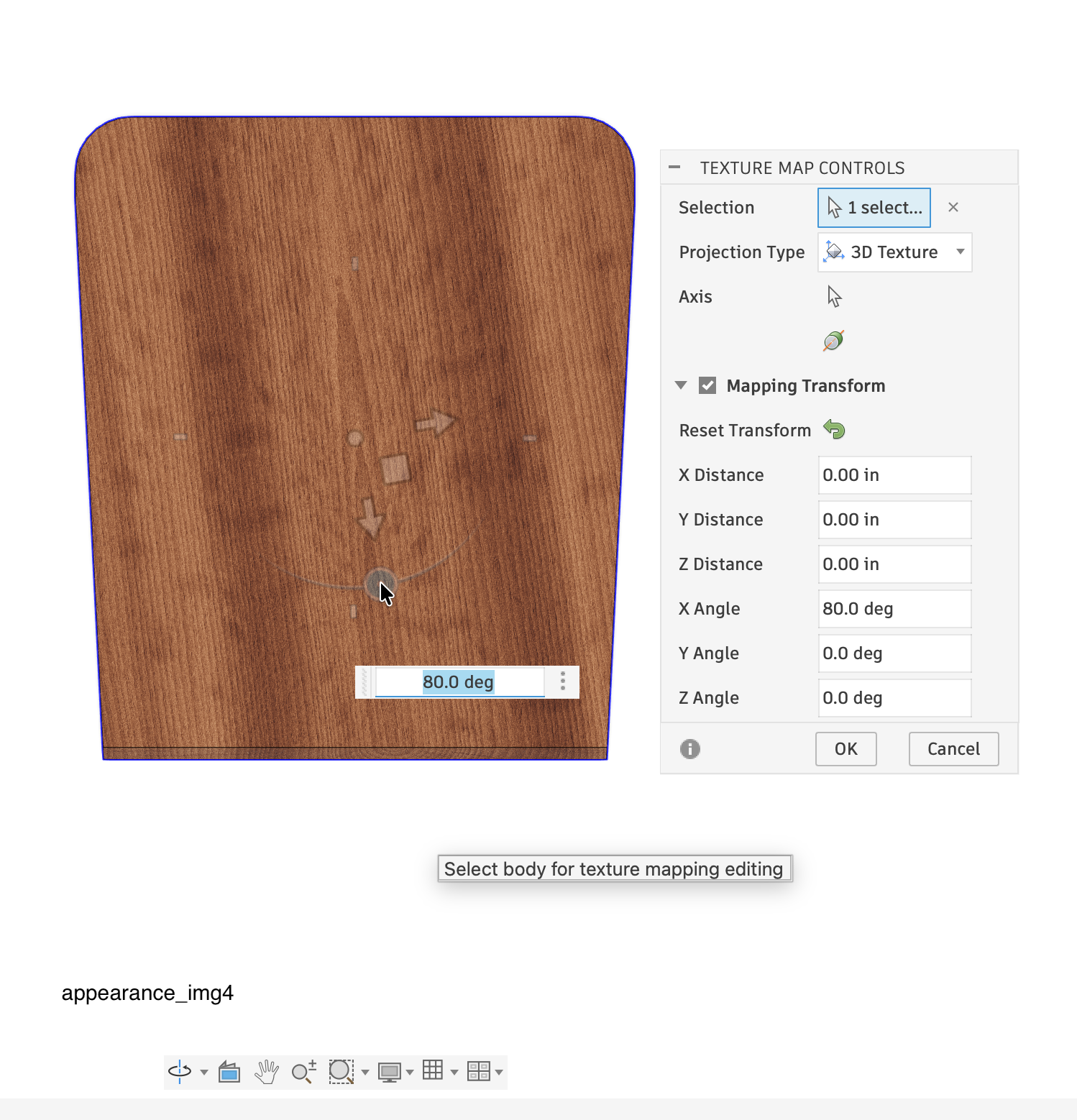



To make the chair model look more realistic we can apply appearance and textures to the model bodies. I choose to ‘make’ this chair from cherry wood. Open a component file (e.g. seatback), right-click on the body, and choose ‘Appearance’, appearance_img1. In the appearance window scroll to the bottom and select Wood (solid) - Finished - 3D Cherry-Figured-Glossy, appearance_img2. Drag the appearance to the body to apply it, appearance_img3. Close the ‘Appearance’ window. In this case the texture, i.e. the wood grain runs in the wrong direction. To fix that, right-click on the body, select ‘Texture Map Controls’, and rotate the texture, appearance_img4.
Repeat this for all components/bodies in the design. Finally, update the assembly, i.e. ‘lounge chair’ to show the cherry wood texture in the final assembly. The result looks like lounge_chair_img1.
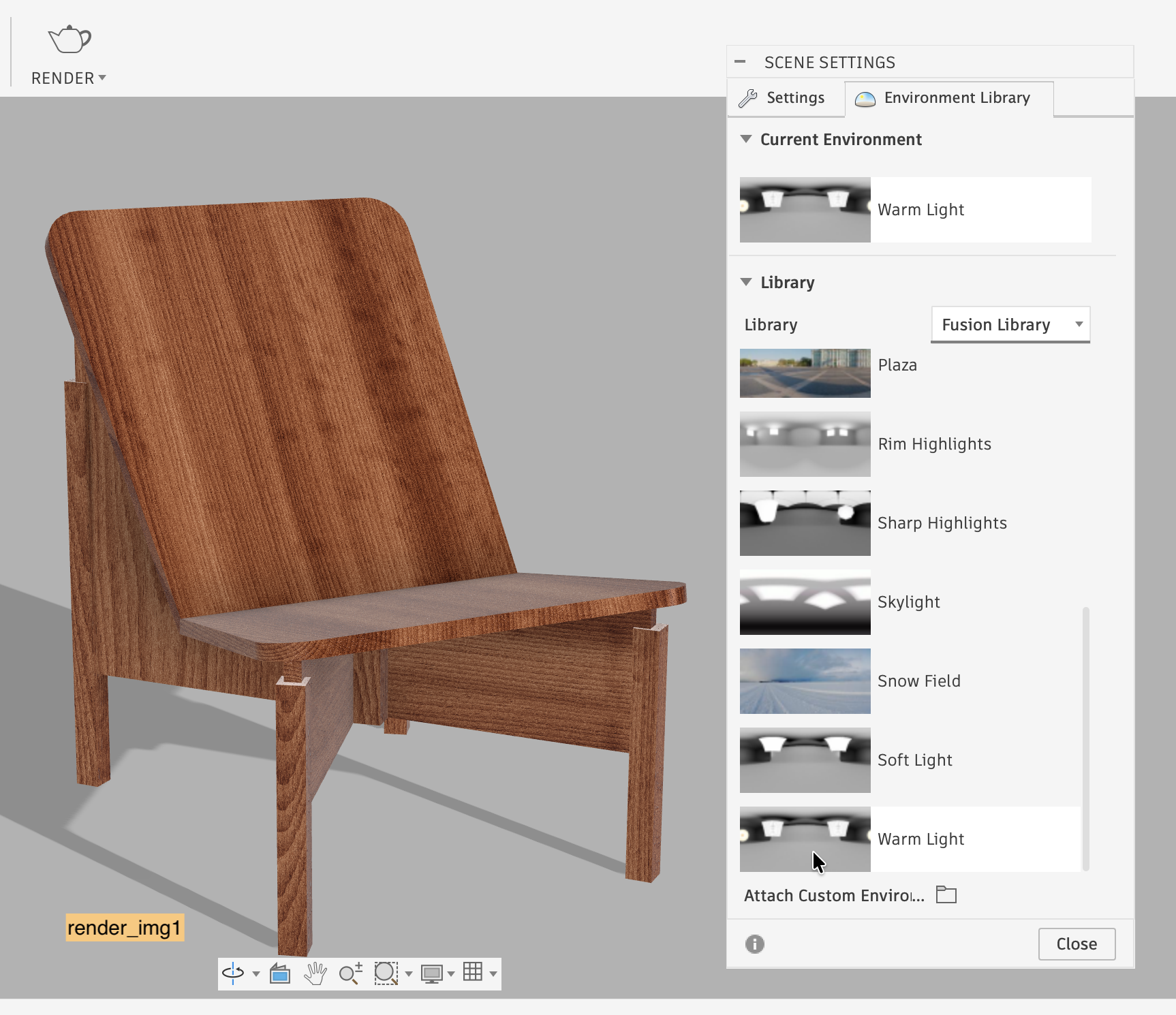
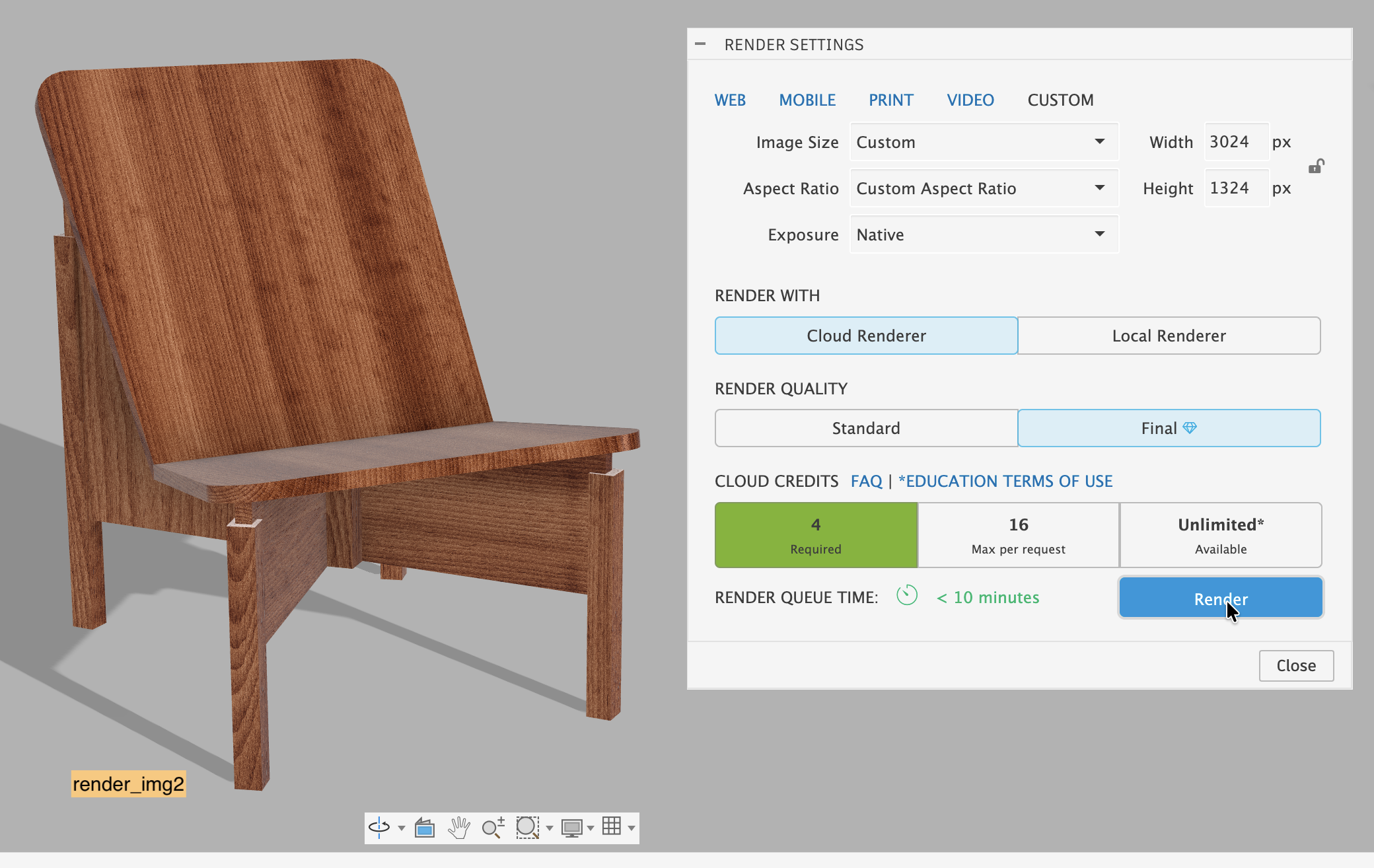
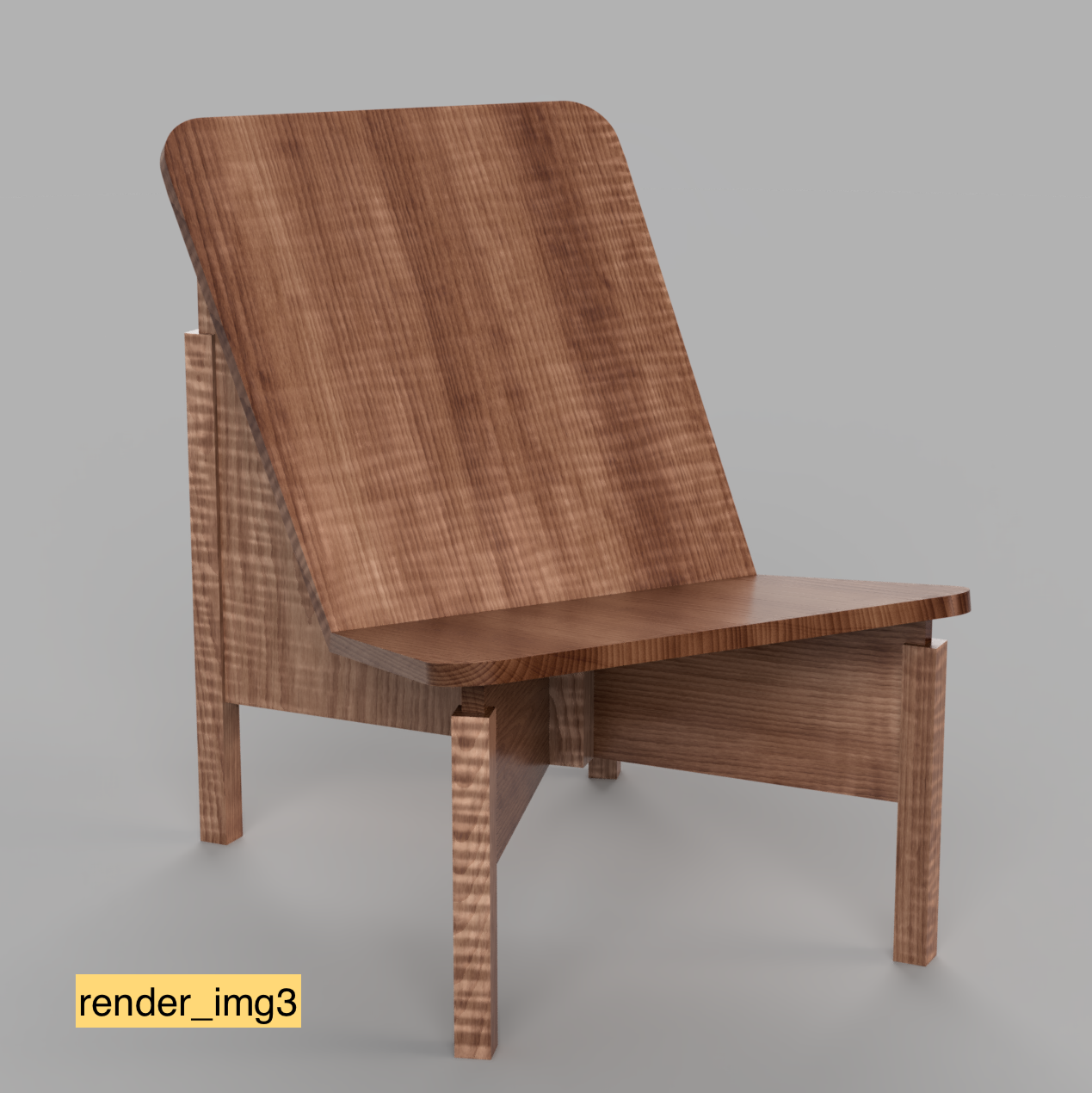
If you want to prepare a really nice rendering of the lounge chair go to the ‘Render Workspace’. There select: Setup > Scene Settings > Environment Library and drag the ‘Warm Light’ environment to the lounge chair, render_img1. Then select Render > Cloud Renderer > Render, see render_img2. Wait until the cloud rendering is complete and download the result. Experiment with the different rendering and scene options. Here is what my rendered lounge chair looks like: render_img3.
Even more impressive is the rendering of the chair rotating on a turntable. After you cloud-rendered the lounge chair, click on the thumbnail at the bottom to open it. Then select 'Render as: Turntable', see turntable_img1. To stay within the allowable credits for your version of Fusion adjust the following parameters: Custom Image Size 1000px by 750px, Aspect ratio 4:3, 36 Frames, Render Quality Final, see turntable_img2. After a little while the 'cloud' returns the rendered movie. Download it as an mp4 video, HTML Viewer, or zip file.
Drawings
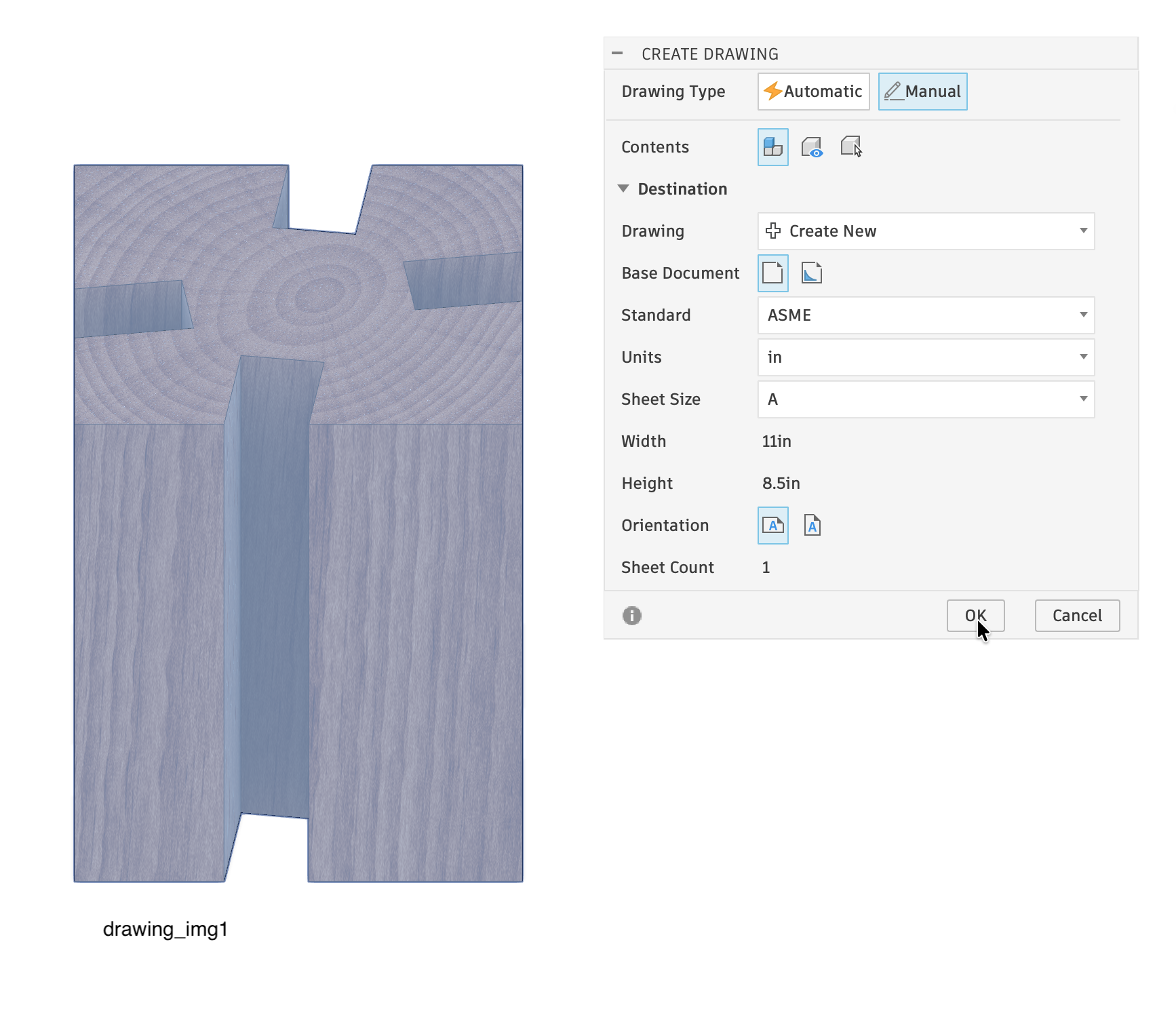

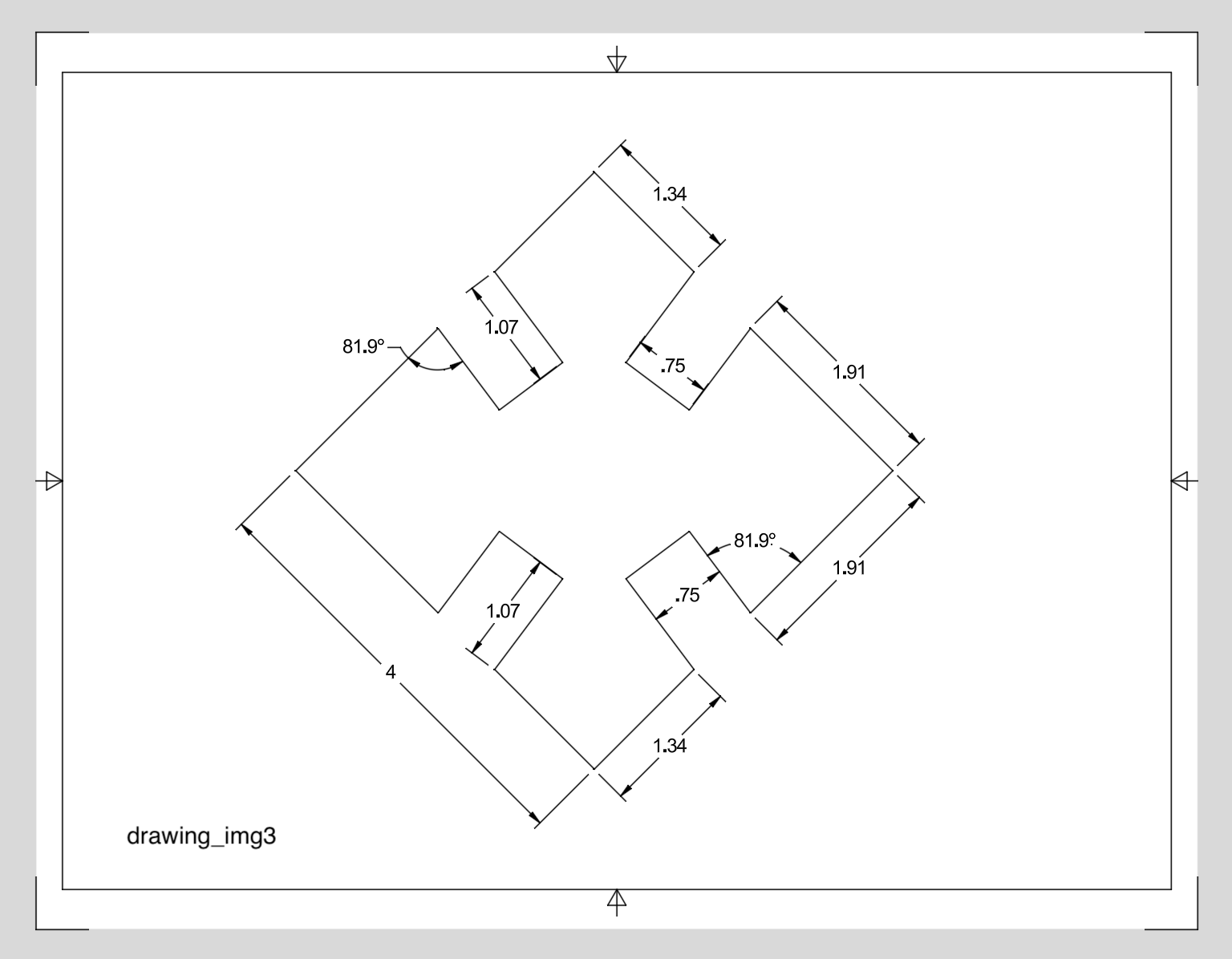
No design is complete without drawings. This is a very brief introduction to making the drawings: open a component file, e.g. 'center'. Go to File > New > Drawing as shown in drawing_img1. Insert the 'Base View', see drawing_img2. Then add dimensions, text, alternate views, etc., see drawing_img3. Create additional sheets if necessary. There are many options to explore in the drawing environment; way beyond the scope of this Instructable. Finally, save the drawing as a pdf file.
Bonus - 3D Print the Model
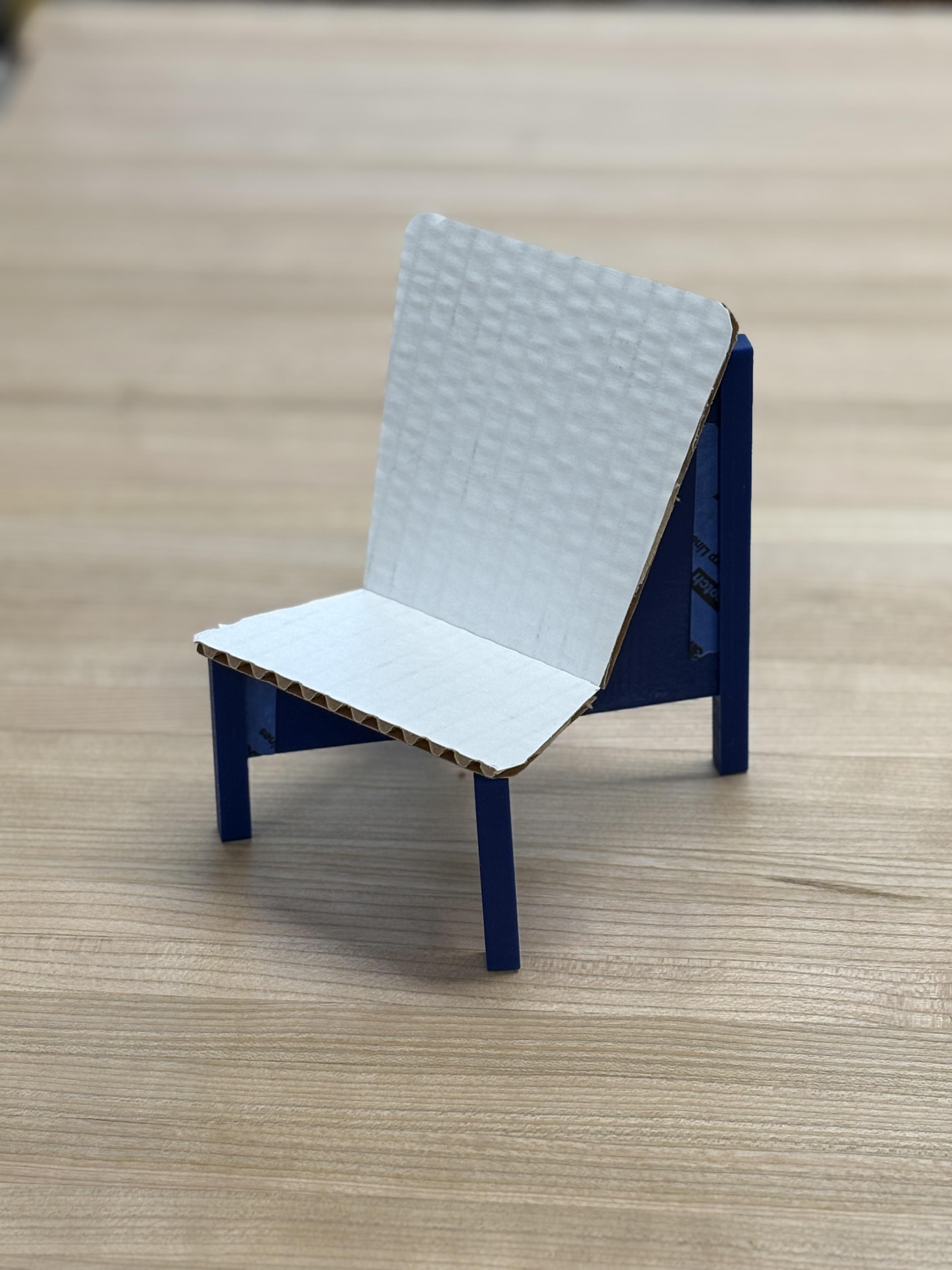
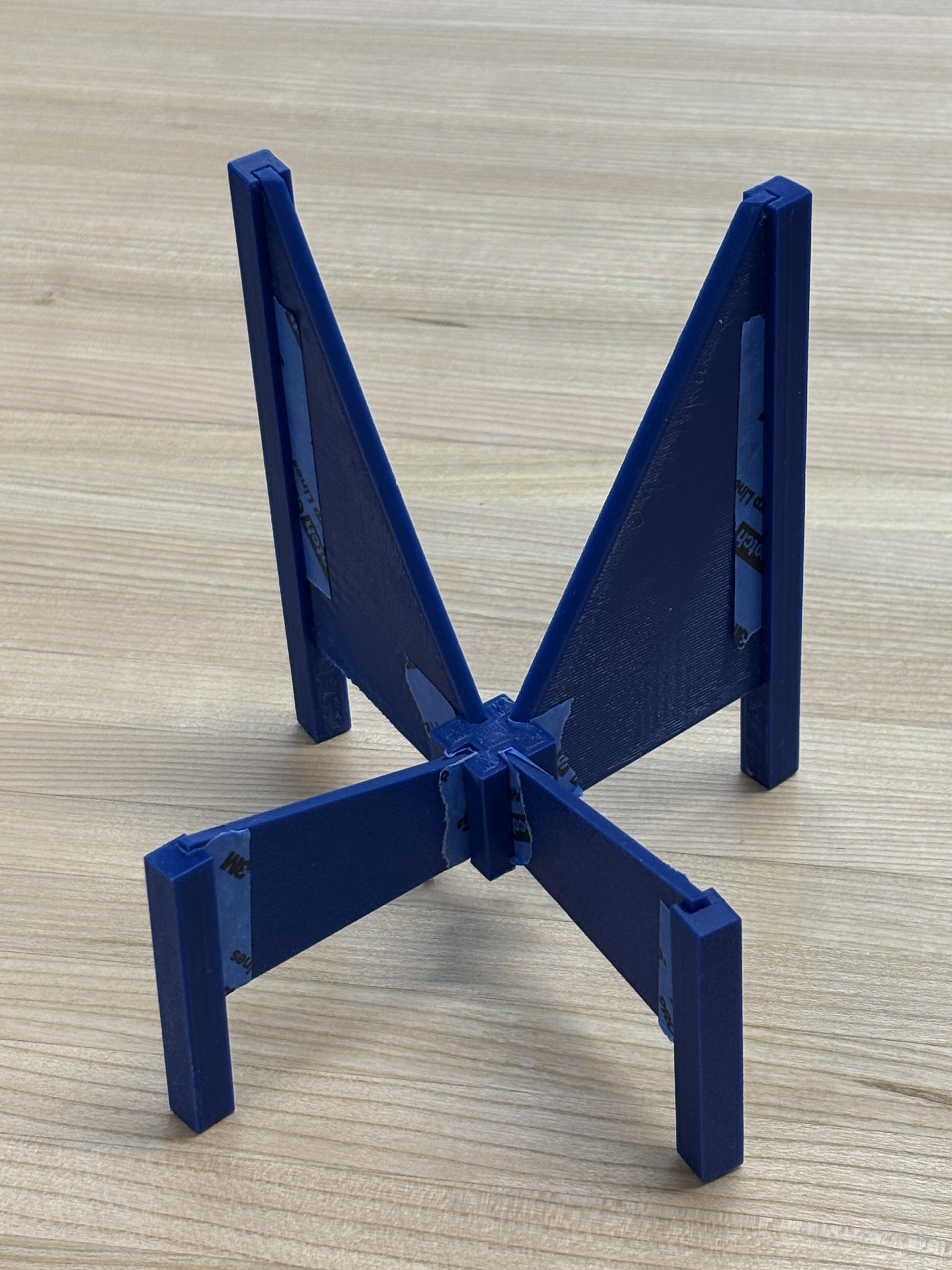
Just for fun, before building the actual full-size lounge chair I 3D printed the model at 1:5 scale. The full-scale stl files can be generated from the 'lounge chair.f3z' file which is attached in step 1. If you want to print the files you will need to scale them to your preference.
How Will I Build It?
I have not build the lounge chair yet, I will do so in the future. This is how I plan to do it.
The supports, center, and legs will be made from cherry wood. For the seat and seatback I will use 3/4” maple plywood, with veneer to cover the edges.
The supports will be glued into the grooves in the legs. The other end of the support pieces will be glued into the grooves of the center piece.
The seat and seatback will be attached to the supports with a number of 3/8” dowels not shown in the model.
Wish me luck!