A PH Sensor Using an MCP6002 Op-Amp, and How to Expand With Autodesk Electronics and Arduino
by ganymede2029 in Circuits > Sensors
204 Views, 1 Favorites, 0 Comments
A PH Sensor Using an MCP6002 Op-Amp, and How to Expand With Autodesk Electronics and Arduino



This Instructable shows how to build a high-quality pH sensor interface using an MCP6002 op-amp instead of relying on the common pre-made pH interface boards. Building your own costs less, lets you integrate the circuit directly into your project (no extra breakout board required), and gives you full control over stability, layout, and parts selection.
PH measurement is useful for domestic water testing, aquariums, fish tanks/fisheries, swimming pools, and many lab and agriculture applications.
If you want to go further, I also show how to expand this circuit into your own custom microcontroller PCB, including a built-in 3.3V power supply and optional add-ons like an INA226 power monitor using Autodesk Fusion Electronics. It’s not just about measuring pH; it’s about learning how to design and build your own ready to print circuit boards.
What’s included
- How to build the MCP6002 Op-Amp PH Sensor. Description, schematic, Gerber, and PCB files to have it made any way you like.
- Adding an ESP32 Microcontroller with an optional INA226. Five I/O ports. Schematic and board files that can be imported and how to use them.
- An Arduino Software sketch that displays the PH on a webpage, and opens a separate calibration page.
- Autodesk Fusion Electronics schematic + PCB files for basic and advanced boards.
- Gerbers so you can order a board from a PCB manufacturer.
- Getting started on making your own boards using Autodesk Fusion Electronics.
Step roadmap
- Steps 1–2: Presenting the MCP6002 pH sensor circuit and how to build it.
- Step 3: Calibrate the sensor using standard buffer solutions
- Step 4: Add an ESP32 microcontroller and an optional INA226.
- Step 5: Great Arduino sketch.
- Step 6: Design your own board with Autodesk Fusion Electronics (How to make BOM-ready parts, schematics, and PCB)
- Step 7: Downloadable Gerber Files for the PH Sensor Board
- Step 8: Downloadable Autodesk Fusion Schematic and Board Files for ESP32 INA226 board
Originally Posted in Autodesk Instructables Sensors Contest / Design and Make With Autodesk Category
Supplies
Parts (Required)
- (1) MCP6002 dual op-amp, through-hole — Microchip MCP6002-IP
- (4) 10 kΩ resistor, ¼W, through-hole — Yageo MFR-25FRF52-10K (or equivalent 1% 10k)
- (1) 100 kΩ trimmer potentiometer, through-hole — Bourns 362P-1-104LF
- (1) Right-angle BNC connector (PCB) — Molex 73137-5003 (or equivalent footprint match)
- (1) pH probe with BNC connector — Recommended: PH-201H (or equivalent BNC pH probe)
- Breadboard + jumper wires or your PCB + solder/soldering iron
Downloads
Presenting the MCP6002 PH Sensor Circuit

Understanding the Circuit
Overview and What You Need
This circuit assumes you already have:
- A stable 3.3 V supply
- A voltmeter, or An Arduino / ESP32 / microcontroller that can read an analog voltage 0–3.3 V range (I prefer adding an INA226, more on this later).
Step 4 includes example board (ESP32 DevKit, Arduino + ADC) however the goal in this step is a small, reliable pH front-end circuit that turns the probe signal into an easy-to-read 0–3.3 V output.
Circuit Description (What It Does)
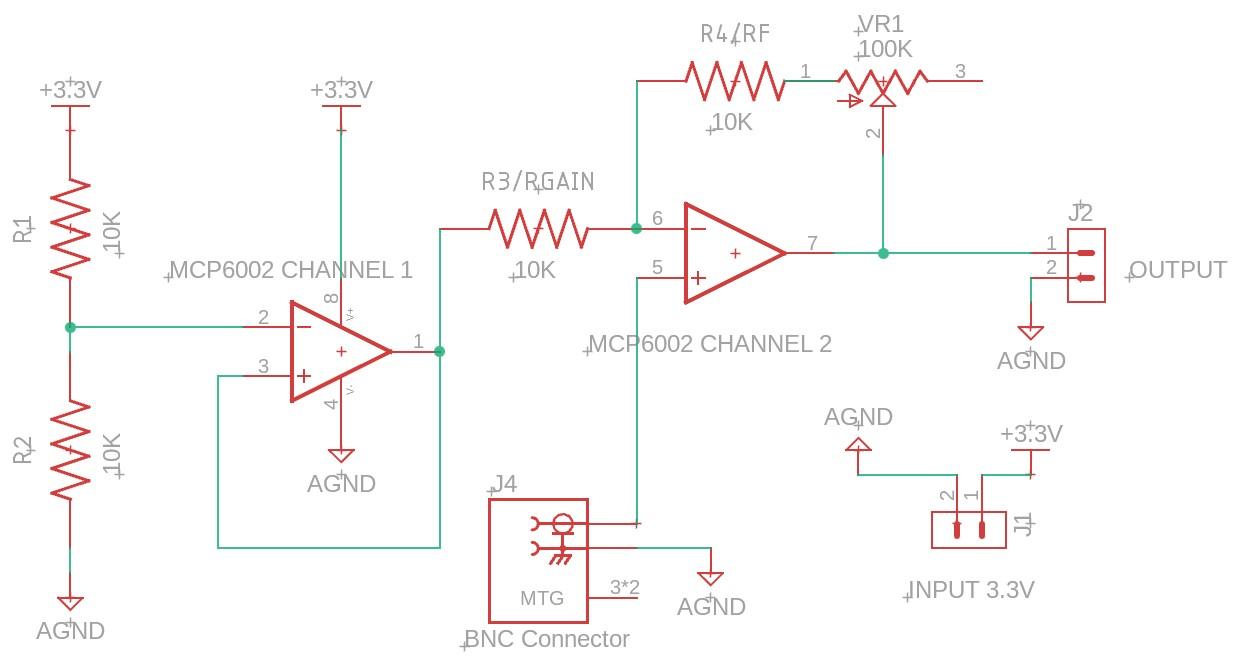
This design uses the MCP6002, a dual op-amp that works well on 3.3 V and has a very high input impedance (important for pH probes).
Power and Reference
- A stable 3.3 V is applied through the power jack and powers:
- the MCP6002 op-amp
- a voltage divider that creates a mid-supply reference (about 1.6 V)
Stage 1 — Reference Buffer (Voltage Follower)
- The 1.6 V mid-point is fed into op-amp stage 1 configured as a unity-gain buffer.
- This creates a stiff, stable “virtual ground” at ~1.6 V that won’t sag when the rest of the circuit loads it.
Stage 2 — pH Signal Amplifier
- The pH probe produces a small voltage that is approximately:
- ~0 mV at pH 7
- positive or negative a few hundred mV as pH moves away from 7
- Stage 2 amplifies that small probe voltage around the 1.6 V reference, producing a final output that fits nicely inside 0–3.3 V for your ADC.
Gain Trim (VR1)
- Real probes vary, and adding a circuit can slightly shift behavior.
- VR1 lets you adjust the gain so:
- high pH doesn’t slam into 0 V
- low pH doesn’t slam into 3.3 V
- you get a useful spread across the pH range you care about
Make the MCP6002 PH Sensor Circuit

Make
1) Order the Components
Order the parts from the BOM, or use equivalent substitutions.
- The key part is MCP6002 (through-hole) OpAmp
- A six pin IC socket is recommended for easy soldering, sometimes comes with the MCP6002.
- A BNC Board connector
- Four 10K resistors, 100k Trimmer, two screw terminals or jst connectors.
- A BNC PH Probe (PH-201H or really any BNC pH probe)
Bill of Materials Downoad (See Atached BOM .csv):
- Note: The 100K Trimmer can be replaced with a 100K Ohm resistor in most applications.
2) Assemble
Choose one of these:
- Make it on a Breadboard
OR
- Have the a PCB made
Put the Gerber files (See Step 7) in a zipped folder and upload to a board manufacturer.
Cost often around $5.00 for five.
OR
- Copy or load the schematic (and the ESP32 board if desired) into your own project
See Step 8 of this Instructable: Autodesk Electronics Files for the Sensor
3) Assemble the Board
Solder components:
- Resistors R1-R4 + small capacitors C1-C4
- IC socket / or MCP6002 (if socketed)
- Trimmer (VR1)
- Screw terminals + headers
- Connectors (DC jack, BNC)
After soldering:
- visually inspect joints for good solder
- check for bridges (especially near the op-amp pins)
- confirm 3.3 V and the ~1.6 V reference are correct before attaching the probe
A BOM is a Bill Of Materials:
Downloads
Calibrate the Sensor

Prerequisite
This step presumes you have a way to monitor the output of the PH sensor circuit, such as a microcontroller or voltmeter. If not, goto Step 4: Add an ESP32, and Step 5: A Great Arduino Code and return later.
Supplies
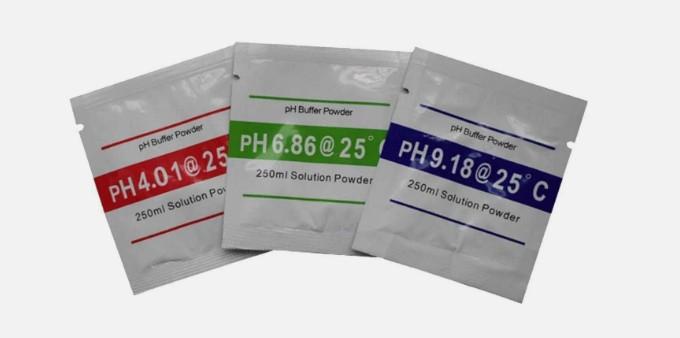
PH packets, Typically comes in 4.01, 6.86, or 9.18 pH.
Deionized water (neutral PH).
Mix
Dissolve one powder packet into exactly 250ml of distilled or demineralized water. Stir thoroughly with a clean utensil until dissolved,
Hookup
- Connect the pH probe to the BNC connector
- Connect the circuit output to an ADC analog pin or voltmeter
- Power the board with 3.3 V
- Read the ADC voltage on your microcontroller (raw volts is fine)
Insert the pH probe, allowing the reading to stabilize before calibration.
What you should see
- With the probe in pH 7 buffer, the output should be near the midpoint reference (typically around 1.6 V, depending on your exact divider and trim).
Two-point calibration (recommended minimum)
- Put the probe in pH 7.00 buffer
- wait for the reading to stabilize
- record the voltage (V7)
- Rinse probe, then put it in pH 4.00 buffer
- wait/stabilize
- record voltage (V4)
(Optional) If you have it, also measure pH 10.00 (V10).
This lets you confirm linearity and check you’re not hitting the rails.
Adjust VR1 so you don’t hit 0V or 3.3V
The goal is to keep your expected range comfortably inside the ADC limits:
- High pH should stay above ~0.2 V (not pinned at 0)
- Low pH should stay below ~3.1 V (not pinned at 3.3)
A typical “nice” set of targets might look like:
- pH 7.0 → ~1.5–1.7 V
- pH ~9–10 → under ~1.0 V
- pH 4.0 → ~2.5–3.0 V
(Exact values depend on your probe, temperature, and how much gain you dial in.)
Add an ESP32 Microcontroller
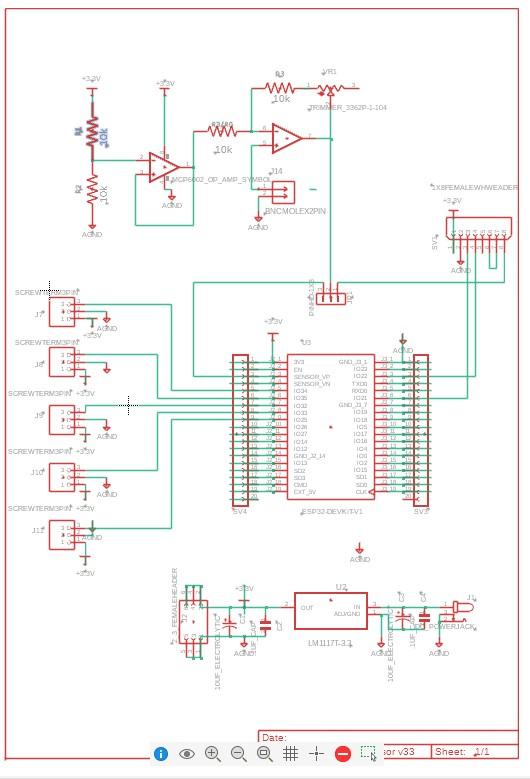


1) Add a microcontroller with an analog input so you can read the PH voltage and display it.
Pictured Above: An Example Circuit
Do the following:
a. Provide a stable 3.3v to all components.
b. Provide a common ground to all components.
c. Connect the PH circuit output to a microcontroller Analog Input pin.
Tips from Testing Sensor Circuits (ESP32-specific)
- Use ADC1 pins only. On ESP32, ADC2 pins are affected by Wi-Fi, so readings can become unstable. Stick with ADC1 for analog measurements.
- Use one shared power system. The pH sensor circuit and ESP32 should share the same ground, and ideally the same power supply. For example: powering the ESP32 from 5V while powering the pH circuit from a separate 3.3V supply often introduces noise and instability. Best results: one clean 3.3V supply for everything.
- Common ground is required. Every part of the circuit must share a common ground (pH circuit, ESP32, optional modules, power supply).
- USB power is stable, but not always ideal. Powering from the computer’s USB port is often steady, but can reduce measurement range depending on your board/regulator and setup.
- The most stable setup is usually a single 3.3V supply feeding both:
- ESP32 3.3V pin
- pH sensor circuit VCC
- (A good common ground)
- ESP32 ADC works, but external measurement can be more stable. ESP32 analog readings can still be noisy due to internal activity (Wi-Fi, CPU, etc.). For more stable voltage measurement, an INA226 voltage monitor is often more consistent.
The example circuit includes:
- MCP6002 pH sensor circuit
- a header for an optional INA226 (uses standard defaults of SDA on 21 and SCL on 22)
- a jumper to select whether pH is to be read by the ESP32 ADC or by the INA226
- footprint/slots for a simple onboard 3.3V power supply
- Five I/O ports for adding a temperature sensor, outputs. etc.
(Fusion files to import and make the pictured board made are available in Step 9)
Additional Parts needed for the Example Circuit :
Micro Controller Board
- (1) ESP32 development board — This example board uses an: Espressif ESP32-DEVKITC-32E (although any ESP32 dev board with Wi-Fi will work on your own design).
Optional 3.3V Power Module
- (1) 3.3V regulator module (AMS1117-3.3 type), ≥500 mA recommended
- See Example module photo.
- Notes: Listings vary; look for “AMS1117-3.3 module” with through hole VIN/GND/VOUT pins.
- (2) 10 µF electrolytic capacitors — e.g., Panasonic EEA-GATE100B (or any 10 µF, ≥10V)
- (2) 0.1 µF ceramic capacitors — e.g., Kyocera SR215E104MAR (or any 0.1 µF ceramic)
Optional Voltage Measurement For More Stable Readings
- (1) INA226 voltage/current monitor breakout board (I2C), ~US$5 typical
- Example module photo.
- Notes: Code uses default I2C address 0x40; boards have A0/A1 jumpers that can change it.
Steps:
1) Hookup the Components per the Circuit Diagram.
*Note: The Standard wiring for the optional INA226 is as follows:
- SDA -> ESP32 SDA Default Usually: GPIO21
- SCL -> ESP32 SCL Default Usually: GPIO22
- VCC -> 3.3V
- GND -> GND
- Signal -> IN+
- GND -> IN-
However, this setup is to read voltage and current across the shunt resistor. For Voltage only this is better:
- SDA → ESP32 GPIO21 (default SDA)
- SCL → ESP32 GPIO22 (default SCL)
- VCC → 3.3V
- GND → GND
- pH signal voltage → VBUS
- Short IN+ to IN− (and tie them to VBUS if convenient)
Or my preferred:
- SDA → ESP32 GPIO21 (default SDA)
- SCL → ESP32 GPIO22 (default SCL)
- VCC → 3.3V
- GND → GND
- Short IN− → VBUS
- pH signal voltage → IN+
A Great Arduino Code to Monitor the Sensor

ESP32 pH Monitor + Two-Page Calibration (Arduino Sketch)
This sample ESP32 Arduino sketch does two things:
- Displays live pH on a simple webpage
- Opens a second calibration page (on demand) to save your calibration values
Prerequisites:
- An ESP32 board (code is written for ESP32)
- Arduino IDE.
- Basic Arduino IDE skills (uploading sketches, using Serial Monitor)
Steps:
- Download the attached Ardino Sketch linear_ph_twopage.ino
- Open it in your Arduino IDE for editing.
- Choose how the voltage is measured (INA226 vs ESP32 ADC)
Find this near the top and set to what you want:
- Use 1 if you’re measuring with an INA226 (more stable)
- Use 0 if you’re measuring directly with the ESP32 ADC (GPIO36)
- Enter your Wi-Fi credentials (and optional port)
- Update these lines:
Port defaults to 80. You can change it if you want to access it through router forwarding for remote access.
- Upload the code to your ESP32 using the USB cable.
- Open the Serial Monitor and note the IP address assigned by your router (the sketch prints it).
- Open the pH webpage
- In a browser, go to: http://<ESP32_IP_ADDRESS>/
- Open the Calibration page
- Click Calibrate to launch the calibration window.
- Enter buffer voltages and save calibration
- Enter the voltage reading for pH 4.01 and pH 7.00, then click Save ONE line (4 & 7)
- Optional: enter the voltage reading for pH 9.18, then click Save TWO lines (4,7,9.18)
The optional two-line method helps if your sensor behaves slightly differently above pH 7 (different slope above vs below 7).Wiring pH output → ADC36 or INA226 VBUS
Design Your Own Board With Autodesk Fusion Electronics
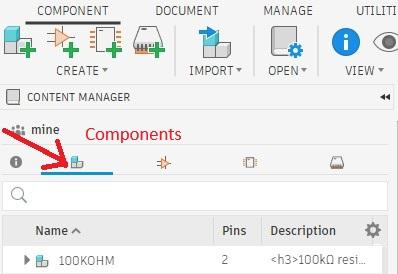
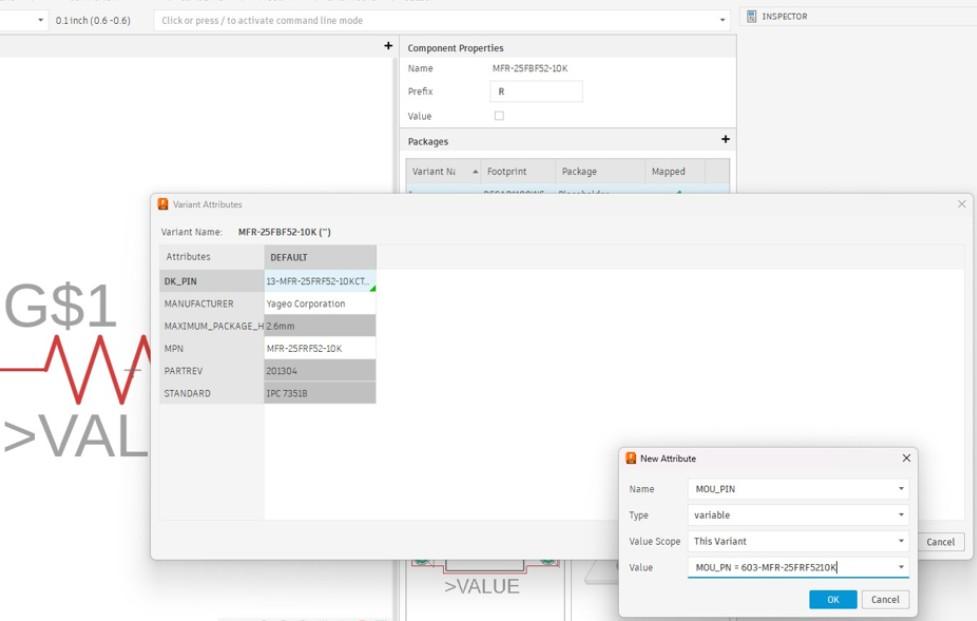
Designing your own PCB in Autodesk Fusion Electronics is genuinely fun, an industry standard, and it’s the best way to turn this pH sensor circuit into something that fits your project perfectly.
In this step I’ll show you how to:
- make a curated library (so your parts are editable and BOM-friendly)
- add orderable part information (Manufacturer + MPN)
- export a clean BOM that a board manufacturer can actually use
Prerequisites
a. Install Autodesk Fusion
- I'm using the free Autodesk Fusion Personal license version:
https://www.autodesk.com/products/fusion-360/personal
which provides full basic functionality for home-based projects.
b. Install the Snap / SnapMagic CAD utility
- This makes it easy to import symbols/footprints/3D models quickly.
Part A — Make a “BOM-ready” Library (10 short steps)
- Open Library Manager
- In your Electronics design: Tools → Library Manager
- Create a new library
- Create one called MyParts (or similar) and save it.
- Enable your library
- Make sure it’s checked/enabled so Fusion can place parts from it.
- Leave Library Manager open so you can copy parts into the library and edit attributes.
- Pick a part that meets your requirements
- Look on major part distributors such as Digi-Key or Mouser.
Choose parts that:
- have good stock,
- meet your specs, and
- include a usable CAD model.
- Import the part with Snap (or copy it from a schematic)
- Use the Snap utility to find the same part and download it. Often has a better model.
- Or place it in your schematic first, then right-click the part → Copy component/device to library.
- This makes the part editable and under your control.
- Edit attributes on the Device (not the footprint)
- In your library editor, select the Device and add/edit:
- MFR (Manufacturer)
- MPN (Manufacturer Part Number)
- Optional:
- DK_PN (Digi-Key order code)
- MOU_PN (Mouser order c ode)
- DESCRIPTION (short, human-readable description)
- Use “Value” only for the electrical value
- Examples: 10k, 0.1uF, 10uF
- Put purchasing identity in MFR/MPN, not in Value.
- Handle non-orderable modules with variants
- If a part is “Amazon/eBay only” (like some ESP32 dev boards), mark it DNP in your PCBA variant so it won’t appear in the manufacturer BOM.
- Update your schematic from your library
- Run Update from Libraries so placed parts pick up your new attributes.
- Take a look at your BOM for completeness. Go to Document → Output → Bill Of Materials
- If needed elsewhere, export your BOM as a ,crv
- Include columns like: Qty, RefDes, Value, Description, MFR, MPN (and DK_PN/MOU_PN if used).
Part B — Put the Circuit on a Board
- Create the schematic
- Place the components and add wires.
- Switch to the PCB Window
- Arrange parts, route traces, and add labels.
- 3D view
- Use the 3D board view to check spacing and connector placement.
Export by running Cam Processor , then export Gerber files, and upload to manufacturer.
Downloadable Gerber Files for the PH Sensor Board

a. Download all of the files shown into one folder.
b. Zip the folder.
c. Upload the Gerber ZIP to any PCB manufacturer’s “Instant Quote” page to get a price and place an order. Popular options include JLCPCB, PCBWay, OSHPark, and Seeed Fusion (others work too). For small 2-layer boards, it’s common to see prices around $5–$10 for ~5 boards (plus shipping), depending on size and options.
(Some board manufacturers will even solder the parts on boards for you if you send them the BOM)
Load the Boards Into Your Fusion Autodesk Electronics

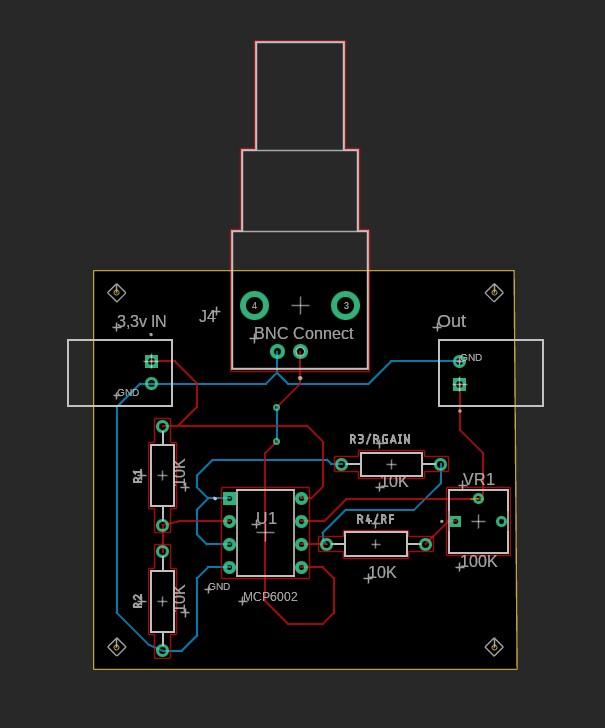


1) Download the desired files. The Two MCP6002 ,fsch and ,fbrd files are for the Small Board, the two ESP32 PH files for the ESP32 board. The .lbr Library is for both.
2) In Fusion → Electronics → open YourProject.fsch first and then YourProject.fbrd
3) If parts are missing open or import the included library (MCP6002 PH Sensor...flbr) and relink/update devices
4) Modify the schematic or board if you wish
5) Under the Manufacturing Tab, Run the Cam Processor, then the Export Gerber File
6) Upload to a manufacturer