Abyss ResQ - Howest MCT
by rvanasbroeck2005 in Circuits > Raspberry Pi
38 Views, 0 Favorites, 0 Comments
Abyss ResQ - Howest MCT
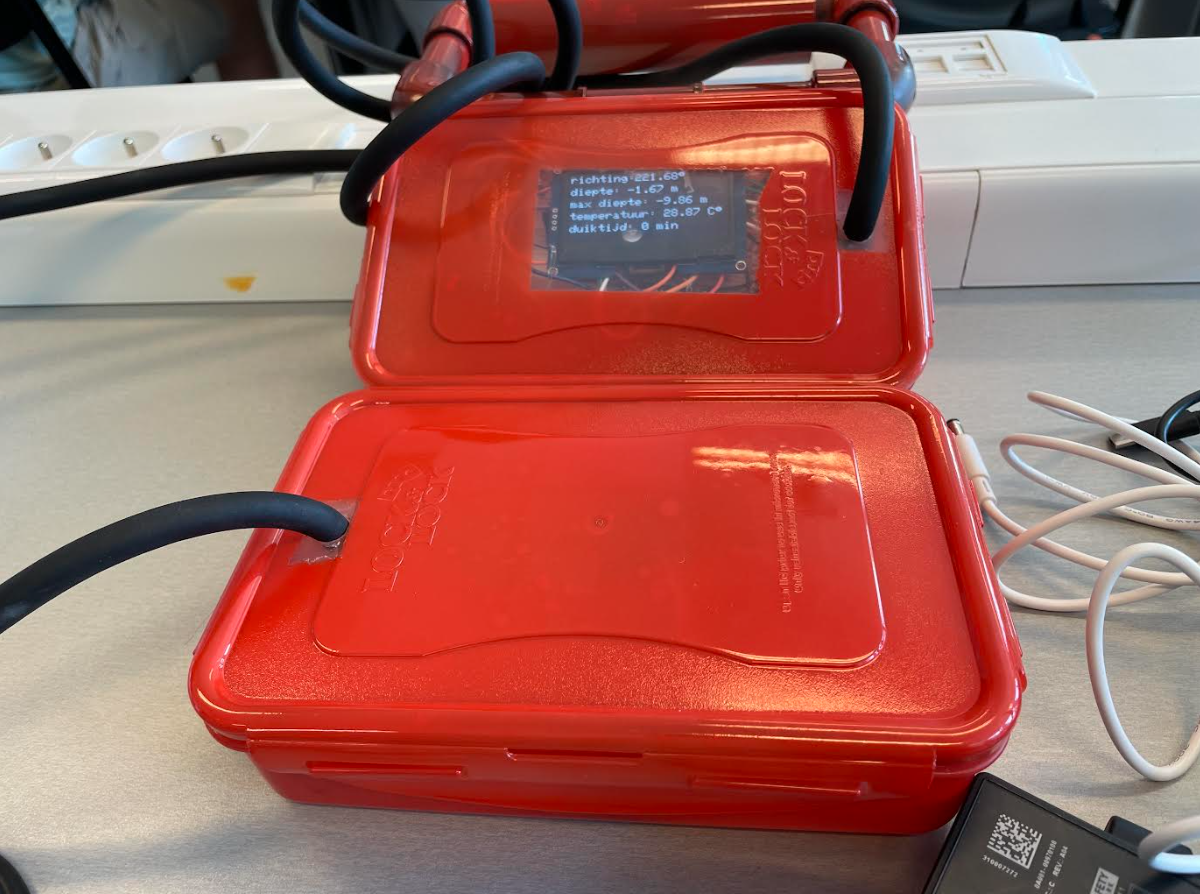
I have made a dive computer for a school project called ProjectOne. This divecomputer will be able to alert the surface watch in case of an emergency using a button. This dive computer will send the sensor data (such as depth and temperature) to a database and visualise it on a website that I made. I will explain how to do the creating and code but here is a link to my GitHub page with all my code for if you get stuck or don't feel like doing the code.
https://github.com/howest-mct/2024-2025-projectone-mct-RubenVanAsbroeck
Supplies

Mocro computers:
- 1 Raspberry Pi (pi) – (I use the Raspberry Pi 4)
- 1 ESP32
Sensors:
- 1 Pressure Sensor Module – BMP280
- 1 Magnetometer – HMC5883L
- 1 One-Wire Temperature Sensor
- 1 GPS Module – GY-NEO6MV2
Actuators:
- 1 DC Motor
- 1 OLED Display
Regulator:
- 1 Transistor (for the DC Motor)
Extra parts:
- 1 Rechargeable Batterie – Must be at least 2V and no more than 5V each
- 1 Waterproof Cable – The length of this cable will determine the maximum depth of your dive computer
- 2 Powerbanks – Make sure that one can is strong enough to power the pi and the other to power the esp.
- 2 Breadboards – At least one mini breadboard and one half-size breadboard (larger sizes are also fine)
- 1 MicroSD Card – 16GB minimum (larger sizes are acceptable, but not smaller)
- 2 straps
- 2 waterproof boxes – you can buy them or make them yourself.
- 1 20mm plastic tube
Make the Curcuit
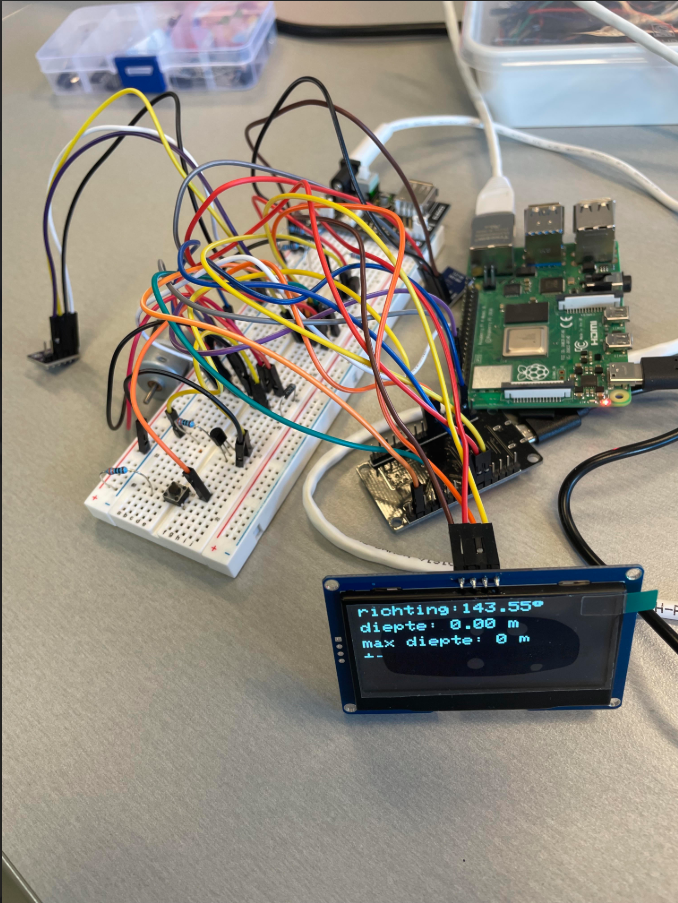
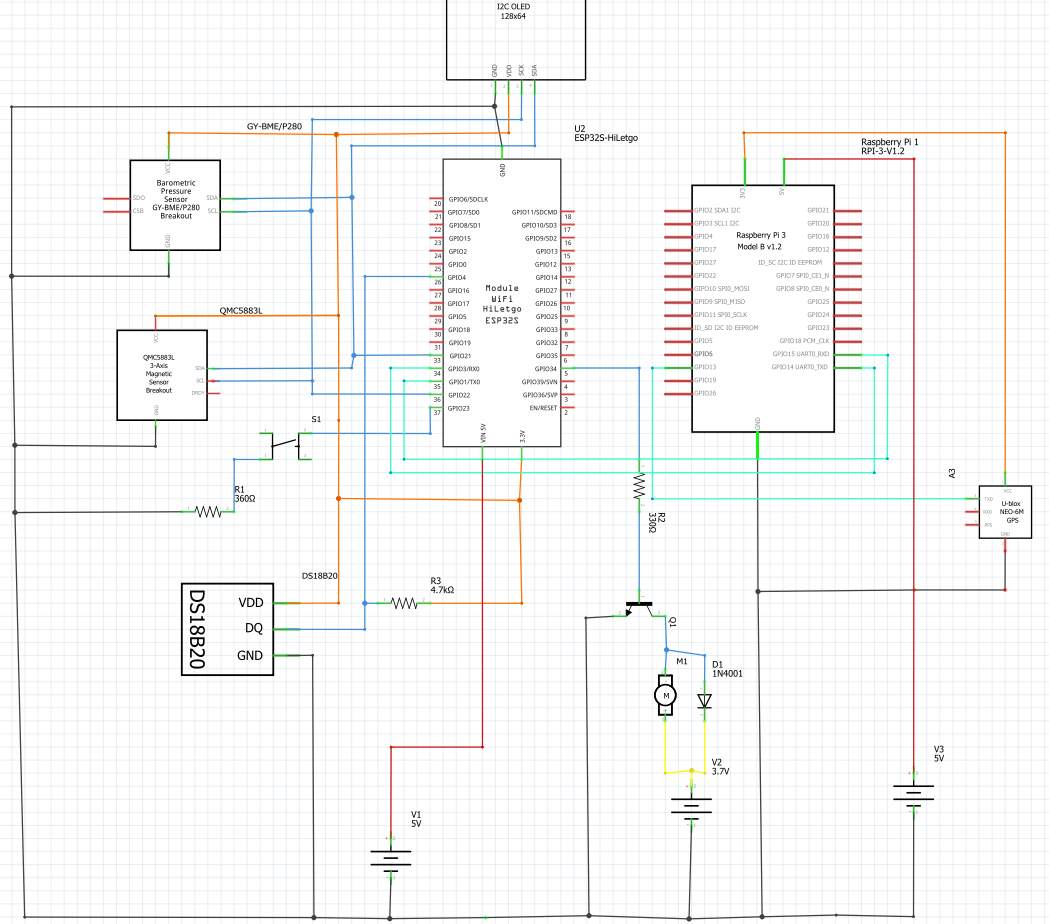
To build the curcuit for the dive computer you can simply follow the one I made. Do know that if you use different pins than me on the pi or esp you might have to slightly adjust the code to make it work.
Here's how I connected the pins:
Preparing the Pi
After you have created the circuit, we can begin the next part: setting up the RPi.
What you need:
The 16GB or more SD card.
Step 1:
Open Raspberry Pi Imager. Insert the micro SD card into your PC.
Step 2:
Choose your Raspberry Pi model and operating system. I recommend RPi OS 64-bit.
Then select your storage device and continue.
Step 3:
Personalize the settings (such as name and password) and continue.
Step 4:
Insert the SD card into your RPi. Connect your Raspberry Pi to your PC using a LAN cable. Connect through SSH.
Create a Database

Connect to MySQL trough ssh and create the database according to my schema. If you have problems or can't create the database, use my file IETS.sql. You can find that on my GitHub page following this path:
Backend Sensors

To begin, I recommend reading each sensor in separate files first. Once you can read them individually, you can combine everything into one project. You can also find the code for the ESP (for both the individual sensors and the combined version) on my GitHub by following this path: esp → OneWire (or whichever sensor you need). The code itself contains plenty of explanations.
These are the libraries I used:
- Wire : we need this librarie to read / send bits to the sensors.
- Adafruit_Sensor
- Adafruit_BMP280
- math
- Adafruit_GFX
- Adafruit_SSD1306
- OneWire
- DallasTemperature
One wire temp sensor:
For this sensor, we will use the OneWire and DallasTemperature libraries. First, define which ESP pin is connected to the DS18B20 data line; in my case, that's GPIO 4. Initialize the two libraries with these lines:
OneWire oneWire(DS18B20_PIN);
DallasTemperature sensors(&oneWire);
Then, you can use the functions initOneWire and readTemp in your loop to read the temperature.
Compass sensor (QMC5883L):
Start by checking the i2c adress of the component since even if you ordered the HMC5883L you might have received the QMC5883L . They work almost the same but the QMC5883L is just the cheaper version (which is the one I got). If you have HMC5883L the adress should be 0x1E and if you have the QMC5883L then it's 0x0D. For this sensor we won't be using any libraries since it's just bit operations. We will start by defining the sda and scl pins, you can use just about every pin on the esp for this. I used GPIO 21 (SDA) and 22 (SCL). Simply define you adress and use the functions initKompas and readKompas and it should work.
Depth sensor (BMP280):
For this sensor we will be using the Adafruit_Sensor and Adafruit_BMP280 libraries. Initialize the adres of the sensor (in my case 0x76) and then you can use my readDiepte function to read your current depth.
Backend

Backend Structure Overview
The backend of your dive computer project is divided into two main responsibilities:
1. Collecting Sensor Data
2. Serving Data to the Website
Backend Architecture for Dive Computer: Raspberry Pi & ESP32 Communication
1. Collecting Sensor Data
Your Raspberry Pi acts as the central computer. It gathers information from various sensors (like temperature, depth, and compass) that are connected to an ESP microcontroller. To let these two devices "talk" to each other, you use their RX and TX pins—these are special connections for sending and receiving data directly, known as serial communication.
- How does it work? The Raspberry Pi sends a request to the ESP, asking for the latest sensor readings. The ESP reads its connected sensors and sends the values back to the Pi. This happens quickly and repeatedly, so the Pi always has up-to-date data.
- Why use serial communication? Serial communication is reliable and fast for short distances, making it ideal for connecting a Pi to an ESP inside the same device. It also doesn’t require a network connection, which is helpful underwater or in remote locations.
- Where is the code? On your GitHub you have two folders: one for the code that runs on the Pi to ask for sensor values esp_communicatie, and one for the code that runs on the ESP to answer those requests communicatie_pi. You simply copy the function for the Pi into your main backend file (such as app.py), so it can regularly collect sensor data.
2. Serving Data to the Website
Once the Raspberry Pi has the sensor data, it needs to make this information available to users—usually through a web page.
- How does the backend serve data? The backend runs a small web server (using Python, for example) that listens for requests from the website. When the website asks for the latest sensor values, the backend sends them in real time. This way, anyone looking at the website will see live updates of the diver’s depth, temperature, compass heading, and more.
- Why split these responsibilities? By separating the sensor communication and the web server, your system stays organized and easier to troubleshoot. If there’s a problem with the sensors, it won’t crash the website, and vice versa.
Special Features: The SOS Button
A key safety feature is the SOS button. If the diver presses this button, the Pi immediately sends a signal to the website to display an emergency alert. This ensures that anyone monitoring the dive knows right away that help is needed and can call emergency services.
Summary
- The Raspberry Pi gathers sensor data from the ESP using direct serial communication (RX/TX pins).
- The backend then makes this data available to a website, updating it in real time.
- An SOS button allows the diver to trigger an instant emergency alert on the web dashboard.
- All code for these functions is organized in your GitHub, with clear separation between Pi and ESP code.
Front-end Design
Now it's time to start designing your website (I created mine in Figma) and writing the HTML and CSS. If you don't want to design the entire website yourself, you can find my frontend here or download my Figma file and make changes as you like. After you have finished the design, you can begin coding the frontend of the page. Once the frontend is ready, you will have a place to display all your data, so you can start coding the sensor integration.
Front-end Javascript
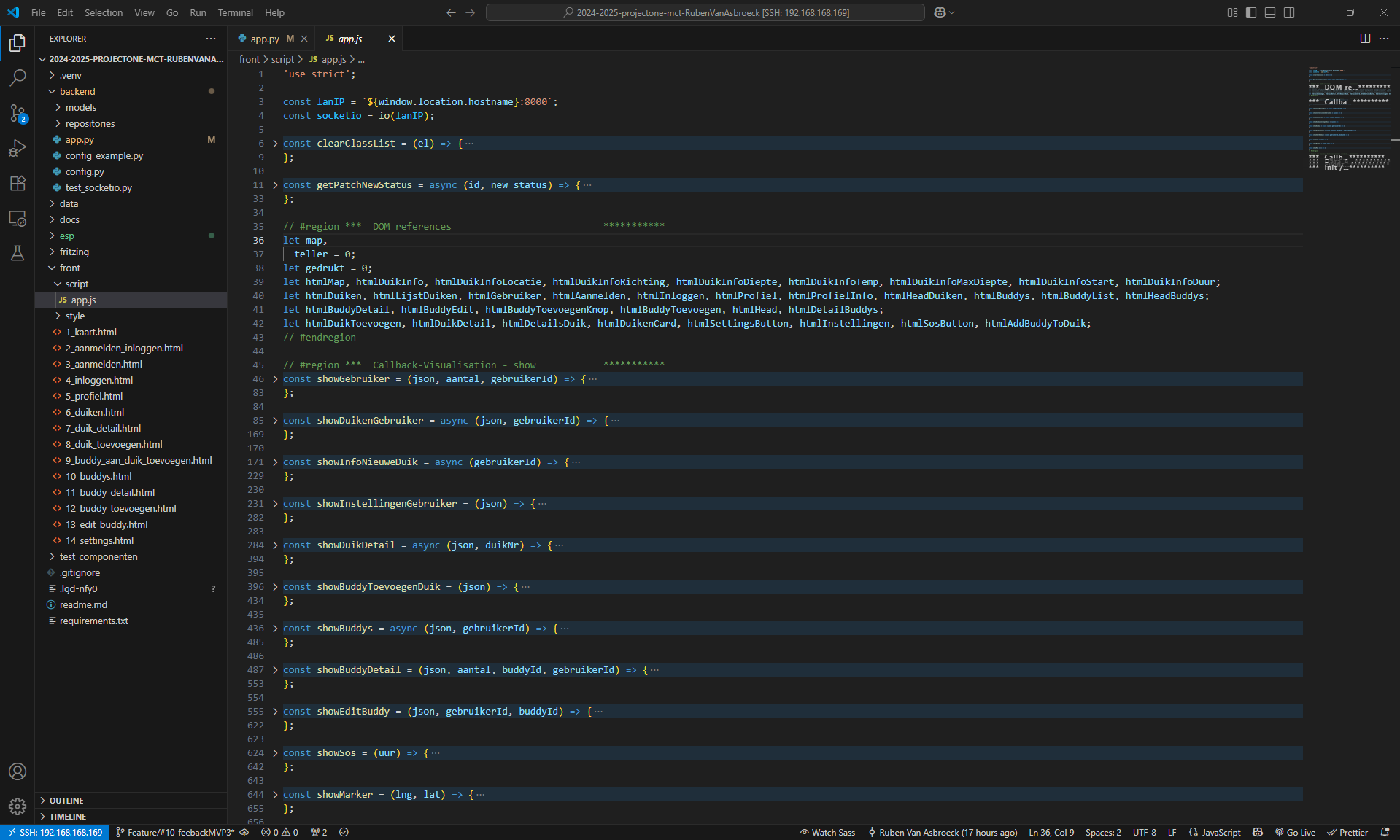
Now it's time to connect the front-end and the back-end in Javascript. If you can't / don't want to write the Javascript yourself you can find my Javascripte right here or follow the expanations.
What is JavaScript?
JavaScript is the engine behind your interactive dive computer website. It connects the user interface (what you see in the browser) with the backend server, handles real-time updates, and manages user actions. Here’s how it works, step by step:
1. Connecting to the Backend and Real-Time Data
- Server Communication: The code connects to the backend server using both HTTP requests (via the Fetch API) and WebSockets (using Socket.IO). This allows the website to request information (like user profiles, dive logs, and sensor data) and to receive live updates (for example, when new sensor data arrives or the SOS button is pressed)12.
- Live Updates: Thanks to WebSockets, the website can instantly display new data without needing to reload the page. For example, if the diver’s depth or temperature changes, or if an emergency occurs, the display updates in real time.
2. Dynamic User Interface
- DOM Manipulation: The script dynamically builds and updates the web page by injecting HTML elements and content based on the data it receives. For example, when you log in, your profile info, list of dives, and buddies are all loaded and displayed automatically.
- Event Handling: The code listens for user actions such as button clicks (e.g., logging in, adding a buddy, starting a new dive, or sending an SOS signal). When a button is clicked, the script processes the form data, validates it, and sends it to the server if everything is correct.
3. Managing Dives and Buddies
- Dive Logs: The website keeps track of all your dives, including details like date, location, depth, duration, and notes. You can view, add, and edit dives. The script fetches this data from the backend and displays it in a user-friendly way.
- Buddy System: You can add buddies (other divers), view their details, and see which dives you’ve done together. The code manages these interactions, ensuring the buddy lists are always up to date.
4. Safety Features: SOS Button
- Emergency Alerts: If the diver presses the SOS button, the backend sends a real-time alert to the website. The JavaScript immediately updates the interface to show an emergency message and relevant dive data, so anyone monitoring the dive knows to call emergency services.
5. Map and Sensor Data Visualization
- Map Integration: The code uses Mapbox GL JS to display the diver’s location on a map. It updates the map marker based on GPS data received from the backend.
- Sensor Data Display: Live sensor readings—such as depth, water temperature, and compass direction—are shown on the page and updated in real time as new data arrives.
6. Initialization and Page Routing
- Page Detection: When the page loads, the script checks which part of the site you’re on (profile, dives, buddies, map, etc.) and loads the relevant data and event listeners for that page.
- Separation of Concerns: Functions are organized so that each handles a specific task: fetching data, updating the UI, listening for events, or communicating with the backend. This makes the code easier to maintain and expand.
Building the Case


Now for the last step, we'll be making the actual case.
For this case you will need:
- 20mm tube
- 4 corner pieces for the tube
- 2 boxes
- 1 waterproof cable
- Strong glue (I used PVC glue)
Start by drilling a hole at the top of both boxes. The hole should be slightly smaller than the width of your cable. Then make the part that the cable will wrap around. Quick disclaimer: my design did NOT work as intended. After making your cable storage piece, you need to drill two more holes in the click-lock part to put a zip tie through. Make sure they are not too close to each other—the distance I used worked pretty well. We will be hanging the cable storage piece on the click-lock part with zip ties.
Now you can go diving with your own computer!
Have a nice dive :)