Adaptive Button: a 3D-Printed Assistive Switch for Accessibility
by marieweilbacher in Circuits > Assistive Tech
25 Views, 0 Favorites, 0 Comments
Adaptive Button: a 3D-Printed Assistive Switch for Accessibility


How It Works
The device functions as a large surface switch.
- The top surface is pressed by the user.
- Wires connected to copper tape complete a circuit when pressure is applied.
- The circuit connects to a computer through a compatible board (such as Makey Makey or similar input systems).
- Rubber bands help return the surface to its original position after being pressed.
Instead of pressing a small button, users press a much larger and more accessible surface — reducing strain and improving usability.
Why This Design
Unlike many commercial assistive switches:
- It is low cost
- It uses simple materials
- It is customizable in size and shape
- It can be 3D printed and built easily
- It only requires basic electronic components
The design consists of two simple printed pieces, making it straightforward to assemble and modify.
Supplies
- Wires (I used a wire stripper on half of my wire)
- Copper tape
- Rubber bands
- Circuit board compatible with computer input (ex: Makey Makey(This Link Has wires included, and a connector to a USB port on the computer, you may need a USB to USB-C adapter))
- Basic tools for assembly
3D Print the Parts


.png)
- Import the STL files into your slicer software.
- Enable supports (this design requires supports).
- Print both pieces.
- Carefully remove supports after printing.
- Lightly sand edges if needed for smoother movement.
IMPORTANT: If you want two buttons for up and down (or more depending if you wanted left or right) then you need to print the STL TWICE the file only makes ONE button.
Downloads
Add Conductive Material (Ex. Copper Tape)


- Cut two pieces of copper tape.
- Apply one strip inside the base where it will act as a contact.
- Apply the second strip to the underside of the top pressing piece.
- Make sure the copper tape pieces will touch when the button is pressed.
Attach the Wires


- Attach one wire to the copper tape inside the base.
- Attach another wire to the copper tape on the top piece.
- Secure connections firmly (tape, solder, or tight wrapping).
- Connect the wires to your circuit board (such as a Makey Makey or other compatible computer input board).
When pressed, the copper tape pieces should touch and complete the circuit.
Note: for my original print, I used a wire with an alligator clip on one end to connect to the Makey Makey, and on the other end, it had frayed wires, which I connected to the copper tape.
Rubber Bands


- Use rubber bands inside the housing to create tension. There are built-in notches inside the larger piece to place rubber bands
- Position them so that:
- When the button is pressed, they stretch.
- When released, they return the top piece to its original position.
This allows the button to reset after each press.
Note: depending on the type of rubber bands you use you may need to use more than one, try out different amounts and see what works best for you.
Final Assembly


Place both pieces together by using the slots built into the top half and the "arms" on the base. Make sure that the rubber bands are still in the same spot, making the two conductive connection points hover above one another.
Connect to Computer

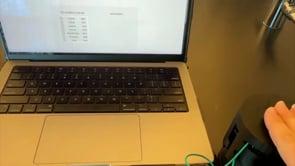
- Connect the circuit board to your computer.
- Open a simple program (like a typing document or interactive program, e.g., T-rex Google game).
- Press the adaptive button.
- Confirm that the button press registers as input.
Adjust and Customize + Troubleshooting
- Adjust rubber band tension if the button is too soft or too stiff.
- Resize in Tinkercad if a larger surface is needed.
Troubleshooting
Button Does Not Register When Pressed
Possible Causes:
- Copper tape pieces are not touching.
- Wires are loose.
- Circuit board is not properly connected to the computer.
Solutions:
- Check alignment of copper tape — they must make solid contact when pressed.
- Make sure wires are tightly attached to the copper tape.
- Confirm the board (ex: Makey Makey) is plugged in and recognized by the computer.
Button Is Too Hard to Press
Possible Causes:
- Rubber bands are too tight.
- Top piece is rubbing against the sides.
Solutions:
- Use fewer rubber bands or loosen tension.
- Sand the sides slightly to reduce friction.
Button Stays Pressed / Does Not Pop Back Up
Possible Causes:
- Rubber bands are too loose.
- Copper tape is sticking together.
- Friction inside the housing.
Solutions:
- Add another rubber band for more return force.
- Make sure copper tape is smooth and not folded.
- Check for excess plastic or support material blocking movement.
Button Activates Without Being Pressed
Possible Causes:
- Copper tape pieces are touching even when not pressed.
- Wires are crossing or shorting.
Solutions:
- Reposition copper tape so they only meet under pressure.
- Inspect wiring for accidental contact.
Connection Is Inconsistent
Possible Causes:
- Weak electrical contact.
- Copper tape peeling.
- Wires loosely attached.
Solutions:
- Press copper tape firmly into the plastic.
- Reinforce with additional tape if needed.
- Consider soldering connections for stronger conductivity.
Reflection On Building
Overall, the design successfully made a small switch easier to press by increasing the surface area and reducing the fine motor precision required. The larger button allowed for more comfortable and consistent activation compared to a standard keyboard key. During testing, the switch reliably completed the circuit and registered input on the computer.
Several adjustments were made to improve functionality and durability. The height of the button was modified to improve comfort, stability, and responsiveness. A stand was added to increase stability during use. The rubber band holders were reinforced with added supports to make them sturdier, and the tension of the rubber bands was adjusted to balance ease of pressing with proper return. Holes were also added to the sides of the housing to allow wires to pass through cleanly and to make support removal easier after printing.
These improvements strengthened the overall design and enhanced accessibility by creating a stable, customizable, and easier-to-activate input device. By enlarging the pressing surface and allowing structural adjustments, the Adaptive Button supports individuals with limited dexterity by making computer interaction more manageable and reliable.