Adaptive Cerebral Palsy-Friendly Buttons for Gaming (like the Chrome T-Rex Game)
by kennyhamann in Circuits > Assistive Tech
38 Views, 0 Favorites, 0 Comments
Adaptive Cerebral Palsy-Friendly Buttons for Gaming (like the Chrome T-Rex Game)

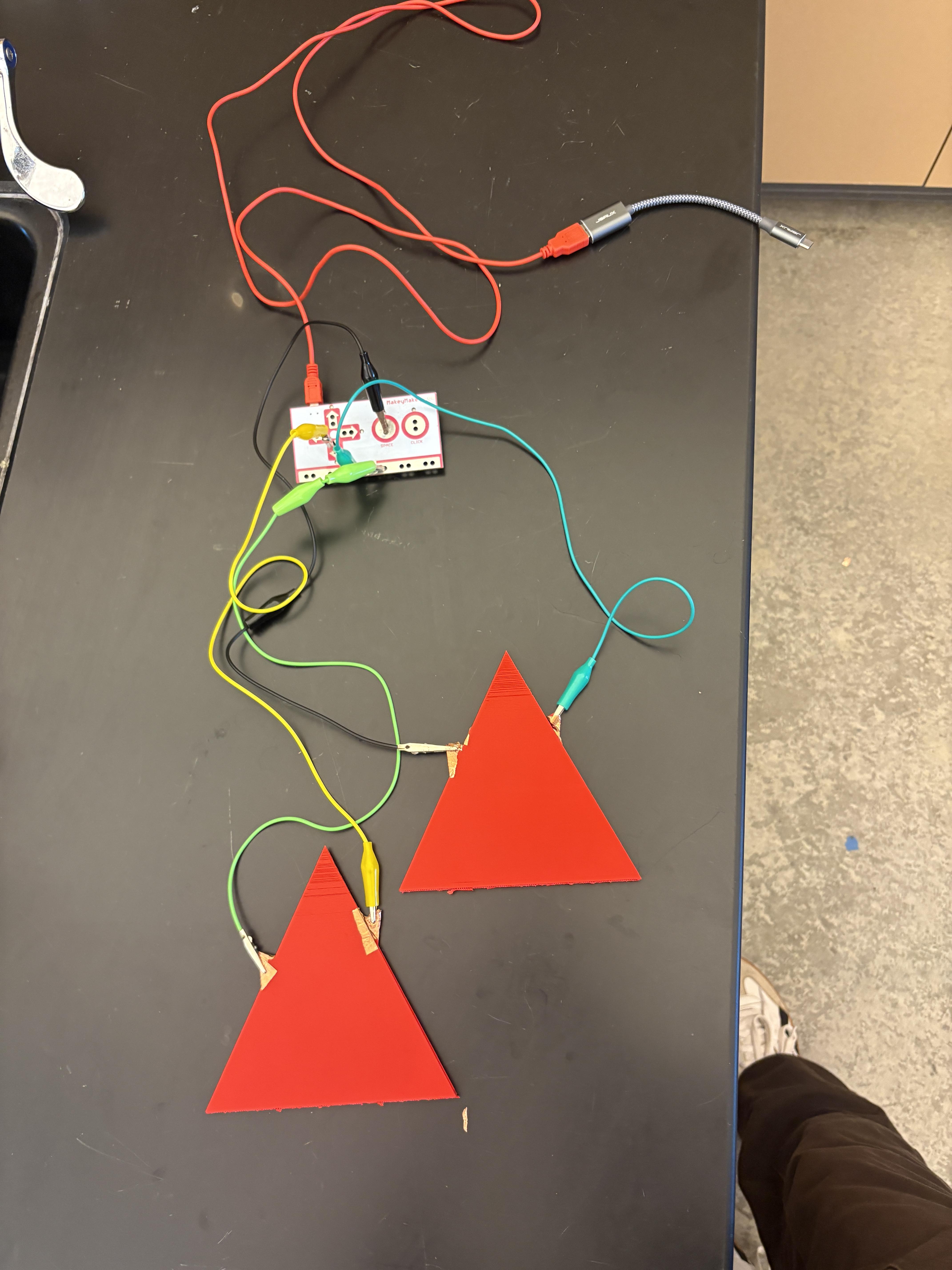
Introduction: An Adaptive Button for Accessible Gaming
This project is a large, easy-to-press adaptive button designed to help children with cerebral palsy play simple computer games—such as the Chrome Dinosaur jumping game—independently and successfully.
Many children with cerebral palsy experience motor challenges that make using a standard keyboard difficult. Small keys, precise finger placement, and the force required to press certain buttons can create barriers to something as simple as pressing the spacebar to jump in a game. What seems effortless to most players can be frustrating or physically inaccessible to others.
This adaptive button solves that problem by replacing the small, narrow keyboard key with a large, highly sensitive surface that requires minimal force and no precise finger positioning. Instead of targeting a tiny key, a child can press anywhere on the larger button using their hand, palm, fist, or forearm—whatever movement is most comfortable and reliable for them.
The goal of this project is inclusion. Simple games like the Chrome Dinosaur game are often used in classrooms, therapy settings, and at home for fun and skill-building. By making the input method more accessible, we open the door for more children to participate, build confidence, and experience the joy of play.
This guide will walk you through how to build a low-cost adaptive button that can be used with a computer to trigger a single keypress, making digital play more accessible for children with motor disabilities.
Supplies
-3D printed buttons
-1 Makey Makey
-4 alligator clip cords
-Copper Tape (about 3 feet will do)
-Makey Makey to computer cord (micro-USB to computer cable)
3D Print Buttons
3D Printing the Button Housing (Using the Provided STL File)
PRINT TWO (2) OF THE BUTTONS ATTACHED (STL File):
This project includes a ready-to-print STL file in the Instructable resources. The STL file contains the 3D model for the adaptive button housing, designed to be large, sturdy, and easy to assemble.
Below is a step-by-step guide to successfully print the part.
Step 1: Download the STL File
- Scroll to the “Files” or “Resources” section of this Instructable.
- Download the provided .stl file to your computer.
- Save it somewhere easy to access (like your Desktop or a project folder).
The STL file is already scaled to the correct size. You do not need to resize it unless you are intentionally modifying the button dimensions.
Step 2: Import the STL into Your Slicer
Open your preferred slicer software, such as:
- Ultimaker Cura
- PrusaSlicer
- Bambu Studio
Then:
- Click “Import” or drag the STL file into the slicer.
- Confirm the model appears centered on the build plate.
- Verify that the scale is set to 100%.
If the part appears extremely small or large, check that your slicer is set to millimeters (mm), which is standard for STL files.
Step 3: Recommended Print Settings
These settings prioritize durability and strength since this button will be pressed repeatedly.
Material:
- PLA (recommended for ease of printing)
- PETG (if you want added durability and flexibility)
Layer Height:
- 0.2 mm (standard quality)
Infill:
- 20–30% (Grid or Gyroid recommended)
- Increase to 40% if you want extra sturdiness
Wall/Perimeter Count:
- 3–4 walls for added strength
Top/Bottom Layers:
- At least 4–5 layers
Supports:
- This print does not require supports
Build Plate Adhesion:
- Brim recommended if you experience edge lifting
Step 4: Part Orientation
The file is designed to print flat on its base.
Make sure:
- The smallest side is touching the print plate
- The triangle shape of the buttons is facing upward
This ensures:
- Maximum strength
- Clean top surface finish
- NO need for supports
Do not print it on its side, as that will weaken the structure and increase print time.
Step 5: Start the Print
- Slice the model.
- Preview the layers to confirm everything looks correct.
- Send the file to your printer (via SD card, USB, or WiFi depending on your setup).
- Begin printing.
Estimated print time will typically range from:
- 1-2 hours, depending on printer speed and infill settings.
Step 6: Post-Processing
After printing:
- Allow the part to cool completely before removing it from the build plate.
- Remove any brim or support material carefully.
- Lightly sand edges if needed for comfort and safety (especially important since this device is for children).
You should now have a sturdy housing ready for installing the internal button mechanism.
Why Print Settings Matter for Accessibility
Because this button is designed for children with cerebral palsy, durability is especially important. Some users may apply uneven or stronger-than-expected pressure. A higher wall count and moderate infill ensure the housing will not crack or deform over time.
A smooth top surface also helps reduce friction and makes pressing easier for children with limited fine motor control.
Downloads
Attach Cables to Makey Makey
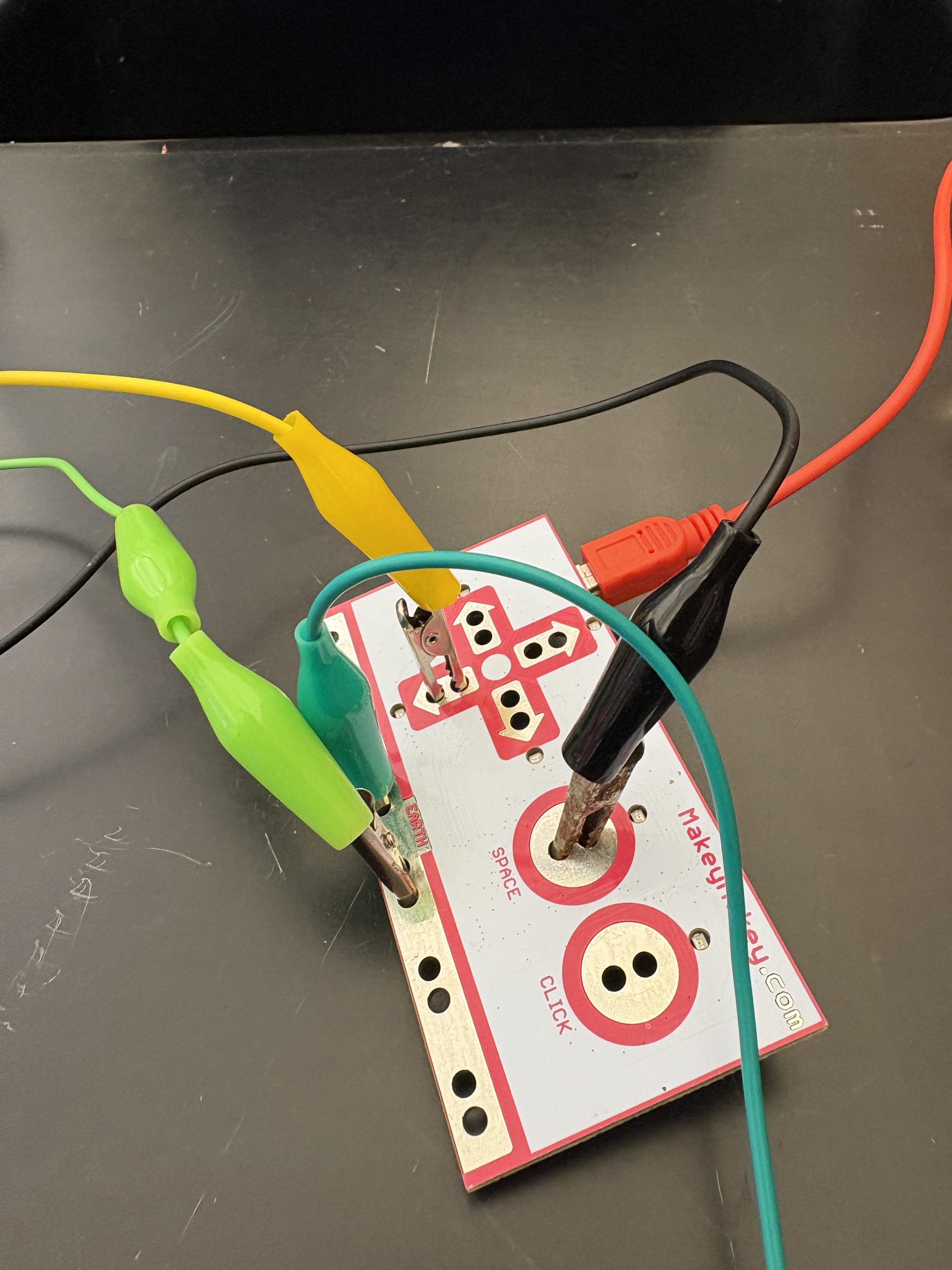
Attach each of the four alligator-clip cables to the Makey Makey. You need two cords attached to the earth section, one to the down arrow section, and one to the spacebar section.
See attached photos for the exact locations of alligator clip cords.
Apply Copper Tape on Buttons, Connect Alligators to Buttons


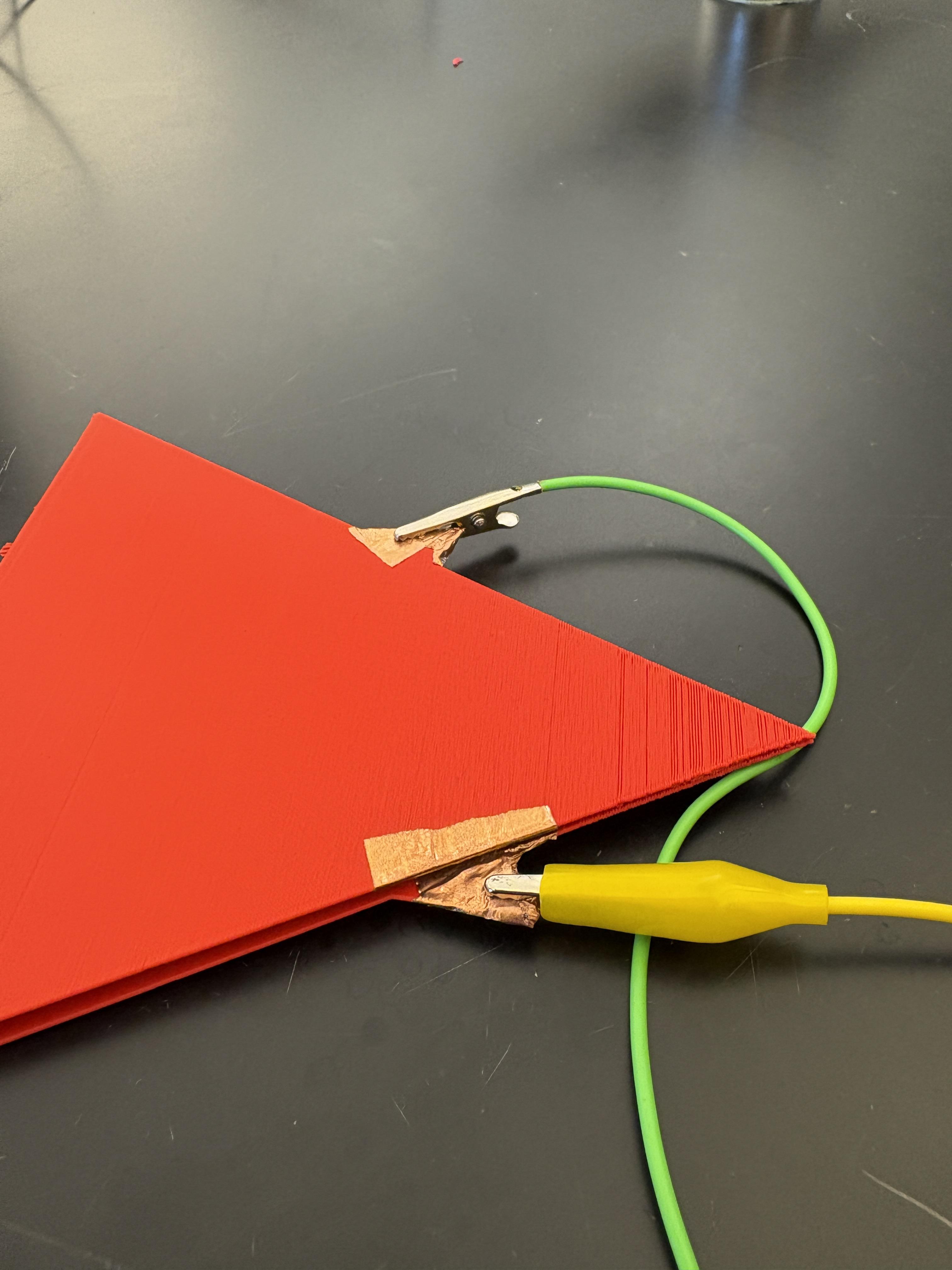

Apply copper tape to the outlying ears of the buttons. Also, apply copper tape to the corresponding horizontal sections of the buttons. See photos for details.
Next: connect the earth cords to the lower ear of each button (decide on an orientation). Connect the spacebar cord to the upper ear of the button you decide is the "up" button. Connect the down arrow cord to the upper ear of the button you decide is the "down" button.
See images for details.
All Done! Troubleshooting, Suggested Use, Optional Placement

Yay! You've completed the setup of this adaptive button set. Below are some common problems and how you could fix them.
- Everything is connected, but the buttons do not make the dinosaur go up or go down.
- Disconnect the cords from the buttons. When you connect the sets of alligator clips, does the Makey Makey flash a signal that the corresponding button was operated ('pushed")? Make sure your cords aren't faulty or bad.
- Make sure there is sufficient copper wire connecting the cords/ears to the button. Make sure the copper tape on each opposing side of the button touches completely when the user operates the button. Add additional copper tape as needed.
- GENERAL: Check your alligator and computer cords to make sure they're not faulty.
Optimal Use: Place buttons on a table and use them for the T-Rex game!
Play the T-Rex Game!

Play the T-Rex Game at this link: https://trex-runner.com/
See attached video on how these buttons work, and how they're used to play the game