Adaptive Single Button Game Controller
by derekdonohoe in Circuits > Assistive Tech
17 Views, 0 Favorites, 0 Comments
Adaptive Single Button Game Controller

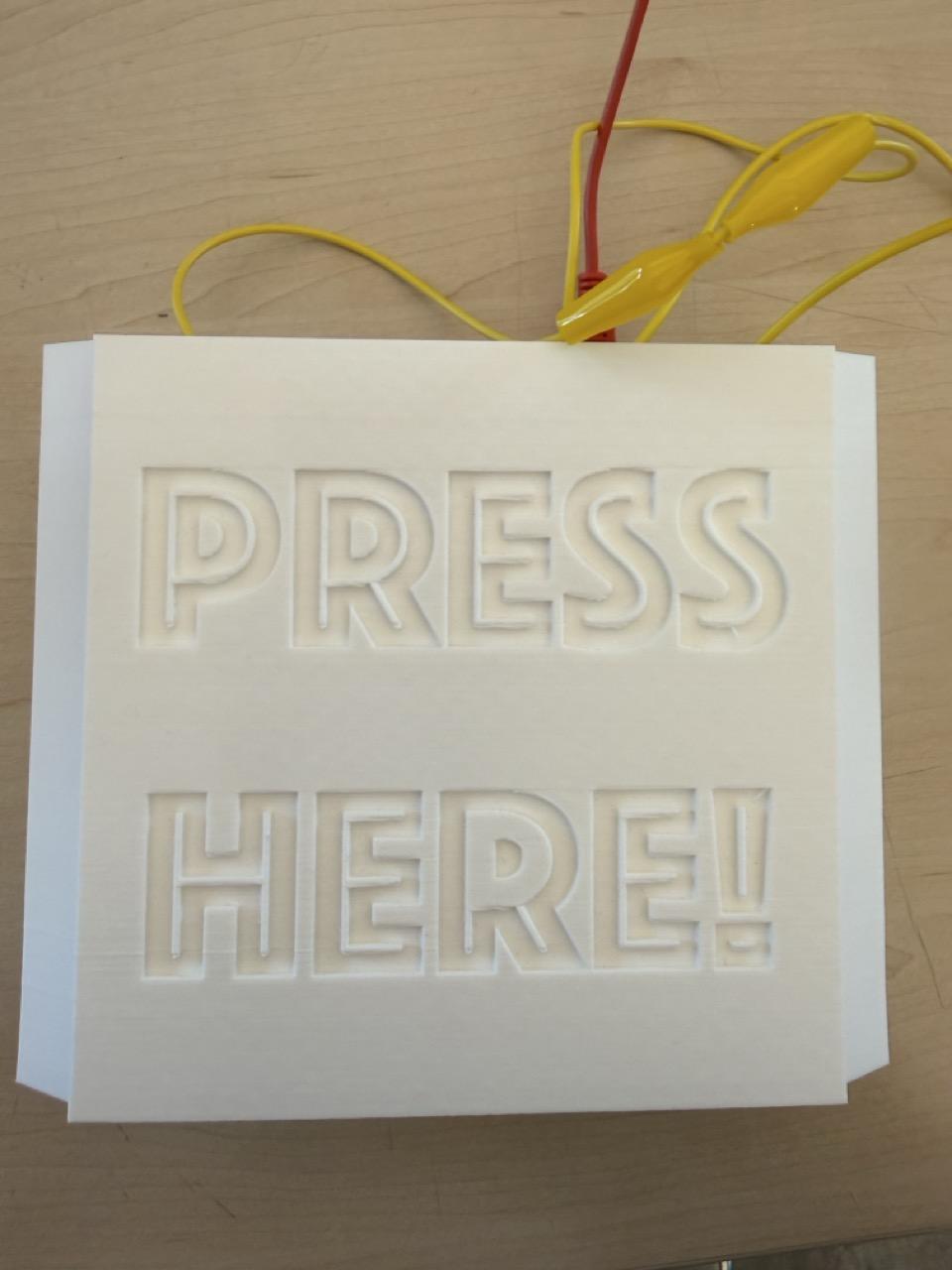
This project provides a large adaptive button designed for children with cerebral palsy. By replacing standard keyboard inputs with a broad, easy-to-press surface, we remove the physical barriers to simple computer games like the Chrome Dinosaur jump game.
The Need for Adaptive Design
Standard keyboards require fine motor precision and specific finger pressure that can be frustrating or impossible for those with motor challenges. This button allows users to trigger a "spacebar" or "click" using whichever movement is most reliable, be it a foot, an arm, or a head.
The Goal: Inclusion through Play
The heart of this project is inclusive play. By creating an affordable, DIY alternative to expensive assistive tech, we ensure more children can participate in classroom or therapy-based gaming, building confidence and independence along the way.
What You Will Build
This guide covers how to assemble a low-cost device that translates a simple physical press into a digital keystroke, making play accessible for everyone.
Supplies

Button
Makey-Makey
Alligator Clips (2 for one button setup, 3 for a 2 button setup)
Adapter (if needed)
Print the Button

This project features a pre-configured STL file available in the resources. The model is specifically engineered for an adaptive button housing that is durable, large-scale, and simple to put together. Follow these steps to prepare and print your parts.
Step 1: Obtain the Model File
Navigate to the "Files" or "Resources" section of the guide to find the .stl file. Download and save it to a convenient location on your computer. Note that the model is already correctly proportioned; do not adjust the scale unless you have a specific reason to change the physical dimensions.
Step 2: Load the File into Slicing Software
Launch your preferred slicer (such as Cura, PrusaSlicer, or Bambu Studio) and follow these actions:
- Import or drag the file into the workspace.
- Ensure the model is positioned in the center of the print bed.
- Double-check that the scale remains at 100%.
- Note: If the size looks incorrect, ensure your software is using millimeters (mm) as the default unit.
Step 3: Optimal Print Configurations
Because these buttons are intended for frequent use, these settings focus on structural integrity and longevity:
- Material: PLA is best for ease of use, while PETG offers better impact resistance.
- Layer Height: 0.2 mm provides a good balance of speed and detail.
- Infill: 20–30% (using Gyroid or Grid patterns). Bump this to 40% for heavy-duty use.
- Shells: 3–4 wall loops for better side-wall strength.
- Top/Bottom Layers: Use at least 4–5 solid layers.
- Supports: This design is optimized to print without any support structures.
- Adhesion: Use a brim if you are worried about the corners warping or lifting.
Step 4: Proper Orientation
To ensure the part is strong and looks professional, it must be oriented correctly on the build plate:
- The front side must go down. (The side with the accordion flexing joints) Image Shown Above
Step 5: Execute the Print
Slice the model and use the "Preview" mode to inspect the toolpath for any anomalies. Once confirmed, transfer the G-code to your 3D printer via your preferred method (SD card, USB, or network) and start the job.
Step 6: Finishing Touches
- Wait for the build plate to cool entirely before popping the part off to prevent warping.
- Peel away the brim if you used one.
- If any edges feel sharp, use fine-grit sandpaper to smooth them down for a safer user experience.
Why These Settings Matter
Since this device is built for children with cerebral palsy, it needs to withstand significant, sometimes uneven force. By increasing the wall count and infill, you ensure the housing remains intact under pressure. Additionally, a smooth finish is vital for users with limited fine motor skills to prevent skin irritation and ensure ease of activation.
Downloads
Tape the Roof & Top Button

The Button Roof: Apply a piece of copper tape across the top of the inside surface of the button.
Accessibility: If your design requires it, wrap the ends around to the topside. This ensures that when the button is pressed, the copper surface is positioned to make a clean connection with the ceiling of the housing while remaining hidden from the outside.
Tape the Arch
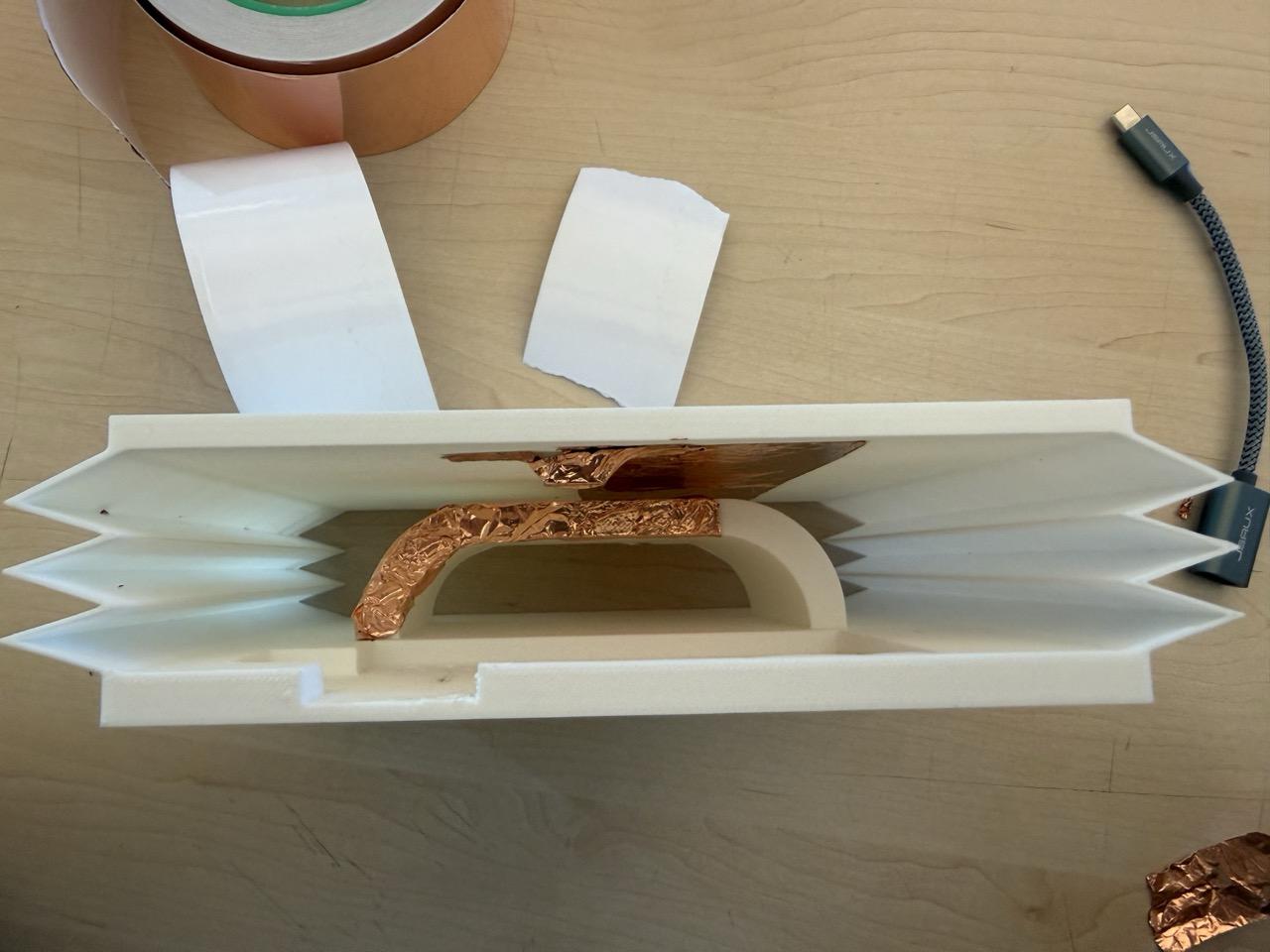
The Arch Roof: Apply a strip of copper tape to the roof of the arch (the underside where the button will meet the frame).
The Bridge: Continue that same strip of tape all the way down the side of the arch to the base.
Reliability: Ensure the tape is pressed firmly into the corners of the 3D print so it doesn't peel or snag when the button moves.
Configure the Makey-makey

Earth Connection: Clip one alligator clip to the "Earth" bar at the bottom of the Makey Makey. This wire will eventually be attached to the copper tape on your arch.
Input Connection: Clip a second alligator clip to your desired key bind (like Space or Click). This wire will be attached to the outcropping on the ceiling of the button.
Power: Plug the USB cable into your computer.
Finishing Touches
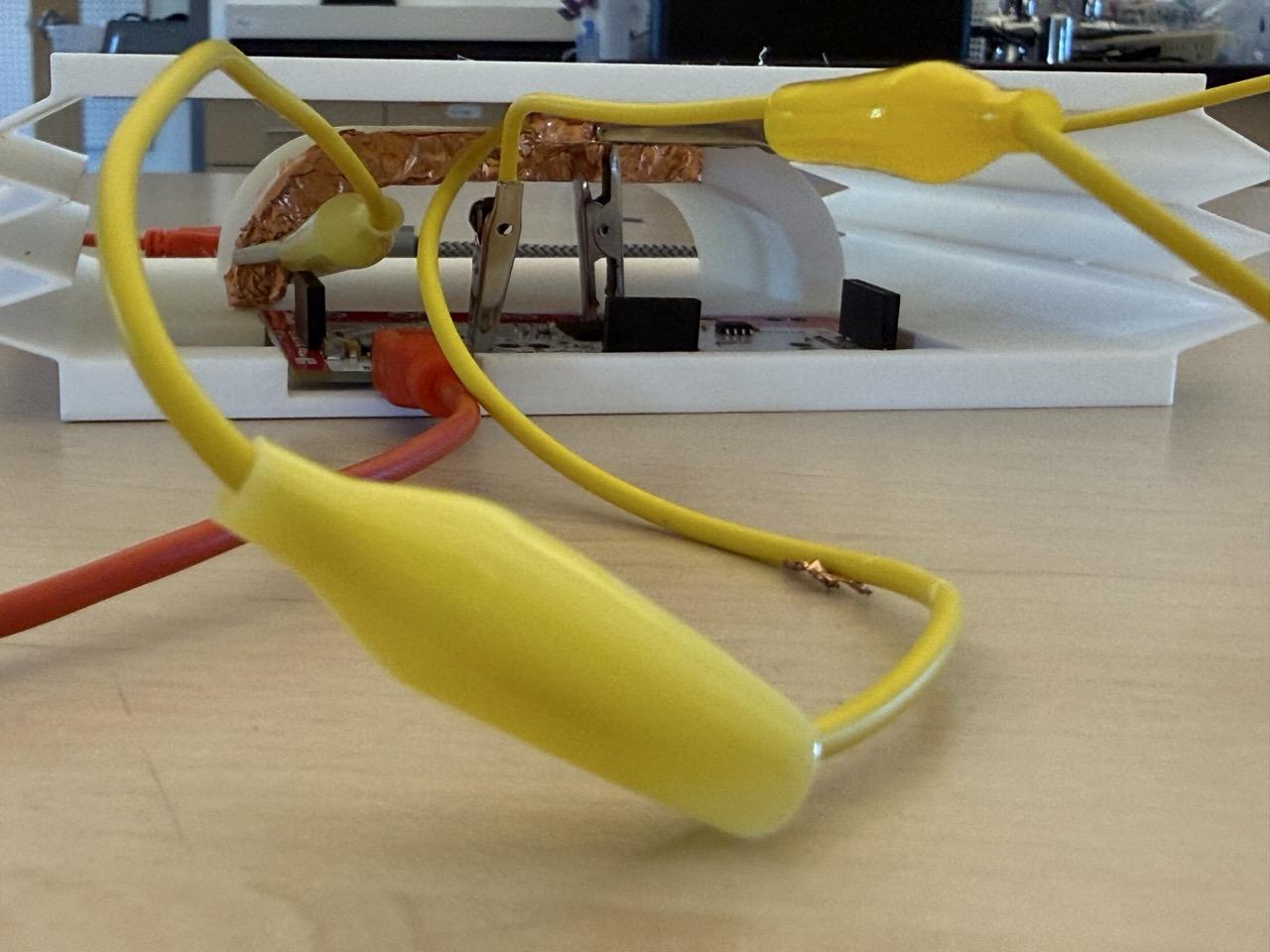
Setup
The Arch: Attach the Earth alligator clip to the copper tape at the base of the arch.
The Ceiling: Attach the Key Bind alligator clip to the copper tape on the outcropping on the roof of your button.
Testing: Press the button! When the copper on the button touches the copper on the outcropping, it completes the circuit and sends the keypress to your computer.
Placement
Single Button: If you are building a standalone unit, carefully insert the Makey Makey into the dedicated slot inside the button housing. Ensure the wires are tucked away so they don't interfere with the button's travel.
Dual Button: If your project involves two or more buttons, keep the Makey Makey outside the housing. This allows you to centralize the board and run clips to multiple 3D prints simultaneously.