Adaptive Two-Button Joystick for Makey-Makey (Accessible Game Controller)
by TheMosster037934 in Circuits > Assistive Tech
128 Views, 0 Favorites, 0 Comments
Adaptive Two-Button Joystick for Makey-Makey (Accessible Game Controller)
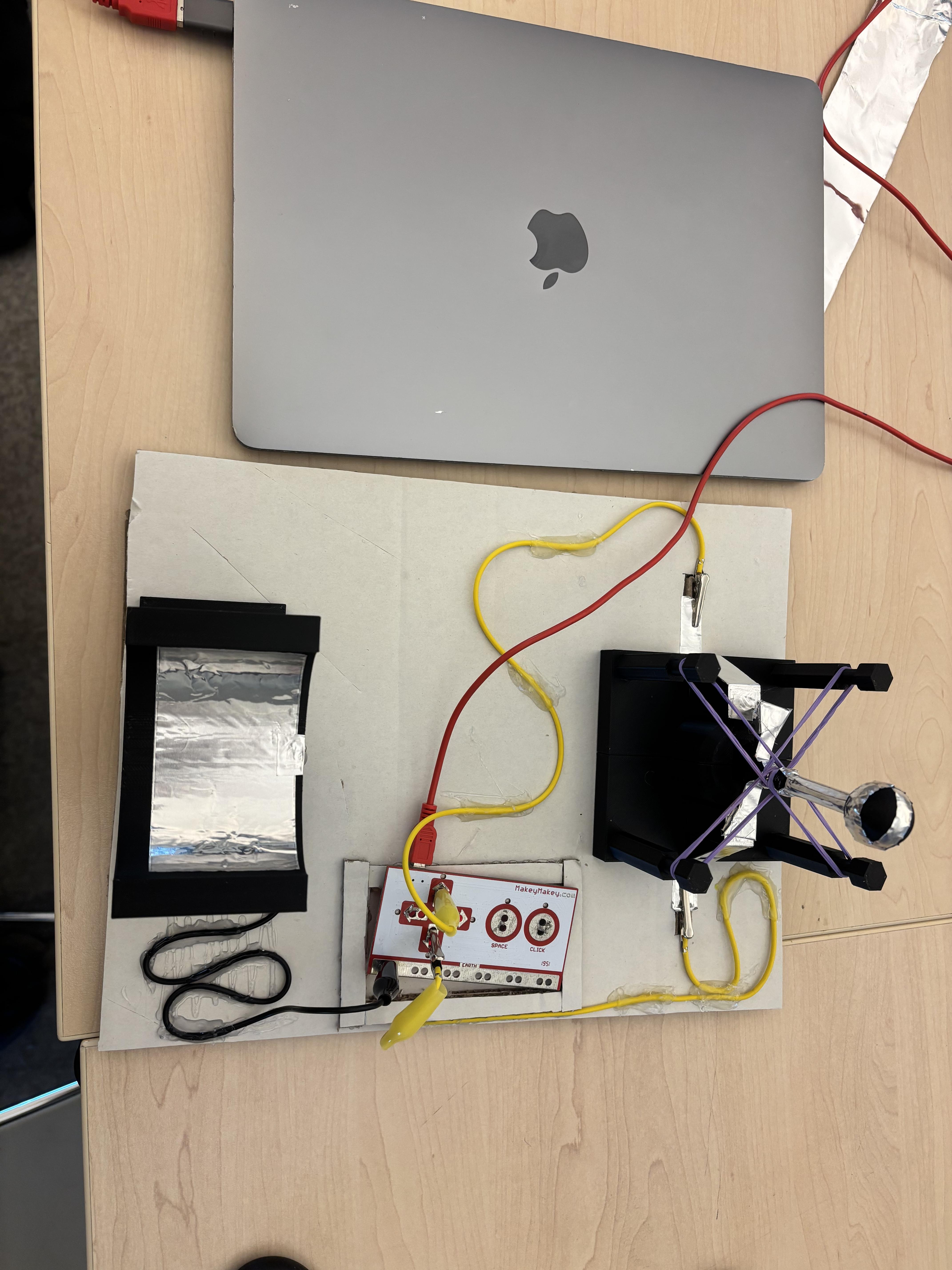
Description:
This adaptive joystick is designed for use with a Makey Makey controller and serves as a simple, intuitive input device for two-function gameplay. It provides up/down (two-input) functionality, making it ideal for games that rely on quick, single-direction responses such as the Chrome Dinosaur game, Geometry Dash, or other two-button reaction games.
The controller is intentionally designed with accessibility as its primary focus. Its larger surface area and simplified movement reduce the need for fine motor control, allowing individuals with limited hand or arm dexterity to interact with digital games more comfortably and effectively. By minimizing small, precise movements and instead emphasizing broader, controlled motion, the design makes gameplay more inclusive.
This project demonstrates how digital fabrication and thoughtful design can be used to create affordable adaptive technology solutions that expand access to everyday digital experiences.
Supplies
-3D printed Joystick and Armrest
-1 Makey Makey
-3 alligator clip cords
-Copper Tape (about 2 feet)
-Hot Glue Gun
-4 Rubber Bands
-Cardboard base (about 18in by 10in)
-Makey Makey to computer adapter (micro-USB to computer cable)
3D Printing the Controller (Using the Provided STL File)
This project includes a ready-to-print STL file in the Instructable resources. The STL file contains the 3D model for the adaptive button housing, designed to be large, sturdy, and easy to assemble.
Below is a step-by-step guide to successfully print the part.
Step 1: Download the STL File
- Scroll to the “Files” or “Resources” section of this Instructable.
- Download the provided .stl file to your computer.
- Save it somewhere easy to access (like your Desktop or a project folder).
The STL file is already scaled to the correct size. You do not need to resize it
Step 2: Import the STL into Your Slicer
Open your preferred slicer software, such as:
- Ultimaker Cura
- PrusaSlicer
- Bambu Studio
Then:
- Click “Import” or drag the STL file into the slicer.
- Confirm the model appears centered on the build plate.
- Verify that the scale is set to 100%.
If the part appears extremely small or large, check that your slicer is set to millimeters (mm), which is standard for STL files.
Step 4: Part Orientation
It is designed to be printed as currently oriented. Do not change the orientation.
Step 5: Start the Print
- Slice the model.
- Preview the layers to confirm everything looks correct.
- Send the file to your printer (via SD card, USB, or WiFi depending on your setup).
- Begin printing.
Print time is typically:
- 2 hours, depending on printer speed and infill settings.
Step 6: Post-Processing
After printing:
- Allow the part to cool completely before removing it from the build plate.
- Remove any brim or support material carefully.
- Lightly sand edges if needed for comfort and safety (especially important since this device is for children).
You should now have a sturdy housing ready for wiring and orientation
Assembly
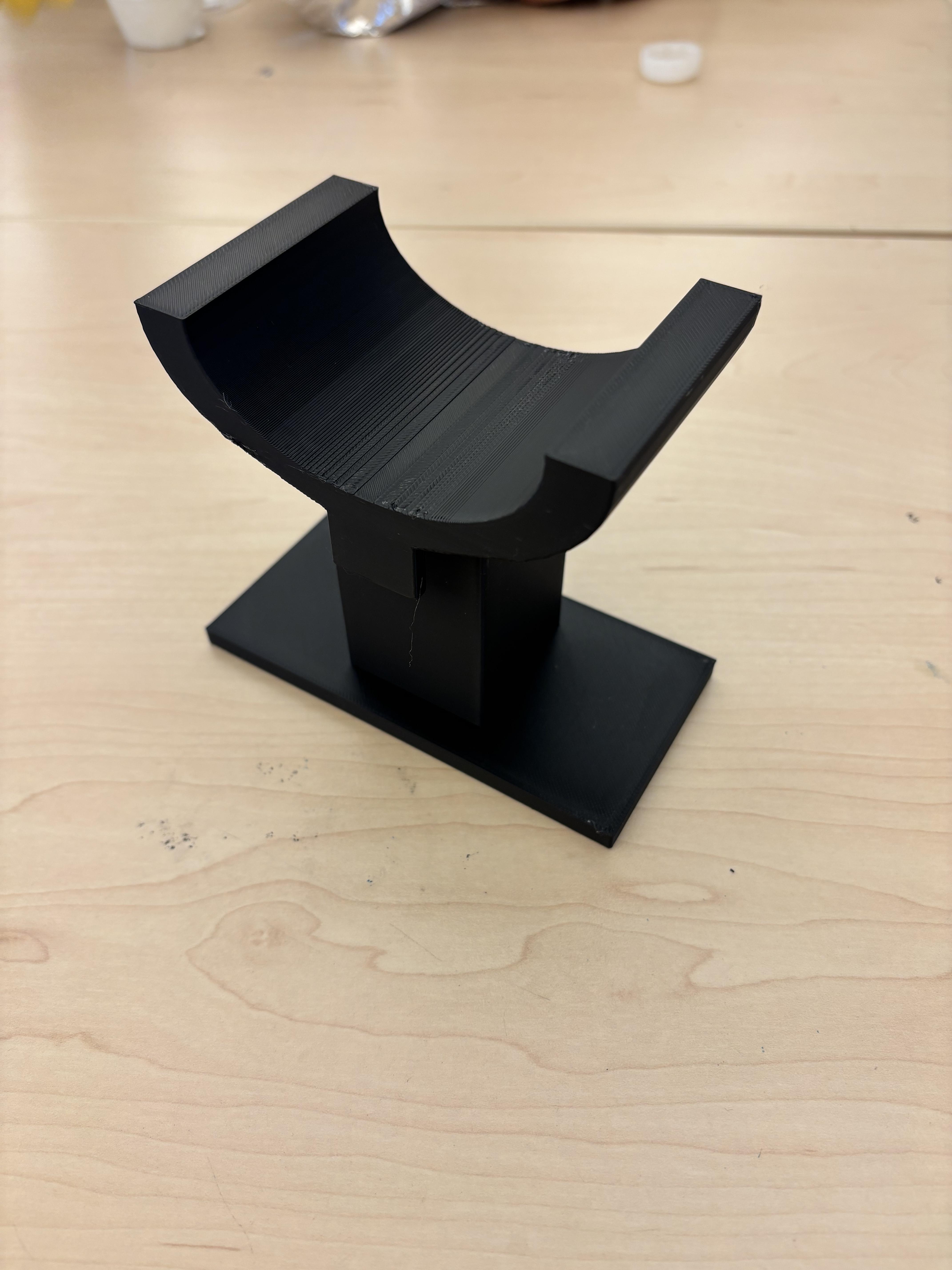


Take all 3D printed housing pieces, and assemble them. The armrest does not require any assembly. The joystick and it's base require assembly, which simply involves pushing the two pieces together, such that the connector pieces on one side slide into the connector holes on the other. The joystick will need to be inserted between the two pieces before they are attached. You may use glue as a secondary and stronger method to attach them.
Wiring the Joystick


You will need to run copper tape on parts of the build so it is able to complete the circuit. The armrest simply requires one large strip in the center, and another small pice on the connector area. The main housing requires two thin strips on each side"button" area, where the joystick will make contact. The joystick requires two strips that go from the bottom of the connecting parts, up to the top, and a third piece to wrap around the top, to maximize conductivity from your hand to the joystick. The final photo is what a fully wired joystick looks like.
Wiring the Base


The above photos demonstrate the correct way to set up and wire the base. This build utilizes a cardboard base to keep the pieces from moving, and they are glued onto the cardboard. The wiring should be done as demonstrated in the photos. Rubber bands should be twisted back on themselves, and put on the posts of the base to provide tension for the joystick.
PLAY!
