AeroVane: IoT Environmental Station & DIY Wind Direction Sensor (Pico W)
by Khairul Iman in Circuits > Microcontrollers
99 Views, 0 Favorites, 0 Comments
AeroVane: IoT Environmental Station & DIY Wind Direction Sensor (Pico W)
.png)
Monitoring local weather conditions is crucial for understanding daily comfort levels and predicting incoming rain or storms. In this project, we built AeroVane, a robust outdoor weather station that measures wind direction, temperature, humidity and atmospheric pressure.
Unlike standard weather stations, we modified a manual wind vane into a digital IoT sensor using Hall effect sensors and magnets. The system is powered by a Raspberry Pi Pico W, sending real-time data to a cloud dashboard via MQTT.
What you will learn:
- Fabricate a DIY Wind Direction Sensor: Go beyond off-the-shelf components by building a custom Wind Vane. You will learn how to use Hall effect sensors and magnets to detect wind direction and calibrate the raw signals into compass headings (N, NE, E, etc.).
- Integrate Multi-Protocol Sensors: Learn to wire and code multiple environmental sensors (Humidity, Temperature, and Air Pressure) using a Raspberry Pi Pico W, managing different communication protocols like I2C and digital GPIO.
- Connect to the Cloud via HTTP API: Instead of complex protocols, you will learn how to use standard HTTP/HTTPS requests to publish sensor data securely and reliably to the ThingSpeak platform.
- Visualize Data on a Dashboard: Create a user-friendly, real-time monitoring dashboard to visualize live weather conditions and historical trends, making your data accessible to anyone with a web link.
- Optimize for Remote Power (Battery Life): Learn software techniques for power management (such as Deep Sleep modes) to keep a WiFi-connected device running for at least 7 days on a standard power bank.
- Hack a Mechanical Wind Vane for Digital Data: Learn the engineering behind converting physical movement into digital signals. You will see how to retrofit a mechanical vane with magnets and electronics (like Hall effect sensors) to read wind direction via a microcontroller.
- Weatherproof Electronics for Outdoor Use: Master the techniques required to protect sensitive microcontrollers and sensors from rain, humidity and heat. You will learn how to design a robust enclosure that ensures your IoT station survives the elements for long-term deployment.
Supplies
To build the weather station, we will need:
Electronic Part
- Hall Magnetic Field Sensor 3144 Module KY-003 - 4 units
- DHT22 temperature and humidity sensor- 1 Unit
- BMP180 pressure sensor - 1 Unit
- Various Jumper Wire
- Raspberry Pi Pico - 1 Unit
- breadboard - 1 Unit
- Micro USB Cable - 1 Unit
Model Part
- Electrical box enclosure - 2 Unit if small box
- PVC Pipe SCH40
- Plastic Board
- Bolts and Nuts
- Threaded Rods
Tools
- Drill
- Pipe Saw
- Soldering Iron
- Spanner Set
Temperature and Humidity Sensor (DHT22 & Housing)
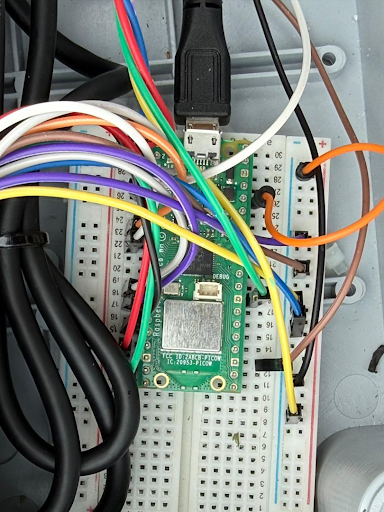
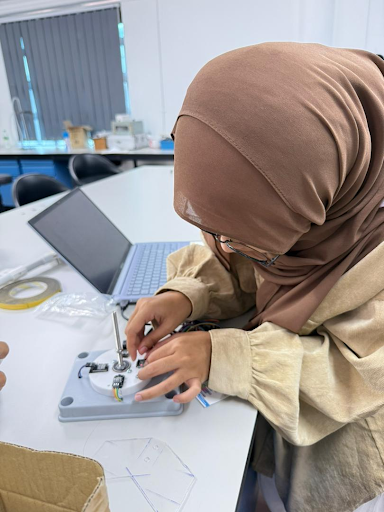

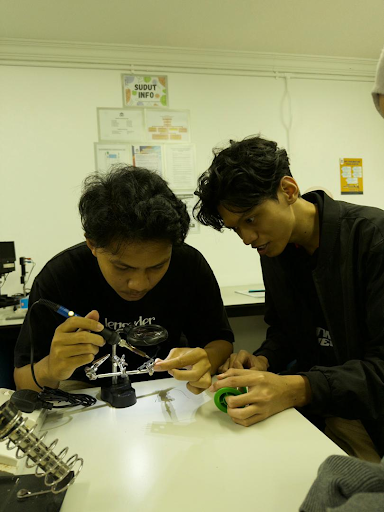
To monitor the microclimate, we utilized the DHT22 sensor for its reliability in measuring both temperature and humidity.
Wiring the Sensor: We connected the sensor to the microcontroller using jumper wires on the breadboard. The connections are as follows:
- VCC: Connect to the 3.3V pin on the microcontroller.
- Data: Connect to any available GPIO pin.
- GND: Connect to a ground (GND) pin.
We ensured all pins are securely seated in the breadboard and aligned correctly with our defined GPIO pins in the code.
The Stevenson Screen (3D Printed Enclosure): To protect the sensor from direct sunlight (which causes heat spikes) and rain, while still allowing air to circulate, we housed it inside a Stevenson Screen. This ensures our data reflects the ambient air temperature rather than the heat of the sun.
3D Files & Modifications: We credited the original design to Giovanni Aggiustatutto (link below). However, we modified the 3D files by resizing the model to be larger. We customized the dimensions specifically to ensure that the mechanical bearing for our wind vane assembly would fit perfectly into the printed structure.
Once printed, we stacked the layers and secured the entire assembly using two threaded rods.
- Original Model Source: DIY Weather Station With ESP32 by Giovanni Aggiustatutto
DIY Wind Direction Sensor (Wind Vane)
.png)
.png)
.png)
.png)
.png)
To determine the wind direction, we fabricated a custom Wind Vane using the Hall Effect principle, effectively "hacking" a mechanical spinner to become a digital instrument.
Mounting the Electronics (The "Clay Hack"): We utilized four KY-003 Hall Effect Magnetic Sensors (3144).
- The 3D-printed base was flat, which meant the sensors sat too low to be detected by the magnet in the upper section.
- To solve this, we used plasticine clay to create raised mounts. We placed the clay on the flat base, then pressed the sensors into the clay to elevate them.
- This allowed us to manually adjust the height of the sensors until they were perfectly aligned with the rotating magnet.
The 8-Direction Logic: To achieve higher precision, we relied on the magnet's position relative to the sensors:
- Cardinal Directions: As the wind vane spins, a magnet mounted on the rotating upper section activates a single corresponding sensor.
- Intermediate Directions: For directions such as North-East, the magnet triggers two adjacent sensors (North and East) simultaneously. Our software (explained in Step 3) interprets this dual signal as the intermediate direction.
Assembly & Protection: The rotating upper part holds the magnet and doubles as a rain shield for the electronics. The assembly is secured onto a threaded rod using a self-locking nut. This ensures the vane stays attached even during strong wind gusts while shielding the sensitive sensors below from water.
Calibration: To ensure our data was accurate, we calibrated the device using a standard compass. During installation, we used the compass to find magnetic North and physically aligned the sensor enclosure so that the "North" Hall effect sensor faced exactly towards magnetic North.
3D Files & Modifications: We utilized the original 3D models designed by Giovanni Aggiustatutto. However, we modified the design by increasing the scale/size of the models. We did this to ensure that standard mechanical bearing would fit perfectly into the printed housing, ensuring smooth rotation.
Original Model Source: DIY Weather Station With ESP32 by Giovanni Aggiustatutto
The Code (The Brain)
If the sensors are the eyes and ears of our weather station, the code is its Brain.
Without this logic, our hardware is just a collection of wires and plastic. We used Thonny IDE to upload this "brain" into the Raspberry Pi Pico W. Written in MicroPython, this software is responsible for thinking, making decisions and managing energy.
It performs three critical "brain functions":
- Interpreting Senses: It translates raw magnetic signals from the wind vane into actual directions (North, South, etc.).
- Survival (Resilience): It decides what to do if the WiFi fails (it doesn't panic; it saves the memory and tries again later).
- Rest (Efficiency): It puts the body to sleep to conserve energy, waking up only when needed.
Below, we have dissected the code into its specific functional parts.
Part 1: Configuration & Pin Definitions
This section sets the rules for the system. We define which "nerves" (GPIO pins) connect to which sensors and set the "heartbeat" (update interval) to 30 minutes to ensure the battery lasts 7 days.
Python
Part 2: The Logic (Wind Direction Mapping)
This is the creative part of the brain. The code reads the 4 Hall effect sensors and uses logic to determine the wind direction. It is smart enough to know that if two sensors (e.g., North and East) are triggered at the same time, the wind is blowing North-East.
Python
Part 3: Survival Mode (WiFi Fallback)
A smart brain adapts to problems. We built a Retry Loop so that if the campus WiFi is down, the system attempts to reconnect 10 times. If it still fails, it doesn't crash, it simply turns off the radio to save power and waits for the next cycle.
Python
Part 4: Energy Management (Deep Sleep)
To survive for 7 days on battery power, the brain must rest. We implemented lightsleep, which puts the processor into a low-power state and completely shuts down the WiFi modem between readings.
Pyton
The Cloud (ThingSpeak Backend)
.png)
.png)
.png)
Now that our "brain" (the Pico W) is collecting data, we need a place to store it. We chose ThingSpeak as our cloud platform because it is optimized for IoT and integrates seamlessly with MicroPython.
This step covers how we configured the backend to receive data from our sensors.
1. Creating the Channel: We signed up for a free ThingSpeak account and created a new channel named "DIY SENSOR". Inside the channel settings, we enabled four fields to match our sensor data:
- Field 1: Wind Direction (Integer 1-8)
- Field 2: Temperature (°C)
- Field 3: Humidity (%)
- Field 4: Air Pressure (hPa)
2. Connecting Code to Cloud (API Keys): To allow our Pico W to "write" data to this channel, we needed a security key.
- We navigated to the API Keys tab in ThingSpeak.
- We copied the "Write API Key".
- We pasted this key into our MicroPython code (specifically in the secrets.py file or the THINGSPEAK_API_KEY variable).
3. Verifying the Connection: Once the code was uploaded to Pico W, we opened the "Private View" tab on ThingSpeak. As the data stream started coming in, the standard charts began to populate automatically every 30 minutes.
Note on Visualization: While these standard ThingSpeak charts are great for debugging and checking history, they aren't very "user-friendly" for general viewing. In the next step (Step 5), we will create a custom Frontend Dashboard to visualize this data in a much more beautiful and accessible way.
The Frontend Dashboard (AeroVane UI)
.png)
.png)
.png)
.png)
.png)
.png)
While ThingSpeak acts as our backend "database," we wanted the public face of our project to be more engaging and user-friendly. We developed a custom web-based dashboard named "AeroVane" to visualize the data in a clean, modern interface.
Design Concept: We chose a soft pastel color palette (light cream and brown tones) to give the dashboard a modern and approachable look. The interface was designed to be "glanceable," meaning a user can understand the current campus weather in seconds without analyzing complex graphs.
Key Features:
- Real-Time Data Cards: The dashboard is divided into summary cards that display the latest readings:
- Temperature & Humidity: Displayed in clear metric units (°C and %) with line charts showing the trend over the last 7 days.
- Wind Direction: Crucially, this widget translates the raw sensor codes (1-8) into a visual compass dial, making it easy for anyone to see the wind flow (e.g., "East") at a glance.
- Mobile-Responsive Design: We recognized that students are always on the move. Therefore, we designed the dashboard to be fully mobile-friendly. The layout automatically adapts to different screen sizes, ensuring that the interface looks perfect whether viewed on a large desktop monitor or a small smartphone screen.
- Night Mode (Dark Theme): To improve accessibility and usability in low-light environments, we implemented a Night Mode toggle. With a single click, the entire interface switches to a dark, high-contrast theme. This reduces eye strain for users checking the weather at night.
- System Health Monitor: To ensure transparency, we included a "System Information" panel. This allows users to verify the reliability of the data instantly:
- Status: LIVE: Confirms the device is currently online.
- Last Update: Shows the exact timestamp of the most recent data packet.
- Total Updates: A running counter (e.g., "289") that serves as proof of our system's longevity.
- Smart Update Timer: Since our device uses a "Deep Sleep" mechanism to save battery, it only sends data every 30 minutes. To improve the User Experience (UX), we added a "Next Update In" countdown timer. This manages user expectations, letting them know exactly when fresh data will arrive.
- Data Export: For researchers or students who want to analyze the environmental trends, we implemented a "Download Excel (7 Days)" button. This allows users to instantly retrieve the full dataset collected over the project's lifespan.
A Note on Air Pressure Data: You might notice the Air Pressure reading currently displays "N/A". Initially, the system successfully transmitted pressure data. However, during the deployment week, the BMP180 sensor suddenly stopped sending data, even though the device was untouched and physically secure. Diagnosing and fixing this specific hardware communication failure in the field was beyond our current technical capabilities. Rather than risking the rest of the system by attempting a repair we didn't fully understand, we decided to let the Wind Direction, Temperature and Humidity sensors which were functioning perfectly to continue their work.
Technical Implementation (Linking Backend to Frontend): To bridge our hardware with this custom interface, we utilized ThingSpeak's API.
- Channel ID: We configured our code to target the specific Channel ID assigned to our project.
- Write API Key: Used in the Raspberry Pi Pico W (backend) to authorize sending sensor data to the cloud.
- Read API Key: Used in our Dashboard's JavaScript (frontend) to securely fetch the latest JSON data packet and display it on the screen.
Pre-Deployment Validation: the "Group Test"
.png)
Before we headed to Pantai INOS for the official 7-day run, we had to be 100% sure our "hacked" sensor was telling the truth. We couldn't just assume our code was correct; we needed to verify it in the field.
1. Visual Confirmation: We took the AeroVane outside to a breezy corridor on campus laboratory. We performed a simple reality check: we watched the physical wind vane spin and checked our mobile dashboard simultaneously. When the wind blew the wooden tail towards the East, we waited to ensure the dashboard update matched. It did.
2. The "Peer Review" (Side-by-Side Comparison): To be absolutely certain of our accuracy, we performed a benchmark test. We placed our AeroVane unit side-by-side with a weather station built by another student group.
- We let both systems run simultaneously in the same wind conditions.
- By comparing our live data with theirs (and referencing a digital compass), we verified that our "North" was truly North.
- Seeing both independent systems report the same wind direction gave us the confidence to proceed to the final deployment site.
Deployment & 7-Day Field Test
.png)
.png)
.png)
After weeks of designing and coding, it was time for the ultimate test. On Friday, 2nd January 2026, we deployed the AeroVane station to an open grassy area at Pantai INOS, UMT to begin its mandatory 7-day operational run.
The Mission: The goal was simple but challenging: The system had to run continuously until Thursday, 8th January 2026, sending sensor data every 30 minutes without crashing and without running out of battery.
Installation (Ground Deployment Strategy): Since the location was an open space without suitable poles and strict "Leave No Trace" rules prohibited digging, we devised a weighted ground-station design:
- The Chassis: We mounted the entire system (electrical enclosures and wind vane) inside a sturdy, perforated plastic basket. This kept the components organized and allowed for water drainage.
- Stabilization: To prevent the lightweight station from tipping over in coastal breezes, we weighed down the basket with heavy concrete bricks placed in the corners. This kept the station stable without requiring us to stake anything into the ground.
- Identification & Safety: We attached a clear, laminated Information Card to the front of the basket. This card displayed the project name ("AeroVane"), the dates of operation (2-8 Jan), a "Please Do Not Touch" warning and the contact number of our person-in-charge (Danial), ensuring transparency with campus security and passersby.
Powering the Station: Inside the grey electrical enclosure, we placed a 20,000mAh power bank.
Maintenance & Challenges (The "Day 3" Upgrade)
.png)
.png)
IoT systems in the real world rarely run perfectly without intervention. A major part of this assignment was monitoring our station and adapting to changing conditions.
The Challenge: Heavy Rain Forecast On the third day of deployment, our team monitored the local weather reports for Kuala Terengganu and noticed a concerning update: Heavy rain was forecast for the remainder of the week. While our electrical enclosures were rated for outdoor use, the sheer volume of expected rain at the open coastal site (Pantai INOS) posed a risk to the custom 3D-printed parts and the seams of our sensor housing.
The Solution: The "Transparent Shield" We decided to implement an emergency upgrade to guarantee the system's survival.
- The Fix: We procured a transparent plastic container (originally a food storage tub) to act as a secondary waterproof dome.
- Why Transparent? We chose clear plastic so we could still visually inspect the internal status LEDs without lifting the cover.
Execution (Hot Maintenance): The most critical part of this maintenance was preserving our data continuity. We needed to install this shield without powering down the system or disconnecting any wires.
- As shown in the image above, we carefully fitted the plastic container over the central wind vane base.
- We did not touch the wiring, the battery, or the microcontroller.
- The system continued to run and transmit data uninterrupted throughout the entire process.
The Result: This decision saved the project. When the heavy rains arrived later in the week, the water shed harmlessly off the new plastic shield, keeping our critical electronics dry. The system continued to report "LIVE" status on our dashboard until the very last day.
Mission Complete & Disassembly
.png)
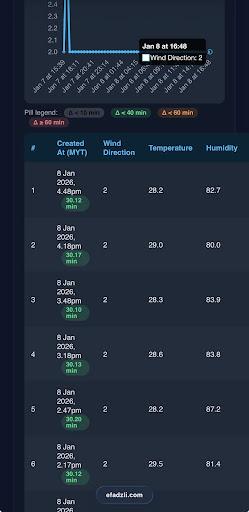
On Thursday, 8th January 2026, exactly 7 days after deployment, we returned to Pantai INOS to officially end the field test. The AeroVane station had successfully met the assignment requirements, running continuously without a single crash or power failure.
System Shutdown: Before touching the device, we performed one final check on the dashboard to confirm it was still "LIVE". Then, we physically approached the station:
- Final Status Check: We opened the enclosure and confirmed the power bank indicators still showed 4/4 bars, proving our power optimization code worked perfectly.
- Power Down: We unplugged the USB cable, officially taking AeroVane offline. The "System Information" on our dashboard stopped updating immediately, marking the end of the dataset.
Site Cleanup (Leave No Trace): In accordance with the "Leave No Trace" policy, we dismantled the ground station with care:
- We removed the concrete bricks used for stabilization.
- We lifted the plastic basket containing the station.
- We did a final sweep of the grassy area to ensure no plastic bits, zip tie cut-offs or debris were left behind.
We left the site exactly as we found it; clean and undisturbed which proves that IoT experiments can be conducted responsibly in public spaces.
Conclusion, Reflections & Gratitude
As we packed up the AeroVane station and walked away from Pantai INOS, we felt a huge sense of relief and pride.
What started as a messy table full of wires, 3D printed parts and balls of plasticine clay eventually became a fully functional, weather-resistant IoT station that survived a week in the wild. Watching the dashboard update every 30 minutes became an addiction for our team. Every successful data packet felt like a small victory.
What We Learned (The Real Stuff): This project taught us that engineering is about adapting.
- The code didn't work perfectly on the first try.
- The 3D models needed small hacks (like our plasticine trick) to fit.
- The weather didn't cooperate, forcing us to improvise a rain shield on Day 3.
Solving those problems on the fly was the most valuable part of the experience. We learned that robustness isn't just about strong hardware. It is about writing smart code that can recover from failure, like our WiFi retry loop.
Future Improvements: We are proud of AeroVane, but we know it isn't perfect. If we were to build Version 2.0, we would:
- Fix the Pressure Sensor: We would definitely address the mystery of the pressure sensor. When we opened the enclosure after the experiment, we were surprised to find that the wiring and breadboard connections were actually perfect, nothing was loose. The data had streamed correctly at the start of the week but then simply disappeared without us touching anything. This suggests the sensor module itself might have frozen or malfunctioned electronically. Next time, we would implement a "watchdog" in our code to detect if a sensor stops talking and automatically restart it in order to prevent the "N/A" error.
- Solar Power: Since our battery efficiency was so high (still full after 7 days!), adding a small 5V solar panel would make this system truly autonomous, allowing it to run for years, not just weeks.
Acknowledgements: We want to express our deepest gratitude to our lecturer, Dr. Engku Fadzli Hasan, for guiding us through the CSM3313 IoT Computing course. This assignment pushed us out of the classroom and into the real world, forcing us to think like real engineers.
This project was brought to you by the AeroVane Team: Farah, Safiya, Danial, Iman and Syahmi.
Thank you for reading our journey! We hope this guide inspires you to build your own weather station. Just don't forget the zip ties and the plasticine!