Ai Neuron Cycle

As part of the medical detectives, PLTW gateway, curriculum Students play the role of real-life medical detectives as they collect and analyze medical data to diagnose disease. They solve medical mysteries through hands-on projects and labs, measure and interpret vital signs, examine nervous system structure and function, and investigate disease outbreaks.
In this project we can display the simplest form of the neuron cycle using Ai as a helping tool.
Downloads
Supplies

Material
- 3d printer
- 2 Mircro:bit HummingBird kits
- String
- Cardboard
- Hot glue gun
- 2 straws
3D Prints

3D Print all the part required for the project
- if you have a 3D printer that can print multiple colors at ones you can print with the colors, if not than when printing the neurons you can print them white than paint in the color of choice. Or if you choice you can print the neurons as a single color as well.
Cutting the Base
Cut a 16"x16" square card board for the base of the project.
Preparing the Hand

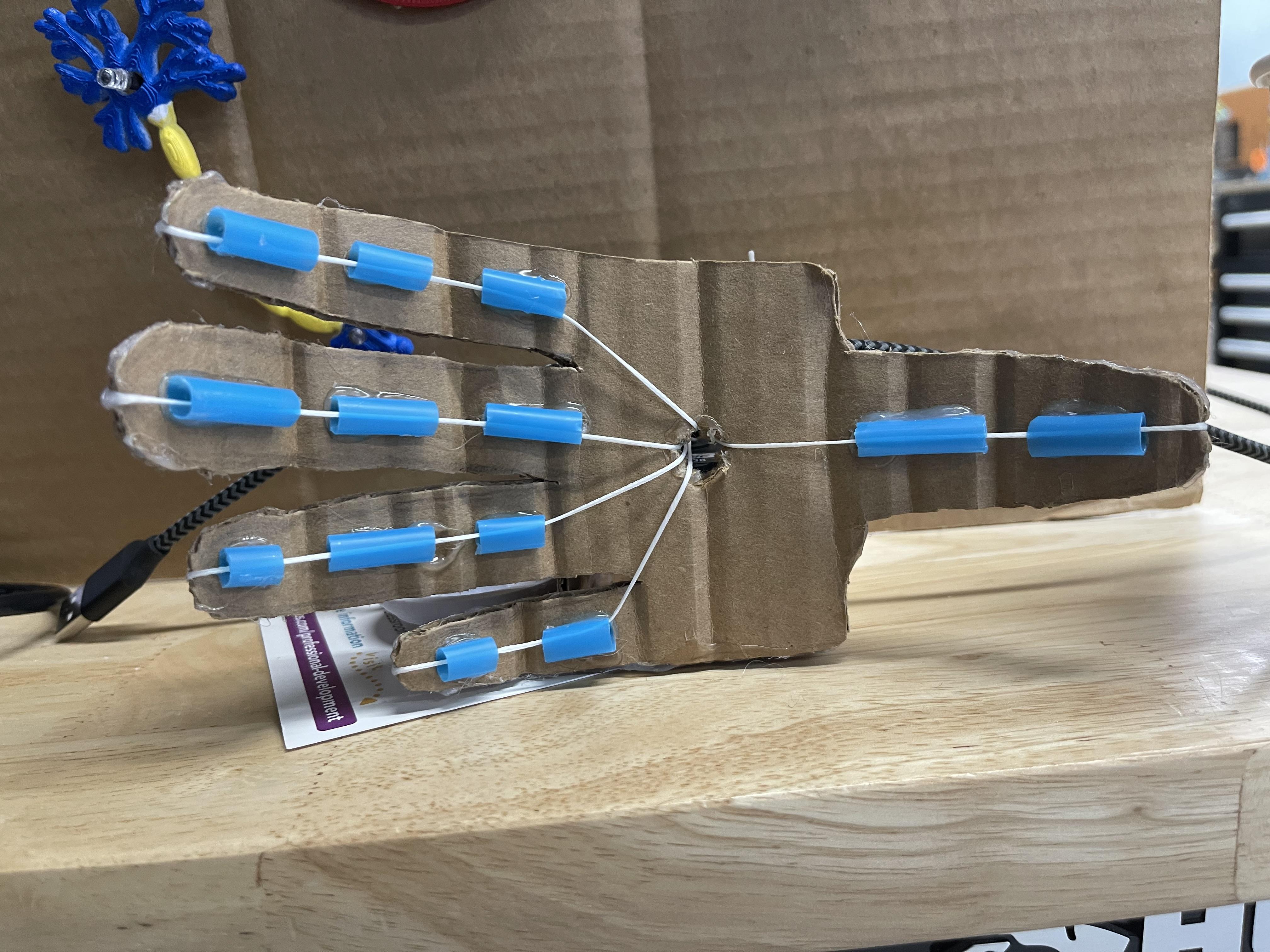
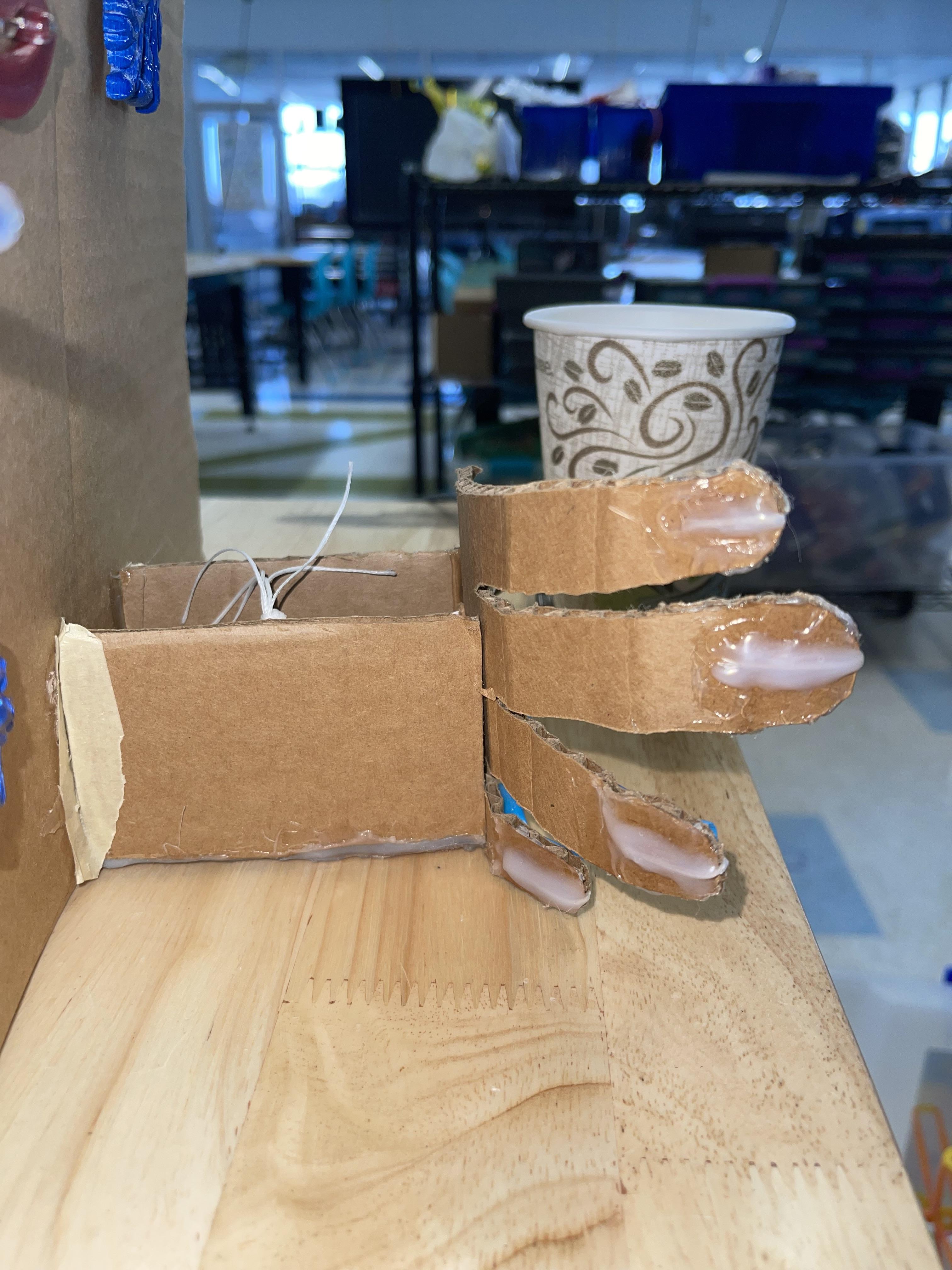


- Cut out the hand using the cardboard. For the hand, you can use an outline of your own hand to make the process easier, but make sure to place the thumb in a way that will make it easier to grab the object.( check image for clarification)
- Cut up the straw into 13, 1 inch pieces.
- Now with the hot glue, stick the straw pieces on to the cardboard hand
- For the hand to be able to move thread the string through the straw and poke a hole in the middle of the hand to bring it to the backside( see image for clarity)
- Make sure to hot glue the string to the back of the fingers to ensure it sticks.
- For the cardboard extension cut 3, 3.5x2.5inch pieces of cardboard and glue them together as shown in the image, after this glue the extension to the hand
- Now grab a position servo from the humming bird kit along with the straight line attachment ( as shown in the image)
- Thread each string through the attachment, see image, than attach it to the servo. tie a knot at the other end of the string to ensure they don't slide out
Setting Up the Pieces on the Base
- Grab 10 led from the humming bird kit
- Roughly lay out where you like to place the 3d printed pieces and the hand
- Once you know where everything will be, start marking where you will need to cut the hole for the led on the base, you will also need a hole for the servo wire so mark that accordingly
- Once everything is marked cut out the holes
- Now hot glue everything in place thread the led and servo through the holes
Downloading the Micro:bit Code and Setting Up the Hummingbird
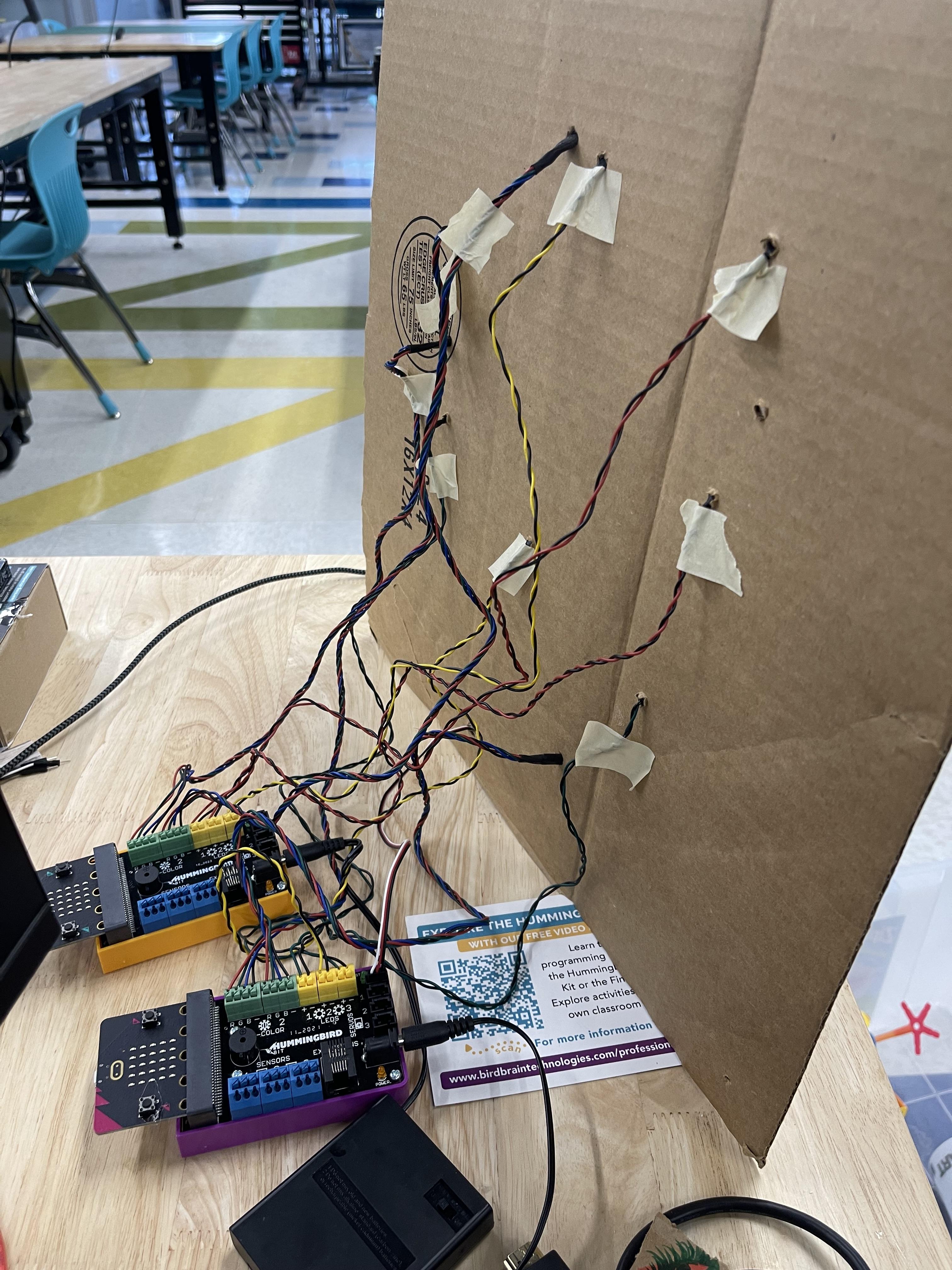

Download the microbit-Ai-Neuronpt1 and microbit-Ai-Neuronpt2
- When you have the code download them into 2 separate mirco:bits
- Once all the lights are threaded through to the back of the base, you can now connect everything to the Hummingbird
- Use the code as a guideline and put the led lights in the ordered you'd like them to go
- Also connect the servo to the humming bird
Don't forget to connect the battery pack included in the kit to the humming birds
Setting Up the Ai
- Using the Ai Training first go to Teachable Machine, here follow the instructions to create classes and train your model (if you need further help understanding teachable machine watching this Video may help)
FINISHED
Everything is setup now all you have to do it have fun with your new Ai powered toy