Animate Comet Showers in Blender
by radicalroundcat in Design > Animation
257 Views, 2 Favorites, 0 Comments
Animate Comet Showers in Blender
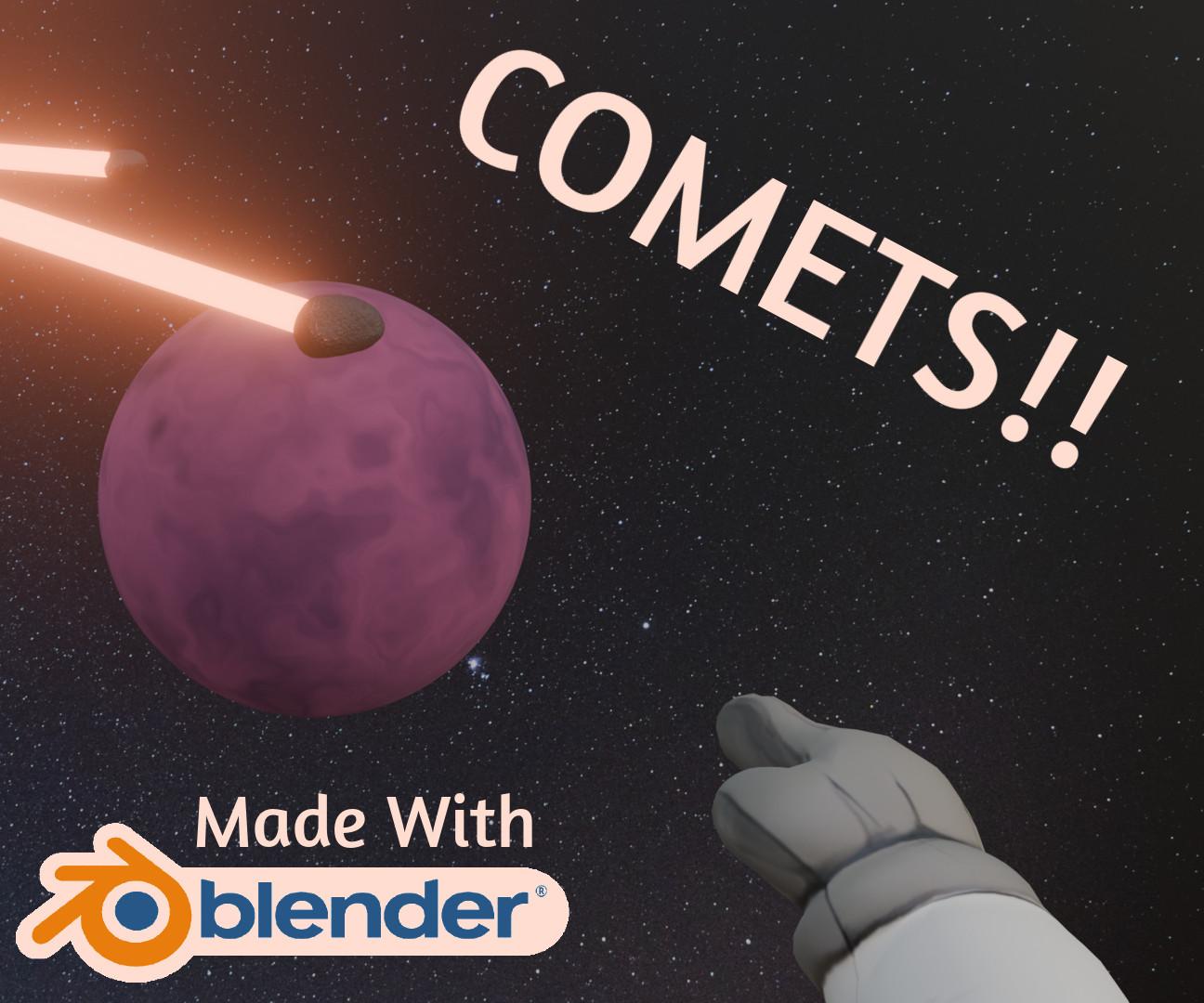
There's something really epic about watching massive comets slowly collide with colossal planets. There's nothing cooler than bright streaks of glaring light flying through the sky. There's also nothing more surreal than not being bound by the force of gravity and being able to float anywhere within reach. Space has ALL of these, so I was inspired to create this scene.
I designed the scene as the first person point of view of an astronaut who has, by dumb luck, stumbled upon a barrage of comets impacting a nearby planet. I wanted to capture the feeling of just being there, unable to easily move away (because you're floating in space), so all you can do is observe the spectacle before you.
Also, funnily enough, while researching for this project, I discovered that there is a meteor shower happening right now on the day of writing this. I might go and check it out now!
Supplies
Model Some Comets
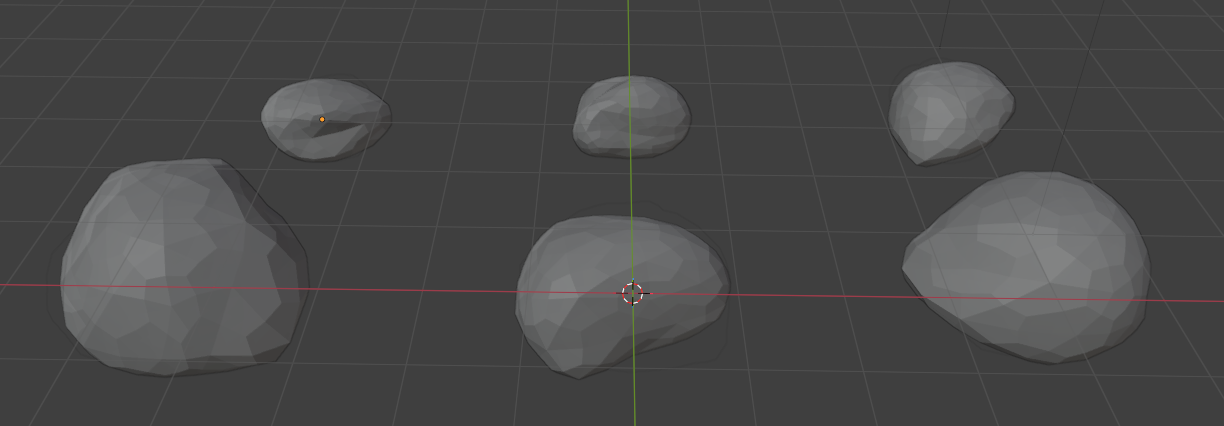

These comets are simple to make with basic geometry. Insert six icospheres and vary their sizes so they aren't identical. Give them a subdivision modifier. Switch to edit mode to move vertices around to create their the rocks' jagged shapes.
Add a Material to the Comets
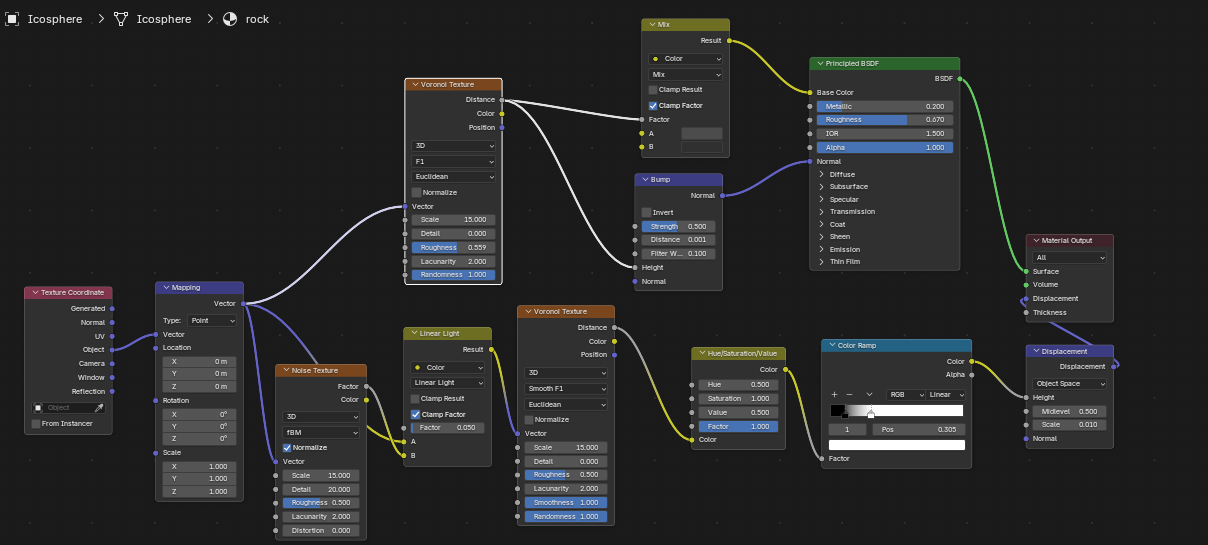
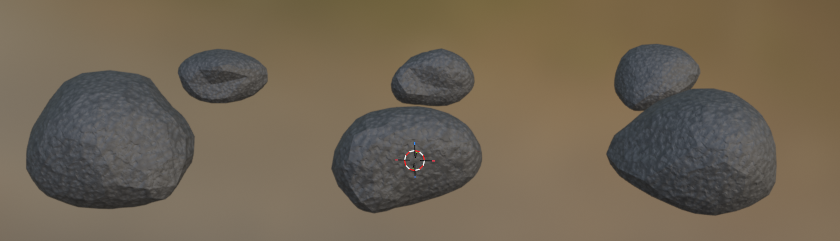
Let's give these comets their rocky surface material using shader nodes.
Switch to the Shading tab, then select one of the comets. Hit the New button to create a new material, then add and connect the nodes shown in the image above.
We use the Texture Coordinates and Mapping nodes to define the shape of the texture and control how it wraps around the model.
The Voronoi Texture in combination with a Mix node is used to create a subtle color variation.
The shader nodes at the bottom give us our texture's random cracks by combining Noise and Voronoi patterns, which get fed into the displacement node to add surface depth.
Create the Planet
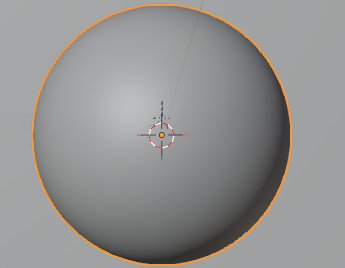
In object mode, create a UV Sphere on the world origin and scale it by six times its original size. Right click and give it smooth shading. You should also give it a subdivision modifier for extra detail.
Give Our Planet a Makeover
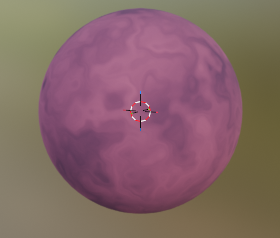
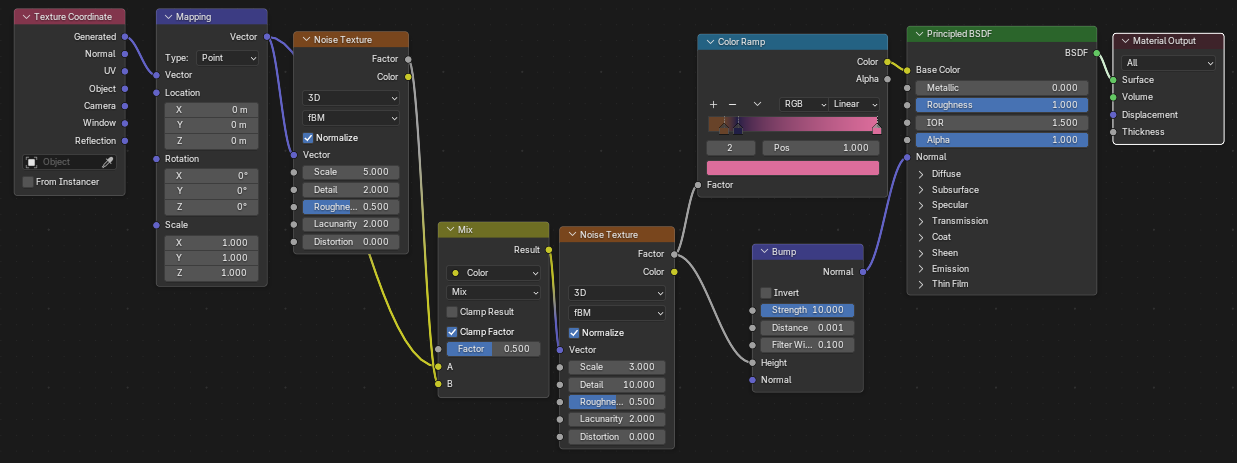
With the planet still selected, head back into the shading tab and create the shader nodes for the planet's texture using the setup shown above.
The most notable thing here is the color ramp. I decided to make it pink with a touch of purple, but you can do whatever peculiar color combination you can think of.
Setup the Scene
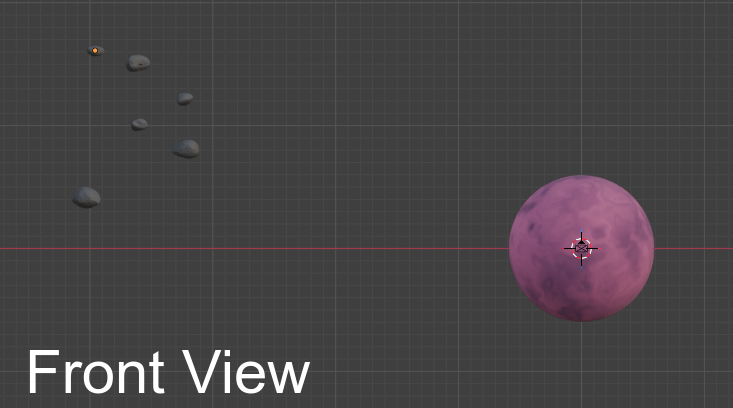
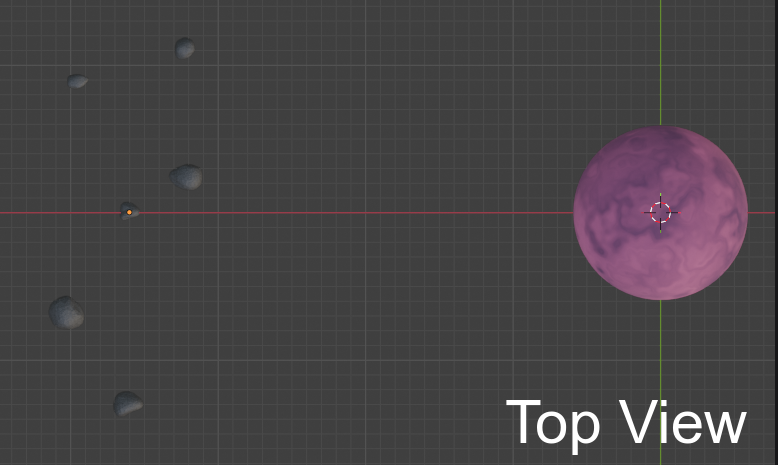
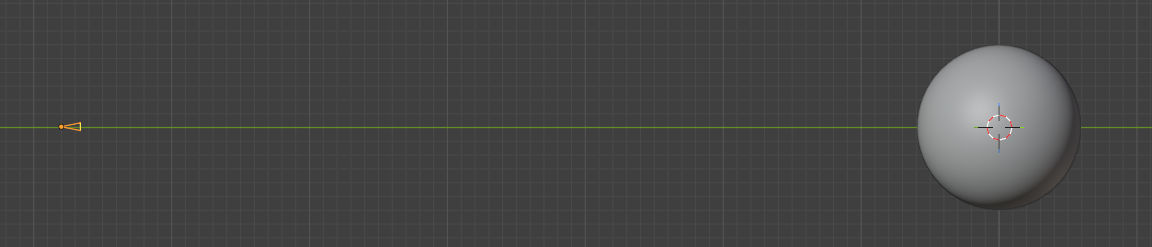
Keep the planet on the scene's center, and position each comets somewhat close to 30 units to its left. These comets are going to be flying towards the planet later. We want some of them to pass by while some collide with the planet, so put some behind and in front of it.
Next, position a camera forward facing about 65 units away from the planet. You can press Numpad 0 to preview the camera any time.
Keyframing the Comets
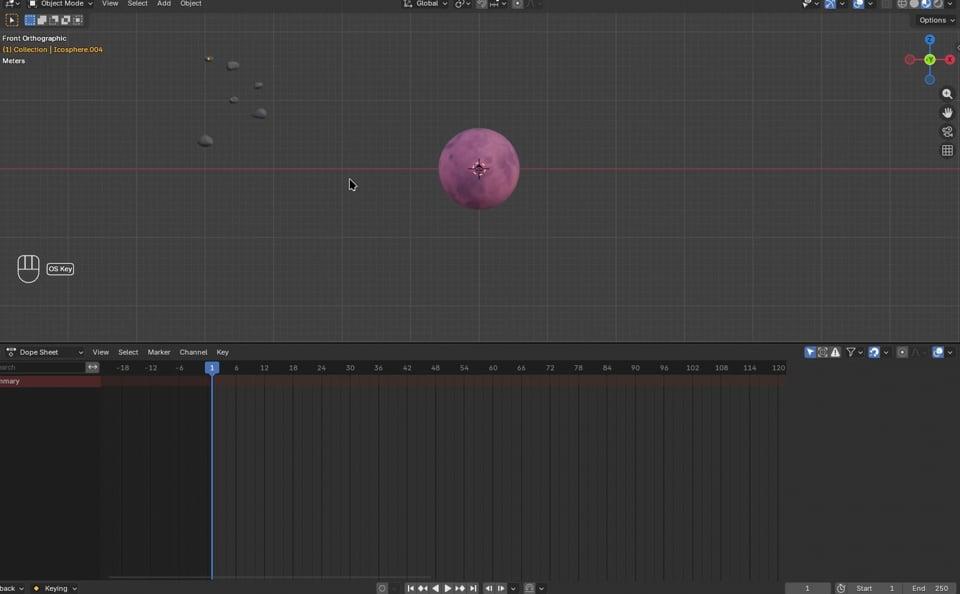
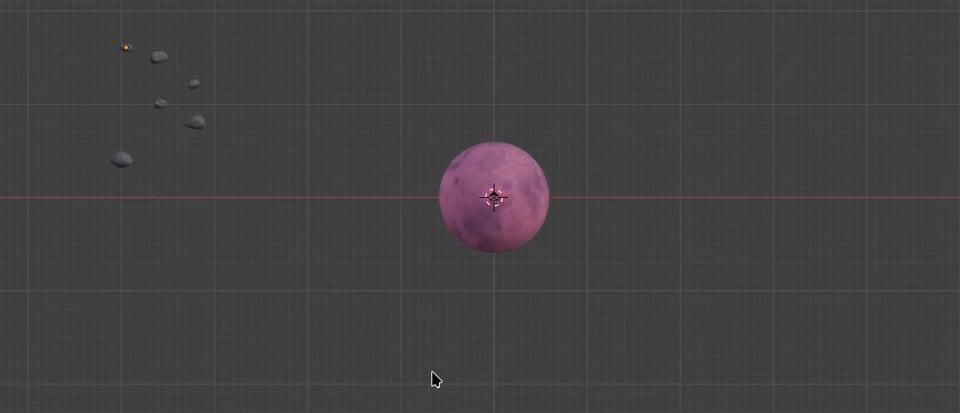
Navigate to the Animation tab with one of your comets selected. Press I to insert its initial position keyframe on the first or zeroth frame. Move the slider to a later frame and move the comet to where you want it to stop, then press I again to insert another keyframe. Repeat the process for each comet.
Remember that the comets closer to the front will appear to be faster, and the comets closer to the back will seem slower, so you should make the distance between the first and last keyframe of each comet smaller or larger depending on whether it's closer or farther from the camera.
After that, you can move both the start and end keyframes to the right, to make the animation start later. This avoids all comets from flying in at once.
Create the Comets' Tails
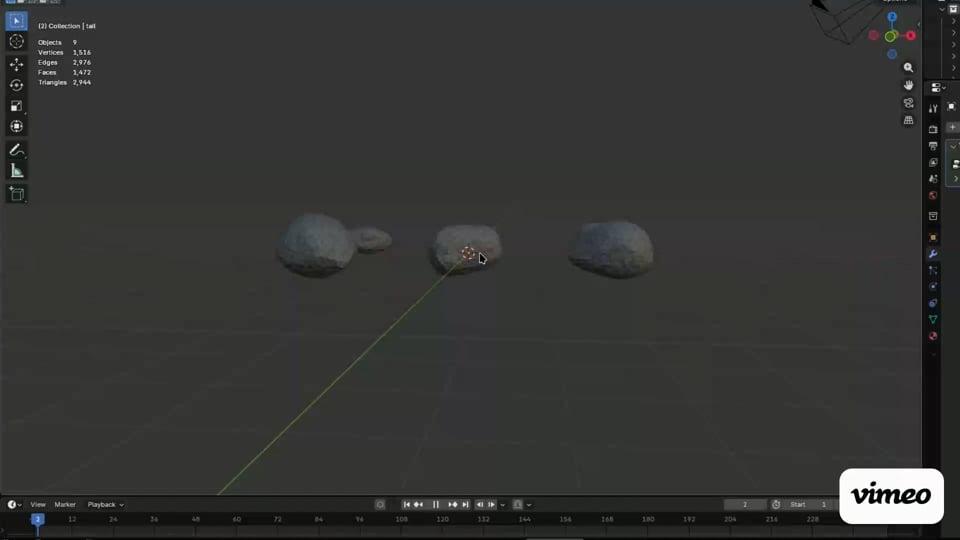
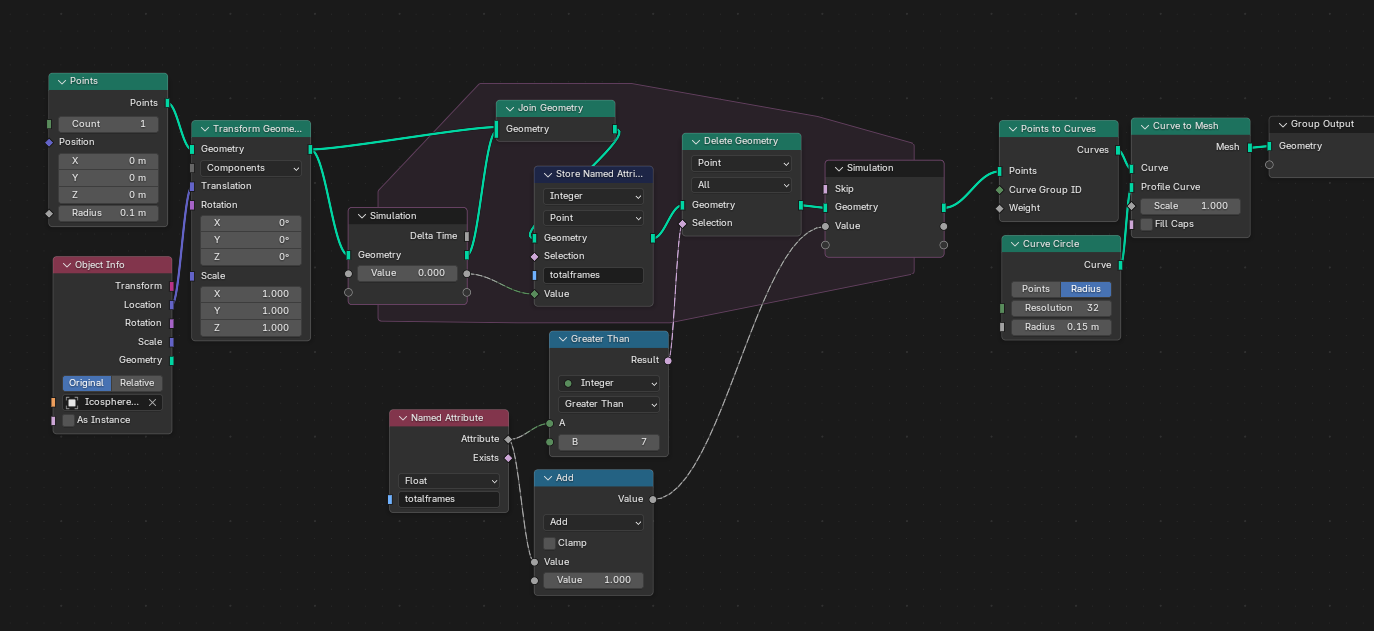
Let's create the comet's tail using geometry nodes. In Object Mode, create a new cube (which will become a comet tail) and head to the Geometry Nodes tab. Create the nodes and connect them like the setup in the image above.
I'll briefly explain what everything does. These nodes create a point at the previous position of the comet every frame. These points get converted into a curve, which gets converted into a mesh, creating a trail. Because we want our trail to behave like a real comet tail, we delete the oldest point after 7 frames.
Create a copy of this cube for each comet in your scene, and give each one a copy of the geometry nodes .
Do note that each Object Info node has a property called "Object." This controls which comet the tail follows. Assign a comet to each individual tail.
Make Our Tail Glow
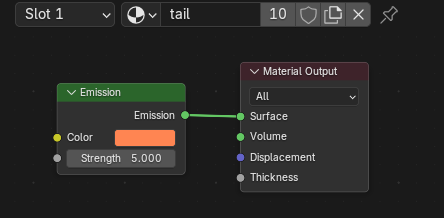
As of right now our tail looks quite boring. It needs.. emission!!
In Shading Mode, create a material for the tails. All we need to do for now is hook up an Emission node to our Material Output. Use any color you want, and add an emission of around 5.
Assign this material to all the tail objects.
Compositing
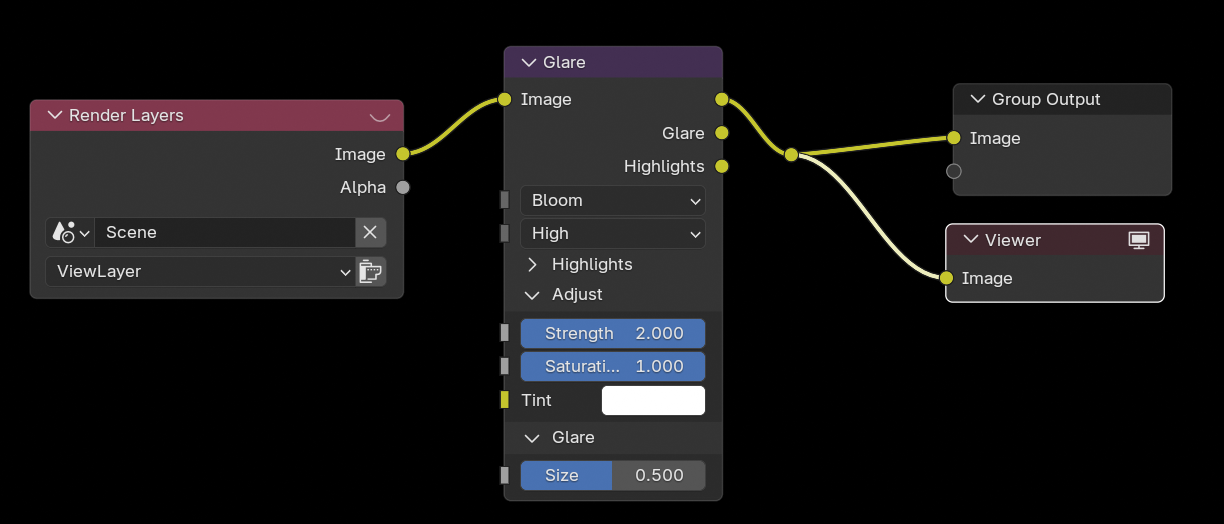
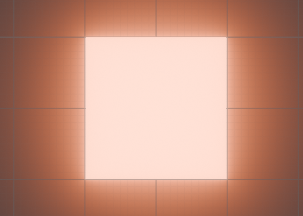
You will notice that the comet tails don't glow that much. Let's fix that.
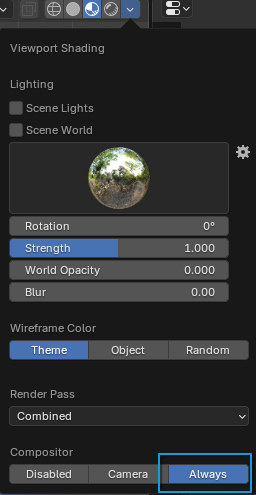
Go to the Compositing tab. Create a new compositing node group, and add a Glare node with Bloom mode. Adjust the strength to your liking. Make sure to select "Always" in the compositor section to be able to preview it.
Now our emission material will bloom, yay!
"Destroying" Comets on Impact
Some of our comets are going to collide with the planet so we want to make them seem like they're disappearing.
Adjust the final keyframes of the comets so that they don't pass through the planet, but instead hide inside the planet, which creates the illusion of them getting destroyed and disappearing. This also ensures that the tail disappears smoothly.
Adding Impact Dust Using Particles
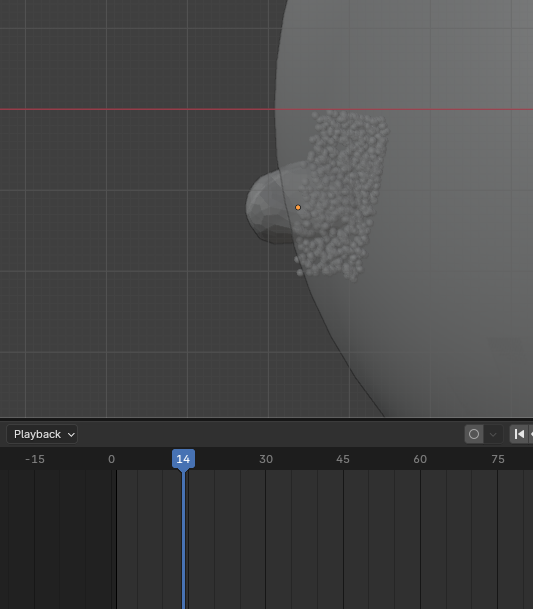
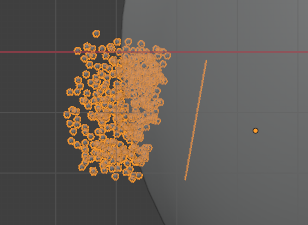
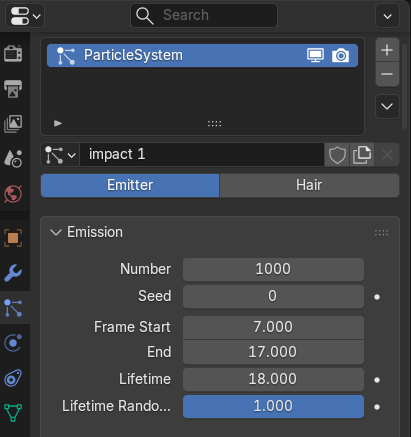
Play and pause your animation to find the exact frame where your comet collides with the planet.
Create a plane and position and orient it near the area of impact. This is going to be the particle emitter.
Add a particle system to it.
Set the Frame Start time to a few frames before the impact happens because the particles will need some time to rise out of the planet.
Set the End time to 10 frames after the start time.
Set the lifetime to 18 frames, and the lifetime randomness to 1 for some variation on when the particles disappear.
Under Field Weights, set Gravity to 0 so that particles don't get pulled downwards.
Set the Normal Velocity to 3m/s so that they shoot outwards from the surface.
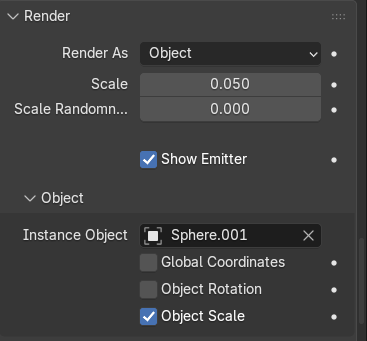
We can now give it a custom material by going to the Render property (of the particle system) and selecting render as object.
Create a sphere and assign the tail material to it. Set the particles' Instance Object to the new sphere you just created.
After that, tweak the position and timing of the particles if needed. You've now added impact dust, hooray.
Add an HDRI
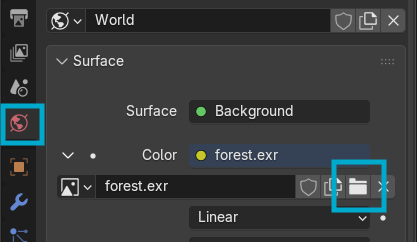
Find an HDRI online. It could be any HDRI you want.
I chose this beautiful one created by Greg Zaal on Poly Haven:
https://polyhaven.com/a/ninomaru_teien
Go to the World tab in Scene properties on the bottom right, and import the HDRI.
You're probably also wondering why on earth I picked a forest HDRI for a space scene.
That's because the purpose of this HDRI is to give the scene some environmental lighting, and a space HDRI would make it too dark for my liking. In the next step, I'll add a background image so that our scene actually takes place in space.
Add a Background Image So That Our Scene Actually Takes Place in Space
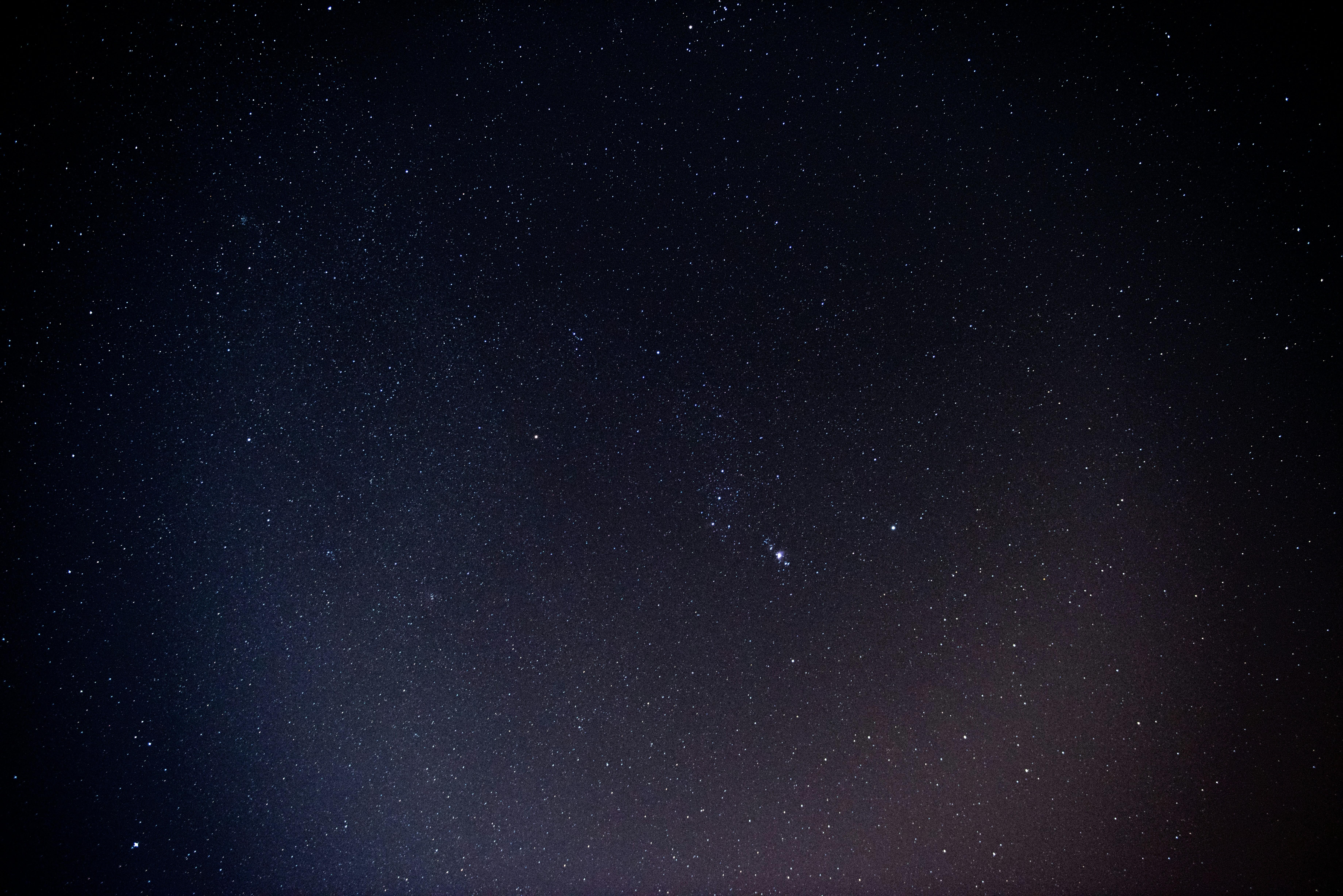
I found the perfect background image to use because it doesn't draw attention away with too many bright stars or anything. Besides its subtlety, its color fit in really nicely with the rest of the project.
Photo by Gabriel Garcia Marengo on Unsplash
Test Render
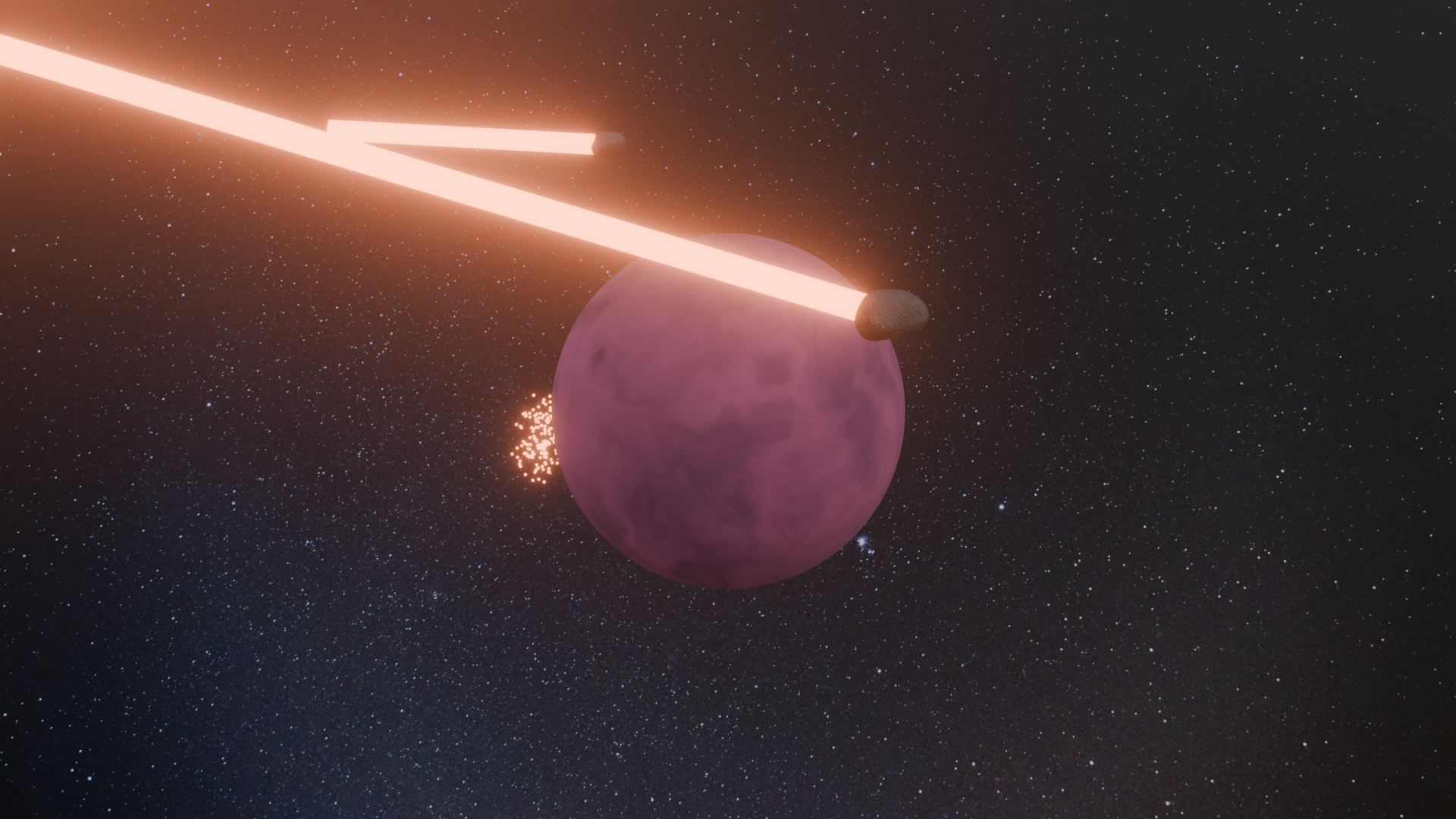
At this stage you can do a render of a frame to see what it looks like. Everything should be starting to come together now!
Find an Astronaut
Since I want to make this from the first person point of view of an astronaut, we'll need a pair of floating arms to create the effect of being a floating astronaut.
I found and downloaded this awesome free astronaut model from CGTrader by Albertisharf
https://www.cgtrader.com/items/6226199/download-page, but you can use just about any astronaut model you want.
Animate the Astronaut
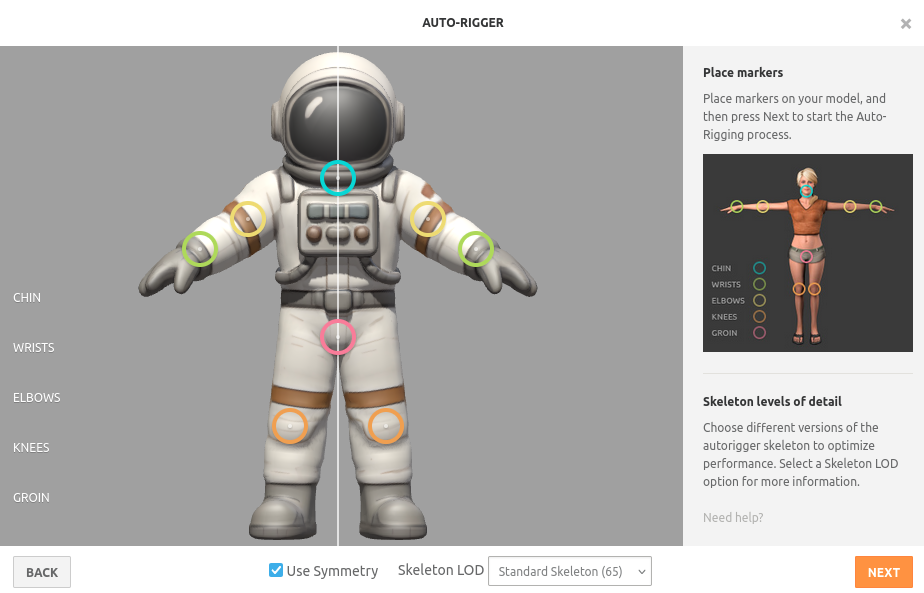
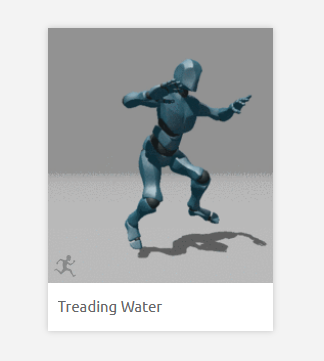
We want our astronaut to be floating in space, so we'll need an animation for it.
The easiest place get a model rigged and animated is https://www.mixamo.com/.
Upload the astronaut model, and put it through the auto rigger. Then find a suitable animation for a floating astronaut.
Conveniently, I stumbled across a water treading animation, which was perfect for an astronaut drifting around in space.
Download the animation and open it in blender.
Butcher the Astronaut
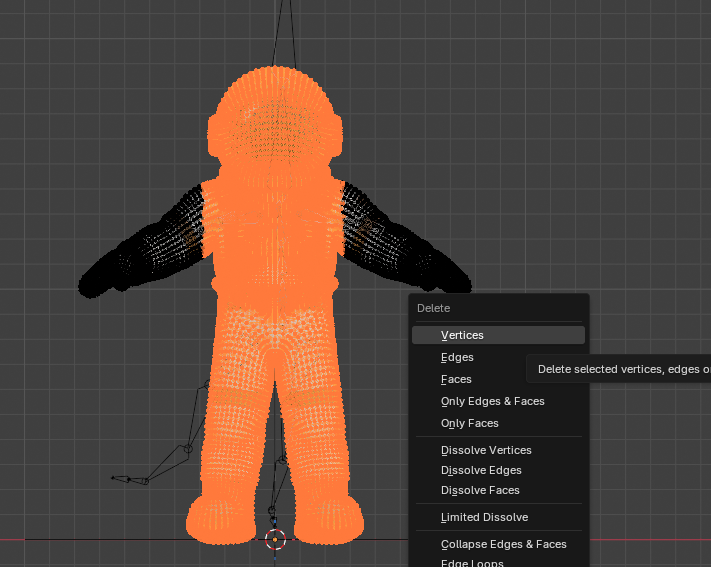
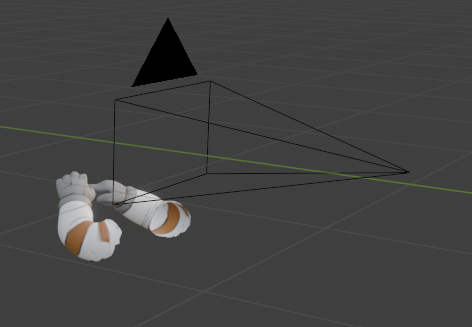
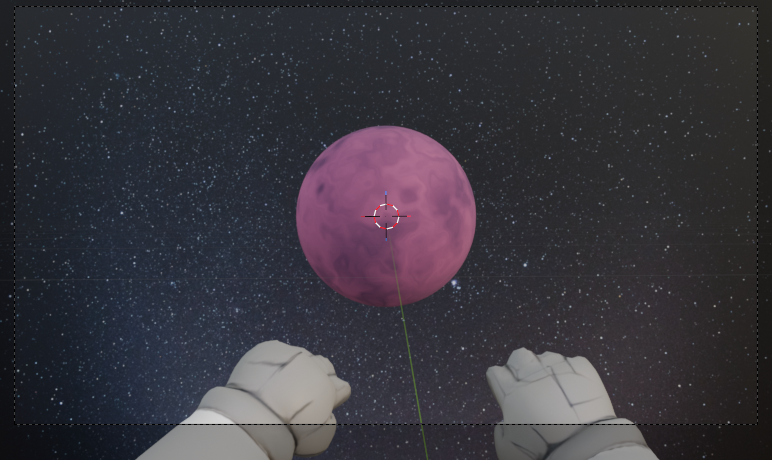
Import the astronaut to your project. We only need the arms for our astronaut. Sadly, this means that we'll have to permanently remove his head, torso, and legs. In Edit Mode, select and delete until all that remains are the astronaut's arms.
Then, position the arms so that they're right in front of the camera.
Add Camera Shake


Since our camera view is really the first person point of view of a floating astronaut, it'd feel more natural if the it shook and moved a little bit. Select the Camera object and go to the Animation tab.
Create a keyframe on the first and last frame of your animation. (By dragging the slider and using I)
Select both keyframes, then open the graph editor.
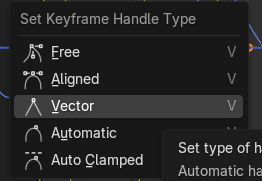
While hovering in the graph editor, press V and select "Vector," which will make your animation linear.
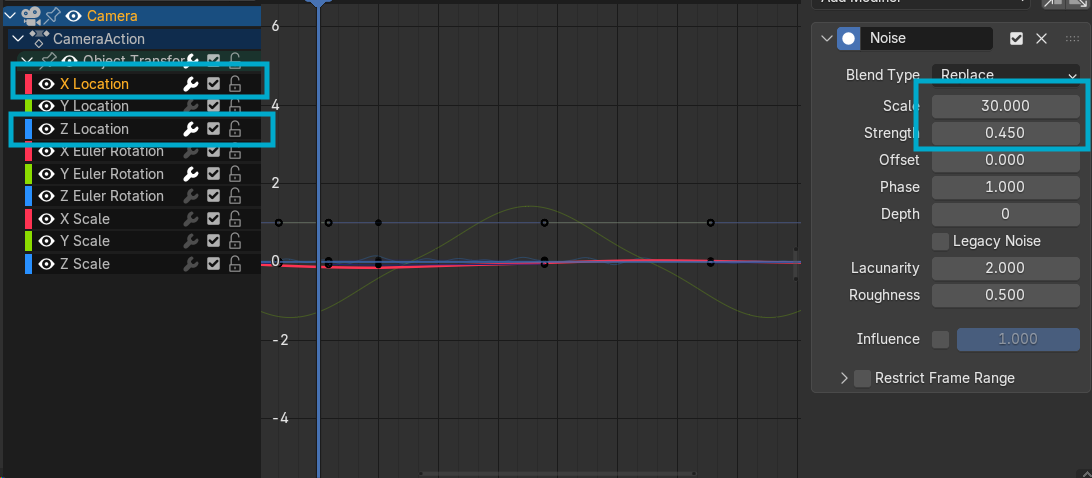
To add some subtle camera movement, add a noise modifier to the camera's X and Z location curves in the graph editor.
You can also add a noise modifier to the Y rotation curve.
Prepare for Render
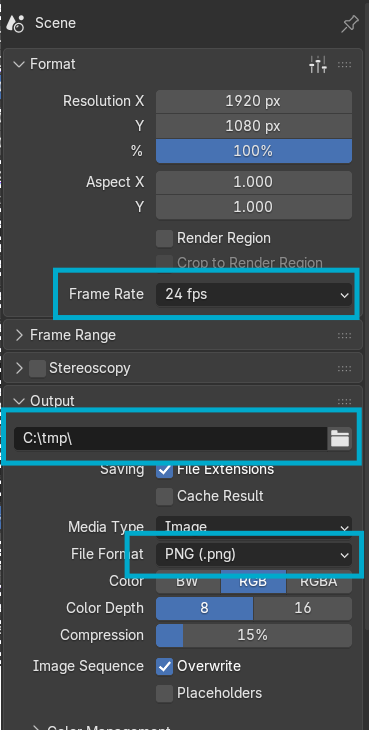
We're now done with our animation! It's time to render it and see what it looks like.
Before you render, there are some settings that are worth checking:
- The output folder of each frame.
- The file format of each rendered frame. I chose PNG because it's lossless.
I left most other settings as their default values, since I don't even know what some of them do to be frank.
Once we're done tweaking settings, we can hit CTRL+F12 and start rendering.
Stitch the Video Together
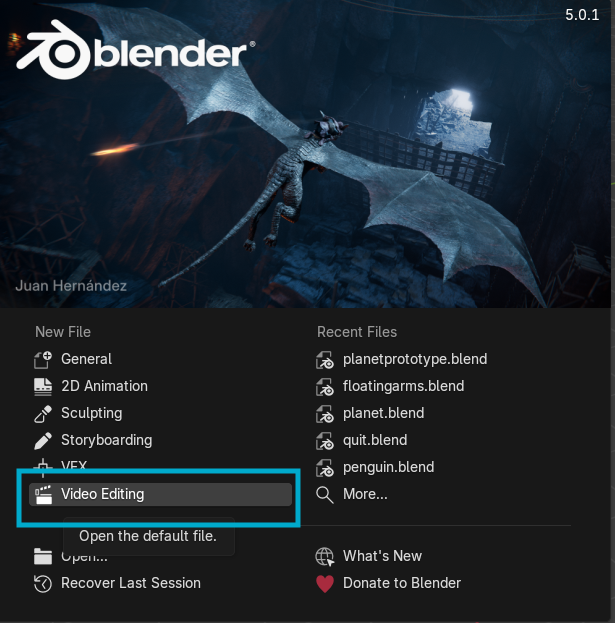

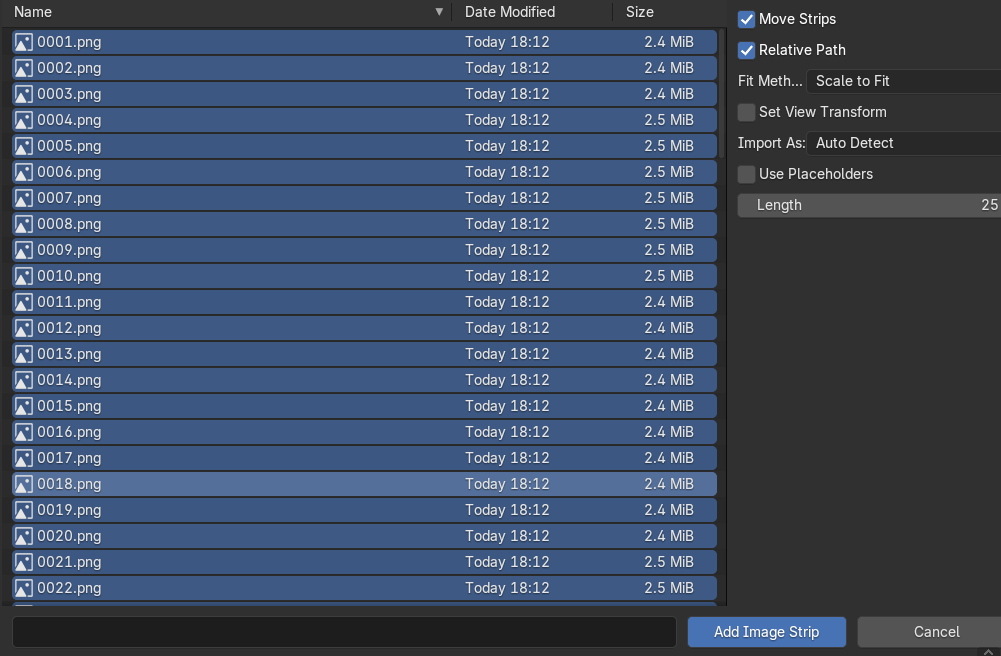
We now have a hundred frames in our render output folder. We'll now need to combine them into one video.
Open a new Blender window and select "Video Editing."
Next, hover over the sequencer and press Shift+A to add a new Image/Sequence.
Select all the frames in your render output file and click "Add Image Strip"
You should now see a clip of your entire render appear in the sequencer.
Render the Joined Clip
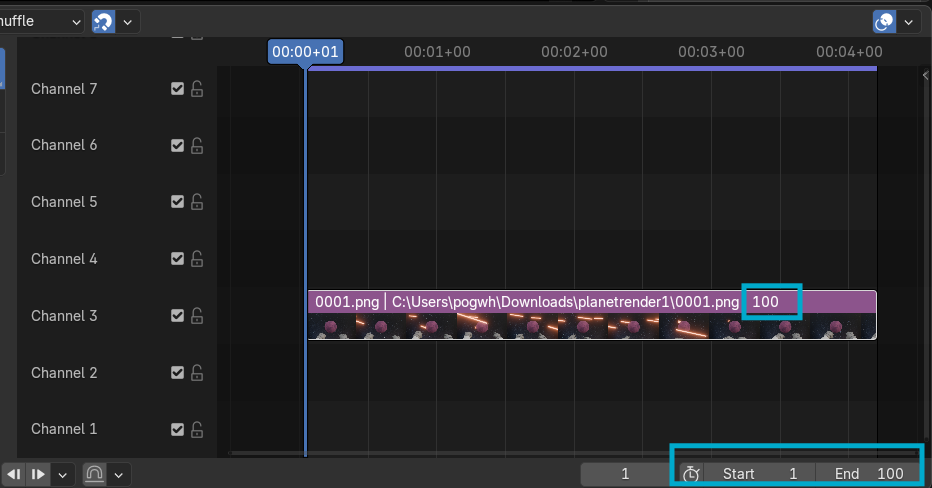
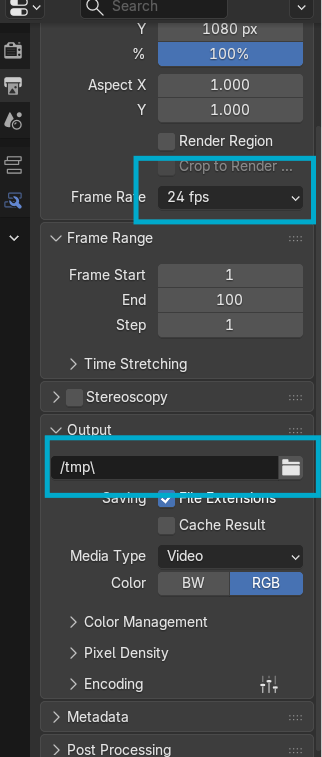
Make sure the total frame count at the bottom right matches the frame count of your animation, because you don't want a couple hundred frames of grey nothingness after your animation finishes playing.
Now it's time to set your render settings again. Choose your desired framerate and output folder and render it with CTRL+F12 again.
Rendered Video
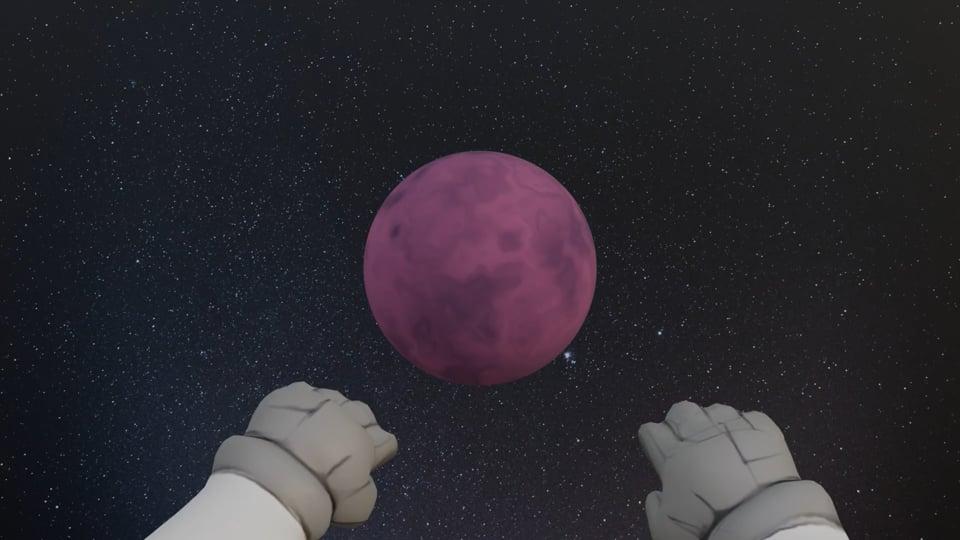
Hooray we're done!!
Do leave a comment if you need me to clarify anything and thanks for reading.