Arduino Distance Detection Using the GP2Y0D80Z0F Sensor
by ElectroScope Archive in Circuits > Arduino
9 Views, 0 Favorites, 0 Comments
Arduino Distance Detection Using the GP2Y0D80Z0F Sensor

This project is a simple, fast proximity detection setup using the GP2Y0D80Z0F infrared distance sensor with an Arduino Uno. The sensor does not give you a distance value. It just tells you one thing clearly: something is close or nothing is close. The trigger distance is around 10 cm.
I wired it up so the detection result shows on a 16x2 I2C LCD and also prints to the Serial Monitor. This makes testing easy and gives instant visual feedback. The whole build is straightforward and doesn’t need any signal filtering or math since the sensor already handles that internally.
If you can wire basic modules and upload a sketch, you can build this.
What This Sensor Actually Does
The GP2Y0D80Z0F is a digital infrared proximity sensor. It sends out IR light and waits for it to bounce back. If enough light reflects back from an object within about 10 cm, the output pin goes LOW. If nothing is there, the output stays HIGH.
There’s no analog voltage and no distance scaling. Just a clean HIGH or LOW signal.
A few things I noticed while testing:
- Light colored or reflective objects trigger it more reliably
- Very dark or angled surfaces can reduce detection
- The viewing angle is narrow, which helps avoid false triggers
- Placement matters more than code tuning
Once you mount it properly, it’s very consistent.
Supplies

Here’s what I had on the bench for this build:
- Arduino Uno
- GP2Y0D80Z0F distance sensor module
- 16x2 I2C LCD display
- Breadboard
- Jumper wires
- USB cable
That’s it. No resistors needed unless you want to add a pull-up later.
Understanding the Sensor Pins

The sensor module has three pins:
- GND
- VIN
- OUT
VIN can take anything from around 3 V up to 6 V. I powered it from the Arduino’s 5 V pin. The OUT pin is digital and goes LOW when an object is detected.
Wiring Everything Up

I wired this on a breadboard first so it’s easy to debug.
Sensor to Arduino
- Sensor GND → Arduino GND
- Sensor VIN → Arduino 5V
- Sensor OUT → Arduino digital pin 2
LCD to Arduino (I2C)
- LCD GND → Arduino GND
- LCD VCC → Arduino 5V
- LCD SDA → Arduino A4
- LCD SCL → Arduino A5
Make sure your LCD actually uses I2C and has the backpack attached. If it doesn’t show anything later, the I2C address might be different, which I’ll cover in troubleshooting.
Physical Assembly Tips
Before powering anything:
- Double check ground connections
- Make sure the sensor is facing forward, not tilted
- Keep I2C wires short if possible
- Avoid loose jumper wires, especially on SDA and SCL
I mounted the sensor upright so it points straight at the target area. Even a slight tilt can change when it triggers.
Uploading the Code
The code is intentionally simple. The sensor already decides if something is close. The Arduino just reads one pin and displays the result.
You’ll need these libraries:
Define the sensor pin:
In setup(), I initialize Serial, set the pin mode, and bring up the LCD:
I also print a short startup message so I know the LCD is working.
In the loop, the important line is:
If the value is LOW, something is within range. If it’s HIGH, nothing is there.
Based on that, I print either:
or
The same message goes to the Serial Monitor so I can watch it while testing.
I added a short delay to keep the display stable and readable.
That’s the entire logic. No math, no filtering, no tricks.
How I Tested It
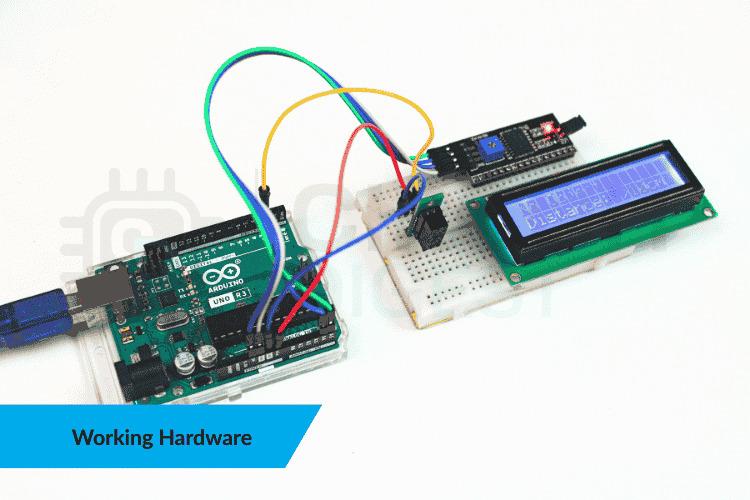
Once the code was uploaded:
- Open the Serial Monitor at 9600 baud
- Power the Arduino
- Move your hand slowly toward the sensor
- Watch the LCD and Serial output
At around 10 cm, the message flips instantly. Pull your hand back and it switches again.
If the LCD flickers too much, increase the delay slightly or only update the display when the state changes.
Common Problems and Fixes
Here are the issues I ran into and how I fixed them.
LCD shows nothing
- Try I2C address 0x27 or 0x3F
- Adjust the contrast trimpot on the LCD backpack
- Make sure SDA is on A4 and SCL is on A5
Serial Monitor is blank
- Set baud rate to 9600
- Make sure the correct COM port is selected
Sensor always detects or never detects
- Check VCC and GND carefully
- Loose grounds cause weird behavior
- Try adding a 10k pull-up resistor to 5 V
- You can also use INPUT_PULLUP and invert the logic
Detection is unreliable
- Use light colored test objects
- Avoid angled or very dark surfaces
- Mount the sensor firmly
LCD flickers or updates too fast
- Only update the LCD when the sensor state changes
- Increase delay to around 300 to 500 ms
Where This Setup Works Well
This kind of sensor is perfect when you just need a yes or no answer.
I’d use it for:
- Obstacle detection on small robots
- Touchless triggers for bins or kiosks
- Presence detection near machines
- Simple safety cutoffs
- Counting objects on a conveyor
Since the output is digital, you can easily add:
- A buzzer
- An LED
- A relay
- A motor driver
No changes needed to the sensor logic.
Final Notes
This build is simple on purpose. The GP2Y0D80Z0F handles the hard part internally, which makes the Arduino code clean and predictable. Once it’s mounted correctly and wired solidly, it just works.
If you want to expand it later, you can add interrupts, multiple sensors, or even combine it with motors or wireless modules. But as a basic proximity detector, this setup is solid and easy to replicate.
The above is entirely based on: GP2Y0D80Z0F Distance Sensor with Arduino Uno