Arduino Infrared Photogate
by jesper_hollevoet in Circuits > Arduino
155 Views, 1 Favorites, 0 Comments
Arduino Infrared Photogate
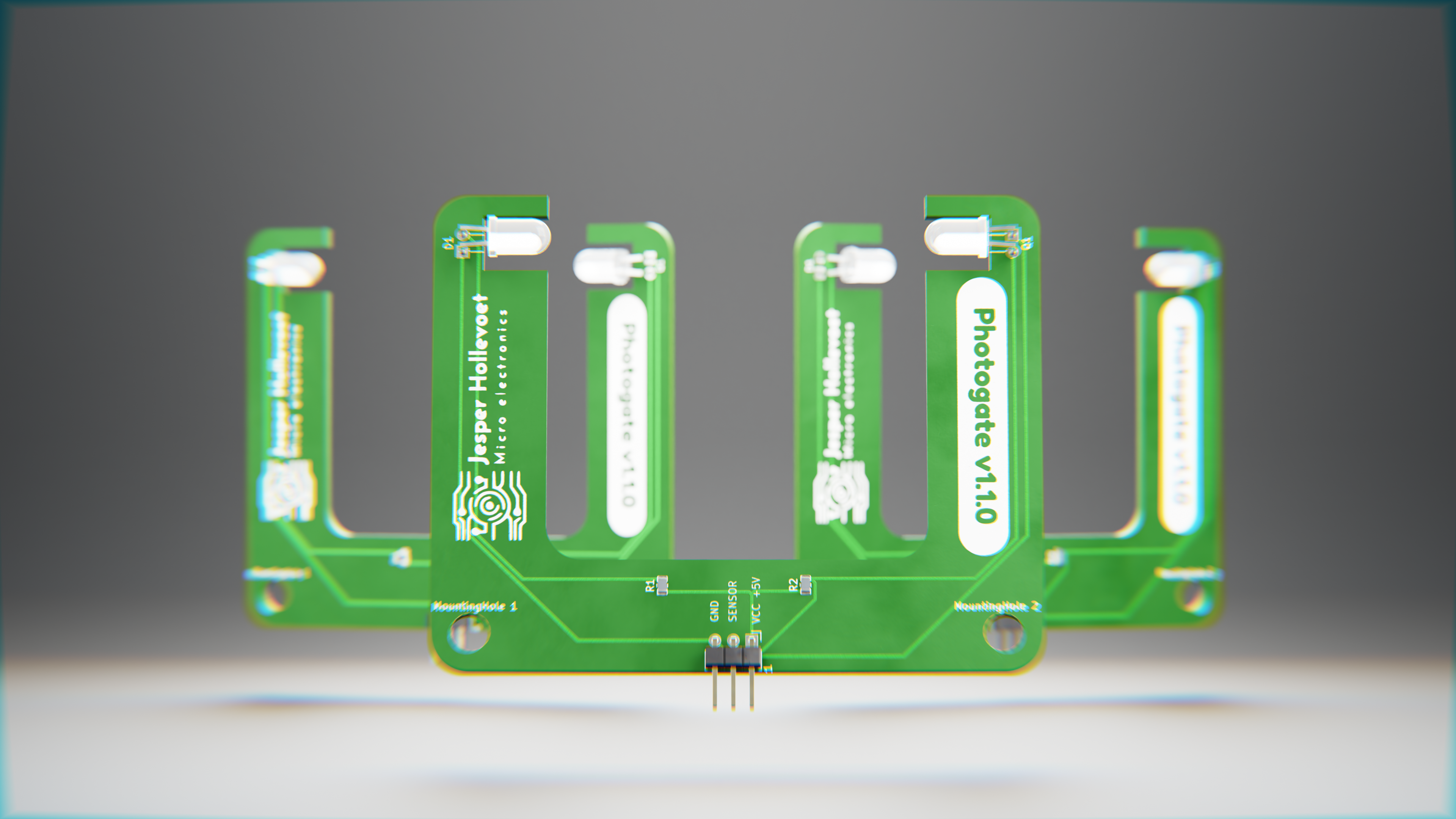
In my last year of secondary school here in Belgium, my STEM teacher wanted to study pendulums and horizontally thrown objects. In order to provide the pupils with accurate measurements, the teacher planned on using an Arduino photo gate. When his first version failed to deliver accurate results due to incorrect sensors, I decided to help a bit by developing a custom Arduino compatible PCB. The Photogate offers reliable performance and multiple scripts for diverse applications, from single-gate timing to multi-gate speed calculations. This is an essential tool for anyone needing dependable, accurate, and versatile optical sensing.
Supplies
Hardware
- PCB and components
- Arduino (any Arduino should work)
- Breadboard
- Jumper wires
Tools
- Soldering Iron
- Soldering wire
- tweezers
- cutting pliers
Ordering PCB + Components
The PCB's can easily be ordered from PCBway via this link. When ordering the PCB's you should be good to go with the default settings, however feel free to play around with the solder mask and silk screen color options :)
Concerning the components: you can find all information in the BOM (bill of materials) which can be downloaded from the PCBway project page and is included in the supporting files right here. PCBway also offers an assembly service, however I haven't played around with this myself since I like to assemble the PCB's myself :)
Soldering the Components
Preparation
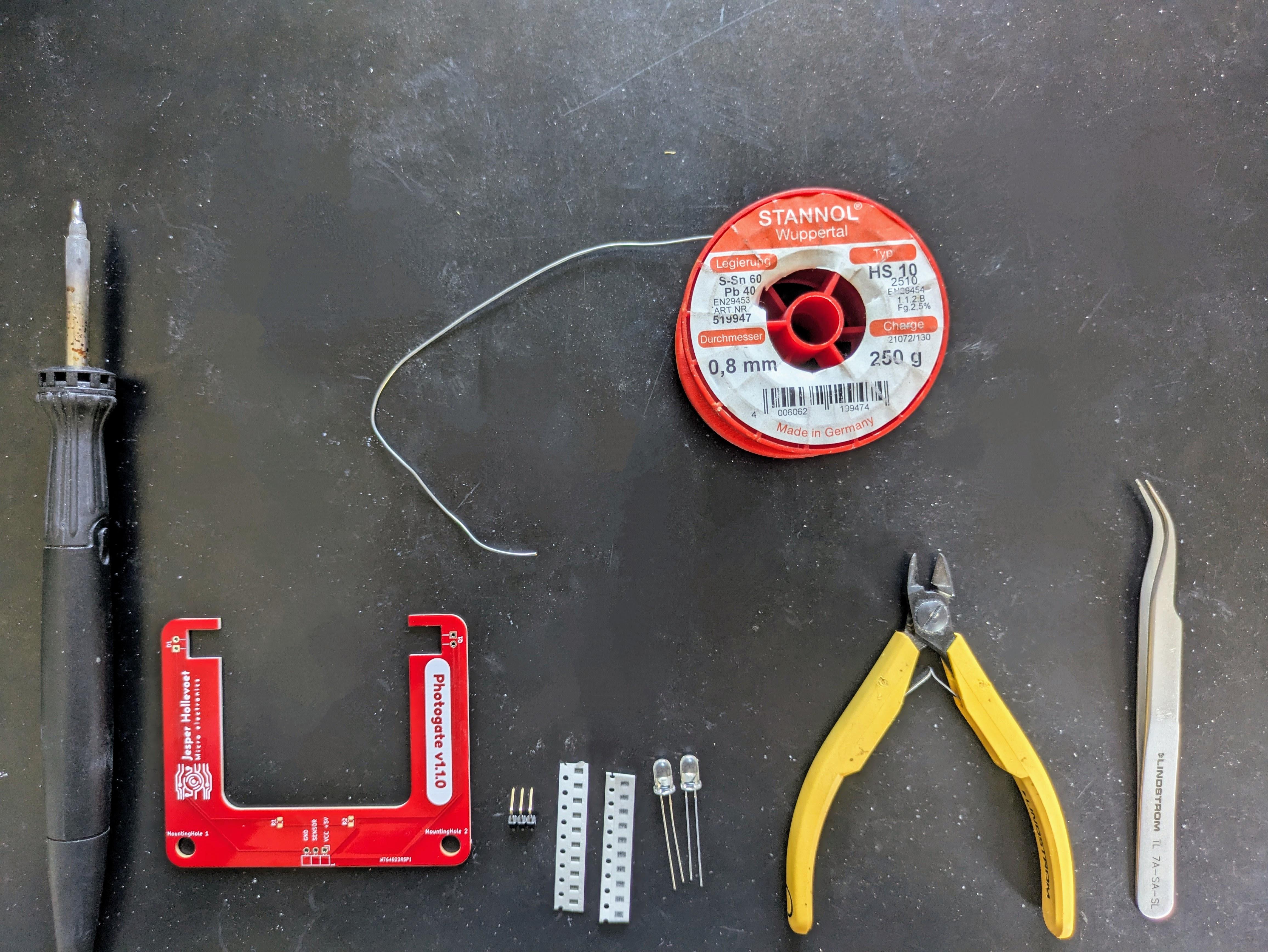
Before starting to solder all the components I strongly suggest making sure all the tools you are going to need are within hands reach. Here is a quick overview of everything you will need:
- Soldering iron and wire
- tweezers (preferably curved ones)
- cutting pliers
- PCB and components
Soldering the resistors
The resistors are the smallest and therefore trickiest components you will need to solder. It is best to first add a bit of solder to one of the 2 square, shiny, metal pads of each resistor. Next grap your tweezers and hold the resistor in the right place. Now you can heat the previously applied solder until it melts and allow the resistor to drop into place. Next remove the soldering iron and continue holding the resistor into place until the solder hardens. Finish by applying a sufficient amount of solder to the other side of the resistor.
Soldering small SMD components can be quite tricky, especially when doing this for the first time. Make sure to not rush the process, and don't be shy to watch some YouTube tutorials before you start :)
As you can read in the BOM file, the 220 ohm resistor should be mounted on the place labeled R1, and the 2000 ohm resistor on R2.
Soldering the connector
Next in the assembly process is the connector. First put it into place with the black plastic at the top of the PCB and flip the board upside down. Now it is best to first solder one of the pins and make sure to connector is properly aligned before soldering the other pins.
If this isn't the case, simply heat the soldered pin and adjust the connector by applying downwards pressure. You should feel the connector snap into place. Just make sure to not touch the pin you are heating. Trust me, otherwise you will feel it...
Soldering the infrared led en phototransistor
Now it is time to mount the final two components. The led should be placed on the place labeled D1 and the transistor on Q1. Note that these must be installed with the correct polarity. If you are new to electronics you should be good by placing the longest of the two legs in the upper hole of each of these two components, assuming that the connector is placed at the bottom of the ;) If you are not quite sure and know a thing or two about schematics, you can consult them in my GitHub repo.
When the components are inserted the right way, you can carefully bend them 90 degrees until they neatly fit into the provided cutouts.
Again start with soldering one pin, check the alignment and adjust if needed and finish by soldering the second pin.
Finishing touches
When all components are soldered, I like to quickly check if the board works by plugging it into an Arduino and running a simple script (how to do this gets described in the following steps)
If everything works as expected, you can cut off long pins with cutting pliers.
If not you will need to troubleshoot a bit. I suggest starting with checking the soldered connections and making sure all components are mounted in the right place.
Hardware Setup

Now that our PCB has been assembled, we can wire it to our Arduino. Doing this is pretty straight forward. Take a breadboard, plug the PCB into the breadboard and connect the GND and 5V pins to the corresponding pins on your Arduino. In order for the provided code to work (see step 4) the sensor pin has to be connected to an interrupt compatible pin. For the Arduino Uno series this is digital pin 2 or 3. For ease of use I recommend wiring to pin 2. When using any other Arduino please consult the Arduino docs to make sure you are using pins that supported interrupts.
Software Setup
After everything has been wired up correctly, we can program our Arduino to read and interpret data from the Photogate. To do this we will need some custom scripts. These alongside an explanation of the script's working (and more) can be found in my GitHub repository. Since in the hardware setup I showed how to set up one PCB, I suggest starting with the photogate.ino script. To start download or copy the script and open it in the Arduino IDE. Next double check if the variable called SensorPin refers to the correct pin on your Arduino. (This should be the case by default) The only thing that rests is connecting our Arduino to our PC using the provided cable and uploading the code. Open the serial plotter and you should see the results appear.
At this point in time there are 3 other scripts available, each with their own purpose. Make sure to check them out as well ;)
Also if you happen to encounter some issues when using the scripts, don't hesitate to report them on GitHub. And if you develop your own code for this hardware. Feel free to open a pull request :)