Arduino Nano Sense R2 Rocket Datalogger With LoRa Communication and GPS for Recovery

by wierzbickimc in Circuits > Arduino

38 Views, 0 Favorites, 0 Comments

Arduino Nano Sense R2 Rocket Datalogger With LoRa Communication and GPS for Recovery

IMG_8208.jpeg
IMG_8175.PNG
IMG_8173.jpeg
IMG_8174.jpeg

This project hasn't been packaged for flight yet, but that is the next step. I'll update this instructable as the project progresses.


I've wanted to build a model rocket datalogger for a while, and had gone down the GY-86 + Nano route but was never happy with the pressure drift of the MS5611 pressure sensor and for some reason couldn't get TKJElectronics/KalmanFilter to handle going over 180* for both x and y axis (only one or the other). Additionally, Arduino offers a module with all of these built in to make packaging hopefully little bit easier, and is 3.3V logic, making connection to GT-U7 and LoRa modules straight forward.

In this project I built an Arduino Nano 33 Sense R2 with a GPS module and an Adafruit RFM95W LoRa module. The Nano 33 Sense R2 uses its LSM9DS1 IMU accelerometer, gyroscope and manometer to determine pitch, roll, and yaw by way of Kalman filters. It uses the built in LPS22HB pressure sensor to determine air pressure at startup and calculate elevation relative to start by changes in air pressure. To reduce noise but still have a rapid response, the signal is passed through a 1euro filter.

To avoid losing the rocket, I added a GT-U7 GPS module communications through pins D0 and D1.

The Nano takes all of these calculated parameters and beams it through an Adafruit RFM95W LoRa module back to a base station.

The base station is an Arduino Nano 33 BLE unit, also connected to a GT-U7 GPS module and an Adafruit RGM95W LoRa module. The base station receives all of the information from the flight logger and does a few things:

  1. Serial prints in a CSV format so that you can use a program like CoolTerm to record the flight data and export it for analysis later. Optionally, there is a #if section where you change the 0 to 1, and it will serial print in a format that is easier to visualize but would be tough for trend analysis later.
  2. It takes the flight logger GPS coordinates, the base station coordinates, and calculates how far the base station is from the flight logger and in which direction. It then estimates how many steps you need to take, and in which direction to retrieve the rocket.
  3. The base station arduino also transmits the GPS information over BLE for phone integration.

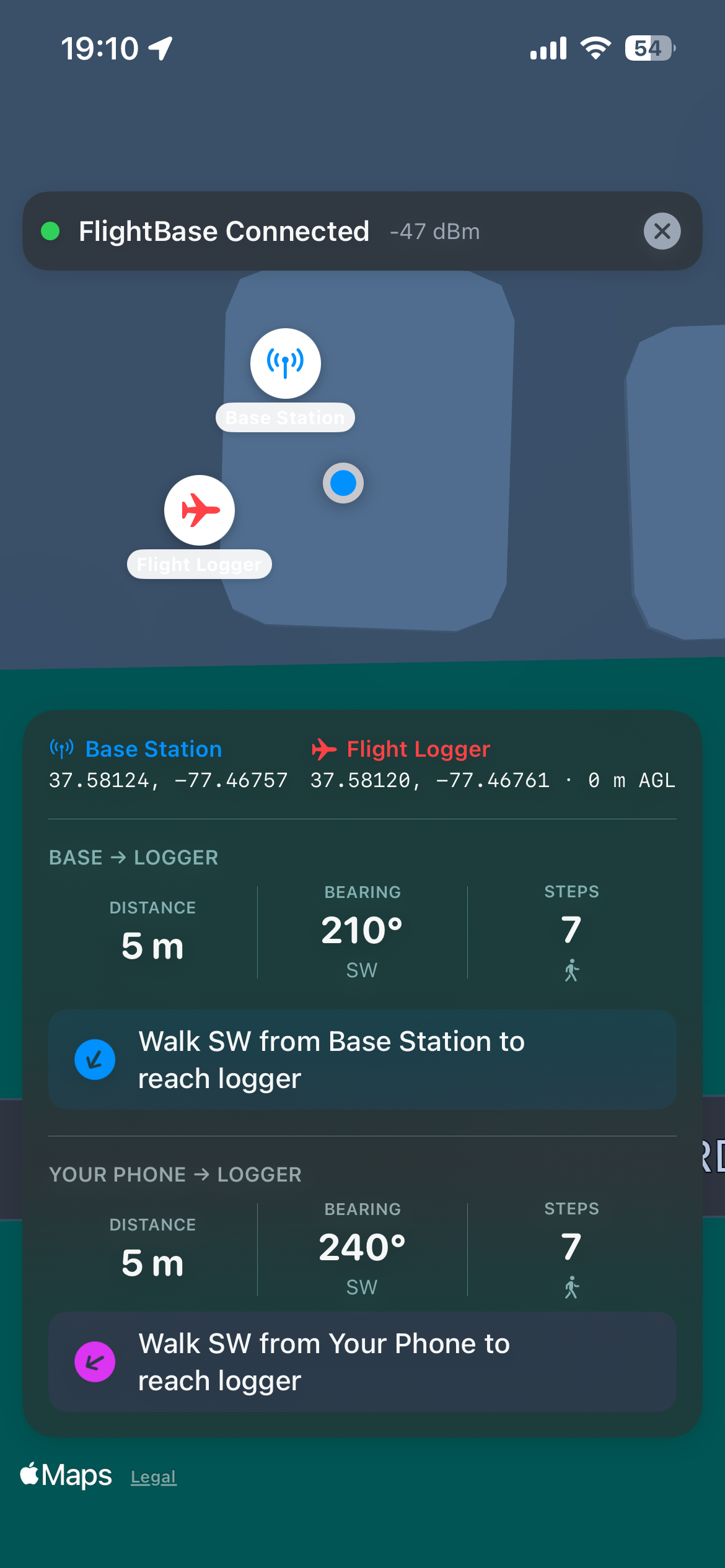
Finally, there is an iOS app that takes the GPS location of the flight logger, the base station, and calculated steps, displays on a map along with the iPhone location to help visualize where to go. Admittedly, the app was written with Claude AI Sonnet 4.6 extended and debugged with Xcode GPT 5.0 integration.

Supplies

Arduino Nano 33 Sense Rev 2 (rev 1 has different modules and would require different libraries).

Arduino Nano 33 BLE

2x GT-U7 GPS modules

2x Adafruit RFM95W

1x 3.7v LIPO battery

Flight Logger

The flight logger uses the built-in IMU for roll, pitch, and yaw calculations by way of kalman filter. The altitude by was of pressure though a 1euro filter.

GPS by way of GT-U7 module and communicating through the nano33 TX/RX points at D0 and D1.

For LoRa communication I choose the RFM95W because it is compatible with both 5v and 3.3v logic (SX12xx tend to be 3.3v only and I wasn't sure which way I was going to go with this project) and it is the more powerful option from Adafruit. LoRa modules have a setting called Spreading Factor which for practical purposes can be interpreted as range. The larger the SF, the further it communicated. However, it is inversely proportional to communication rate. I wanted information sent twice per second for good resolution during ascent, which left me with a SF of 9. In a future state, I could envision a conditional where once the flight logger "lands" it will switch to SF 12 to improve range when line-of-sight is less likely. Fortunately, you will still get GPS coordinates right up to the point of signal loss, so you'll have a relatively small search area. The TX gain is set at 20dBm, rather than the default 13dBm, to help improve range. The power requirements (mA) for the LoRa module likely exceed what the nano can consistently support, so you will likely need to power it directly from the battery, rather than by the arduino. (this is still to be tested, I'm still powering off of USB and have not had issues). The range is expected to be on the order of kilometers, I will be doing some testing in the near future. Don't forget to solder on an antenna, hot glue the base so that it doesn't break off (as easily).

Note - the Radiohead library seems to be the most popular LoRa library, but the nano33 does not support a command that is built into the library and I have no clue how to fix that. Instead I'm using the Sandeepmistry "LoRa" library. It does everything this project needs.

Note - the code below was pieced together from a ton of other projects. After completion I fed it through Claude for commenting and creating documentation for all of the decisions made and a troubleshooting guide. It feels a bit weird to hand this work off to AI but its the part I least enjoy so why not.


/*
* ============================================================
* FLIGHT LOGGER (v2 — Barometric Altitude + 2 Hz LoRa)
* Hardware: Arduino Nano 33 BLE Sense + GT-U7 GPS + RFM95 LoRa
* ============================================================
*
* Required Libraries (install via Arduino Library Manager):
* - Arduino_LSM9DS1 (IMU: accel, gyro, mag — built-in on Nano 33 BLE Sense)
* - Arduino_LPS22HB (Barometric pressure — built-in on Nano 33 BLE Sense)
* - TinyGPS++ (GPS NMEA parsing)
* - LoRa (Sandeepmistry Arduino-LoRa — NOT RadioHead)
*
* NOTE: RadioHead is NOT compatible with the Nano 33 BLE Sense nRF52840.
* Always use the Sandeepmistry "LoRa" library.
*
* ──────────────────────────────────────────────────────────────
* ALTITUDE SOURCE
* Altitude is derived entirely from the built-in LPS22HB
* barometric pressure sensor, NOT from GPS.
* - Base pressure is averaged from the first BARO_BASE_SAMPLES
* readings after power-on (approx. 2 seconds at 25 Hz ODR).
* - All altitude values are reported as metres ABOVE the launch
* point (AGL — Above Ground Level at the launch site).
* - A 1-Euro adaptive filter smooths the 25 Hz pressure-derived
* altitude before transmission.
* - GPS is still used for: latitude, longitude, ground speed,
* and satellite count.
* ──────────────────────────────────────────────────────────────
*
* LoRa Configuration:
* Frequency : 915 MHz (USA). Change LORA_FREQUENCY for other regions.
* Spreading Factor: SF9 — Time-on-Air ~370 ms @ 48-byte payload.
* Max rate ~2.7 pkt/s; we transmit at 2.0 pkt/s (500 ms).
* SF9 still provides ~15 dB more range than SF7.
* Bandwidth : 125 kHz
* Coding Rate : 4/5
* TX Power : 20 dBm
*
* Data Packet Format (comma-separated ASCII, 8 fields):
* LAT,LON,BARO_AGL,PITCH,ROLL,YAW,SPEED_KMH,SATELLITES
*
* Example:
* 51.501234,-0.124567,12.8,2.4,-1.1,274.5,15.3,8
*
* Pin Connections:
* RFM95 LoRa: NSS→D10 MOSI→D11 MISO→D12 SCK→D13 RST→D9 DIO0→D2
* VCC→3.3V GND→GND
* GT-U7 GPS: TX→D0(Serial1 RX) RX→D1(Serial1 TX) VCC→3.3V GND→GND
* IMU + Baro: Built into Nano 33 BLE Sense (no external wiring)
*
* EU Duty-Cycle Note:
* In 868 MHz EU regions the 1% duty-cycle rule limits SF9 (370 ms ToA) to
* one packet every ~37 seconds on a single channel. For EU use, revert to
* SF12 and a 2-second interval, or implement frequency-hopping.
* This sketch is configured for 915 MHz (USA, no duty-cycle restriction).
*/

#include <Arduino_LSM9DS1.h>
#include <Arduino_LPS22HB.h>
#include <LoRa.h>
#include <TinyGPS++.h>
#include <SPI.h>

// ─── LoRa Pin Definitions ───────────────────────────────────
#define LORA_SS_PIN 10
#define LORA_RST_PIN 9
#define LORA_DIO0_PIN 2
#define LORA_FREQUENCY 915E6 // 915 MHz (USA). Change to 868E6/433E6 for other regions.

// ─── GPS ─────────────────────────────────────────────────────
#define GPS_BAUD 9600
TinyGPSPlus gps;

// ─── Timing ──────────────────────────────────────────────────
// LoRa TX: 500 ms = 2 packets/second.
// SF9 Time-on-Air for ~48-byte payload ≈ 370 ms, giving ~130 ms processing headroom.
#define LORA_TX_INTERVAL_MS 500

// LPS22HB ODR is 25 Hz (new sample every 40 ms).
// We poll the sensor at this rate to feed the 1-Euro filter at full fidelity.
#define BARO_POLL_INTERVAL_MS 40

unsigned long lastTxTime = 0;
unsigned long lastBaroTime = 0;
unsigned long lastImuTime = 0; // microseconds, for gyro integration dt

// ─── Barometric Base Pressure ────────────────────────────────
// Average the first N pressure samples to establish launch-site base pressure.
// At 25 Hz with N=50, calibration completes in approximately 2 seconds.
#define BARO_BASE_SAMPLES 50

bool basePressureSet = false;
float basePressure = 1013.25f; // hPa, updated during calibration
float basePressureSum = 0.0f;
uint8_t basePressureCount = 0;

// Current filtered altitude above launch base (metres, AGL)
float baroAGL = 0.0f;

// ─── Barometric Altitude Formula ─────────────────────────────
/*
* Hypsometric / international barometric formula:
*
* h = 44330 * ( 1 - (P / P_ref)^(1/5.255) )
* = 44330 * ( 1 - (P / P_ref)^0.1903 )
*
* When P_ref is the pressure measured at the launch site (basePressure),
* h gives the altitude ABOVE THE LAUNCH POINT (AGL), eliminating any
* need to know the true sea-level pressure or local QNH.
*
* Accuracy: ~0.1 m resolution for the LPS22HB's 1/4096 hPa LSB;
* absolute accuracy limited by temperature compensation (±1 m typical
* over a moderate temperature range).
*/
inline float pressureToAGL(float pressure_hPa) {
return 44330.0f * (1.0f - powf(pressure_hPa / basePressure, 0.1903f));
}

// ─── 1-Euro Filter ───────────────────────────────────────────
/*
* The 1-Euro filter is an adaptive low-pass filter.
*
* Key idea: adapt the cutoff frequency based on the speed of change
* of the signal.
* - Signal slow (aircraft on ground, GPS jitter):
* low cutoff → heavy smoothing → stable AGL reading
* - Signal fast (aircraft climbing or diving quickly):
* high cutoff → minimal lag → altitude tracks the real motion
*
* Cutoff adaptation formula:
* cutoff = minCutoff + beta * |derivative|
*
* Parameters:
* minCutoff : minimum cutoff frequency (Hz) — controls smoothing at rest
* beta : derivative gain — controls how quickly the cutoff rises
* dCutoff : cutoff for the derivative low-pass filter (typically 1.0 Hz)
*/
class OneEuroFilter {
private:
float _freq;
float _minCutoff;
float _beta;
float _dCutoff;
float _xPrev;
float _dxPrev;
bool _initialized;

float alpha(float cutoff) const {
float te = 1.0f / _freq;
float tau = 1.0f / (2.0f * PI * cutoff);
return 1.0f / (1.0f + tau / te);
}

float lowpass(float x, float xPrev, float a) const {
return a * x + (1.0f - a) * xPrev;
}

public:
OneEuroFilter(float freq, float minCutoff = 0.5f,
float beta = 0.0f, float dCutoff = 1.0f)
: _freq(freq), _minCutoff(minCutoff), _beta(beta),
_dCutoff(dCutoff), _xPrev(0.0f), _dxPrev(0.0f),
_initialized(false) {}

/*
* filter(x, dt)
* x : new raw sample
* dt : elapsed time since last sample in seconds (-1 uses stored _freq)
* Returns the filtered value.
*/
float filter(float x, float dt = -1.0f) {
if (dt > 0.0f && dt < 10.0f) _freq = 1.0f / dt;

if (!_initialized) {
_xPrev = x;
_dxPrev = 0.0f;
_initialized = true;
return x;
}

// Estimate derivative (speed of signal change)
float dx = (x - _xPrev) * _freq;

// Low-pass the derivative to avoid reacting to single-sample spikes
float edx = lowpass(dx, _dxPrev, alpha(_dCutoff));

// Adaptive cutoff: rises proportionally to the signal speed
float cutoff = _minCutoff + _beta * fabsf(edx);

// Filter the signal with the adaptive cutoff
float result = lowpass(x, _xPrev, alpha(cutoff));

_xPrev = result;
_dxPrev = edx;

return result;
}

void reset() { _initialized = false; }
};

/*
* 1-Euro filter tuned for LPS22HB barometric altitude at 25 Hz:
* freq = 25 Hz (LPS22HB ODR)
* minCutoff = 0.5 Hz → smooth static reading; reduces ~0.1 m jitter to <0.02 m
* beta = 0.2 → 1 m/s climb rate raises cutoff to ~0.7 Hz (responsive)
* dCutoff = 1.0 Hz → standard derivative filter
*/
OneEuroFilter baroAltFilter(25.0f, 0.5f, 0.2f, 1.0f);

// ─── Kalman Filter (Orientation) ─────────────────────────────
/*
* Two-state Kalman filter for pitch and roll:
* State: [angle (deg), gyro_bias (deg/s)]
*
* PREDICT: Integrate gyroscope (fast, drifts over time)
* UPDATE: Correct with accelerometer-derived angle (noisy but absolute)
*
* This combination eliminates gyro drift while ignoring short-duration
* vibration noise in the accelerometer.
*/
class KalmanFilter {
public:
float Q_angle = 0.001f; // How much the true angle can change per second
float Q_bias = 0.003f; // How much the gyro bias can change per second
float R_measure = 0.03f; // Noise in the accelerometer-derived angle

float angle = 0.0f;
float bias = 0.0f;
float P[2][2] = {{0, 0}, {0, 0}};

float update(float newAngle, float newRate, float dt) {
// ── PREDICT ──────────────────────────────────────────
float rate = newRate - bias;
angle += dt * rate;

P[0][0] += dt * (dt * P[1][1] - P[0][1] - P[1][0] + Q_angle);
P[0][1] -= dt * P[1][1];
P[1][0] -= dt * P[1][1];
P[1][1] += Q_bias * dt;

// ── UPDATE ────────────────────────────────────────────
float S = P[0][0] + R_measure;
float K0 = P[0][0] / S;
float K1 = P[1][0] / S;
float y = newAngle - angle;

angle += K0 * y;
bias += K1 * y;

float P00 = P[0][0], P01 = P[0][1];
P[0][0] -= K0 * P00;
P[0][1] -= K0 * P01;
P[1][0] -= K1 * P00;
P[1][1] -= K1 * P01;

return angle;
}
};

KalmanFilter kalmanPitch;
KalmanFilter kalmanRoll;

// Simple scalar Kalman for magnetometer yaw
class ScalarKalman {
public:
float Q = 0.1f, R = 0.5f, P = 1.0f, x = 0.0f;
bool init = false;

float update(float z) {
if (!init) { x = z; init = true; return x; }
P += Q;
float K = P / (P + R);
x += K * (z - x);
P = (1.0f - K) * P;
return x;
}
};

ScalarKalman kalmanYaw;

// ─── Orientation & GPS State ─────────────────────────────────
float pitch = 0.0f, roll = 0.0f, yaw = 0.0f;
float latDeg = 0.0f, lonDeg = 0.0f;
float speedKmh = 0.0f;
int satellites = 0;

// ─── Setup ───────────────────────────────────────────────────
void setup() {
Serial.begin(115200);
Serial.println(F("Flight Logger v2 — Barometric Altitude + SF9 + 2 Hz"));

// ── IMU ────────────────────────────────────────────────
if (!IMU.begin()) {
Serial.println(F("ERROR: LSM9DS1 IMU init failed! Check board selection."));
while (true) delay(100);
}
Serial.print(F("IMU OK. Accel rate: "));
Serial.print(IMU.accelerationSampleRate());
Serial.println(F(" Hz"));

// ── Barometric Pressure Sensor ─────────────────────────
// LPS22HB is built into the Nano 33 BLE Sense.
// Default ODR after begin() is 25 Hz (one new sample every 40 ms).
if (!BARO.begin()) {
Serial.println(F("ERROR: LPS22HB barometer init failed! Check board selection."));
while (true) delay(100);
}
Serial.println(F("Barometer OK. LPS22HB @ 25 Hz ODR"));
Serial.print (F("Collecting "));
Serial.print (BARO_BASE_SAMPLES);
Serial.println(F(" base-pressure samples (~2 s)..."));

// ── LoRa ───────────────────────────────────────────────
LoRa.setPins(LORA_SS_PIN, LORA_RST_PIN, LORA_DIO0_PIN);
if (!LoRa.begin(LORA_FREQUENCY)) {
Serial.println(F("ERROR: LoRa init failed! Check SPI wiring."));
while (true) delay(100);
}

// SF9: Time-on-Air ~370 ms for 48-byte payload → supports 2 Hz TX rate.
// Provides ~15 dB link-budget advantage over SF7.
LoRa.setSpreadingFactor(9);
LoRa.setSignalBandwidth(125E3);
LoRa.setCodingRate4(5);
LoRa.setTxPower(20);
LoRa.enableCrc();
Serial.println(F("LoRa OK. SF9, 125 kHz BW, 915 MHz, 20 dBm"));

// ── GPS ────────────────────────────────────────────────
Serial1.begin(GPS_BAUD);
Serial.println(F("GPS serial started (Serial1, D0/D1, 9600 baud)"));
Serial.println(F(""));
Serial.println(F("Packet: LAT,LON,BARO_AGL,PITCH,ROLL,YAW,SPEED,SATS"));
Serial.println(F("─────────────────────────────────────────────────────"));

lastImuTime = micros();
lastBaroTime = millis();
}

// ─── Loop ────────────────────────────────────────────────────
void loop() {
// ── 1) Feed GPS UART to TinyGPS++ ──────────────────────
while (Serial1.available()) {
gps.encode(Serial1.read());
}
if (gps.location.isValid() && gps.location.age() < 2000) {
latDeg = (float)gps.location.lat();
lonDeg = (float)gps.location.lng();
speedKmh = (float)gps.speed.kmph();
satellites = gps.satellites.value();
}

// ── 2) Update IMU orientation (runs as fast as data is available) ──
updateOrientation();

// ── 3) Poll barometer at 25 Hz ──────────────────────────
unsigned long now = millis();
if (now - lastBaroTime >= BARO_POLL_INTERVAL_MS) {
float dt_baro = (now - lastBaroTime) / 1000.0f;
lastBaroTime = now;
updateBaroAltitude(dt_baro);
}

// ── 4) Transmit LoRa packet at 2 Hz (every 500 ms) ──────
now = millis();
if (basePressureSet && (now - lastTxTime >= LORA_TX_INTERVAL_MS)) {
lastTxTime = now;
sendLoRaPacket();
}
}

// ─── Barometric Altitude Update ──────────────────────────────
void updateBaroAltitude(float dt) {
float pressure = BARO.readPressure(); // hPa
if (pressure <= 0.0f) return; // Sensor not ready yet

if (!basePressureSet) {
// ── Accumulate base-pressure average ──────────────
basePressureSum += pressure;
basePressureCount++;

if (basePressureCount >= BARO_BASE_SAMPLES) {
basePressure = basePressureSum / (float)BARO_BASE_SAMPLES;
basePressureSet = true;
baroAltFilter.reset(); // Start 1-Euro filter fresh at launch altitude
Serial.print (F("Base pressure set: "));
Serial.print (basePressure, 4);
Serial.println(F(" hPa → AGL zero locked. Transmitting."));
} else {
Serial.print(basePressureCount);
Serial.print(F("/"));
Serial.println(BARO_BASE_SAMPLES);
}
} else {
// ── Compute and filter altitude above base ─────────
float rawAGL = pressureToAGL(pressure);
baroAGL = baroAltFilter.filter(rawAGL, dt);
}
}

// ─── IMU Orientation Update (Kalman-filtered) ────────────────
void updateOrientation() {
if (!IMU.accelerationAvailable() || !IMU.gyroscopeAvailable()) return;

unsigned long nowUs = micros();
float dt = (nowUs - lastImuTime) / 1e6f;
lastImuTime = nowUs;
if (dt <= 0.0f || dt > 0.5f) return;

float ax, ay, az, gx, gy, gz, mx, my, mz;
IMU.readAcceleration(ax, ay, az); // g
IMU.readGyroscope(gx, gy, gz); // deg/s

// Accelerometer-derived angles (absolute reference, noisy)
float accelPitch = atan2f(-ax, sqrtf(ay*ay + az*az)) * RAD_TO_DEG;
float accelRoll = atan2f( ay, az) * RAD_TO_DEG;

// Kalman fusion: accel angle as measurement, gyro rate as predictor
pitch = kalmanPitch.update(accelPitch, gy, dt);
roll = kalmanRoll.update(accelRoll, gx, dt);

// Tilt-compensated magnetometer → yaw
if (IMU.magneticFieldAvailable()) {
IMU.readMagneticField(mx, my, mz);

float cosPitch = cosf(pitch * DEG_TO_RAD);
float sinPitch = sinf(pitch * DEG_TO_RAD);
float cosRoll = cosf(roll * DEG_TO_RAD);
float sinRoll = sinf(roll * DEG_TO_RAD);

float Mx = mx * cosPitch + mz * sinPitch;
float My = mx * sinRoll * sinPitch + my * cosRoll - mz * sinRoll * cosPitch;

float rawYaw = atan2f(-My, Mx) * RAD_TO_DEG;
if (rawYaw < 0.0f) rawYaw += 360.0f;

yaw = kalmanYaw.update(rawYaw);
}
}

// ─── Send LoRa Packet ────────────────────────────────────────
void sendLoRaPacket() {
// 8-field CSV: LAT,LON,BARO_AGL,PITCH,ROLL,YAW,SPEED,SATS
char buf[80];
snprintf(buf, sizeof(buf),
"%.6f,%.6f,%.2f,%.1f,%.1f,%.1f,%.1f,%d",
latDeg, lonDeg,
baroAGL,
pitch, roll, yaw,
speedKmh,
satellites);

LoRa.beginPacket();
LoRa.print(buf);
LoRa.endPacket(false); // blocking: waits until packet is fully transmitted

// Mirror to USB serial for bench debugging
Serial.print(F("TX >> "));
Serial.println(buf);
}

Base Station

The base station serves the purpose of LoRa signal receiver and takes that information to do something useful things.

I choose a Arduino Nano33 BLE because I already had it, and the Nano33 series run on 3.3v which make integration of modules that much easier.

I used the same GT-U7 GPS module as above and the same Adafruit RFM95W LoRa module. The LoRa module settings (SF, etc.) must match the flight logger otherwise there would be communication errors.

The sketch takes the flight logger GPS coordinate and base station GPS coordinates, calculates the distance and direction and serial prints them to help the user retrieve the rocket.

Note - Haversine Distance calculations assume the earth is round, my apologies flat earthers.

The base station sketch has two serial output options. The default serial prints in something that could be exported as a CSV and used for data processing later. You can do this using CoolTerm rather than Arduino IDE, as CoolTerm can save what the basestation transmits over serial. The other option is to display the information in a way that is easier for people to read, but would be a struggle for trending later. I could see a scenario where you record the launch in the CSV format, and once things have finished changing the #if in section ---USB Serial Full Telemetry Print--- from 1 to 0, reuploading the sketch and switching to the easier to read version.

Note - if you use CoolTerm you will need to change the text encoding otherwise some characters come through weird. Options -> Data Handling -> Text Encoding -> change from SystemDefault to UTF8.

Don't forget to turn on File capture! Connection -> File Capture -> Start.

Same as above, the code was written by combining a ton of other peoples stuff and then fed through Claude for commenting and creating documentation. I took things one step further by having Claude write the BLE code as it's not something I have experience with. The attached documentation combines both

/*
* ============================================================
* BASE STATION (v7 — Arduino Nano 33 BLE)
* ============================================================
* Hardware: Arduino Nano 33 BLE + GT-U7 GPS + RFM95 LoRa
*
* Required Libraries (install via Arduino IDE Library Manager):
* - ArduinoBLE (Bluetooth LE — official Arduino library)
* - LoRa (Sandeepmistry Arduino-LoRa — NOT RadioHead)
* - TinyGPS++ (GPS NMEA parsing)
*
* ──────────────────────────────────────────────────────────────
* WHY NANO 33 BLE?
* The Nano 33 BLE runs at 3.3 V logic, eliminating level-
* shifting hardware required between a 5 V Uno and the 3.3 V
* RFM95. All SPI lines connect directly. Hardware Serial1 is
* also available for GPS, avoiding SoftwareSerial entirely.
* ──────────────────────────────────────────────────────────────
*
* BLE ARCHITECTURE — CUSTOM CHARACTERISTIC (not Nordic UART):
* This firmware uses a dedicated Flight Navigation BLE Service
* with a single notify+read characteristic. Data is packed as
* a comma-separated UTF-8 string, easily decoded by nRF Connect
* (UTF-8 view) and the Flight Tracker iOS app.
*
* Service UUID : A1B2C3D4-0000-1000-8000-00805F9B3401
* Nav Char UUID : A1B2C3D4-0000-1000-8000-00805F9B3402
*
* Characteristic value format (CSV, ~80 bytes):
* baseLat,baseLon,logLat,logLon,distMetres,bearingDeg,steps,cardinal,AGL,logHdg,RSSI
*
* Example:
* 37.774900,-122.419400,37.775900,-122.418800,134.5,47.2,176,NE,18.3,274.0,-95
*
*
* ──────────────────────────────────────────────────────────────
* PIN CONNECTIONS:
*
* RFM95 LoRa Module → Nano 33 BLE (ALL 3.3V — no level shift)
* NSS → D10
* MOSI → D11
* MISO → D12
* SCK → D13
* RST → D9
* DIO0 → D2
* VCC → 3.3V
* GND → GND
*
* GT-U7 GPS Module → Nano 33 BLE (Hardware Serial1)
* TX → D0 (Serial1 RX)
* RX → D1 (Serial1 TX)
* VCC → 3.3V
* GND → GND
*
* Built-in BLE: No additional hardware.
*
* ──────────────────────────────────────────────────────────────
* LoRa Configuration (MUST MATCH FLIGHT LOGGER v2):
* Frequency : 915 MHz (USA) — change for other regions
* Spreading Factor: SF9
* Bandwidth : 125 kHz
* Coding Rate : 4/5
* CRC : Enabled
*
* Packet received (8 CSV fields from flight logger):
* LAT,LON,BARO_AGL,PITCH,ROLL,YAW,SPEED_KMH,SATELLITES
*/

#include <SPI.h>
#include <LoRa.h>
#include <TinyGPS++.h>
#include <ArduinoBLE.h>
#include <math.h>

// ─── LoRa Pins ───────────────────────────────────────────────
#define LORA_SS_PIN 10
#define LORA_RST_PIN 9
#define LORA_DIO0_PIN 2
#define LORA_FREQUENCY 915E6 // 915 MHz USA — change to 868E6/433E6 as required

// ─── GPS (Hardware Serial1: D0=RX, D1=TX) ────────────────────
#define GPS_BAUD 9600

TinyGPSPlus baseGPS;

// ─── BLE Custom Flight Navigation Service ─────────────────────
/*
* A custom 128-bit UUID service with one notify+read characteristic.
* The characteristic holds a comma-separated UTF-8 string that can
* be read by nRF Connect ("Show as UTF-8" option) and parsed by the
* Flight Tracker iOS app.
*
* No Nordic UART Service is used — the UART NUS pattern requires a
* serial-terminal app and sends fragmented 20-byte chunks. Using a
* single larger characteristic is simpler, more reliable, and allows
* the iOS MTU negotiation to deliver the full payload in one ATT PDU.
*/
#define FLIGHT_SERVICE_UUID "A1B2C3D4-0000-1000-8000-00805F9B3401"
#define NAV_CHAR_UUID "A1B2C3D4-0000-1000-8000-00805F9B3402"

// 128 bytes is sufficient for the full CSV; iOS negotiates ~182-byte MTU,
// so the entire payload arrives in a single notification packet.
#define NAV_CHAR_MAX 128

BLEService flightService(FLIGHT_SERVICE_UUID);
BLECharacteristic navChar(NAV_CHAR_UUID, BLERead | BLENotify, NAV_CHAR_MAX);

// ─── Step Estimation ─────────────────────────────────────────
/*
* Average adult stride length used to estimate the number of
* steps required to walk from the base station to the logger.
* 0.762 m ≈ 2.5 ft (standard gait analysis reference value).
* Adjust for your stride length if desired.
*/
#define STEP_LENGTH_M 0.762f

// ─── Earth Constants ─────────────────────────────────────────
#define EARTH_RADIUS_KM 6371.0f

// ─── Timing ──────────────────────────────────────────────────
#define BLE_UPDATE_INTERVAL_MS 1000 // BLE navigation data at 1 Hz
unsigned long lastBleUpdate = 0;

// ─── Base Station GPS State ───────────────────────────────────
float baseLat = 0.0f;
float baseLon = 0.0f;
bool baseGPSValid = false;

// ─── Received Packet State (8-field CSV) ──────────────────────
float rLat = 0.0f;
float rLon = 0.0f;
float rBaroAGL = 0.0f;
float rPitch = 0.0f;
float rRoll = 0.0f;
float rYaw = 0.0f;
float rSpeed = 0.0f;
int rSats = 0;
int rRSSI = 0;
bool packetRcvd = false;

// ─── Haversine Distance (km) ──────────────────────────────────
float haversineKm(float lat1, float lon1, float lat2, float lon2) {
float dLat = (lat2 - lat1) * DEG_TO_RAD;
float dLon = (lon2 - lon1) * DEG_TO_RAD;
float rl1 = lat1 * DEG_TO_RAD;
float rl2 = lat2 * DEG_TO_RAD;
float a = sinf(dLat * 0.5f) * sinf(dLat * 0.5f)
+ cosf(rl1) * cosf(rl2)
* sinf(dLon * 0.5f) * sinf(dLon * 0.5f);
return EARTH_RADIUS_KM * 2.0f * atan2f(sqrtf(a), sqrtf(1.0f - a));
}

// ─── Forward Bearing (degrees, 0=N, clockwise) ───────────────
float bearingDeg(float lat1, float lon1, float lat2, float lon2) {
float dLon = (lon2 - lon1) * DEG_TO_RAD;
float rl1 = lat1 * DEG_TO_RAD;
float rl2 = lat2 * DEG_TO_RAD;
float y = sinf(dLon) * cosf(rl2);
float x = cosf(rl1) * sinf(rl2) - sinf(rl1) * cosf(rl2) * cosf(dLon);
return fmodf(atan2f(y, x) * RAD_TO_DEG + 360.0f, 360.0f);
}

// ─── Cardinal Direction ───────────────────────────────────────
const char* toCardinal(float deg) {
if (deg < 22.5f || deg >= 337.5f) return "N";
if (deg < 67.5f) return "NE";
if (deg < 112.5f) return "E";
if (deg < 157.5f) return "SE";
if (deg < 202.5f) return "S";
if (deg < 247.5f) return "SW";
if (deg < 292.5f) return "W";
return "NW";
}

// ─── Packet Parser ────────────────────────────────────────────
bool parsePacket(const String& raw) {
float vals[8] = {0};
String s = raw;
for (int i = 0; i < 8; i++) {
int comma = s.indexOf(',');
String tok = (comma >= 0) ? s.substring(0, comma) : s;
vals[i] = tok.toFloat();
if (comma < 0 && i < 7) return false;
s = s.substring(comma + 1);
}
rLat = vals[0]; rLon = vals[1]; rBaroAGL = vals[2];
rPitch = vals[3]; rRoll = vals[4]; rYaw = vals[5];
rSpeed = vals[6]; rSats = (int)vals[7];
return true;
}

// ─── BLE Navigation Update ────────────────────────────────────
/*
* Builds a single CSV string containing all telemetry and navigation
* data, then writes it to the navChar characteristic as one atomic
* BLE notification. iOS Core Bluetooth delivers this in a single
* didUpdateValueFor callback — no reassembly needed.
*
* CSV field order:
* [0] baseLat — base station latitude (6 decimal places)
* [1] baseLon — base station longitude (6 decimal places)
* [2] logLat — logger latitude (6 decimal places)
* [3] logLon — logger longitude (6 decimal places)
* [4] distMetres — ground distance in metres
* [5] bearingDeg — bearing base→logger (0-360°)
* [6] steps — estimated walking steps
* [7] cardinal — 8-point cardinal direction string
* [8] AGL — barometric altitude above ground (metres)
* [9] logHdg — logger magnetic heading (degrees)
* [10] RSSI — last LoRa packet RSSI (dBm, negative integer)
*/
void sendBLENavigation() {
if (!BLE.connected()) return;

char csv[NAV_CHAR_MAX];

if (baseGPSValid && packetRcvd) {
float distKm = haversineKm(baseLat, baseLon, rLat, rLon);
float distM = distKm * 1000.0f;
float bearing = bearingDeg(baseLat, baseLon, rLat, rLon);
long steps = (long)(distM / STEP_LENGTH_M + 0.5f);

snprintf(csv, sizeof(csv),
"%.6f,%.6f,%.6f,%.6f,%.1f,%.1f,%ld,%s,%.1f,%.1f,%d",
(double)baseLat, (double)baseLon,
(double)rLat, (double)rLon,
(double)distM, (double)bearing,
steps, toCardinal(bearing),
(double)rBaroAGL,(double)rYaw,
rRSSI);
} else {
// Send what we have — zeros for unavailable fields
snprintf(csv, sizeof(csv),
"%.6f,%.6f,%.6f,%.6f,0.0,0.0,0,N,0.0,0.0,%d",
(double)baseLat, (double)baseLon,
(double)rLat, (double)rLon,
rRSSI);
}

navChar.writeValue((const uint8_t*)csv, strlen(csv));
Serial.println(F("[BLE TX sent]"));
}

// ─── USB Serial Full Telemetry Print ─────────────────────────
void printFlightData() {
#if 0 // Set to 1 to print in CSV format
Serial.print(millis());Serial.print(" , ");
Serial.print(rLat,6);Serial.print(" , ");
Serial.print(rLon,6);Serial.print(" , ");
Serial.print(rBaroAGL,2);Serial.print(" , ");
Serial.print(rPitch,1);Serial.print(" , ");
Serial.print(rRoll,1);Serial.print(" , ");
Serial.print(rYaw,1);Serial.print(" , ");
Serial.print(toCardinal(rYaw));Serial.print(" , ");
Serial.print(rSats);Serial.print(" , ");
Serial.println(rRSSI);
#endif

#if 1 // Set to 1 to print in human format
Serial.println();
Serial.println(F("── Flight Logger Telemetry ─────────────────────────────"));
Serial.print (F(" GPS : ")); Serial.print(rLat, 6);
Serial.print (F(", ")); Serial.println(rLon, 6);
Serial.print (F(" Baro AGL : ")); Serial.print(rBaroAGL, 2); Serial.println(F(" m"));
Serial.print (F(" Pitch : ")); Serial.print(rPitch, 1); Serial.println(F("°"));
Serial.print (F(" Roll : ")); Serial.print(rRoll, 1); Serial.println(F("°"));
Serial.print (F(" Yaw/Hdg : ")); Serial.print(rYaw, 1);
Serial.print (F("° (")); Serial.print(toCardinal(rYaw)); Serial.println(F(")"));
Serial.print (F(" Speed : ")); Serial.print(rSpeed, 1); Serial.println(F(" km/h"));
Serial.print (F(" Satellites : ")); Serial.println(rSats);
Serial.print (F(" RSSI : ")); Serial.print(rRSSI); Serial.println(F(" dBm"));

if (baseGPSValid) {
float distKm = haversineKm(baseLat, baseLon, rLat, rLon);
float distM = distKm * 1000.0f;
float bearing = bearingDeg(baseLat, baseLon, rLat, rLon);
long steps = (long)(distM / STEP_LENGTH_M + 0.5f);
float elevAng = (distM > 1.0f) ? atan2f(rBaroAGL, distM) * RAD_TO_DEG : 0.0f;
float slant = sqrtf(distM * distM + rBaroAGL * rBaroAGL);

Serial.println(F(" ─── Navigation ─────────────────────────────────────"));
Serial.print (F(" Gnd dist : "));
if (distM < 1000.0f) { Serial.print(distM, 0); Serial.println(F(" m")); }
else { Serial.print(distKm, 3); Serial.println(F(" km")); }
Serial.print (F(" Slant range : ")); Serial.print(slant, 0); Serial.println(F(" m"));
Serial.print (F(" Bearing : ")); Serial.print(bearing, 1);
Serial.print (F("° (")); Serial.print(toCardinal(bearing)); Serial.println(F(")"));
Serial.print (F(" Steps est. : ")); Serial.print(steps);
Serial.print (F(" steps toward ")); Serial.println(toCardinal(bearing));
Serial.print (F(" Elev angle : ")); Serial.print(elevAng, 1); Serial.println(F("°"));
} else {
Serial.println(F(" [Base GPS not locked — navigation unavailable]"));
}
Serial.println(F("────────────────────────────────────────────────────────"));
#endif

}

// ─── Setup ───────────────────────────────────────────────────
void setup() {
// ── USB Serial (primary debug/telemetry) ───────────────
Serial.begin(115200);
while (Serial) delay(10);
Serial.println(F("===== BASE STATION v7 (Nano 33 BLE) ====="));

// ── GPS on Hardware Serial1 (D0=RX, D1=TX) ─────────────
Serial1.begin(GPS_BAUD);
Serial.println(F("GPS started on Serial1 (D0/D1) @ 9600 baud"));

// ── LoRa — 3.3V native, no level shifting needed ────────
LoRa.setPins(LORA_SS_PIN, LORA_RST_PIN, LORA_DIO0_PIN);
if (!LoRa.begin(LORA_FREQUENCY)) {
Serial.println(F("ERROR: LoRa init failed! Check SPI wiring (D10-D13)."));
while (true) delay(100);
}
// Settings MUST match flight logger v2
LoRa.setSpreadingFactor(9);
LoRa.setSignalBandwidth(125E3);
LoRa.setCodingRate4(5);
LoRa.enableCrc();
Serial.println(F("LoRa OK: SF9, 125 kHz, 915 MHz — RX mode, no level shift needed"));

// ── BLE Custom Flight Navigation Service ────────────────
if (!BLE.begin()) {
Serial.println(F("ERROR: BLE init failed! Check ArduinoBLE library is installed."));
while (true) delay(100);
}

BLE.setLocalName("FlightBase");
BLE.setDeviceName("FlightBase");
BLE.setAdvertisedService(flightService);

// Add navigation characteristic to service
flightService.addCharacteristic(navChar);

// Register service and start advertising
BLE.addService(flightService);
BLE.advertise();

Serial.println(F("BLE OK: Advertising as 'FlightBase'"));
Serial.println(F(" Service UUID : A1B2C3D4-0000-1000-8000-00805F9B3401"));
Serial.println(F(" Nav Char UUID: A1B2C3D4-0000-1000-8000-00805F9B3402"));
Serial.println(F(" nRF Connect : connect → expand service → enable notify → Show as UTF-8"));
Serial.println(F(" Flight Tracker iOS app auto-discovers and parses characteristic"));
Serial.println();
Serial.println(F("USB: full telemetry at 115200 baud"));
Serial.println(F("BLE: CSV navigation characteristic at 1 Hz"));
Serial.println(F("────────────────────────────────────────────────────────────"));
}

// ─── Loop ────────────────────────────────────────────────────
void loop() {
// ── 1) Service BLE stack (must be called regularly) ──────
// BLE.poll() processes BLE events: connections, disconnections,
// incoming central reads, and notification acknowledgements.
BLE.poll();

// Indicate BLE connection status on the Nano 33 BLE RGB LED.
// LEDR/LEDG/LEDB are active-low (LOW = on, HIGH = off).
// Green = BLE connected, Red = advertising/not connected.
// Note: LED_BUILTIN (D13) shares the SCK line used by SPI/LoRa;
// always use the RGB LEDs on the Nano 33 BLE to avoid conflict.
if (BLE.connected()) {
digitalWrite(LEDG, LOW); // Green on
digitalWrite(LEDR, HIGH); // Red off
} else {
digitalWrite(LEDR, LOW); // Red on
digitalWrite(LEDG, HIGH); // Green off
}

// ── 2) Feed GPS bytes to TinyGPS++ ────────────────────────
while (Serial1.available()) {
baseGPS.encode(Serial1.read());
}
if (baseGPS.location.isValid() && baseGPS.location.age() < 2000) {
baseLat = (float)baseGPS.location.lat();
baseLon = (float)baseGPS.location.lng();
baseGPSValid = true;
}

// ── 3) Check for LoRa packet ─────────────────────────────
int pktSize = LoRa.parsePacket();
if (pktSize > 0) {
String payload = "";
payload.reserve(pktSize + 4);
while (LoRa.available()) payload += (char)LoRa.read();
rRSSI = LoRa.packetRssi();

if (parsePacket(payload)) {
packetRcvd = true;
printFlightData(); // Full telemetry to USB serial
} else {
Serial.print(F("WARN: Malformed packet: "));
Serial.println(payload);
}
}

// ── 4) Send BLE navigation update at 1 Hz ────────────────
unsigned long now = millis();
if (packetRcvd && (now - lastBleUpdate >= BLE_UPDATE_INTERVAL_MS)) {
lastBleUpdate = now;
sendBLENavigation();
}
}

IOS App

The iOS app was written completely by Claude over something like 7 revisions. The idea was to use the Nano 33 BLE functionality to transmit to an iOS app. The information would contain the flight logger GPS location, base station GPS location, and the iOS device location on a map along with estimated step between each. The current revision does not contain functionality to use the last known flight logger location in case communication is lost, but I'll get around to adding that functionality.

I don't have a paid App Store account, so I can't upload the built app (at least I don't think I can) so you'll have to do it yourself in Xcode.

The documentation above lists the Info.plist that need to be added for location and BLE usage of the iOS device. If you don't add them, it'll crash.

You will also need to assign it to a team in Signing & Capabilities -> automatically manage signing and Team. If you've made stuff in Xcode before, this will be nothing new for you.

Below are the three sections of code you'll need. Just open a new project and add the below.

IOS BLE Manager

//
// BLEManager.swift
// Flight Tracker
//
// Handles all Bluetooth LE communication with the FlightBase device.
// Connects to the custom Flight Navigation Service and subscribes to
// the navigation characteristic, which delivers a CSV payload on
// every update (approximately 1 Hz from the base station).
//
// Characteristic CSV format (11 fields):
// baseLat,baseLon,logLat,logLon,distMetres,bearingDeg,steps,cardinal,AGL,logHdg,RSSI
//
// BLE Service UUID : A1B2C3D4-0000-1000-8000-00805F9B3401
// Nav Char UUID : A1B2C3D4-0000-1000-8000-00805F9B3402
//

import Foundation
import CoreBluetooth
import MapKit
import Combine

// ── BLE UUIDs — must match base_station_v7.ino exactly ───────────────
private let kFlightServiceUUID = CBUUID(string: "A1B2C3D4-0000-1000-8000-00805F9B3401")
private let kNavCharUUID = CBUUID(string: "A1B2C3D4-0000-1000-8000-00805F9B3402")

// ── Model for a discovered (not yet connected) peripheral ─────────────
struct DiscoveredPeripheral: Identifiable {
let id: UUID
let peripheral: CBPeripheral
let name: String
var rssi: Int
}

// ── Model for map annotations ─────────────────────────────────────────
struct MapAnnotationData: Identifiable {
let id = UUID()
let coordinate: CLLocationCoordinate2D
let title: String
let systemIcon: String // SF Symbol name
let tint: Color
}

import SwiftUI

// ─────────────────────────────────────────────────────────────────────
// MARK: - BLEManager
// ─────────────────────────────────────────────────────────────────────

class BLEManager: NSObject, ObservableObject {

// ── Connection state ─────────────────────────────────────────────
@Published var scanState: ScanState = .idle
@Published var isConnected = false
@Published var connectionError: String? = nil

enum ScanState {
case idle
case scanning
case connecting
case connected
}

// ── Discovered peripherals (shown in scan list) ───────────────────
@Published var discovered: [DiscoveredPeripheral] = []

// ── Telemetry — set after first valid BLE packet ──────────────────
@Published var hasData = false

// Base station GPS (from Arduino base station)
@Published var baseLat: Double = 0
@Published var baseLon: Double = 0

// Flight logger GPS and telemetry
@Published var loggerLat: Double = 0
@Published var loggerLon: Double = 0
@Published var loggerAGL: Double = 0
@Published var loggerHeading: Double = 0

// Calculated navigation (computed on Arduino, transmitted over BLE)
@Published var distanceMetres: Double = 0
@Published var bearingDeg: Double = 0
@Published var steps: Int = 0
@Published var cardinalDirection: String = "--"
@Published var signalRSSI: Int = 0

// Map annotations (base + logger; iPhone pin is driven by CoreLocation)
@Published var annotations: [MapAnnotationData] = []

// ── Core Bluetooth ────────────────────────────────────────────────
private var central: CBCentralManager!
private var connectedPeripheral: CBPeripheral?
private var navCharacteristic: CBCharacteristic?

override init() {
super.init()
// queue: nil → callbacks on main thread, safe for @Published updates
central = CBCentralManager(delegate: self, queue: nil)
}

// ─────────────────────────────────────────────────────────────────
// MARK: Public API
// ─────────────────────────────────────────────────────────────────

/// Begin scanning; called automatically when Bluetooth powers on.
func startScanning() {
guard central.state == .poweredOn else { return }
discovered.removeAll()
scanState = .scanning
// Scan for any peripheral — user picks FlightBase from the list
central.scanForPeripherals(withServices: [kFlightServiceUUID], options: [
CBCentralManagerScanOptionAllowDuplicatesKey: false
])
print("[BLE] Scanning for FlightBase…")
}

/// Connect to a peripheral the user selected from the scan list.
func connect(to item: DiscoveredPeripheral) {
central.stopScan()
scanState = .connecting
connectedPeripheral = item.peripheral
item.peripheral.delegate = self
central.connect(item.peripheral, options: nil)
print("[BLE] Connecting to \(item.name)…")
}

/// Disconnect and return to idle.
func disconnect() {
guard let p = connectedPeripheral else { return }
central.cancelPeripheralConnection(p)
}

/// Re-start the scan cycle from scratch.
func rescan() {
disconnect()
discovered.removeAll()
hasData = false
isConnected = false
scanState = .idle
startScanning()
}

// ─────────────────────────────────────────────────────────────────
// MARK: Private — CSV Parser
// ─────────────────────────────────────────────────────────────────

/// Parse the 11-field CSV characteristic value and update @Published state.
/// Format: baseLat,baseLon,logLat,logLon,distM,bearing,steps,cardinal,AGL,logHdg,RSSI
private func parseNavCSV(_ csv: String) {
let fields = csv.trimmingCharacters(in: .whitespacesAndNewlines)
.components(separatedBy: ",")
guard fields.count >= 11 else {
print("[BLE] Unexpected CSV field count: \(fields.count) — \(csv)")
return
}

let bLat = Double(fields[0]) ?? 0
let bLon = Double(fields[1]) ?? 0
let lLat = Double(fields[2]) ?? 0
let lLon = Double(fields[3]) ?? 0
let dist = Double(fields[4]) ?? 0
let brg = Double(fields[5]) ?? 0
let stp = Int(fields[6]) ?? 0
let card = fields[7]
let agl = Double(fields[8]) ?? 0
let hdg = Double(fields[9]) ?? 0
let rssi = Int(fields[10]) ?? 0

// All updates on main thread (CBCentralManager queue is main when queue:nil)
baseLat = bLat
baseLon = bLon
loggerLat = lLat
loggerLon = lLon
distanceMetres = dist
bearingDeg = brg
steps = stp
cardinalDirection = card.isEmpty ? "--" : card
loggerAGL = agl
loggerHeading = hdg
signalRSSI = rssi

updateAnnotations()

if !hasData && lLat != 0 && lLon != 0 {
hasData = true
}

print("[BLE] CSV parsed: base(\(bLat),\(bLon)) log(\(lLat),\(lLon)) dist=\(dist)m brg=\(brg)° \(stp)steps \(card)")
}

/// Rebuild the map annotation array (base + logger).
private func updateAnnotations() {
var result: [MapAnnotationData] = []

if baseLat != 0 || baseLon != 0 {
result.append(MapAnnotationData(
coordinate: CLLocationCoordinate2D(latitude: baseLat, longitude: baseLon),
title: "Base Station",
systemIcon: "antenna.radiowaves.left.and.right",
tint: .blue
))
}

if loggerLat != 0 || loggerLon != 0 {
result.append(MapAnnotationData(
coordinate: CLLocationCoordinate2D(latitude: loggerLat, longitude: loggerLon),
title: "Flight Logger",
systemIcon: "airplane",
tint: .red
))
}

annotations = result
}
}

// ─────────────────────────────────────────────────────────────────────
// MARK: - CBCentralManagerDelegate
// ─────────────────────────────────────────────────────────────────────

extension BLEManager: CBCentralManagerDelegate {

func centralManagerDidUpdateState(_ central: CBCentralManager) {
switch central.state {
case .poweredOn:
print("[BLE] Bluetooth powered on — starting scan")
startScanning()
case .poweredOff:
print("[BLE] Bluetooth powered off")
scanState = .idle
connectionError = "Bluetooth is turned off. Enable it in Settings."
case .unauthorized:
print("[BLE] Bluetooth unauthorized")
connectionError = "Bluetooth access denied. Go to Settings → Privacy → Bluetooth."
case .unsupported:
print("[BLE] Bluetooth not supported")
connectionError = "Bluetooth LE is not supported on this device."
default:
print("[BLE] Bluetooth state: \(central.state.rawValue)")
}
}

func centralManager(_ central: CBCentralManager,
didDiscover peripheral: CBPeripheral,
advertisementData: [String: Any],
rssi RSSI: NSNumber) {

let name = peripheral.name ?? advertisementData[CBAdvertisementDataLocalNameKey] as? String ?? "Unknown"

// Only list FlightBase devices
guard name == "FlightBase" else { return }

// De-duplicate by UUID
if let idx = discovered.firstIndex(where: { $0.id == peripheral.identifier }) {
discovered[idx].rssi = RSSI.intValue
} else {
let item = DiscoveredPeripheral(
id: peripheral.identifier,
peripheral: peripheral,
name: name,
rssi: RSSI.intValue
)
discovered.append(item)
print("[BLE] Found: \(name) UUID: \(peripheral.identifier) RSSI: \(RSSI) dBm")
}
}

func centralManager(_ central: CBCentralManager,
didConnect peripheral: CBPeripheral) {
print("[BLE] Connected to \(peripheral.name ?? "unknown")")
isConnected = true
scanState = .connected
connectionError = nil
peripheral.discoverServices([kFlightServiceUUID])
}

func centralManager(_ central: CBCentralManager,
didFailToConnect peripheral: CBPeripheral,
error: Error?) {
print("[BLE] Failed to connect: \(error?.localizedDescription ?? "unknown")")
connectionError = "Connection failed: \(error?.localizedDescription ?? "unknown")"
scanState = .idle
}

func centralManager(_ central: CBCentralManager,
didDisconnectPeripheral peripheral: CBPeripheral,
error: Error?) {
print("[BLE] Disconnected from \(peripheral.name ?? "unknown")")
isConnected = false
hasData = false
navCharacteristic = nil
connectedPeripheral = nil
scanState = .idle

if let err = error {
connectionError = "Disconnected: \(err.localizedDescription)"
// Auto-rescan after unexpected disconnect
DispatchQueue.main.asyncAfter(deadline: .now() + 2) {
self.startScanning()
}
}
}
}

// ─────────────────────────────────────────────────────────────────────
// MARK: - CBPeripheralDelegate
// ─────────────────────────────────────────────────────────────────────

extension BLEManager: CBPeripheralDelegate {

func peripheral(_ peripheral: CBPeripheral,
didDiscoverServices error: Error?) {
if let err = error {
print("[BLE] Service discovery error: \(err.localizedDescription)")
return
}

guard let service = peripheral.services?.first(where: { $0.uuid == kFlightServiceUUID }) else {
print("[BLE] Flight Navigation Service not found")
return
}

print("[BLE] Found Flight Navigation Service")
peripheral.discoverCharacteristics([kNavCharUUID], for: service)
}

func peripheral(_ peripheral: CBPeripheral,
didDiscoverCharacteristicsFor service: CBService,
error: Error?) {
if let err = error {
print("[BLE] Characteristic discovery error: \(err.localizedDescription)")
return
}

guard let navChar = service.characteristics?.first(where: { $0.uuid == kNavCharUUID }) else {
print("[BLE] Navigation characteristic not found")
return
}

print("[BLE] Found Nav characteristic — subscribing to notifications")
navCharacteristic = navChar

// Subscribe: the peripheral will now push updates without polling
peripheral.setNotifyValue(true, for: navChar)

// Also do an immediate read to get the current value right away
peripheral.readValue(for: navChar)
}

func peripheral(_ peripheral: CBPeripheral,
didUpdateNotificationStateFor characteristic: CBCharacteristic,
error: Error?) {
if let err = error {
print("[BLE] Notification subscribe error: \(err.localizedDescription)")
connectionError = "Failed to subscribe: \(err.localizedDescription)"
} else {
print("[BLE] Notifications enabled for nav characteristic ✓")
}
}

func peripheral(_ peripheral: CBPeripheral,
didUpdateValueFor characteristic: CBCharacteristic,
error: Error?) {
guard error == nil, let data = characteristic.value else { return }
guard let csv = String(data: data, encoding: .utf8) else {
print("[BLE] Could not decode characteristic value as UTF-8")
return
}
parseNavCSV(csv)
}
}

IOS ContentView

//
// ContentView.swift
// Flight Tracker
//
// Three-panel app:
// 1. ScanView — lists found FlightBase devices; user taps to connect
// 2. ConnectingView— shown while pairing
// 3. MapView — live map + telemetry once connected
//
// Map shows three pins:
// 📡 Base Station (blue) — GPS from Arduino base station
// ✈️ Flight Logger (red) — GPS received via LoRa → BLE
// 📍 iPhone (purple)— device CoreLocation
//
// Navigation panel shows distance, bearing, step estimate, and direction.
//

import SwiftUI
import MapKit
import CoreLocation
import Combine

// ─────────────────────────────────────────────────────────────────────
// MARK: - ContentView (root switcher)
// ─────────────────────────────────────────────────────────────────────

struct ContentView: View {
@StateObject private var ble = BLEManager()
@StateObject private var loc = LocationManager()

var body: some View {
Group {
switch ble.scanState {
case .idle, .scanning:
ScanView(ble: ble)
case .connecting:
ConnectingView(ble: ble)
case .connected:
MapDashboardView(ble: ble, loc: loc)
}
}
.animation(.easeInOut(duration: 0.3), value: ble.scanState)
}
}

// ─────────────────────────────────────────────────────────────────────
// MARK: - ScanView
// ─────────────────────────────────────────────────────────────────────

struct ScanView: View {
@ObservedObject var ble: BLEManager

var body: some View {
NavigationView {
VStack(spacing: 0) {

// ── Status header ────────────────────────────────────
VStack(spacing: 8) {
Image(systemName: "antenna.radiowaves.left.and.right")
.font(.system(size: 48))
.foregroundColor(.blue)
.padding(.top, 32)

Text("Flight Tracker")
.font(.largeTitle).fontWeight(.bold)

Text("Connect to your base station")
.font(.subheadline)
.foregroundColor(.secondary)
.padding(.bottom, 16)

// Scanning indicator
HStack(spacing: 8) {
if ble.scanState == .scanning {
ProgressView()
.scaleEffect(0.8)
} else {
Circle()
.fill(Color.gray)
.frame(width: 8, height: 8)
}
Text(ble.scanState == .scanning ? "Scanning for FlightBase…" : "Bluetooth not ready")
.font(.caption)
.foregroundColor(.secondary)
}
.padding(.bottom, 8)
}
.frame(maxWidth: .infinity)
.background(Color(.systemGroupedBackground))

Divider()

// ── Device list ──────────────────────────────────────
if ble.discovered.isEmpty {
VStack(spacing: 16) {
Spacer()
Image(systemName: "magnifyingglass.circle")
.font(.system(size: 60))
.foregroundColor(.secondary.opacity(0.5))
Text("No devices found")
.font(.title3)
.foregroundColor(.secondary)
Text("Make sure the base station is powered on\nand within Bluetooth range (~10 m).")
.font(.caption)
.multilineTextAlignment(.center)
.foregroundColor(.secondary)
Spacer()
}
.padding()
} else {
List(ble.discovered) { device in
DeviceRow(device: device) {
ble.connect(to: device)
}
}
.listStyle(.insetGrouped)
}

// ── Error banner ─────────────────────────────────────
if let err = ble.connectionError {
Text(err)
.font(.caption)
.foregroundColor(.white)
.padding(10)
.frame(maxWidth: .infinity)
.background(Color.red.opacity(0.85))
}
}
.navigationBarHidden(true)
}
.navigationViewStyle(.stack)
}
}

// ── Row in the device scan list ───────────────────────────────────────

struct DeviceRow: View {
let device: DiscoveredPeripheral
let onConnect: () -> Void

private var signalImage: String {
switch device.rssi {
case ..<(-90): return "wifi.exclamationmark"
case -90..<(-70): return "wifi.slash"
case -70..<(-50): return "wifi"
default: return "wifi"
}
}

var body: some View {
HStack(spacing: 12) {
Image(systemName: "antenna.radiowaves.left.and.right")
.font(.title2)
.foregroundColor(.blue)
.frame(width: 44, height: 44)
.background(Color.blue.opacity(0.1))
.clipShape(RoundedRectangle(cornerRadius: 10))

VStack(alignment: .leading, spacing: 4) {
Text(device.name)
.font(.headline)
HStack(spacing: 6) {
Image(systemName: signalImage)
.font(.caption2)
.foregroundColor(.secondary)
Text("\(device.rssi) dBm")
.font(.caption)
.foregroundColor(.secondary)
}
}

Spacer()

Button(action: onConnect) {
Text("Connect")
.font(.subheadline).fontWeight(.semibold)
.padding(.horizontal, 16)
.padding(.vertical, 8)
.background(Color.blue)
.foregroundColor(.white)
.clipShape(Capsule())
}
.buttonStyle(.plain)
}
.padding(.vertical, 4)
}
}

// ─────────────────────────────────────────────────────────────────────
// MARK: - ConnectingView
// ─────────────────────────────────────────────────────────────────────

struct ConnectingView: View {
@ObservedObject var ble: BLEManager

var body: some View {
VStack(spacing: 24) {
Spacer()

ProgressView()
.scaleEffect(2)

Text("Connecting to FlightBase…")
.font(.title3)
.fontWeight(.medium)

Text("Discovering navigation service")
.font(.subheadline)
.foregroundColor(.secondary)

Spacer()

Button("Cancel") {
ble.rescan()
}
.foregroundColor(.red)
.padding(.bottom, 40)
}
}
}

// ─────────────────────────────────────────────────────────────────────
// MARK: - MapDashboardView (main connected view)
// ─────────────────────────────────────────────────────────────────────

struct MapDashboardView: View {
@ObservedObject var ble: BLEManager
@ObservedObject var loc: LocationManager

@State private var region = MKCoordinateRegion(
center: CLLocationCoordinate2D(latitude: 37.290894, longitude: -77.267678),
span: MKCoordinateSpan(latitudeDelta: 0.01, longitudeDelta: 0.01)
)
@State private var regionSet = false
@State private var showDisconnectAlert = false

var body: some View {
ZStack(alignment: .top) {

// ── Full-screen map ──────────────────────────────────────
Map(position: .constant(.region(region))) {
// Show user's current location
UserAnnotation()

// Custom annotations from BLE
ForEach(ble.annotations, id: \.title) { ann in
Annotation(ann.title, coordinate: ann.coordinate) {
PinView(title: ann.title, icon: ann.systemIcon, tint: ann.tint)
}
}
}
.edgesIgnoringSafeArea(.all)
.onMapCameraChange(frequency: .continuous) { context in
region = context.region
}

// ── Overlays ─────────────────────────────────────────────
VStack(spacing: 0) {
// Top connection bar
ConnectionBar(ble: ble, onDisconnect: { showDisconnectAlert = true })
.padding(.horizontal, 12)
.padding(.top, 56)

Spacer()

// Bottom telemetry panel
if ble.hasData {
TelemetryPanel(ble: ble, loc: loc)
.padding(.horizontal, 12)
.padding(.bottom, 36)
} else {
WaitingPanel()
.padding(.horizontal, 12)
.padding(.bottom, 36)
}
}
}
.alert("Disconnect?", isPresented: $showDisconnectAlert) {
Button("Disconnect", role: .destructive) { ble.rescan() }
Button("Cancel", role: .cancel) {}
} message: {
Text("You will return to the device scan screen.")
}
// Update map region when new data arrives
.onChange(of: ble.hasData) { oldValue, newValue in
if newValue { fitMapToLocations() }
}
.onChange(of: ble.loggerLat) { _, _ in
if !regionSet { fitMapToLocations() }
}
}

/// Pan and zoom the map to show all three points: base, logger, iPhone.
private func fitMapToLocations() {
var lats: [Double] = []
var lons: [Double] = []

if ble.baseLat != 0 { lats.append(ble.baseLat); lons.append(ble.baseLon) }
if ble.loggerLat != 0 { lats.append(ble.loggerLat); lons.append(ble.loggerLon) }
if let userLoc = loc.location {
lats.append(userLoc.coordinate.latitude)
lons.append(userLoc.coordinate.longitude)
}

guard lats.count >= 1 else { return }

let minLat = lats.min()!, maxLat = lats.max()!
let minLon = lons.min()!, maxLon = lons.max()!
let centerLat = (minLat + maxLat) / 2
let centerLon = (minLon + maxLon) / 2
let latSpan = max((maxLat - minLat) * 1.5, 0.004)
let lonSpan = max((maxLon - minLon) * 1.5, 0.004)

withAnimation(.easeInOut(duration: 0.6)) {
region = MKCoordinateRegion(
center: CLLocationCoordinate2D(latitude: centerLat, longitude: centerLon),
span: MKCoordinateSpan(latitudeDelta: latSpan, longitudeDelta: lonSpan)
)
}
regionSet = true
}
}

// ── Map pin view ──────────────────────────────────────────────────────

struct PinView: View {
let title: String
let icon: String
let tint: Color

var body: some View {
VStack(spacing: 2) {
ZStack {
Circle()
.fill(Color.white)
.frame(width: 38, height: 38)
.shadow(color: .black.opacity(0.25), radius: 3, x: 0, y: 2)
Image(systemName: icon)
.font(.system(size: 18, weight: .semibold))
.foregroundColor(tint)
}
Text(title)
.font(.system(size: 10, weight: .bold))
.padding(.horizontal, 5)
.padding(.vertical, 2)
.background(Color.white.opacity(0.92))
.clipShape(Capsule())
.shadow(color: .black.opacity(0.15), radius: 2, x: 0, y: 1)
}
}
}

// ── Connection status bar ─────────────────────────────────────────────

struct ConnectionBar: View {
@ObservedObject var ble: BLEManager
let onDisconnect: () -> Void

var body: some View {
HStack(spacing: 10) {
Circle()
.fill(ble.isConnected ? Color.green : Color.red)
.frame(width: 10, height: 10)

Text(ble.isConnected ? "FlightBase Connected" : "Disconnected")
.font(.subheadline).fontWeight(.semibold)

if ble.signalRSSI != 0 {
Text("\(ble.signalRSSI) dBm")
.font(.caption)
.foregroundColor(.secondary)
}

Spacer()

Button(action: onDisconnect) {
Image(systemName: "xmark.circle.fill")
.font(.title3)
.foregroundColor(.secondary)
}
}
.padding(10)
.background(.regularMaterial, in: RoundedRectangle(cornerRadius: 14))
.shadow(color: .black.opacity(0.1), radius: 4, x: 0, y: 2)
}
}

// ── Waiting-for-data placeholder ─────────────────────────────────────

struct WaitingPanel: View {
var body: some View {
HStack(spacing: 16) {
ProgressView().scaleEffect(1.3)
Text("Waiting for flight logger data…")
.font(.subheadline)
.foregroundColor(.secondary)
}
.padding(16)
.frame(maxWidth: .infinity)
.background(.regularMaterial, in: RoundedRectangle(cornerRadius: 16))
.shadow(color: .black.opacity(0.1), radius: 5, x: 0, y: 3)
}
}

// ─────────────────────────────────────────────────────────────────────
// MARK: - TelemetryPanel
// ─────────────────────────────────────────────────────────────────────

struct TelemetryPanel: View {
@ObservedObject var ble: BLEManager
@ObservedObject var loc: LocationManager

/// Distance from iPhone to logger, calculated here (not from BLE).
private var iPhoneToLoggerDist: Double? {
guard let userLoc = loc.location,
ble.loggerLat != 0 || ble.loggerLon != 0 else { return nil }
let loggerLocation = CLLocation(latitude: ble.loggerLat, longitude: ble.loggerLon)
return userLoc.distance(from: loggerLocation)
}

/// Steps from iPhone to logger (76.2 cm per step).
private var iPhoneSteps: Int? {
guard let d = iPhoneToLoggerDist else { return nil }
return Int((d / 0.762).rounded())
}

private var iPhoneBearing: Double? {
guard let userLoc = loc.location,
ble.loggerLat != 0 else { return nil }
return haversineForwardBearing(
lat1: userLoc.coordinate.latitude,
lon1: userLoc.coordinate.longitude,
lat2: ble.loggerLat,
lon2: ble.loggerLon
)
}

private var iPhoneCardinal: String {
guard let b = iPhoneBearing else { return "--" }
return toCardinal(b)
}

var body: some View {
VStack(spacing: 14) {

// ── Coordinates row ──────────────────────────────────────
HStack(alignment: .top) {
CoordLabel(icon: "antenna.radiowaves.left.and.right",
title: "Base Station",
lat: ble.baseLat, lon: ble.baseLon,
color: .blue)
Spacer()
CoordLabel(icon: "airplane",
title: "Flight Logger",
lat: ble.loggerLat, lon: ble.loggerLon,
color: .red,
suffix: " · \(Int(ble.loggerAGL)) m AGL")
}

Divider()

// ── Navigation metrics (Base → Logger) ───────────────────
VStack(spacing: 6) {
Text("BASE → LOGGER")
.font(.caption2).fontWeight(.semibold)
.foregroundColor(.secondary)
.frame(maxWidth: .infinity, alignment: .leading)

HStack(spacing: 0) {
MetricCell(label: "DISTANCE",
value: formatDistance(ble.distanceMetres))
Divider().frame(height: 50)
MetricCell(label: "BEARING",
value: String(format: "%.0f°", ble.bearingDeg),
subtitle: ble.cardinalDirection)
Divider().frame(height: 50)
MetricCell(label: "STEPS",
value: "\(ble.steps)",
icon: "figure.walk")
}
}

// ── Direction instruction (base → logger) ────────────────
DirectionBanner(
label: "Base Station",
direction: ble.cardinalDirection,
bearing: ble.bearingDeg,
color: .blue
)

// ── Navigation metrics (iPhone → Logger) ─────────────────
if let dist = iPhoneToLoggerDist, let stp = iPhoneSteps {
Divider()

VStack(spacing: 6) {
Text("YOUR PHONE → LOGGER")
.font(.caption2).fontWeight(.semibold)
.foregroundColor(.secondary)
.frame(maxWidth: .infinity, alignment: .leading)

HStack(spacing: 0) {
MetricCell(label: "DISTANCE",
value: formatDistance(dist))
Divider().frame(height: 50)
MetricCell(label: "BEARING",
value: iPhoneBearing.map { String(format: "%.0f°", $0) } ?? "--",
subtitle: iPhoneCardinal)
Divider().frame(height: 50)
MetricCell(label: "STEPS",
value: "\(stp)",
icon: "figure.walk")
}

DirectionBanner(
label: "Your Phone",
direction: iPhoneCardinal,
bearing: iPhoneBearing ?? 0,
color: .purple
)
}
}
}
.padding(14)
.background(.regularMaterial, in: RoundedRectangle(cornerRadius: 18))
.shadow(color: .black.opacity(0.12), radius: 6, x: 0, y: 3)
}

private func formatDistance(_ metres: Double) -> String {
metres < 1000
? String(format: "%.0f m", metres)
: String(format: "%.2f km", metres / 1000)
}
}

// ── Coordinate label widget ───────────────────────────────────────────

struct CoordLabel: View {
let icon: String
let title: String
let lat: Double
let lon: Double
let color: Color
var suffix: String = ""

var body: some View {
VStack(alignment: .leading, spacing: 3) {
HStack(spacing: 5) {
Image(systemName: icon)
.font(.caption)
.foregroundColor(color)
Text(title)
.font(.caption)
.fontWeight(.semibold)
.foregroundColor(color)
}
Text(lat == 0 && lon == 0
? "Waiting…"
: String(format: "%.5f, %.5f", lat, lon) + suffix)
.font(.system(.caption2, design: .monospaced))
.foregroundColor(.primary)
}
}
}

// ── Individual metric cell ────────────────────────────────────────────

struct MetricCell: View {
let label: String
let value: String
var subtitle: String? = nil
var icon: String? = nil

var body: some View {
VStack(spacing: 3) {
Text(label)
.font(.system(size: 9, weight: .semibold))
.foregroundColor(.secondary)
Text(value)
.font(.system(.title3, design: .rounded))
.fontWeight(.bold)
if let sub = subtitle {
Text(sub)
.font(.caption2)
.foregroundColor(.secondary)
}
if let ic = icon {
Image(systemName: ic)
.font(.caption2)
.foregroundColor(.secondary)
}
}
.frame(maxWidth: .infinity)
}
}

// ── "Walk NE to reach logger" direction banner ───────────────────────

struct DirectionBanner: View {
let label: String
let direction: String
let bearing: Double
let color: Color

var body: some View {
HStack(spacing: 10) {
Image(systemName: "arrow.up.circle.fill")
.rotationEffect(.degrees(bearing))
.font(.title2)
.foregroundColor(color)
Text("Walk \(direction) from \(label) to reach logger")
.font(.subheadline)
.fontWeight(.medium)
.foregroundColor(.primary)
Spacer()
}
.padding(.horizontal, 12)
.padding(.vertical, 8)
.background(color.opacity(0.08))
.clipShape(RoundedRectangle(cornerRadius: 10))
}
}

// ─────────────────────────────────────────────────────────────────────
// MARK: - LocationManager (iPhone GPS)
// ─────────────────────────────────────────────────────────────────────

class LocationManager: NSObject, ObservableObject, CLLocationManagerDelegate {
@Published var location: CLLocation? = nil

private let manager = CLLocationManager()

override init() {
super.init()
manager.delegate = self
manager.desiredAccuracy = kCLLocationAccuracyBest
manager.requestWhenInUseAuthorization()
manager.startUpdatingLocation()
}

func locationManager(_ manager: CLLocationManager, didUpdateLocations locations: [CLLocation]) {
location = locations.last
}

func locationManagerDidChangeAuthorization(_ manager: CLLocationManager) {
if manager.authorizationStatus == .authorizedWhenInUse ||
manager.authorizationStatus == .authorizedAlways {
manager.startUpdatingLocation()
}
}
}

// ─────────────────────────────────────────────────────────────────────
// MARK: - Geographic helpers (for iPhone → Logger calculation)
// ─────────────────────────────────────────────────────────────────────

private func haversineForwardBearing(lat1: Double, lon1: Double,
lat2: Double, lon2: Double) -> Double {
let dLon = (lon2 - lon1) * .pi / 180
let rl1 = lat1 * .pi / 180
let rl2 = lat2 * .pi / 180
let y = sin(dLon) * cos(rl2)
let x = cos(rl1) * sin(rl2) - sin(rl1) * cos(rl2) * cos(dLon)
let brg = atan2(y, x) * 180 / .pi
return (brg + 360).truncatingRemainder(dividingBy: 360)
}

private func toCardinal(_ deg: Double) -> String {
let dirs = ["N","NE","E","SE","S","SW","W","NW"]
let idx = Int((deg + 22.5) / 45) % 8
return dirs[idx]
}

// ─────────────────────────────────────────────────────────────────────
// MARK: - Preview
// ─────────────────────────────────────────────────────────────────────

struct ContentView_Previews: PreviewProvider {
static var previews: some View {
ContentView()
}
}


IOS FlightTrackerApp

//
// FlightTrackerApp.swift
// Flight Tracker
//
// App entry point. No changes from original — ContentView drives all UI.
//

import SwiftUI

@main
struct FlightTrackerApp: App {
var body: some Scene {
WindowGroup {
ContentView()
}
}
}