BrainMove: a Web App for Interactive Cognitive Training Games - (MCT Howest)
by MichielGekiere in Circuits > Raspberry Pi
149 Views, 1 Favorites, 0 Comments
BrainMove: a Web App for Interactive Cognitive Training Games - (MCT Howest)

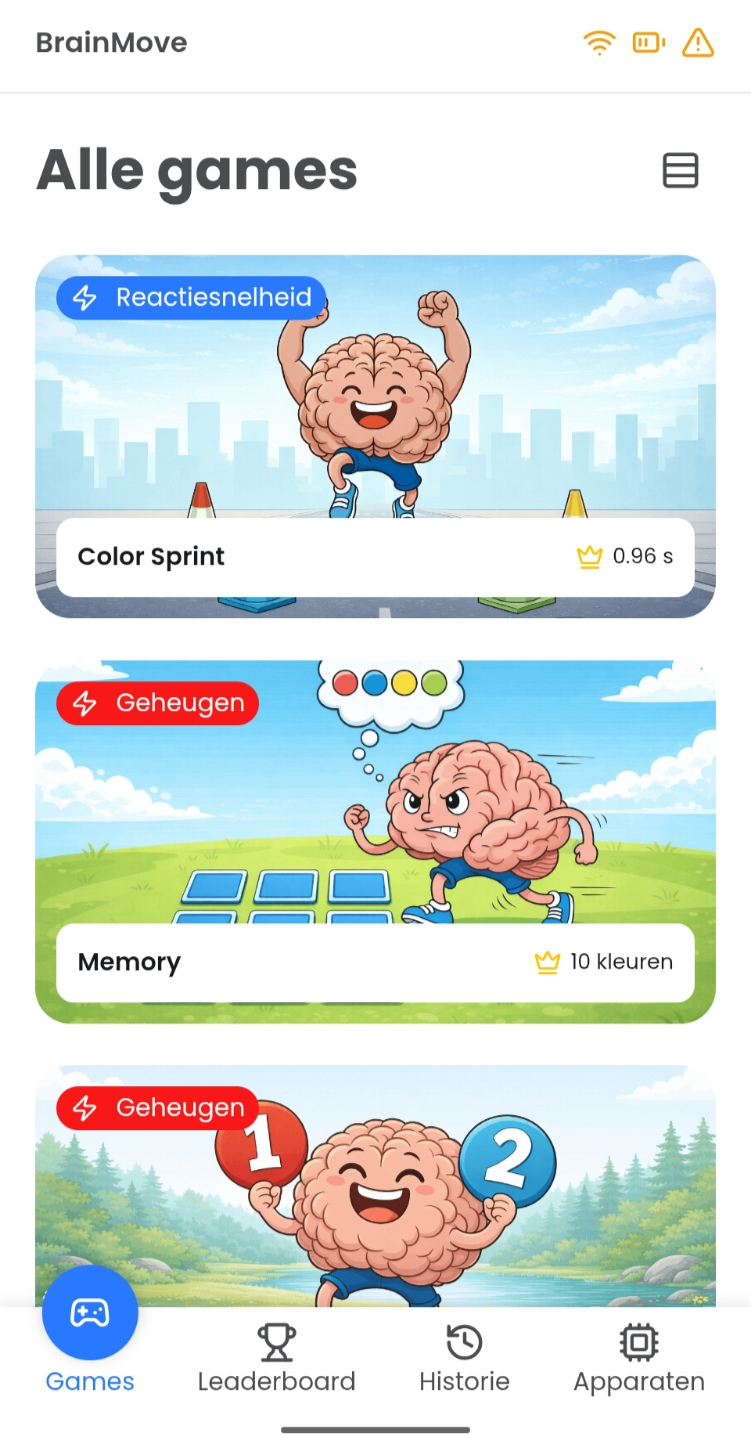
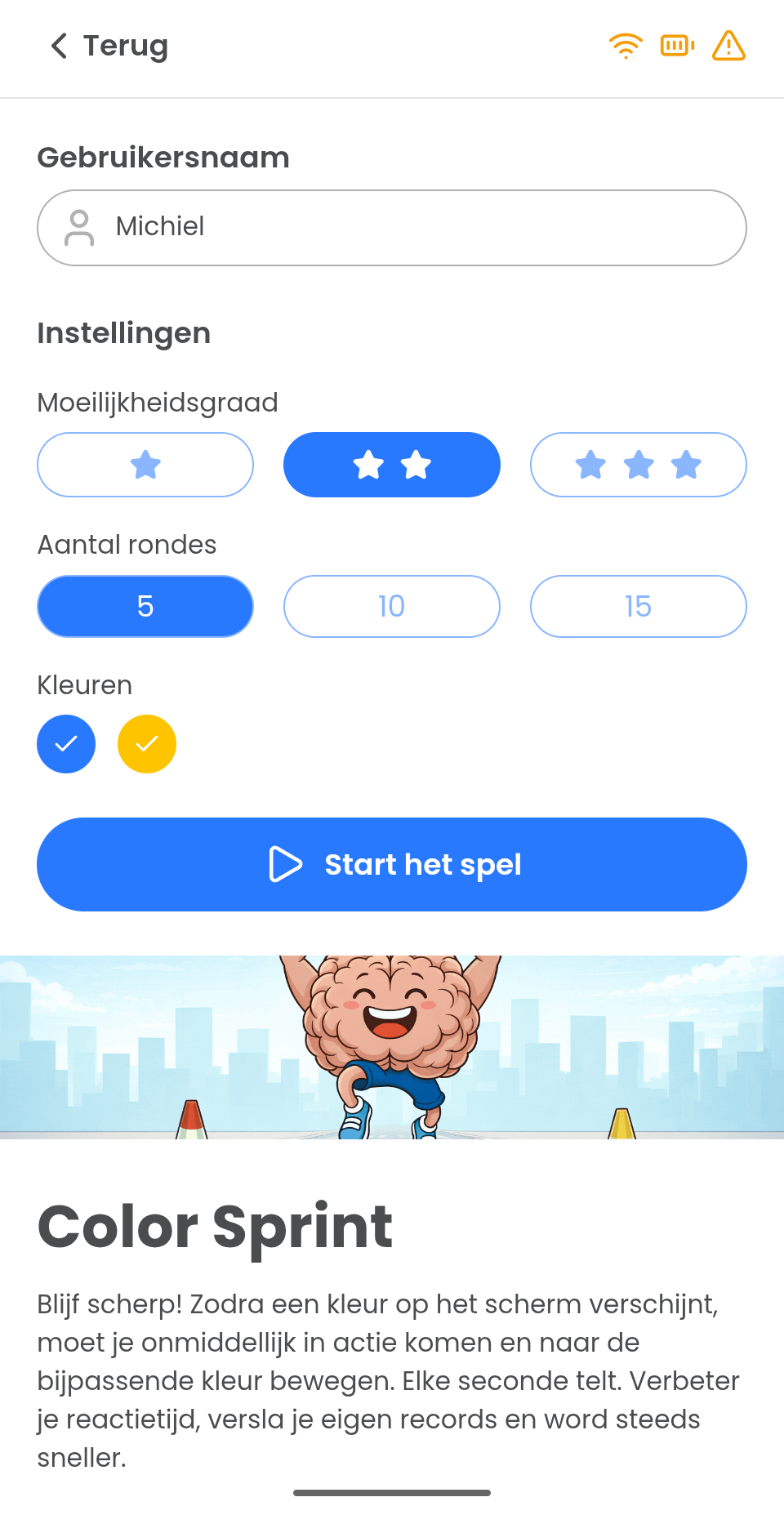
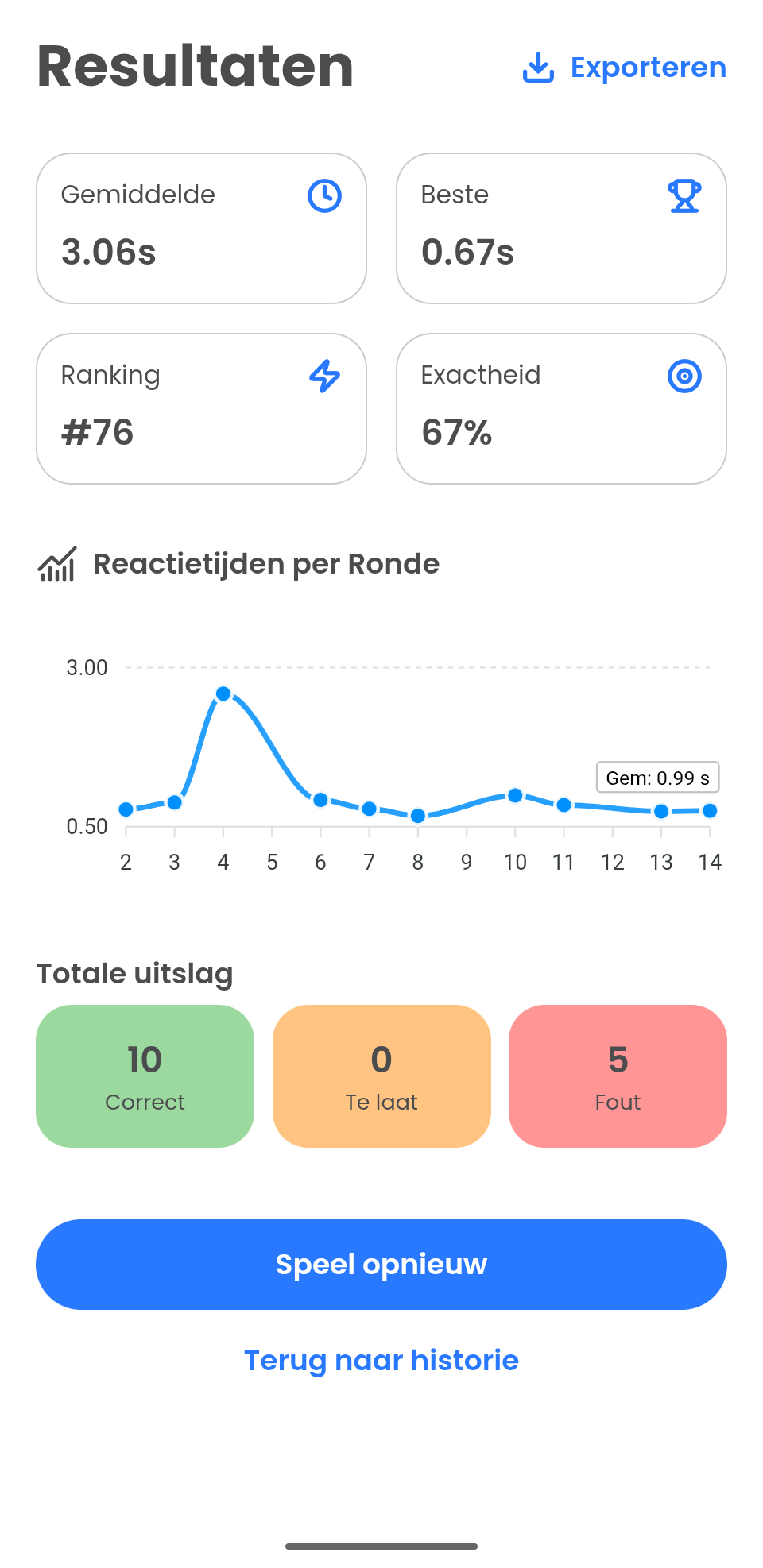

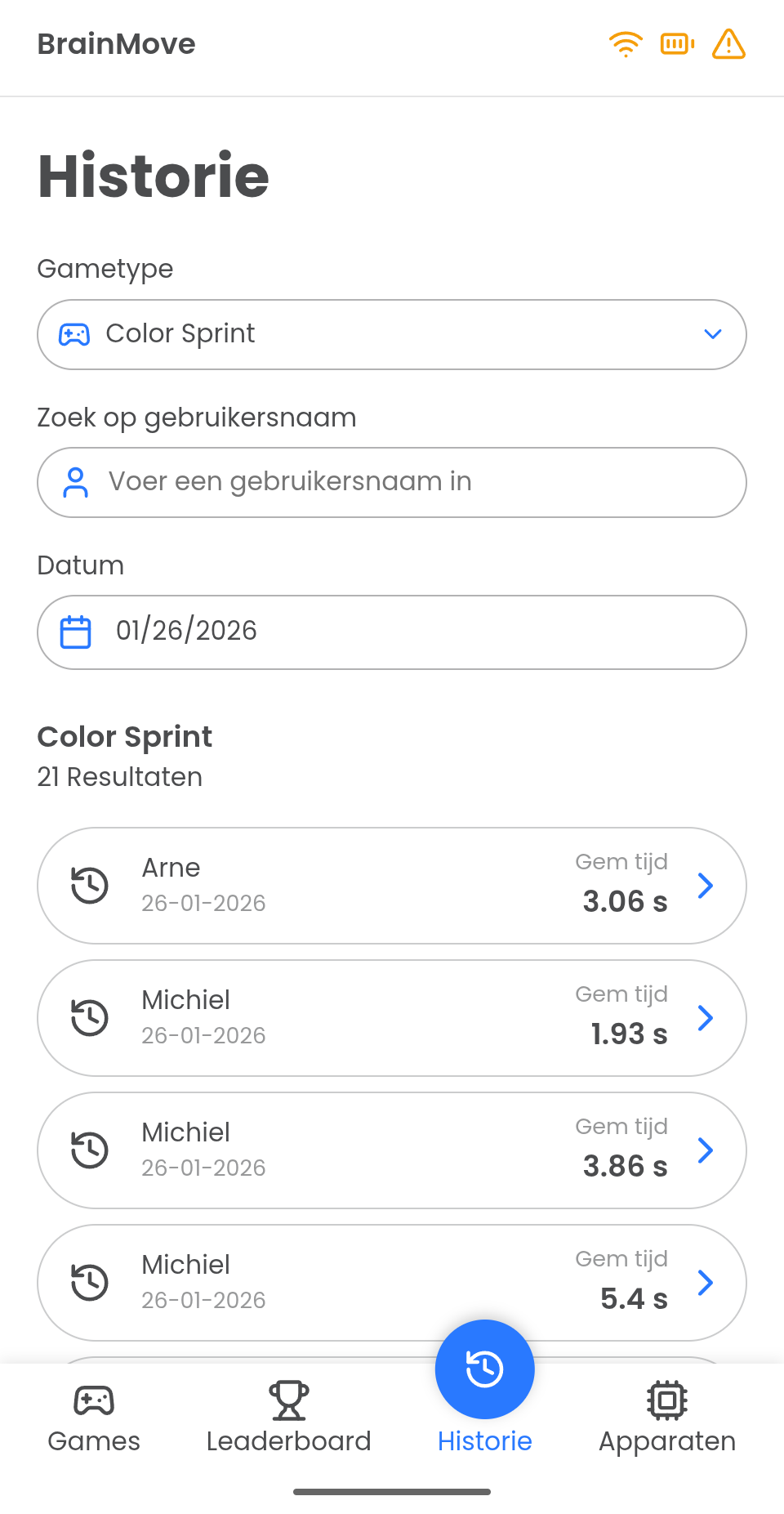

BrainMove is an interactive physical and cognitive training system that consists of a central hub and four wireless, proximity-sensitive pods. This project was originally designed for teachers organizing children's camps to make standard exercises more interactive.
The system works by linking physical interaction to browser-based games such as Color Sprint, Memory, and Falling Colors. The setup comprises a Raspberry Pi acting as the central server and four hardware modules (red, blue, yellow, and green) that are operated by hand. When a game indicates a certain color on the screen, the user must move withing the proximity the corresponding physical pod as quickly as possible. In this guide, we explain how you can build this system yourself.
System Architecture:
BrainMove is a locally running IoT application built with the following components. The full open-source code can be found on the GitHub Repository.
- Hardware Communication: Four ESP32 microcontrollers send sensor data wirelessly via the locally hosted MQTT protocol (Mosquitto) to the central server.
- Backend: An asynchronous FastAPI (Python) server processes the incoming hardware actions, manages the game logic, and stores scores in a SQLite database.
- Frontend: The user interface is a Vue 3 (Vite) Single Page Application that receives and sends real-time updates via Socket.IO (WebSockets).
Supplies
Make sure you have the following ready before you begin. Because this project requires 4 independent pods, the supplies for the pods are described per set of 4.
Central Hub (The Server):
- 1x Raspberry Pi 5 with a microSD card (32GB or larger recommended)
- 1x USB-C power supply for the Raspberry Pi (original or good quality, e.g., 27W)
Hardware per set of 4 Pods (Electronics):
- 4x ESP32-C3 microcontrollers (the reliable brain of each pod)
- 4x VL53L0X Time-of-Flight (ToF) sensors (laser distance sensor for interaction/touch detection)
- 4x Passive buzzers (to give a sound signal on correct/incorrect)
- 4x Push buttons (for powering on/off or resetting)
- 4x 18650 Lithium-ion batteries (for a fully wireless experience)
- 4x 18650 Battery charger modules (e.g., TP4056) (to safely charge and protect the battery)
- Resistors (8 pieces in total: e.g., 2x 10kΩ or 100kΩ per pod for the voltage divider to measure the battery percentage via the ESP32, since the battery is max 4.2V and the ESP ADC measures up to 3.3V)
- Sufficient jumper wires and heat shrink tubing
- Soldering iron and solder
Enclosure (Optional but recommended):
- 4x 3D-printed pods in the recognizable colors (Red, Blue, Yellow, Green)
Software & Libraries:
- GitHub Repo: This includes all the code, installation manual, user manual, hardware spec sheets, ...
- Backend (Data & Game Logic): Python 3.11+ with asynchronous FastAPI (hosted via Uvicorn). Caching and scores are saved locally to an SQLite3 database. The communication bridge with the hardware runs via a Mosquitto MQTT broker.
- Frontend (Visuals & Real-time): Vue 3 (Composition API) built with Vite for maximum performance. Socket.IO is used for real-time, low-latency updates between the screen and the players.
- Microcontrollers (Edge): C++ in the Arduino IDE. Use of PubSubClient for MQTT payloads and VL53L0X libraries for I2C sensor processing.
Configuring the Central Hub (Raspberry Pi)
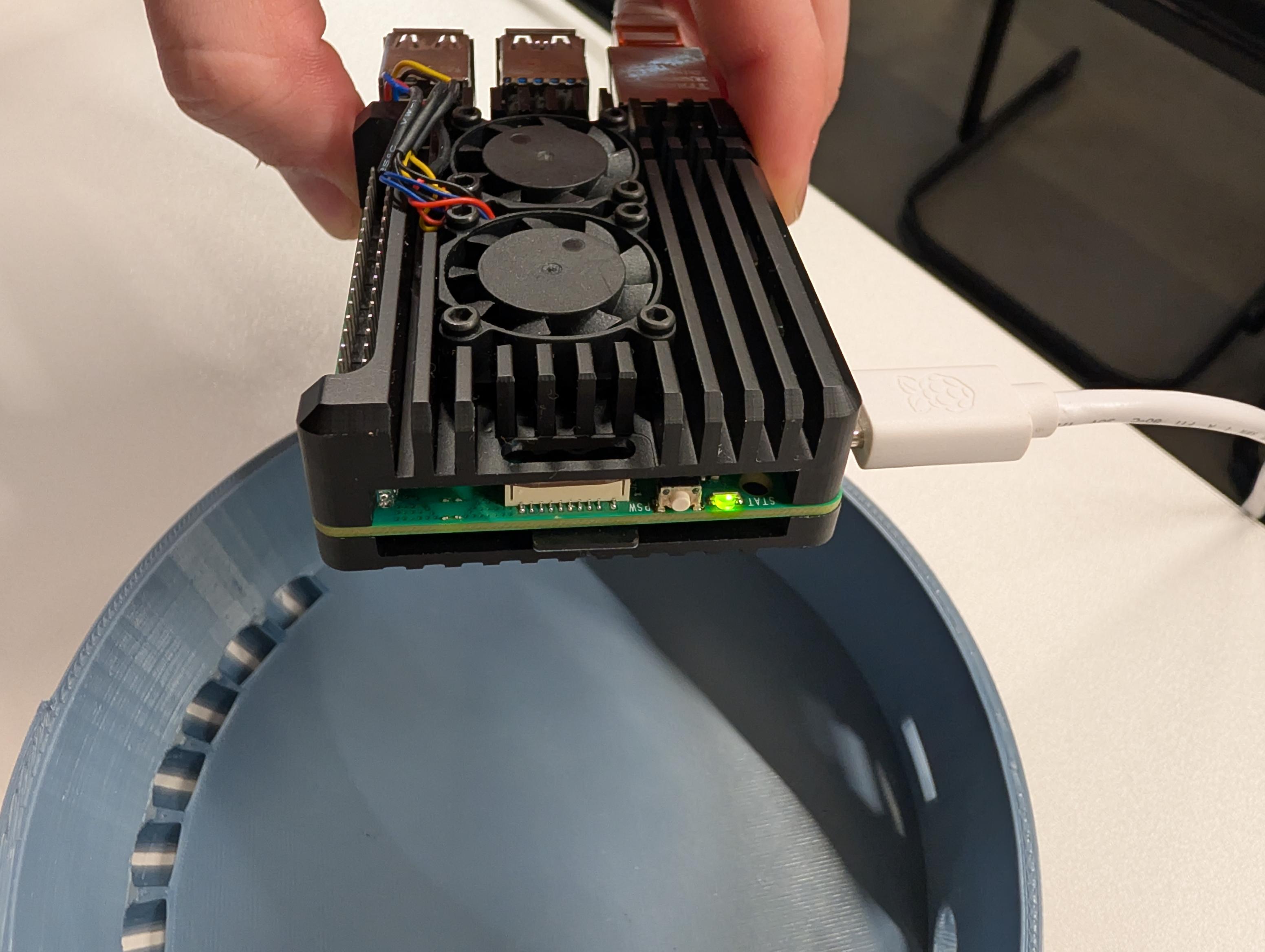
Before we bring the sensors to life, we need a "post office" that handles all the messages between the pods and the games. For this, we use an MQTT broker on our Raspberry Pi.
- Install the operating system on your Raspberry Pi.
- Open the terminal and install the Mosquitto broker by running the following:
- Configure anonymous access so that our ESP32s can connect directly locally without complex passwords.
3D Printing (Optional But Recommended)

Although you can build this project loosely on a table, it is much more fun and safer in an enclosure.
- Go to the Github Repository (see the link at the top of this project) and download the .STL files in the /hardware/3d-models folder.
- Print a total of 4 enclosures. Pay attention to the color! You need red, blue, yellow, and green filament for the complete experience (PLA or PETG is recommended). Alternatively use grey filament and spray paint the pods each in their color.
- We recommend an infill of at least 15% so they can withstand a bump (or an enthusiastic smack).
Hardware Schematic & Soldering
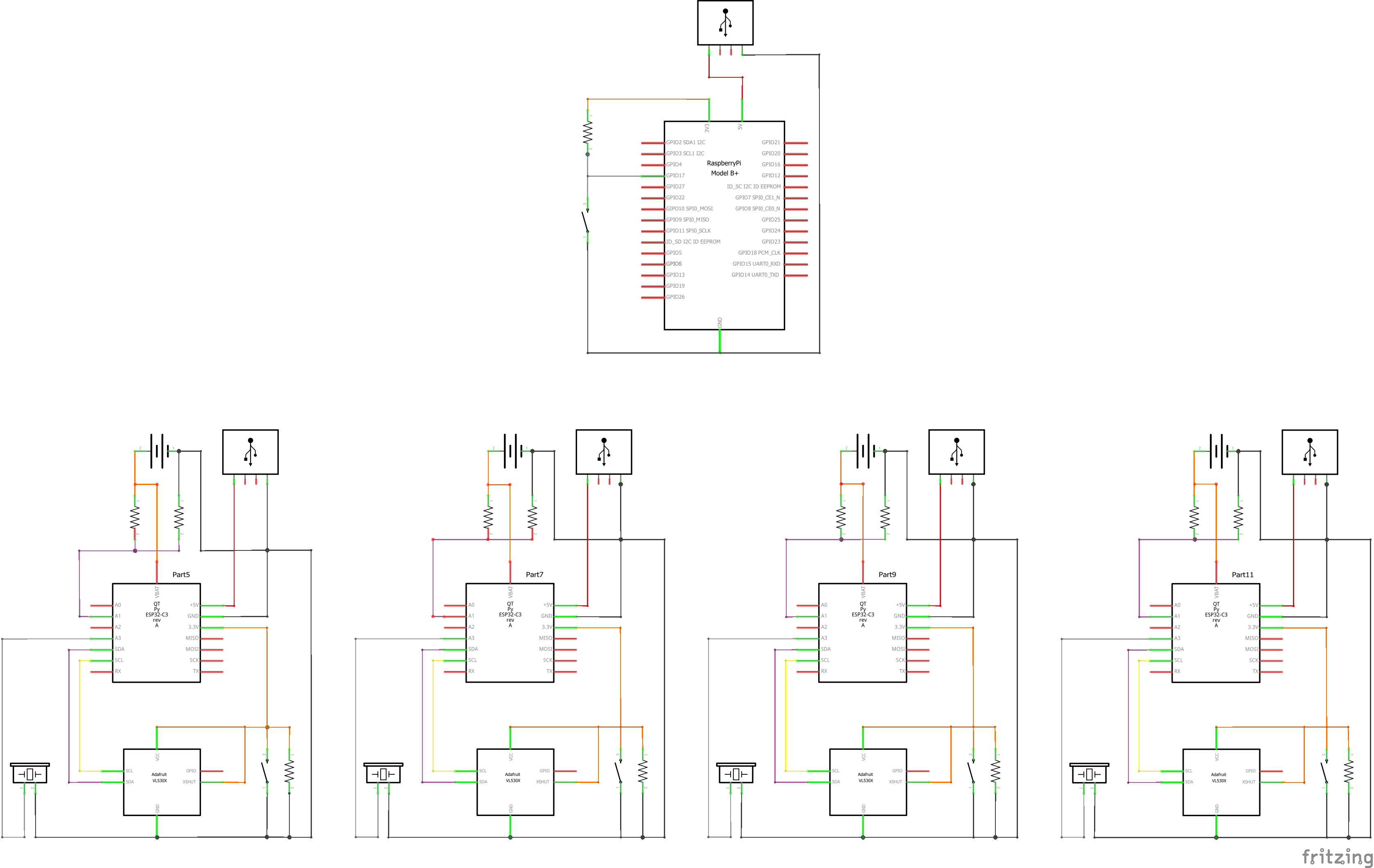
Before we upload the software, we need to solder and assemble all physical components into the pod (or use a test setup first using breadboards and solder later). Follow this schematic for each of the 4 pods:
- VL53L0X (Laser Sensor):
- Connect VCC to the 3.3V pin of the ESP32.
- Connect GND to the GND pin of the ESP32.
- Connect SDA to Pin 6.
- Connect SCL to Pin 7.
- Connect the XSHUT pin to Pin 4.
- The Buzzer (Sound):
- Connect the negative pin to GND and the positive pin to Pin 5.
- The Push Button:
- Connect one side to GND and the other side to Pin 3 (we use the internal pull-up of the ESP).
- The Battery & Charger:
- Connect the 18650 battery to the B+ and B- ports of your tp4056 charger module.
- The OUT+ of the charger goes (via the on/off switch) to the 5V/VIN of the ESP, and OUT- to GND.
- Battery Measurement (Important!): To read the battery, we create a voltage divider with two resistors between the OUT+ and GND. You tap the middle to Pin 2 (ADC). This allows the ESP to measure if it is almost empty and safely put itself into sleep mode to prevent damage.
- Neatly mount everything into your (optional) 3D-printed enclosure.
Setting Up the Brains (ESP32 Firmware)
Now that the physical wires are correct, we open the software for the ESP32s.
Take a look at your code at this essential block in the ESP32 firmware (brainmove_mqtt.ino). This piece of logic ensures that the pod knows what to do when the game sends a command:
What happens here in simple terms?
When the Raspberry Pi shouts "start" via WiFi, the parameter isPolling is turned on. The sensor in the pod wakes up, so to speak, and searches extremely fast for an object (for example your hand or the kids trying to hit the right pod!). If the game says "stop", the sensor goes back into sleep mode to save the 18650 battery. There are also commands here to have the speaker in the pod play a selected sound depending on whether you hit the correctly colored pod.
- Open brainmove_mqtt.ino in the Arduino IDE.
- At the top, adjust your WiFi name (WIFI_SSID), WiFi password (WIFI_PASSWORD), and the IP address of your Raspberry Pi (MQTT_BROKER) in the constants.
- Flash this script via the Arduino IDE to all four of your ESP32 boards and systematically change the DEVICE_COLOR at the top of the script explicitly to "red", "blue", "yellow" and "green" before you click "upload"!
Installing the Backend (Game Server)
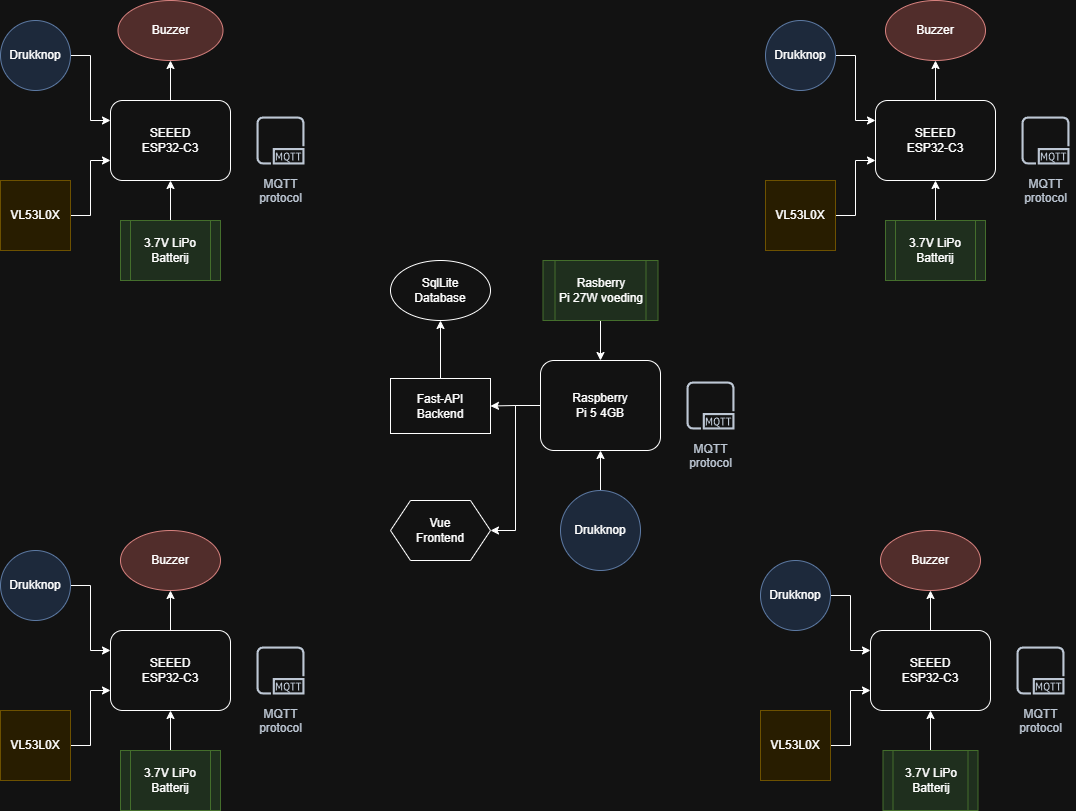
The backend checks all results, saves the scores, and sends the games via APIs to the frontend.
- Clone the code and navigate in your terminal (on your Raspberry Pi) to the BrainMoveG1 folder.
- Create a virtual Python environment (python3 -m venv venv) and install the requirements via pip install -r requirements.txt.
- Then start the two scripts in backend/scripts (namely init_db.py and seed_games.py) to create your SQLite database and fill it with games like Color Sprint and Memory.
Building the Frontend (Visuals)
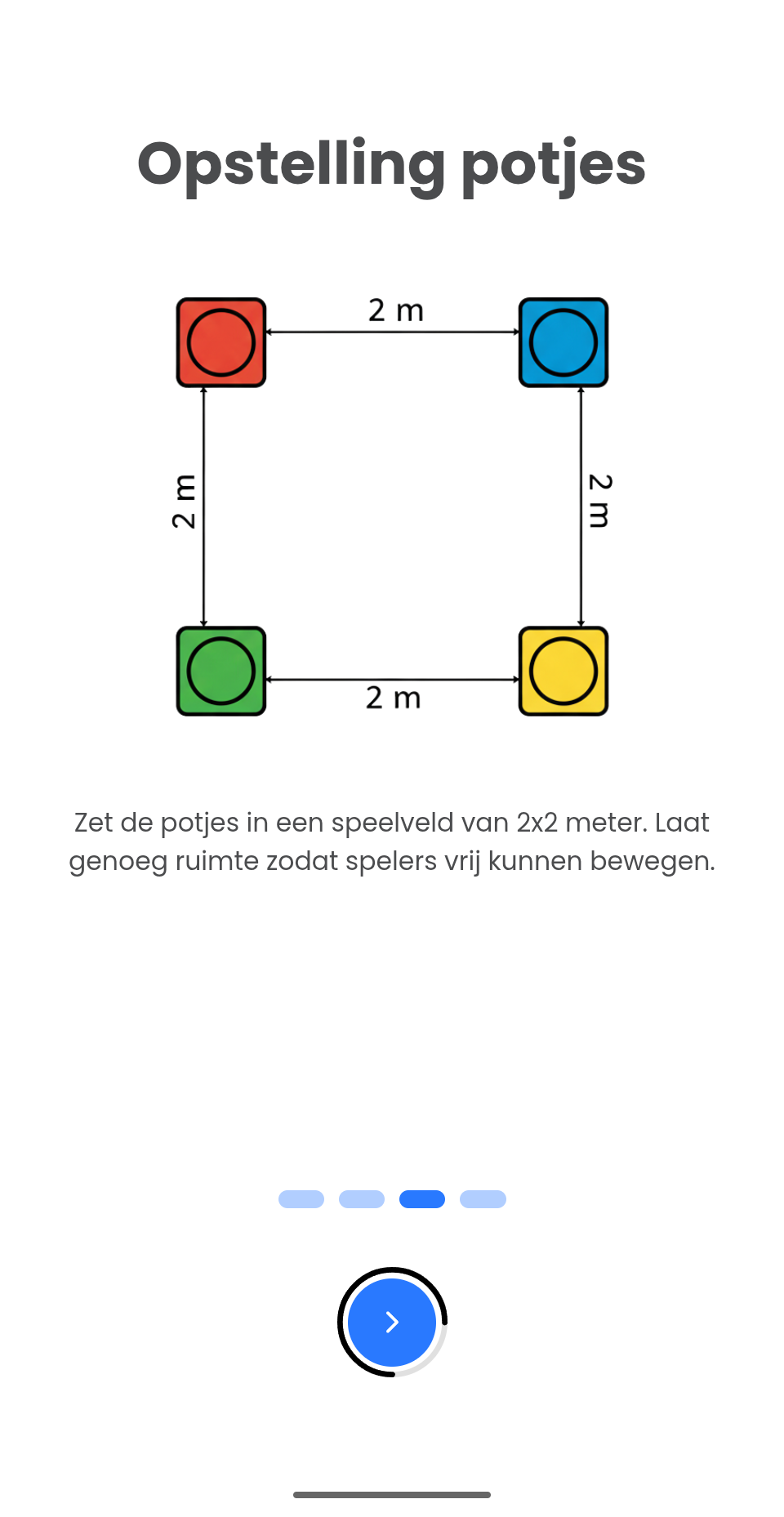
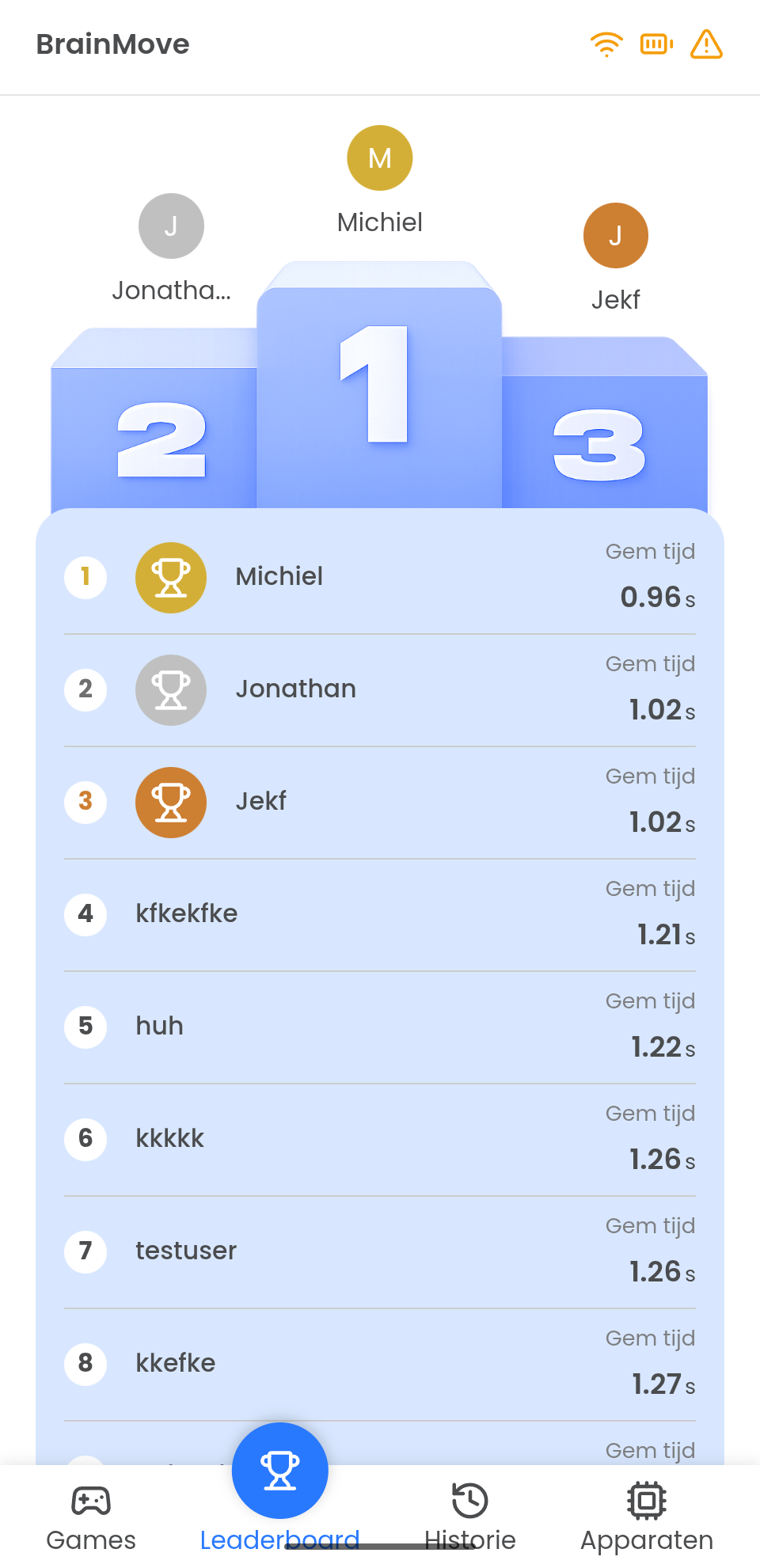
The frontend runs on Vue 3 and wraps everything up for that beautiful end result.
- Enter the frontend folder in your terminal.
- Run npm install to fetch all Vue packages.
- In your files, open the .env.development file (or .env) and set VITE_API_BASE_URL to the IP of the Raspberry Pi.
Execution and Testing
To run the system locally, you test if the hardware and software are talking to each other.
- Start the Backend:
- Activate your virtual environment and run the backend with the fastapi server via:
- Start the Frontend:
- Open a new terminal, navigate to the frontend folder and run:
- Turn on your 4 pods (hardware), they will automatically search for your WiFi network and the Mosquitto broker on your server.
- Using a browser on the same network (e.g., a tablet or PC), navigate to http://localhost:3000.
- Start the Color Sprint game and move your hand over the specified colored pod that lights up on your screen. Does the game react immediately? Congratulations, it works!