Breath Sensor
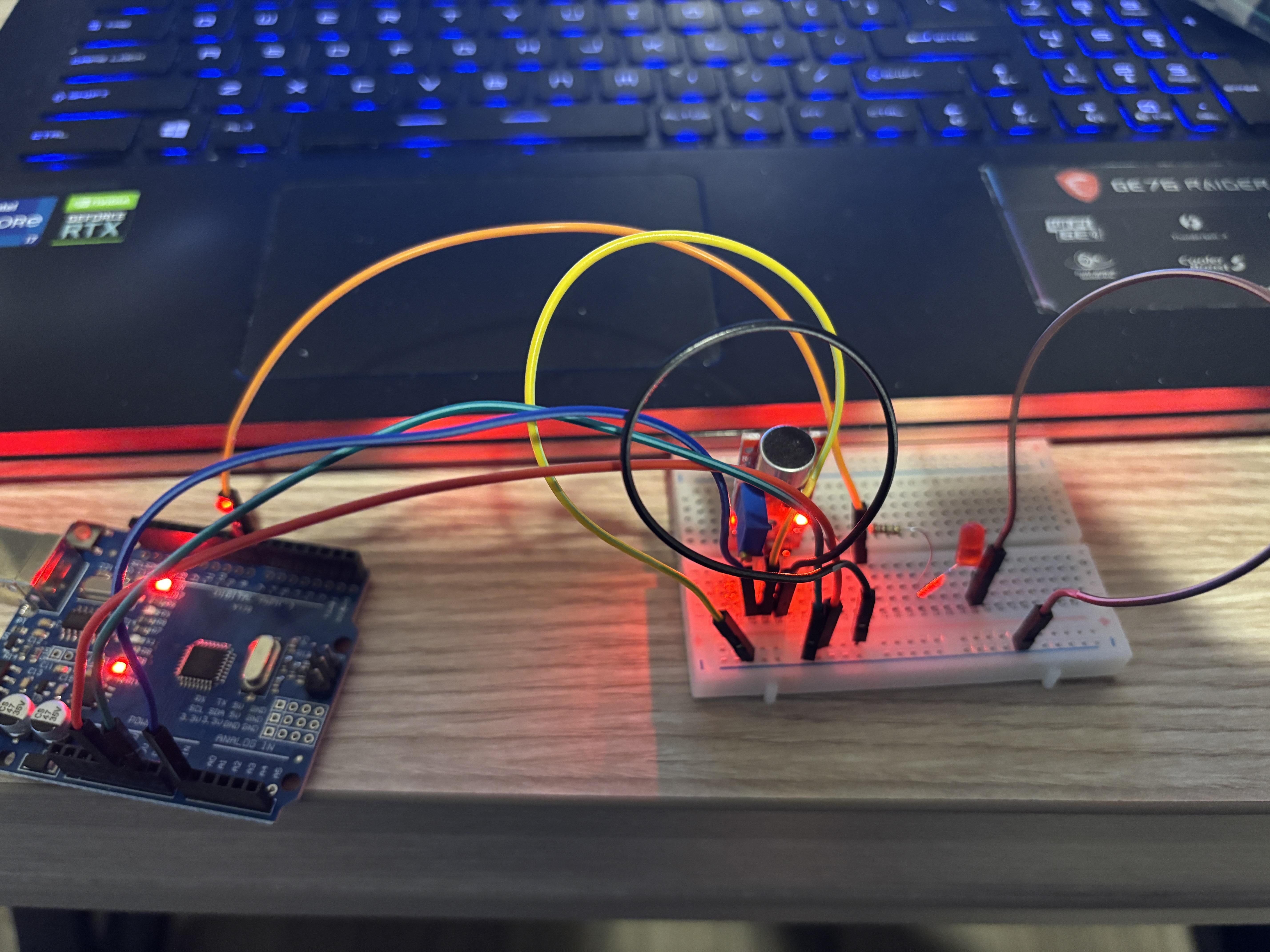
Blow Activated LED (Breath Sensor) Project
Objective
The objective of this project is to develop a simple sensor circuit using an Arduino microcontroller that activates an LED when you blow into the sensor. Although originally intended as a sound sensor, the module was very unstable, only detecting extremely loud sounds, making it useless for its intended application. It will be repurposed as a breath sensor, detecting breath instead of sound.
Supplies
Components
- Arduino board (Uno, Nano, etc.)
- Analog sound/airflow sensor (4-pin module with AO pin)
- LED (any color)
- 220Ω resistor for LED
- Breadboard and jumper wires
- Arduino IDE (Coding Software)
Wiring
Wiring
- Sensor:
- + → 5V
- - → GND
- AO → Arduino A0
- DO → left unconnected (not used)
- LED:
- Anode (long leg) → Arduino pin 8 through a 220Ω resistor
- Cathode (short leg) → GND
- Power Rails:
- Red rail → 5V
- Blue rail → GND
Note: This was my first time using a breadboard, so building the circuit involved learning how to properly connect components, organize power and ground rails, and arrange the wires and components securely. It was a hands-on introduction to electronics prototyping.
How It Works
How it Works
- The sensor gives an analog output (AO) proportional to the detected vibrations, airflow, or sound.
- The Arduino reads the analog output using analogRead(A0) and compares it with a threshold value (in this case, 35).
- The Arduino then lights the LED when the reading is above the threshold.
- The LED is off when the reading is below the threshold.
Since the sensor is now detecting air movements near the sensor, the sensor is now a breath sensor instead of a sound sensor. The reason for this is that the original function of the sensor was not working well because the sensor could only detect loud sounds.
Code
#define SENSOR_AO A0 // AO pin from sensor
#define LED_PIN 8 // LED pin
int threshold = 35; // LED lights up when reading exceeds this
void setup() {
pinMode(LED_PIN, OUTPUT);
Serial.begin(9600); // open Serial Monitor to see readings
}
void loop() {
int val = analogRead(SENSOR_AO);
Serial.println(val); // see the readings in real time
// LED logic: light up if reading > threshold
if(val > threshold) {
digitalWrite(LED_PIN, HIGH);
} else {
digitalWrite(LED_PIN, LOW);
}
delay(50); // small delay for readability
}
Demonstration
In the video, you see the LED lighting up when I blow on it, but when I strike the desk, making a lot of noise, it doesn't light the LED.
Downloads
Conclusion
Conclusion
The project shows a creative use of a low-cost sensor. The sensor was adapted from a faulty sound module to a breath-controlled LED.
More than this, this was the first time I worked with a breadboard. I learned a lot about planning the connections of the wires, handling the power and ground rails of the board, and ensuring that all the elements are secured appropriately. This was a good learning experience.
It was a good example of a creative problem-solving exercise in a maker project.