Build BRINK GAMER: a DIY ESP32 Handheld Game Console
by elismar silva in Circuits > Arduino
689 Views, 2 Favorites, 0 Comments
Build BRINK GAMER: a DIY ESP32 Handheld Game Console
.jpeg)
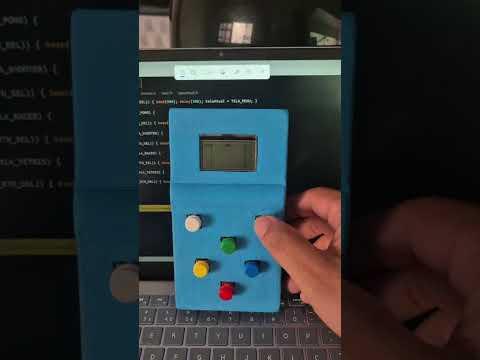
BRINK GAMER is a DIY handheld game console powered by an ESP32.
This project combines electronics, programming, and gaming in a compact and educational device.
The goal is to demonstrate how the ESP32 can be used to handle graphics, buttons, and sound, making it ideal for embedded game projects.
Supplies
Electronic Components:
- ESP32 Development Board
- 18650 Li-ion Battery (3.7V)
- Battery Charger Module 03962A
- Step-Up Voltage Converter (3.7V to 5V)
- Graphic Display(ST7567 LCD)
- Push Buttons (Up, Down, Left, Right, Action)
- Power On/Off Switch
- Jumper Wires
Structural and Assembly Materials:
- Perforated Board (Prototype Board)
- MDF Board (Clipboard-style base)
- Instant Glue
- Paint
Tools:
- Utility Knife (Cutter)
- Sandpaper
Where to Start
.jpeg)
BRINK GAMER is a DIY handheld game console built using an ESP32.
This project was created to combine electronics, programming, and creativity in a compact and portable device.
The console uses a graphic display, physical buttons, and sound feedback to create a simple but fun gaming experience.
Powered by a 18650 Li-ion battery, BRINK GAMER is fully portable and designed as an educational project for anyone interested in embedded systems and game development with microcontrollers.
This project can be reproduced using accessible components and basic tools, making it ideal for makers, students, and electronics enthusiasts.
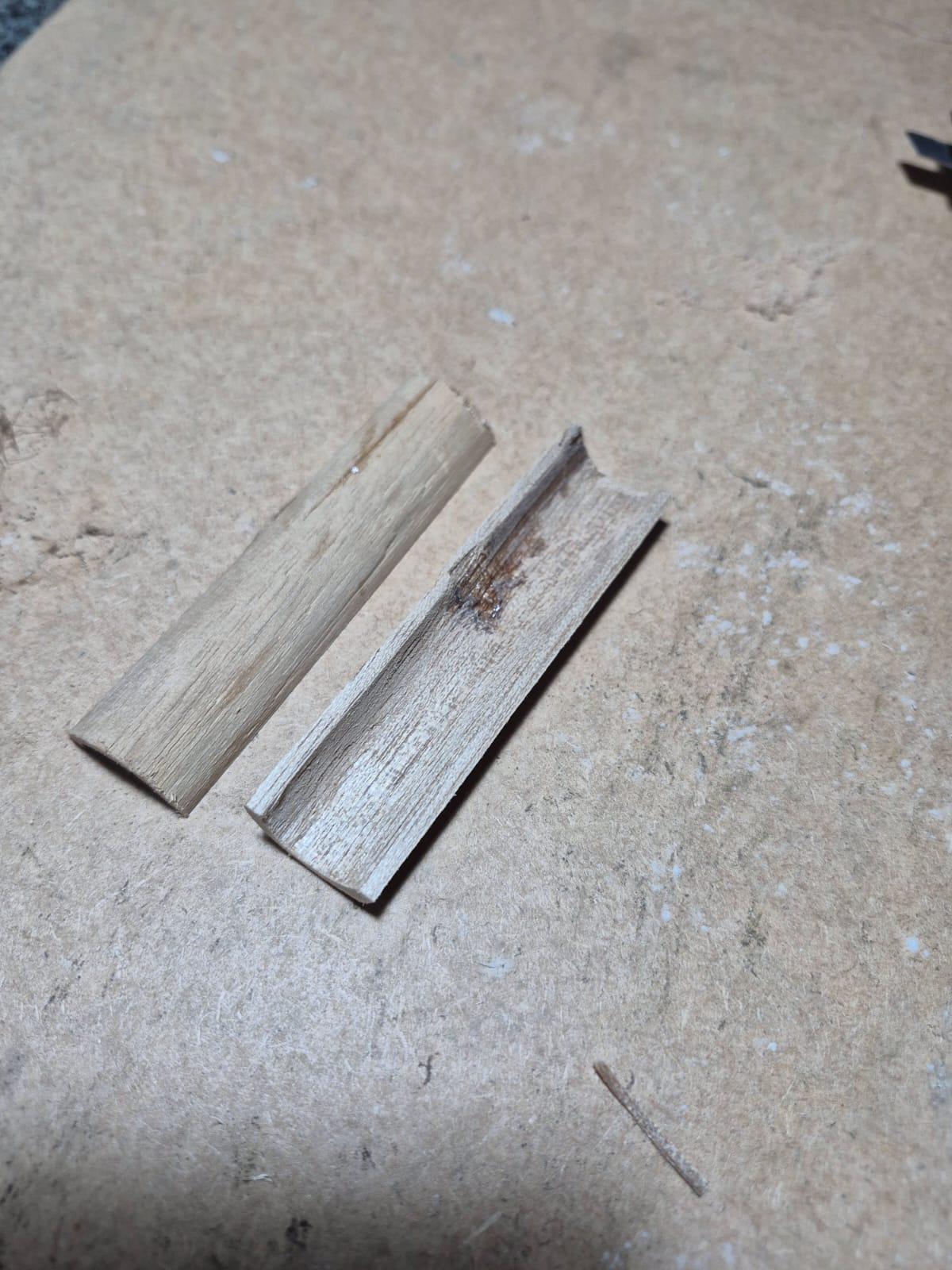
Cutting and Preparing the Wooden Base

.jpeg)
.jpeg)
Soldering the Headers on the Perfboard
.jpeg)
.jpeg)
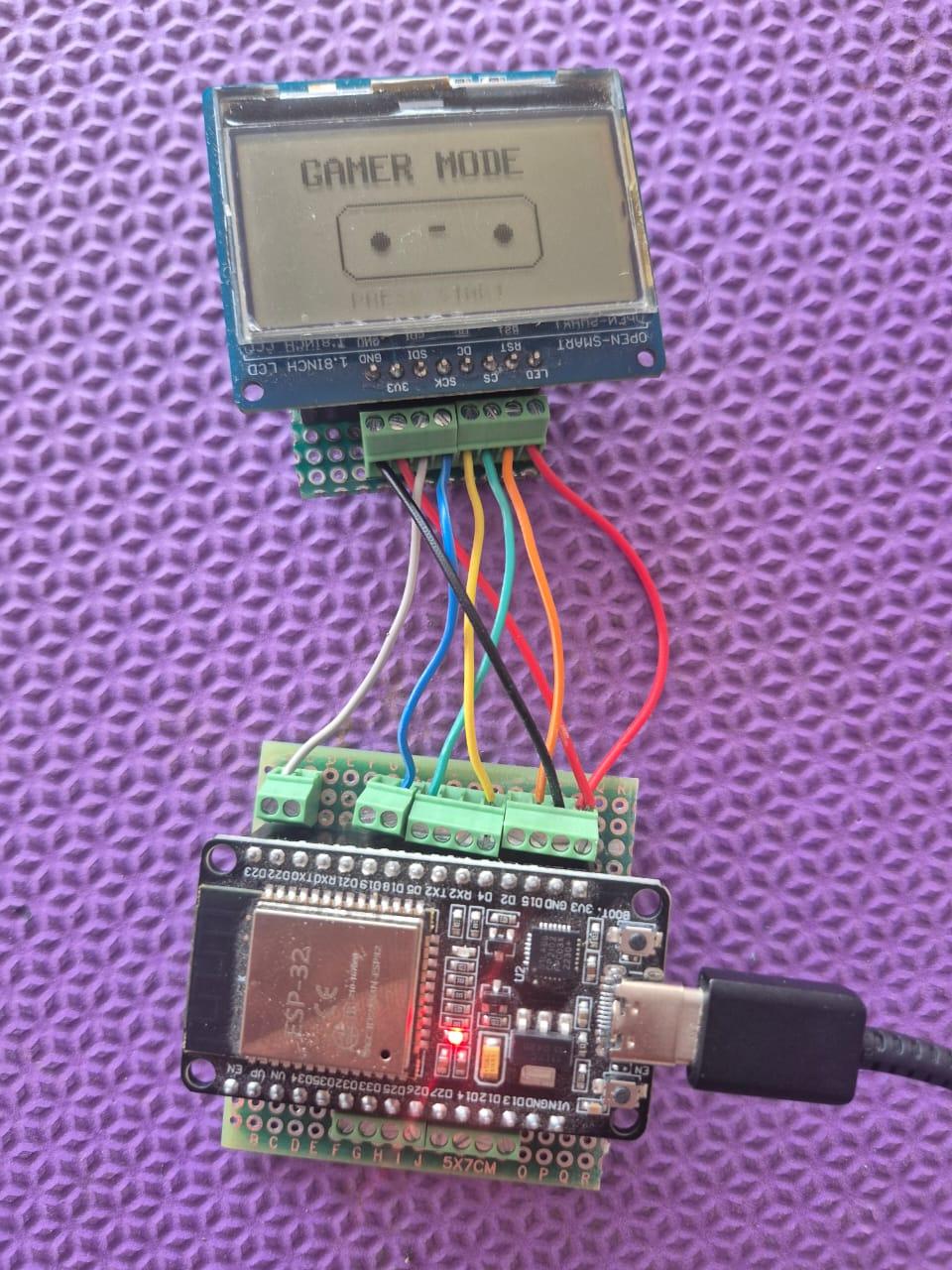
In this step, the goal is to prepare a perforated board to easily connect and test the ESP32 and the display.
First, solder pin headers (female or male, depending on your setup) onto the perforated board. These headers will allow the ESP32 and the display module to be plugged in and removed easily during testing.
Make sure the headers are properly aligned before soldering to ensure a good fit and reliable connections.
Once soldered, place the ESP32 and the display onto the headers.
Then, connect the wires from the ESP32 to the display as shown in the figure, ensuring that all signal and power connections are correct.
After wiring, perform basic connection tests to confirm that the display is working properly. This setup helps verify wiring and functionality before moving to the final assembly.
This approach makes debugging easier and prevents damage to the components.
Connections and Pin Mapping
In this step, all electronic connections are explained based on the firmware configuration used in the project.
📟 Display Connections (ST7567 – SPI)
The graphic display communicates with the ESP32 using SPI.
The following pins are defined in the code:
- CS (Chip Select) → ESP32 GPIO 5
- DC (Data/Command) → ESP32 GPIO 4
- RST (Reset) → ESP32 GPIO 15
The SPI communication uses the ESP32 hardware SPI pins internally (MOSI and SCK), while CS, DC, and RST are defined manually.
Make sure the display is powered according to its specifications (3.3V or 5V, depending on the module).
🎮 Button Connections
All buttons are configured using INPUT_PULLUP, meaning each button is connected between the ESP32 pin and GND.
Directional Buttons:
- UP → GPIO 25
- DOWN → GPIO 26
- LEFT → GPIO 27
- RIGHT → GPIO 14
Menu Buttons:
- SELECT → GPIO 32
- OK / START → GPIO 33
Because internal pull-up resistors are enabled, no external resistors are required.
🔊 Buzzer Connection
- Buzzer signal → GPIO 13
- Buzzer GND → GND
The buzzer is controlled using the tone() function to generate sound effects and startup music.
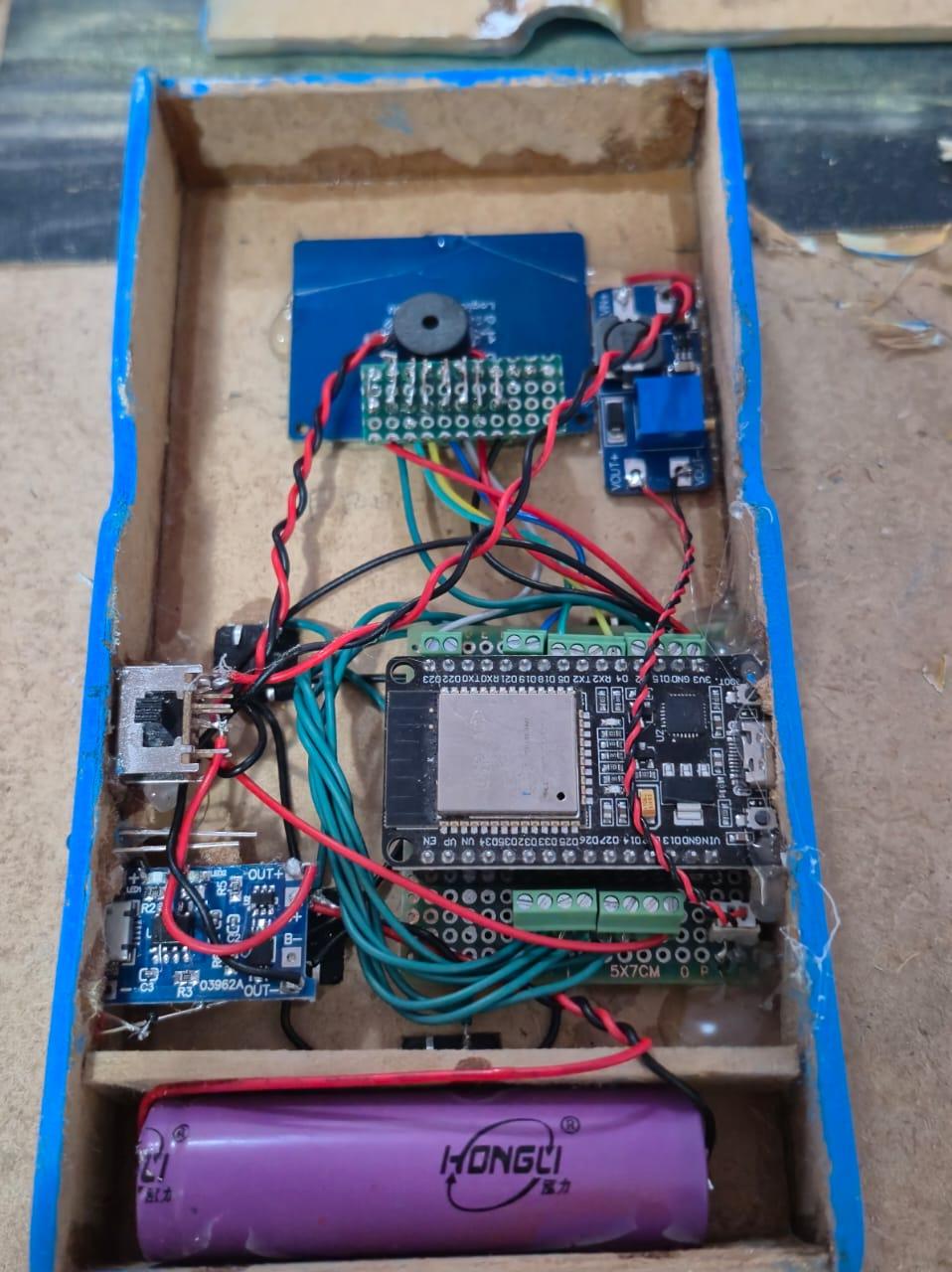
🔋 Power System
- 18650 battery (3.7V) powers the system
- The battery is connected to the 03962A charging module
- A step-up converter (3.7V to 5V) is used to supply stable voltage
- A power on/off switch is placed between the battery and the circuit
This setup allows safe charging and portable operation.
🧪 Final Checks
Before proceeding to the final step:
- Verify all connections carefully
- Ensure there are no short circuits
- Test button inputs and display initialization
Once everything is working correctly, you can proceed to the final step.