[WIP] Carvera Air ATC Mod
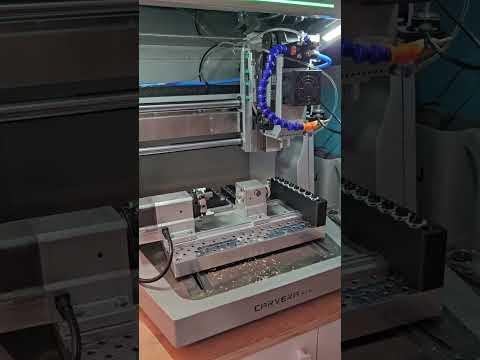


When I first backed the Carvera Air on Kickstarter, I was convinced that manual tool changes would be perfectly sufficient for my workflow. And to be fair — they are.
But I couldn’t help envying the automatic tool changer (ATC) of its bigger sibling, the Carvera. Once you’ve seen a machine swap tools on its own, it’s hard to ignore the convenience.
Fortunately, Makera had the foresight to prepare the AIR for exactly this kind of upgrade. The necessary wiring for an ATC stepper motor and the ATC limit switch is already integrated into the machine — just waiting to be used.
So this project was born.
In this guide, I’ll present my fully functional ATC mod for the Carvera AIR. I’ll walk you through the required parts, mechanical modifications, electronics integration, and firmware setup — step by step — so you can upgrade your own machine and bring true automatic tool changing to the AIR.
Let’s turn the little machine into its bigger brother.
Note:
Right now I have designed the magazine mounting to fit the SMW bed only. Funssor and the stock MDF are coming soon.
Currently the community firmware (2.1.0c-RC1) ignores the toolsensor on the Carvera Air! I'll implement a configuration option soon. Use at your own risk!
Update 2026-03-08: I've added a setting "atc.detector.enable" to enable or disable the toolsensor (defaults to true) in the dev release > 08.03.2026
This is a work in progress and I am updating the files and documentation while I improve this mod.
Supplies
Bill of Materials (BOM)
For the ATC upgrade of the Carvera AIR
Mechanical Components
[1] HTD Timing Belt 425-5M – 9 mm width
(Note: Standard width is typically 10 mm, but 9 mm works perfectly.)
[2] 50:1 Geared Stepper Motor – rated torque of the gearbox approx. 10 Nm
- 17HS15-1584S-MG50 (is the one I use)
- Motor length <= 39mm!
[3] Neodymium Magnets – 3 pcs – 10×2 mm
[4] Compression Springs – 24 pcs
- Wire diameter: 0.4 mm
- Outer diameter: 4 mm
- Uncompressed length: 17mm
[5] M3 Heat Inserts – 8 pcs
[6] Superglue
Fasteners
[7] M4×12 ISO 4762 Screws – 4 pcs
(Stepper motor mounting)
[8] M4×10 ISO 4762 Screws – 2 pcs
(ATC sensor bracket)
[9] M3×10 ISO 4762 Screws – 2 pcs
(ATC sensor)
[10] M3 Countersunk Screws – 16 pcs
(Length 10–16 mm, ATC assembly)
[11] M6×20 ISO 4762 Screws – 3 pcs
- 1× pulley to lever cylinder
- 2× ATC magazine to SMW bed
[12] (Optional) M3×12 Countersunk Screws – 4 pcs
(Front plate)
Electronics
[13] 3-Pin Microswitch with Roller Lever
- Case dimensions: 20 × 10 × 6 mm
- Hole spacing: 9.36 mm
- Hole diameter: 2.25 mm
[14] 3-Wire Cable – approx. 0.5 meter
[15] JST 2.54 SM Connectors – 2-Pin and 4-Pin
- (Recommended: buy a set including crimping pliers if you don't have one)
[16] DRV8825 Stepper Driver
- Either from 4th axis for testing or seperate
[17] Tool Laser Sensor
- I've bought the GTRIC LS05-S12N1 on Aliexpress
[18] 2N2222 transistor, 10k and 100k Ω resistors
- Only if your tool sensor outputs a voltage > 5V on the signal line (GTRIC does)
Print Parts


First you need to print all the parts that are needed for this mod.
These include:
- Motor mount
- ATC sensor mount
- Bottom gear
- Top gear (not affiliated with the tv show)
- Magazine including the toolpods (2 parts per pod) (v2 uploaded)
- Sensor mount (for GTRIC M5 sensor)
- Cover
- Frontplate (optional)
I have used Tinmorry PETG-CF for all parts, except the white parts within the atc magazine.
Supports are needed for the magazine itself and the motor mount (only on the bed for the counterbores for the m4 screws).
Dimensions are critical for the bores at the gears and the toolpods. It may be necessary to print more than once with different settings or scaling to get it right.
The frontplate is optional since it is intended to be individualized to mount additional things. Just edit the step file, position holes and put heat inserts in or just put screws in directly.
Print v2 of the magazine to include a lid for the laser sensor.
Install Heat Inserts
Put the 8 heat inserts into the motor mount.
Stepper Motor Wiring, Motor and Driver Assembly


If you've bought the same stepper that I did, you have to put a connector on it. There's two options:
- Install a female JST-PH 6 pin connector on the stepper side
- Replace the 6 pin JST-PH connector on the machine side with a different kind. I have bought a set of JST 2.54 SM connectors (needed for the ATC sensor) and have replaced the PH kind on the machine side with a SM type and did the same on the motor. Refer to the picture above
I had to flip the inner two wires when installing the connector, else the motor wouldn't turn. ONLY DO THIS WHEN THE MACHINE IS POWERED OFF!
Once that is done you can screw the motor to the motor mount. I have oriented the wires to face the back of the machine.
Afterwards you can install the key on the motorshaft and press the top gear on the motor shaft. Make sure there gear doesn't grind on the motor mount but also doesn't have a gap bigger than 1mm.
Place the new DRV8825 stepper driver in the right slot. Set the VRef to ~0.55V.
Replace the Manual Lever With the Bottom Gear

Unscrew the set screw on the front and back of the lever and pull it out.
Make sure that the screw in the cylinder that goes into the spindle is tightened securely.
Press the bottom gear on the cylinder and orient it so that the cam points to the top right. Align the diagonal hole aswell with the hole in the cylinder where the lever was installed. Secure the gear with one M6x20 screw [11]
Install the Motor
Unscrew the top cover of the spindle. It is held by 4 M3 countersunk screws. We will reuse these screw to hold the motor mount. Take out the cables that are labeled ATC sensor and ATC motor.
Put the motor mount inside the sheet metal housing of the spindle with the motor shaft pointing to the left. DO NOT put the screws in yet.
Next, put the belt around the bottom gear and press it on the top gear while tilting the motor mount in the way that the motor shaft now points more to the bottom and the motor itself is raised by a fair bit. That way you should be able to put the belt around the gear.
Now you can screw it in. This part might be a bit tricky because you actually have to put the base tension on the belt during this step. If you can't get it to work this way, you can try to install the screws (not tightened though) on the left side of the mount first before installing the belt. That way you can apply the tension on the belt by simply pressing on the motor until the threads match the holes of the spindle housing.
Tighten the screws and you are done.
Prepare and Install the ATC Sensor

You have to use a 3mm drill (or do it on the machine itself if you don't have a 3mm drill) and widen the screw holes of the sensor to fit a M3 screw.
Regarding wiring, refer to the picture above.
Solder one end to the N terminal and one end to the NC terminal. (We want to have it fail safe).
Install a male JST 2.54 SM connector on the end.
I'll post the ideal cable length soon.
Fix it with a cable tie to the sensor mount.
Afterwards screw the mount with the sensor on the spindle housing with 2x M4x10 [8] and first position it in the lowest position.
Install the Laser Sensor


I wouldn't recommend running the machine without a toolsensor. That's why we need to install one that is used exactly like the one in the C1.
I've bought this one: GTRIC LS05-S12N1
IMPORTANT: Some sensors, including the one that I use, output +24V (the voltage powering the sensor) on the signal line when not triggered. This means that the sensor can't be directly connected to the machine. I made a small PCB that uses a transistor to invert the output of the signal line. That way, we don't expose the control board to the 24V. You can find the schematic and some pictures in the image above.
I cut the yellow wire that goes to the 4pin EXT connector on the left side of the mainboard. Afterwards you can connect the signal line of the sensor to the cable going into the connector to the control board. I took +24V and GND from the PSU.
Others have succesfully used an optocoupler.
Adjust the position of the laserbeam, so that it is right beneath the lip on the ATC magazine.
Adjust the sensitivity of the sensor, so it doesn't trigger when aimed at the black lid but triggers when aimed at a tool.
Prepare the Magazine


Insert the springs in the holes of the magazine as shown above. Next, install the toolpods by screwing them down with the ring clamps. Once done, tap on each toolpod first to check if it bounces back up freely. If it doesn't, twist the pod sideways in both directions. This might free the spring. If it's still stuck in the bottom position, you have to find the tightspot and sand it.
I've had issues with the layers of the 3d print tearing apart when screwing the magazine down. This comes from a uneven surface. I'd suggest to mill the bottom of the magazine flat with the machine to ensure an even surface.
Install the magazine with 2x M6x20 [11]
Download Community Firmware and Controller and Set Them Up
Download both the community firmware and controller (> 2.1.0c-RC1)
Once the firmware has been installed, run this command:
"model"
You get something like this:
"model = CA1, 2, 1, 3125"
Take note of the second digit after "CA1" (here it's 1). If you want to revert the mod, you need this number.
Next, run:
"fset func 5"
This tells the machine that it has an atc now.
Next we need to set up the atc in the config. Run the following commands:
"config-set sd epsilon_max_rate 3600"
"config-set sd atc.homing_retract_mm 0"
"config-set sd atc.action_mm 70"
"config-set sd atc.safe_z_empty_mm -40"
"config-set sd atc.safe_z_offset_m 20"
"config-set sd atc.homing_max_travel_mm 360"
"config-set sd atc.homing_rate_mm_s 45"
"config-set sd atc.action_rate_mm_s 45"
"config-set sd atc.detector.detect_pin 0.21!^"
Note: The last command that set the atc detector pin to be 0.21!^ only works in the dev release >08.03.2026 of the firmware yet. If you want to run it on 2.1.0-RC1, you have to take out the sd card and edit the config.txt manually.
It is also handy to use the main button long press function to clamp and unclamp the current tool.
In the controller go to settings Machine - Basic -> Main button long press function -> ToolChange or run:
"config-set sd main_button_long_press_enable ToolChange" in the MDI.
Next put the custom_tool_slots.txt on the root of your sd card. These positions specify where the tools are located. It does fit my machine and you might need to adjust accordingly.
Currently the firmware (2.1.0c-RC1) ignores the toolsensor on the Carvera Air! Use at your own risk!
Update 2026-03-08: I've added a setting "atc.detector.enable" to enable or disable the toolsensor (defaults to true) in the dev release > 08.03.2026
Downloads
Assemble the Cover

Glue in the magnets as shown above. Also glue together the two pieces of the cover. The orientation should be self explanatory since they only fit in one way.
When the glue has dried you can just slap the cover on and it'll hold perfectly by the magnets. Use the 2 indexing pins to specify the position.
Profit!
You should now have a fully working ATC on your Carvera Air!
I will update this manual step by step with more information but this is all I could do at first.
-- Warioo