Control LED Via Phone App – Arduino ESP32 Home Automation Using Matter Protocol
by RonFrtek in Circuits > Arduino
162 Views, 2 Favorites, 0 Comments
Control LED Via Phone App – Arduino ESP32 Home Automation Using Matter Protocol

In this easy Visuino tutorial, you’ll learn how to use the Matter protocol to control an LED on your Arduino Nano ESP32 directly from your smartphone — creating a simple and powerful smart home automation setup.
With Visuino’s visual programming, you can quickly connect your Arduino Nano ESP32 to a Matter network and control your LED with just a tap on your phone.
This tutorial will show you how to:
- Connect an Arduino Nano ESP32 to a Matter network for smart home automation
- Control an LED from your smartphone using the RainMaker app
- Use Visuino to set up IoT devices easily without coding
- Understand pairing codes, on/off control, and status feedback
- Build real, practical smart home projects in minutes
💡 Works with Google and other Matter-supported smart home systems!
Download the Visuino project file at the bottom and
What You Will Need


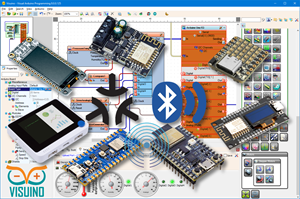
- Arduino Nano ESP32 (or any other ESP32 board)
- ESP RainMaker App Download
- Visuino program: Download Visuino
Start Visuino, and Select the Arduino Nano ESP32 Board Type


Start Visuino as shown in the first picture Click on the "Tools" button on the Arduino component (Picture 1) in Visuino When the dialog appears, select "Arduino Nano ESP32" as shown on Picture 2
In Visuino Set WiFi


- Select Arduino Nano ESP32 board and in the properties window expand "Modules>WiFi>Connect To Access Points
- Click on the Connect To Access Points 3 Dots
- In the AccessPoints window drag "WiFi Access Point" to the left side
- In the properties window set SSID (name of your WiFi hotspot or router)
- In the properties window set Password (password of your WiFi hotspot or router)
- Close AccessPoints window
In Visuino Set Matter
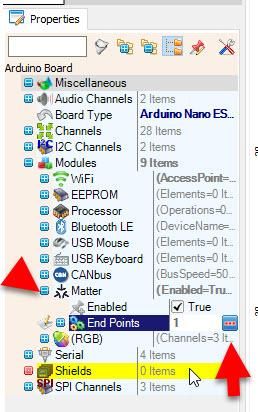

Now lets set the Matter
Select Arduino Nano ESP32 board and in the properties window expand
"Modules>Matter Click on the "End Points" 3 Dots button In the "End Points" window drag "On/Off Plugin" to the left side Close the "End Points" window
In Visuino Add & Connect Components


- Connect Arduino > On/Off Plugin1> Pin [Out] to Arduino Digital (LED) pin 13
- Connect Arduino > Matter> ManualPairingCode to to Arduino > Serial USB pin p[In]
Generate, Compile, and Upload the Project

- In Visuino, at the bottom click on the "Build" Tab, make sure the correct port is selected, then click on the "Compile/Build and Upload" button.
Getting the Code

After Uploading the project to the board, switch to the serial tab select the correct port and click Connect button you should see the Matter pairing code displayed.
ESP RainMaker App






Install the App and Add Your Device
On your smartphone, go to the Google Play Store or Apple App Store and search for “ESP RainMaker.”
Download and install the app, then open it and create an account (or log in if you already have one).
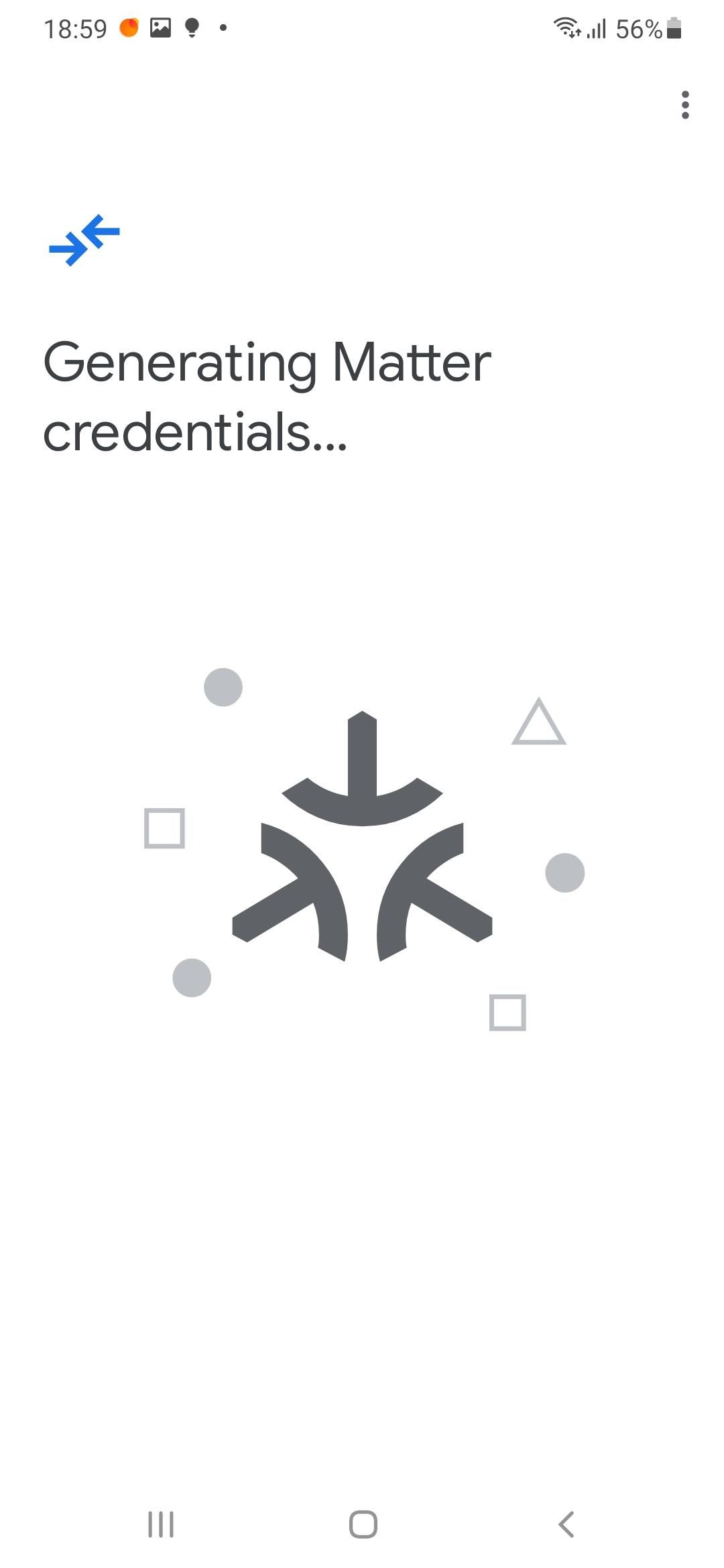
With your Arduino Nano ESP32 flashed with the Visuino Matter project and connected via the serial monitor, you’ll see a pairing code displayed.
Make sure your phone is connected to the same Wi-Fi network as your Arduino board.
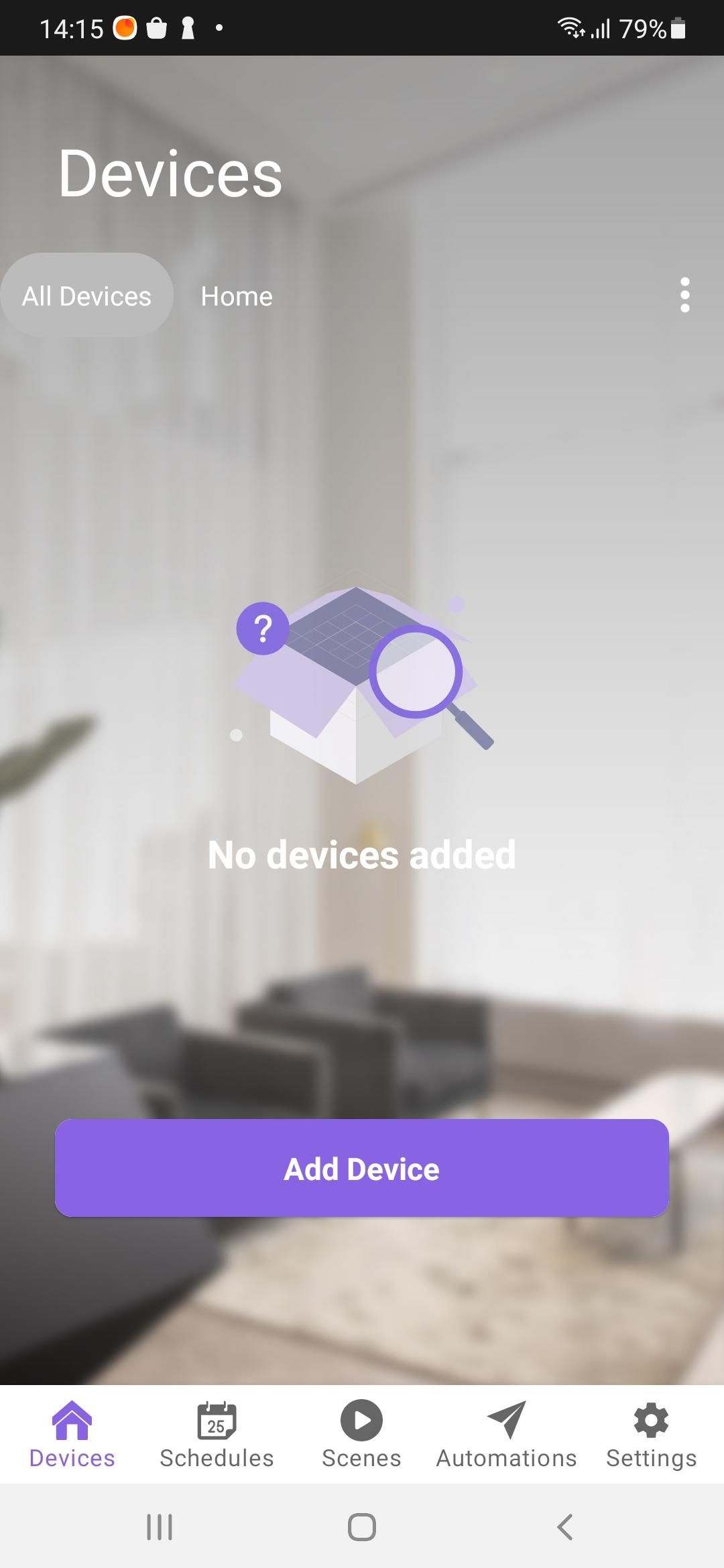
Open the RainMaker app, go to the home screen, and tap “Add Device” (or the + icon) to start adding your device.
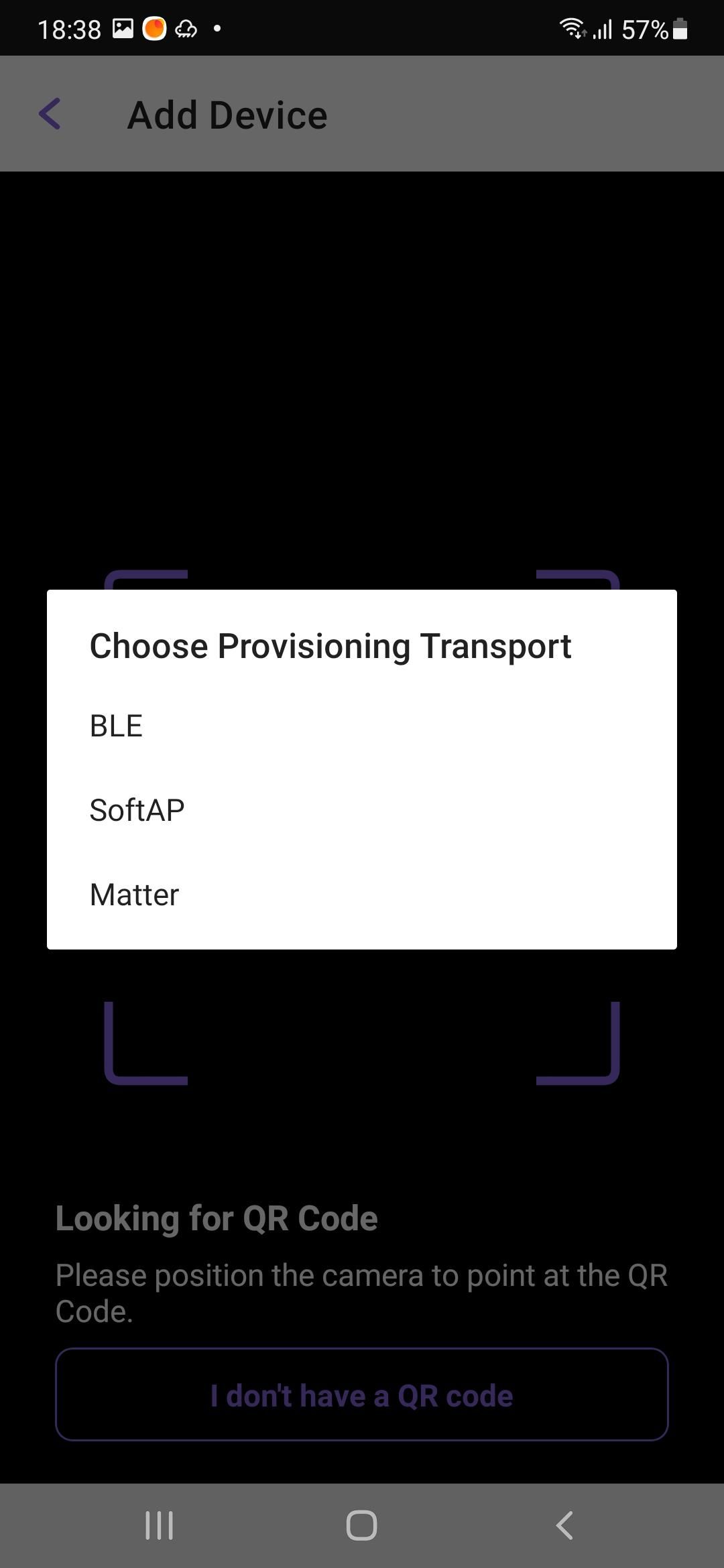
Select “I don’t have a QR code.”
Then choose Provisioning Transport → Matter.
Select your group, and then choose “Set up without QR code.”
Enter the Matter pairing code from the serial window,
tap “I’m ready,” and wait for the app to connect to the Arduino board.
When it’s successfully connected, you’ll see your new device appear in the app —
ready to control the LED!
💡 Tip: Make sure your phone is on the same Wi-Fi network as the ESP32. If the app can’t find your device, try reconnecting Wi-Fi or restarting the RainMaker app.
You can also in Visuino set "Erase All Flash Before Sketch Upload" to Enabled when you upload the project.
More about ESP RainMaker App
Play
After uploading the project to the Arduino Nano ESP32 board and setting the ESP RainMaker App you should be able to control the LED on the Arduino Nano ESP32 board from the App.
Congratulations! You have completed your LED project with Visuino.
Also attached is the Visuino project, that I created for this Tutorial. You can download and open it in Visuino: https://www.visuino.com