Creating a Webbrowser Edge
by 321brennankoehler in Design > Software
13 Views, 0 Favorites, 0 Comments
Creating a Webbrowser Edge

this is about how to create a web browser
Supplies
a computer
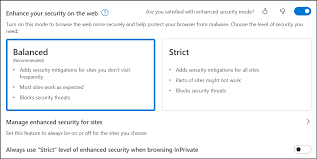
Set Up Safe Browsing
Microsoft Edge: Click the three dots > Settings > Privacy, search, and services. Under "Tracking prevention," select Balanced or Strict.
Why it helps: It automatically blocks most "bad" websites before they even load.
Downloads
Clearing Cache and Cookies
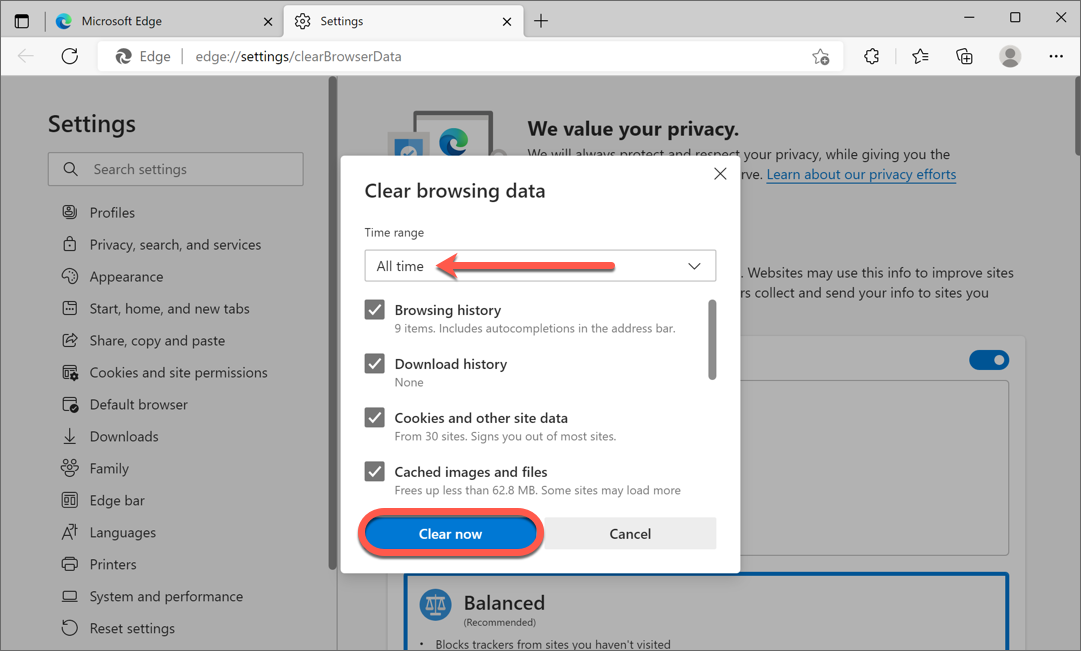
- Press Ctrl + Shift + Delete on the keyboard (this is the fastest way).
- Set the Time range to All time.
- Check the boxes for:
- Cookies and other site data
- Cached images and files
- Click Clear now.
Manage Extensions
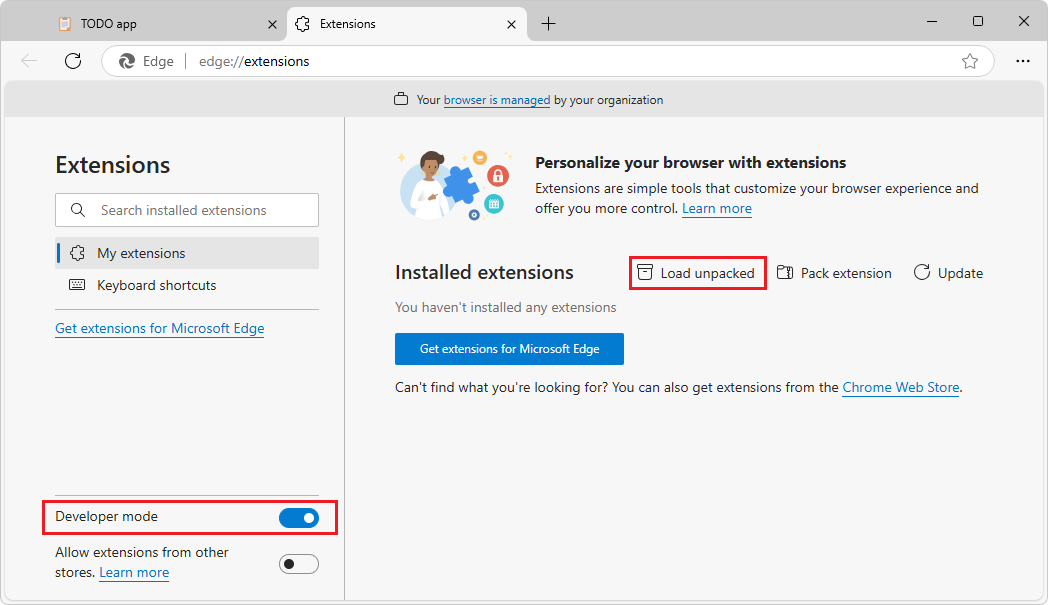
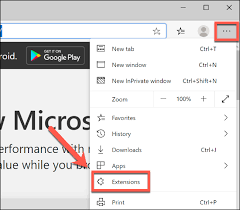
- Open Menu: Press Alt + F → Select Extensions.
- Quick Access: Type edge://extensions/ in the address bar.
- Toggle On/Off: Click the blue slider next to any extension.
- Remove: Click Remove under the extension name to delete it.
- Pin to Bar: Click the Puzzle icon (next to URL bar) → Click the Eye icon to show/hide.
- Get New Ones: Click Get extensions for Microsoft Edge at the bottom left.
Downloads
Organize With Bookmarks
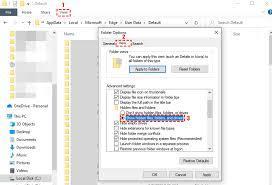
- Open Manager: Press Ctrl + Shift + O.
- Create Folder: Click the Folder+ icon at the top of the menu.
- Move Items: Drag and drop links into folders.
- Sort Quickly: Right-click any folder > Sort by name.
- Toggle Bar: Press Ctrl + Shift + B to show/hide the bookmarks bar.
- Save All Tabs: Press Ctrl + Shift + D to put all open tabs into one new folder.
Password Managment and Syncing
- Chrome: Settings > Google Password Manager. Turn on Offer to save passwords.
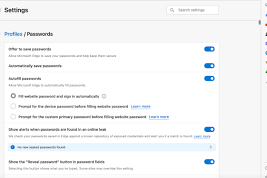
- Edge: Settings > Profiles > Passwords. Turn on Offer to save passwords.
- Syncing: If they have a Google or Microsoft account, signing in allows their bookmarks and passwords to be saved. If the computer breaks, they won't lose their access.
Downloads
Make It Readable
To Summarize: Press Ctrl + Shift + . → Click Copilot → Select Generate page summary.
To Simplify View: Press F9 (Immersive Reader).
To Narrow Text: In Immersive Reader → Text preferences → Choose Narrow column.
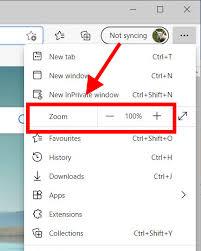
To Zoom: Ctrl + + (Enlarge) or Ctrl + - (Shrink).