DIY Budget KVM Over USB Solution for Homelabers
by tobychui in Circuits > Computers
102 Views, 0 Favorites, 0 Comments
DIY Budget KVM Over USB Solution for Homelabers


Recently I am upgrading my homelab with a few more new mini PC as servers. However, I only got one monitor and a sets of external keyboard and mouse for my desktop, and when I need to setup the mini PCs, it is really troublesome to first unplug my monitor and keyboard from my desktop PC, plug them into the new mini PC that I am gonna setup & install OS and switch between HDMI inputs.
Since I have a laptop lying around that I rarely use, I am thinking maybe I can use that as an external monitor and keyboard when setting up new servers. That is why I am looking for a KVM over USB device to get the job done.
What is KVM over USB? Is it the same as USB KVM switch?
KVM over USB device is not the same as USB KVM switch. Here is a quick list on whats are the difference between them.
- KVM over USB: A device that stream remote video output to another computer, and allow another computer to send keyboard & mouse HID signal into the remote computer (So basically your laptop, for example, is pretending to be an external monitor, mouse and keyboard)
- USB KVM Switch: It physically switch the signal of one set of monitor and keyboard into multiple computers. So you still need a dedicated sets of monitor and mouse.
Why you need to make your own?
There are a few reasons for this, but mostly because of
- Off-the-shelf KVM over USB solution are expensive (40USD+). In contrast, it only cost around 20USD when building myself one with off-the-shelf, commonly available ICs and parts.
- Software dependencies: Off-the-shelf KVM solution require software installation on the host computer to use them. And most of the time these software aren't that well written. Since I am a embedded system engineer with background in both software development & electronics, I have the skills to write the whole KVM keyboard & mouse driver in JavaScript with Web Serial API so the whole setup is portable and usable on all computer that have Chrome installed.
- My friends who are sysadmins really want one after they heard that I want to build a KVM over USB myself, that is why I decided to design it professionally and start a small production run on this project.
In this Instructable, I will share the details on how you could also build yours for under 20 USD.
Supplies
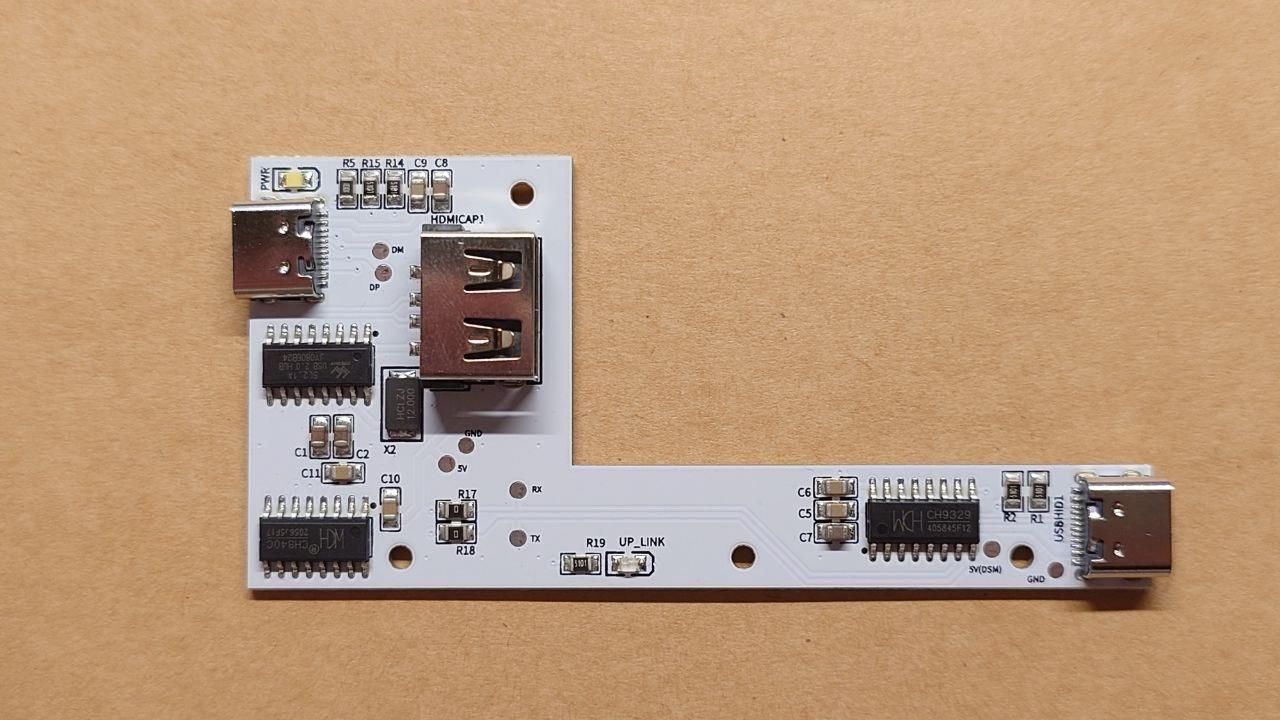
The parts required to build this project is surprisingly simple.
You will need the following parts
- USB 2.0 HDMI capture card (MS2109 preferred)
- A custom made PCB
- Some ICs (SL2.1A, CH340C, CH9329) and parts (see the attached BOM list)
- Soldering tools
- 3D Printer (for the case, optional)
- 2 x M3 x 10mm screws (for the case, optional)
Downloads
Design the Circuit

I have referenced a few open source KVM over USB design, and find the following patterns
- HDMI capture solution based on MS2109
- Some sort of MCU to emulate keyboard and mouse
- The MCU communicates with the host PC with some sort of protocol, usually UART or I2C (with a converter chip)
The MS2109 already is the cheapest option on the market, the other part where the build can reduce cost would be the MCU. Most commonly used MCUs in the build was
- Arduino Pro Micro (ATmega32u4) > too expensive
- STM32 > A bit better, but still costly
- CH552G > Cheapest, but the MCU clockspeed is too slow that it shows obvious lag when using it to act as a USB HID emulation device
Lastly, I opt with the most difficult to use solution - use CH340C and CH9329 chip as the USB Serial to USB HID converter. However, since these two chips are not MCU, that means the firmware has to be written in the software that I will develop. And as I am planning to develop the whole software in a webpage, that means I need to write the driver for the keyboard & mouse emulation device in JavaScript and control the USB HID converter using raw IO data from Web Serial API. Which is very technically challenging, but still do-able.
Side notes, if you are building just a few KVMs, buying a capture card built with MS2109 is cheaper than buying the chip itself. Especially you still need an external flash chip and heat sink for the chip, it would make more sense to just buy the HDMI capture card instead.
Designing the PCB


The next step will be designing the PCB. This PCB consists of 3 parts
- USB 2.0 hub, which have two downstream devices
- A USB A port for connecting the HDMI capture card
- A CH340C USB to UART / Serial converter chip, which the other end is connected to the CH9329 chip that converts Serial hex code into USB HID byte code for the remote computer
And whats left is the USB type C ports and surrounding components like capacitor and resistors. See the schematic on Github for more details.
https://github.com/tobychui/DezKVM-Go/tree/main/PCB
Sending PCB to Print


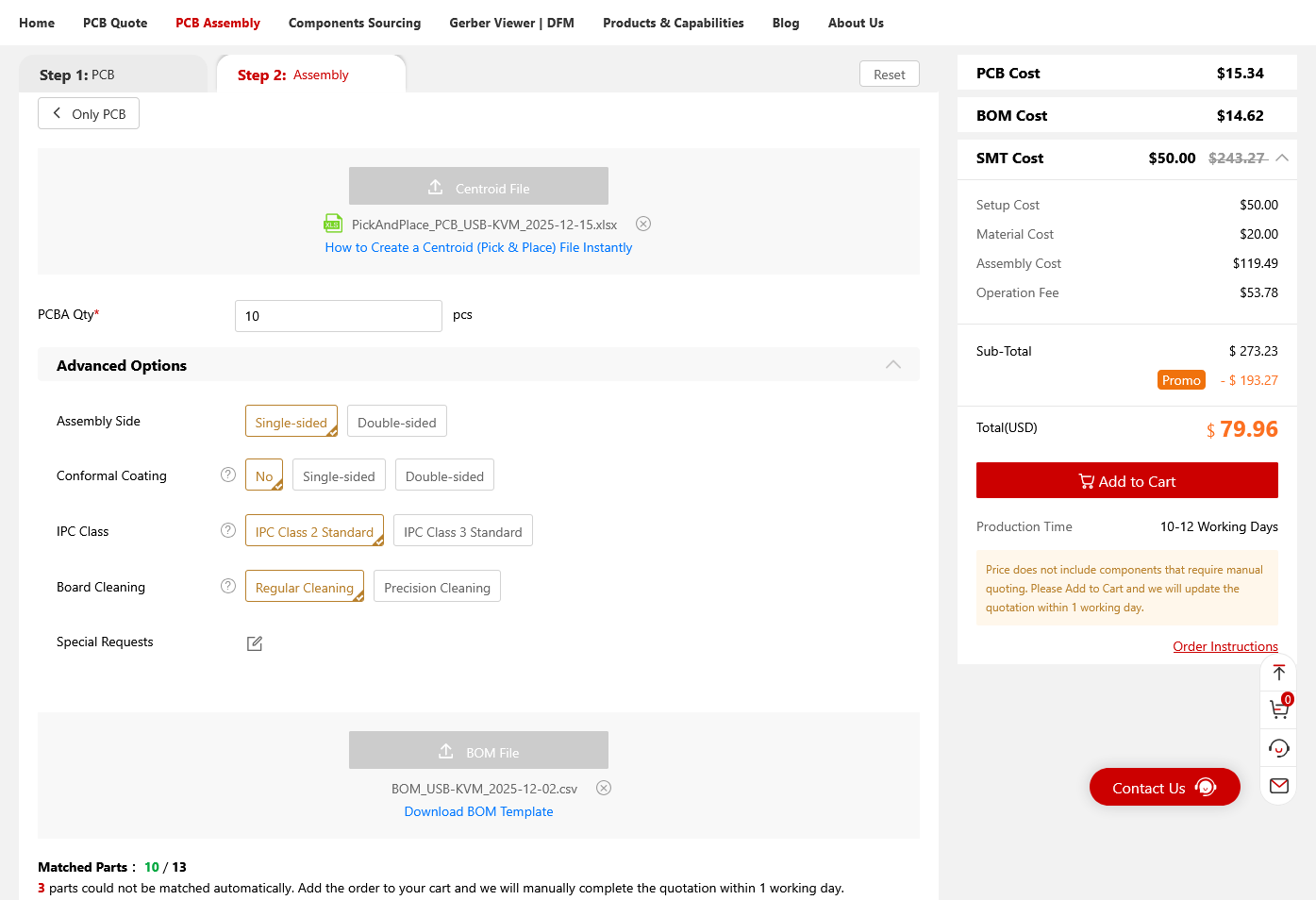
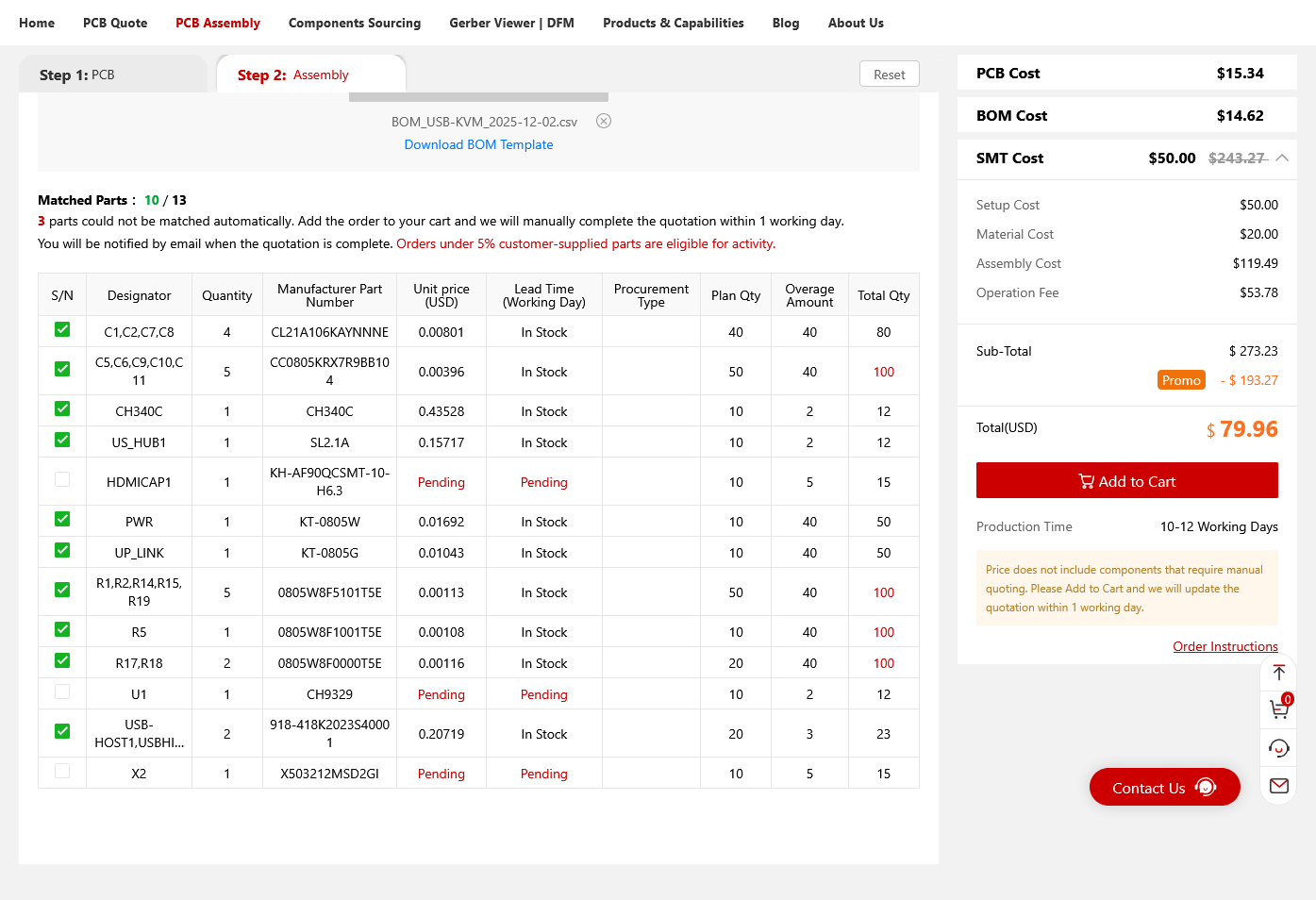

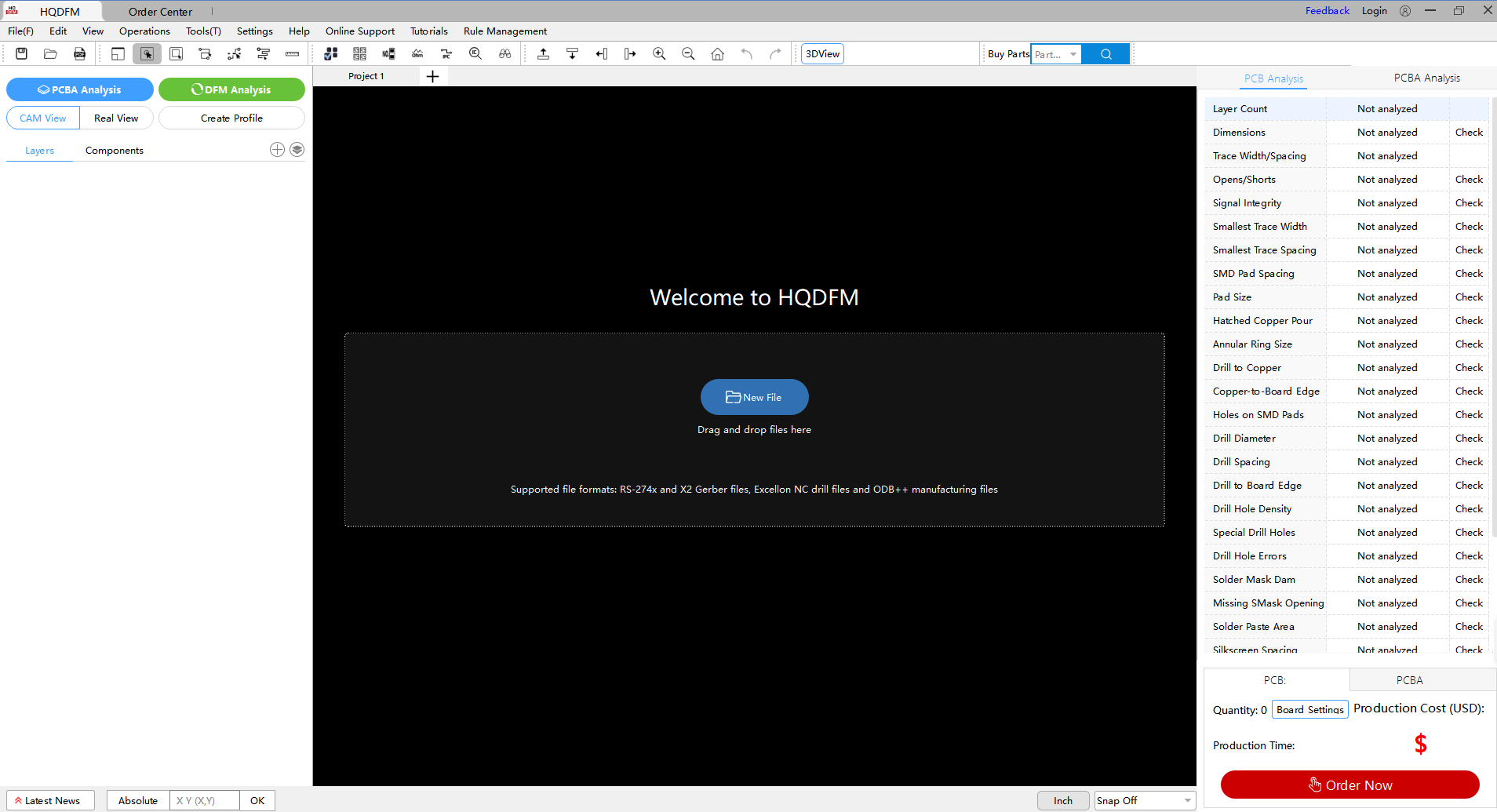
The PCB used in this project was professionally manufactured by NextPCB.
If you're building hardware projects like this one, having a reliable PCB manufacturer makes a huge difference. NextPCB provides both PCB fabrication and full PCB assembly (PCBA) services, making it easy to go from Gerber files to fully assembled boards in one place.
Official website: https://www.nextpcb.com/
Free online Gerber Viewer: https://www.nextpcb.com/dfm
Notes: Since each PCB manufacturer have different manufacturing capabilities, NextPCB provides an online DFM tool and Gerber viewer are especially useful for quickly checking your design before ordering, helping catch common layout mistakes and improving first-pass success rates.
Solder the PCB

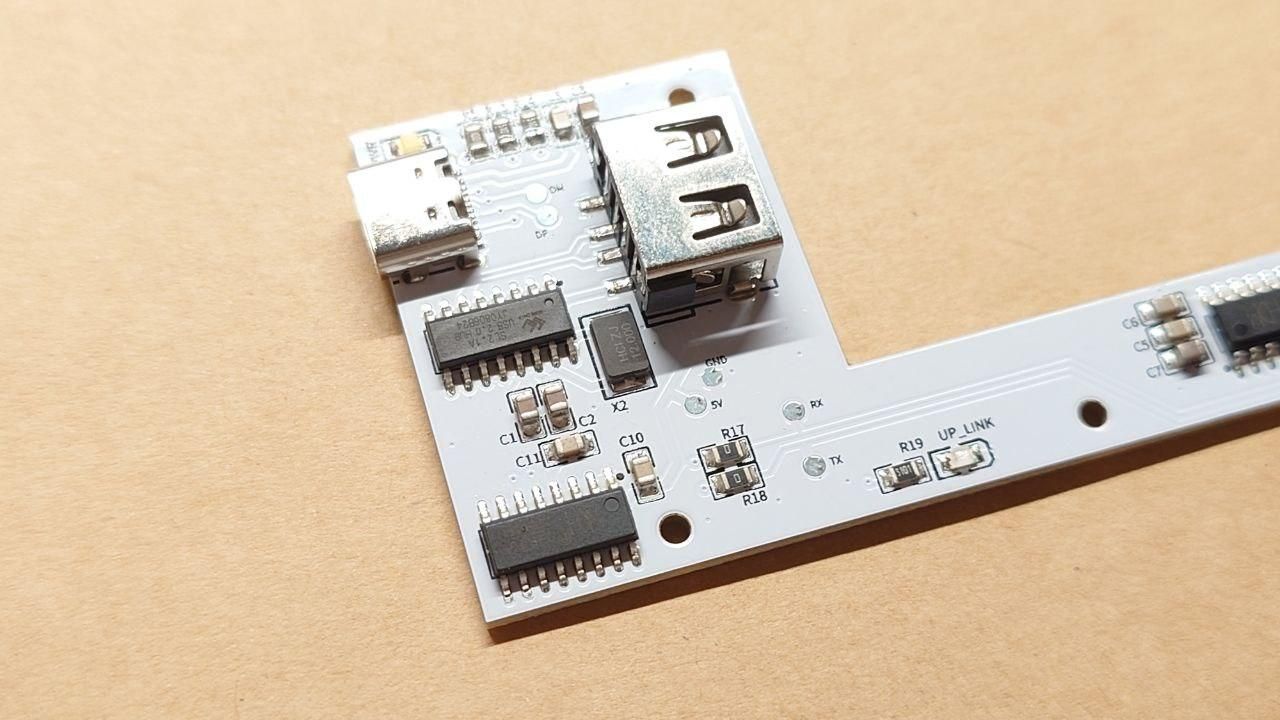

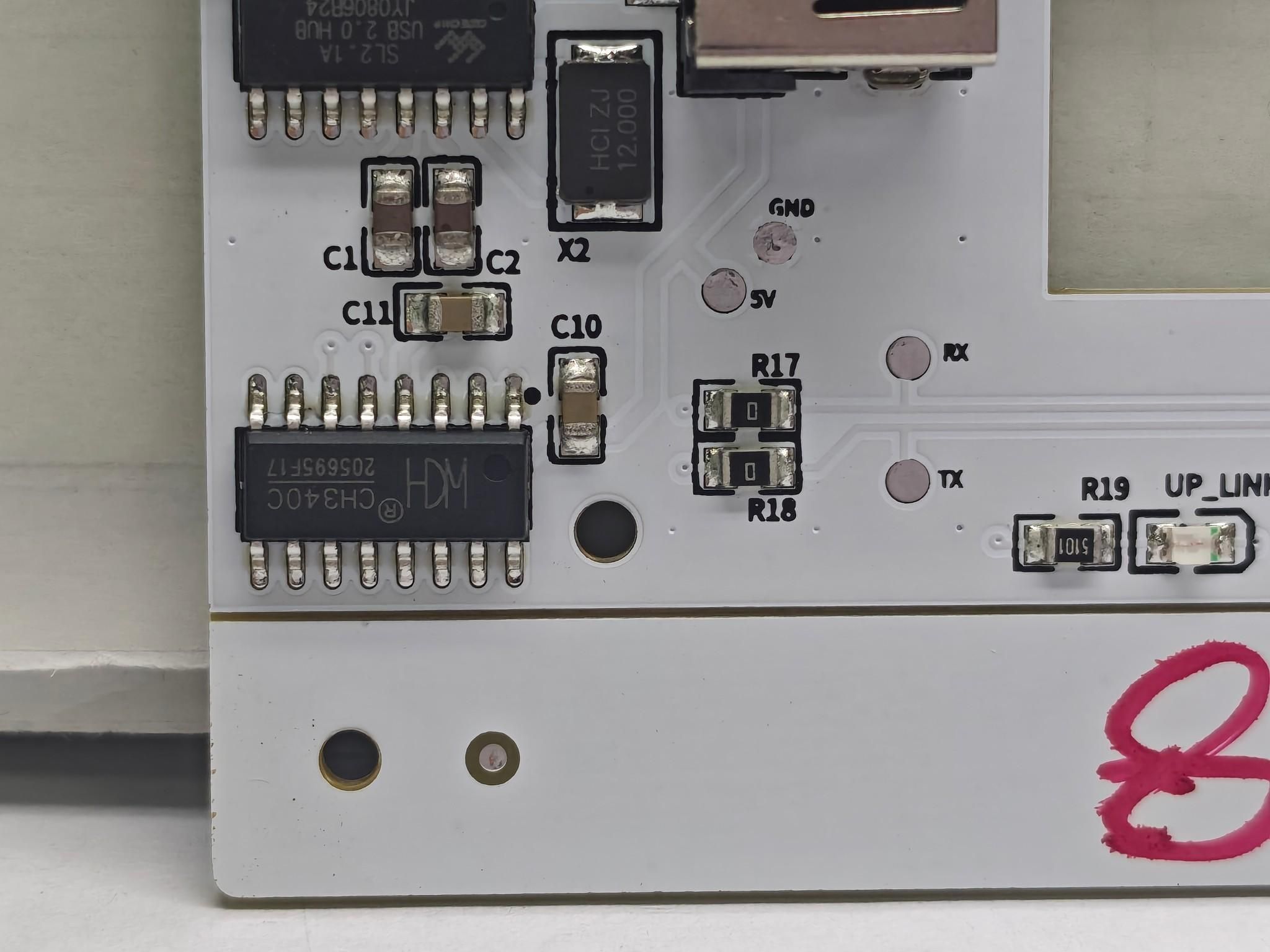
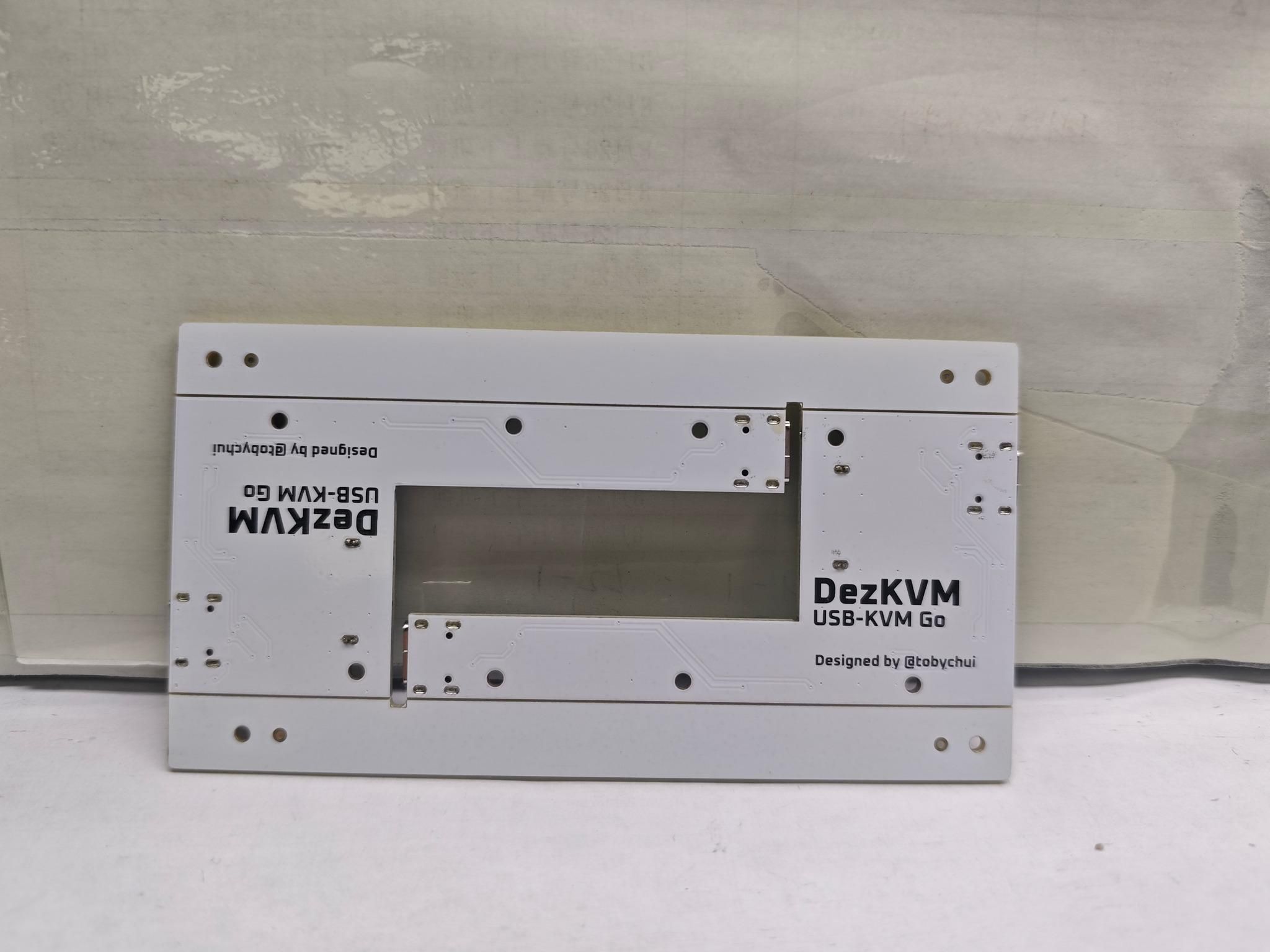

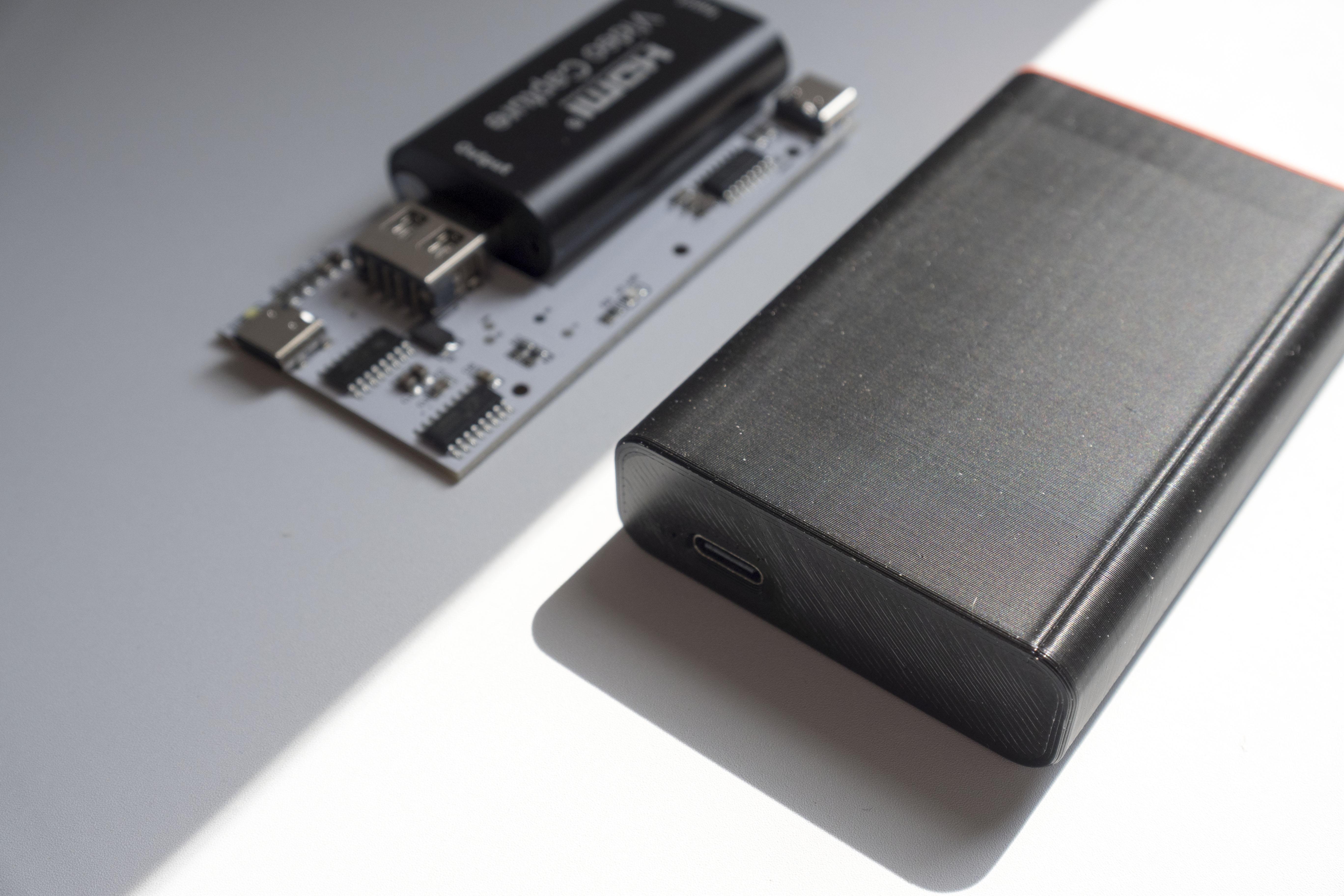
After you have received the PCB, inspect for any issue and begin soldering. After completed, the PCB should looks like this.
And if you are making a lot of them, you should receive a PCBA verification photo from NextPCB like I do. Carefully check if the sample board is correctly soldered and provide instruction for the PCBA factory to start PCBA process. The last 3 pictures are the one I got from NextPCB during my 2nd production batch for my sysadmin friends.
Insert HDMI Capture Card


In this step, you would grab your HDMI capture card and insert into the slot on the PCB. It should fit tightly with around 1mm gap on each side.
3D Print Case and Assemble


For the last step of the hardware build, 3D print the case and assemble it with the PCB.
After this step is completed, you should get something like this. You can also take the chance to try insert all the cables into their dedicated port to see if the tolerant is correct. Sometime 3D printers might have a bit tolerant and the case is designed to be exact fit. If the cable cant fit inside the hole, try to trim it a bit with sandpaper.
Writing the Software for the KVM


This is the most difficult part of the project. In short, I spent around a month to work on the code to get the browser to talks to the CH9329 USB HID chip so it can emulate a mouse and keyboard movement on the remote computer.
Then I develop the rest of the front-end code, including a html file that display the capture card video feed, reconstruct and render the capture card audio output (interestingly, despite the low cost of the capture card, the capture card do come with 48kHz stereo PCM data channel which can be decoded to audio in the browser)
After all of these are completed, I work on some utilities including
- Paste box (paste long text into the remote computer as keystrokes)
- On-screen keyboard
- Screenshot tool
- Hotkeys and macros
The JavaScript source code can be found here:
https://github.com/tobychui/DezKVM-Go/blob/main/src/www/local-kvm.js
Setup Test Environment


In order to test if this system works on different platform, I have setup a test bench to test it on my computer with different OSes. From my testing, it seems this KVM works for controlling computers with the following OSes
- Windows (tested on Windows 10)
- MacOS (tested with Catalina)
- Linux (Debian 12 with XFCE, Raspberry Pi OS)
So I guess this already covered most of my use cases.
Self-hosting the Control UI (Optional)
The controlling UI is a front-end only webpage. It didn't connects to a server somewhere (except css and some javascript library, which is on CDN). If you want to self host your own control UI, you can refer to the source code here which includes a simple golang written HTTPS server that you can build and use to serve your site in your homelab.
https://github.com/tobychui/DezKVM-Go/tree/main/src
Refer to README file for more information.
Alternatively, if you do not have a homelab, you can also use the control UI that I deployed on Github.
https://tobychui.github.io/DezKVM-Go/
(Everything stays in your browser and handled locally)
Completed KVM Over USB Device!!!


Now, you have made yourself a budget KVM over USB device, that is ready to be used on your homelab workflow or even onsite maintenance works.
I already used it to setup a few of my new servers and Raspberry Pis, I found it really useful to have a device like this lying around in my backpack.
Let me know what you thought about this build, and see you in the next Instructable :)