DIY Color Picker: Firmware Flashing and Screen Illumination (1)
39 Views, 3 Favorites, 0 Comments
DIY Color Picker: Firmware Flashing and Screen Illumination (1)
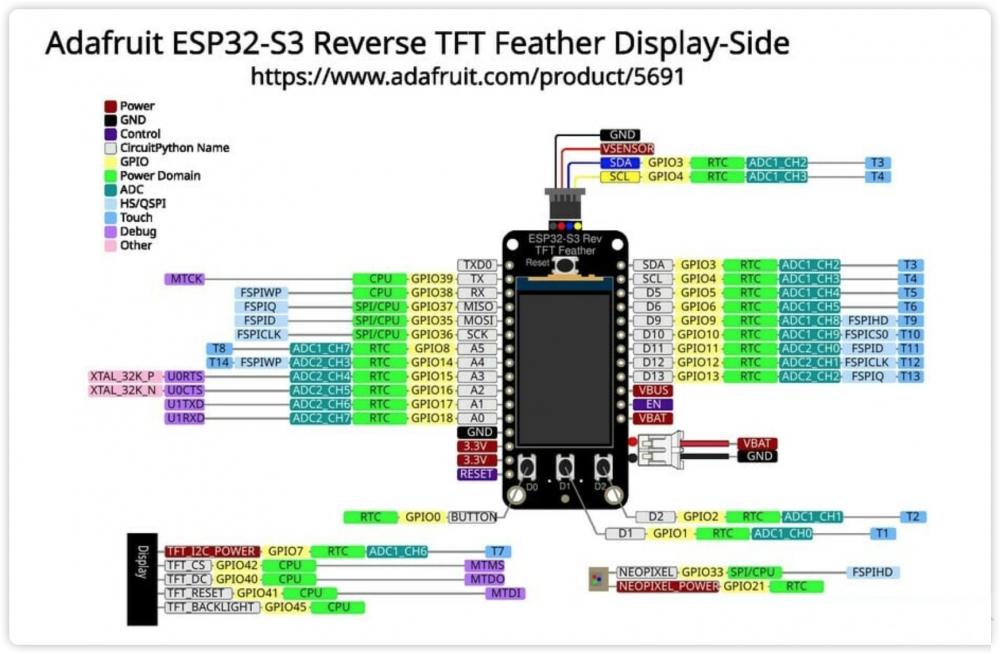
The development board used in this event, the Adafruit ESP32-S3 Reverse TFT Feather, was developed by Adafruit.
Adafruit has custom-developed CircuitPython for its own development board, based on MicroPython, providing comprehensive hardware and functional support.
Next, we'll flash the firmware and turn on the screen.
Supplies
Adafruit ESP32-S3 Reverse TFT Feather
USB-C data cable
Computer (Windows / macOS / Linux)
Chromium-based browser
CircuitPython Web Installer
CircuitPython firmware (board-specific)
tinyUF2 bootloader
Thonny (or equivalent IDE)
CircuitPython library bundle
- neopixel
- adafruit_display_text
WiFi SSID and password
Thanks to my friends and supporters: Sonic Youth, Eric Catann, and Gekun.
Flashing Firmware
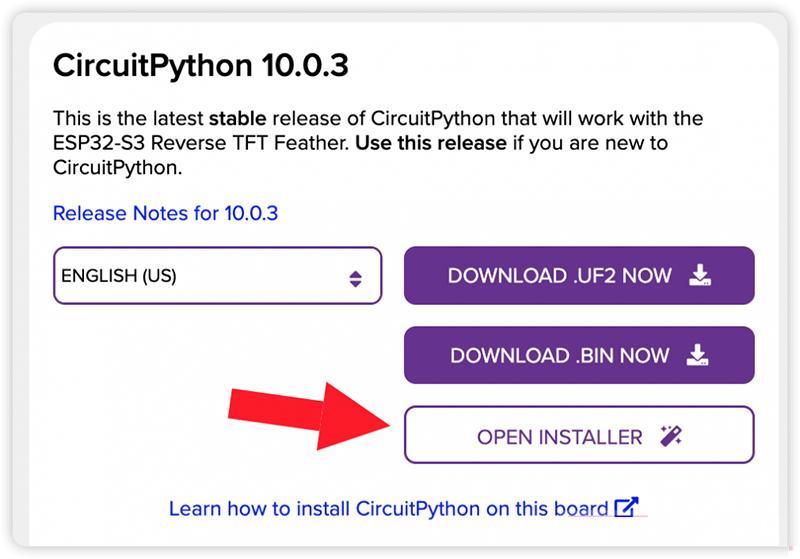

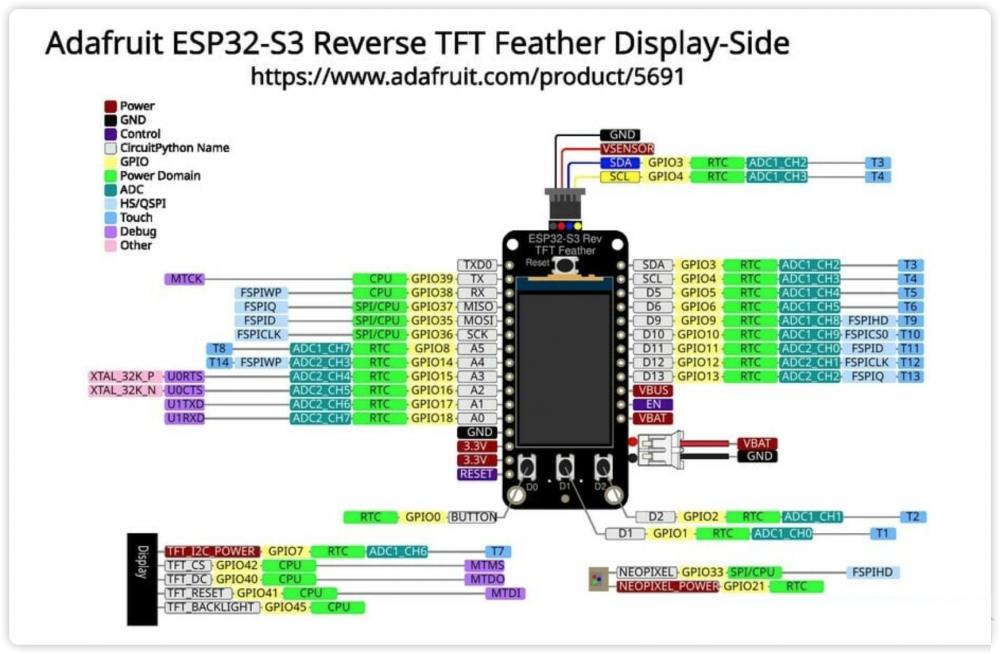
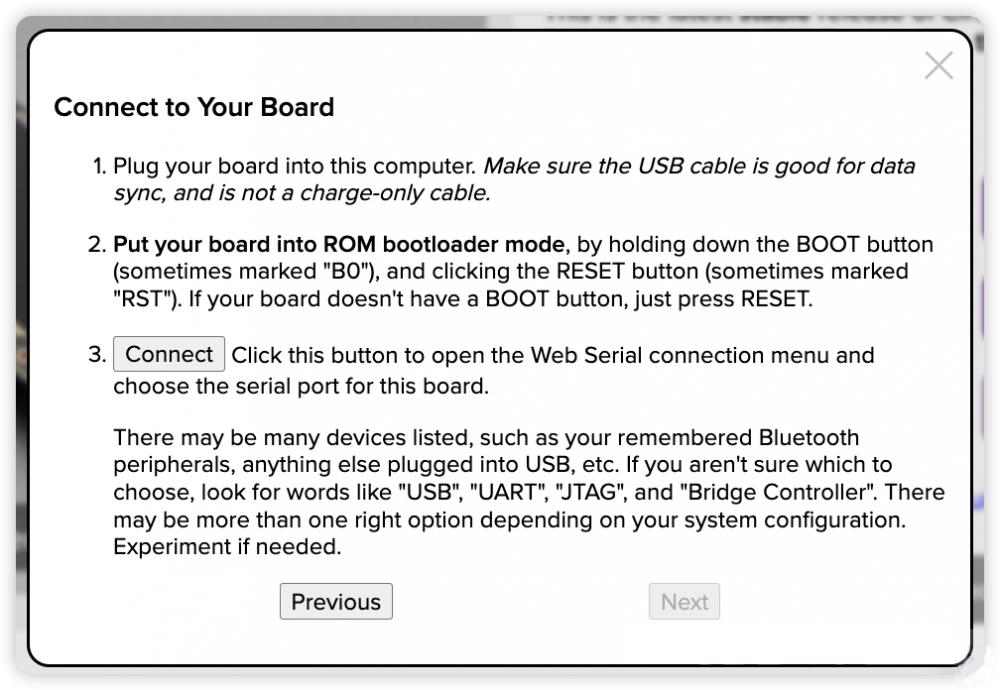
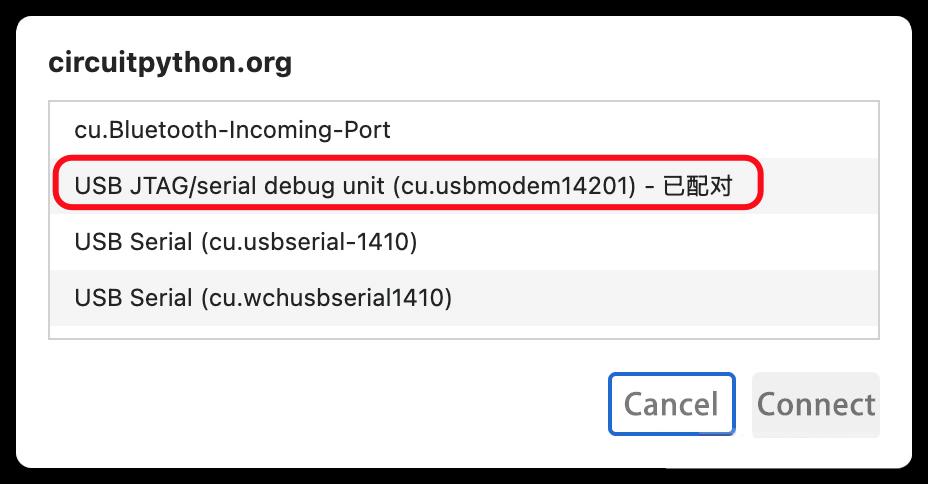
The Adafruit ESP32-S3 Reverse TFT Feather uses the ESP32-S3 microcontroller. The firmware running on it can be simply described as two sets: a bootloader responsible for hardware booting and an app, which is the actual user application.
Running the CircuitPython environment on the Adafruit ESP32-S3 Reverse TFT Feather uses the TinyuF2 bootloader. This allows the development board to function as a USB drive when connected to a computer. Copying the corresponding .uf2 firmware file to this USB drive will automatically update the firmware.
The Adafruit ESP32-S3 Reverse TFT Feather comes pre-programmed with TinyuF2, but it's not the latest version and usually needs to be updated first.
CircuitPython provides dedicated firmware for the Adafruit ESP32-S3 Reverse TFT Feather and provides a browser-based tool for flashing the firmware on its corresponding page.
Set Up WiFi


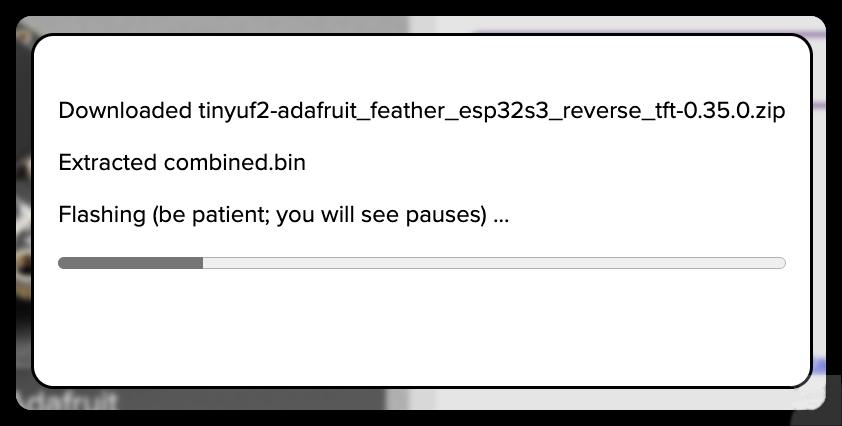

After refreshing the page, you can reopen the small window:
Click the last button to set up the WiFi connection, and when you see the following screen:
Select the CIRCUITPY USB drive that appears after restarting:
Allow editing again:
In the subsequent screen, follow the prompts to configure:
Then click Next and wait for the setup to complete:
Then press Reset to restart the development board. The board will automatically connect to the network, and you won't need to reconnect to the network in your programs.
If you are using a Thonny connection for development, you will see the following connection information:
Although the previous settings screen provided web editor settings, it's generally not used due to its slow speed and poor performance. It's recommended to use a dedicated development tool.