DIY Games Console Making at Home Using Arduino
by Jhuman in Circuits > Arduino
21 Views, 0 Favorites, 0 Comments
DIY Games Console Making at Home Using Arduino

If you love electronics, Arduino projects, and retro-style games, then this DIY project is perfect for you.
Supplies
- Arduino Nano
- 0.96" OLED Display (SSD1306, I2C)
- Push Buttons
- Diodes (1N4007)
- Potentiometer (10K)
- Resistors (100K, 390K)
- As required
- DC Jack / Signal Input
- Breadboard / PCB
- Jumper Wires
- As required
- 5V Power Source
What You Will Make
In this project, you will build a DIY Arduino Nano–based Game Console with:
- OLED screen graphics
- 4 physical game buttons
- Adjustable game speed
- Retro‑style gameplay
This console can run simple games like Snake, Dodge, or Racing games.
Understanding the Circuit

Discover Easy, Affordable, and Reliable PCB manufacturing with JLCPCB!Register to get $70 New customer coupons:https://jlcpcb.com/?from=EST Special Deal: Get a $30 coupon for JLCPCB premium 6-layer PCBs: https://jlcpcb.com/6-layer-pcb?from=getcoupon
This game console is built around the Arduino Nano, which controls the display, reads button inputs, and runs the game logic.
🔌 Power Section
- The entire circuit operates on 5V DC
- Power can be supplied via:
- USB cable
- External 5V regulated supply
- All GND points are common, which is very important for stable operation
🖥️ OLED Display Section (SSD1306 – I2C)
The OLED display is used to show game graphics, score, and menus.
Connections:
- VCC → 5V (from Arduino Nano)
- GND → GND
- SDA → A4 (I2C Data)
- SCL → A5 (I2C Clock)
Why I2C?
- Uses only 2 data wires
- Faster communication
- Saves Arduino pins
The OLED resolution is 128×64 pixels, perfect for retro-style games.
🎮 Button Input Section (KEY1–KEY4)
Four push buttons are used for game control:
- UP
- DOWN
- LEFT
- RIGHT / SELECT
Each button is connected through a 1N4007 diode.
Why diodes are used:
- Prevents back current
- Avoids false triggering
- Improves button reliability
The buttons are connected to Arduino digital pins D9–D12 and configured using INPUT_PULLUP, so no external pull-up resistors are needed.
🎚️ Potentiometer & Signal Input Section
A 10K potentiometer is connected to an analog pin:
- Middle pin → A0
This is used to:
- Control game speed
- Navigate menus
- Adjust difficulty level
A 390K resistor and DC input jack are included to safely accept an external control signal if needed.
Assemble the Hardware
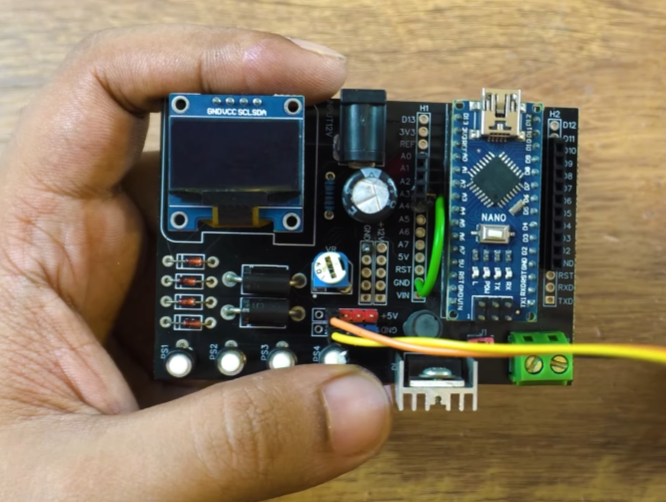
- Place Arduino Nano on breadboard or PCB
- Connect OLED display carefully
- Solder diodes with correct polarity
- Attach push buttons
- Add potentiometer
- Double‑check GND and VCC connections
⚠️ Incorrect diode direction will stop button detection
Install Required Arduino Libraries
Open Arduino IDE → Library Manager and install:
- Adafruit GFX Library
- Adafruit SSD1306 Library
These libraries allow drawing graphics on the OLED display.
Upload the Arduino Code
- Connect Arduino Nano to PC
- Select Board: Arduino Nano
- Select Processor: ATmega328P
- Choose correct COM port
- Upload the provided game code
After upload, the OLED screen should light up.
#include <Adafruit_GFX.h>
#include <Adafruit_SSD1306.h>
#define SCREEN_WIDTH 128
#define SCREEN_HEIGHT 64
#define OLED_RESET -1
Adafruit_SSD1306 display(SCREEN_WIDTH, SCREEN_HEIGHT, &Wire, OLED_RESET);
// Button pins
#define UP_BTN 2
#define LEFT_BTN 3
#define RIGHT_BTN 4
#define DOWN_BTN 5
// Debounce timing
unsigned long lastInputTime = 0;
const unsigned long debounceDelay = 100;
// Snake grid and logic
#define GRID_SIZE 4
#define MAX_LENGTH 64
int snakeX[MAX_LENGTH];
int snakeY[MAX_LENGTH];
int length = 3;
int dirX = 1;
int dirY = 0;
int foodX, foodY;
bool gameOver = false;
void setup() {
Serial.begin(9600);
pinMode(UP_BTN, INPUT_PULLUP);
pinMode(LEFT_BTN, INPUT_PULLUP);
pinMode(RIGHT_BTN, INPUT_PULLUP);
pinMode(DOWN_BTN, INPUT_PULLUP);
if (!display.begin(SSD1306_SWITCHCAPVCC, 0x3C)) {
Serial.println(F("OLED failed"));
while (1);
}
display.clearDisplay();
display.display();
snakeX[0] = 64; snakeY[0] = 32;
snakeX[1] = 60; snakeY[1] = 32;
snakeX[2] = 56; snakeY[2] = 32;
generateFood();
}
void loop() {
if (gameOver) {
display.clearDisplay();
display.setTextSize(1);
display.setTextColor(SSD1306_WHITE);
display.setCursor(30, 30);
display.println("Game Over!");
display.display();
delay(3000);
resetGame();
}
handleInput();
moveSnake();
checkCollision();
drawGame();
delay(150);
}
void handleInput() {
unsigned long now = millis();
if (now - lastInputTime < debounceDelay) return;
if (!digitalRead(UP_BTN) && dirY != 1) {
dirX = 0; dirY = -1;
lastInputTime = now;
} else if (!digitalRead(DOWN_BTN) && dirY != -1) {
dirX = 0; dirY = 1;
lastInputTime = now;
} else if (!digitalRead(LEFT_BTN) && dirX != 1) {
dirX = -1; dirY = 0;
lastInputTime = now;
} else if (!digitalRead(RIGHT_BTN) && dirX != -1) {
dirX = 1; dirY = 0;
lastInputTime = now;
}
}
void moveSnake() {
for (int i = length - 1; i > 0; i--) {
snakeX[i] = snakeX[i - 1];
snakeY[i] = snakeY[i - 1];
}
snakeX[0] += dirX * GRID_SIZE;
snakeY[0] += dirY * GRID_SIZE;
if (snakeX[0] == foodX && snakeY[0] == foodY) {
if (length < MAX_LENGTH) length++;
generateFood();
}
}
void generateFood() {
foodX = random(0, SCREEN_WIDTH / GRID_SIZE) * GRID_SIZE;
foodY = random(0, SCREEN_HEIGHT / GRID_SIZE) * GRID_SIZE;
}
void checkCollision() {
if (snakeX[0] < 0 || snakeX[0] >= SCREEN_WIDTH || snakeY[0] < 0 || snakeY[0] >= SCREEN_HEIGHT) {
gameOver = true;
return;
}
for (int i = 1; i < length; i++) {
if (snakeX[0] == snakeX[i] && snakeY[0] == snakeY[i]) {
gameOver = true;
return;
}
}
}
void drawGame() {
display.clearDisplay();
// Draw snake
for (int i = 0; i < length; i++) {
display.fillRect(snakeX[i], snakeY[i], GRID_SIZE, GRID_SIZE, SSD1306_WHITE);
}
// Draw food
display.fillRect(foodX, foodY, GRID_SIZE, GRID_SIZE, SSD1306_WHITE);
display.display();
}
void resetGame() {
length = 3;
snakeX[0] = 64; snakeY[0] = 32;
snakeX[1] = 60; snakeY[1] = 32;
snakeX[2] = 56; snakeY[2] = 32;
dirX = 1; dirY = 0;
gameOver = false;
generateFood();
}
How the Code Works (Detailed Explanation)
This project uses a simple but powerful Arduino sketch to create real-time gameplay.
📚 Libraries Used
- Wire.h → Enables I2C communication
- Adafruit_GFX.h → Graphics functions (pixel, line, text)
- Adafruit_SSD1306.h → OLED display driver
These libraries make it easy to draw game graphics on the OLED screen.
🧠 Display Initialization
- OLED resolution is set to 128×64 pixels
- I2C address is 0x3C
- Display is cleared and text color is set to WHITE
This ensures a clean screen before the game starts.
🎛️ Button Handling Logic
- Buttons are configured as INPUT_PULLUP
- When a button is pressed, the pin reads LOW
- Each button controls player movement direction
This logic ensures fast and responsive controls.
🎚️ Analog Input Logic
- analogRead() reads the potentiometer value (0–1023)
- map() converts this value into game speed delay
This allows real-time speed adjustment while playing.
🕹️ Game Logic & Movement
- Player position is stored as X and Y coordinates
- Button presses update these coordinates
- constrain() keeps the player inside the screen boundary
🖼️ Graphics Rendering
- Screen is cleared every frame
- Player is drawn as a small filled rectangle
- Score and text are updated
- display.display() refreshes the OLED
This loop creates smooth animation.
⏱️ Game Loop Timing
- delay() controls the game speed
- Speed changes dynamically using the potentiometer
Powering the Game Console
You can power the console using:
- USB cable (5V)
- External 5V regulated supply
- Battery pack (optional upgrade)
⚠️ Do not exceed 5V input
Testing the Game Console
- Press buttons → Player moves
- Rotate potentiometer → Speed changes
- OLED updates smoothly
If display does not work:
- Check OLED address (0x3C)
- Check SDA & SCL wiring
Customization Ideas
🔊 Add buzzer for sound effects
🎮 Add joystick module
🔋 Add Li‑ion battery + TP4056
📦 Design a 3D‑printed case
💾 Save high score using EEPROM
Final Result
You now have a fully working DIY Arduino Nano Game Console 🎉
This project is perfect for:
- STEM education
- Arduino beginners
- YouTube DIY content
- Retro game lovers
Conclusion
You have successfully built a DIY Arduino Nano Game Console using simple components and smart coding.
Through this project you learned:
- How to interface an OLED display
- How to read button inputs reliably
- How to use analog input for control
- How to draw graphics and build game logic