Designing a PCB for an Open Source Drone
955 Views, 4 Favorites, 0 Comments
Designing a PCB for an Open Source Drone
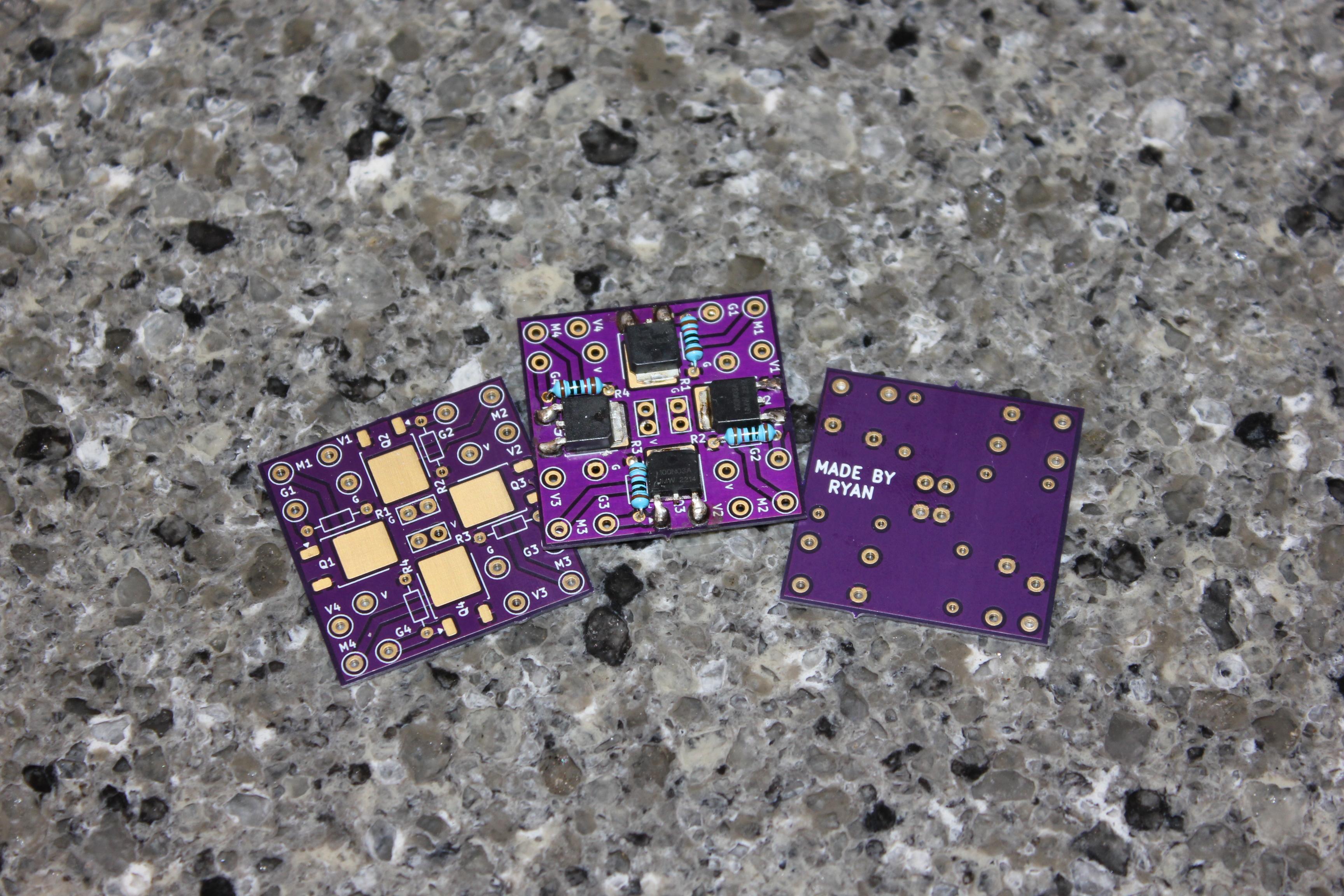
One day, I was browsing the Arduino projects forum and came across a project for an ESP32 based drone that was completely open source. After looking into it, I decided it would be a cool but challenging project to build and ordered all of the necessary parts off of AliExpress. I also 3D printed the necessary components at my local library. When I finally got what I needed to start, I took a look at the guide that showed assembly and got to work. After hours of testing, I was defeated. There did not seem to be a good way to wire everything together nicely and have it fit. The example showed one way to do it, but it seemed overly complicated for something that should have been simple. That's when I got the idea to create a PCB. The creator of the project is currently working on designing a completely integrated PCB, but there were a few problems with waiting for it:
1: I do not have that much patience
2: I already had all of the parts - I would have to buy all new ones
3: I don't get the fun of assembling it piece by piece or the room for improvement
These factors combined lead me to create my own, simple PCB.
Supplies
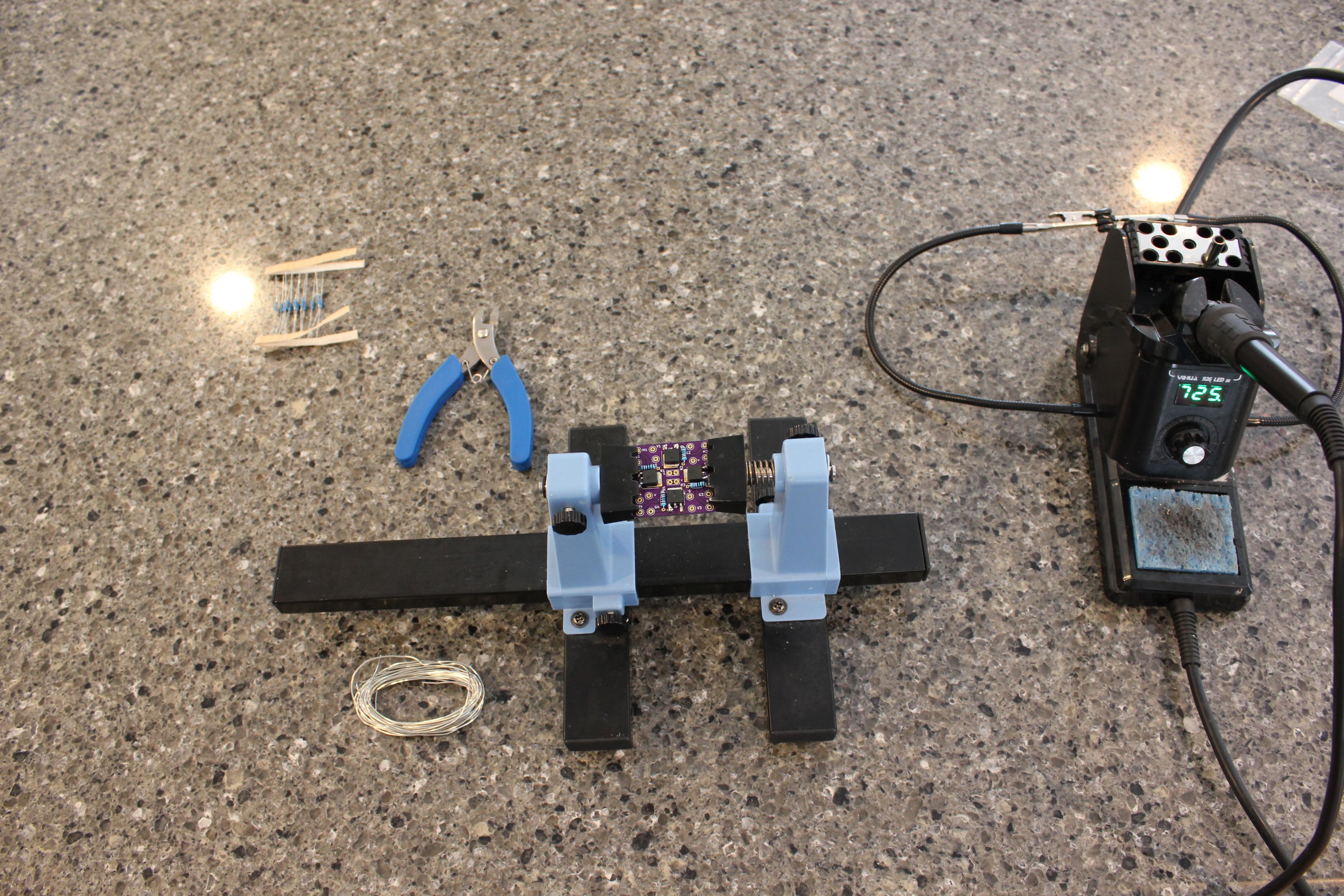
For actually designing the PCB, I chose to use KiCad. For soldering to the PCB, I needed flux solder and a soldering iron as well as some clean up materials like cotton swabs and rubbing alcohol. I also had to choose what components to put on the PCB. The main components of the drone include:
- ESP32 (designed for D1 Mini, which I already have)
- IMU (I'm using the MPU-6050)
- 4 MOSFETs
- 4 resistors
- 4 motors
- Battery
I first ruled out the battery and motors because they cannot go "on" pcbs. I also ruled out the ESP32 because I already have one, and though incorporating it would make the design much nicer, it would also make it ten times harder to design. Since the PCB needed to be compact, that meant that the wires would have to be close together and there would not be room for things like decoupling capacitors. The IMU has sensitive signals, so I ruled it out for that reason. That left me with the MOSFETs and the resistors, which have the most complicated of the wiring. I also decided that I would leave room for wiring the battery connector as well as other powered components directly into the PCB. Putting these components onto a PCB together removes many wires and simplifies the entire process of putting the drone together. It also allows things like the motors to simply plug directly into the PCB.
Design a Schematic

I started by opening up a new project and creating a schematic with everything I needed. I first found all of the components, then assigned footprints for them. For the MOSFETs, I modified a preset footprint so I could connect the pins on the schematic the same way they are on the PCB. For the external connections, I used 2.5 mm TestPoint Loops, with the main GND and VCC using the footprint with two holes. You may notice that there are a lot of extra connections to GND and VCC. That's because I had some extra space, and having more power pins never hurts. I used a generic footprint for the resistors. I also added some power and ground flags to avoid errors. I then ran the ERC (Electric Rules Checker) and found that everything looked good.
Design the PCB


Once the schematic was done, I moved over to the PCB editor. Inside, I selected "Update PCB from Schematic," which brought all of the footprints and connections over. I then made a box for the PCB size, placed the components, and routed them. I made the top of the PCB fill in with GND and the back fill in with VCC. I made sure to give a GND and VCC to every motor as well as a hole for the GPIO pin going to the D1 mini near too. For all routes carrying power, I ensured that they were at least 1 mm wide. The result had a lot of leftover space, so I looked at my design and found a better way to position everything. Still, there was some empty space, which I filled by alternating extra GND and VCC holes in four different places. That left me with an optimized PCB that used its space effectively. To finish it off, I marked the PCB on the back with my name in silk screen and checked it one last time with the DRC (Design Rules Checker).
Fabricate the PCB
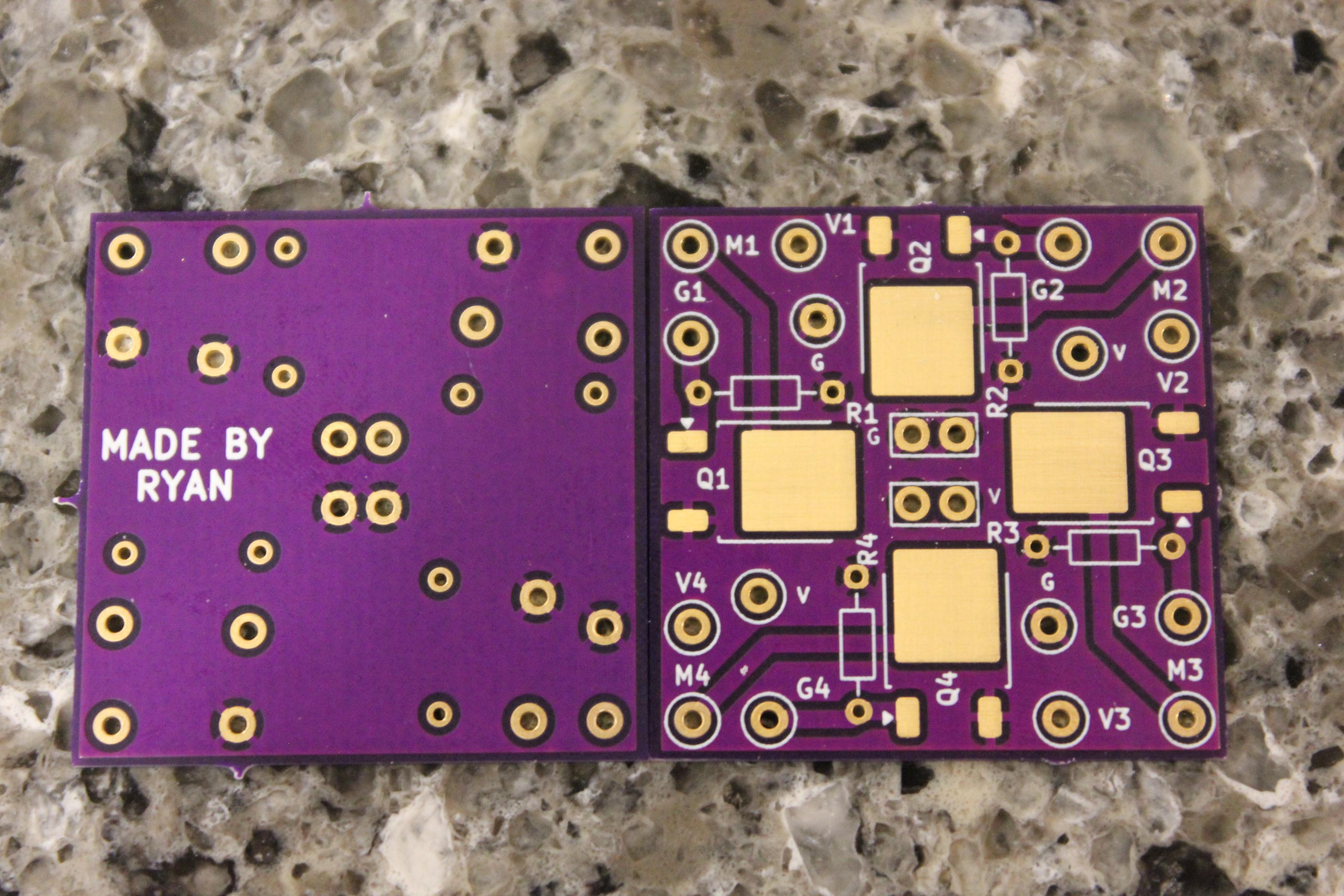
To fabricate my PCB, I used a company called OSHPark. They are based in the United States and offer free shipping as well as good prices. To get the design to them, I could either give them the Gerber files (standard) or just drop my KiCad PCB file right in. The second option was much easier, so that is what I did. Once the file was imported, I checked over the entire design. I ensured that the cuts were straight and that all copper pads that needed to be showing were. When I was done and everything looked good, I ordered the PCBs. I opted for mine to be half the height of the usual size but with more copper to allow for better energy flow. I ended up paying around $8 for three PCBs that arrived about a month later.
Solder to the PCB
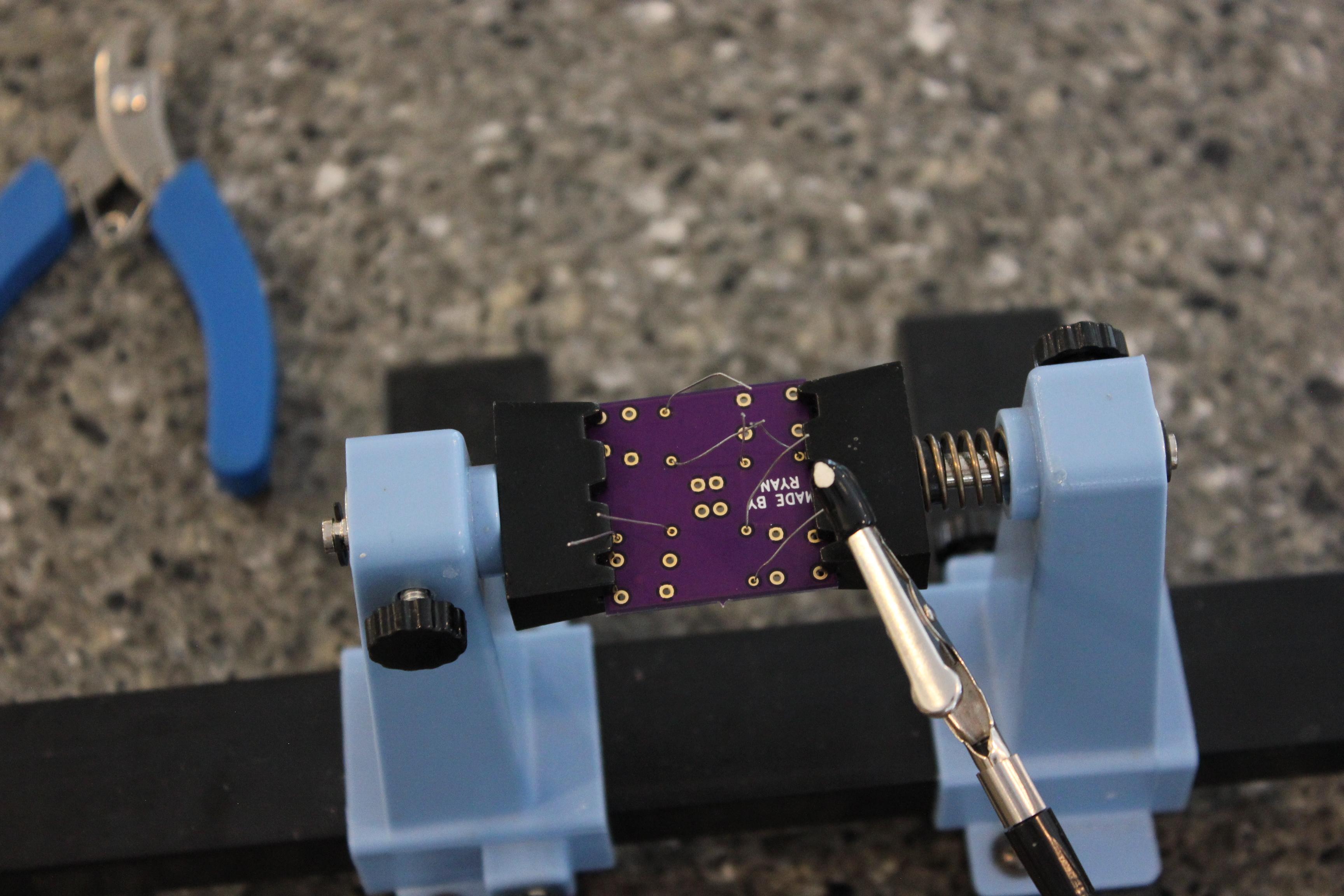
Before I could integrate the PCB with all of the wires, I had to solder the normal components onto it first. I started by tinning all of the pads where the MOSFETs would touch, but made sure not to touch the resistor holes as that would have blocked me from placing a resistor in it. The solder I used had a flux core which allowed it to stick to the PCB more reliably. Once that was done, I installed the widest tip on my soldering iron. From there, I placed the MOSFETs, then held them down with tweezers as I pressed the soldering iron onto the bit of exposed metal on the large pad. The heat from this action was enough to melt the solder under the entire contact point. Once I had done that to all of the MOSFETs, I soldered the individual legs with more flux solder. Next, I placed the resistors I had through the holes and soldered them on. To finish the board off, I snipped off all of the wires sticking out from the resistors on the back of the board.
Clean the PCB Up + Final Thoughts
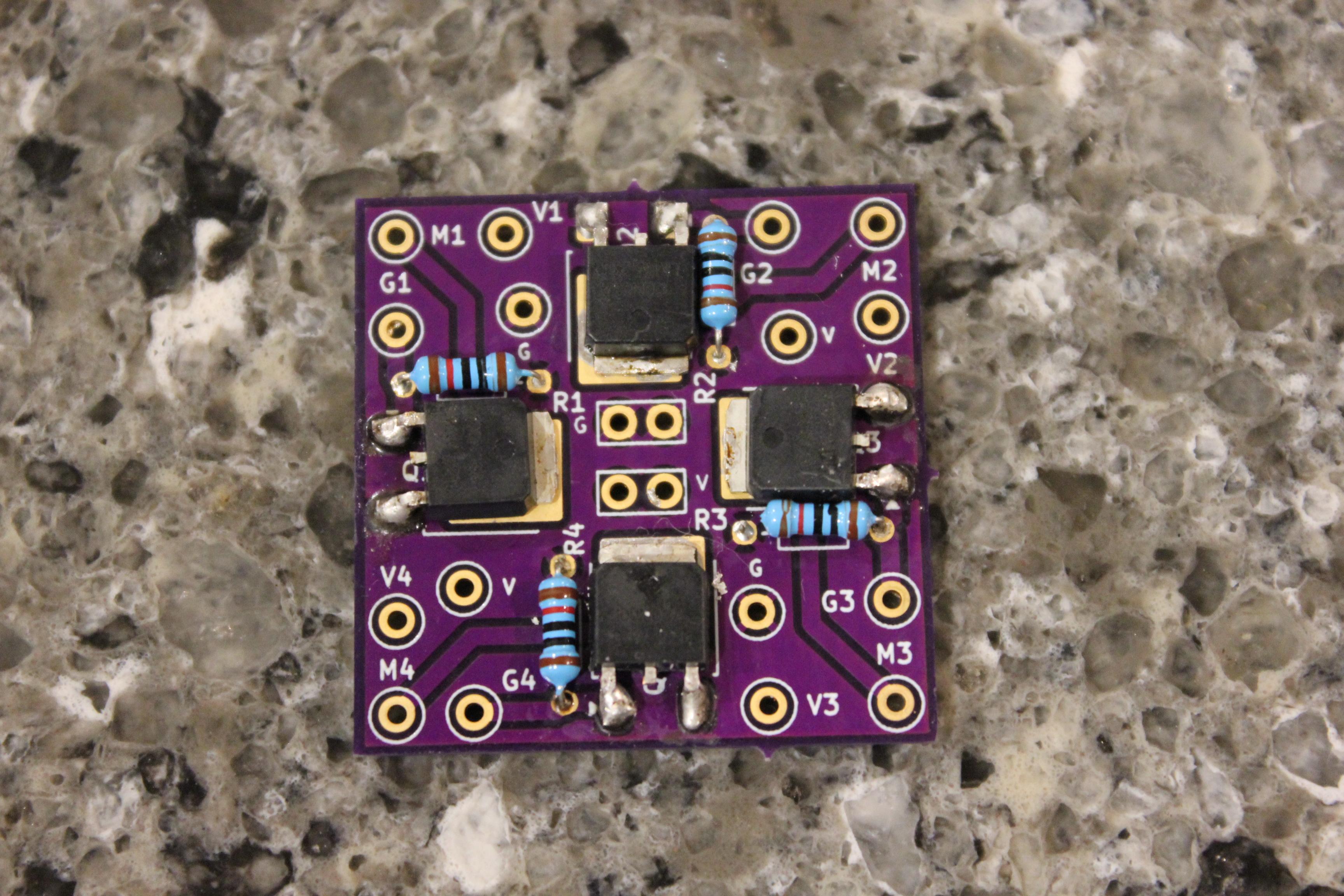
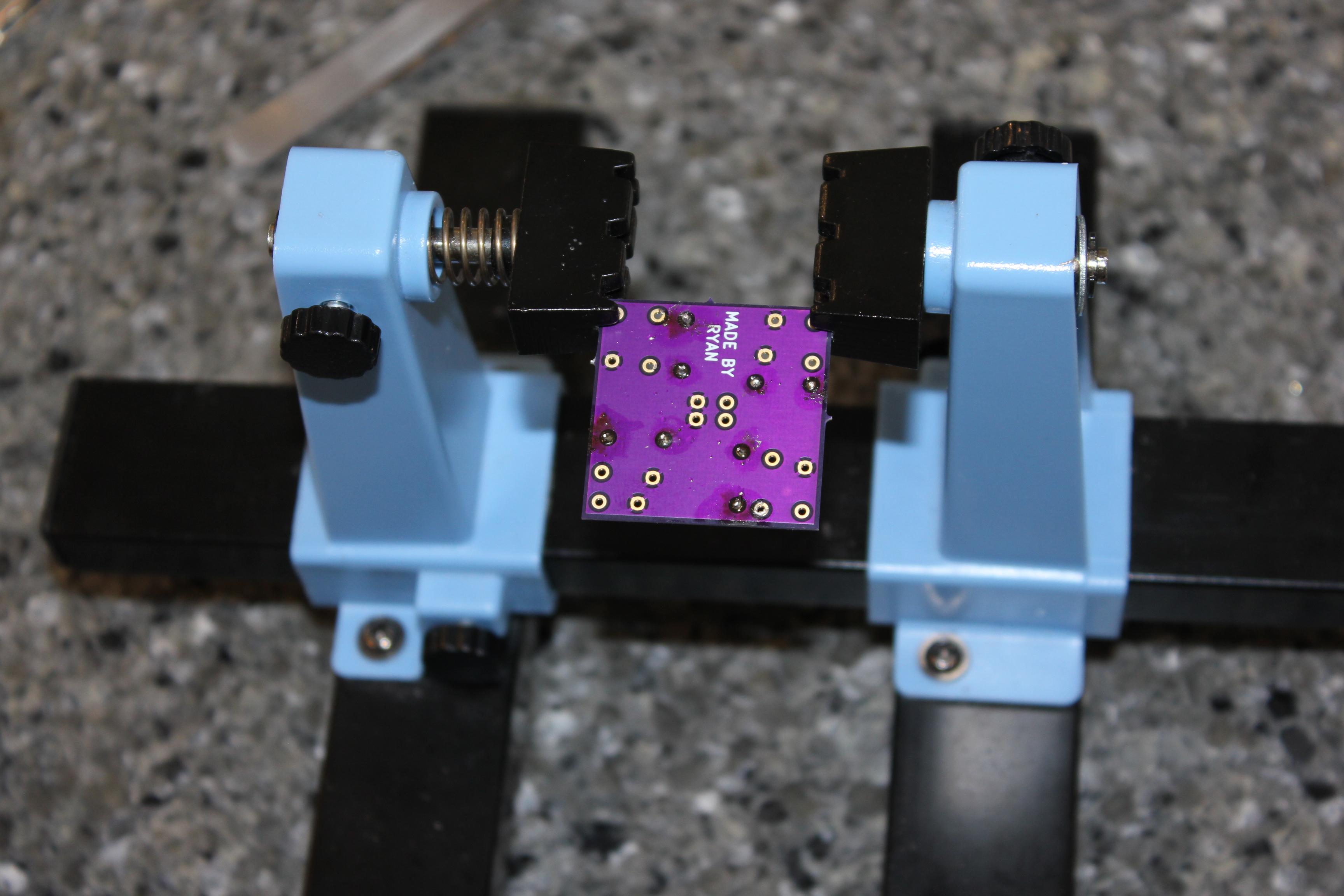
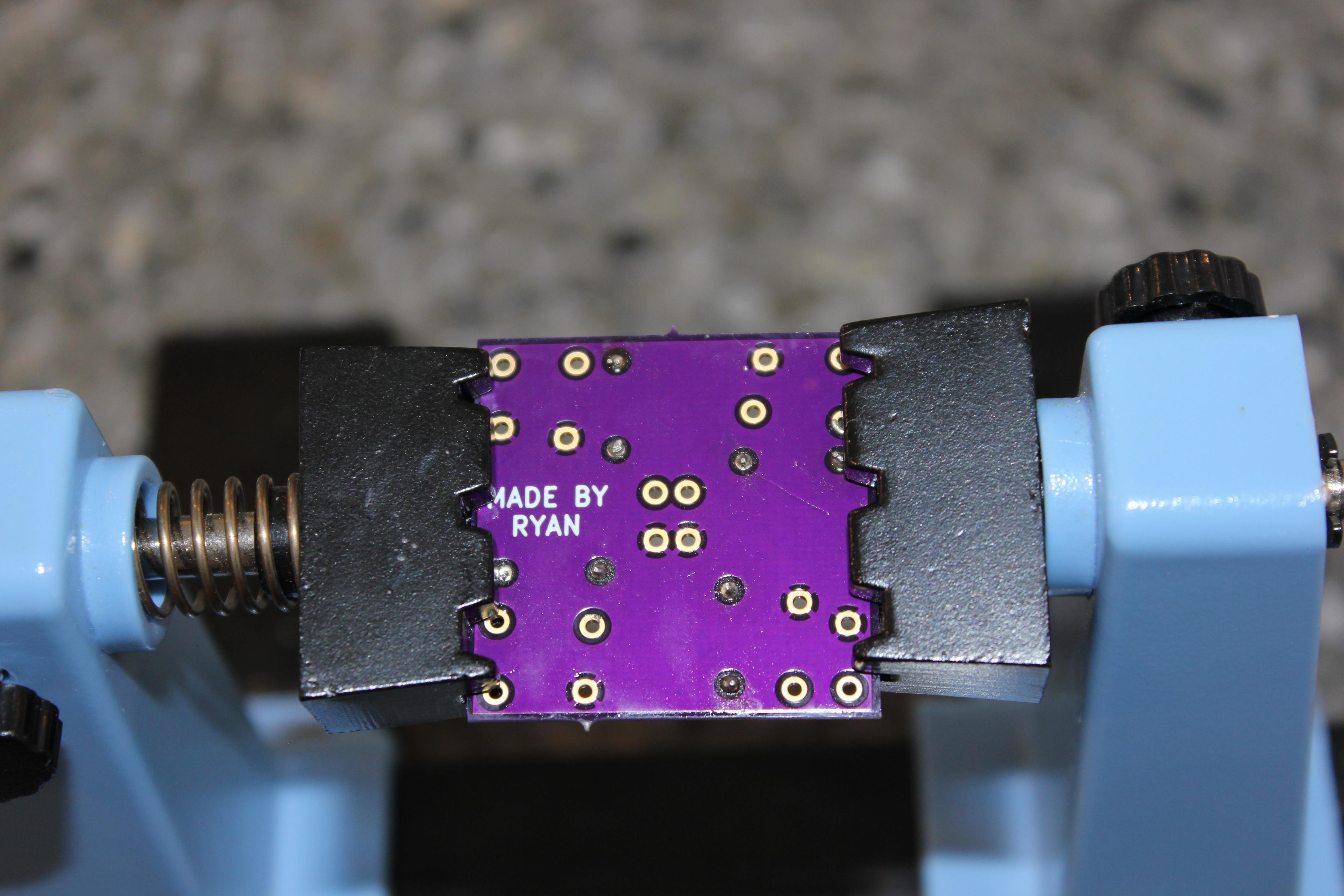
After using the flux solder in the past step, the PCB was quite messy. To clean it up, I grabbed some cotton swabs and some rubbing alcohol. The board looked much better after I had scrubbed it a few times.
Since I do not have the proper materials at the time, I am unable to complete the drone entirely, but finishing the PCB was a huge step. By making it, I saved a lot of space in my drone. Not only that, but using the PCB is a lot more foolproof and easier for me to assemble. It is also a great addition to my drone because it has lots of open power ports allowing for more improvements in the future.