Designing and Releasing a High-Altitude Weather Balloon
by chloezhang in Workshop > Science
185 Views, 1 Favorites, 0 Comments
Designing and Releasing a High-Altitude Weather Balloon
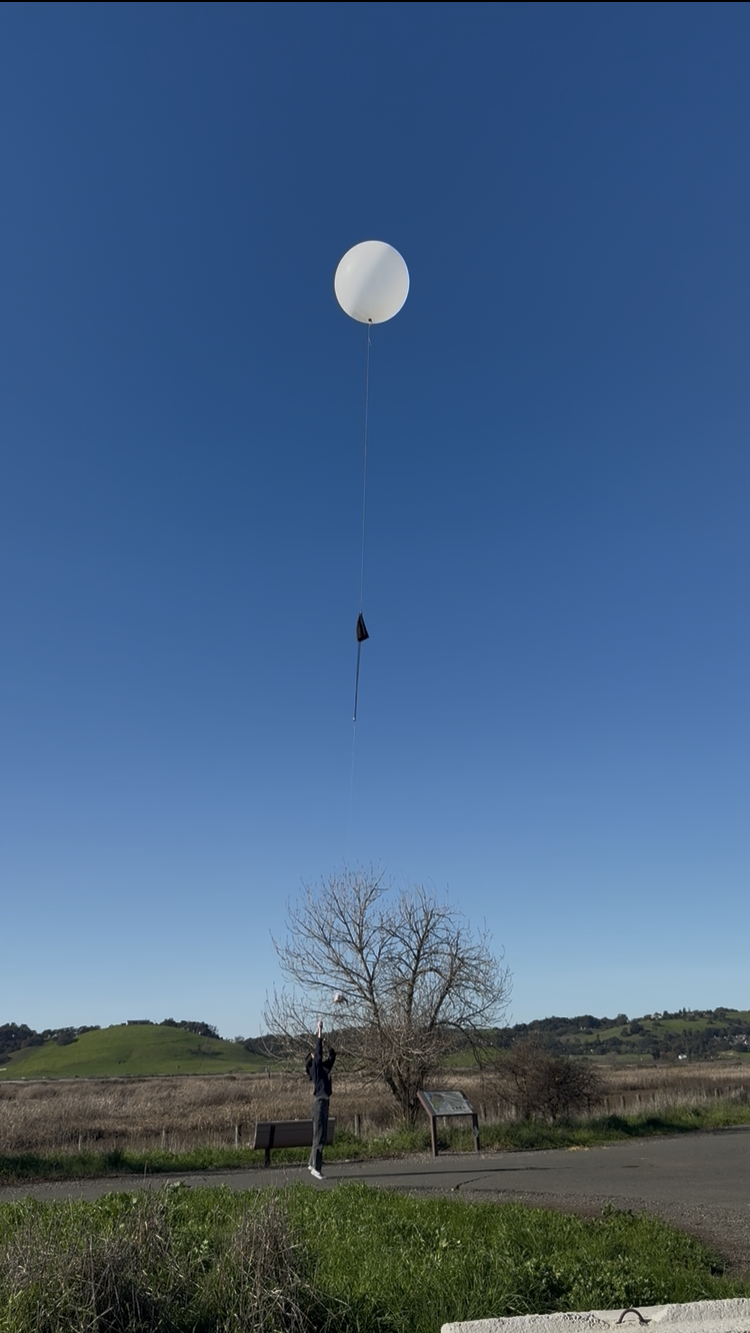

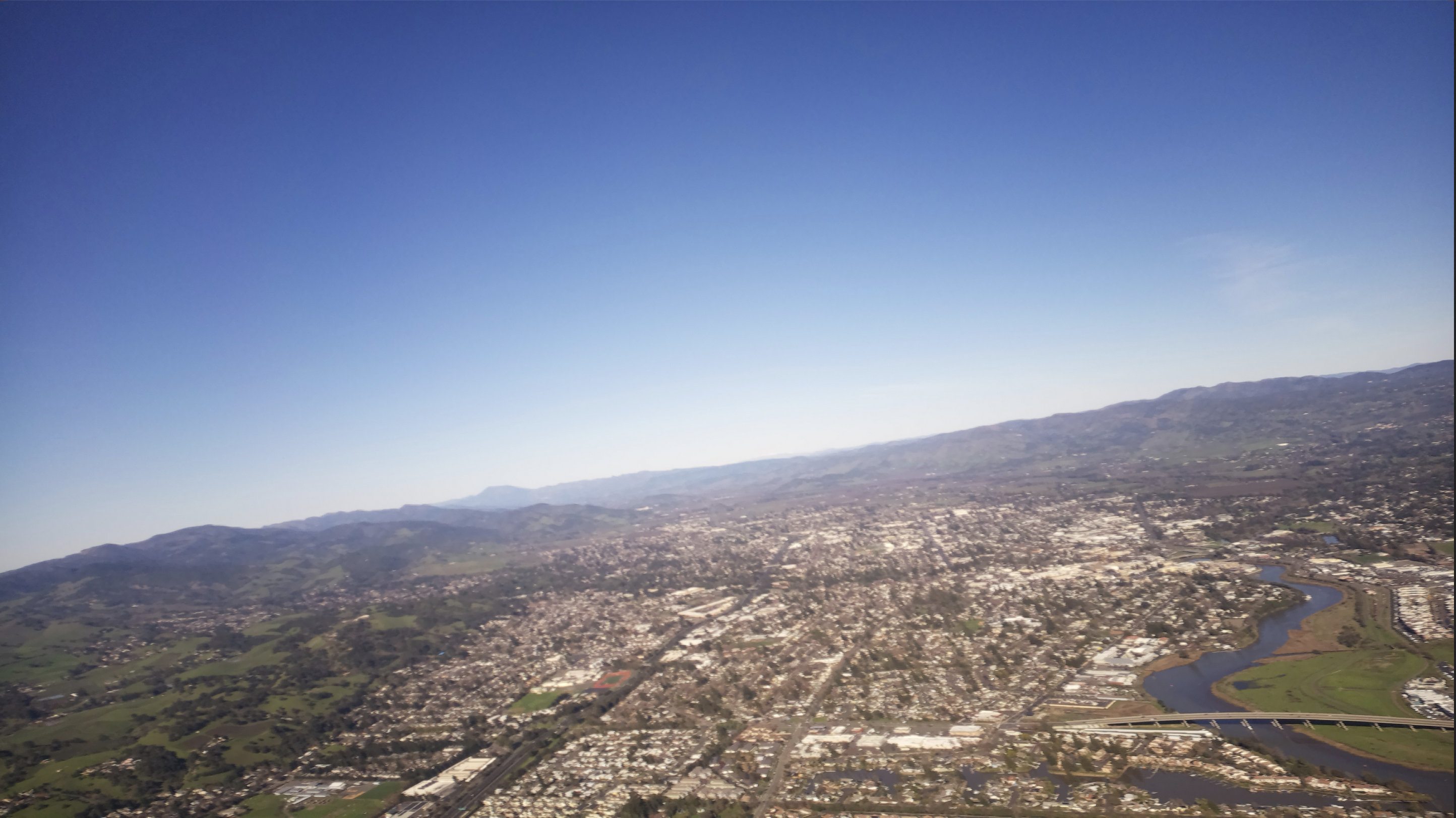
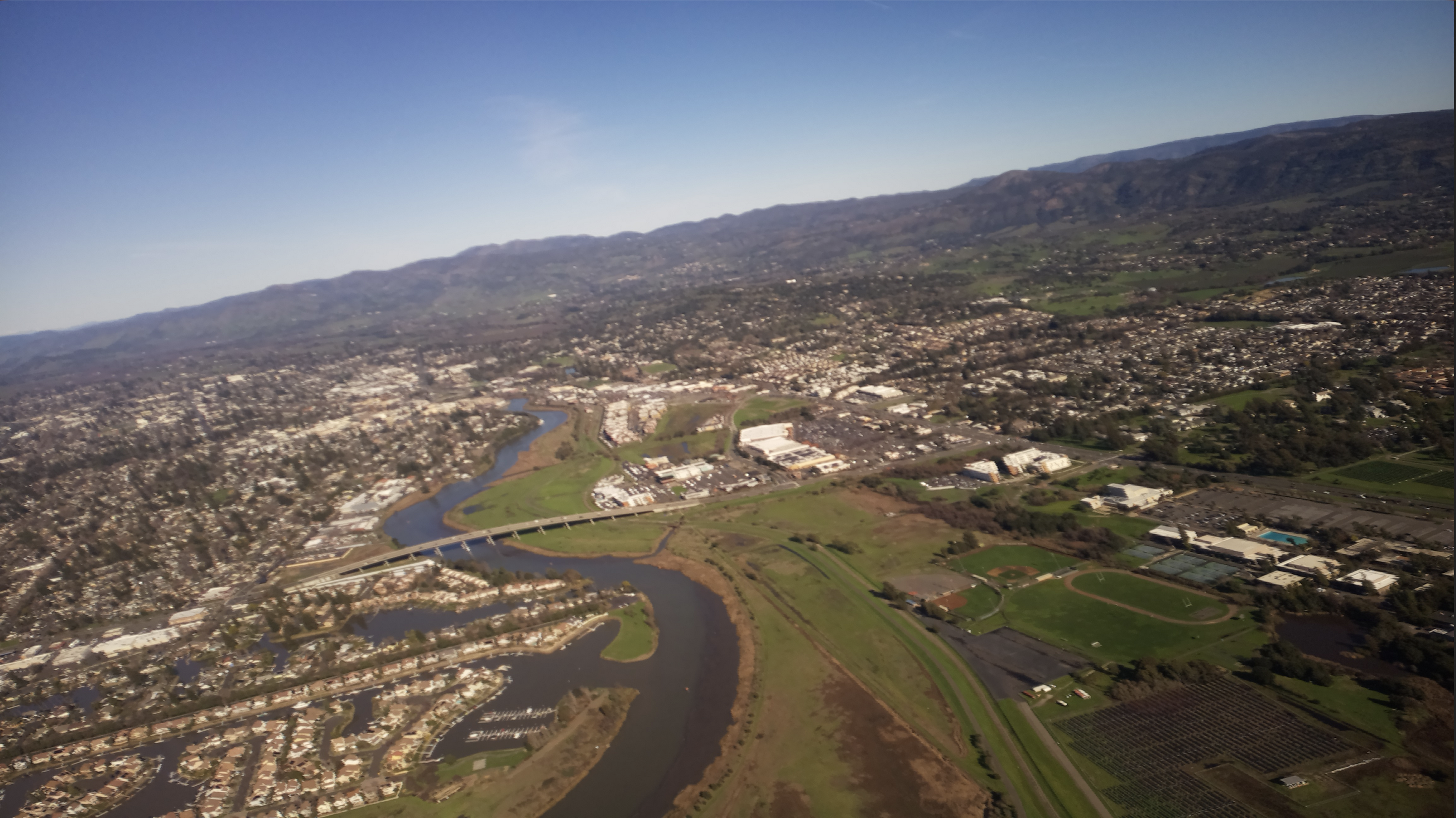
This Instructable will go over the supplies, budget, simulations, calculations, relevant regulations, hardware, software, rigging, launch, and an analysis of a weather balloon project. There's quite a lot to talk about!
When you were younger, you may have let go of a party balloon and watched it drift higher and higher away beyond your reach. Designing and releasing a weather balloon captures that same sense of childhood wonder, but now you can track your balloon and see the world from its perspective as it sails to heights you’ll never go to.
Designing and releasing a weather balloon depends on your budget, time, and handiness. Since I was tight on time (I had three weeks to complete this project during winter break before returning to college) and money (I’m running on depleted summer savings), I chose to make a lot of my components, such as the on-board flight tracker/camera system and parachute, from scratch. Many projects online use GoPros and Spot GPS trackers, but mine uses a Raspberry Pi 2, a camera module, and a 4G Hat to take photos and transmit the position of the balloon. This combination makes for a less expensive, lighter payload that requires less helium; however, there are some drawbacks to this method that I’ll explain in my analysis below that you should seriously consider while designing your weather balloon.
Table of Contents:
- Introduction
- Supplies/Budget
- Pre-Flight Simulations/Calculations
- Regulations
- Hardware
- Software
- Payload
- Rigging
- Parachute (Optional)
- Launch Day!
- Analysis
- Extra Resources
Supplies


Electronics:
Raspberry Pi 2 $55.98
Arducam Module 3 IMX708 $25.00
SIM7600G-H 4G HAT Module $86.39
T-Mobile Cellular Plan $10.00
Electrical Tape --
USB-C to Micro USB cord --
SIM Card (32GB+) --
Subtotal: $177.37
Balloon:
200g Weather Balloon $25.99
275lb Paracord (for parachute) $10.99
1 Yard 70D Nylon Fabric (for parachute) $8.95
Assorted Zip Ties $4.49
Balloon Time 14.9 cubic ft Helium x4*** $209.88
50 lb Test Strength String --
Packing Tape --
Polystyrene Payload Box --
Plastic Tubing (diameter depends on your helium regulator) --
Subtotal: $260.30
Estimated Total: $437.67 (excluding local taxes and shipping)
This is a rough list of the materials I used for this project.
I made the assumption that you may already have some of these materials at home, so items marked with a "--" are not accounted for in the budget. Keep in mind that you may have more of these things already, and there are many options to substitute components or even purchase pre-made parts, such as the parachute, so your exact costs will vary.
*** Regarding helium: There is currently a shortage of helium in the U.S., so purchasing pure helium can get very pricey. I had to settle for a more accessible mix of 80% helium and 20% air, but even so it accounts for almost half the cost of this project.
Pre-Flight Simulations/Calculations


Sondehub Balloon Burst Calculator: https://sondehub.org/calc/
- Determine Time to Burst, Burst Altitude (important for NOTAM filing) while maintaining a 5m/s rate of ascent to keep payload as stable as possible.
- Neck Lift (important on field - once the balloon is filled to a point of equilibrium, it’s ready)
- If you underfill, the balloon will rise slowly and go much further downwind than you expected
- If you overfill, the balloon will rise too quickly and may pop prematurely
- (Choose your poison)
- Volume (important estimate for the amount of helium to purchase)
Flight Simulator: https://predict.sondehub.org/
- Run multiple simulations over different days and different times to determine an optimal landing spot. You want to choose a landing location that’s accessible, away from airfields/airports, and with a decent chance of having a cellular connection so that you can recover your weather balloon. Make note of the launch coordinates, landing coordinates, and direction of travel because this information will come in handy when you file the NOTAM.
Descent Calculator: https://descentratecalculator.onlinetesting.net/
- I sewed my parachute for a larger payload originally, so my parachute was 36” in diameter. If you choose to sew your own, aim for a landing speed of 5m/s to both protect the payload and prevent it from drifting downwind forever. My descent rate was a little too slow. Use the following calculator to determine an appropriate size based on the weight of your payload.
Laws/Regulations
Title 14, Chapter I, Subchapter F, Part 101, Subpart D in the Code of Federal Regulations:
My weather balloon carried a payload with a mass of 550 grams, so it was exempt from the code governing large weather balloons as of 2026. However, it is good practice to follow the code, file a NOTAM for your weather balloon, and call the nearest FAA ATC facility to your launch site.
It is in your best interest to carefully read through the relevant code (101.31, 101.33, 101.35, 101.37, 101.39) yourself and form your own interpretation. I am not responsible for the consequences of your actions.
See the full code here: https://www.ecfr.gov/current/title-14/chapter-I/subchapter-F/part-101/subpart-D
Now how do you go about filing the NOTAM?
- Prepare the following information:
- Balloon Identification: Your name/organization, balloon’s name
- Launch Location: Precise coordinates (Latitude/Longitude) and the name of the nearest town. The operator can determine the distance to the nearest VOC or airport.
- Launch Date & Time: Your planned "wheels-off" time in UTC. You must stay within ±30 minutes of this time or update the FAA.
- Expected Duration: How long the balloon will be in the air (mine was 95 minutes)
- Determined from CUSF flight predictor
- Cruising Altitude: Target burst altitude (mine was 52,000 feet)
- Determined from SondeHub burst calculator
- Forecast Trajectory: Estimated direction of flight and location of impact (landing zone).
- Physical Specifications:
- Balloon diameter and color
- Length of suspension device
- Total weight of payload
- Length of any trailing antenna
- Call +1-877-487-6867 six to twenty-four hours before launch, saying that you would like to file a NOTAM (Notice to Airmen) for an unmanned free balloon launch.
- The operator may ask all or some of the questions above in any order. You will exchange initials, and then you should ask for a confirmation number, which will be given using the phonetic alphabet.
- The first three letters are the location of the nearest VOR, month, “slant”, and then the number of the NOTAM.
- Mine was SGB 01/008. I was caught off-guard when the operator said “slant”, but now you know! It’s just the forward symbol (/).
- Double check your NOTAM after the call using location search: notams.aim.faa.gov/notamSearch/
Hardware - Electronics
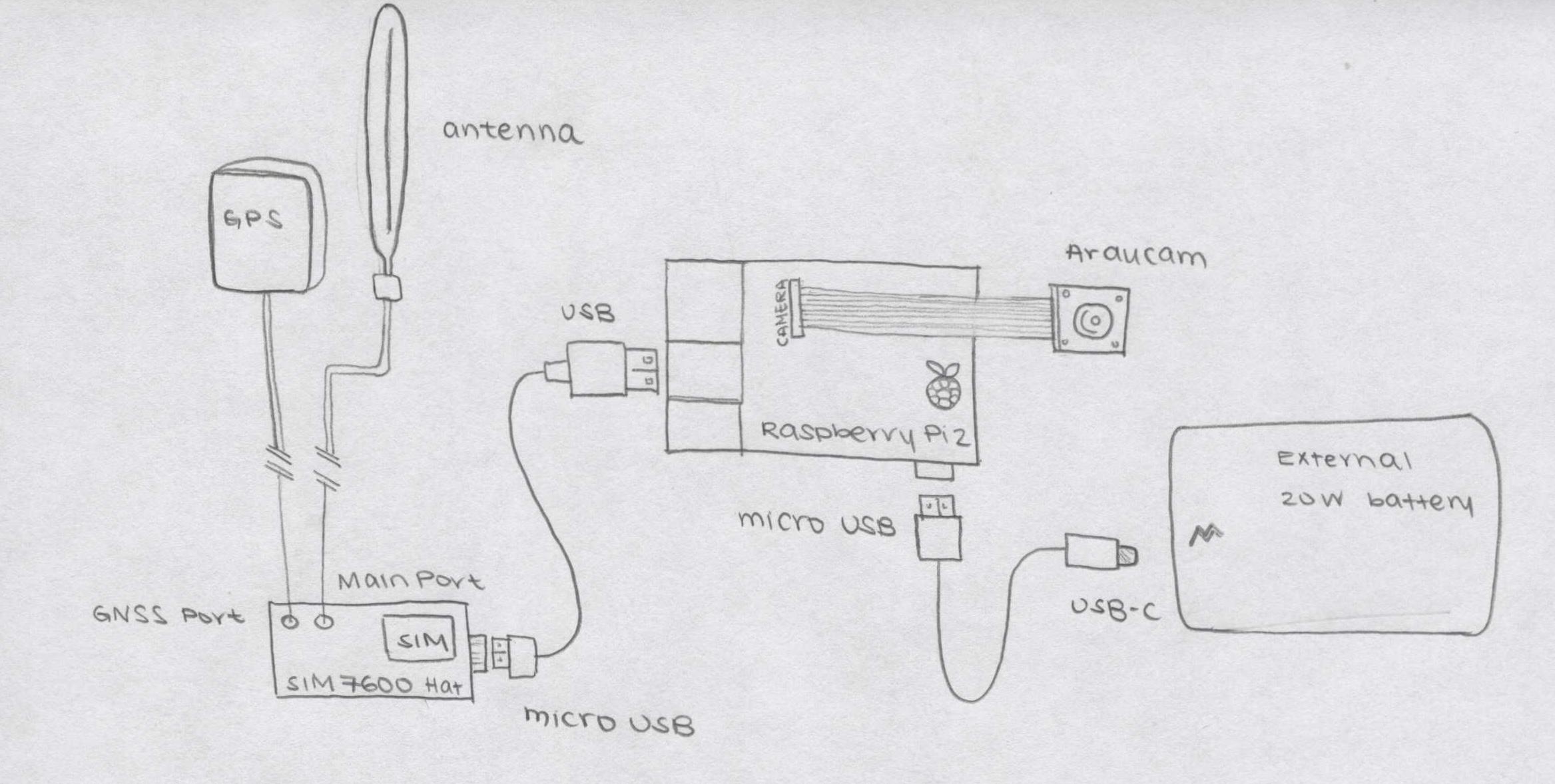
- Insert activated nano SIM into SIM7600G-H 4G Hat
- Connect GPS module to GNSS port of 4G Hat
- Connect antenna to Main port of 4G Hat
- Power the 4G Hat using the Raspberry Pi 2 with a micro USB to USB-A cable
- Connect the Arducam to the Pi 2 at the designated “Camera” port using the white ribbon cable, making sure that the contacts align.
- Power the Raspberry Pi through the micro USB port using an external battery for the flight (I used a phone charger).
Software

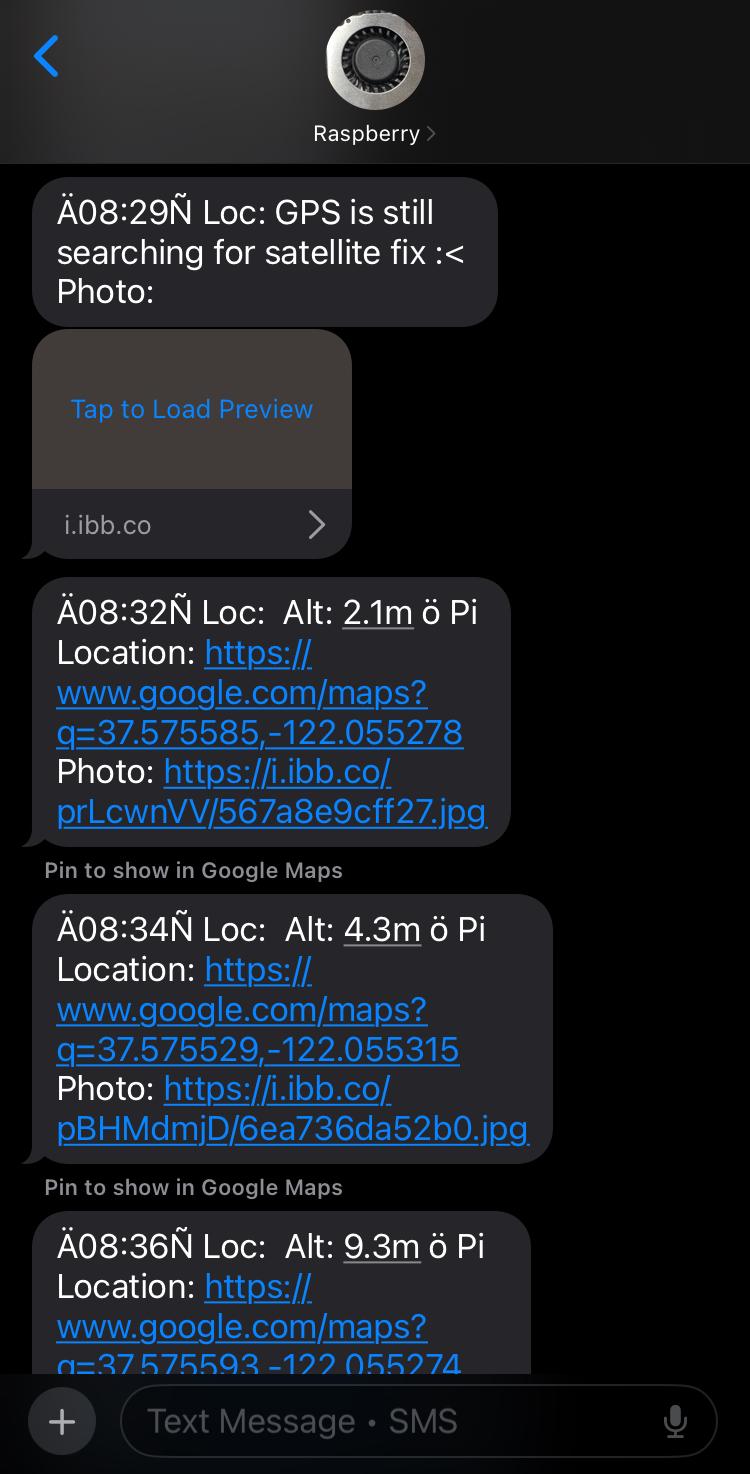

What does this script do?
Every 5 seconds, the Pi takes a photo and stores it in a directory called “captures”. Every 2 minutes, the Pi uploads the most recently taken photo to an online web host (ImgBB), sends a link to the image in a text message with the altitude and GPS coordinates of the Pi on Google maps. Using cron, you could can also run the script on boot so that you have less to worry about on launch day.
Before you run this Python script:
- Create an ImgBB account and get your unique 32-character API key. This will allow the Pi to use cellular data to upload photos onto the image host. Remove the function from main_loop() otherwise.
- Create a new directory in the Pi’s home directory called “captures”. This is where the photos taken by the system will be stored
- Check that your Raspberry Pi recognizes the camera module.
- Run the following in terminal:
- rpicam-hello --list-cameras
- This command should return a list of detected cameras, otherwise, check Troubleshooting
- Disable Modem Manager to prevent it from interfering with the 4G Hat
- Run the following in terminal:
- sudo systemctl stop ModemManager
- sudo systemctl disable ModemManager
- Install the minicom package and import the requests and serial python libraries
- sudo apt update
- sudo apt install python3-pip python3-serial minicom -y
- pip install requests --break-system-packages
- Configure the Raspberry Pi so that it is able to communicate with the attached hardware
- Open the configuration tool: sudo raspi-config
- Go to Interface Options.
- Serial Port:
- Would you like a login shell to be accessible over serial? No.
- Would you like the serial port hardware to be enabled? Yes.
- I2C: Enable
- Reboot
- Manually test the 4G Hat using the following AT Commands, see Troubleshooting.
- Open up minicom
- sudo minicom -D /dev/ttyUSB2 -b 115200
- Send a text message
- AT+CMGF=1 (sets module to text mode)
- AT+CMGS="+11234567890" (input target phone number in international format)
- Following the “>” sign, type a message (it might take a few moments). Send the message using Ctrl+z.
- Determine GPS location
- AT+CGPS=1 (turns on GPS module)
- AT+CGPSINFO (requests GPS coordinates)
Troubleshooting:
- General
- The script is written so that error messages are printed out in the terminal. You can generally use these to determine the source of issue. See below.
- GPS
- Text messages contain: “GPS is still searching for satellite fix”:
- During the first few minutes, the GPS may need to “warm up” before locking in the exact longitude and latitude coordinates. Place the module near a window or outdoors with a clear view of the sky for 15 minutes while the script runs before proceeding.
- If the error persists, you could try the following AT commands:
- Open up minicom
- Make sure the auxiliary antenna is getting power:
- AT+CVAUXV=3000
- AT+CVAUXS=1
- Text messaging
- No text messages received:
- Turn on verbose error messages:
- AT+CMEE=2
- Manually set SMS Center of your cellular provider
- Check current SMSC: AT+CSCA?
- If empty or incorrect, replace using AT+CSCA="insert the correct SMSC of cellular provider"
- Set the modem to text mode one more time
- AT+CMGF=1
- Ensure modem is using standard GSM alphabet
- AT+CSCS="GSM"
- Check signal
- AT+CSQ
- First number returned should be greater than 10
- Check if SIM card is ready
- AT+CPIN?
- Should be “READY”
- Reattempt sending the text message
- Camera module
- Troubleshoot by following the Arducam Wiki for the 12MP IMX708
- https://docs.arducam.com/Raspberry-Pi-Camera/Native-camera/12MP-IMX708/#imx708-4-lane-configuration
- In general though:
- Open the configuration file:
- sudo nano /boot/firmware/config.txt
- Change the line camera_auto_detect=1 to camera_auto_detect=0
- Under the heading [all] add the line dtoverlay=imx708
- Save and Reboot
- Run rpicam-hello --list-cameras again in terminal to confirm that the Pi detects the camera now.
Downloads
Payload
.png)
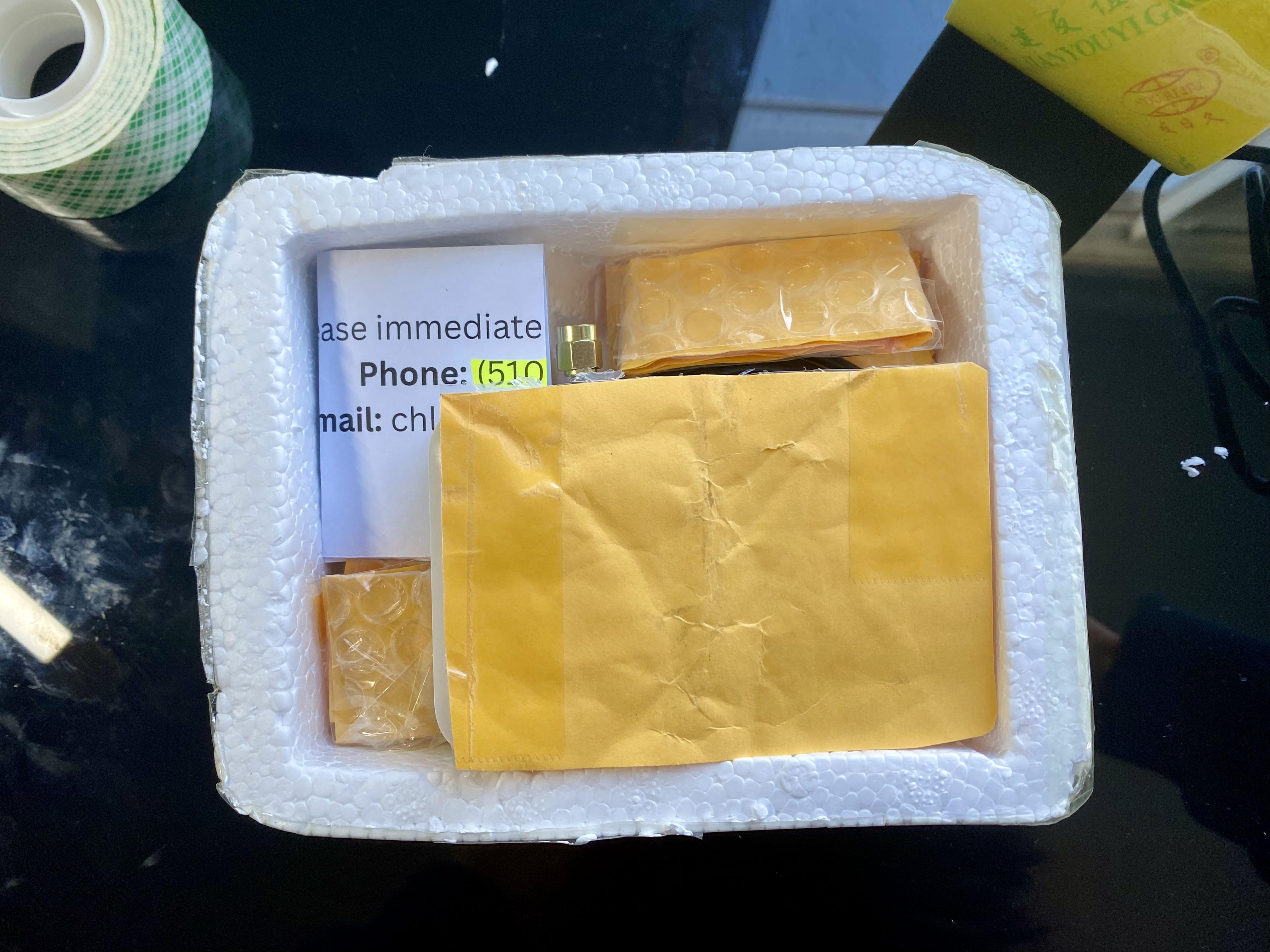
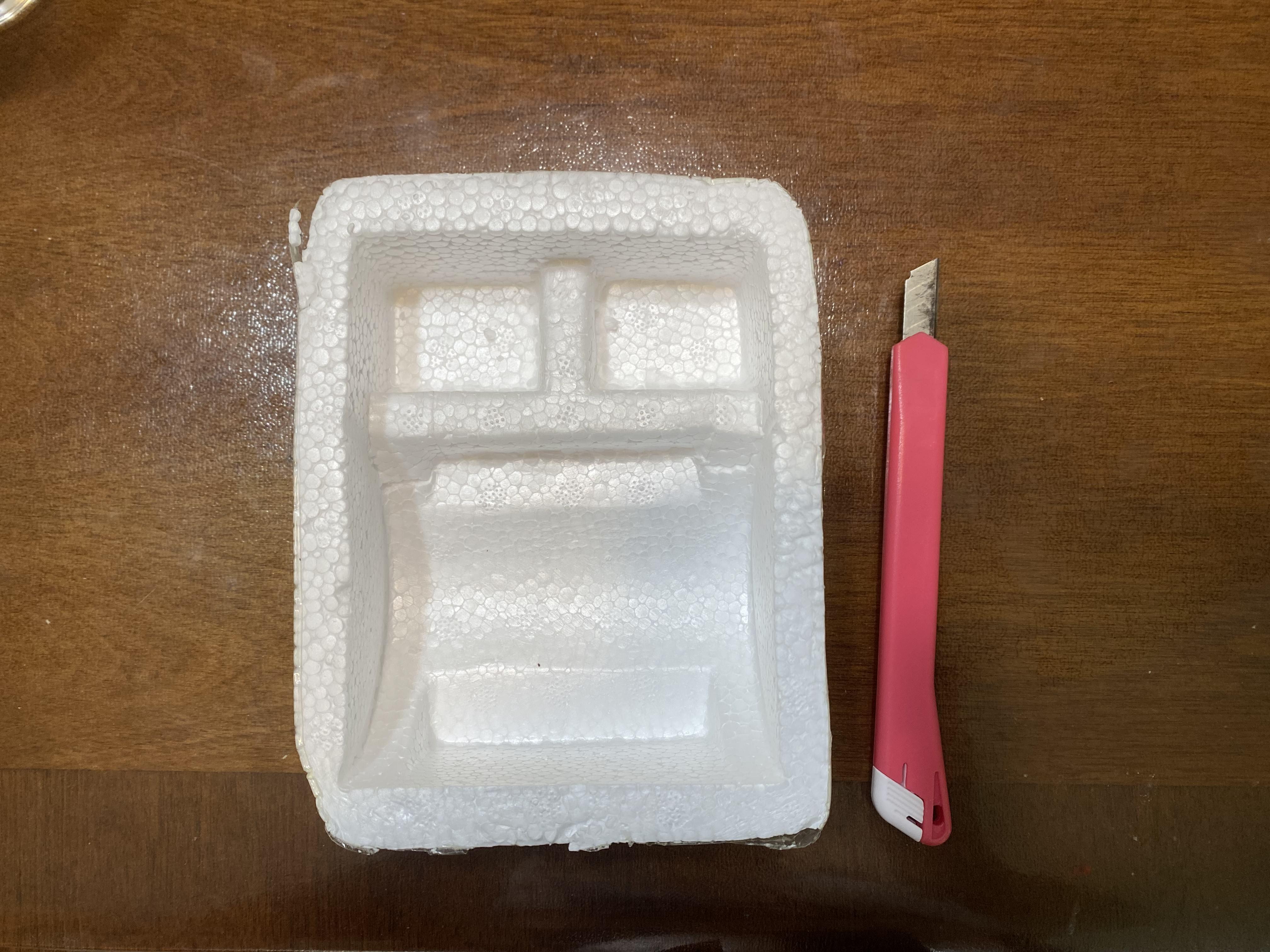
I used a small polystyrene box to fit all the components and taped bubble wrap inside to fill up the larger gaps. The hard part is just getting everything to fit. Refer to the photos above.
- First photo: original box
- Second photo: dry fit of components in box
- Third photo: adding padding
Rigging
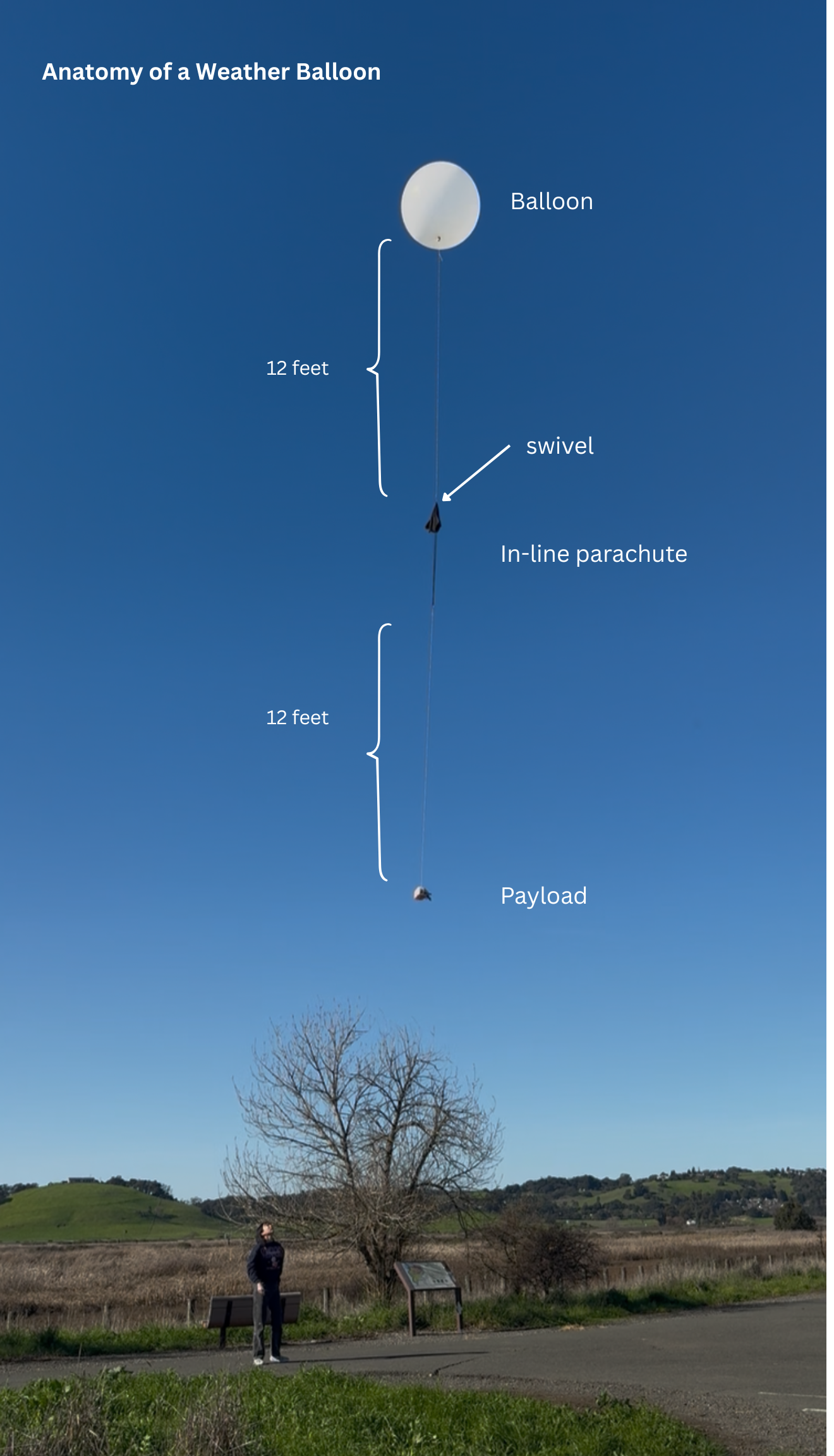
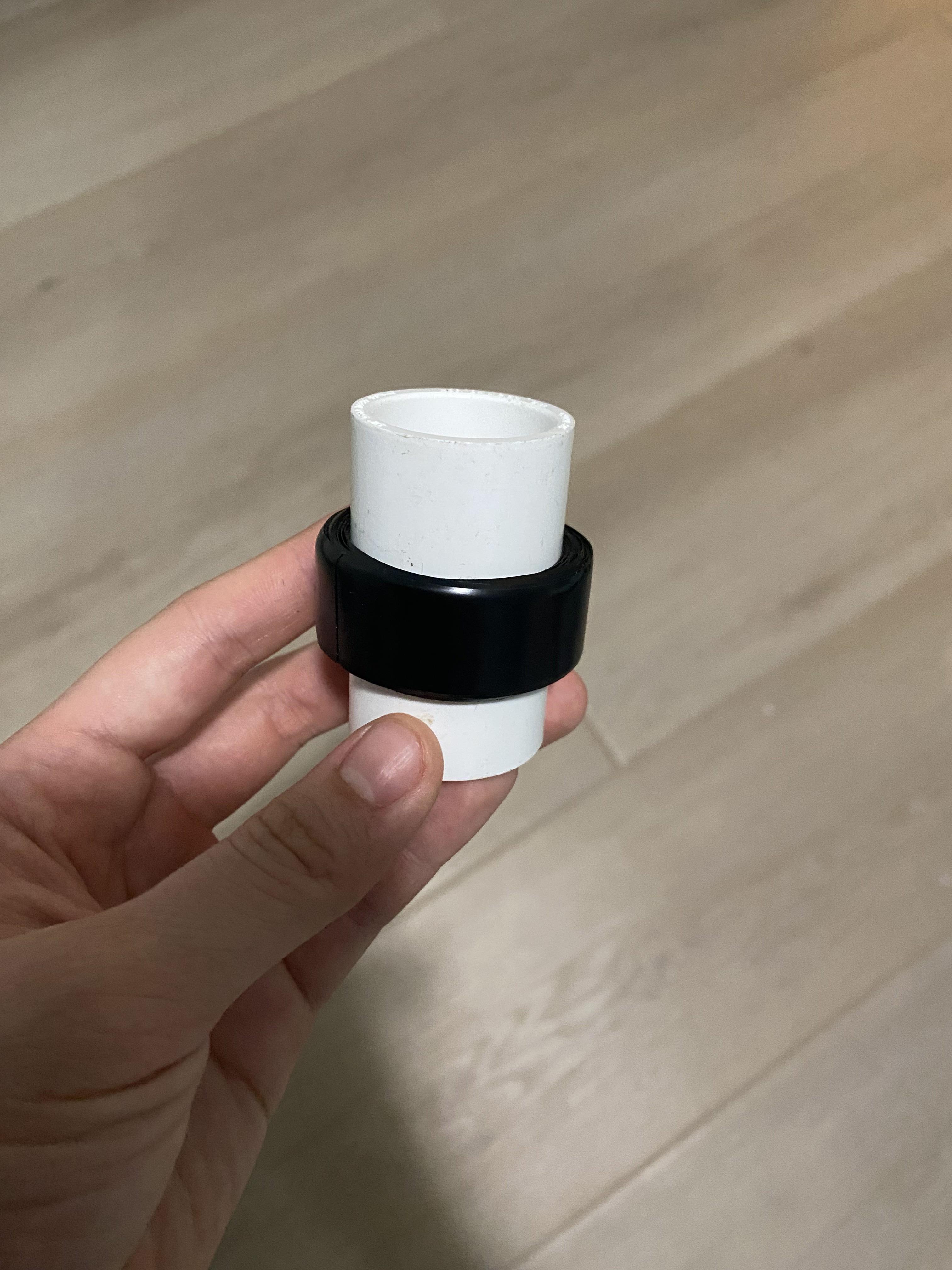
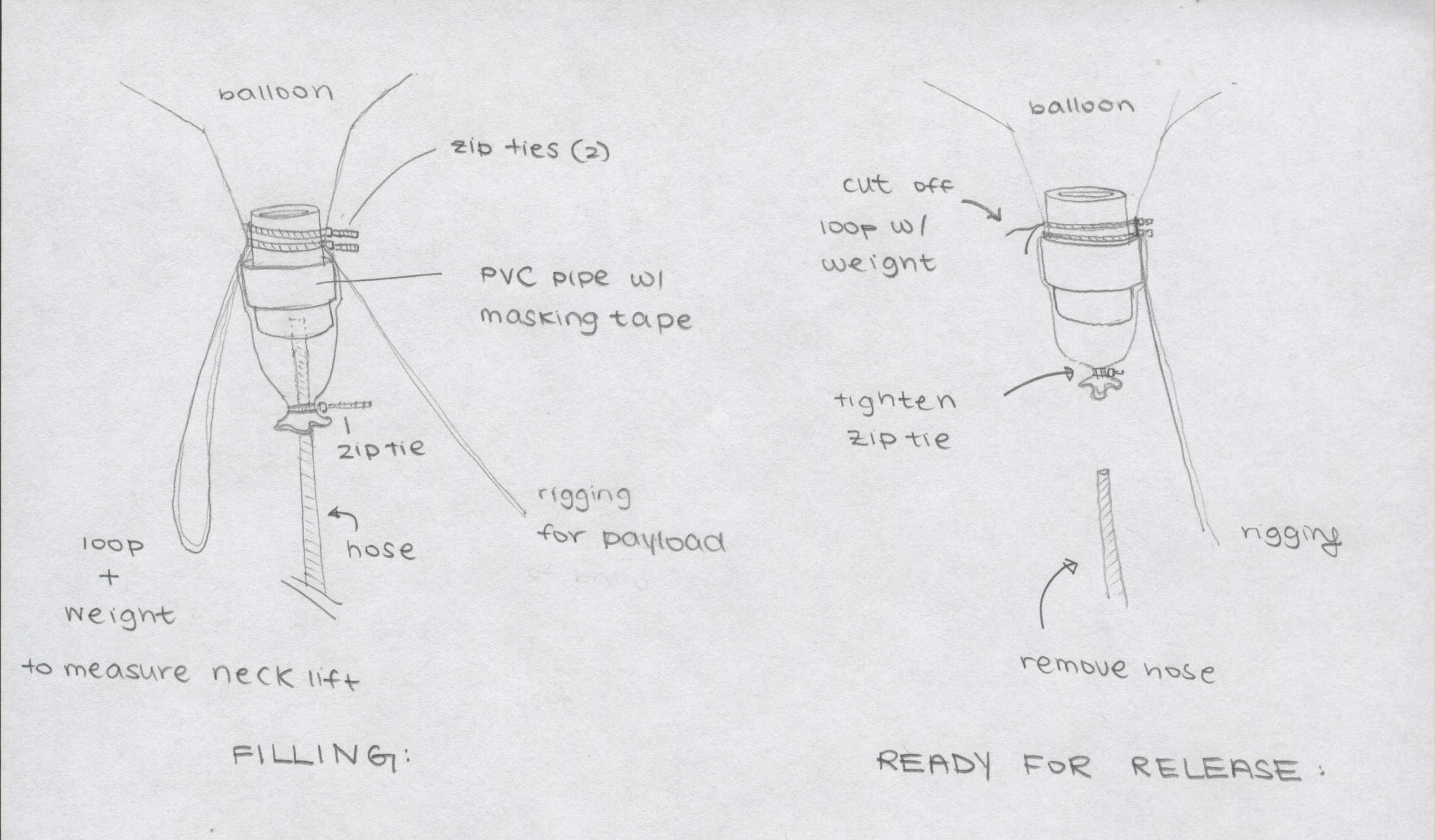
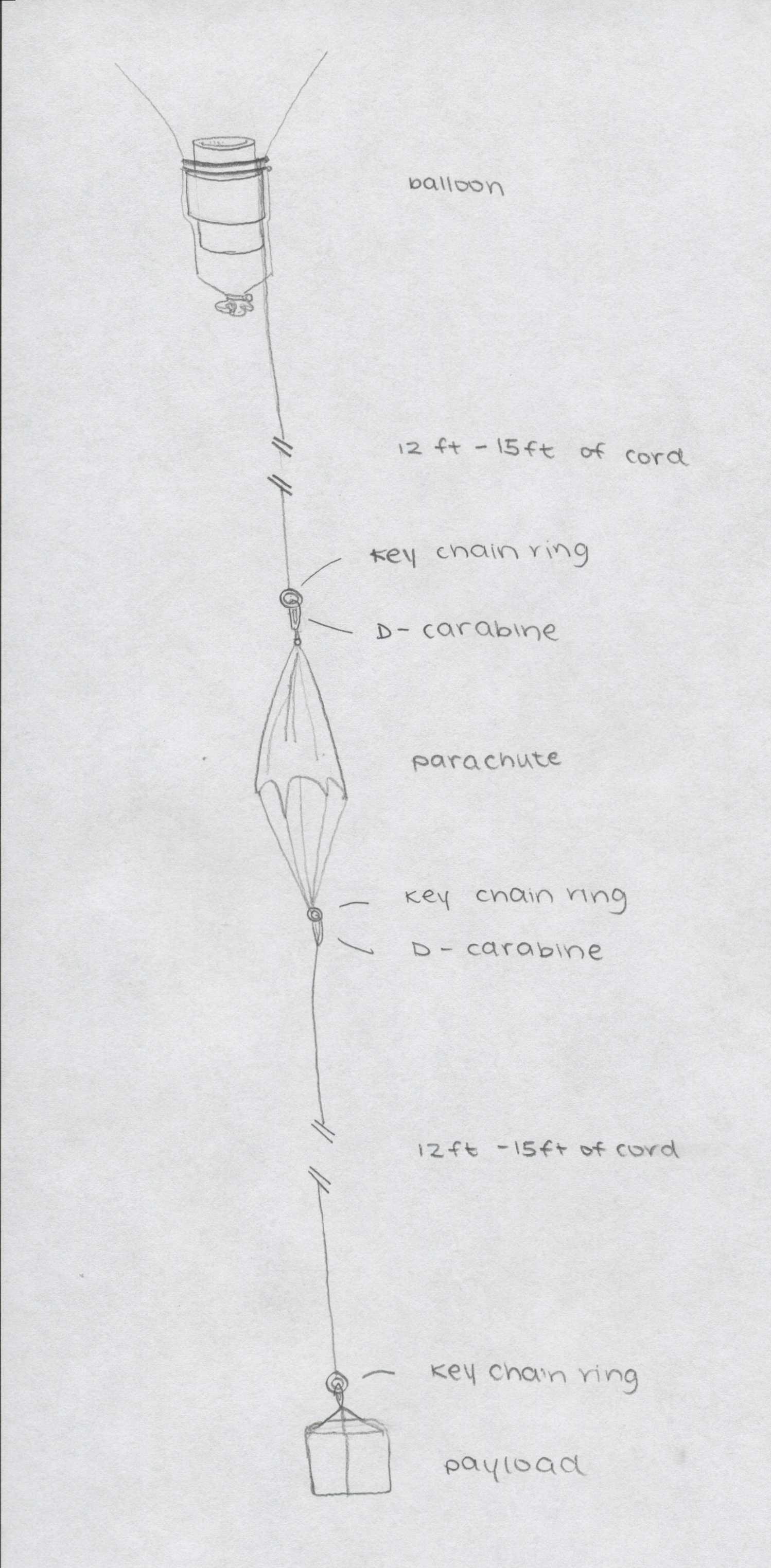
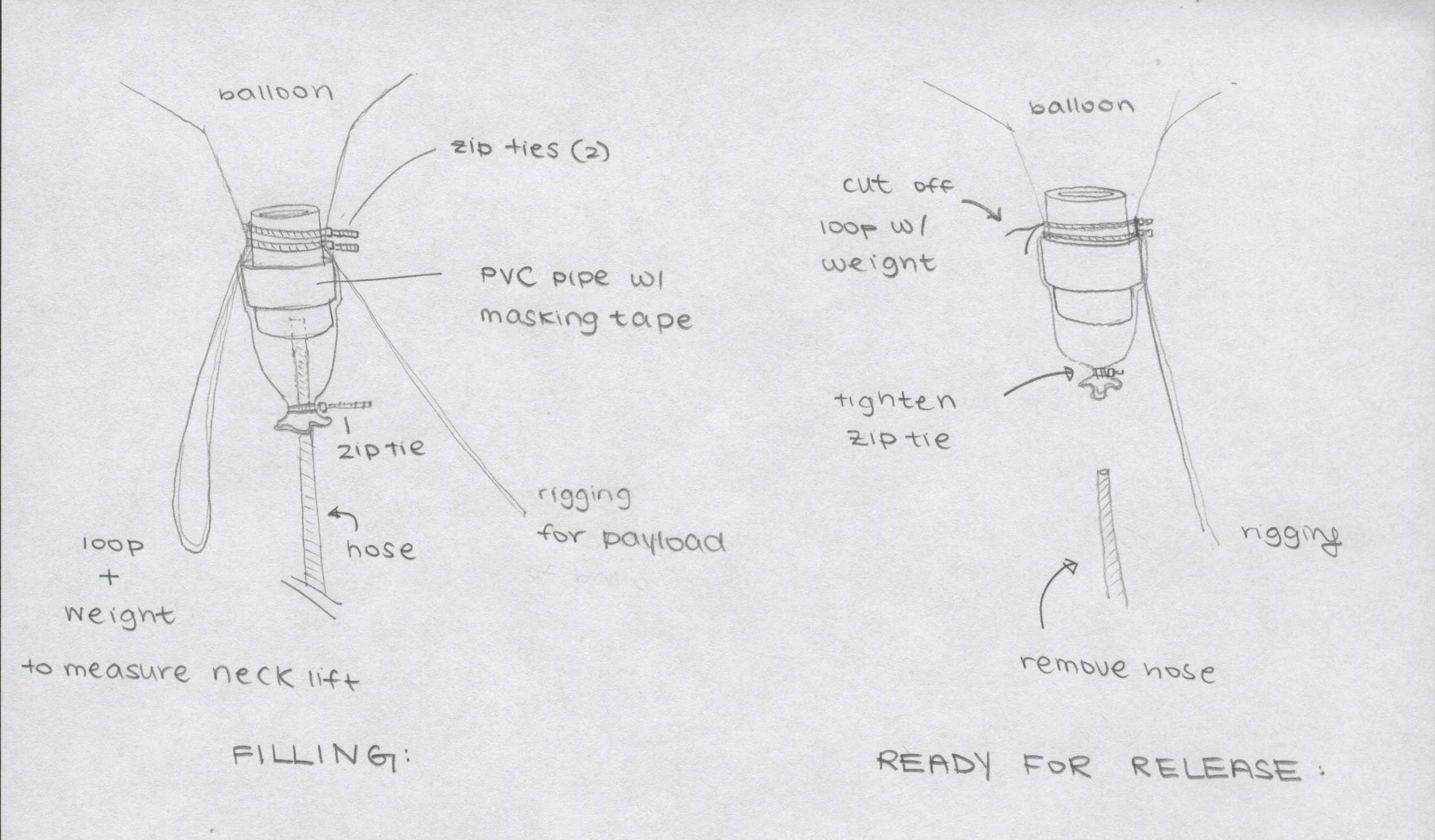
Refer to the pictures and diagrams above to supplement the written explanation of the rigging.
- Depending on the size of your balloon’s stem, cut a piece of ½” PVC pipe about 3 inches long.
- Wrap layers of electrical or masking tape around the center of the pipe to create a raised indent.
- Insert the pipe into the stem of the balloon.
- Secure two zip ties with two loops of string above the ridge of the masking tape over the latex to create a tight seal with the balloon
- Using 12-15 feet of kite string or any other type of light, 50lb cord, connect the rigging from the balloon to a key chain ring. A D-carabine from the top of the parachute can be secured to the key ring once you’re ready to launch (for now keep the pieces separate to make transportation easier).
- Connect the bottom of the parachute to another 12-15 feet of string down to the payload’s keychain ring.
John Powell also has a video going into the process of rigging a weather balloon: https://youtu.be/B7XEUJSekbI?si=Yo2CN4vXAiLSxsHp.
Parachute (Optional)

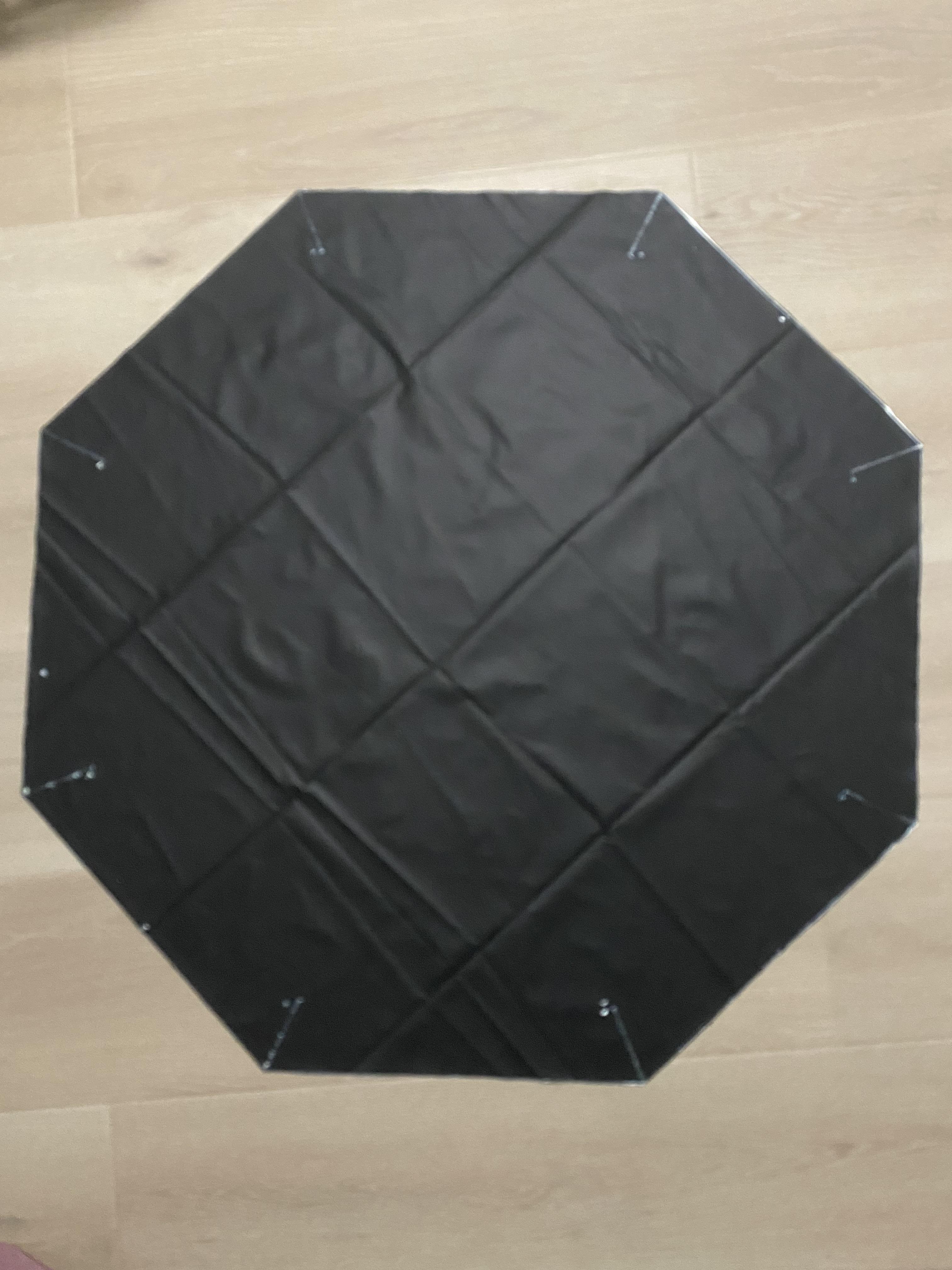

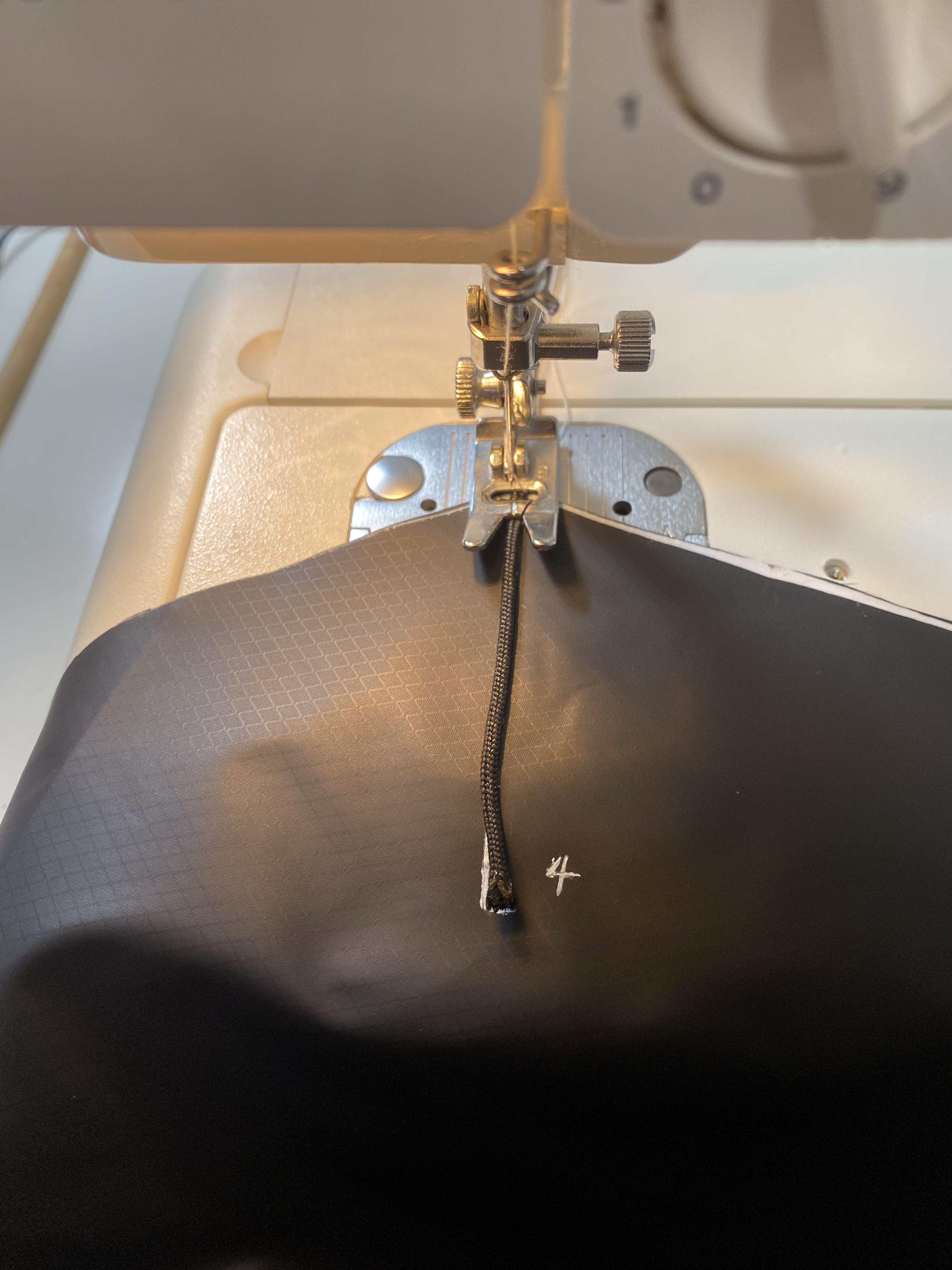
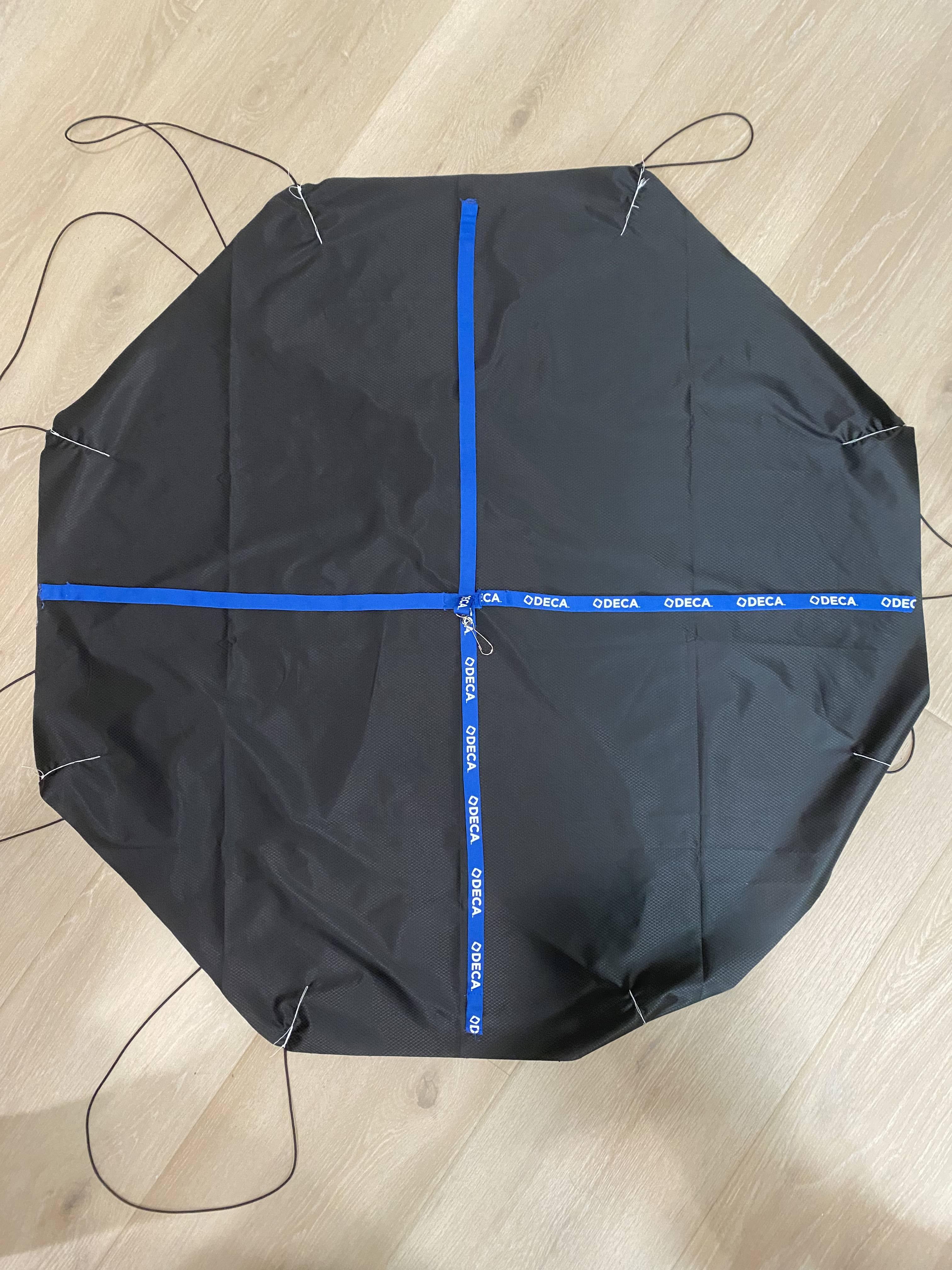
If you choose to sew your own parachute, consider following this tutorial from Rotary Rocketry: https://youtu.be/J_75YXj-HKw?si=CMnuhibyApAGrVN3. The exact dimensions and steps are provided in the video, but the idea is to create an equilateral octagon from the nylon fabric and connect opposite ends using 4 loops of paracord.
I also took apart two name-tags to add a swivel to the top of the parachute for the weather balloon rigging to attach to using a running stitch. See images.
Launch Day!
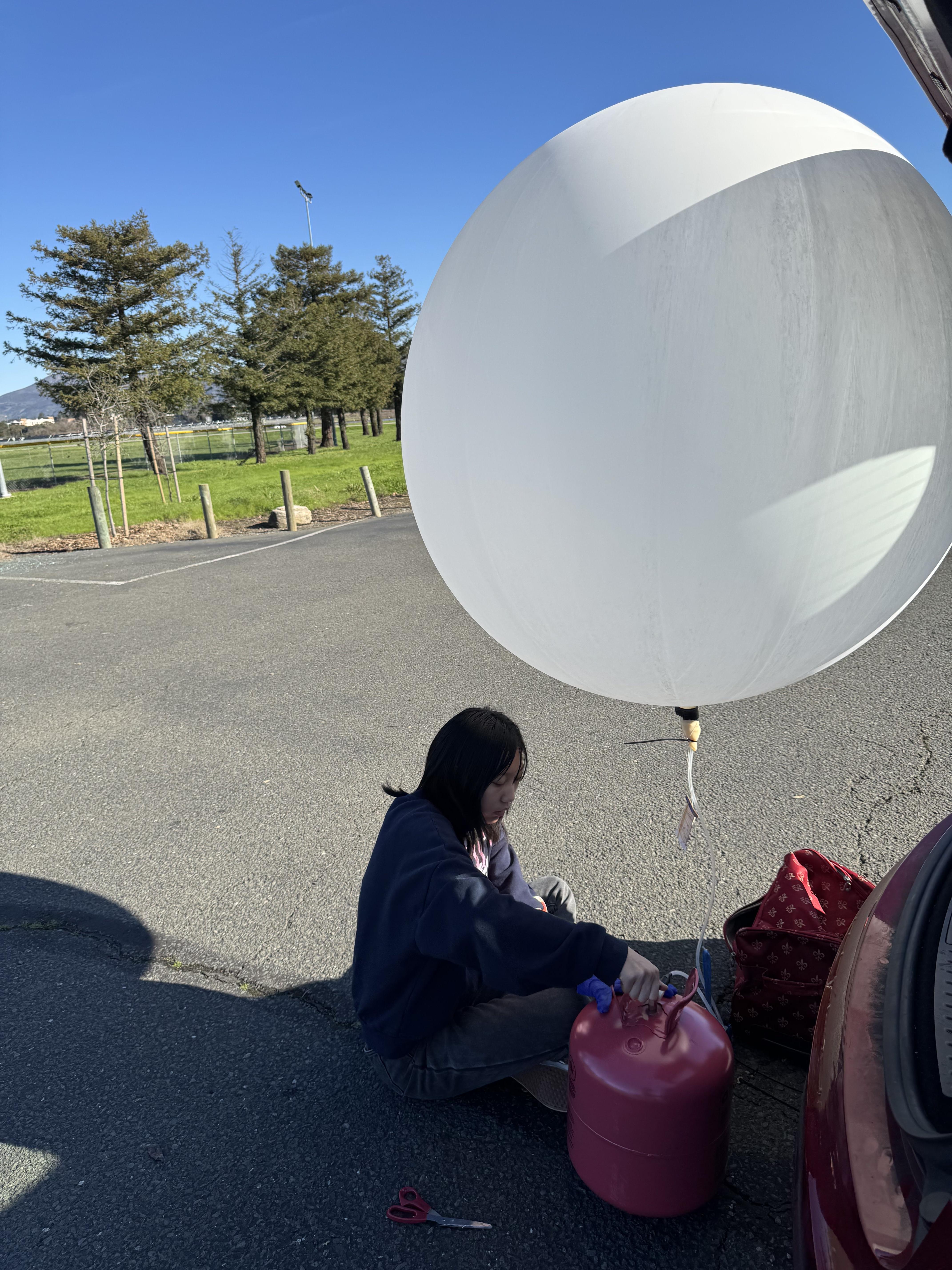
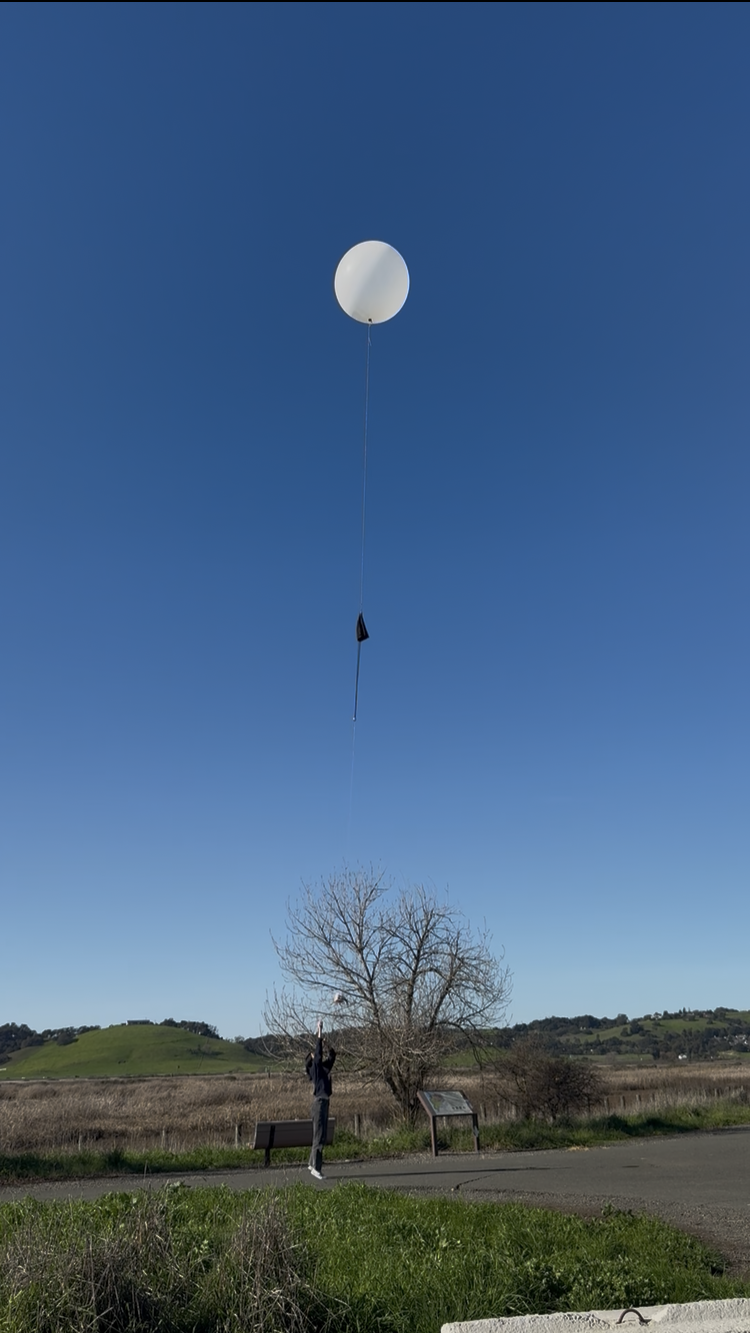
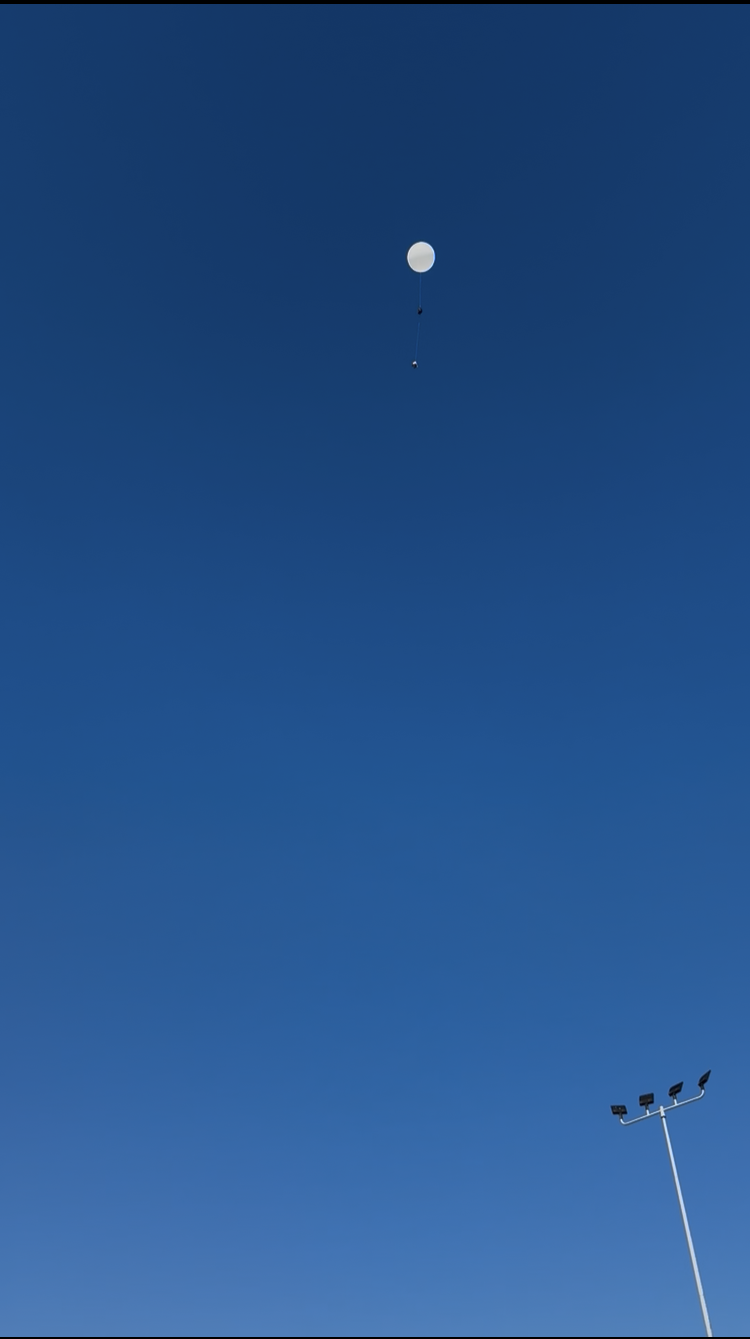


If you followed the method of rigging I showed above, filling the balloon can be pretty simple!
- Plug in the battery to the Raspberry Pi and confirm that GPS and the messages are being sent before sealing the payload.
- Put on a pair of gloves. The latex balloon can be very delicate.
- Attach the counterweight to the loop (check out the diagram). When the balloon is able to just barely lift the counterweight, it is ready to be tied off.
- Insert the plastic tubing into the stem of the balloon and zip tie the stem shut to create a temporary seal.
- If you’re using party helium, connect the other end of the tube to the nozzle and secure it with a bit of electrical tape.
- When the balloon can just barely lift the counterweight (is in equilibrium), remove the plastic tubing and tighten the zip tie.
- Attach the parachute and the payload to the balloon.
- Let the balloon out gradually, hand-over-hand until you’re just holding the payload.
- Release and say goodbye!
Analysis/Improvements
Since my weather balloon used cellular data to transmit information back to me, it was inevitable that after the first hundred or so feet above the ground, the text messages ceased. Ground towers simply aren’t designed to transmit signals high above the surface.
However, when the balloon begun its descent, I expected to begin receive text messages again from the Pi. I suspect that there are two possible reasons why I did not:
- The lithium battery I used to power the Pi may have frozen over. The temperature in the stratosphere can be lower than -50℃, but the battery was only rated to work at reduced capacity at around -4℃.
- The landing spot of the balloon may have deviated from that of the simulations. I was aiming for a narrow strip of land in the Bay Area. It is very possible that the balloon descended earlier than expected and ended up in the bay or an area without data.
I was originally not planning to publish this document because I wasn’t able to retrieve the payload. However, I hope writing out my mistakes can help me remember what I did and help you make a better balloon. Consider the following while designing yours:
- Cellular data is not very reliable. You must time your landing in a safe, accessible area that reliably has cellular data. You also lose contact with the balloon above the the first hundred feet or so. I’m planning on getting my amateur HAM radio license over the next semester, so next summer I hope to try this again using HAM radio.
- Research more into batteries and battery performance at low temperatures. You might need to invest in higher quality batteries that are rated to discharge well in the cold or look into adding handwarmers in the payload.
That’s a wrap! Happy ballooning!
Extra Resources
Here's a list of resources mentioned in this Instructable and a couple of extras. There are some pretty good Instructables that I enjoyed reading in here too!
Lift/Altitude Calculator: https://sondehub.org/calc/
Descent Rate Calculator: https://descentratecalculator.onlinetesting.net/
Flight Simulator: https://predict.sondehub.org/
Setting up cellular with a Raspberry Pi:
- https://www.youtube.com/watch?v=ABnwz-IYzqA
- https://www.jeffgeerling.com/blog/2022/using-4g-lte-wireless-modems-on-raspberry-pi/
Setting up Arducam module 3 IMX708 Wiki:
NOTAMs
- https://www.faa.gov/air_traffic/publications/atpubs/notam_html/chap6_section_1.html
- https://cdn.makezine.com/make/90/Instructions-Filing-a-NOTAM.pdf
Regulations around unmanned free balloons
General weather balloon resources
- https://www.instructables.com/Send-a-Teddy-Bear-to-Space-High-Altitude-Balloon/
- https://www.instructables.com/The-Easiest-Arduino-High-Altitude-Balloon-Data-Log/
- https://www.instructables.com/Make-the-Most-EPIC-Christmas-Card-Ever-Also-How-to/
- https://www.instructables.com/Sending-a-Weather-Balloon-to-95000-Feet/
- https://www.makeorbreakshop.com/project/how-to-send-a-360-camera-to-the-edge-of-space2
Weather balloon rigging
Parachute