Truncated Icosahedron Chair
by TheSimonSays in Design > 3D Design
158 Views, 2 Favorites, 0 Comments
Truncated Icosahedron Chair

Today we're going to make a cool half-icosahedron chair a cool and classy chair for any space
Supplies

.jpg)
Blender Software 2.92+
220g letter-size cardstock
Scissors
Glue
Cutter

.png)
but what is a Icosahedron?
The regular icosahedron (or simply icosahedron) is a convex polyhedron that can be constructed from pentagonal antiprism by attaching two pentagonal pyramids with regular faces to each of its pentagonal faces, or by putting points onto the cube. The resulting polyhedron has 20 equilateral triangles as its faces, 30 edges, and 12 vertices.
In geometry, the truncated icosahedron is a polyhedron that can be constructed by truncating all of the regular icosahedron's vertices. Intuitively, it may be regarded as footballs (or soccer balls) that are typically patterned with white hexagons and black pentagons.
(Reference images, Wikipedia.)

Last time I make the Monster Dome project, and I ran into an extra need. I already had a protective structure, but what good is a rest area if you have nowhere to rest? So, the solution that came to mind was to design this chair, which goes perfectly with the geodesic design of the dome. The geometric shapes led me to look for the most adaptable form to create this eye-catching object. So, join me in the process.
.jpg)
First open Blender and in the Add section, select mesh and then add an icosphere
.jpg)
.jpg)
In the icosphere's features menu, reduce the subdivisions to 1.

Then enter object edit mode with the tab key, and press Ctrl+Shift+B to truncate the vertices of the icosahedron.
Scale the size of the panels according to your liking and adjust them by moving the mouse diagonally.
.jpg)
.jpg)
Now, apply an extrusion to the selected faces to generate what will later become the chair legs, using the Alt+E keys and selecting the Individual Faces option.
.jpg)
.jpg)
.jpg)
You will get a figure in the shape of an anti-submarine bomb, then to define the legs of the chair, press M to merge the vertices and select collapse so that the union is in the exact center of the individuals faces, creating a star-like shape
.jpg)
.jpg)
.jpg)
Select a face and move the cursor to its location using Shift+S, which will move the cursor to the center of the selection.
Then select that location as the object's origin from the object menu.
.jpg)
.jpg)
.jpg)
Now position the face you selected as the origin of the object parallel to the horizon (Z Axis).
Use the wireframe view with the Z key to confirm that the face is completely straight
.jpg)
.jpg)
Then, using the letter K, use the knife to make a straight cut across the entire figure from one vertex to the other, dividing it in two. Half of it will be used to make the chair.
.jpg)
.jpg)
.jpg)
.jpg)
Now arrange the figure so that 2 of the peaks touch the floor of the Z horizon
and select the part divided symmetrically above
Press X and then select delete vertices.
.jpg)
.jpg)
Now select the unwanted cone vertices, and again with the X you will delete them, but this time select dissolve them.
.jpg)
.jpg)
.jpg)
Now, in the lower part where the two rear legs are located, you can create another beak for another leg as more support for the weight.
Now, at the bottom where the two rear legs are, you can create another spike for another leg as more support for the weight.
Select the face and press E to extrude individual parts.
.jpg)
.jpg)
.jpg)
then merge again, collapsing that part, and adjust to the floor height.
Use the wireframe view to adjust perfectly
.jpg)
.jpg)
Finally, create some faces that seal the gaps in each leg and will serve as a template for the chair cushion.
.jpg)
.jpg)
.jpg)
After the 3D design in blender, you will need to transfer the model to paper. For this, you can use any application known for this process. Once transferred to paper, you will be able to make the physical assembly of pieces in 3 dimensions according to the instructions.
Here you can download the templates for the Icosahedron Chair and then review step by step which one corresponds and guide you through the assembly.
For Scale:
Panel line: 5 cm
For Kids: 30cms (Scale 1:6)
For Adukts: 50 (Scale 1:10)


Conclusion:
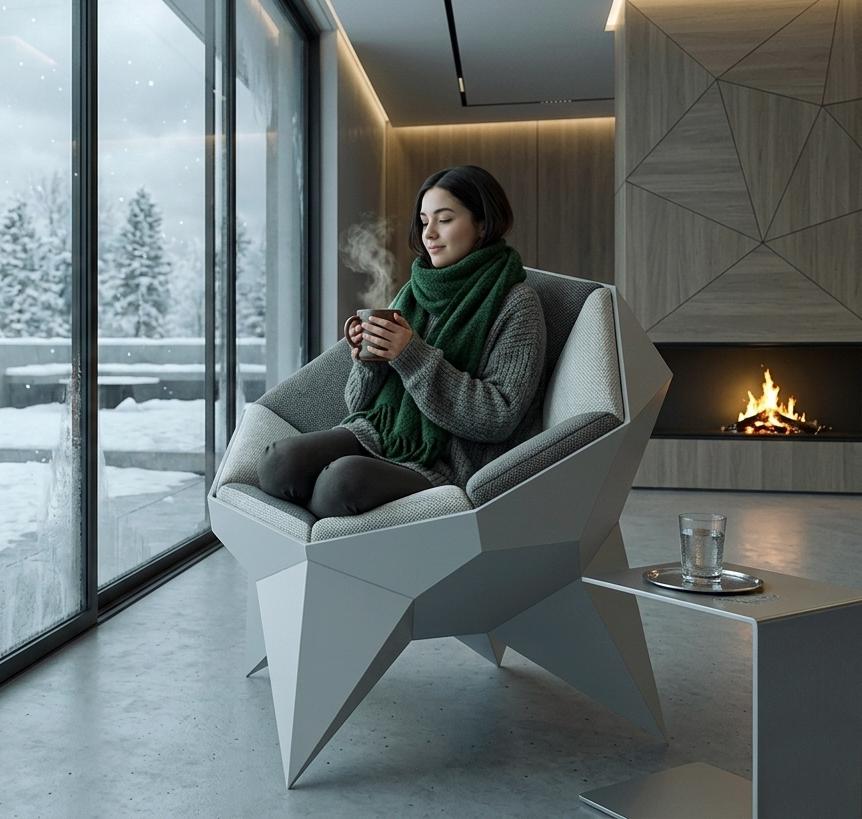
This chair is suitable for any use and space, whether for taking a nap or reading a good book. In a large living room, it can be a truly unique piece. It all depends on the size of the cushions and the materials you use.
You can also add some cushions inside to make it more comfortable or even place some blankets inside for those chilly days.
It's a simple, attractive, and elegant design that will give a special touch to your spaces.
Thank you for viewing my project.