Droid-Style RC Animatronics Using Bottango and ESP32
by Donald Bell in Circuits > Robots
400 Views, 5 Favorites, 0 Comments
Droid-Style RC Animatronics Using Bottango and ESP32
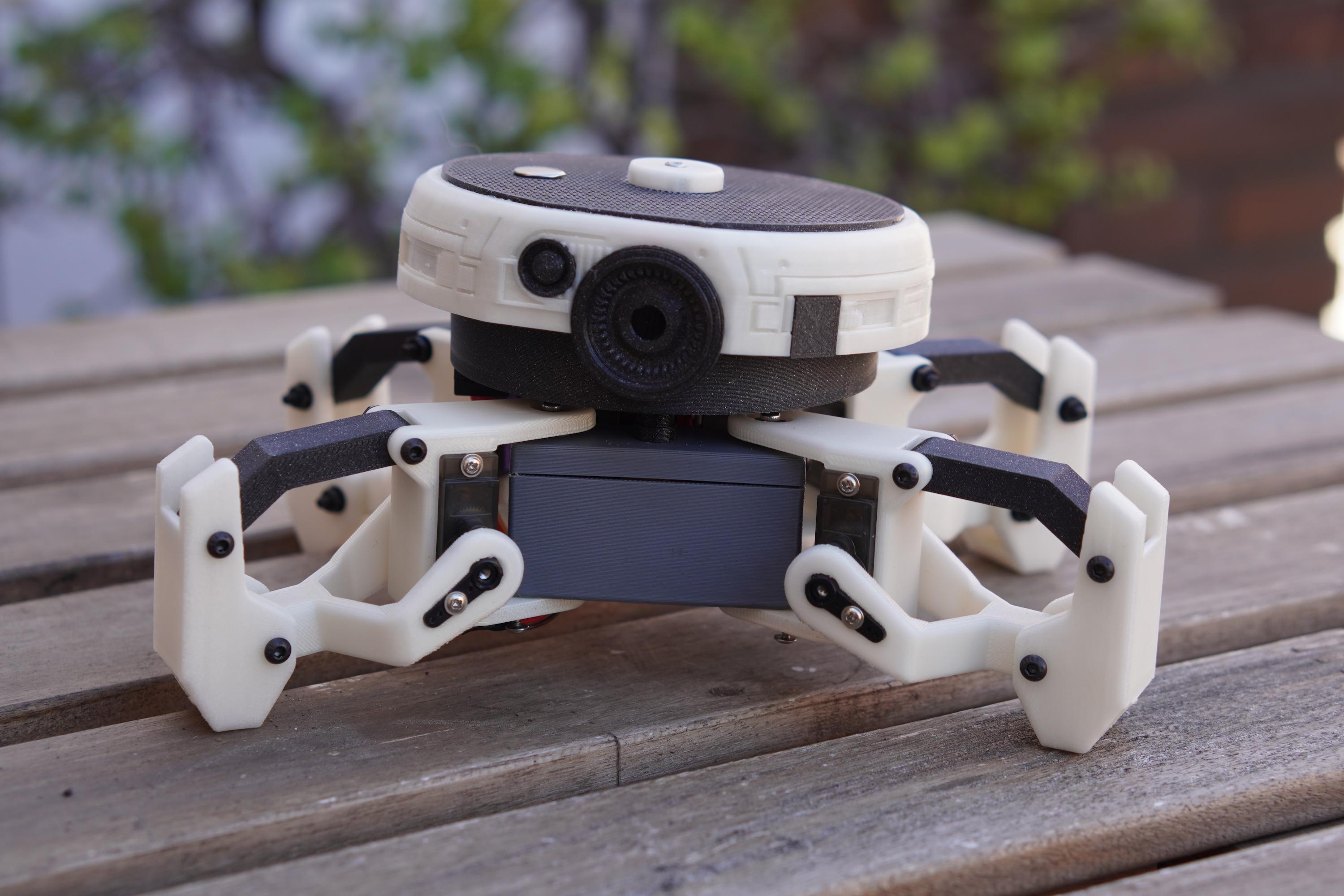
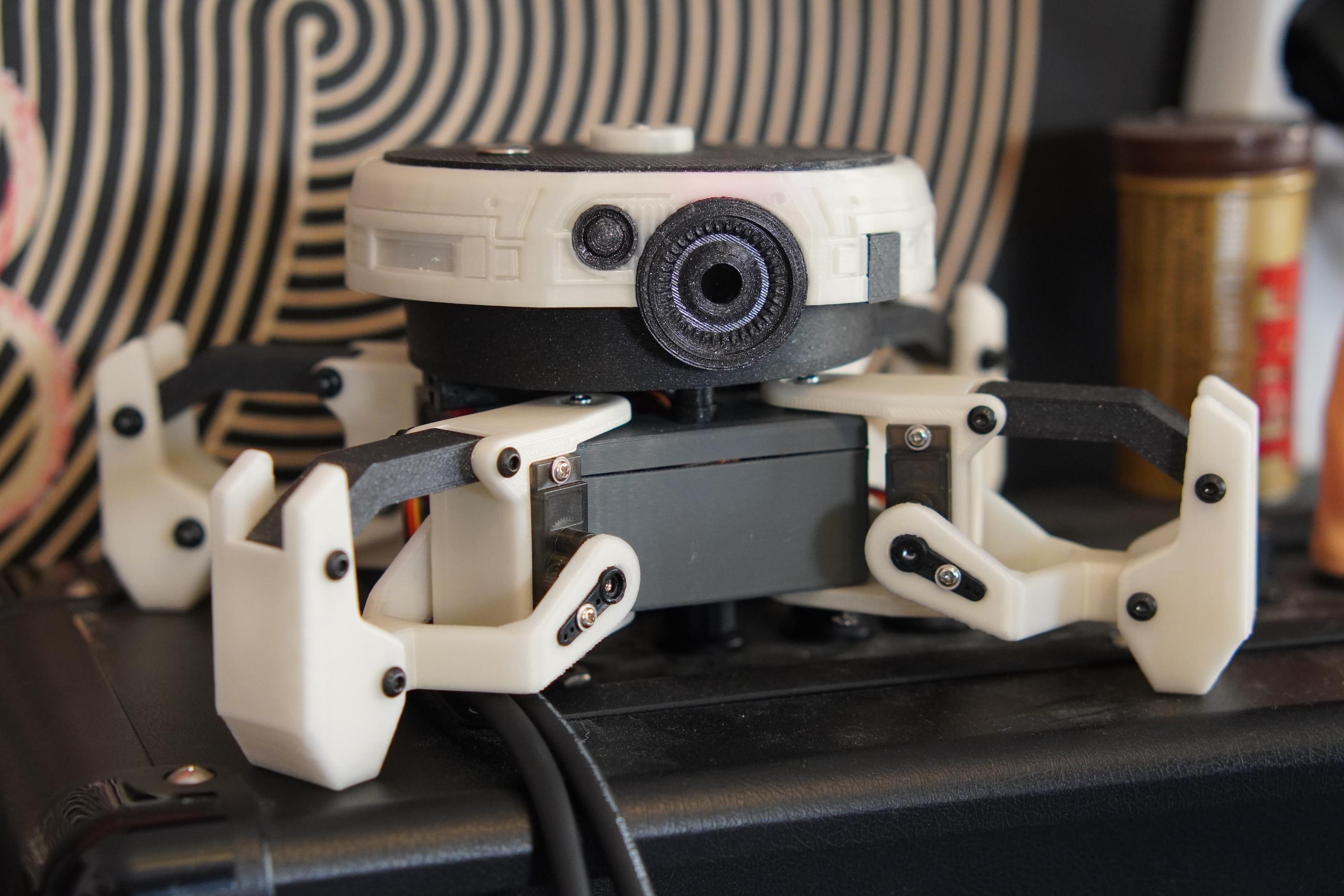
Want to build a robot with some personality? With free animatronic tools like Bottango you can now approach hobby robotics in a way that feels more like puppeteering than engineering.
This guide will show you how to recreate the robot shown here, but more importantly my goal is to demonstrate a new kind of recipe for developing small, battery-powered animatronic characters.
Credits
I’d like to thank Odd_Jayy and his Comet Crawler robot for inspiring me to take on this project. Though our robots are similar looking, none of the code or design files shown here are derived from his work. We took two different approaches to arrive at a similar destination. Still, his inspiration was fundamental to getting this project underway.
I owe Javier Isabel and his Kame32 robot a huge credit. Not only is Javier responsible for the majority of the mechanical design shown here (I just added the head) but his catalog of robot movements and his approach to animation as oscillation were a guiding light in my work in Bottango.
I didn’t end up using any of Javier’s code here. If the movements look similar it’s because I reverse engineered each of his examples and visually broke them down in Bottango. It was painstaking work, but it was also a great way to challenge myself to learn how to create complex, choreographed movement in Bottango.
Speaking of which, a big thanks to Evan McMahon the genius behind Bottango animatronic software. I appreciate all the work you and the Bottango community have put into making this platform a reality.
Supplies

-Waveshare ESP32 S3-Zero (or Seeed XIAO ESP32 S3, or Adafruit QT Py ESP32-S3) - Truth be told, I didn't really like the Waveshare board. It threw me a lot of curveballs but I needed something small to fit in the limited space I had. This project will also work with XIAO ESP32S3 or Adafruit QT Py ESP32-S3 but will require some minor pin remapping.
-PCA9685 16-channel servo driver board - Mine had a pre-installed 1000uF capacitor.
-9 SG90 metal gear hobby servos
-Servo extension cable (for head servo) - I only ended up using one to reach the head servo. It also provides a way to disconnect the head servo (and the entore head) from the servo driver board, without having to access the driver board.
-DFPlayer Mini audio board - Worth getting the genuine board instead of a clone. Clones sometimes have issues.
-MicroSD card - For use with the DFPlayer Mini, to store sounds on.
-Little speaker. Here's what I used, but you can likely find better, smaller options on DigiKey. This one looks identical.
-2000mAH Lipo battery - Just barely fits standing up on side, wedged between speaker and head servo. Adjust the servo height as needed to get the clearance right, or else your robot's head will be a little lopsided. Because batteries like this have built-in charging and discharge protections, I suspect it's acting as another choke point for delivering to the system. I'd like to find a different, equally compact solution for delivering high-current power to this project.
-DC-DC Step-Up converter (2 ideally) 5v 3a. Check the amp rating. 3 amps is ideal but you may be able to get away with 2 amps. Less than that will lead to power drops due to the servo power draw. Here are the ones I bought originally on Amazon (Spain) which no longer seem available. An equivalent doesn't seem available on Amazon US, either. Alternatively, you could try something like the Seeed Lipo Rider Plus, which would replace both this boost converter and the above battery recharge board.
-Wire
-Dupont-style jumper wires - Makes some connections easier, like on the DFPlayer Mini.
-Pushbutton on/off switch - I'm using this as a battery disconnect. I tucked it under the head with some CA glue. Anything small will do.
-4700 uF capacitors (2 ideally) - To provide some power reserves on the step-up converter outputs. I used ones rated at 16v, but they're overkill and take up too much room. I recommend these 10v rated caps instead, which I expect are a little smaller.
-1-inch of hook and loop (loop side), just for a little friction in the head mechanism
-Kapton tape - To cover board contacts and prevent shorts when jamming everything together.
Basic Anatomy
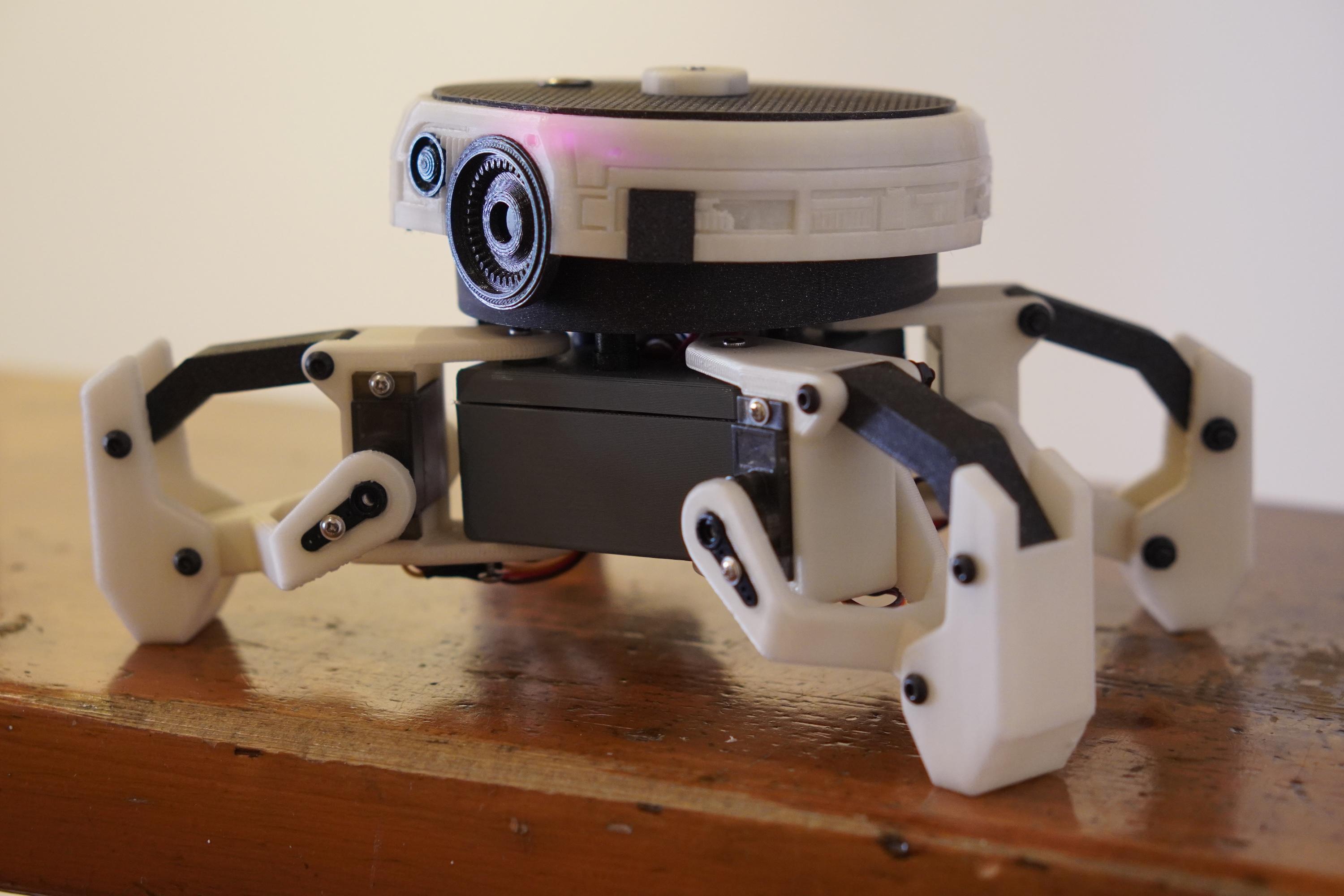
This robot can be divided into three main pieces, both functionally and conceptually: legs, torso, and head.
Legs
The legs are unmodified versions of the robot legs from Javier’s Kame32 design. There are two different versions of these legs depending on whether you’re using SG90 metal gear servos (like I did and would recommend) or the more common SG90 plastic type. Because the metal gear servos have a different range of movement than typical plastic gear servos, the animations I created may not map correctly on anything but these SG90 metal gear servos.
Torso

The torso is essentially from the Kame32 design, but carved out a little inside to make room for the PC9685 servo driver board and a ridiculous amount of servo cables that I shoved in here. Were I a more patient person, I would methodically trim back the cables of each servo for a tidy fit. Maybe I will at some point.
Also note that I had to snap a mounting flange off each of the interior servos within the torso so they could fit Javier’s design. It’s not ideal, but it works.
Head

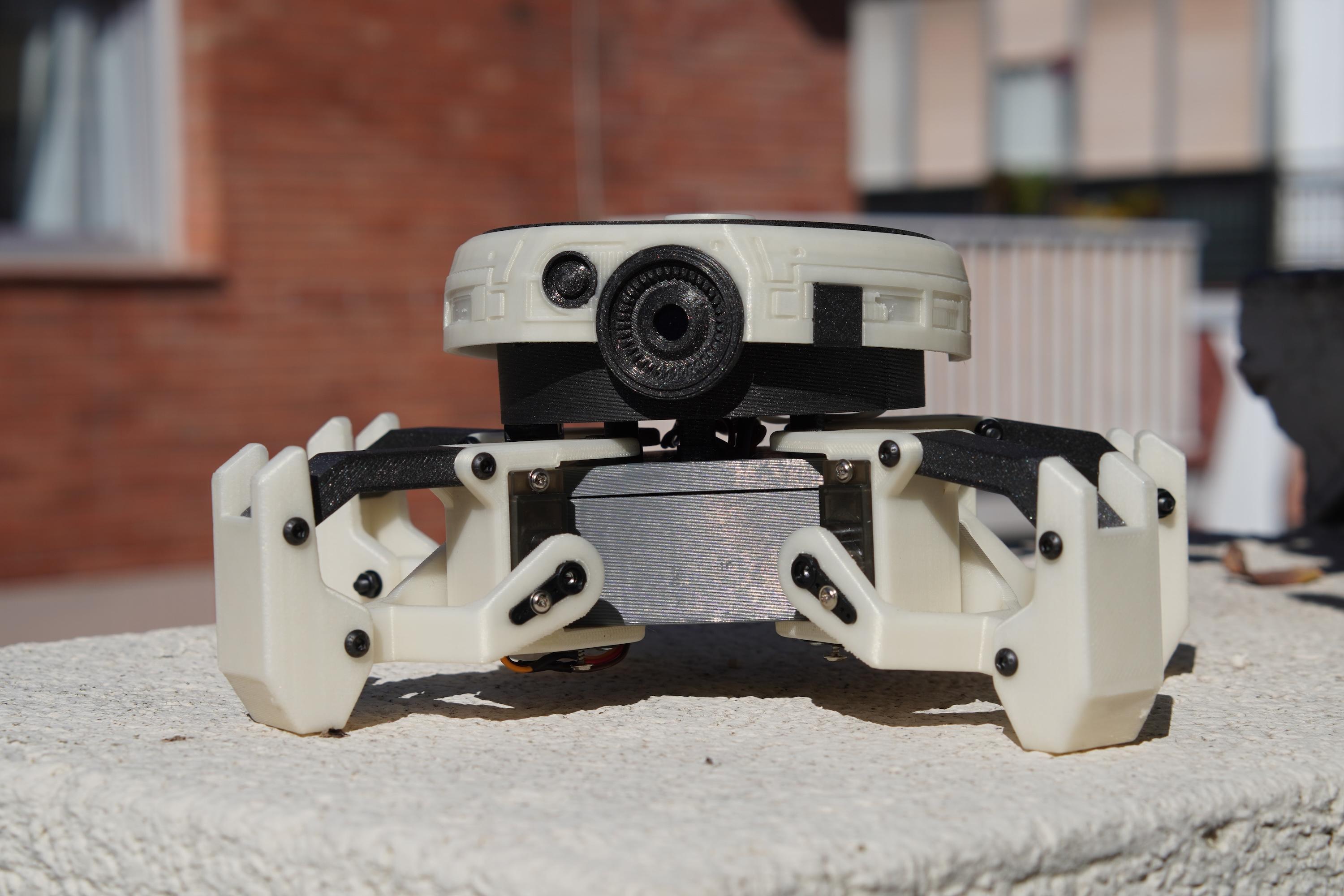
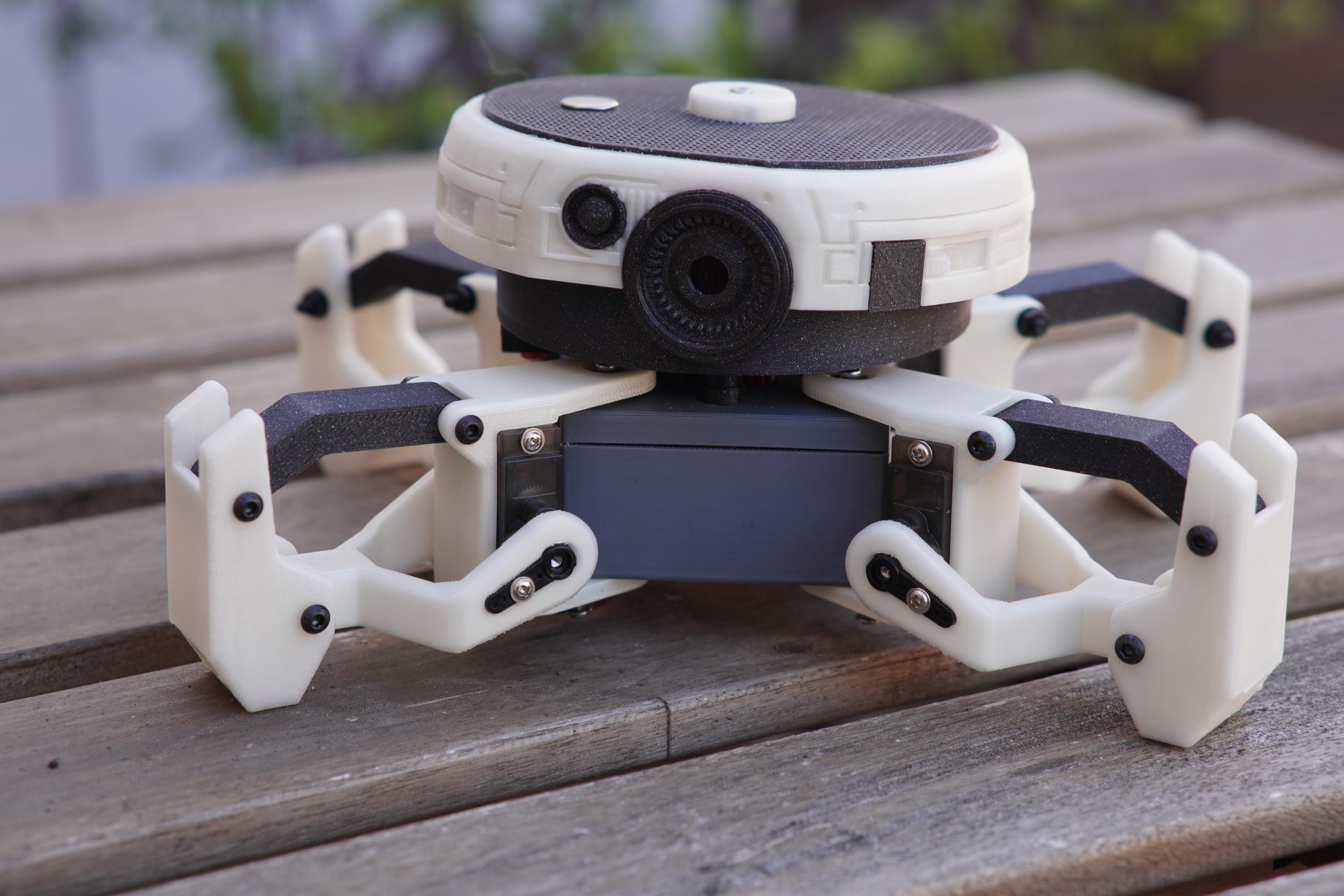
And then there’s the head. It's a circle, with a circle on top, and a circle touch sensor, and two circle eyes, and the whole thing mounts on a big circle -- so I figure that loosely qualifies it for the All Things Pi contest.
This droid head is my main contribution to the design, though I’m still borrowing from a few sources to make it (mentioned below).
For practicality, I needed a head to store all the extra electronics – the ESP32 board, the speaker, battery, MP3 player, DC converter, charging board – it’s all up here.
But for flair, I really wanted a robot head to add some expressiveness and personality to this design. To that end, there’s a servo up here to spin the head, or at least to spin the top section of it.
The head is broken into two sections. The lower section is essentially a bowl that holds all the stuff, mounts the central servo, and includes holes to route cables through to the torso.
I attached the lower section of the head to the torso using four 3D printed standoffs I created by extending the bearing design by Javier. I didn’t put too much thought into it, but it works. It’s holding the pieces to each other with super glue, so it’s not ideal. I wouldn’t recommend doing the glue up until you’re sure the electronics in the torso are wired the way you want. After the glue up the torso internals are essentially inaccessible.
This lower section head is mostly concealed by the upper head, which just canopies out over the bowl and is held in place by a single servo gear screw in the middle.
The upper section is designed to be as light as possible to help minimize the load on the servo, as well as the backlash. The droid-inspired face design is borrowed from this B2EMO RC Toy design by Boxandloop on Thingiverse. I reduced the size, trimmed a little from the top and bottom, and flipped it upside down.
There are two separate eyepieces which are 3D printed and glued in. These offer a nice spot to wire in some LEDs, but I did not. Instead, I placed a section of hook and loop tape (fuzzy side) on the inside flat section of the large eyepiece. This provides just enough friction against the lower section of the head to reduce backlash wiggle when the head moves.
For the very top layer of the head (which glues into the B2EMO ring) there is a hole included for adding a metal contact for the touch sensor (or for adding LEDs or greeblies). A central hole allows you to pass through the screw for the servo gear.
Electronics Layout
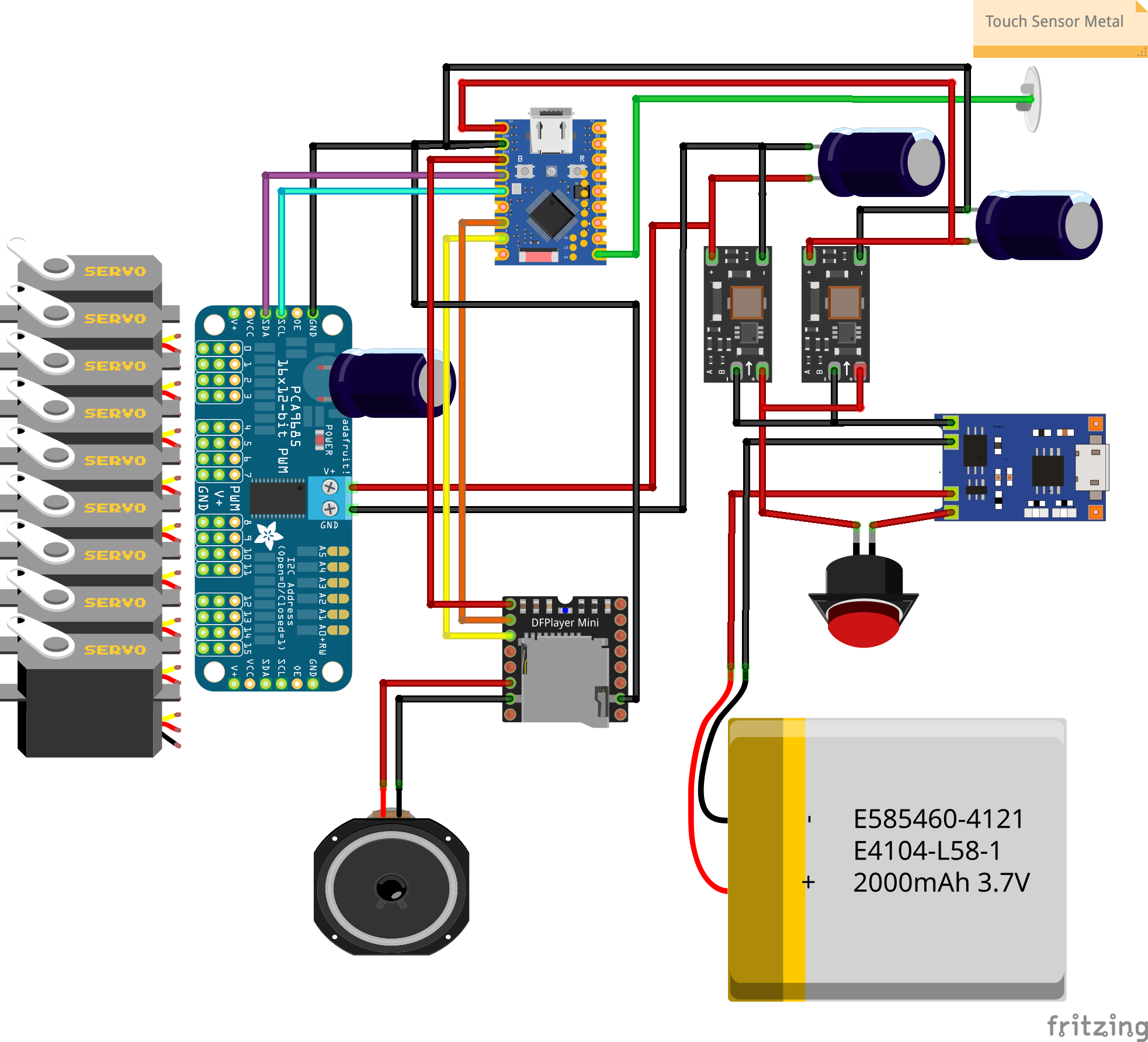
The heart of this system is the ESP32 S3 Zero board, which is small, cheap, and abundant. I’m a little wary of the off-brand versions of these (or most off-brand ESP32 boards) because many companies will skimp on useful hardware extras, leading to unreliable results and extra troubleshooting.
The Waveshare board has its issues, but at least it’s a branded board and a known standard. If I had to do it again, I’d probably try one of the Adafruit QT Py S3 boards.
Anyway, the S3 Zero handles all the logic, stores all the animations in memory, and serves up the remote control interface using the ESP32’s Wi-Fi web hosting capability.
Instructions for the servo movement are sent out from the S3 Zero to the PC9685 driver board, where all the servos are connected to.
Sound triggers, which are defined in each Bottango animation, are sent from the S3 Zero to the DFPlayer Mini. To keep things easy (and mix things up), each time the DFPlayer Mini is triggered it plays a random droid noise. I created all my droid noises using the Native Instruments Battery Analog SciFi Kit. I’ve included a few sounds you can download here.
Sounds are played out through the connected speaker using only the DF Player Mini’s built-in amplifier.
The rest of the electronics are all part of power and power management. We’re running everything from a single 3.7v LiPo pouch-style battery. So that we have an easy way to recharge it, the battery’s first stop is a USB charging board.
After the charging board the power goes to the step-up DC power converter. This brings the 3.7 volts up to a steady 5v at up to 3a. The amp threshold is an important consideration. All those servos can draw a lot of power. Some of the cheaper DC step-up boards have a cut-off around 1-2 amps, which can be easily triggered by this setup.
To help minimize brownouts, I placed a 4700uF capacitor on the output of this board, leading to the PC9685 servo driver board (with an on/off switch inbetween). This acts as a quick power reserve for the servos, evening out the power draw and lessening the chance of the step-up converter’s amp cutoff being triggered.
If you can find the smaller 10v rated 4700uF capacitors, those are worth tracking down because they take up less room in the system. I only had the chunkier 16v variety available, which work fine but are probably overkill.
The PC9685 board I used also includes a 1000uF capacitor pre-installed, which further helps with smoothing out the servo power demands. Many versions of this style of board don’t come with the capacitor slot prepopulated, so add your own if needed.
Finally, completing the circle, power runs from the PC9685 board to the 5v and ground of the S3 Zero, powering the microcontroller. I may change this (see below) but for now it’s working.
Possible Improvements (Electronics)
First off, maybe even by the time you read this I want to add a second DC step-up converter off the same battery, running to the S3 Zero. I’m getting brownouts after about 5 minutes of runtime that I believe are due to the S3 Zero’s power coming after the servo board. By giving the S3 Zero a steady power supply independent of the servo board, I think I can improve the system’s battery life and reliability. [Update: I did this, it works better, and the schematic is updated to show the improved power distribution.]
On that same note, I could probably save some space by finding an all-in-one changing board/5v DC converter combo, instead of using a separate dedicated charging board.
Wire management is probably the most straightforward improvement I could make here. I prototyped this with a lot of preformed jumper wires and I didn’t have the patience to shorten them or replace them. Same goes for the servo wires, which could easily take up half the space if I just went through each one and trimmed them down.
It would be great to be able to recharge the robot without taking off the top of the head. This could be easily accomplished just by seating the charging board near an edge and carving a hole for a USB plug to pass through.
The battery situation here is not ideal. As I mention in the Materials section, the battery I wound up using has discharge protection on it that bay be leading to some of the brown-outs I'll get. I think a solution like Javier Isabel used on his original Kame32 design is worth steering back to, where a larger, high-current battery is housed in the torso and the servos are driven directly from the ESP32 board pins.
I think it would be useful to have a switch somewhere that could put the robot back into a Bottango-compatible development mode for further work on animations. In this current form you can’t just plug the robot into your computer, boot up Bottango, and create more animations for it. But with a little mode switch it should be possible.
Finally, I’d love to add some more sensors. Person detection, voice commands, obstacle avoidance -- all would be useful additions.
Initial Development in Bottango


If you’re new to Bottango and would like an overview of how it all works – from zero, to freestanding animatronic, this video from BMonster Laboratory is a fantastic resource.
You don’t need to know anything about Bottango in order to recreate this project. Once you have the mechanics and the electronics all worked out, you just need to upload the code below and you have a functional replica of the project.
But if you’re like me, you’re curious to figure out how you can program your own custom animatronic routines. This section is meant to show you a little about the animation work I did here and offer some strategies you can use.
In truth, spending time learning Bottango was my favorite part of doing this project. Building robots is fun, but learning how to give them natural movement and teaching them to dance – that’s something I’d never done before.
My robot dance instructor was Javier Isabel’s Kame32 robot. Not only is his robot literally the foundation of my, but his approach to coding the movement also served as a conceptual foundation to my own.
In full disclosure, I actually built his Kame32 robot (using his tutorial) before taking a different approach with my own. In going through his code (which is brilliant) I learned how to think of movement as a coordinated sequence of oscillations, or waves.
Most common movements (walking, turning, running, jumping) can be broken down into curving patterns of compression and expansion. When you walk, a leg goes up, a knee bends, a hip goes forward, a leg goes back down, a knee extends, a hip moves back, etc. Once you get the timing and the duration correct for each wave of motion, you can arrive at something pretty magical.
Here, for example, is an animatronic routine I called Breakdance.

You’ll notice that it’s essentially made of sine waves with identical frequency. Some start high, some start low, half are out of phase, and half (this is harder to see) are synchronized so precisely that their lines overlap.
Without having Bottango to graph these movements out like this I would have never known how beautiful the math is behind this movement. One side effect of seeing these beautiful movement plots is you begin to start thinking and experimenting through the lens of waveform patterns.
Here’s a pattern I call The Worm.

Not all patterns are mathematically beautiful, though. For example, here’s the servo movement pattern for Hello.

The idea for this animation came directly from Kame32 and previous generations of the Kame robot. The animation is a real crowd pleaser, and it serves as the startup animation for my robot. But since it’s mimicking a series of gestures, it’s a bit of a grab bag of movements.
Needless to say, I had so much fun designing different animation sequences in Bottango I eventually had to cut myself off and move on to hard coding the animations into the standalone robot I wanted this to be.
Code Development

The Arduino Driver software developed by Bottango works as both a means to connect an animatronic like this to your computer and develop animations (let’s call this ‘tethered’ operation) and as a standalone driver for running animations stored on a microcontroller, independent of a computer (like you’re seeing here).
The Bottango software has a prescribed way to make this transition from tethered development to independent operation. There’s a great video about this here. This roadmap works fine, but it has some limitations.
The modified version of the Bottango software I’ve shared here is by no means an improvement to the original driver. It’s simply a version of the driver I’ve modified for my specific needs and circumstances.
For example, the original driver offers a way to run exported animations by storing them on a micro SD card and wiring in a simple card reader to your microcontroller. But, since I didn’t have the card reader breakout board available to me at the time and I was impatient, I worked with Github Copilot (and ultimately Claude 4) to hardcode the animations into the microcontroller’s available memory.
One upshot of hardcoding the animations is that I was able to further define specific animations as either “standby” or “action” sequences.
I have two “standby” sequences included here which essentially act as subtle looping animations where the robot is just fidgeting and looking around. A standby sequence is the default looping mode of the robot when it’s not doing an “action”. I was inspired by the way modern video game characters will revert to an “idle” animation when they’re not jumping around, instead of just looking frozen.
The “action” sequences are all of the dances and more complex movements I created in Bottango. As I mentioned earlier, many of these are inspired by the movements Javier created in the original Kame robot design, but around half of them are original ideas I created with no reference.
This distinction between “standby” and “action” comes in handy with the touch sensor I added to the top of the head. Each time the sensor is touched, an “action” is triggered randomly. By keeping the “standby” modes out of rotation, you’re guaranteed that each time you touch the button you’ll get a cool animation.
TL; DR: the Code
The code available here is a modified version of the Bottango Arduino Driver code available on GitHub.
One of the most notable modifications is that the files are no longer Arduino-native. To run this code as intended, you’ll need to use Visual Studio Code (free) and install the PlatformIO extension (also free).
If you’ve been solely living in the world of the Arduino IDE this is going to be a growing pain. It was for me. I’ve found it to be immensely rewarding, though. The biggest upshot for me has been Github Copilot integration, which has helped me code and debug much faster using AI.
So, if you’re wondering what an “.ini” file is and how to get this all to work with Arduino, I want you to know this should all work smoothly if you first setup Visual Studio Code and the PlatformIO extension within it. While you’re there, I recommend giving the Copilot integration a try.
Browser Remote Control


To access the robot’s browser-based remote control you first need to connect to it as a local Wi-Fi network.
Once the robot is switched on, you should be able to use your phone, computer or tablet to scan for local Wi-Fi networks and locate the network “MPL_Droid”. The network password is 12345678. You can change both of these in the provided code, if you like.
Once connected, point your web browser (Chrome, Safari, Edge, etc.) to 192.168.4.1. This should open a web page that acts as a dashboard for both system status as well as all the different actions you can trigger (ie. Breakdance, Side Wiggle, Hello!). Sorry if the names seem a little arbitrary. Many of them are just experiments and variations I came up with in Bottango.
Using the Touch Sensor
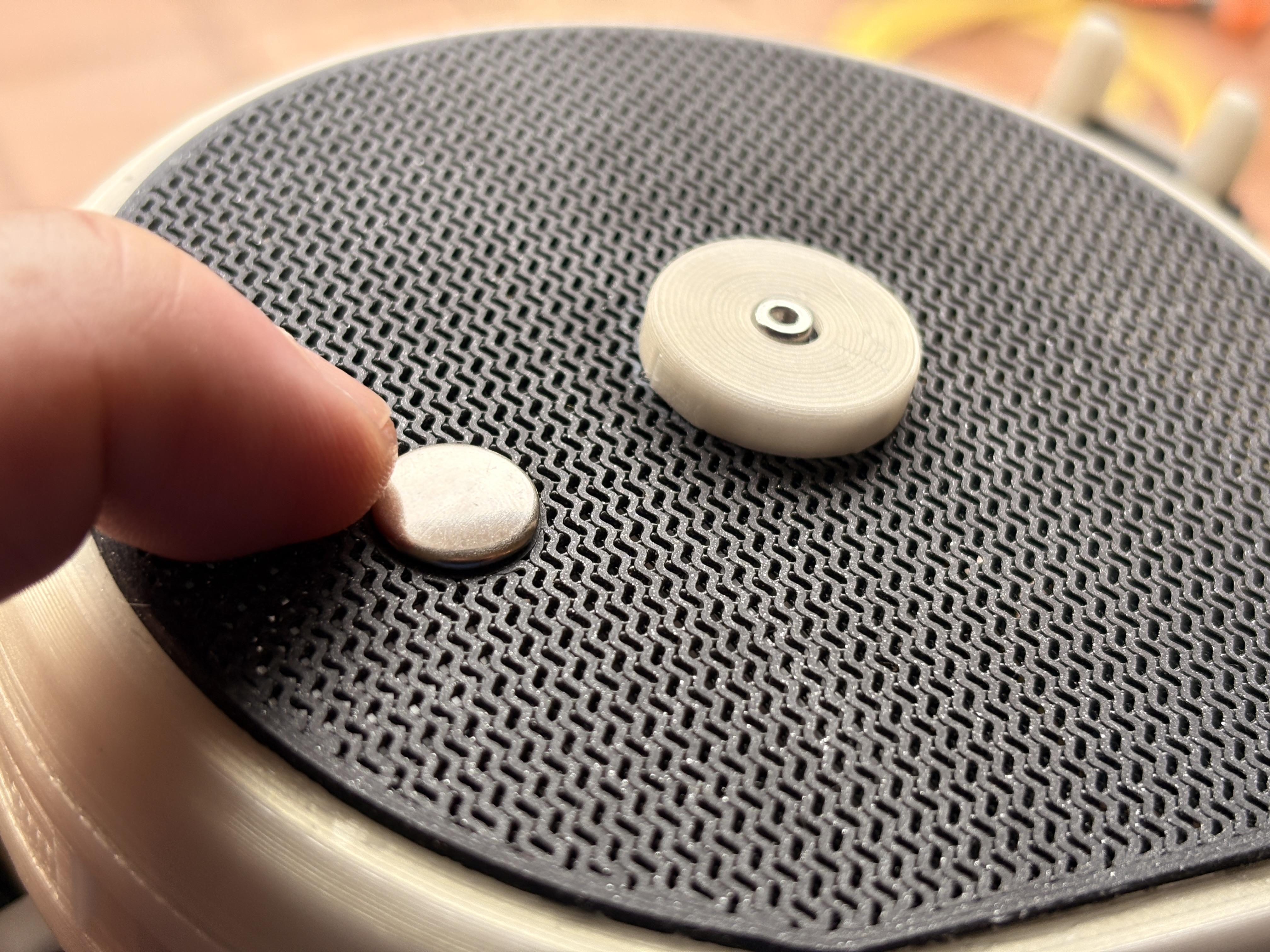
One thing most people miss about ESP32-based microcontrollers is that they have a Capacitive Touch Sensor System built-in. In fact, most of the microcontroller pins can be adapted to touch input if needed. That means all you need to do is connect a wire to one of these compatible pins and add some code. That’s it. No additional sensors or breakout boards needed.
For my robot, the capacitive touch sensor is essentially acting like a super low-profile button that triggers a random animation. For my particular build I’ve soldered a wire between pin 7 and a small metal tube stopper (these go by many names, but any piece of conductive metal will do).
I recommend using a wire that can detach with a connector, either from the board side or the conductor side. You’ll be popping the head off every time you go to recharge, so being able to disconnect the head entirely along with the touch element is a real benefit.
You’ll find the touch sensor code section in the main “BottangoArduinoCallbacks.cpp” file. It’s a bit long because it includes some added code for debugging and touch sensitivity calibration.
Final Thoughts
This project provided me with a lot of practical new skills that I’m excited to carry into future projects.
I’m now much more confident with animating servos using Bottango.
I’m more comfortable using advanced IDE software like Visual Studio Code and PlatformIO.
I have a much better sense of how AI code assistants like Github Copilot can speed along project development (and also where they can sometimes end up chasing their own tail).
I know how to sonically craft my own droid sounds in the spirit of Ben Burtt.
Unfortunately for you, I don’t think that recreating this project is going to provide you with any of the same benefits. But maybe you can find something here to take and fold into the thing that you want to do.
My hope is to actually borrow from this project myself and create something that’s less of a mash-up of other people’s designs. Now that I have the techniques in place, I think it would be interesting to go a little bigger (or maybe a little smaller) and develop a unique design.
Finally, I just want to give you permission to make a robot whose sole function is to delight. It’s an achievement to build a robot that can walk and turn and avoid running into things, but figuring out how to build a robot that conveys personality and makes people smile is also a rewarding challenge.
Make funky robots.