E-Slate – DIY Wi-Fi E-Ink Digital Film Clapperboard
by gokux in Circuits > Gadgets
3664 Views, 77 Favorites, 0 Comments
E-Slate – DIY Wi-Fi E-Ink Digital Film Clapperboard
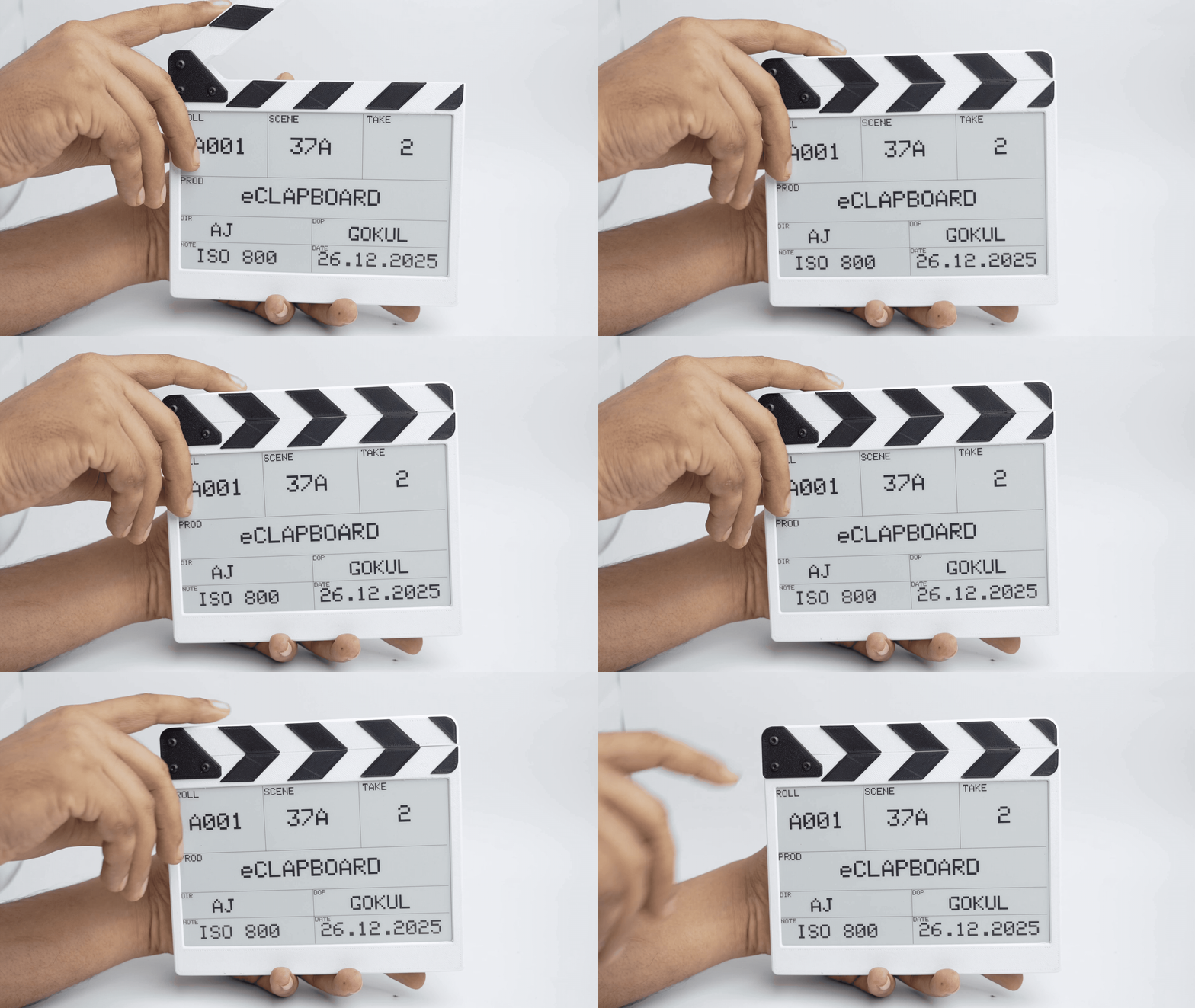
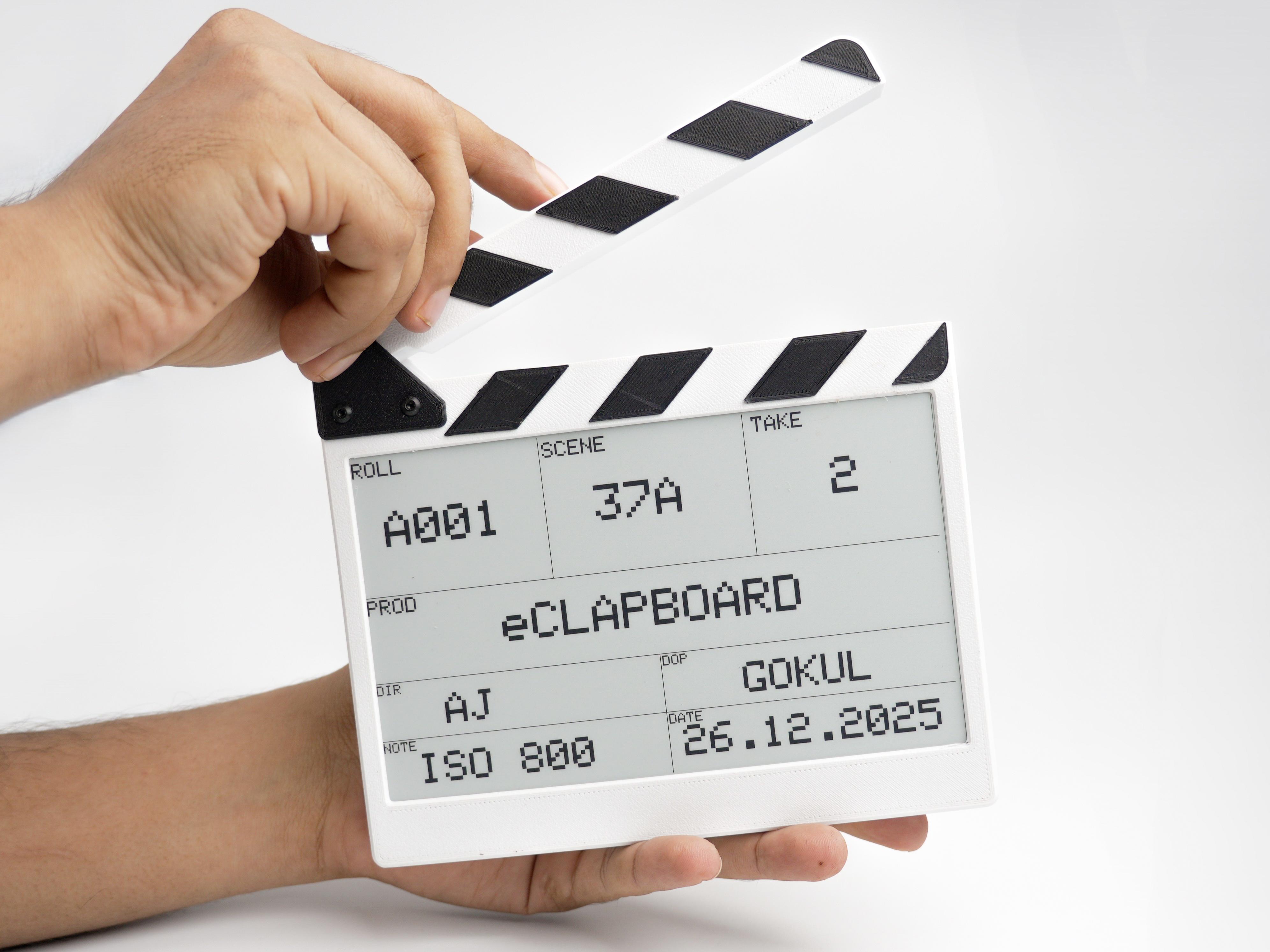
A film slate, commonly known as a clapperboard, is an essential tool in video production. It is traditionally used on film sets to synchronise audio and video recordings while displaying key information such as scene number, take number, director, and date. The familiar clap created by the hinged sticks provides both a visual and an audio reference, making it easier to align footage accurately during post-production.
However, the usefulness of a slate is not limited to professional film sets. It is equally valuable for YouTube creators, content producers, and solo filmmakers, where multiple takes, cameras, or audio sources are often involved. Using a slate helps keep recordings clearly labelled, making the editing phase far more organised and efficient.
Traditional clapperboards have several drawbacks. They rely on pens or markers, which can be inconvenient during fast-paced shoots. Handwritten text can smudge, fade, or become difficult to read over time. Visibility can also be poor in outdoor or high-brightness environments.
While digital slates built with LED displays are an option, they struggle in direct sunlight and high-exposure shooting conditions, where glare and low contrast reduce readability—especially for outdoor filming and vlog-style setups.
To overcome these limitations, I designed a digital film slate using a 7.2-inch E-Ink display. The slate allows users to update all information wirelessly through a mobile or web app, eliminating the need for markers entirely. Thanks to the high contrast and paper-like nature of E-Ink technology, the displayed text remains clear and legible even in bright outdoor conditions.
Here is the basic information that can be displayed through this device.
- ROLL - This can be used to designate the storage of the footage. It might be a film roll number or the memory card number.
- SCENE - identifies the script's scene, with a letter appended for different setups (e.g., 24, then 24A, 24B for new angles/lenses)
- TAKE - tracks each attempt of a shot, increasing sequentially until the setup changes (scene/angle/lens), when it resets to '1
- PROD - (PRODUCTION) given name of the project
- DIR - Name of the director
- DOP - Name of the director of photography
- NOTE - To provide additional information about the scene
- DATE - Date of the Production
This project blends the simplicity of a traditional clapperboard with the flexibility of modern digital tools, making it ideal not only for film sets but also for YouTube video production, vlogging, tutorials, and multi-camera content creation, where a well-organised editing workflow is just as important.
In the next steps, I’ll walk you through the design, electronics, and functionality of this E-Ink-based digital film slate.
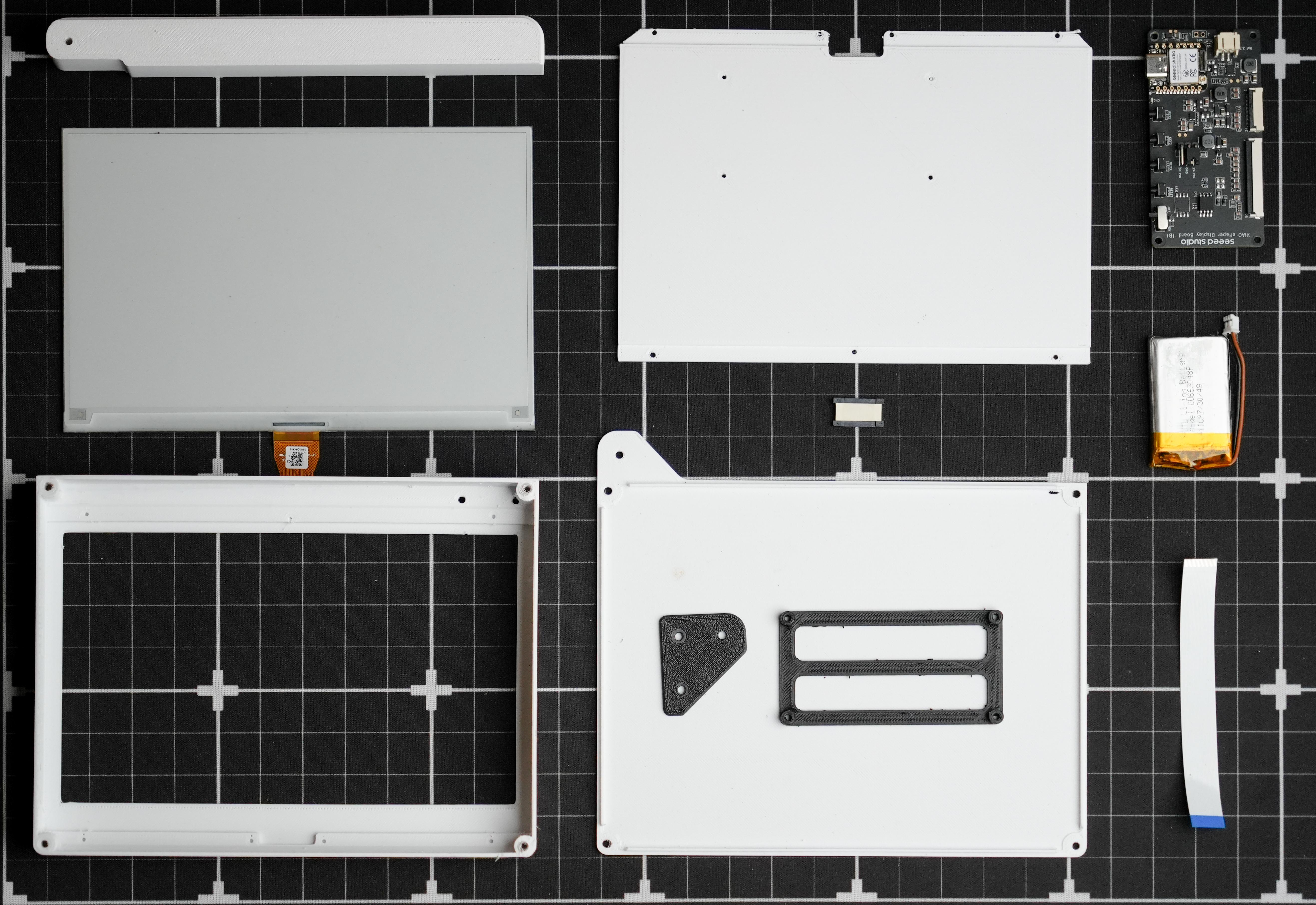
Supplies
Designing in Fusion 360
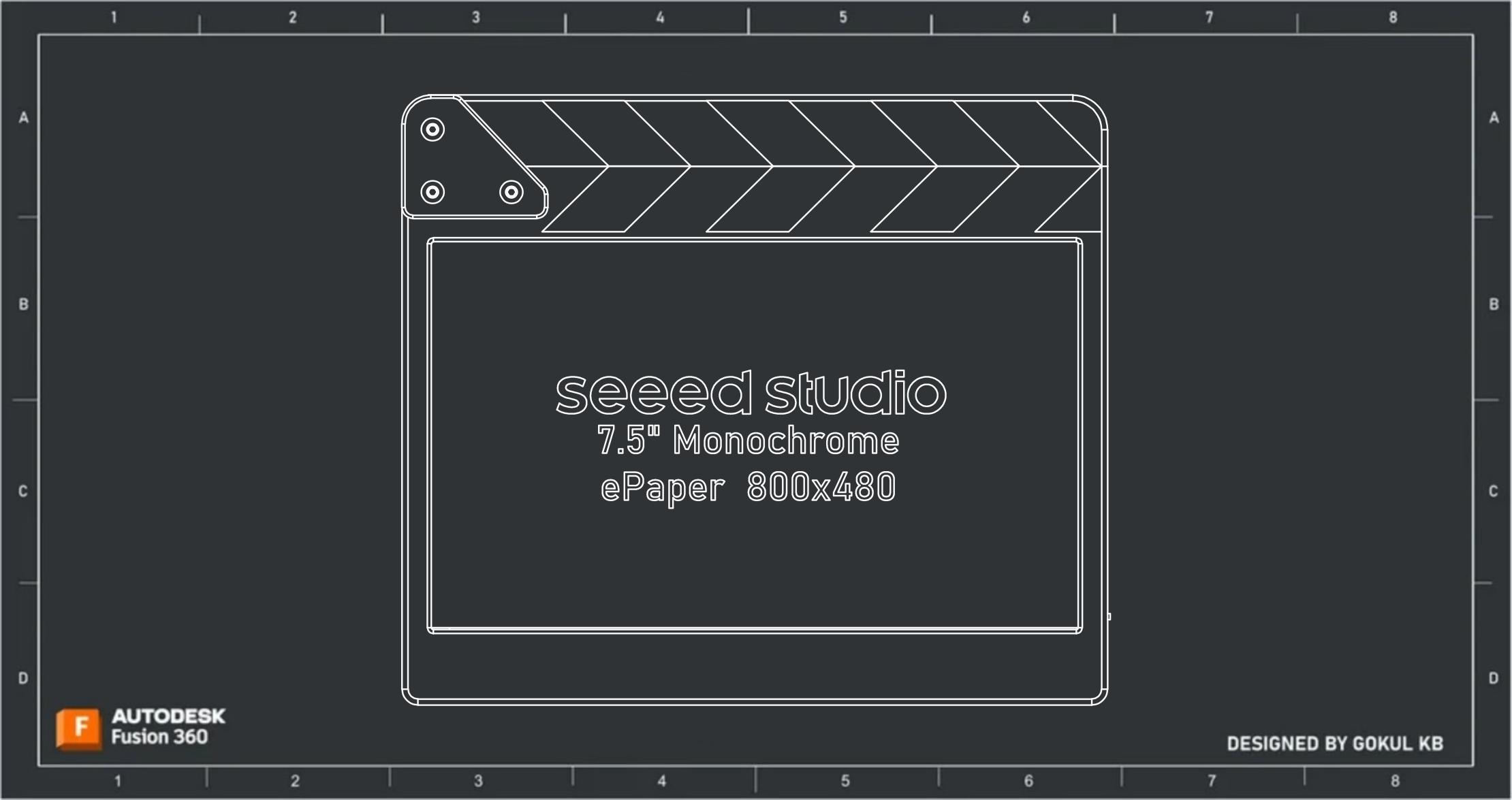
I utilized Fusion 360 to plan and design my project, which required careful space optimization. I needed to fit all the parts into the smallest form factor possible while ensuring practicality, including sufficient space for wiring and easy assembly. First, I imported all the 3D models of the parts and tried different configurations by placing the parts in various positions. Once I found the optimal configurations, I built the enclosure around them. design files are provided below.
3D Printing

I designed the object in several parts due to its complexity, so we will need to assemble it after 3D printing. I used white PLA and black PLA. You can find the STL file attached above.
Setting Up XIAO EPaper Display Board
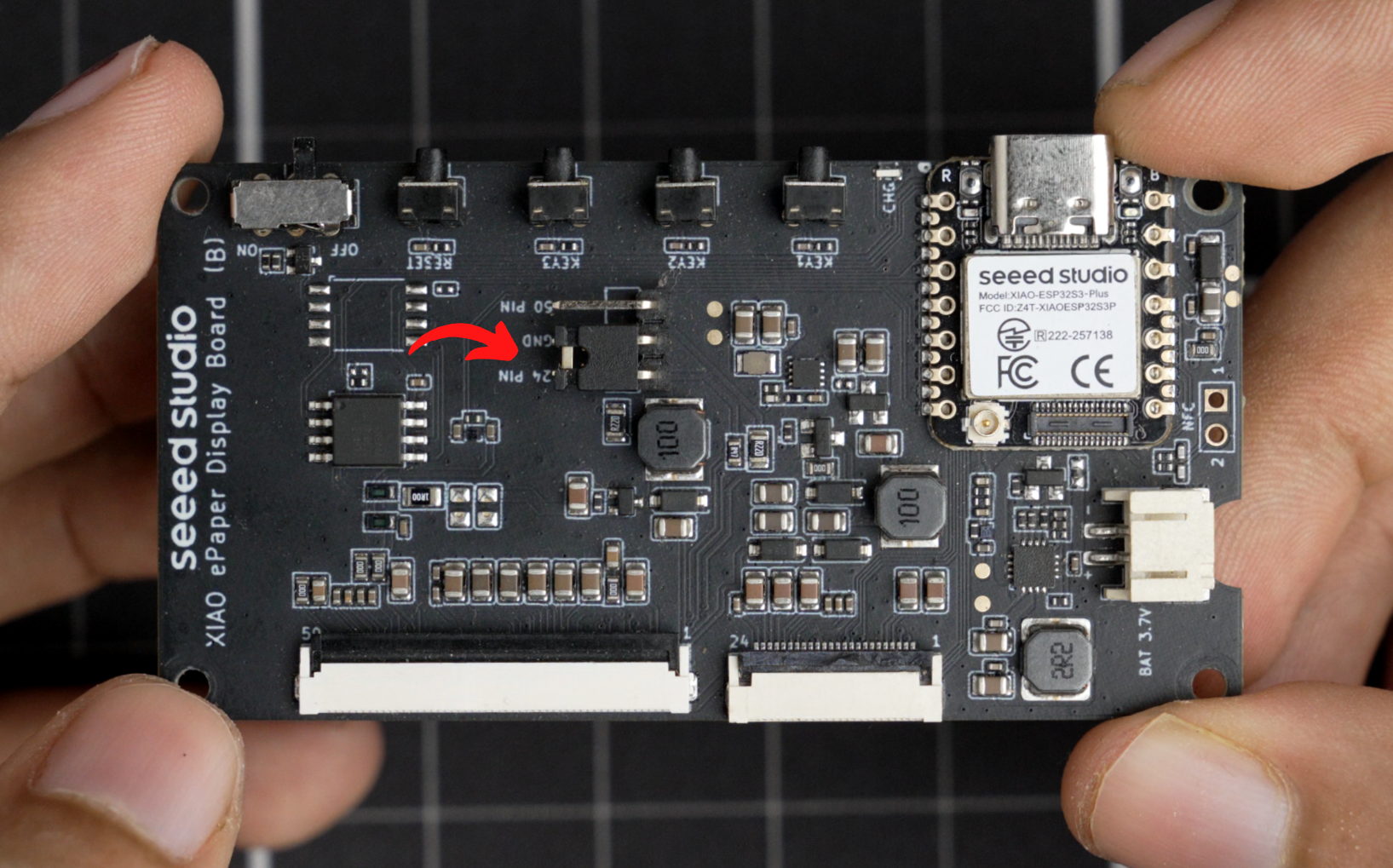

For this build, a 7.5-inch monochrome e-paper display was selected because it offers excellent visibility and enough screen area to show large score digits.
This particular screen uses a 24-pin ribbon cable, so before connecting anything, the jumper on the EE04 driver board must be moved to the 24-pin position. This ensures the display interfaces correctly with the board
Setting Up the Arduino IDE and Flashing the Code

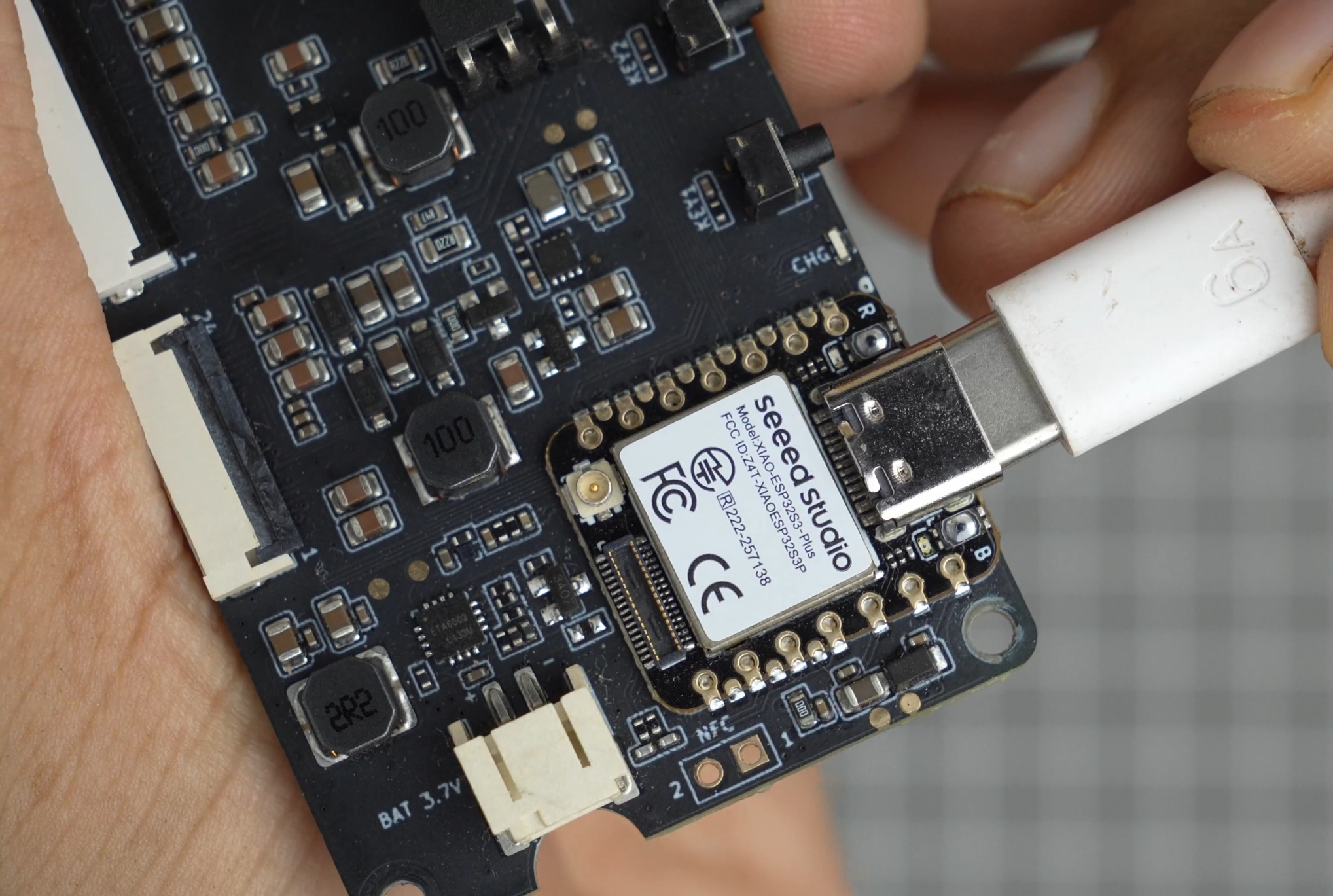
To program the board, the Seeed GFX library must be installed. This library provides all the low-level functions for handling E-Ink refreshes, drawing text, and managing fonts. After installing it, the next step is to open Seeed’s online configuration tool.
This tool lets you select the exact E-Ink display and the EE04 version of the driver board. Once the correct model is selected, the tool generates the driver code automatically.
Here is the generated Configuration
This code needs to be copied into a new tab in the Arduino IDE. After opening your main program file, create a new tab named driver.h, and paste the generated code there. With this in place, the Arduino sketch will know how to communicate with the display.
Here is the completed code
Display Assembly
.gif)
- Place the display in the display holder
- Place the press board on top of the display
- Use the M2 5mm screw to secure everything
Driver Board Assembly
.gif)
- Attach the PCB holder to the back of the PCB and secure it using four M3 x 5mm screws.
- Add glue on the back of the PCB holder
- Place the driver board in the main assembly..
Display Cable Extender
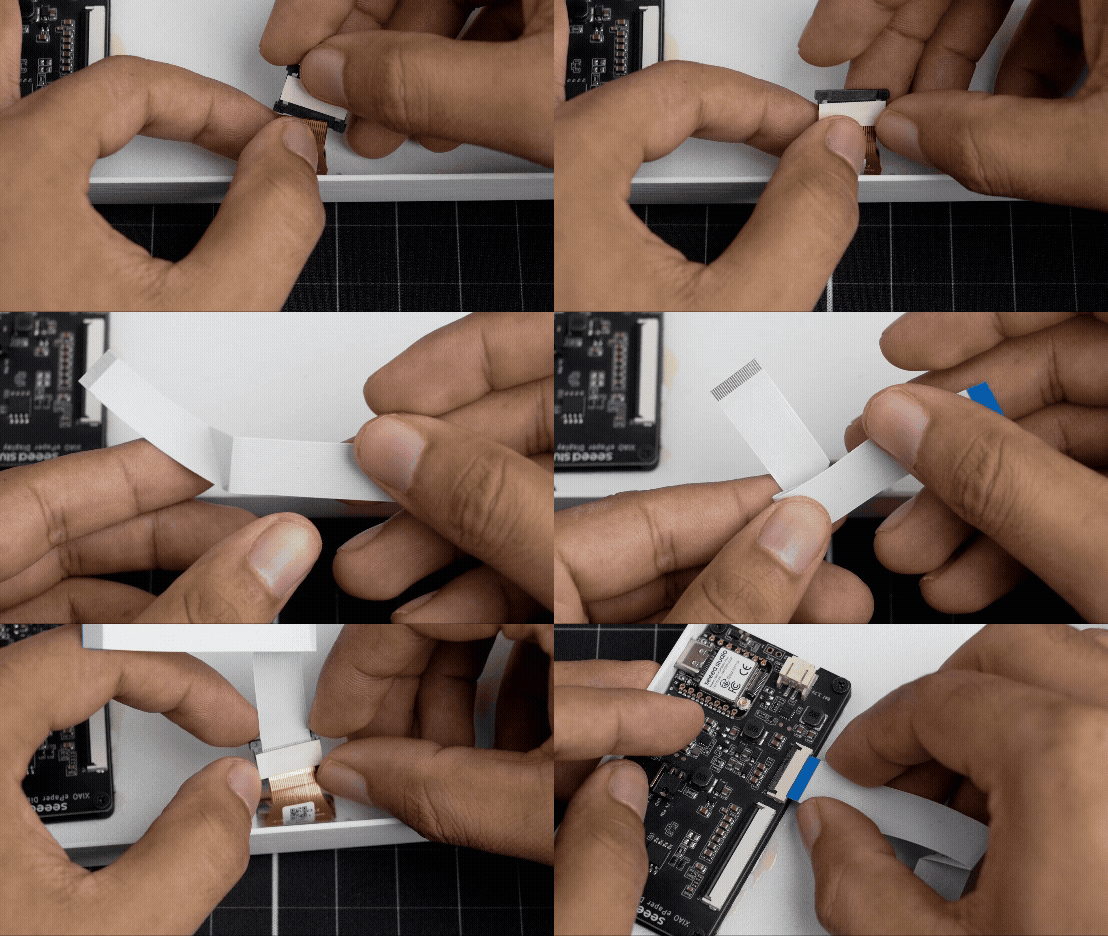
We need a 24-pin 0.5mm pitch, 15cm length FFC cable in reverse direction for connecting the e-paper display to the driver board. We are using a 24-pin 0.5mm pitch FFC/FPC extension connector for attaching the display cable.
- Connect the FFC adapter to the display cable.
- Bend the 15 cm cable into an L shape.
- Connect the display to the driver board using this cable.
Battery
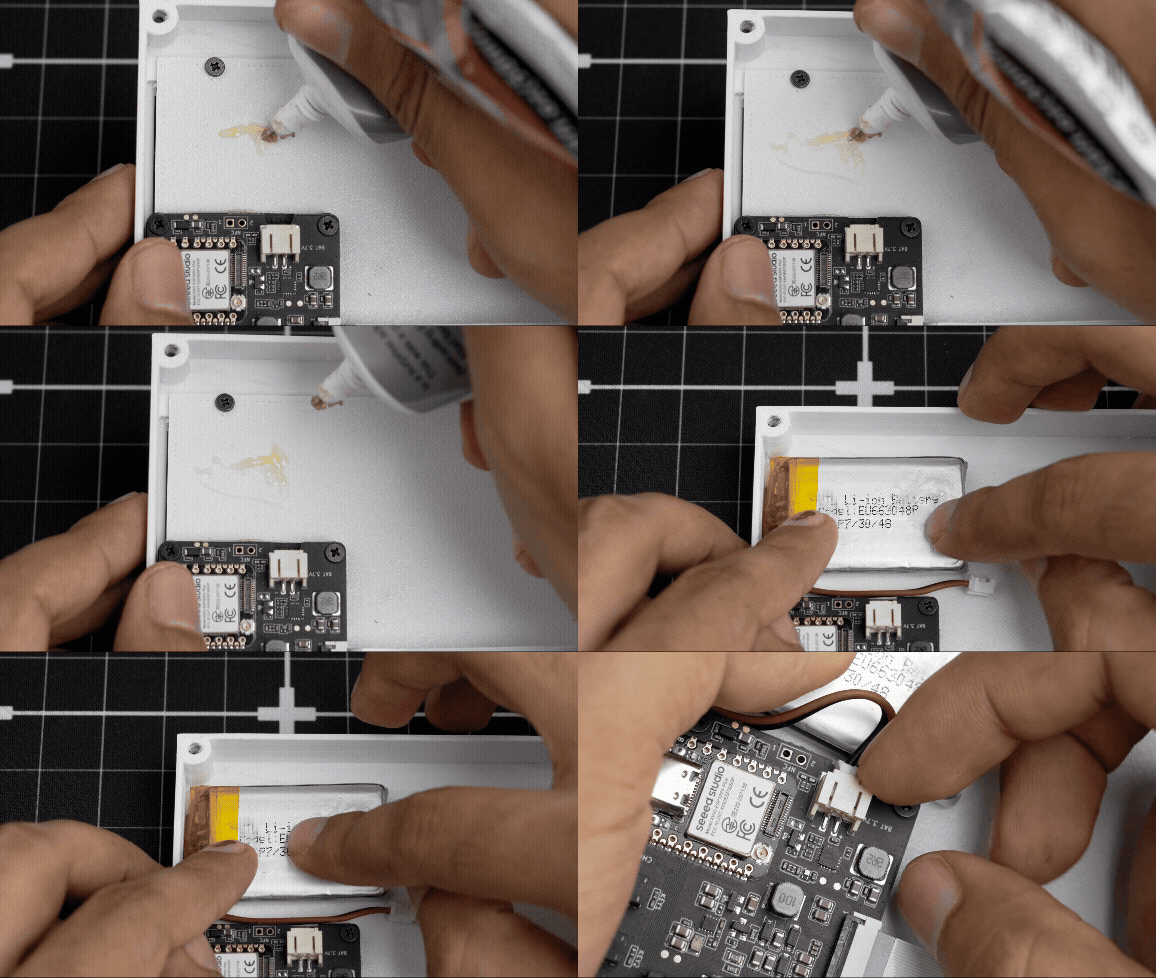
- Attach the battery to the main body using some glue.
- Connect the battery connector to the PCB.
Antenna & Backplate
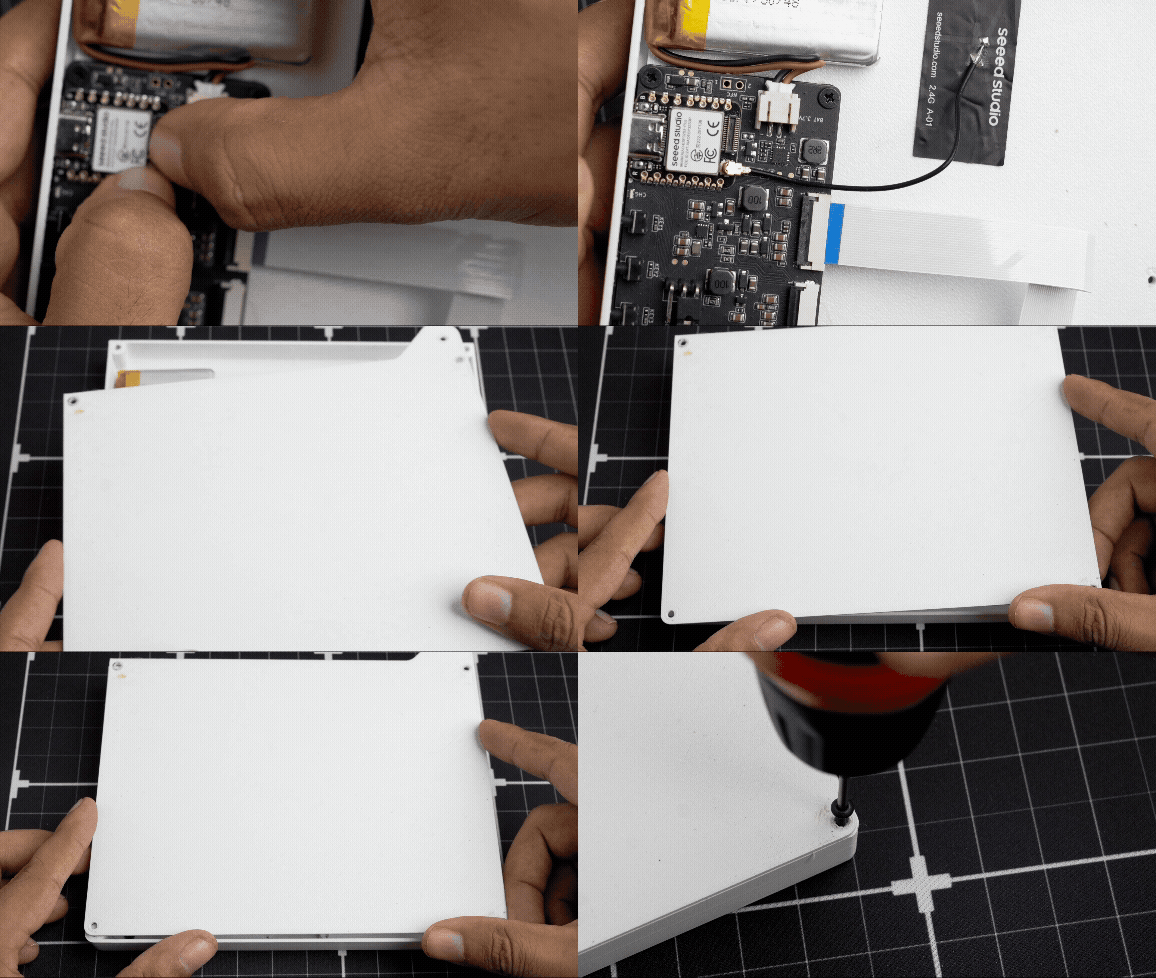
- Connect the antenna to the XIAO and secure it to the enclosure.
- Close the backplate and screw it in place using M3 x 10mm screws.
Slate Arm
.gif)
- Align the slate arm and secure it in position with the M3 10 mm screw.
- Place the arm holder and secure it using an M3 10 mm screw.
Slate Stripes
.gif)
Slate stripes are an important part of this project as they make the slate arm's closing mechanism easily visible to the camera. There are several ways you can apply stripes: you can paint them or use vinyl stickers. However, in this case, I 3D printed them in black, made them thin, and glued them to the arm.
How to Use It
.gif)
We have completed the build; let's look at how to use this device
Once the device is powered on, the ESP32S3 immediately starts running the main program. The first thing it does is create a Wi-Fi access point called “ClapBoard_AP”, secured with the password 123456789. At the same time, the device generates the IP address for its built-in web server and displays that IP on the e-paper screen for about five seconds. This makes it easy to know where to connect.
After showing the IP, the display switches to the default layout, while the Wi-Fi server continues running in the background. All the interface code for the webpage is embedded directly inside the Arduino sketch, meaning the ESP32S3 serves as a complete control panel without relying on external files. The page includes fields for ROLL, TAKE, SCENE, PRODUCTION. DIRECTOR, DIRECTOR OF PHOTOGRAPHY, NOTE, AND DATE. and it automatically adjusts its layout whether you are using a computer, tablet, or phone.
At this point, the device is ready for user interaction. Using any device, you simply join the ClapBoard_AP Wi-Fi network, open your browser, and enter the IP address that appeared during boot. This takes you straight to the control page. From here, you can type in the data. When you press “Update Display, ” the ESP32S3 receives your inputs, stores the new values, and refreshes the e-paper display with the updated scoreboard. Because the display only consumes power during the refresh cycle, it can hold the updated image without draining energy, making the system very efficient even on battery power.
Further Possibilities
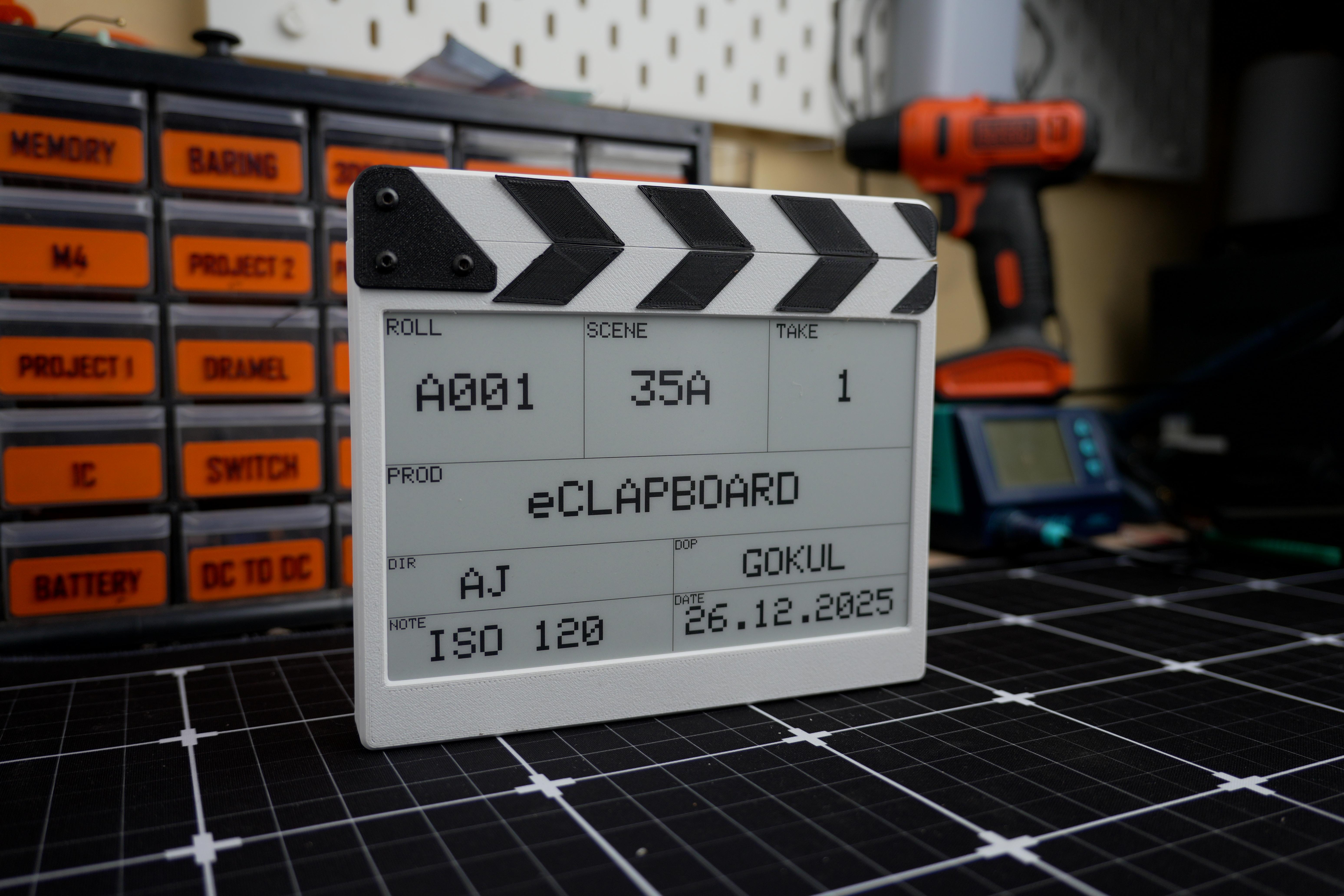

As you know, we currently only have the option to display basic data on the slate. However, since we have Wi-Fi onboard, we can enhance its functionality by utilising this connection. For example, we could sync with the clipboard, receive data from Excel sheets, or manage schedules and time codes.
If you're interested in incorporating such features, please let me know. Additionally, if you would like to contribute to this project as a developer, I would love to hear from you.
This is my first project of the year, and it's an exciting time for me. I am looking forward to it! I have planned some great projects this year, so I anticipate it will be an innovative year for me. Wishing you a Happy New Year!
If you found this project helpful or inspiring, consider buying me a coffee ☕

It really helps me keep building and sharing more open-source projects.