ESP32-C3 0.42" OLED Clock With WiFi, NTP, Alarm and Timer
by CheshirCa in Circuits > Microcontrollers
446 Views, 0 Favorites, 0 Comments
ESP32-C3 0.42" OLED Clock With WiFi, NTP, Alarm and Timer
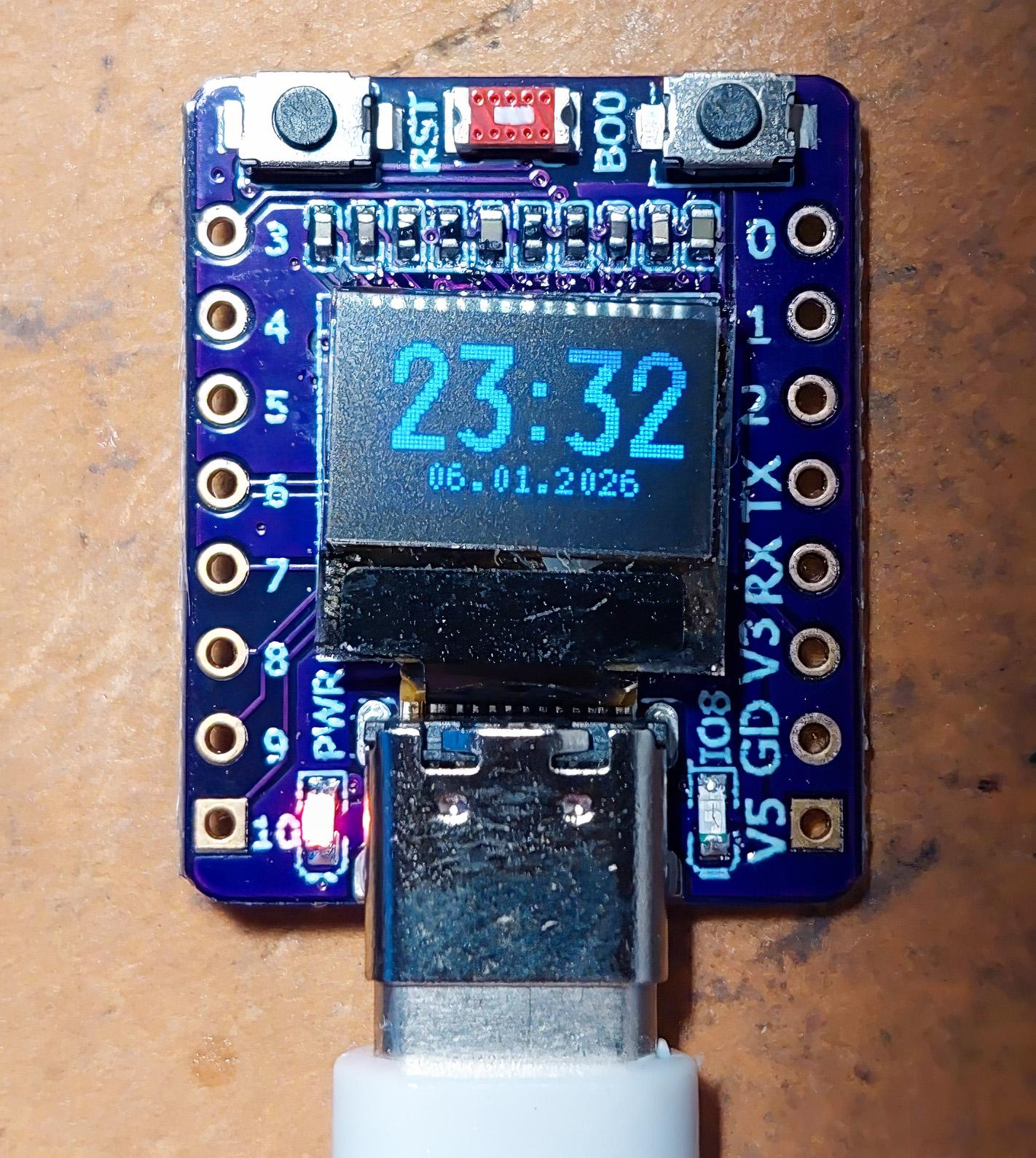
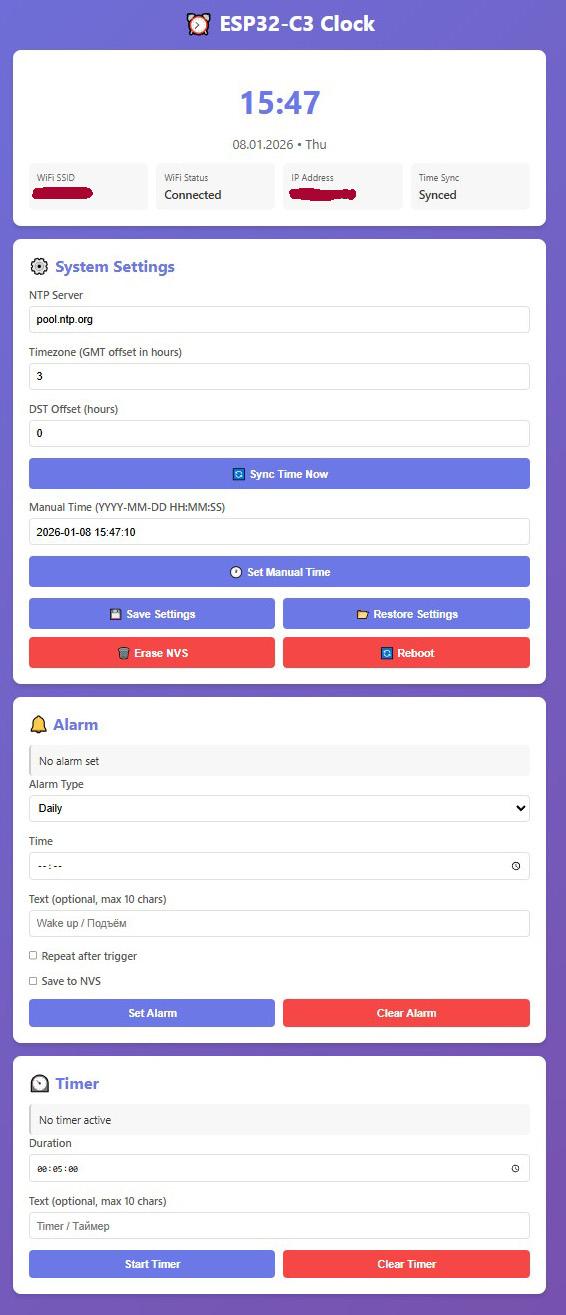
ESP32-C3 SuperMini clock project with built-in 0.42" OLED display (72x40 pixels), WiFi connectivity, NTP time synchronization, alarm and timer. The device stores settings in non-volatile storage (NVS) and is controlled via serial terminal, built-in BOOT button, and web interface.
✨ Features
- ⏰ Real-time clock with NTP synchronization
- 📡 WiFi connectivity with persistent settings
- 🌐 Web interface for remote control
- 🔔 Flexible alarm:
- Daily
- Weekdays (Mon-Sun, any combination)
- Specific date
- Text message (up to 30 bytes, ~10 characters in English)
- Repeating or one-time
- Save to NVS
- ⏲️ Countdown timer:
- From 1 second to 24 hours
- Text message
- Formats: HH:MM:SS, MM:SS or SS
- High-precision counting based on esp_timer (microsecond accuracy)
- 💾 Non-volatile storage of WiFi, timezone and alarm settings
- 🔵 LED indication:
- Solid ON = alarm is active
- Blinking (500ms) = timer is running
- 🔊 Buzzer alerts with piezo buzzer (beep-beep-beep pattern)
- 📟 Information screens with detailed statistics
- 🔤 UTF-8 support (Cyrillic and Latin)
- 📜 Command history in Serial terminal (up/down arrows, 10 commands)
Quick Start
- Configure WiFi in code (or via Serial/Web after upload):
- Configure timezone (default GMT+3):
- Upload sketch to ESP32-C3
- Open Serial Monitor (115200 baud, NL&CR) or web browser
- For web interface:
- Get IP address from Serial Monitor
- Open http://192.168.x.x in browser
- Control your clock through convenient interface!
🌐 Web Interface (NEW in v2.0!)
After connecting to WiFi, open the device's IP address in a browser for full-featured web interface access.
Web interface features:
📊 Main page:
- Current time (large font)
- Date and day of week
- WiFi SSID and connection status
- IP address
- Time sync status
- Free memory information
🔔 Alarm control:
- Type selection: daily / weekdays / specific date
- Time setting
- Text message (Cyrillic support!)
- Repeat and save to NVS flags
- Display of current active alarm
⏲️ Timer control:
- Duration setting (HH:MM:SS)
- Text message
- Real-time remaining time display
⚙️ System settings:
- Change NTP server
- Configure timezone (GMT offset)
- Configure daylight saving time (DST offset)
- Force sync button
- Manual time setting
- Save/restore settings from NVS
- Clear NVS
- Reboot device
🎨 Interface features:
- Responsive design (works on phone, tablet, PC)
- Auto-refresh data every 2 seconds
- Modern gradient design
- Confirmation for destructive operations
- UTF-8 support (type text in any language!)
💻 Serial Terminal Commands
Connection: 115200 baud, Newline & Carriage Return (NL&CR)
Command history (NEW in v2.0!): Use ↑/↓ arrows to navigate history (last 10 commands)
Help and status
WiFi setup
Examples:
Time setup
Examples:
Alarm
Command format:
Parameters:
- HH:MM - trigger time (required)
- YYYY-MM-DD - specific date (optional)
- 1234567 - weekdays: 1=Mon, 2=Tue, 3=Wed, 4=Thu, 5=Fri, 6=Sat, 7=Sun (optional)
- TEXT - message text up to 30 bytes (~10 characters) (optional)
- R - repeat after trigger (optional)
- S - save to NVS (optional)
Examples:
Important:
- If starts with digits 1-7 WITHOUT colon, these are weekdays
- If starts with time (e.g., 17:00), this is a daily alarm
- Flags R and S are separate, case-insensitive letters
- Text should not start with letters R or S (will be treated as flag)
Timer
Command formats:
Examples:
Limitations:
- Minimum: 1 second
- Maximum: 24 hours (86400 seconds)
🖥️ Display Operation
Main screen
Indicators:
- * - alarm active
- # - timer active
Info Screen 1 (press BOOT once)
Info Screen 2 (press BOOT twice)
Auto-return: Returns to main screen after 10 seconds automatically
Trigger Screen
When alarm or timer triggers:
🎮 BOOT Button Control
ScreenActionResult
Main screen
1x press
Info Screen 1
Info Screen 1
1x press
Info Screen 2
Info Screen 2
1x press
Return to main screen
Alarm/Timer
1x press
Stop signal
💡 Blue LED Indication (IMPROVED in v2.0!)
- SOLID ON (active LOW) - alarm is set and active
- BLINKING (500ms) - timer is running
- OFF - alarm is disabled or triggered
🔊 Buzzer Operation (IMPROVED in v2.0!)
Signal pattern when triggered:
- First beep: 150ms
- Pause: 150ms
- Second beep: 150ms
- Pause: 150ms
- Third beep: 150ms
- Long pause: 1250ms
- Repeat...
Stop: Press BOOT button
💾 NVS Data Storage
Automatically saved:
- WiFi credentials (when using SAVE command)
- Timezone settings (when using SAVE command)
- NTP server settings (when using SAVE command)
Saving alarm:
- Use flag S when setting alarm
- Or save current configuration with SAVE command
Examples:
📊 Usage Examples
Work alarm (Mon-Fri, 7:00, repeating)
Tea timer (3 minutes)
New Year alarm
Configure for different timezone
🐛 Troubleshooting
Issue: Buzzer not working
Solution:
- Check HCM1203X polarity
- GPIO10 should be connected to "+" of buzzer
- GND should be connected to "-" of buzzer
- If not working - try reversing the connections
- Verify you're using active buzzer (with built-in generator)
Issue: Display not working or shows garbage
Solution:
- Check I2C connections (SDA=GPIO5, SCL=GPIO6)
- Ensure U8g2 library is installed
- Check power supply voltage (should be 3.3V)
Issue: Cannot connect to WiFi
Solution:
- Verify SSID and password
- Ensure you're using 2.4 GHz WiFi (ESP32-C3 doesn't support 5 GHz)
- Use WIFI SSID password command to reconfigure
- Check network availability with STATUS command
Issue: Time not synchronizing
Solution:
- Check internet connection
- Use SYNC command to force synchronization
- Try different NTP server: NTP time.google.com
- Check timezone settings: TZ +3
Issue: Alarm triggers at wrong time
Solution:
- Check timezone with STATUS command
- Set correct timezone: TZ +3
- Check daylight saving setting: DST 0
- Save settings: SAVE
Issue: Settings not persisting after reboot
Solution:
- Use SAVE command after changing settings
- For alarm use S flag: ALARM 07:00 S
- Check NVS is not corrupted: ERASE, then reconfigure
📝 Known Limitations
- WiFi 5 GHz not supported - ESP32-C3 only works with 2.4 GHz
- Maximum text length for alarm/timer - 30 bytes (~10 characters)
- Single active alarm - only one alarm can be set at a time
- Single active timer - only one timer can be set at a time
- Auto-return from info screens after 10 seconds
- Time synchronization occurs at startup and can be triggered with SYNC command
🎯 Advanced Usage Tips
Creating Complex Alarm Schedules
Since only one alarm can be active, use these strategies:
Weekday morning + Weekend:
Monthly reminders:
Using Timer for Pomodoro Technique
Multiple NTP Servers for Reliability
If primary NTP server fails:
🔐 Security Considerations
- WiFi credentials are stored in plain text in NVS
- Serial console is unprotected - anyone with USB access can control the device
- For production use, consider:
- Adding authentication to serial commands
- Encrypting sensitive data in NVS
- Disabling serial console in final builds
Supplies
Main board - ESP32-C3 SuperMini board with 0.42 OLED Display
Active buzzer - HCM1203X
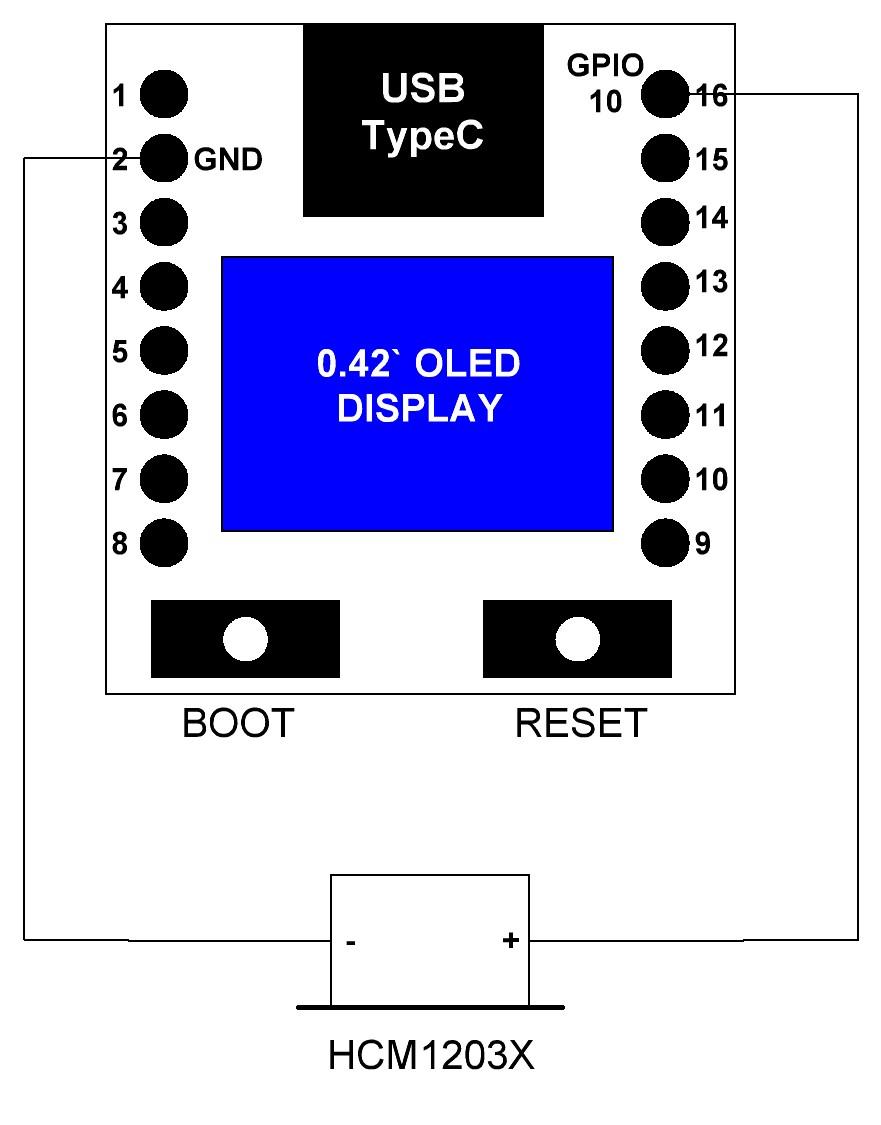
Wiring:
Connection: GPIO10 (pin 16) → "+" buzzer, GND (pin 2) → "-" buzzer
Polarity is critical! If not working - swap the connections
Upload the attached sketch to Arduino IDE, change the SSID and password settings. Install support for ESP32 devices, and select the "ESP32C3 Dev Kit" device. Make sure "USB CDC on boot" is enabled. Compile and upload the script to the device. Reconnect the device and connect to its serial port using a terminal or to a website using a browser.