ESP32-C3 Text to Speech Using Wit.ai and MAX98357A
by ElectroScope Archive in Circuits > Electronics
58 Views, 0 Favorites, 0 Comments
ESP32-C3 Text to Speech Using Wit.ai and MAX98357A

In this build, I put together a simple but very usable text-to-speech setup using an ESP32-C3, a digital I2S amplifier, and a small speaker. The ESP32 sends text over Wi-Fi to Wit.ai, gets audio back, and plays it in real time.
This is not offline speech synthesis. The ESP32 is not powerful enough to generate natural speech locally. Instead, it streams audio from the cloud and just focuses on playback. That keeps the hardware simple and the results actually sound good.
I will walk through the hardware, wiring, library setup, code, and testing step by step. If you follow this straight through, you should have a talking ESP32 by the end.
What This Build Does
Here is the basic flow once everything is wired and programmed:
- ESP32-C3 connects to Wi-Fi
- You send text to the board through Serial Monitor or code
- The text goes to Wit.ai over HTTPS
- Wit.ai converts it to speech audio
- Audio streams back as MP3
- ESP32 sends audio over I2S
- MAX98357A drives the speaker
The ESP32 never stores the full audio file. It plays it as it arrives.
Supplies

Parts I Used
You do not need much hardware for this.
- ESP32-C3 Dev Module
- MAX98357A I2S digital amplifier
- 4Ω or 8Ω speaker
- Breadboard
- Jumper wires
- USB cable
Wiring the Hardware
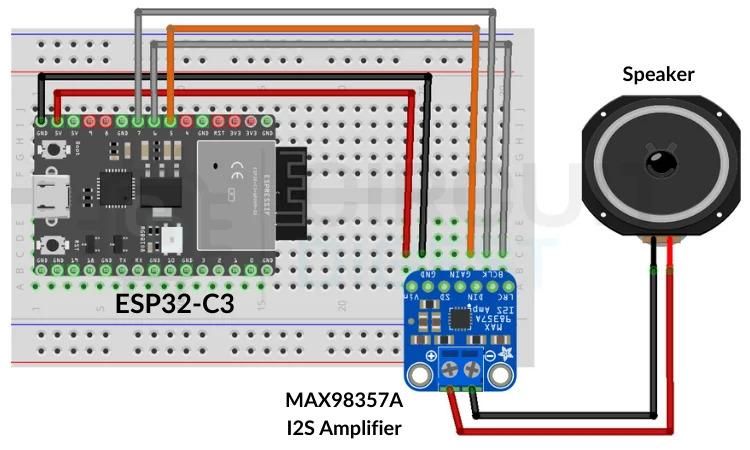
This part matters. Most issues I see with this project come down to wiring mistakes.
The MAX98357A is an I2S amplifier. That means it needs three digital audio signals plus power.
ESP32-C3 to MAX98357A Connections
- GPIO07 → BCLK
- GPIO06 → LRC
- GPIO05 → DIN
- 5V → VIN
- GND → GND
That is it. No resistors. No extra components.
Speaker Wiring
Connect your speaker directly to the output terminals on the MAX98357A board. Polarity usually does not matter for a single speaker, but stay consistent.
Power Notes
Power stability matters more than you might expect.
- Power the ESP32 through USB
- The MAX98357A can draw bursts of current during playback
- Weak USB ports can cause distortion or resets
If audio sounds crunchy or cuts out randomly, try a different USB port or cable.
Setting Up Wit.ai
.jpg)
.jpg)
Before touching Arduino code, you need an API token.
Creating the Account
Go to Wit.ai and sign in. Email signup is easiest.
Creating an App
Once logged in:
- Create a new app
- Pick a name you will recognize later
- Choose a language you want the voice to speak
Getting the Server Access Token
- Open your app settings
- Find the HTTP API section
- Copy the Server Access Token
Keep this token private. Anyone with it can use your quota.
Installing the Arduino Library
All the heavy lifting is done by the WitAITTS library.
Open Arduino IDE and:
- Go to Library Manager
- Search for WitAITTS
- Install it
Once installed, open the example:
File → Examples → WitAITTS → ESP32_C3_Basic
Editing the Example Sketch

You only need to change three things:
- Wi-Fi SSID
- Wi-Fi password
- Wit.ai token
Code Walkthrough (Only What Matters)
The library hides most of the complexity. These are the important lines.
This creates the text to speech engine. Everything goes through this object.
This connects to Wi-Fi and authenticates with Wit.ai. If this fails, nothing else works.
This selects the voice. You can experiment with different voices supported by Wit.ai.
These control how the voice sounds. Start with defaults. Extreme values sound weird.
This sends text to the cloud and blocks until playback finishes.
That is the entire pipeline.
Uploading the Code

Before uploading:
- Click Verify
- Fix any compile errors
- Make sure the correct board and port are selected
Upload the sketch and open Serial Monitor.
Testing the System
This is the easiest part.
- Open Serial Monitor
- Set baud rate correctly
- Type a sentence
- Press Enter
If everything is working, you should hear speech almost immediately.
You will see logs like:
- Requesting TTS
- Buffer ready
- Starting playback
How Audio Streaming Works Here
Audio comes back from Wit.ai as MP3 data.
The ESP32:
- Receives small chunks
- Decodes them
- Sends PCM audio over I2S
- Plays sound while still downloading
Advantages of this approach:
- Very low memory usage
- Faster response time
- No SD card required
Common Problems and Fixes
No Sound at All
Check these first:
- MAX98357A VIN is connected to 5V
- GND is shared between ESP32 and amplifier
- I2S pins match the sketch
Nine times out of ten, this is a wiring issue.
Distorted or Crackly Audio
Possible causes:
- Weak power supply
- Speaker impedance mismatch
- Loose breadboard connections
Try a different speaker or USB cable.
HTTP Errors
If you see errors in Serial Monitor:
- 400 usually means empty text
- 401 means invalid or expired token
- Timeouts usually mean Wi-Fi problems
Double check your token and Wi-Fi credentials.
Things I Learned While Building This
A few practical tips from actually running this on the bench:
- Keep speaker wires short
- Avoid cheap breadboards if possible
- Do not spam the API with rapid requests
- Start with short sentences when testing
Final Thoughts
Once wired correctly, this project is very reliable. The ESP32-C3 stays simple, Wit.ai does the hard work, and the MAX98357A handles audio cleanly. There is no SD card, no large buffers, and no complex audio code to debug.
If your goal is to make an ESP32 speak clearly without fighting memory limits, this approach works well and is easy to expand later.
The above is based on: ESP32 C3 Text to Speech using AI