ESP32 Deep Sleep With Blinking LED With Auto Wake-Up
by RonFrtek in Circuits > Arduino
18 Views, 1 Favorites, 0 Comments
ESP32 Deep Sleep With Blinking LED With Auto Wake-Up

In this Visuino project, you will learn how to use ESP32 Deep Sleep mode to drastically reduce power consumption in a clear and visual way using a blinking LED. While the ESP32 is active, the LED continuously blinks, clearly showing that the board is running. When you press the button, the ESP32 immediately enters deep sleep for 5 seconds, the LED turns off and stops blinking, and the board consumes only a tiny amount of power. After the timer expires, the ESP32 automatically wakes up and the LED starts blinking again. The sleep duration can be easily changed directly in Visuino without writing any code.
- Deep Sleep completely powers down the CPU, RAM, and most peripherals, resulting in ultra-low current consumption in the microamp range, making it perfect for battery-powered IoT devices.
- Light Sleep keeps RAM and most peripherals powered while pausing the CPU, offering much faster wake-up times with slightly higher power usage — ideal for responsive low-power applications.
This project is perfect for portable devices, wireless sensors, remote controls, and any application where long battery life is critical.
As an optional extension, you can later expand this project to use Light Sleep mode, or add external wake-up using a GPIO pin or touch input, making it even more powerful for advanced low-power designs.
This tutorial is perfect for learning how to:
- Visually demonstrate ESP32 Deep Sleep using a blinking LED
- Put the ESP32 into Deep Sleep with a single button press
- Automatically wake the ESP32 using a timer
- Set sleep duration visually inside Visuino
- Understand the real-world difference between Deep Sleep and Light Sleep
- Design ultra low-power ESP32 battery-powered projects
- Expand the project later with pin or touch wake-up options
Download the Visuino project file at the bottom
Watch the Video!
What You Will Need


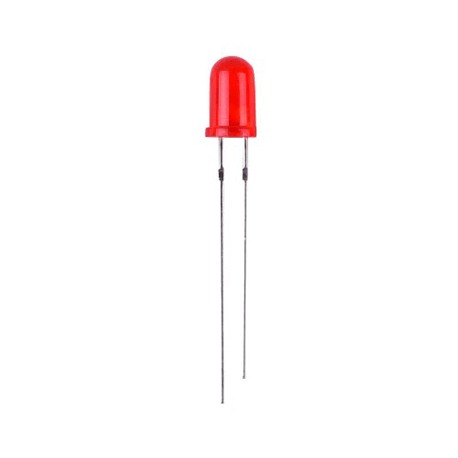
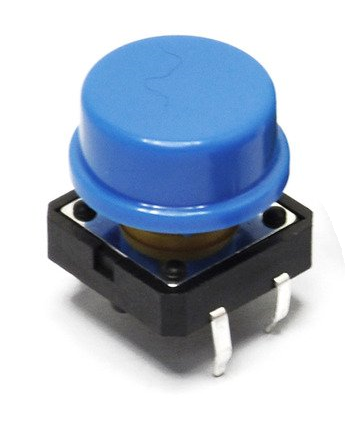
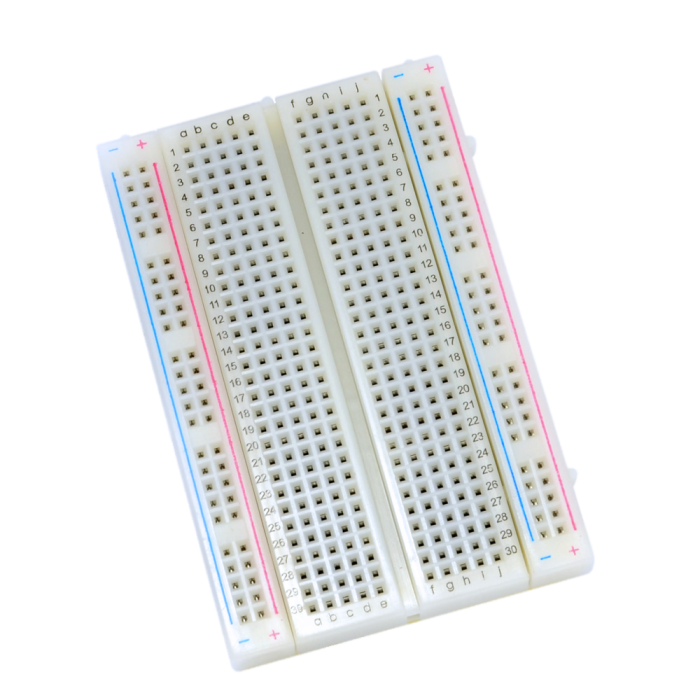

- ESP32 or any similar board (in this tutorial we are using ESP-WROOM-32)
- Breadboard
- 2X 1K ohm resistor
- Button
- LED
- Visuino program: Download Visuino
The Circuit
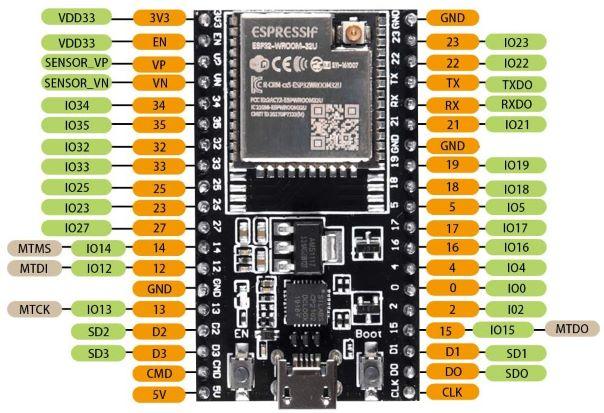

- Connect ESP32 pin [GND] to breadboard negative pin [Black line]
- Connect ESP32 pin [Vin] to breadboard positive pin [Red line]
- Connect ESP32 GPIO [25] to the Resistor1
- Connect Resistor1 to Button pin
- Connect Resistor1 other side pin to breadboard negative pin [Black line]
- Connect Button other side pin to breadboard positive pin [Red line]
- Connect ESP32 GPIO [33] to the Resistor2
- Connect Resistor2 other side to LED positive pin [+]
- Connect LED negative pin [-] to breadboard negative pin [Black line]
Start Visuino, and Select the ESP32 Board Type


Start Visuino as shown in the first picture Click on the "Tools" button on the Arduino component (Picture 1) in Visuino When the dialog appears, select "Generic ESP32" or any other suitable board as shown on Picture 2
In Visuino Add & Set Components


- Add "Debounce Button" component
- Add "Pulse Generator" component
- Select the "ESP32" board and in the properties select "Modules">"Processor">"Operations" and click on the 3 dots button to open "Operations" window.
- In "Operations" window drag "Deep Sleep" to the left side and in the properties window set "Period (uS)" to 100000000, this is 10s but change the value according to your needs.
- Close the "Operations" window
In Visuino Connect Components


- Connect PulseGenerator1 pin [Out] to ESP32 Digital GPIO[ 33 ]
- Connect ESP32 Digital GPIO(DAC)[ 25 ] pin [Out] to Button1 pin [In]
Generate, Compile, and Upload the Code

In Visuino, at the bottom click on the "Build" Tab, make sure the correct port is selected, then click on the "Compile/Build and Upload" button.
Play
Congratulations! You have completed your project with Visuino. Also attached is the Visuino project, that I created for this tutorial, you can download it here and open it in Visuino: https://www.visuino.com
Downloads
In Visuino – Add External Wake-Up (Project Expansion)

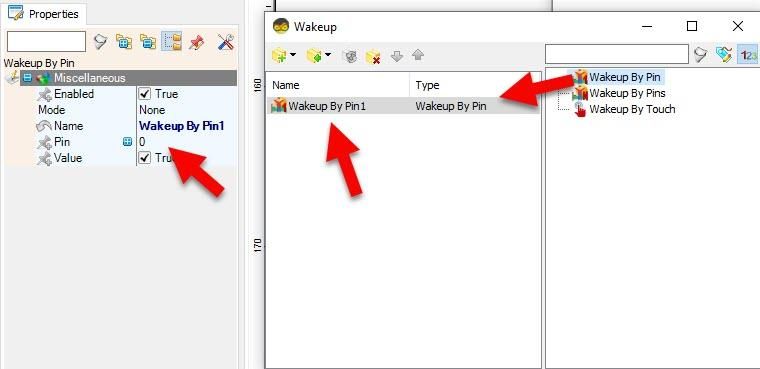
In Visuino, you can easily expand this project by adding an external wake-up trigger using either a digital pin or a touch pin. Add a new Digital Input component (or Touch component), connect it to the desired ESP32 GPIO or touch pin, and link it to the Wake-Up input of the ESP32 Sleep component. This allows the ESP32 to wake instantly from sleep when a button is pressed or a touch pad is triggered, making the project even more interactive and suitable for real-world low-power applications.
In the "Operations" window select "Deep Sleep1" and in the properties window select "Wakeup" and click on the 3 dots button and in the "Wakeup" window add "Wakeup By Pin" or "Wakeup By Touch" and in the properties window set the pin number.
Note: to trigger Wakeup you will need anothe button to trigger the Wakeup