ESP32 HomeKit for TOTAL Beginners (Docker + ESP-IDF 5.4 + Demo LED Accessory)
by Achim Pieters in Circuits > Apple
178 Views, 0 Favorites, 0 Comments
ESP32 HomeKit for TOTAL Beginners (Docker + ESP-IDF 5.4 + Demo LED Accessory)
A slow, friendly, step-by-step guide from zero to a working HomeKit accessory.
This is for you if you feel stuck because other tutorials assume you already know:
- what Docker is
- how firmware gets onto a microcontroller
- what “flashing” means
- why Wi-Fi configuration happens before compiling
- what an ESP32 really is
By the end you will:
- have a working ESP32 dev environment (without installing ESP-IDF manually)
- compile firmware inside Docker
- flash it to an ESP32-WROOM-32D
- add it to Apple Home
- understand what you’re doing (not just copy/paste magic)
What we’re building (big picture)
- Prepare your computer
- Install Docker
- Download ready-made ESP32 HomeKit demo code
- Configure Wi-Fi
- Compile firmware
- Flash to ESP32
- Add to Apple Home
Supplies


You need one of these:
Option A (recommended / easiest)
- ESP32-WROOM-32D development board (USB built in, buttons, beginner-friendly)
Option B (advanced but fine)
- Bare ESP-WROOM-32 module
- USB programmer / baseboard
Also needed:
- USB data cable (not charge-only)
- 2.4 GHz Wi-Fi network
- iPhone or iPad with Apple Home
Software
We will install:
- Docker Desktop
- Git
- Python 3
- esptool.py
We will not manually install ESP-IDF. Docker handles that.
What Is Docker (simple Explanation)

Docker is like a pre-built computer inside your computer.
Inside that mini-computer:
- ESP32 tools are already installed
- correct versions are already chosen
- nothing breaks your real system
This avoids hours of beginner pain.
Install Docker Desktop
Download
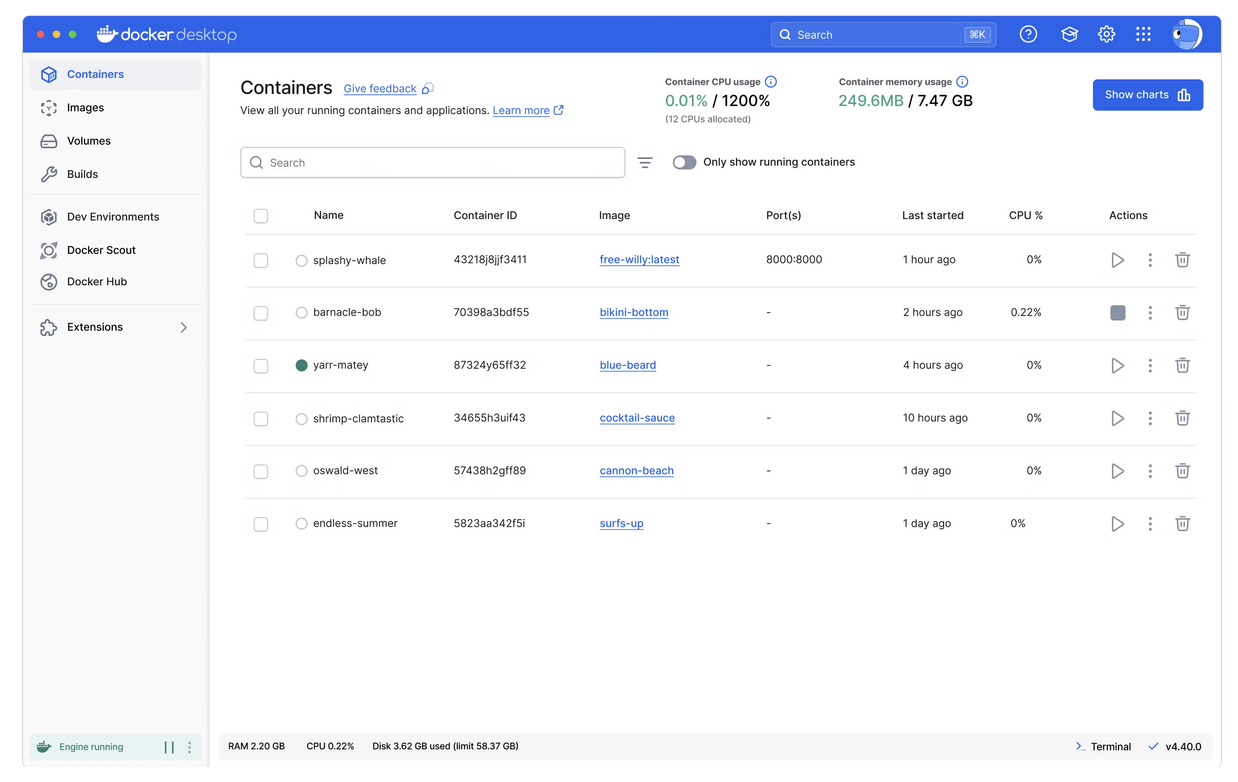
Go to Docker Desktop and download for your OS (Windows/macOS/Linux).
Install
- Run installer
- Accept defaults
- Finish
- Restart your computer
After reboot:
- open Docker Desktop
- log in (free)
- wait until it says “Docker is running”
Verify Docker Works
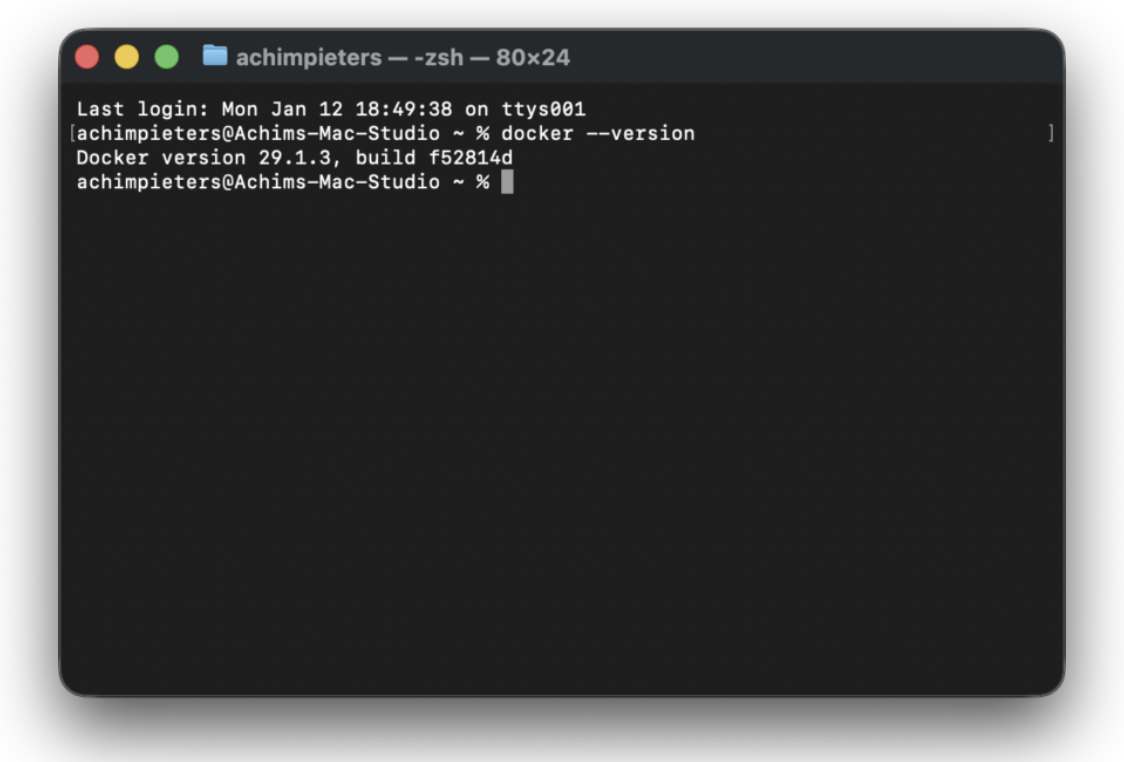
Open a terminal:
- Windows: PowerShell
- macOS: Terminal
- Linux: Terminal
Run:
Good output looks like:
Now run:
You’ll likely see an empty list. That’s perfect.
If it errors: Docker Desktop is not running.
Get ESP-IDF Inside Docker (ESP-IDF 5.4)

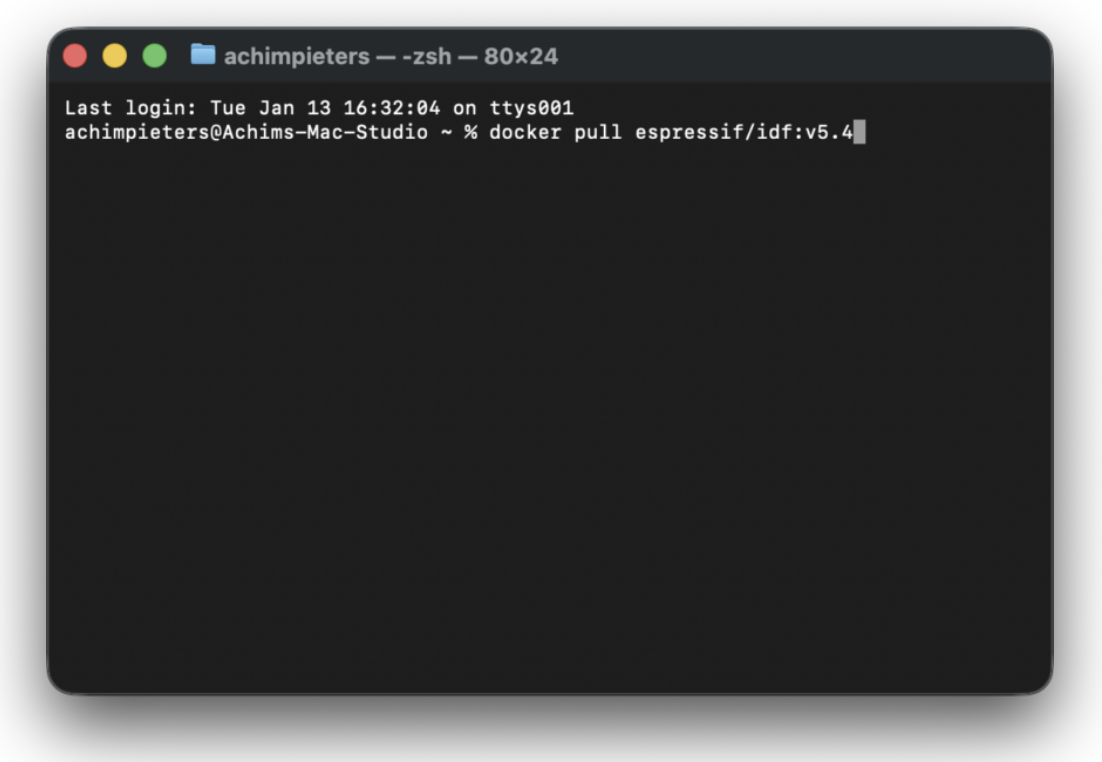
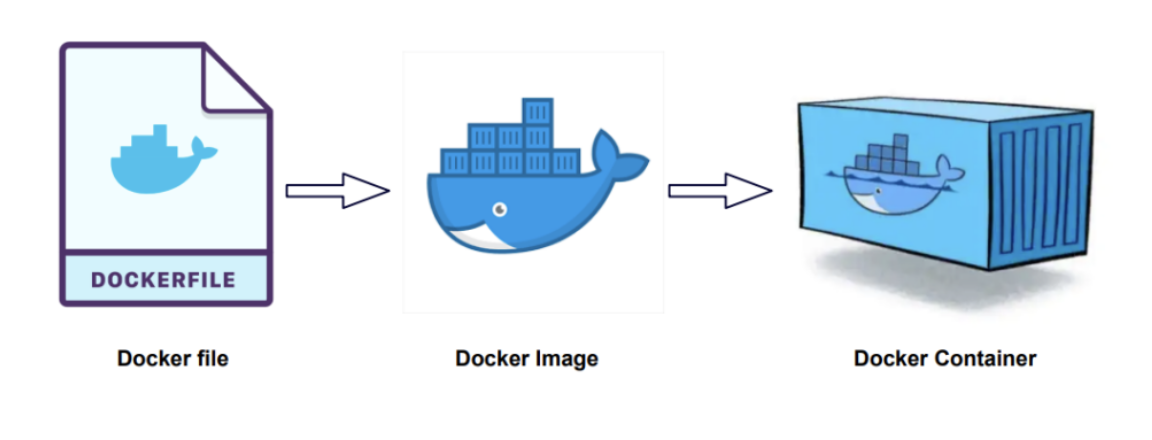
We use the official Espressif Docker image so everyone builds with the same toolchain.
Download it:
Verify it exists:
You should see something like:
Nothing is running yet — that’s normal.
If you ever want to remove it later:
Install Git (download Code)


Install Python 3 + Esptool.py (for Flashing)


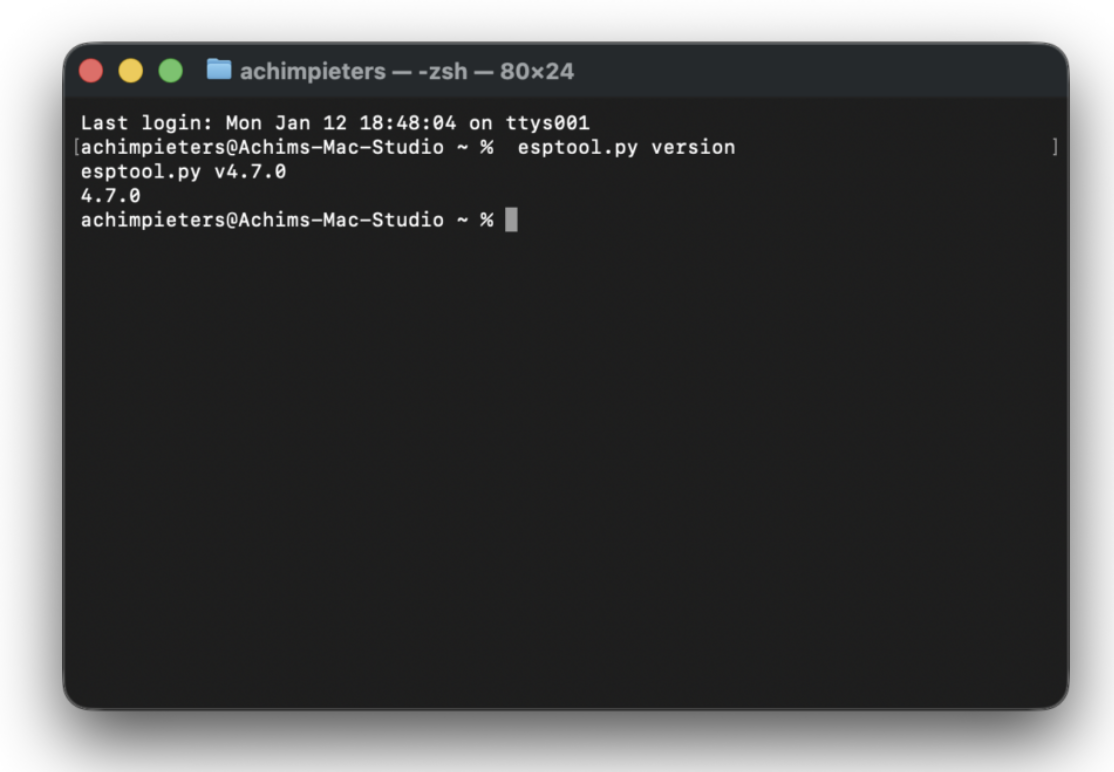
We build firmware in Docker, but flashing a real ESP32 is easiest from your normal computer.
Check Python:
Good:
Install esptool:
Verify:
Good:
Common problems
“pip not found”
Permission errors (macOS/Linux)
Windows issues
- re-open terminal
- ensure Python is in PATH
- use:
Download the HomeKit Demo Code


In your terminal:
Enter the folder:
You should see folders like:
- examples
- components
- CMakeLists.txt
Start the ESP-IDF Docker Container

Now we “enter the development box”.
macOS / Linux
Windows (example path)
What this means:
- your folder is shared with Docker
- Docker can read/write your files
- ESP32 tools are now available
Open the LED Example (first HomeKit Project)
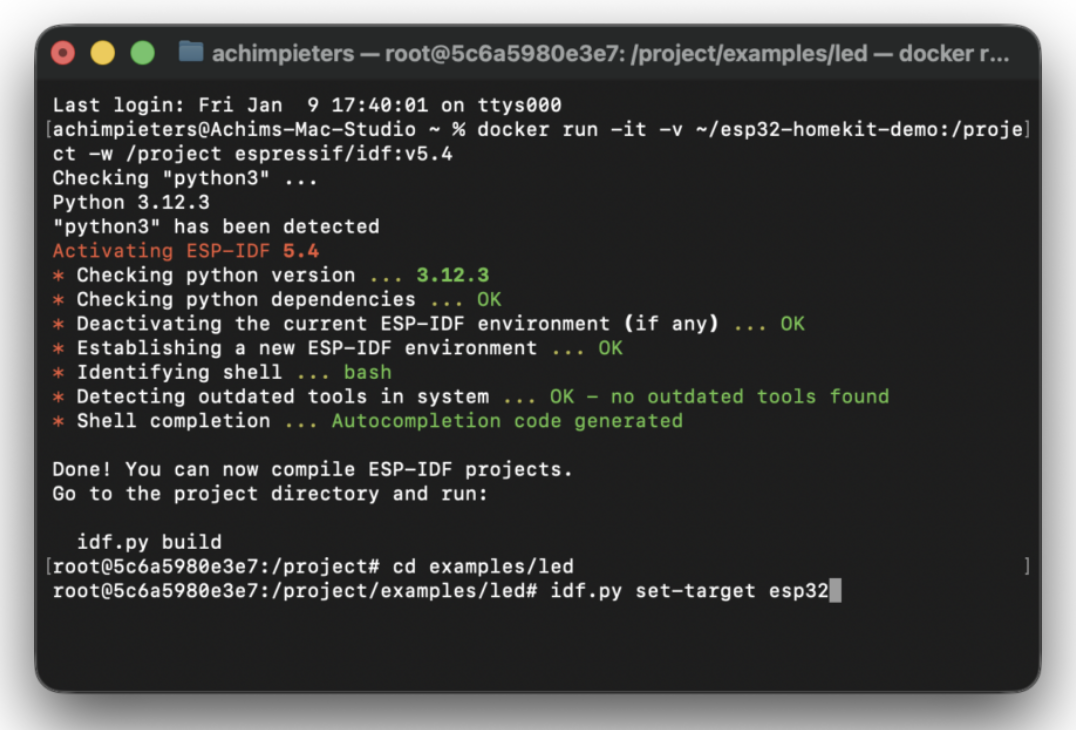
Inside the Docker terminal:
Set target (ESP32 family):
Configure Wi-Fi (VERY IMPORTANT)


Run:
In the blue menu, go to:
- StudioPieters
- set Wi-Fi SSID
- set Wi-Fi password
- Save and Exit
Build the Firmware
Compile:Type idf.py build and press enter, and wait until it is done.
After building, you should have:
- bootloader.bin
- partition-table.bin
- main.bin
Hardware Setup (wire One LED)

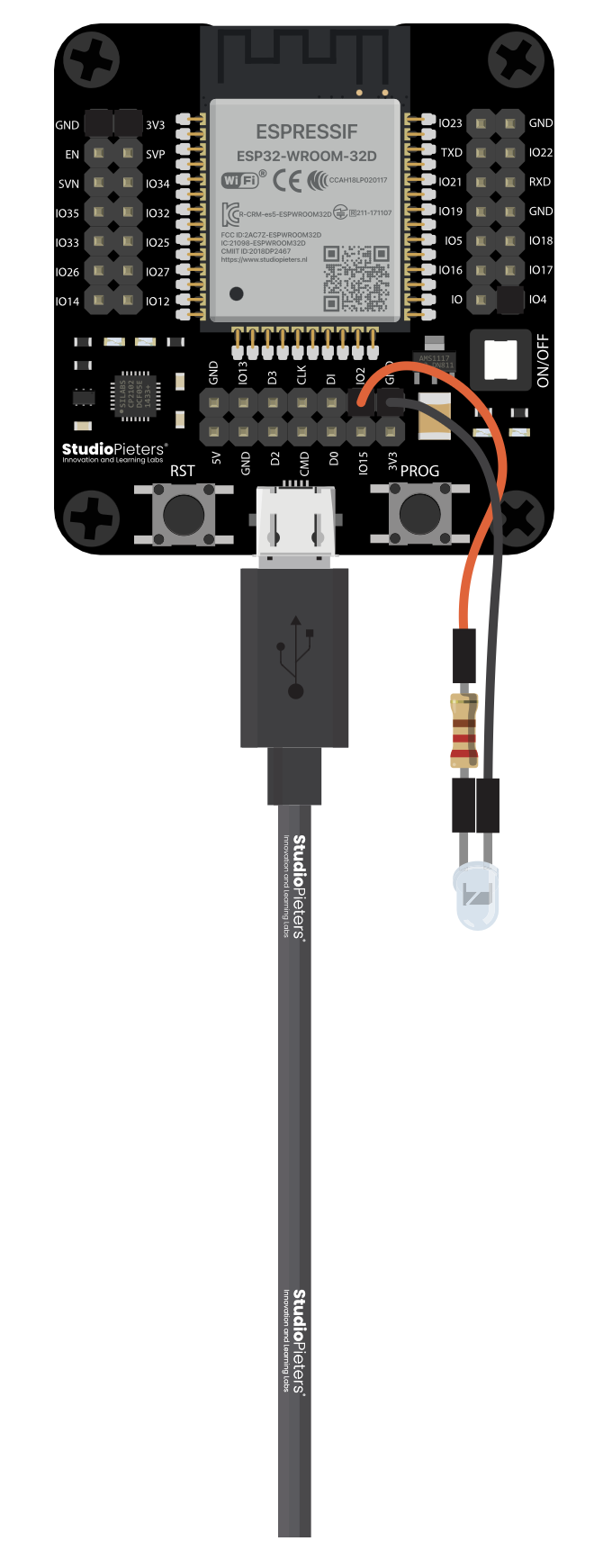
We’ll connect one LED so you can see the accessory work.
You need
- 1 × LED
- 1 × resistor (220Ω – 1kΩ)
- 2 × jumper wires
- breadboard (optional but recommended)
Pin used by the example
The LED example uses GPIO2.
LED polarity
- long leg = positive (+)
- short leg = negative (–)
If it’s backwards, nothing breaks — it just won’t light.
Wiring
Connect:
- GPIO2 → resistor → LED → GND
Erase Flash (clean Start)


Open a new terminal outside Docker and go to the example folder:
Erase:
While erasing, esptool shows the port name. Write it down.
Examples:
- macOS: /dev/cu.usbserial-XXXX or /dev/cu.SLAB_USBtoUART
- Linux: /dev/ttyUSB0 or /dev/ttyACM0
- Windows: COM3, COM4, etc.
If it does NOT connect (common)
- Hold BOOT
- Press and release RESET
- Release BOOT
- Run erase again
Flash the Firmware to the ESP32


Replace the port name (if needed for your system) and run:
When it finishes: firmware is on the ESP32.
Watch It Boot (serial Monitor)

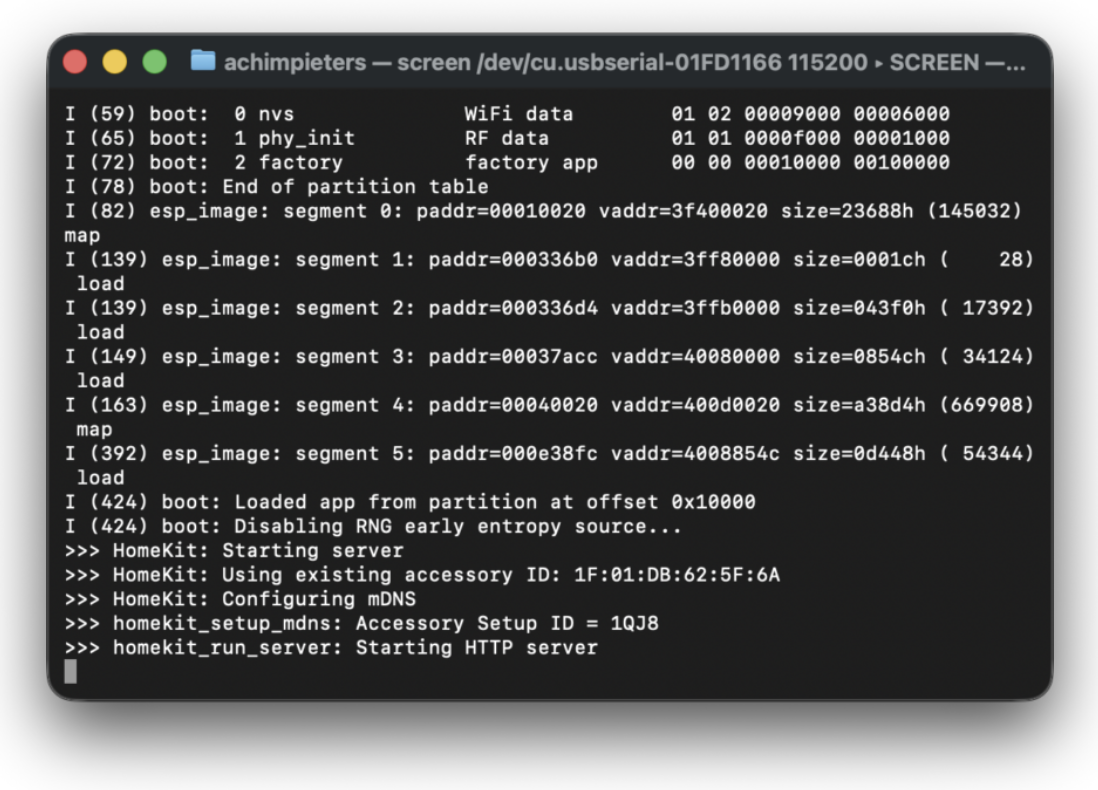
We use a serial monitor to see what the ESP32 is doing.
Start serial monitor (macOS example)
Use the same port you saw earlier:
If you see nothing, press RESET on the board.
What you should see:
- ESP32 boot info
- Wi-Fi connection messages
- HomeKit startup logs
Example HomeKit logs:
Exit screen
- CTRL + A
Add the Accessory to Apple Home


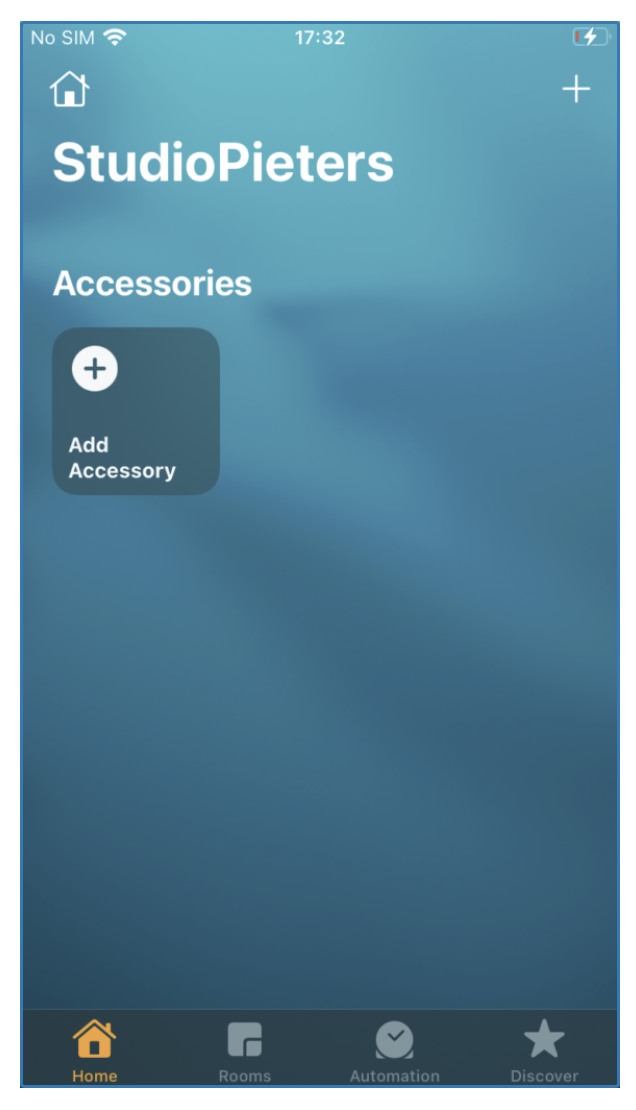
This is a DIY HomeKit accessory, so Apple will show warnings. That’s expected.
Before you start:
- ESP32 powered on
- connected to Wi-Fi (check serial logs)
- iPhone/iPad on the same Wi-Fi network
Steps
- Open the Home app
- Tap +
- Tap Add Accessory
- Scan the QR code (or add anyway if prompted)
- Select the accessory when it appears
- Accept the “uncertified accessory” warning → tap Add Anyway (possibly twice)
- Assign room/name (optional)
- Test: Tap ON/OFF → LED should respond
Done (and What’s Nex

If you reached this point:
- ESP32 boots
- Wi-Fi connects
- HomeKit pairs
- LED responds
You built a real HomeKit accessory!
Next ideas:
- change the GPIO to another pin
- add a relay instead of an LED
- build a real accessory (switch, sensor, power plug, etc.)