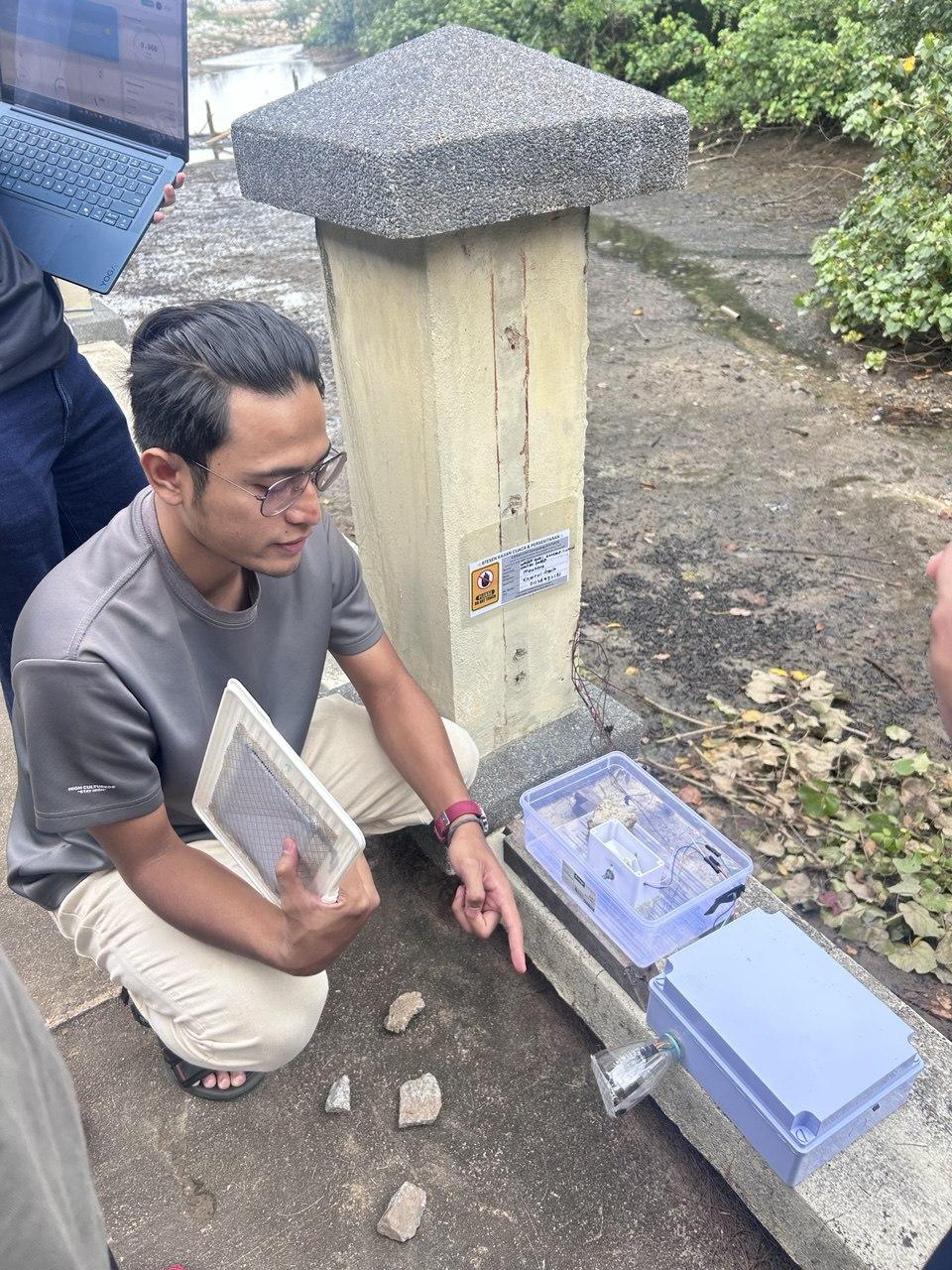
EdgeLink: DIY Digital Rain Gauge & Weather Station With Raspberry Pi Pico

by _amirazl13 in Circuits > Raspberry Pi

175 Views, 1 Favorites, 0 Comments

EdgeLink: DIY Digital Rain Gauge & Weather Station With Raspberry Pi Pico
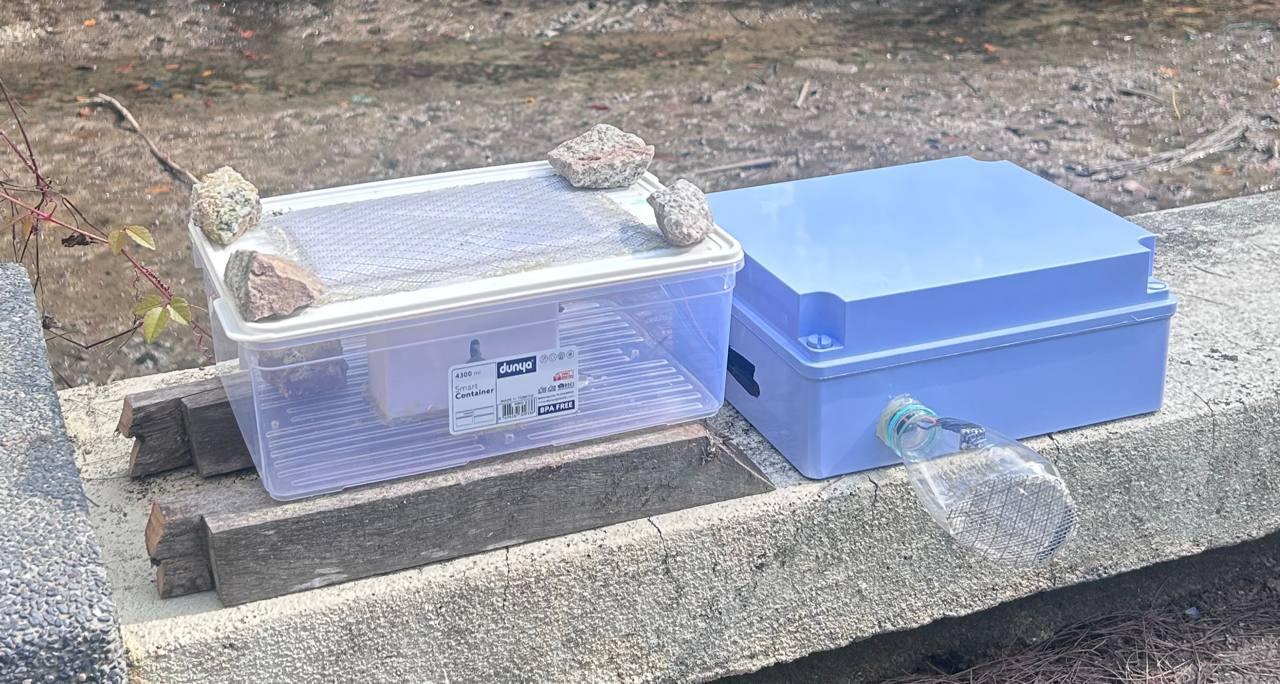
final rain gauge.jpg
present rain gauge.jpg

In this project, we are building a precise Tipping Bucket Rain Gauge and Weather Station using a Raspberry Pi Pico. We will use a Hall Effect sensor to detect the tipping motion of the bucket (to count rainfall) and a BME280 sensor to monitor temperature, humidity, and atmospheric pressure.


A Note on Credit: The mechanical design for the tipping bucket and funnel in this project is based on the excellent "DIY Arduino Rain Gauge" by vandenbrande. We have adapted the electronics to run on the more powerful Raspberry Pi Pico W with IoT capabilities, but the genius mechanical mechanism remains the same. You can check out the original inspiration here: DIY Arduino Rain Gauge.

Supplies

supplies.jpg

To build this station, you will need a mix of electronics and hardware for the enclosure.

Electronics:

  1. Microcontroller: Raspberry Pi Pico (W version is optional but great for future cloud upgrades).
  2. Sensors:
  3. BME280 (Temperature, Humidity, Pressure). Get it on Shopee
  4. A3144 Hall Effect Sensor (We will use this in Analog mode for higher sensitivity). Get it on Shopee
  5. Components:
  6. Neodymium Magnet (Small but strong). Get it on Shopee
  7. Jumper Wires for Breadboard
  8. Breadboard or Prototype PCB.

Hardware & Enclosure:

  1. M4 Stainless Steel threaded rod (< 8.8mm of diameter).
  2. M4 Self-locking nuts and washers.
  3. PVC Enclosure (Waterproof box for the electronics). Get it on Shopee
  4. Plastic container (housing for the rain gauge mechanism).
  5. Metal Mesh (To cover the gauge intake to keep out bugs and leaves).

Tools:

  1. 3D Printer (For the tipping bucket mechanism).
  2. Hot Glue Gun.
  3. Soldering Iron & Solder.
  4. Drill.
  5. Wrenches/Pliers.
  6. Software: Thonny IDE (for programming the Pico).

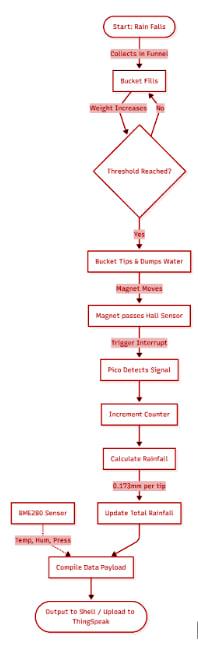
The Concept (How It Works)
flowchart.jpg
  1. The Tipping Bucket: Rain falls into a funnel and fills one side of a small 3D-printed "see-saw" bucket. When it gets heavy enough, it tips over, dumping the water and lifting the other side.
  2. The Magnet: We attach a small magnet to the bucket.
  3. The Sensor: As the bucket tips, the magnet passes a Hall Effect Sensor.
  4. The Code: The Pico detects this magnetic change, counts it as "1 tip," and calculates the rainfall (in our case, 0.173mm per tip).


Wiring the Electronics
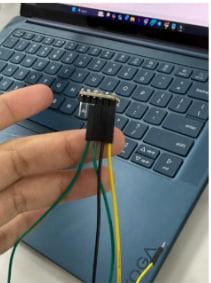
wire.jpg
connect wire.jpg

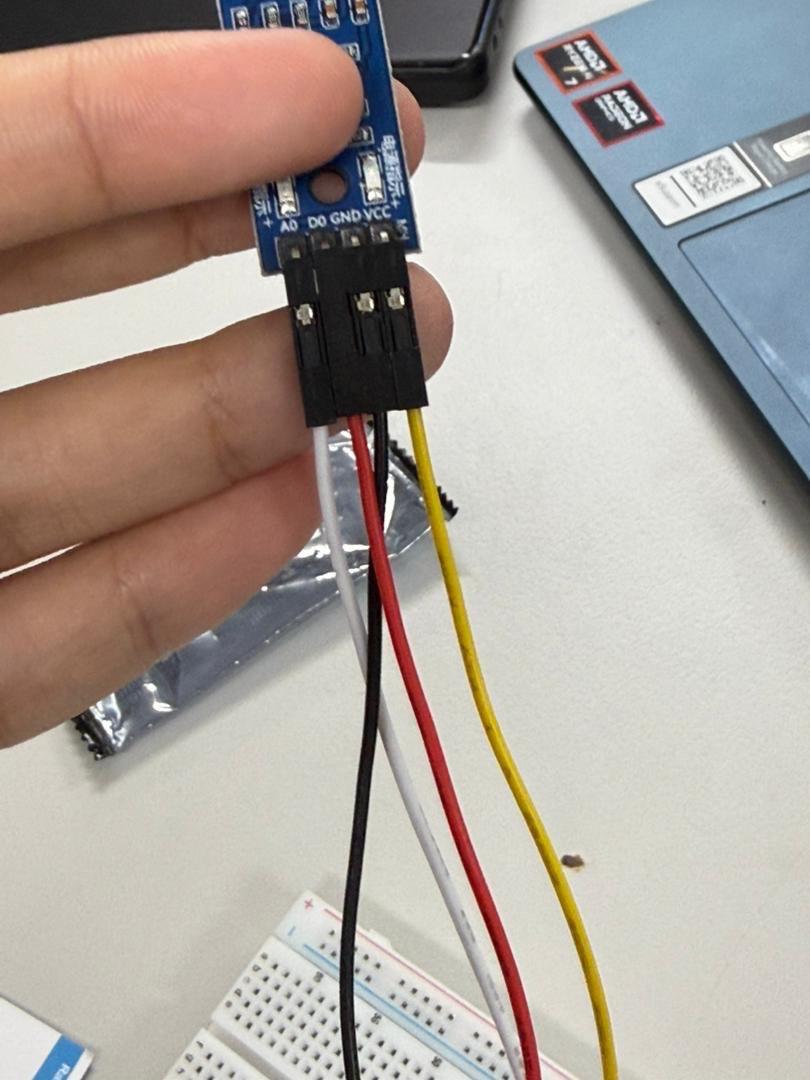
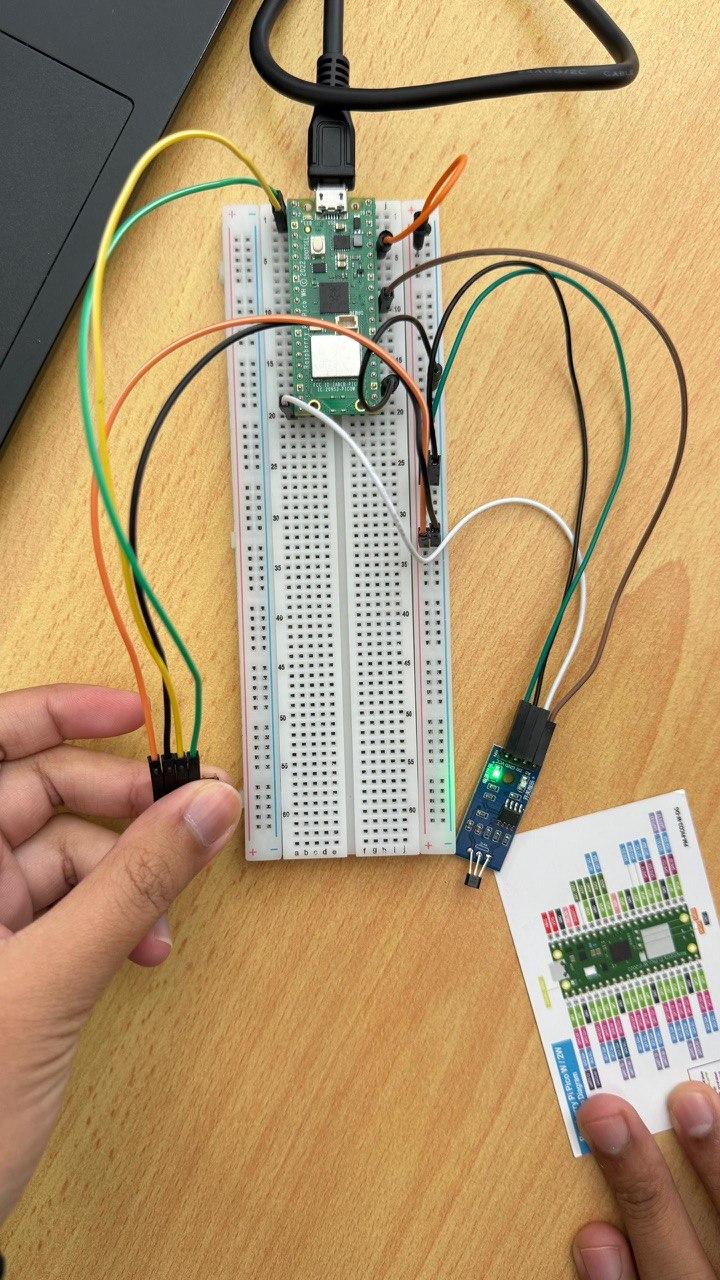
We are using a "Split" configuration, powering both sensors from the Pico's 3.3V rail.

Common Power Connections:

  1. Pico 3V3 (Pin 36): Red (+) Rail.
  2. Pico GND (Pin 38): Blue (-) Rail.


1.Connecting the BME280 (I2C)

Note: The BME280 communicates via I2C. We are using the default I2C0 pins.

| BME280 Pin | Pico Pin | Function |
|------------|-------------------|------------|
| VIN / VCC | 3.3V (Red Rail) | Power |
| GND | GND (Blue Rail) | Ground |
| SDA | GP0 (Pin 1) | Data Line |
| SCL | GP1 (Pin 2) | Clock Line |


2.Connecting the Hall Effect Sensor (Analog Setup)

Note: While many use Hall sensors as digital switches, we are connecting this to an Analog Pin (ADC). This allows us to tune the sensitivity in software and avoid false triggers.

| Hall Pin | Pico Pin | Function |
|---------------|-------------------|---------------------|
| VCC | 3.3V (Red Rail) | Power |
| GND | GND (Blue Rail) | Ground |
| Signal / OUT | GP26 (Pin 31) | Analog Signal Input |

Assembly and Housing

3d tipping bucket.jpg
glue magnet on tipping.jpg
supplies.jpg
najmin drill.jpg
amira drill.jpg
mesh.jpg

This is the most critical part of the build. If the bucket sticks, you lose rain data. If the sensor is misaligned, the Pico won't detect the tips.

1. Get the 3D Printed Parts

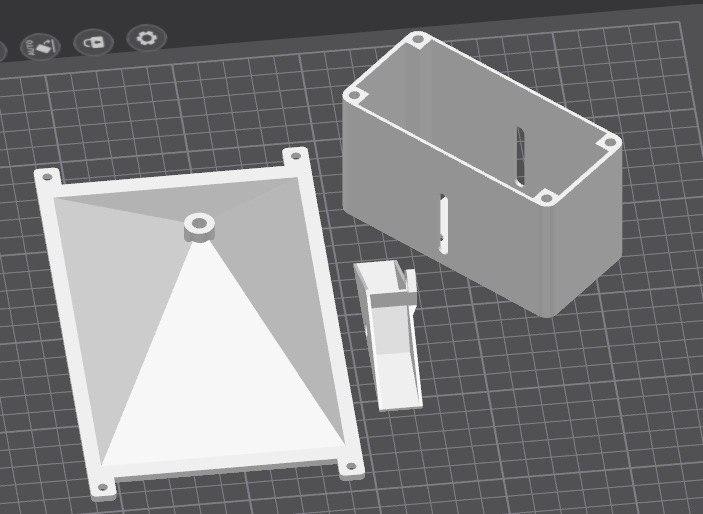
The mechanical design for the tipping bucket and funnel is based on the proven "DIY Arduino Rain Gauge" by vandenbrande.

  1. Download the Files: You can get the .STL files for the Bucket and Funnel directly from the original project here: DIY Arduino Rain Gauge.

2. The "Pivot Sandwich" (Crucial Step)

We need the bucket to swing with almost zero friction. Assemble the M4 threaded rod in this exact order:

  1. Frame Wall
  2. Nut
  3. Washer
  4. [TIPPING BUCKET]
  5. Washer
  6. Nut
  7. Frame Wall
  8. Tuning: Tighten the inner nuts against the bucket only until they touch, then back them off slightly. The bucket should fall freely from one side to the other with a gentle tap. If it feels "sticky," loosen the nuts.

3. Magnet & Sensor Alignment

We are using the Hall Effect sensor in Analog Mode, so the distance is very important.

  1. The Magnet: Hot glue the Neodymium magnet into the slot on the side of the bucket. Important: Ensure the magnet is flush (flat) with the plastic surface. If it sticks out, it might hit the frame.
  2. The Sensor: Mount the Hall Effect sensor on the stationary frame directly opposite the magnet.
  3. The Gap: Ideally, when the magnet passes the sensor, the gap should be between 2mm and 4mm.
  4. Too close: The magnet might hit the sensor.
  5. Too far: The signal will be too weak for the Pico to detect.

4. Weatherproofing the Enclosure

  1. Mounting: Secure the Pico W and BME280 inside your waterproof PVC box.
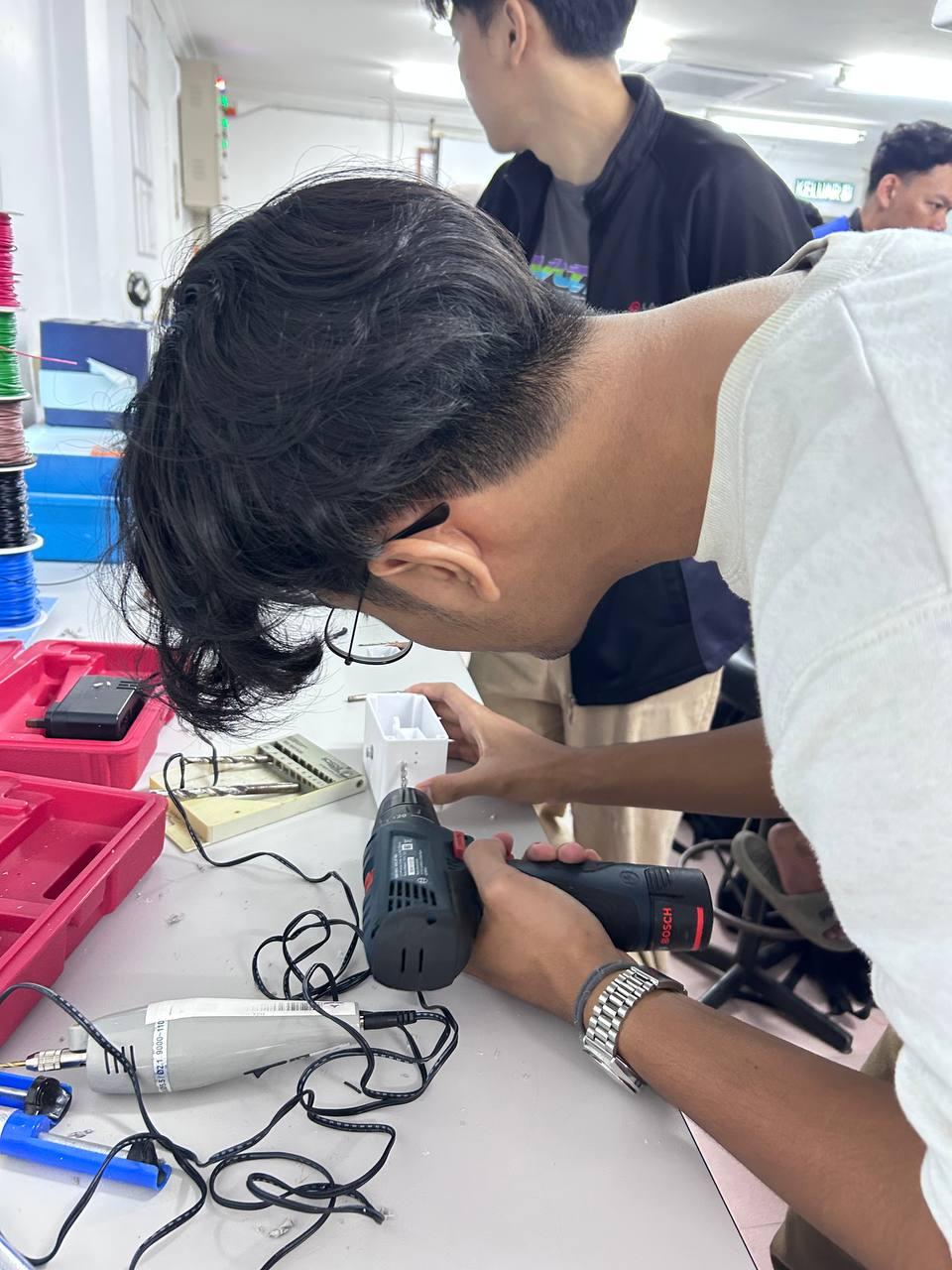
  2. Cable Entry: Drill a hole for the wires running from the rain gauge to the box.
  3. Sealing: Once the wires are through, you must seal the hole completely with Silicone Sealant or a generous amount of Hot Glue. Moisture is the enemy of the BME280 sensor!
  4. Mesh: Glue the metal mesh over the top of the funnel to prevent leaves and bugs from clogging the drain hole.


The Code - Calibration & Logic

We are using MicroPython. Make sure you have the bme280.py library saved to your Pico before running this.

Why this code is special:

Instead of just looking for "Magnet" or "No Magnet," this code includes a calibration sequence. When you power it on, it measures the "resting" magnetic field. It then looks for a deviation from that baseline to detect a tip. This makes it much more reliable!


from machine import Pin, I2C, ADC
import time
import bme280 # Ensure bme280.py is saved on your Pico
# ==========================================
# 1. CONFIGURATION
# ==========================================
# --- Rain Gauge Settings ---
# You may need to calibrate this value for your specific printer/bucket size
MM_PER_PULSE = 0.173 # Rain in mm per movement
mm_total = 0.0 # Total rain counter
# --- Hall Effect Settings (Analog GP26) ---
analog_sensor = ADC(26)
led = Pin(25, Pin.OUT) # Onboard LED
HALL_THRESHOLD = 2000 # Sensitivity (Lower = more sensitive)
# --- BME280 Settings (I2C GP0 & GP1) ---
i2c = I2C(0, sda=Pin(0), scl=Pin(1), freq=400000)
bme_sensor = None
print("--- SYSTEM STARTUP ---")
# ==========================================
# 2. CALIBRATION & SETUP
# ==========================================
# --- A. Hall Calibration (Finding "Zero") ---
print("1. Calibrating Hall Sensor... (Keep magnet away)")
time.sleep(2)
total = 0
for _ in range(10):
total += analog_sensor.read_u16()
time.sleep(0.05)
baseline_value = total // 10
print(f" -> Baseline set at: {baseline_value}")
# Set initial previous state to avoid false counting at startup
initial_reading = analog_sensor.read_u16()
if abs(initial_reading - baseline_value) > HALL_THRESHOLD:
prev_magnet_status = 1
else:
prev_magnet_status = 0
# --- B. BME280 Initialization ---
print("2. Scanning for BME280...")
devices = i2c.scan()
if devices:
try:
bme_sensor = bme280.BME280(i2c=i2c, address=devices[0])
print(f" -> BME280 Found at {hex(devices[0])}")
except Exception as e:
print(f" -> Error connecting BME280: {e}")
else:
print(" -> ERROR: BME280 NOT FOUND!")
print("\n--- RAIN GAUGE & WEATHER STATION RUNNING ---")
# ==========================================
# 3. MAIN LOOP
# ==========================================
while True:
# --- PART 1: READ HALL SENSOR ---
current_reading = analog_sensor.read_u16()

# Calculate how far the current reading is from the baseline
diff = abs(current_reading - baseline_value)

# Determine Digital State (1 or 0) based on Threshold
if diff > HALL_THRESHOLD:
current_magnet_status = 1 # Magnet Detected
led.value(1)
else:
current_magnet_status = 0 # No Magnet
led.value(0)
# --- PART 2: RAIN GAUGE LOGIC ---
# Only count when status changes (The bucket tipped)
if current_magnet_status != prev_magnet_status:
# We only add rain on one "edge" of the movement to avoid double counting
# Depending on your magnet placement, you might remove this if check
# or adjust logic to count every state change.
mm_total += MM_PER_PULSE
prev_magnet_status = current_magnet_status
print(f"*** TIP DETECTED! Rain added. Total: {mm_total:.3f} mm ***")
# --- PART 3: READ BME280 ---
t, p, h = "Err", "Err", "Err"
if bme_sensor:
try:
t = bme_sensor.temperature
p = bme_sensor.pressure
h = bme_sensor.humidity
except:
pass
# --- PART 4: DASHBOARD OUTPUT ---
print(f"Rain: {mm_total:.3f} mm | Temp: {t} | Press: {p} | Hum: {h}")
time.sleep(0.5)

Testing

  1. Plug in your Pico via USB.
  2. Run the script in Thonny.
  3. Wait 2 seconds for the calibration (keep the magnet steady!).
  4. Manually tip your rain bucket. You should see the LED on the Pico flash, and the shell should print: *** TIP DETECTED! ***.
  5. Check the BME280 output to ensure you are getting Temperature and Pressure data.

If your rain gauge is counting too many tips, try increasing the HALL_THRESHOLD variable in the code (e.g., from 2000 to 3000).

Setting Up the Cloud Dashboard (ThingSpeak)
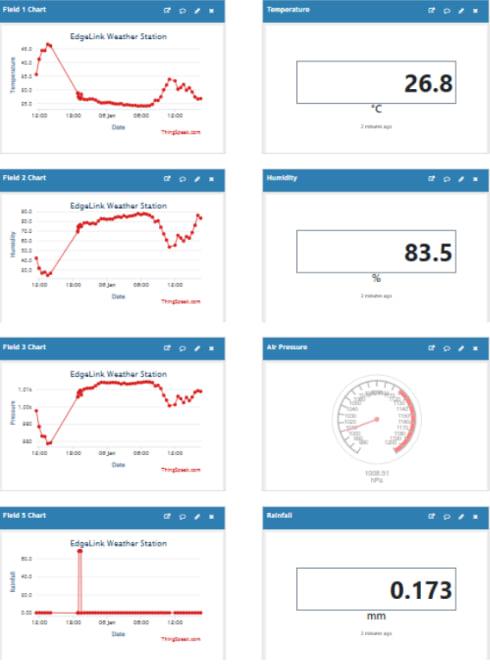
example data.jpg
dashboard.jpg

To see our weather data from anywhere in the world, we will send it to ThingSpeak. This platform allows us to store data and visualize it with charts and gauges.

Create a Channel

  1. Go to ThingSpeak.com and sign up for a free account.
  2. Click "New Channel".
  3. Name your channel (e.g., My Pico Weather Station

Configure the Fields

We need to tell ThingSpeak what data to expect. Enable the first 4 boxes and label them exactly like this to match our future code:

  1. Field 1: Temperature
  2. Field 2: Humidity
  3. Field 3: Pressure
  4. Field 4: Rainfall

Scroll down and click "Save Channel".


Visualizing the Data (Customizing the Look)

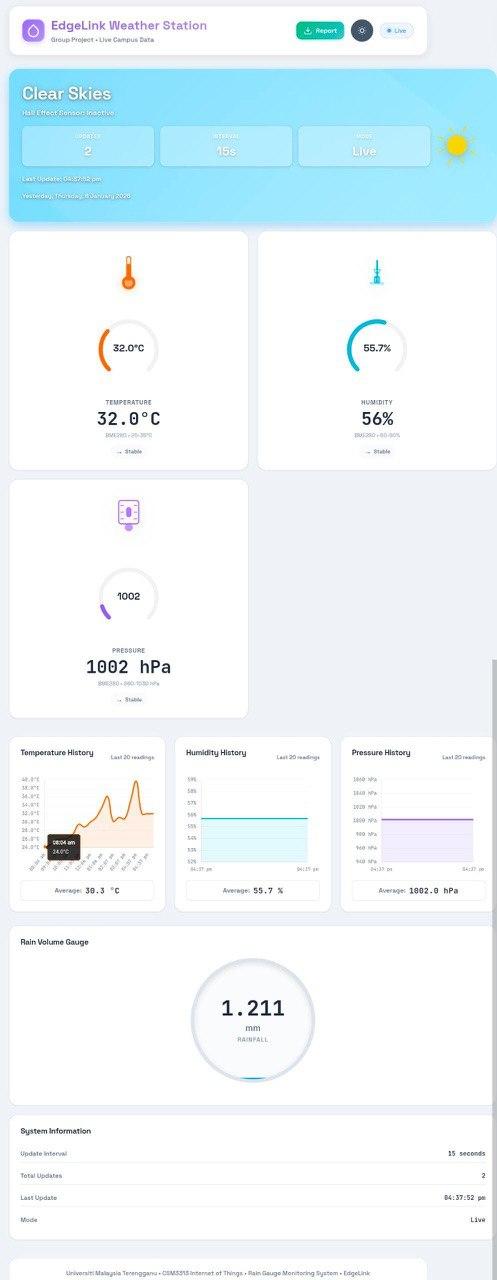
By default, ThingSpeak creates simple line charts. To create the "Weather Station Command Center" look shown in the project photos (with gauges and digital readouts), follow these steps:

1. Add "Numeric Displays" (For Current Values) Line charts show history, but numeric displays show the now.

  1. On your Channel view, click the "Add Widget" button.
  2. Select Numeric Display and click Next.
  3. Configure for Temperature:
  4. Name: Temperature
  5. Field: Select Field 1 (or whichever field you assigned to Temp).
  6. Units: Type °C in the box.
  7. Data Type: Select "Decimal" (this ensures you see 26.8 instead of just 26).
  8. Click Create.
  9. Repeat this process for Humidity (%) and Rainfall (mm).

2. Add the "Gauge" (For Pressure) The speedometer-style gauge is perfect for visualizing Atmospheric Pressure.

  1. Click "Add Widget" and select Gauge.
  2. Configure for Pressure:
  3. Name: Air Pressure
  4. Field: Select Field 3.
  5. Min/Max: Set Min to 900 and Max to 1100 (this covers the standard range of weather pressure in hPa).
  6. Units: hPa.
  7. Click Create.

3. Arrange Your Dashboard

  1. Click the Pencil Icon (Edit View) at the top of the page.
  2. Drag and drop the boxes to organize them.
  3. Recommendation: Place the Numeric Displays in a column on the right and the History Charts on the left for a clean, professional layout.


The Final Firmware

Now that we have tested the sensors and set up the cloud, it is time for the Final Firmware. This version is much smarter than our test scripts.

Features of this code:

  1. WiFi Fallback: It tries to connect 10 times. If it fails (e.g., router is down), it doesn't crash—it switches to "Offline Mode."
  2. Offline Data Queuing: If WiFi is down, it saves your weather data in memory. When WiFi returns, it automatically uploads all the missed data!
  3. Safety Boot: The system waits for a button press to start (preventing boot loops if code is bad).
  4. Remote Control: It checks ThingSpeak for commands (like turning the LED on/off remotely).


The Code

Copy the code below into main.py on your Pico W.

# --------------------------------------------------------------------------
# PROJECT: EdgeLink Weather Station
# VERSION: 3.5 (WiFi Fallback + Offline Data Queue)
# DEVICE: Raspberry Pi Pico W
# --------------------------------------------------------------------------
import time
import network
import urequests
import ujson
import rp2
import machine
from machine import Pin, I2C, ADC, reset
import bme280
# ==========================================
# 1. CONFIGURATION
# ==========================================
# --- WiFi Settings ---
WIFI_SSID = "YOUR_WIFI_NAME" # <--- CHANGE THIS
WIFI_PASSWORD = "YOUR_WIFI_PASS" # <--- CHANGE THIS
# --- ThingSpeak Settings ---
API_URL = "http://api.thingspeak.com"
TS_WRITE_API_KEY = "YOUR_WRITE_KEY" # <--- CHANGE THIS
TS_READ_API_KEY = "YOUR_READ_KEY" # <--- CHANGE THIS
TS_LED_CHANNEL_ID = "YOUR_CH_ID" # <--- CHANGE THIS
# --- Hardware Pins ---
PIN_SDA = 0
PIN_SCL = 1
PIN_RAIN_SENSOR = 26
PIN_LED_ONBOARD = "LED"
PIN_LED_EXT = 25
# --- Calibration ---
MM_PER_PULSE = 0.173 # Rain mm per bucket tip
HALL_THRESHOLD = 2000 # Sensitivity
I2C_FREQ = 400000
# --- Power & Timing ---
UPLOAD_INTERVAL = 180000 # 3.0 Minutes
HEARTBEAT_INTERVAL = 60000 # 1.0 Minute
RESET_HOLD_TIME = 3000 # 3 Seconds
# --- WiFi Retry Configuration ---
WIFI_MAX_RETRIES = 10
WIFI_RETRY_DELAY = 2000
WIFI_CONNECT_TIMEOUT = 15
# ==========================================
# 2. HARDWARE SETUP
# ==========================================
builtin_led = Pin(PIN_LED_ONBOARD, Pin.OUT)
led_indicator = Pin(PIN_LED_EXT, Pin.OUT)
analog_sensor = ADC(PIN_RAIN_SENSOR)
i2c = I2C(0, sda=Pin(PIN_SDA), scl=Pin(PIN_SCL), freq=I2C_FREQ)
# Global Variables
mm_total = 0.0
bme_sensor = None
remote_led_state = 0
last_upload_time = time.ticks_ms() - UPLOAD_INTERVAL
last_heartbeat_time = time.ticks_ms()
pending_data_queue = [] # Stores failed uploads
MAX_QUEUE_SIZE = 10
# ==========================================
# 3. HELPER FUNCTIONS
# ==========================================
def log(tag, message):
ts = time.ticks_ms() / 1000
print(f"[{ts:8.1f}s] [{tag:<5}] {message}")
def signal_led(mode):
"""Controls LED for status signaling."""
patterns = {
"STARTUP": (0.5, 0.5, 3),
"SENSOR_FAIL": (0.2, 0.2, 3),
"WIFI_CONNECT": (0.1, 0.1, 5),
"WIFI_RETRY": (0.3, 0.3, 2),
"WIFI_FAIL": (0.1, 0.5, 3),
"UPLOAD_DONE": (1.0, 0.1, 1),
"RAIN_TIP": (0.05, 0.05, 1),
"ERROR": (0.1, 0.1, 10),
"HEARTBEAT": (0.2, 0.0, 1),
"RESET_WARN": (0.1, 0.1, 1),
"QUEUE_SYNC": (0.2, 0.2, 3)
}
if mode in patterns:
on_t, off_t, reps = patterns[mode]
for _ in range(reps):
builtin_led.on()
time.sleep(on_t)
builtin_led.off()
time.sleep(off_t)
builtin_led.value(remote_led_state)
def clean_bme_value(val_str):
try:
if isinstance(val_str, str):
val_str = val_str.replace("C", "").replace("%", "").replace("hPa", "").strip()
return float(val_str)
except:
return 0.0
def manage_wifi(action):
wlan = network.WLAN(network.STA_IF)
if action == "CONNECT":
wlan.active(True)
wlan.config(pm=0)
time.sleep(0.5)
if wlan.isconnected():
return True
for attempt in range(1, WIFI_MAX_RETRIES + 1):
log("WIFI", f"Attempt {attempt}/{WIFI_MAX_RETRIES}...")
try:
wlan.disconnect()
except:
pass
time.sleep(0.3)
wlan.connect(WIFI_SSID, WIFI_PASSWORD)
timeout = WIFI_CONNECT_TIMEOUT
while not wlan.isconnected() and timeout > 0:
builtin_led.toggle()
time.sleep(0.5)
timeout -= 1
if wlan.isconnected():
config = wlan.ifconfig()
log("WIFI", f"Connected! IP: {config[0]}")
signal_led("WIFI_CONNECT")
return True
else:
signal_led("WIFI_RETRY")
if attempt < WIFI_MAX_RETRIES:
time.sleep(WIFI_RETRY_DELAY / 1000)
signal_led("WIFI_FAIL")
return False
elif action == "OFF":
if wlan.active():
wlan.disconnect()
wlan.active(False)
return False
def queue_data(temp, humidity, pressure, rainfall):
global pending_data_queue
if len(pending_data_queue) >= MAX_QUEUE_SIZE:
pending_data_queue.pop(0) # Remove oldest
data_entry = {
"temp": temp, "humidity": humidity, "pressure": pressure,
"rain": rainfall, "timestamp": time.ticks_ms()
}
pending_data_queue.append(data_entry)
log("QUEUE", f"Data queued [{len(pending_data_queue)}/{MAX_QUEUE_SIZE}]")
def upload_queued_data():
global pending_data_queue
if not pending_data_queue: return 0
log("QUEUE", f"Syncing {len(pending_data_queue)} entries...")
signal_led("QUEUE_SYNC")
uploaded_count = 0
failed_entries = []
for entry in pending_data_queue:
try:
url = (f"{API_URL}/update?api_key={TS_WRITE_API_KEY}"
f"&field1={entry['temp']}&field2={entry['humidity']}"
f"&field3={entry['pressure']}&field5={entry['rain']}")
resp = urequests.get(url)
if resp.status_code == 200:
uploaded_count += 1
else:
failed_entries.append(entry)
resp.close()
time.sleep(1)
except:
failed_entries.append(entry)
pending_data_queue = failed_entries
return uploaded_count
# ==========================================
# 4. INITIALIZATION
# ==========================================
print("\n=== EDGELINK WEATHER STATION v3.5 ===")
signal_led("STARTUP")
# --- BME280 Check ---
try:
if i2c.scan():
bme_sensor = bme280.BME280(i2c=i2c)
log("INIT", "BME280 Found")
else:
signal_led("SENSOR_FAIL")
except:
signal_led("SENSOR_FAIL")
# --- Calibration ---
log("INIT", "Calibrating Rain Sensor...")
total = sum([analog_sensor.read_u16() for _ in range(10)])
baseline_value = total // 10
prev_magnet_status = 0
log("INIT", f"Baseline: {baseline_value}")
# --- Safety Boot Sequence ---
if machine.reset_cause() == machine.PWRON_RESET:
log("USER", ">>> HOLD BOOTSEL BUTTON TO START <<<")
while rp2.bootsel_button() == 0:
time.sleep(0.1)
builtin_led.on()
while rp2.bootsel_button() == 1:
time.sleep(0.1)
builtin_led.off()
log("SYS", "SYSTEM LAUNCHED")
else:
log("SYS", "AUTO-RECOVERED")
# ==========================================
# 5. MAIN LOOP
# ==========================================
while True:
try:
current_time = time.ticks_ms()
# --- A. RAIN GAUGE LOGIC ---
curr_read = analog_sensor.read_u16()
diff = abs(curr_read - baseline_value)
curr_magnet_status = 1 if diff > HALL_THRESHOLD else 0
led_indicator.value(curr_magnet_status)
if curr_magnet_status != prev_magnet_status:
mm_total += MM_PER_PULSE
prev_magnet_status = curr_magnet_status
log("RAIN", f"Tip! Total: {mm_total:.3f} mm")
signal_led("RAIN_TIP")
# --- B. UPLOAD SEQUENCE ---
if time.ticks_diff(current_time, last_upload_time) > UPLOAD_INTERVAL:
log("CORE", "Starting Upload...")
if manage_wifi("CONNECT"):
t, p, h = 0, 0, 0
if bme_sensor:
try:
t = clean_bme_value(bme_sensor.temperature)
p = clean_bme_value(bme_sensor.pressure)
h = clean_bme_value(bme_sensor.humidity)
except: pass
# Upload Current
try:
url = (f"{API_URL}/update?api_key={TS_WRITE_API_KEY}"
f"&field1={t}&field2={h}&field3={p}&field5={mm_total}")
urequests.get(url).close()
signal_led("UPLOAD_DONE")
if pending_data_queue: upload_queued_data()
except:
queue_data(t, h, p, mm_total)
else:
# WiFi Failed - Queue Data
t, p, h = 0, 0, 0
# (Add sensor reading logic here similar to above if needed for offline accuracy)
queue_data(t, h, p, mm_total)
manage_wifi("OFF")
last_upload_time = time.ticks_ms()
# --- C. MANUAL RESET ---
if rp2.bootsel_button() == 1:
log("USER", "Hold 3s to RESET...")
hold_start = time.ticks_ms()
while rp2.bootsel_button() == 1:
if time.ticks_diff(time.ticks_ms(), hold_start) > RESET_HOLD_TIME:
machine.reset()
time.sleep(0.05)
except Exception as e:
log("CRIT", f"Crash: {e}")
time.sleep(3)
machine.reset()


Configuration & User Manual

1. Configuration Guide

Before you save the code, look at the top section under 1. CONFIGURATION and fill in your details:

  1. WIFI_SSID: Your WiFi Network Name (Note: Pico W only supports 2.4GHz WiFi).
  2. WIFI_PASSWORD: Your WiFi Password.
  3. TS_WRITE_API_KEY: The "Write API Key" you copied from ThingSpeak.
  4. TS_READ_API_KEY: The "Read API Key" from ThingSpeak (for remote control).
  5. MM_PER_PULSE: Default is 0.173. Change this only if you calibrate your bucket and find it differs.


2. User Manual (How to Operate)

This firmware has built-in safety features and light signals so you know what it is doing.

A. Turning It On (Safety Boot)

To prevent the Pico from getting stuck in a crash loop on battery power, it has a Safety Boot:

  1. Plug in the power.
  2. The Shell will say: >>> HOLD BOOTSEL BUTTON TO START <<<.
  3. Press and Hold the white BOOTSEL button on the Pico.
  4. The LED will turn ON. Release the button.
  5. The system will now start normally.
  6. (Note: If the system restarts itself due to an error, it will skip this check and start automatically.)


B. LED Status Signals

The onboard LED tells you what is happening without needing a screen:

| LED Pattern | Meaning |
|--------------------|-------------------------------|
| 3 Regular Blinks | System Startup |
| 5 Fast Blinks | WiFi Connected Successfully |
| 1 Long Flash | Data Uploaded to Cloud |
| 1 Short Flash | Rain Bucket Tipped |
| Rapid Blinking | WiFi Connecting / Retrying |


C. Offline Mode

If your WiFi goes down, the weather station will not stop.

  1. It will try to connect 10 times.
  2. If it fails, it saves the data to a "Queue" in memory.
  3. It goes to sleep and tries again in 3 minutes.
  4. Once WiFi returns, it will rapidly upload all the saved data to ThingSpeak automatically!


D. Manual Reset

If the system is acting strange, you don't need to unplug it.

  1. Press and hold the BOOTSEL button.
  2. Wait for 3 seconds.
  3. The Pico will reboot.

Installation & Power
deploy.jpg
deploy1.jpg

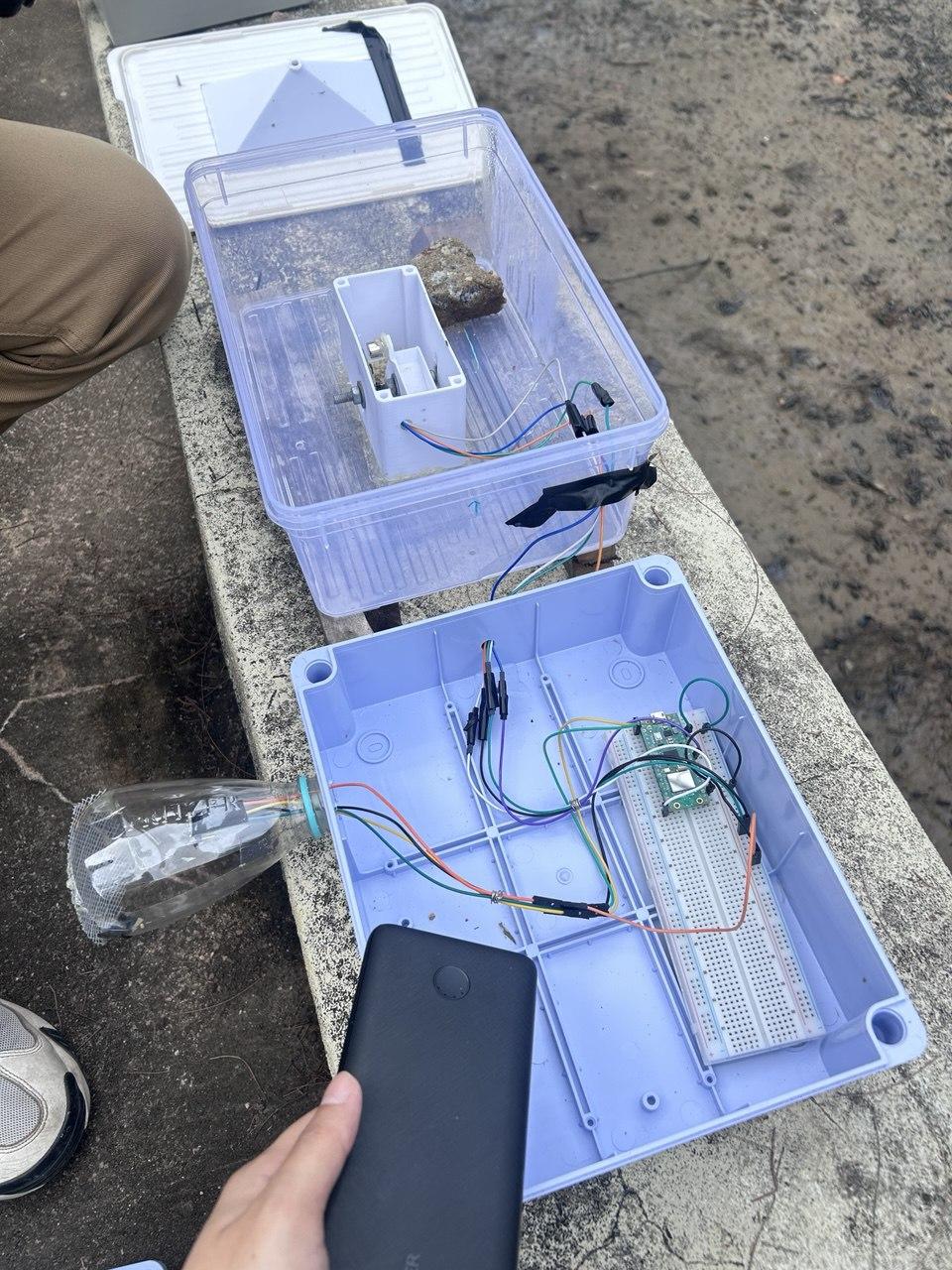
1. Positioning Place the gauge in an open area, away from trees or buildings that might block the rain. Use a bubble level to ensure the rim is perfectly flat.

2. Powering the Station Since the Pico W uses WiFi, it consumes too much power for a small coin battery. You have two options:

  1. Option A (Easiest): Use a high-quality, long Micro-USB cable (3-5 meters) connected to a USB wall adapter indoors. Ensure the cable entry into the box is sealed tight.
  2. Option B (Portable): Use a USB Power Bank (like those for phones). A 10,000mAh power bank can run this station for about 2-3 days. For long-term use, you would need a solar charging system (which is a great upgrade for Version 2.0!).

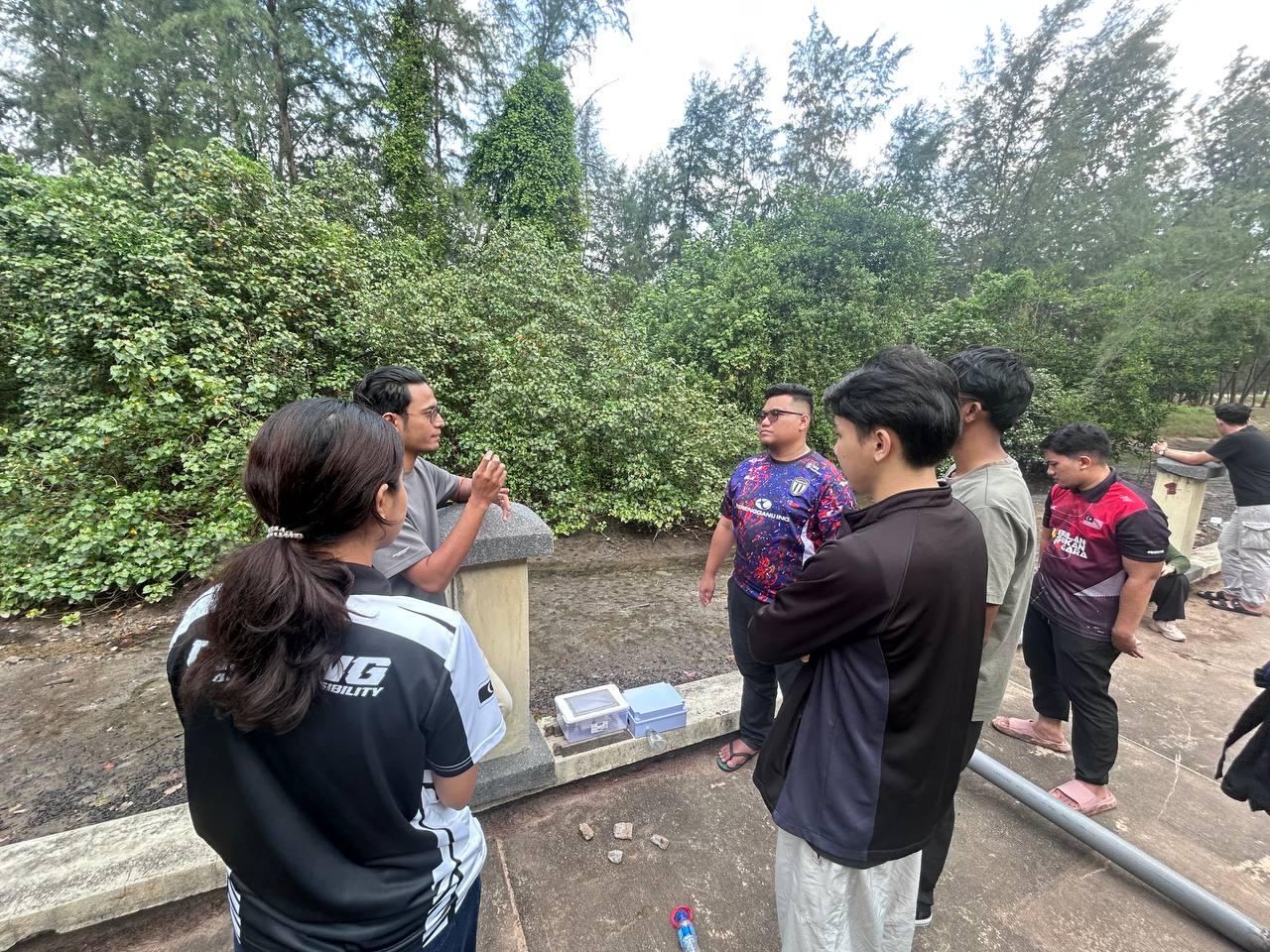
Once you plug the power in, watch the LED on the Pico. If you see 5 Fast Blinks, congratulations! Your station has successfully connected to WiFi and is now uploading live weather data to the cloud. You are officially running your own micro-weather observatory!