Electromagnetic Graphics Tablet




This Instructable explains how to build a simple graphics tablet using an Arduino Uno R3, two wire grids at right-angles, and an MLX90393 3D magnetic sensor module.
The accuracy, while not perfect, is consistent with the construction method:
- The tablet works well when the puck orientation is fixed.
- Any distortion is primarily due to wire height variations at cross-over points and manual construction tolerances.
- A look-up table to compensate for spatial distortion is possible but is not robust to rotation of the off-centre sensor
If you have an interest in watercolour painting, this tablet allows you to transfer the outlines of an image onto large sheets of watercolour paper by tracing a sketch or photograph and sending the digitised output to a plotter.
Construction is straightforward — all you require is a sharp knife, soldering iron, side-cutters, screwdriver, and access to a 3D printer.
The tablet cursor (puck) is 3D printed on a Voxelab Aquila using a 0.4 mm nozzle and 0.2 mm layer height with PLA filament.
All STL files are included.
Images
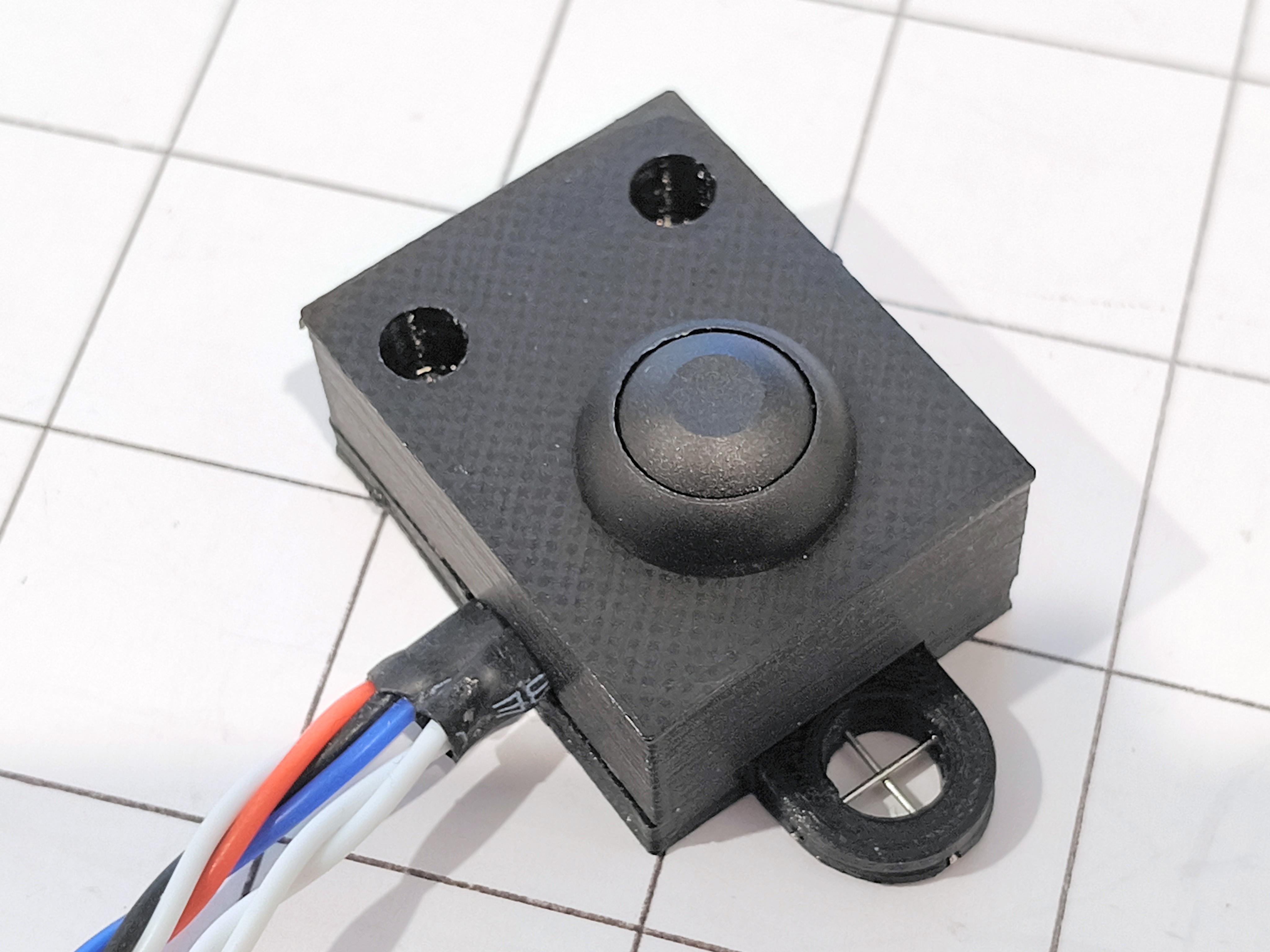
- Fig.1 (cover image) shows the inside of the tablet cursor (“puck”).
- Fig.2 shows the assembled puck
- Fig.3 shows the tablet.
- Fig.4 shows an image being captured to the screen
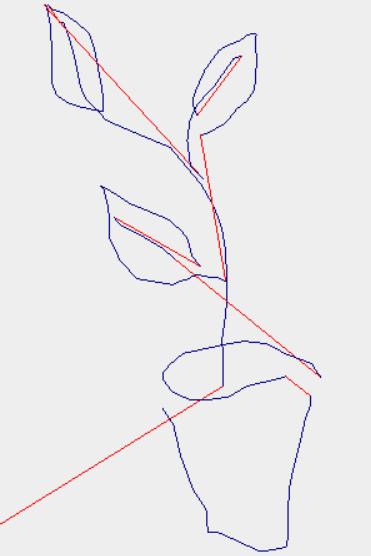
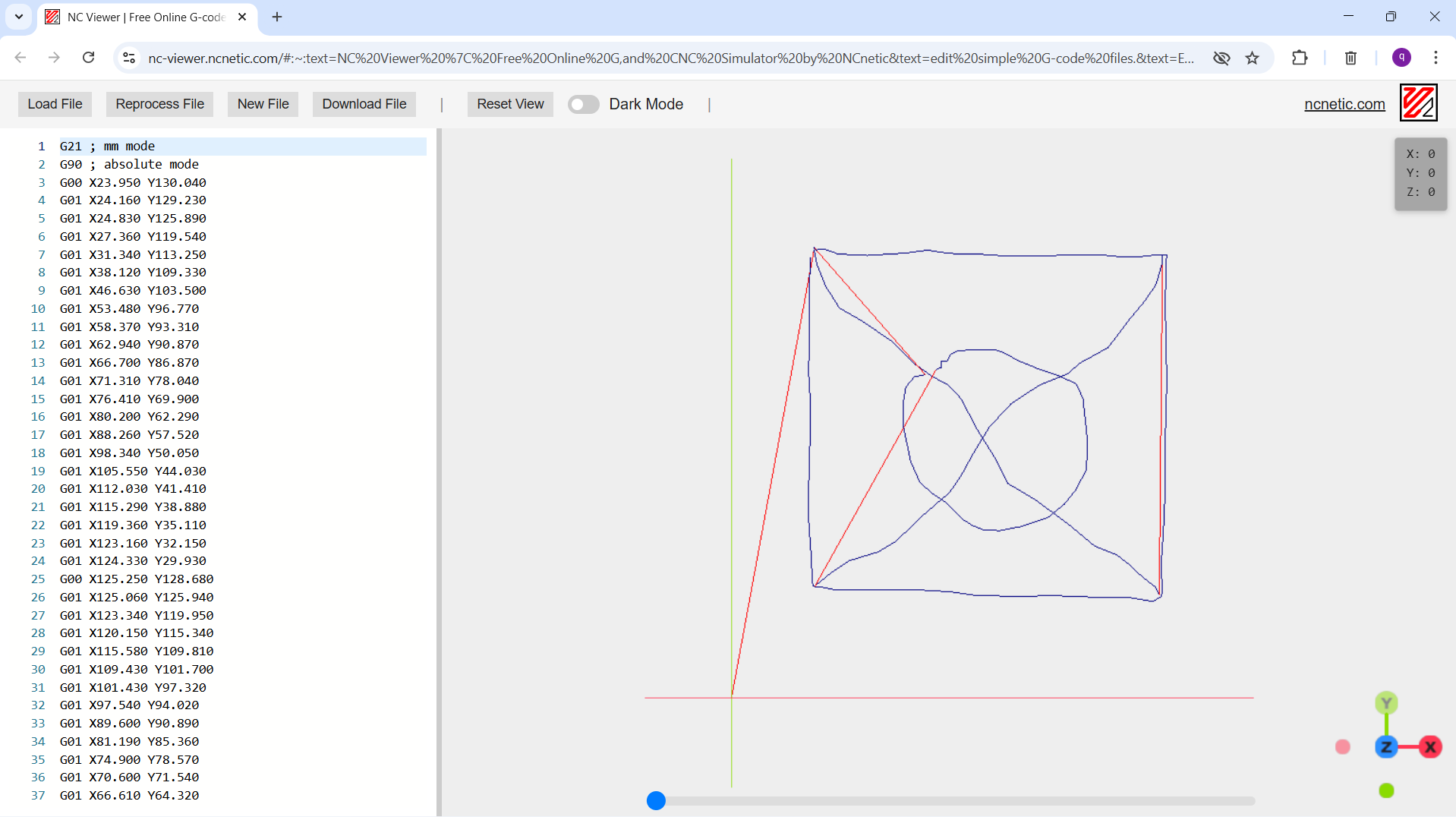
- Fig.5 shows the image we have just captured displayed on a virtual plotter https://nc-viewer.ncnetic.com/. The g-code is shown on the left. The red lines represent button_up ... the blue traces represent button_down.
Videos
- Video.1 shows the tablet in operation
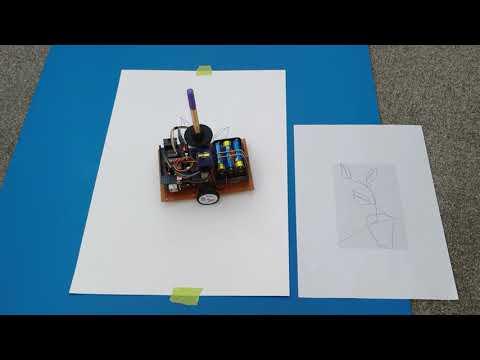
- Video.2 shows the image in fig.5 being plotted by a robot plotter.
Supplies
The following items were obtained from https://www.aliexpress.com/
- 1 only Arduino UNO R3 microcontroller and matching USB cable.
- 1 only MLX90393 3D magnetic sensor module.
- 1 only TB6612FNG motor controller module
- 1 only Arduino prototype board
The following items were obtained locally:
- 1 only 9 inch by 9 inch square of cardboard
- 1 only 26 gm spool of 0.4mm diameter enamelled copper wire
- 1 only LM7805 5 volt regulator.
- 1 only 12°C/watt heatsink
- 2 only 10 ohm 5 watt wire-wound resistors
- 1 only 1N4007 power diode
- 1 only 470 uF 16 volt tantalum capacitor
- 1 only 0.1 uF disc ceramic capacitor
- 1 only IP67 rated dome push-button
- 1 only roll of white fabric adhesive tape
- 2 only M3 x 10 bolts
- 2 only M3 nuts
- 2 only M2 x 4mm screws
- hookup wire
Excluding postage, the estimated cost of this project is less than $80 NZD.
Theory ... Magnetic Fields


Fig.1 shows the field pattern seen on a magnetic viewer, from columns of NSNS magnets spaced one inch apart. The north to south field transitions appear in yellow.
Regardless of where we start, the horizontal distance from the left-side of the page can be measured by counting the number of transitions as we move towards the right-side of the page.
Fig.2 shows a similar field pattern ... this time from alternate rows of NNNN SSSS magnets spaced one inch apart. Again the north to south field transitions appear in yellow.
Regardless of where we start, the vertical distance from the bottom of the page can be measured by counting the number of transitions as we move towards the top of the page.
Unfortunately it’s not possible to combine these two magnet patterns as the magnets can’t be in two different configurations at once.
Fig.3 shows the field pattern when the magnets are arranged NSNS horizontally and SNSN vertically. This arrangement is unusable as there are areas of zero magnetic field between each cluster of four magnets.
Theory ... Electromagnetic Fields

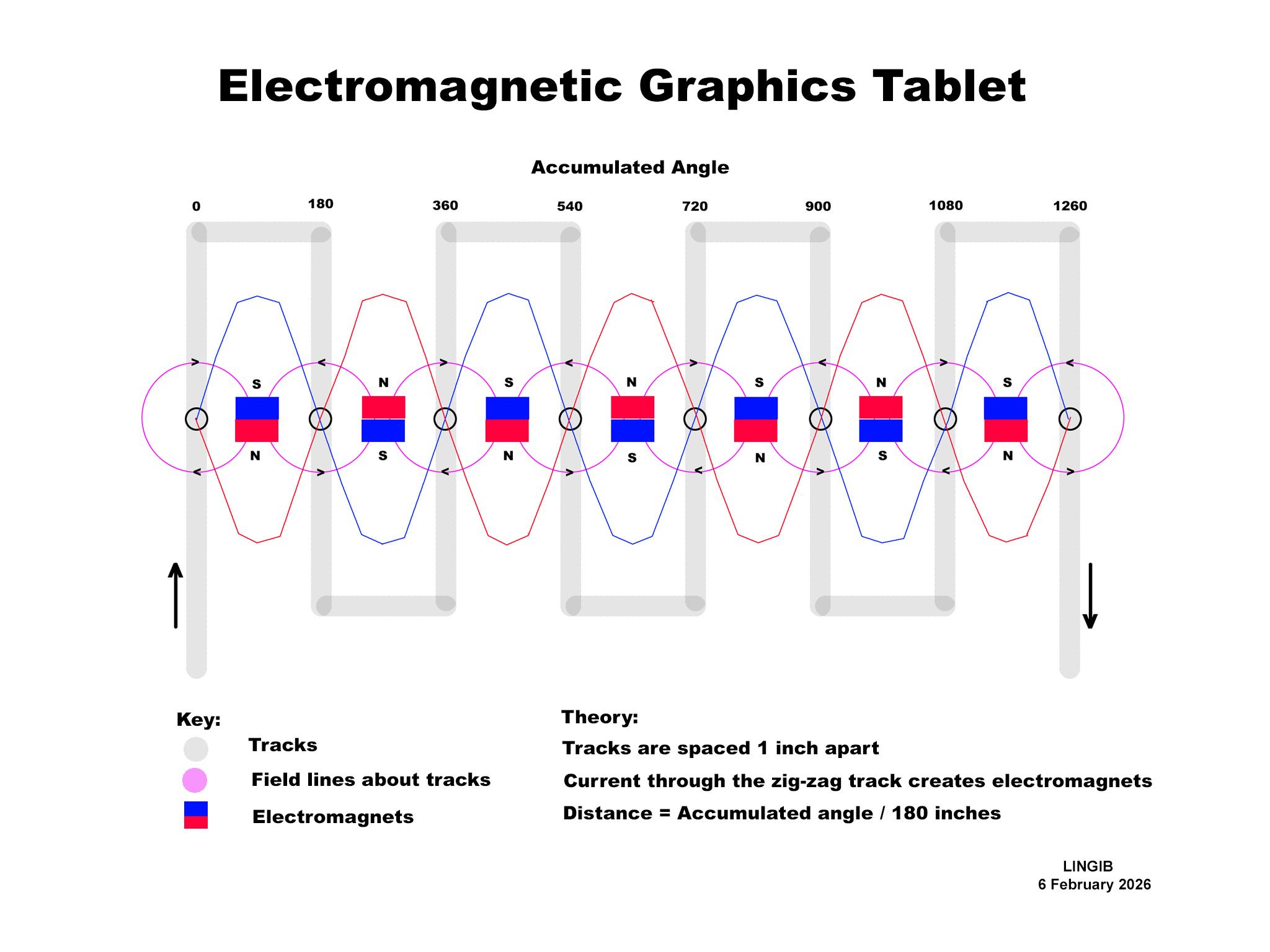
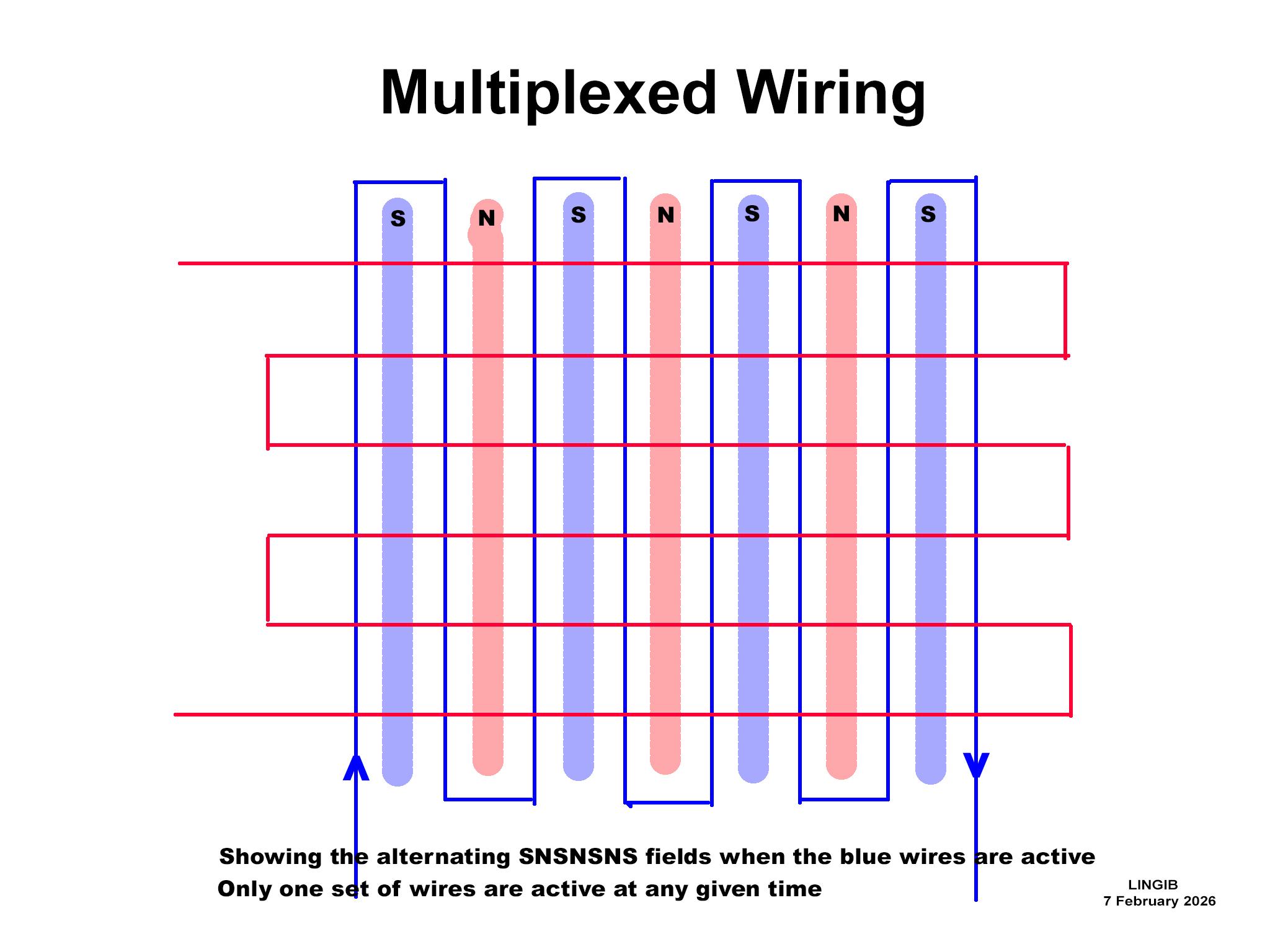
Fig.1 shows a wire laid out in a “serpentine” pattern with each vertical column 1 inch apart.
Fig.2 depicts the current direction (black arrows) through, and magnetic fields (purple circles) surrounding the wire.
Since the current in adjacent columns is flowing in opposite directions, the magnetic fields alternately rotate clockwise then anticlockwise. These magnetic fields combine to form tiny electromagnets, similar to “bar magnets” in which the magnetic lines of force flow north to south.
When viewed side on these “electromagnets” are arranged NSNS with 1 inch spacing which is a similar to the permanent magnet pattern that I used in my instructable https://www.instructables.com/Magnetic-Ruler/ .
The red and blue “sinewaves” represent the north and south field strengths that the “puck” sees as it moves from left to right across the page.
Distance can be measured by counting these transitions.
Partial distance between transitions can be determined from the “sinewave” phase.
Absolute distance is found by adding the two together. In practice I measure the total phase-change and divide by 180°
Fig.3 shows two crossed serpentine arrays. Switching the field patterns in quick succession let’s you measure the X-axis distance, and then the Y-axis distance, to get your XY coordinate.
Circuit
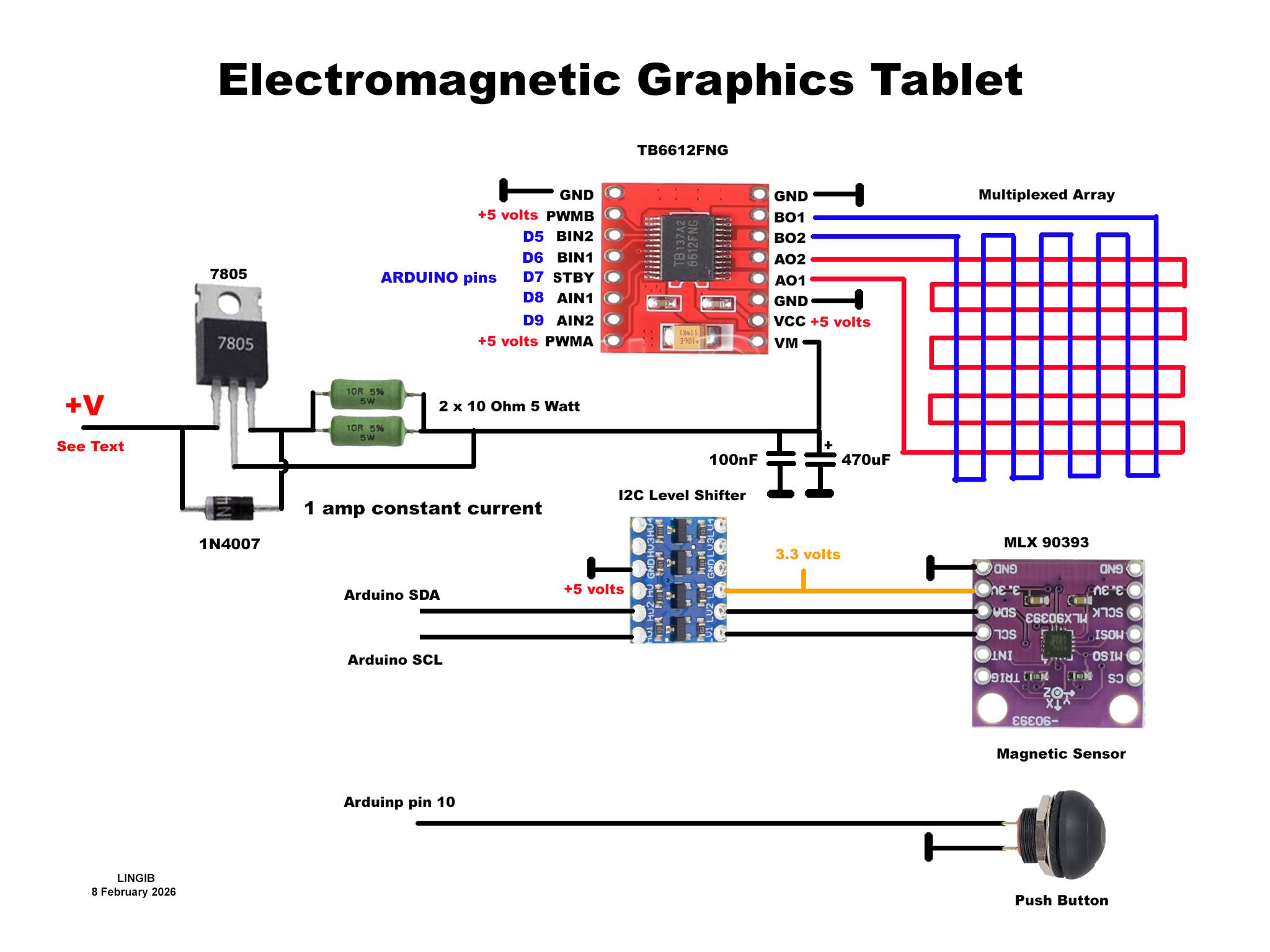

The circuit for the tablet is shown in fig.1 above.
You will need the 7805 circuit and a 12 volt supply if you haven’t got a constant current power supply.
The 7805 voltage regulator is wired as a 1 amp constant current generator by maintaining 5 volts across the 5 ohm resistor formed by the two 10 ohm resistors in parallel. [1]
The 1N4007 diode provides reverse voltage protection to the 7805 when the supply is disconnected by providing a discharge path for the two capacitors.
The TB6612FNG motor controller has been repurposed. Instead of driving motors, the output channels are connected to two serpentine conductor arraysarranged at right-angles. Only one array is energized at any moment. The logic levels on BIN1, BIN2, AIN1, AIN2, and STBY determine which array is active and its polarity.
The MLX90393 sensor detects the magnetic fields from the multiplexed arrays.
Press the push button to draw.
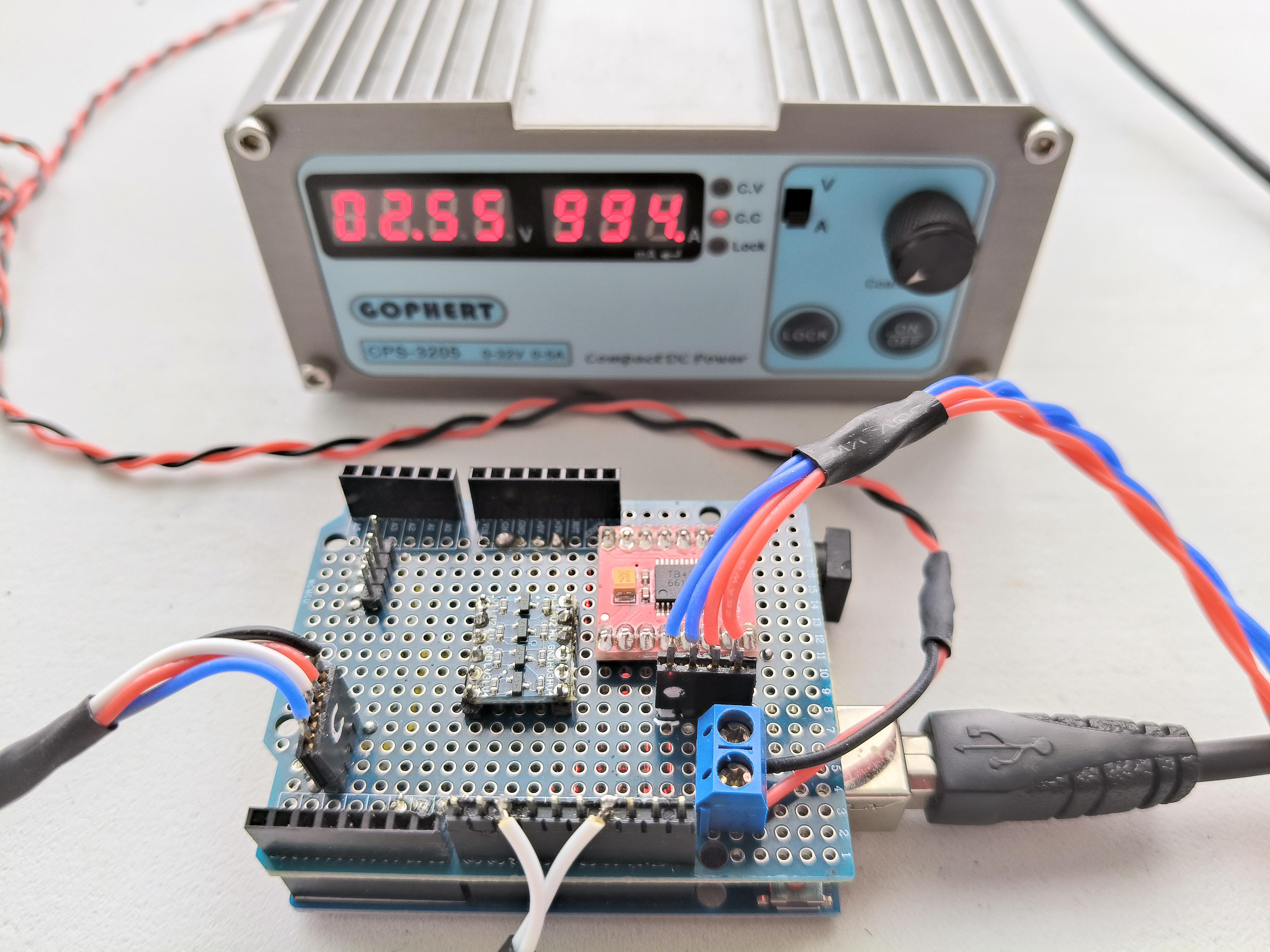
Fig.2 shows the TB6612FNG motor controller (aka multiplexer) mounted on an Arduino prototype board. The puck is connected to the Arduino via the I2C level shifter.
In this photo I’ve connected a separate constant current power supply to the TB6612FNG motor controller rather than connecting a 12 volt supply to the 7805 constant current circuit. The voltage drop across the TB6612FNG VM terminal (voltage motor) is 2.55 volts with 0.994 amps flowing.
Fig.3 shows everything connected
Notes
[1]
The voltage across the TB6612FNG motor controller and coil is approximately 2.6 volts when 1 amp is flowing . The voltage across the two resistors is 5 volts. The 7805 requires at least 2 volts across it for it to work correctly. Adding these ... the supply voltage needs to be at least 9.6 volts.
The 7805 regulator will need a heat sink. Assuming a 12 volt supply the voltage drop across the regulator will be 12 - 5 - 2.6 = 4.4 volts which equates to 4.4 watts when 1 amp is flowing. A 12°C/watt heat sink should be satisfactory
Coil Construction



Step1
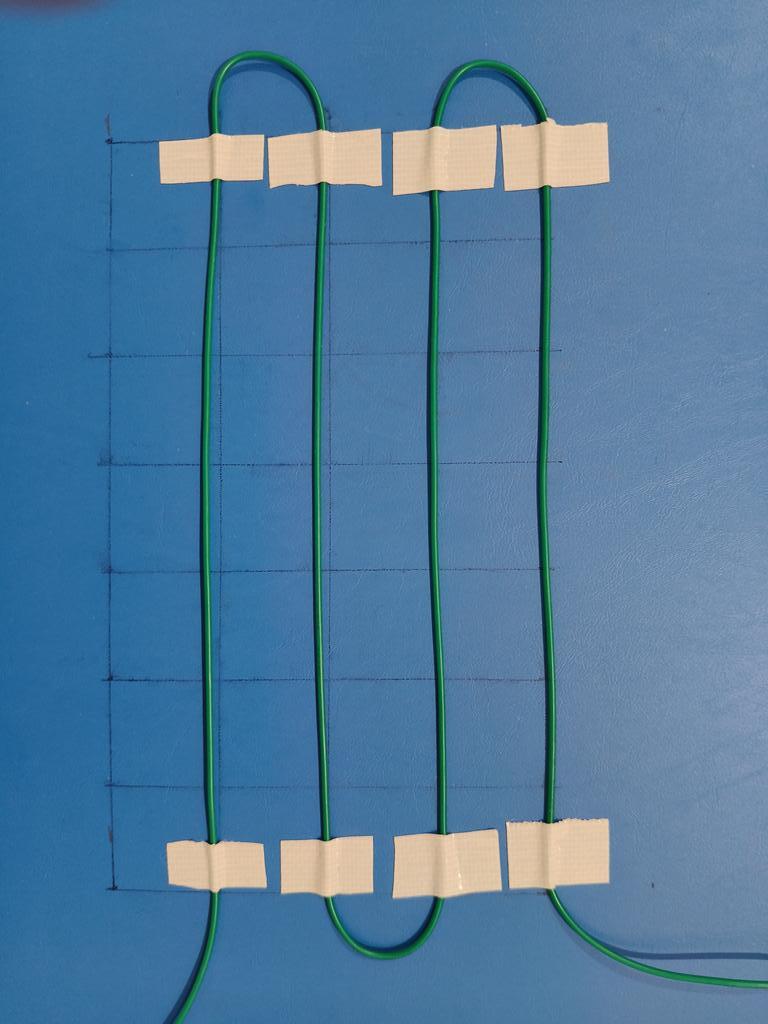
Fig.1 shows a test grid with 1 inch spacing.
Connect this winding to a variable power supply and increase the current until your MLX90393 sensor reliably detects the magnetic field. I found that an MLX90393 sensor needed a current of 3 amps. Since there is only 1 turn of wire this equates to a magnetomotive force of 3 ampere-turns. We will use this value later to calculate the number of turns required for each coil.
Step2
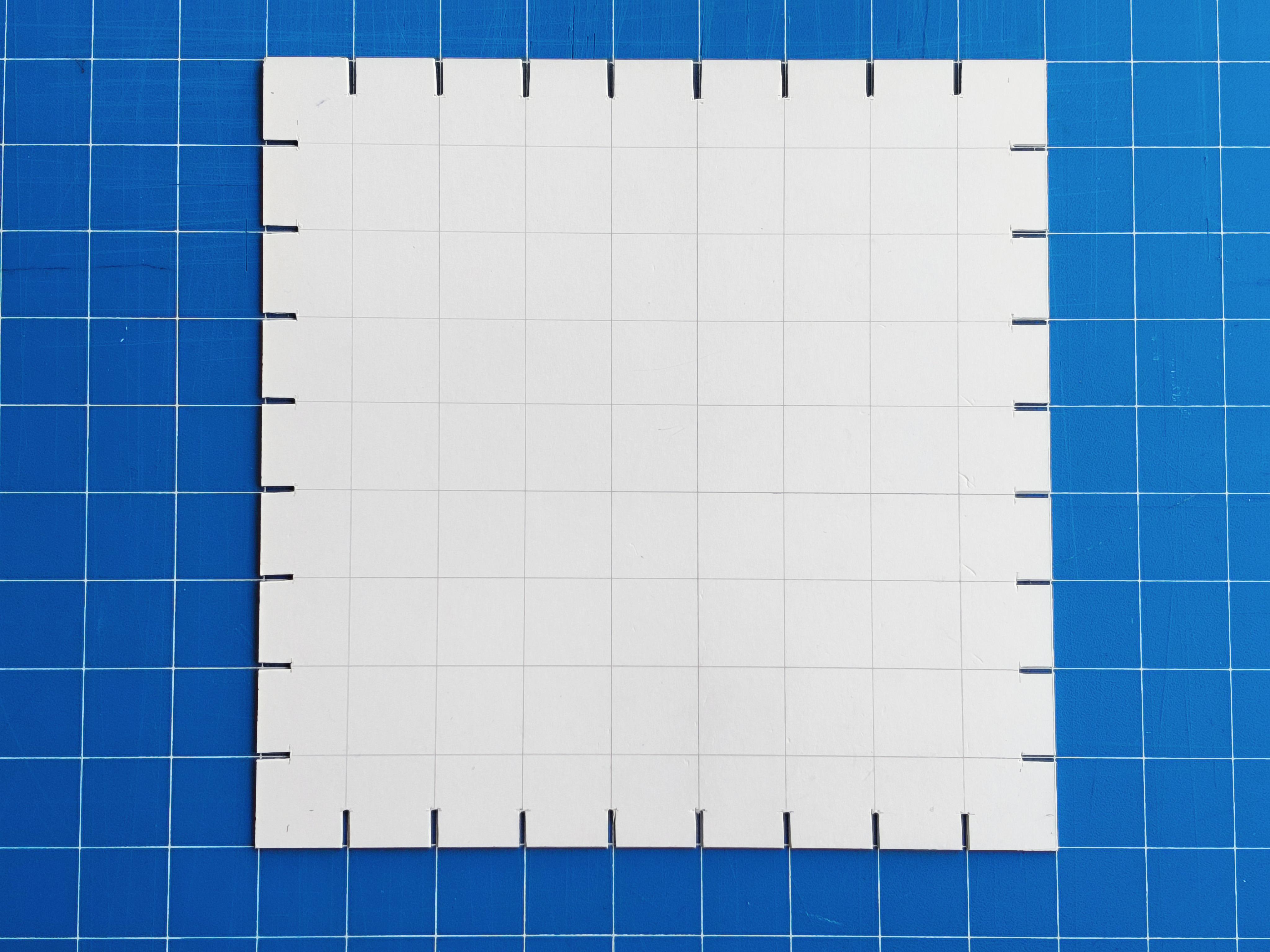
Cut 0.5 inch slots into a square of stiff cardboard as shown in fig.2. This card becomes the coil-former when winding the coils.
Step3
If we use a TB6612FNG motor controller to switch between coil windings we need to reduce the current to below its maximum continuous current rating of 1.2 amps. This can be achieved by increasing the number of turns.
Assuming we limit the current to 1 amp then we need at least 3 turns to maintain a magnetomotive force of 3 ampere-turns. To be on the safe side, AND to create a stronger magnetic field, each of my rectangular coils have four turns of 0.4 mm enamelled copper wire.
Four 4-turn coils side by side create the 8 columns shown in fig.3. Make pin-holes through the cardboard at each end for holding the wire ends in position.
A 26gm spool of 0.4mm diameter enamelled copper wire contains approximately 23 metres of wire which is enough for both arrays.
Step4
It is essential that each column is straight. To achieve this I tied each column into tight bundles at regular intervals using sewing thread then, with aid of ruler, taped each of the columns into straight parallel lines as shown in fig.4.
Step6
Now add the horizontal windings as shown in fig.5. In this photo you can see each of the four 4-turn coils connected by a single continuous wire.
Step7
Attach hookup wire to the ends of each coil and bring them out at one corner as shown in fig.6. To keep the far end of each hookup wire in place I inserted them into the side slots in an “under-and-over” manner and taped the hookup wires together at the exit point.
Step8.
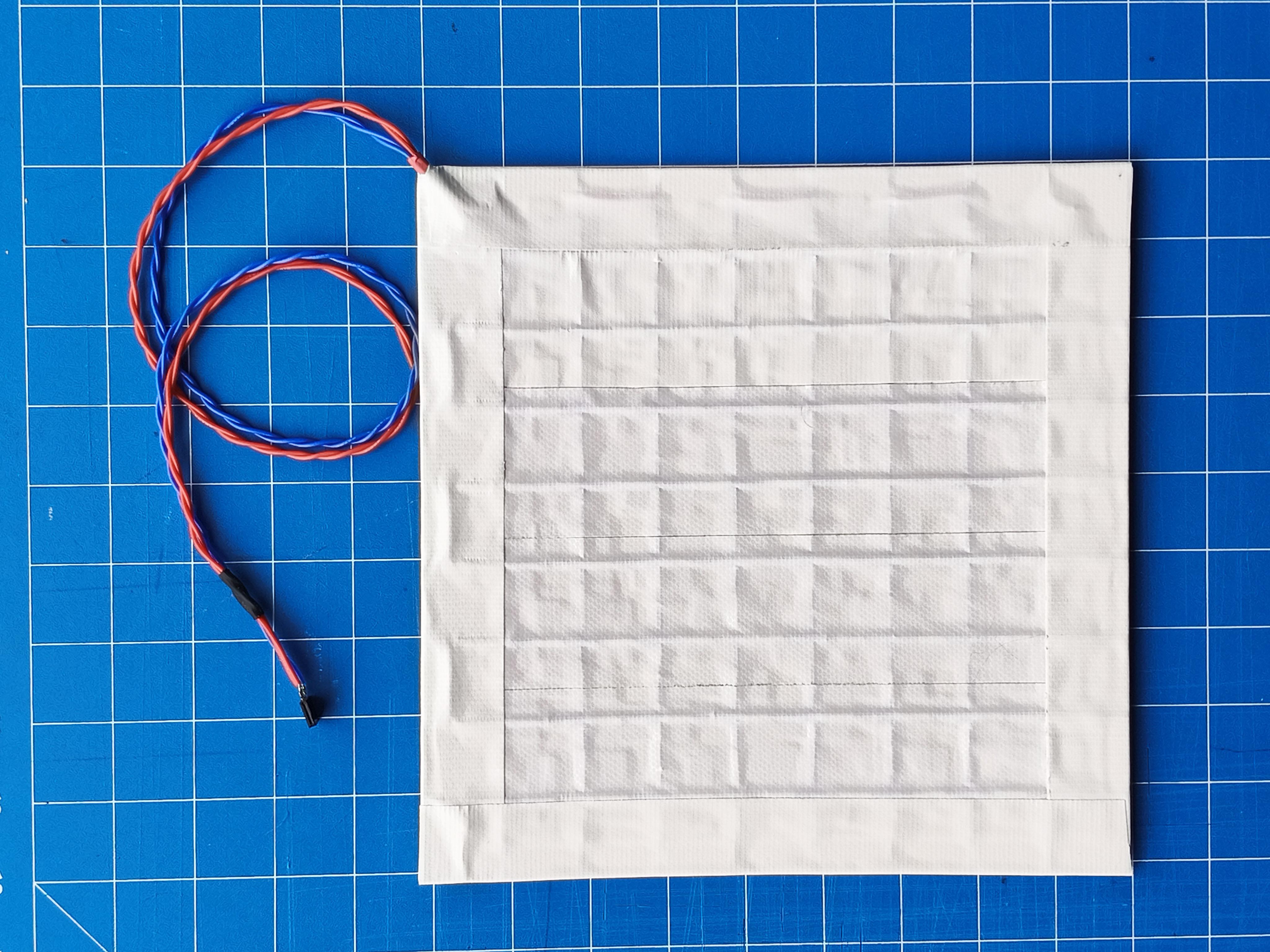
Protect the windings with strips of 2 inch wide cloth adhesive tape as shown in fig.7 and fig.8. The tape also prevents scratching your work surface.
Tablet Cursor (Puck)


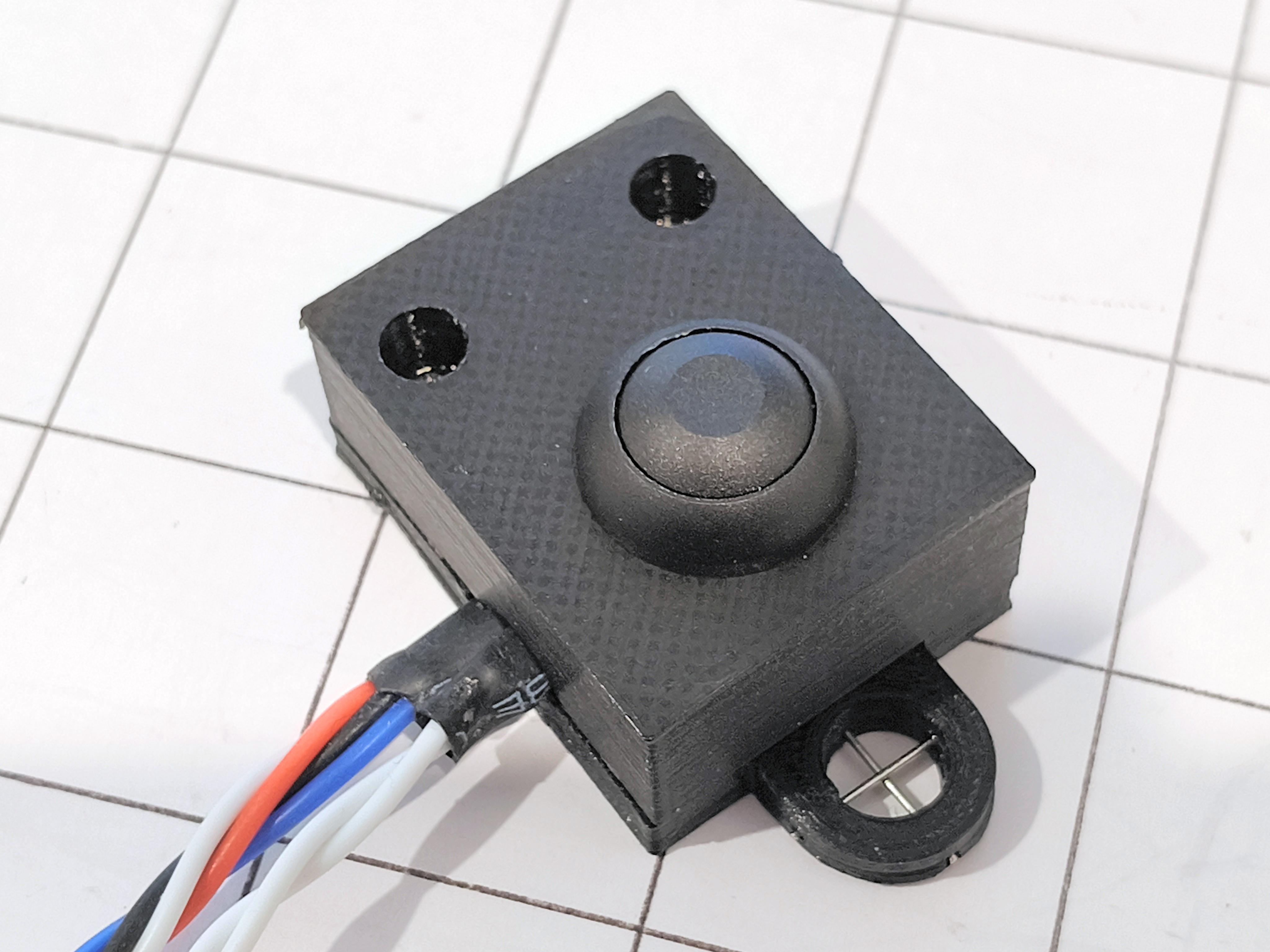
The tablet cursor (puck) is made from five components:
- Fig.1 push-button mount
- Fig.2 push-button mount with a dome push-button fitted [1]
- Fig.3 sensor mount
- Fig.4 sensor mount with sensor fitted
- Fig.5 assembled puck ... note the cursor wires.
The cursor crosshairs are formed by inserting sewing pins into the holes provided and snipping the ends.
STL files
The STL files for the two halves of the puck are attached: [2]
- puck2.stl
- puck2_top.stl
Each half was printed on a Voxelab Aquila 3D printer using 1.75mm diameter PLA filament and a 0.4mm nozzle with 0,2mm spacing [2]
Notes
[1]
The serrated lock washer that comes with the IP67 rated dome pushbutton is magnetic. Discard this washer as it affects the sensor readings. The lock nut is fine as it is non-magnetic.
[2]
For easier viewing, the cross-hair for “puck2.stl” is larger than that shown in fig.5. The cross-hair is also exactly 1 inch from the sensor should you wish to calibrate the tablet.
[3]
Keep the puck parallel to the top edge when tracing outlines as the sensor is 1 inch off-centre.
Software Installation
Arduino
- If not already installed, download and install a copy of the Arduino integrated development environment (IDE) from https://www.arduino.cc/
- Download the attached file “electromagnetic_graphics_tablet_v2.ino”
- Copy the contents into a new Arduino sketch. Use a text editor such as Notepad++ ... not a word processor
- Save the file as “electromagnetic_graphics_tablet” without the quotes
- Upload the file to your Arduino
- Done
Processing 4
- If not already installed, download and install a copy of “Processing 4” from https://processing.org/
- Download the attached file “electromagnetic_graphics_tablet_v5.pde”
- Copy the contents into a new Processing sketch. Use a text editor such as Notepad++ ... not a word processor
- Save the file as “electromagnetic_graphics_tablet” without the quotes
- Done
Operation

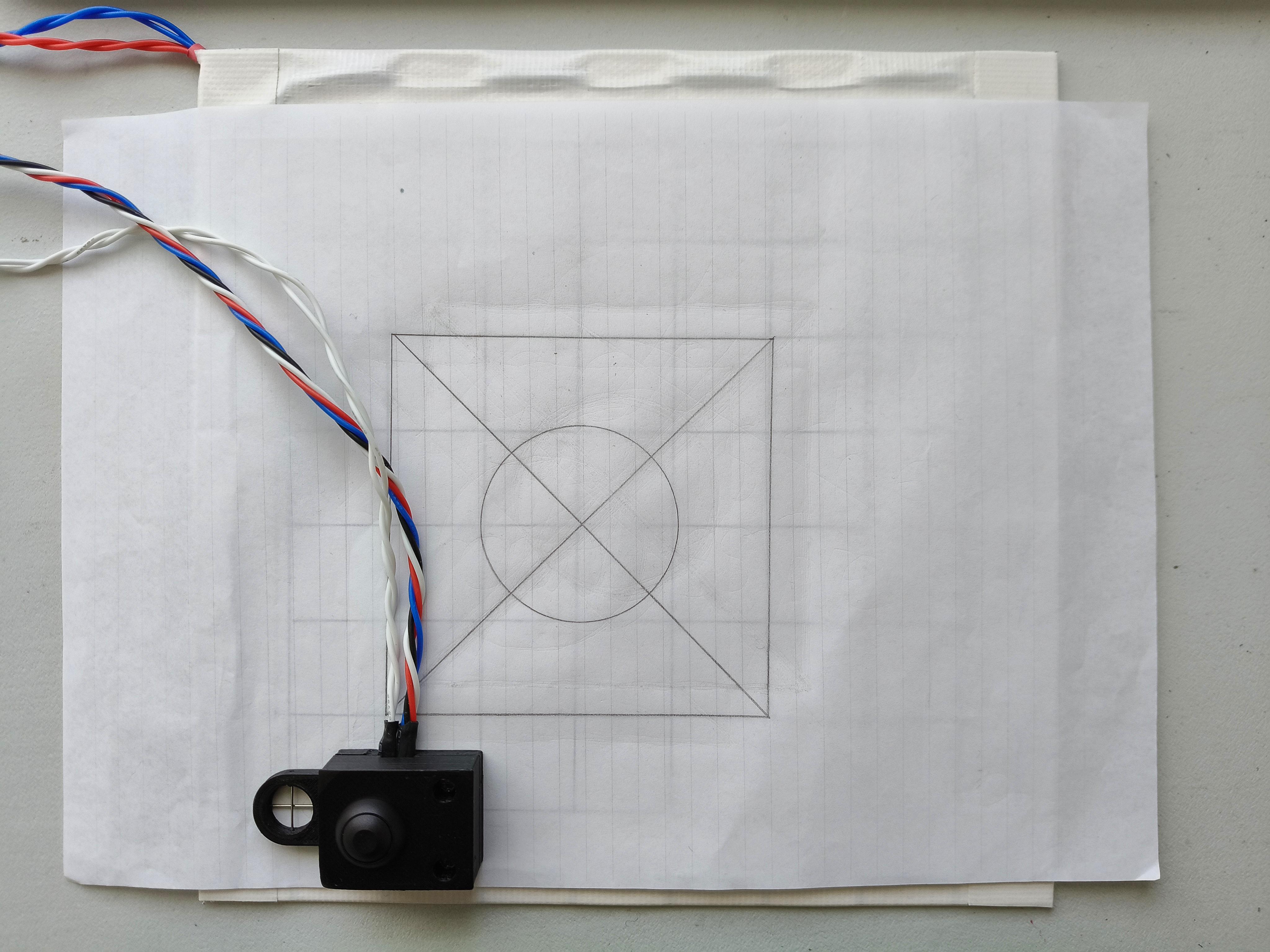



Method
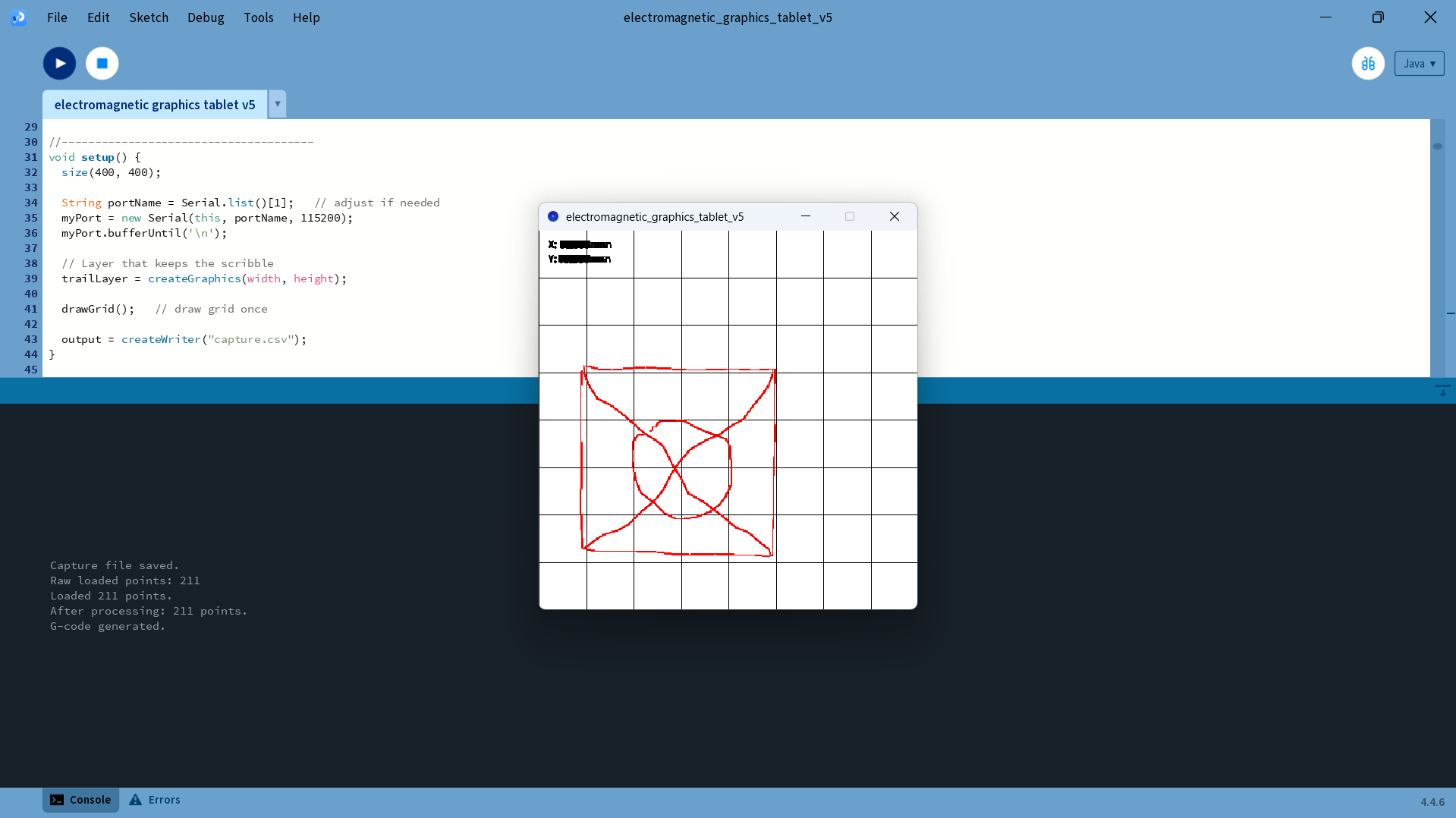
- Fig.1 Launch Processing 4
- Fig.2 Place your drawing over the tablet and position the puck at the lower left corner
- Fig.3 Press the Processing 4 “Run” button then press the Arduino “Reset” button
- Fig.4 See note [1]
- Fig.5 Trace the outline of your drawing ... the path you trace will appear on the screen
- Fig.6 Press the PC spacebar when you have finished ... a summary will appear
- Fig.7 A numerical control file “output.nc” will also appear in your Processing folder
- Fig.8 Go to the website https://nc-viewer.ncnetic.com/ to view the contents of “output.nc”
- Fig.9 See note [2]
Notes
[1]
If processing can’t find your Arduino go to the setup() section of the code and change the number inside the square brackets. I orginally started with a ‘0’ but now use a ‘1’ as shown in fig.4
- String portName = Serial.list()[1]; // adjust if needed
[2]
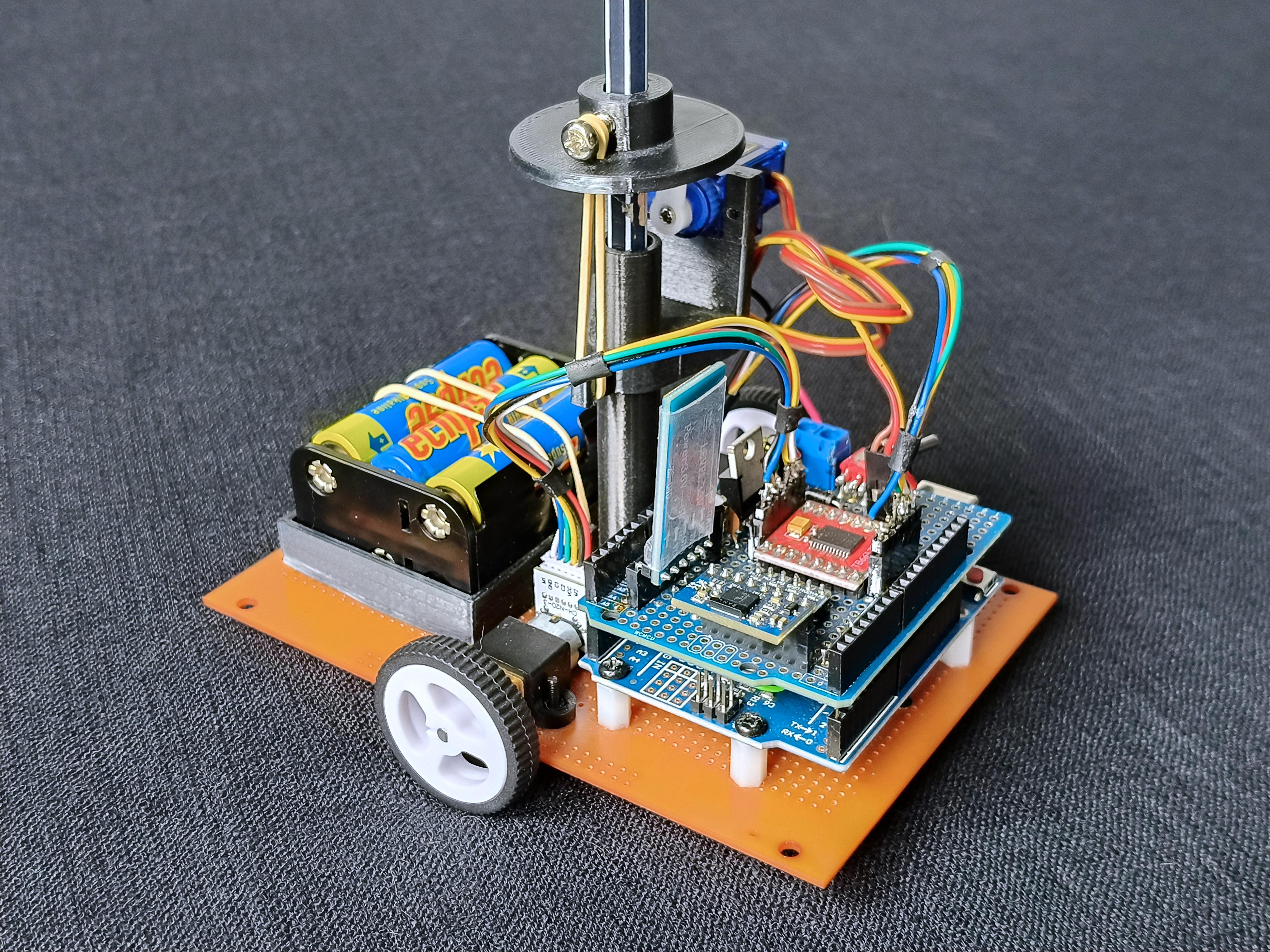
My instructable “:”https://www.instructables.com/Gyro-Controlled-Robot-Plotter/” contains:
- Instructions on how to make a robot plotter (fig.9)
- A terminal program “XON_XOFF_terminal.pde” for sending “output.nc” to the plotter
Scaling


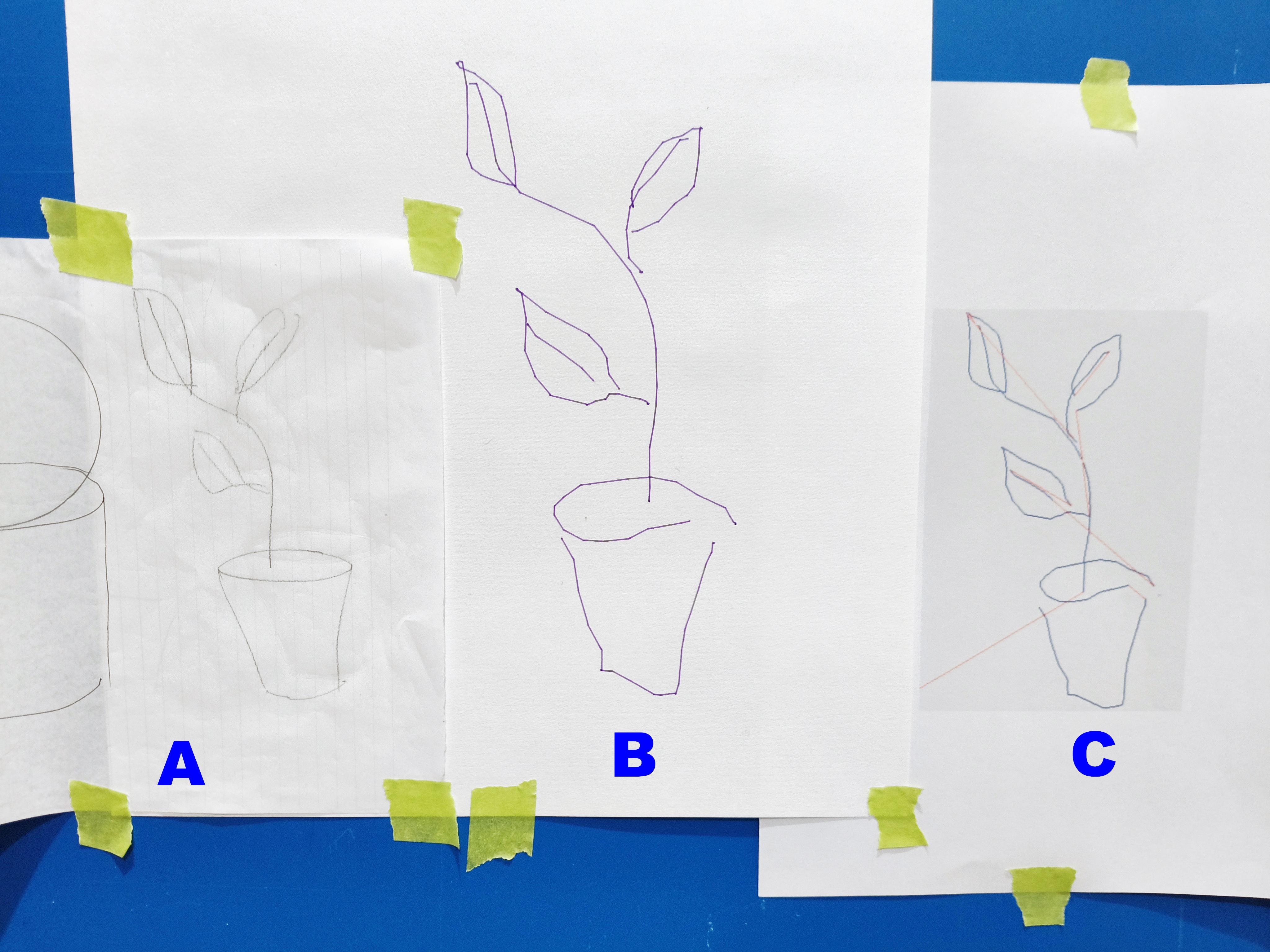
Fig.1 is a hand-drawn sketch
Fig.2 shows the “tool-path“ obtained when fig.1 was traced. [1]
Fig.3 shows: [2]
- the original hand sketch (image ‘A’)
- the plotted image which has been scaled 1.5 times (image ‘B’)
- what was actually traced (image ‘C’)
Notes
[1]
To obtain this tool-path, the “output.nc” file created by tracing fig.1 was submitted to https://nc-viewer.ncnetic.com/
The blue lines are when the puck-button was pressed ... the red lines are when the puck-button was released.
[2]
When enlarging watercolour outlines it is important that the various parts of the image remain correctly positioned. Any inaccuracies can be fixed by hand.
The 1.5 times scaled image was drawn using the plotter described in my instructable https://www.instructables.com/Gyro-Controlled-Robot-Plotter/
To scale the image using “XON_XOFF_terminal.pde” simply type scale 1.5 immediately after you have selected the COM port number.
The XON_XOFF_terminal.pde software may be found in Step 11: XON_XOFF_terminal in instructable https://www.instructables.com/Gyro-Controlled-Robot-Plotter/
Summary
This Instructable explains how to build a simple graphics tablet using an Arduino Uno R3, two wire grids at right-angles, and an MLX90393 3D magnetic sensor module.
The accuracy, while not perfect, is consistent with the construction method:
- The tablet works well when the puck orientation is fixed.
- Any distortion is primarily due to wire height variations at cross-over points and manual construction tolerances.
- A look-up table to compensate for spatial distortion is possible but is not robust to rotation of the off-centre sensor
If you have an interest in watercolour painting, this tablet allows you to transfer the outlines of an image onto large sheets of watercolour paper by tracing a sketch or photograph and sending the digitised output to a plotter.
Construction is straightforward — all you require is a sharp knife, soldering iron, side-cutters, screwdriver, and access to a 3D printer.
The tablet cursor (puck) is 3D printed on a Voxelab Aquila using a 0.4 mm nozzle and 0.2 mm layer height with PLA filament.
All STL files are included.
Excluding postage, the estimated cost of this project is less than $80 NZD.
Click here to view my other instructables.