Elegoo Phecda - Add Limit Switches
by BadMonkeyEdd in Workshop > Laser Cutting
76 Views, 1 Favorites, 0 Comments
Elegoo Phecda - Add Limit Switches
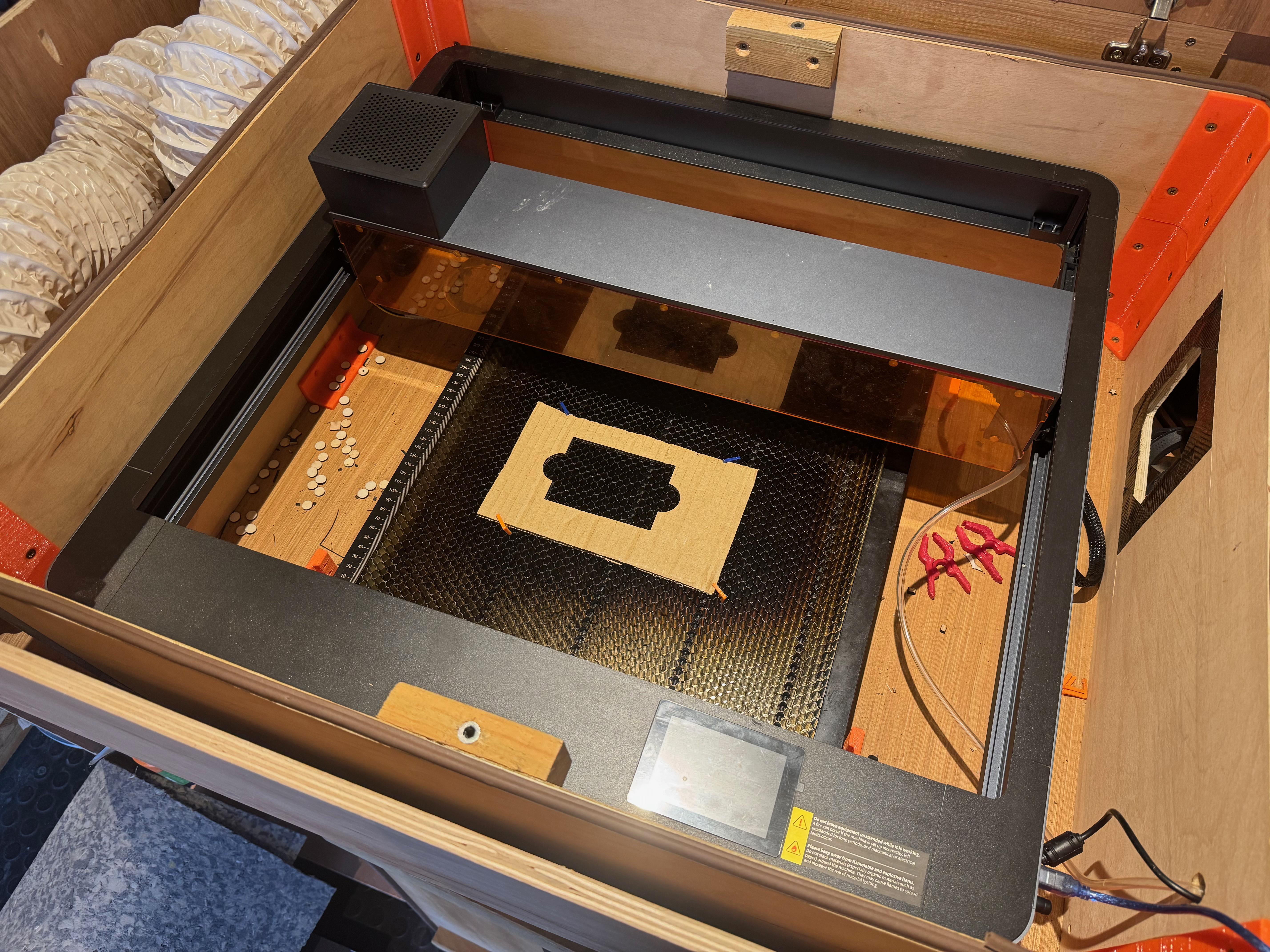
This Intructable details how to add limit switches to an Elegoo Phecda laser cutter, with details on wiring the switches, adding the 3D printed brackets to the device and setting up Lightburn.
The Elegoo Phecda is a capable laser cutter, but lacks limit switches to allow consistent and automated homing, which in turn makes repeatability of cuts more difficult and/or time consuming. By adding limit switches it improves the laser significantly.
Supplies
The following items are needed for this Instructable:
- 3D printed bracket. Files are free on Printables.
- This print details the hardware (e.g. M2, M3 and M4 nuts and bolts) needed for connecting the brackets to the device
- About 6 3D printed clips. Files are free on Printables.
- 2x Micro Switches TIAIHUA 1A 125V (also detailed in the Printables link)
- 20awg wire
- 2x JST XHP-3
- Heat shrink
Tools:
- Soldering iron
- Solder + flux
- Wire cutters
- Wire strippers
- Screw drivers, allen keys etc.
Wire the Limit Switches
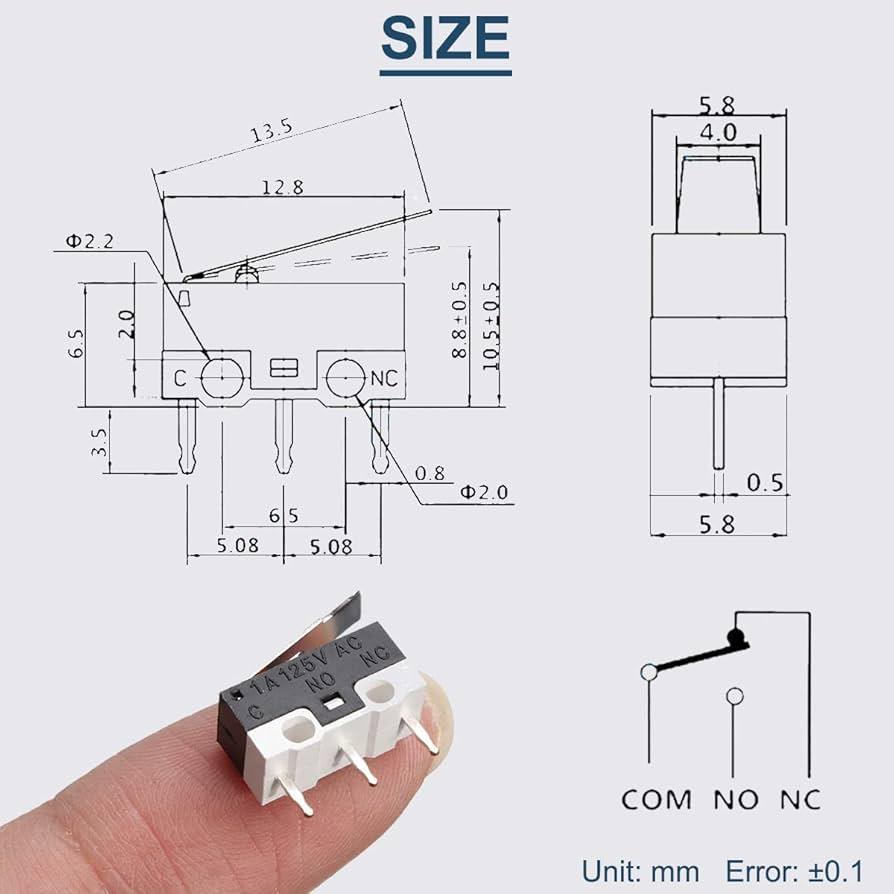
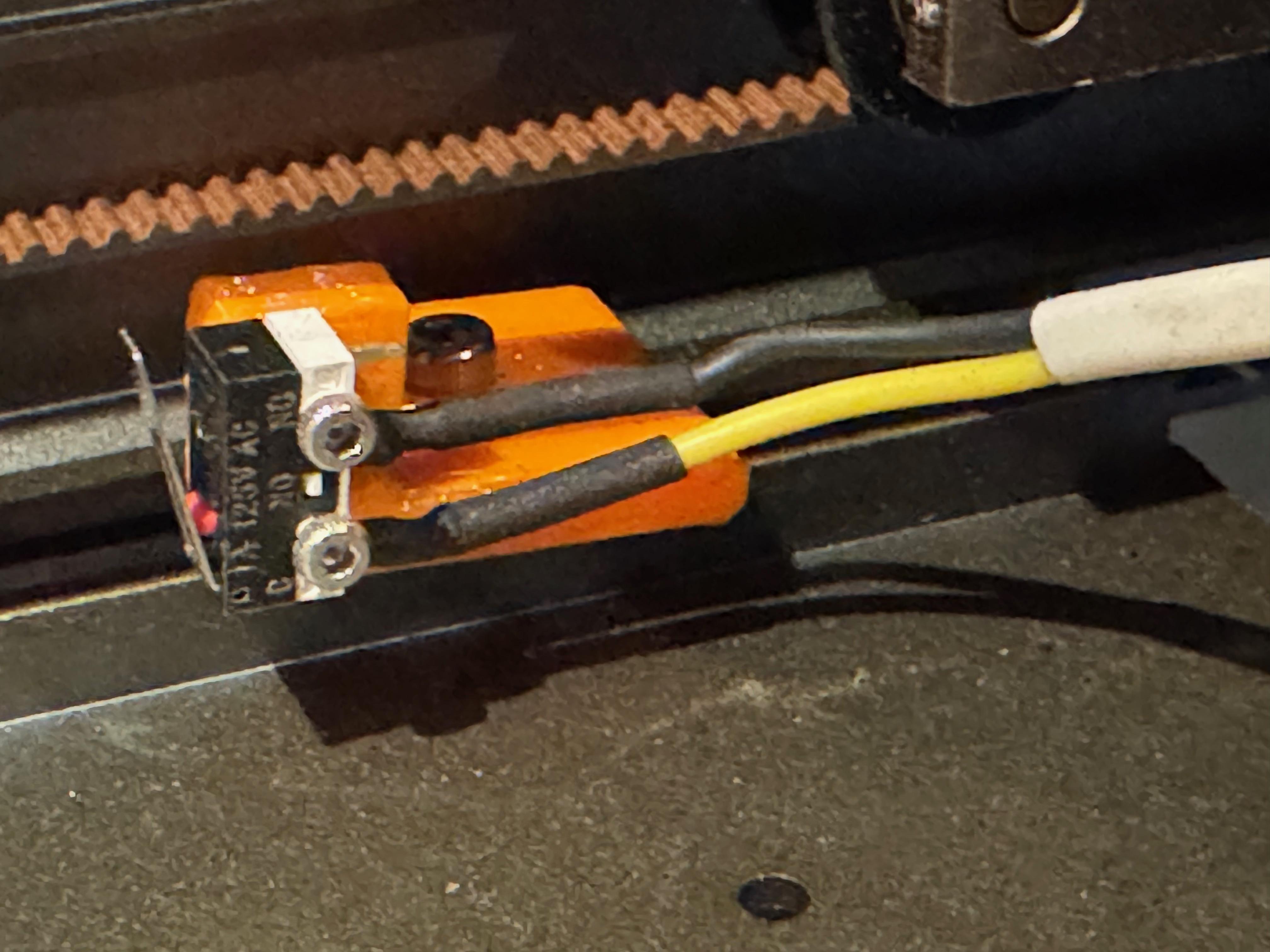
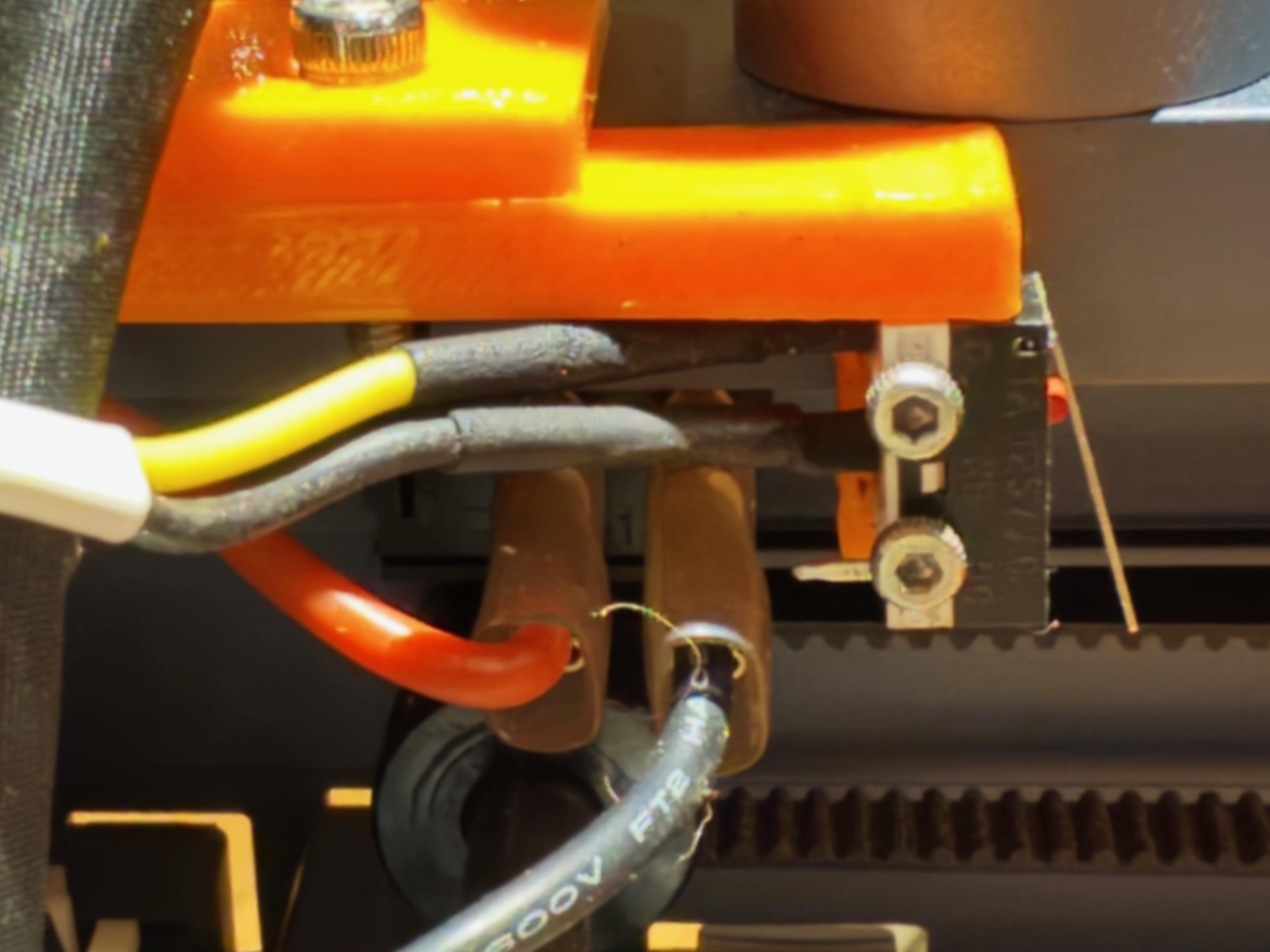
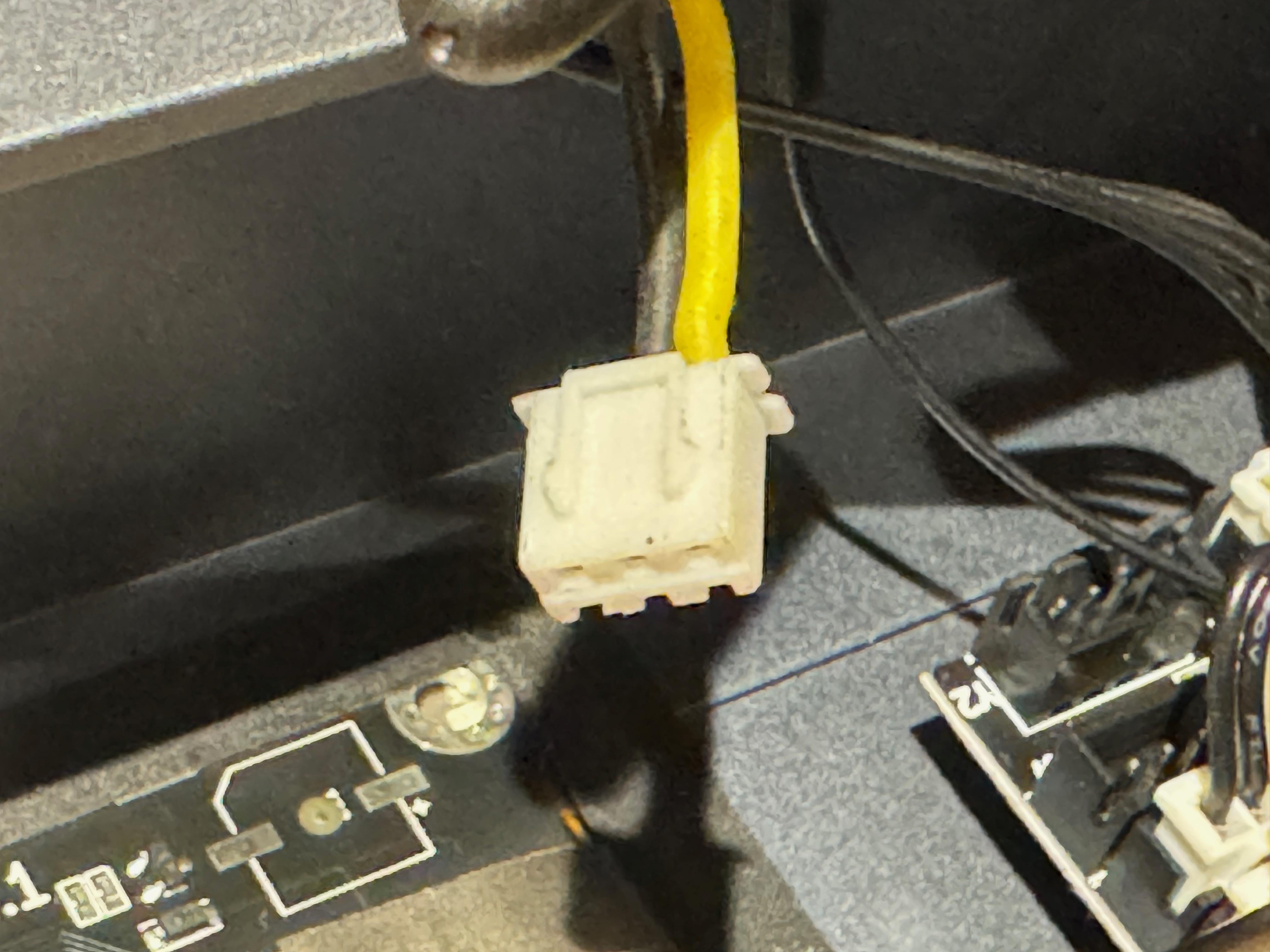
For each limit switch, 2 wires are required, one for the COM (common) connection (which is by the hinge of the switch), and the other for the NO (normally open) connection (the middle pin).
The X axis switch needs a pair of approximately 115cm wires for each terminal, and the Y axis switch needs a pair of approximately 15cm wires for each terminal. Solder wires to the COM and NO pins, and cover with heat shrink.
The other end of the wires need to be connected to one of the JST XHP-3 connectors. These connectors are individual pins that need to be crimped to the wire, then inserted into the plastic plug. The NO wire (black in my setup) is the middle pin in the JST, and the COM wire (yellow in my setup) is the side pin in the JST connector. Please check the images to see which side.
Attach the X Axis Switch

Using the images in the Printables model, bolt the limit switch to the 3D printed items using the M2 screws and nuts, and assemble the 3D printed items as described/shown in the Printables images. The switches should be assembled to the 3D printed parts before being attached to the laser cutter.
When attaching the X limit switch (the one on the gantry near the extractor fan), I found it easier to:
- Connect the 'Nutenstein v6' losely to the (misnamed) 'Y-Endstop-Plate'.
- Losen the fan (you may be able to do with by removing a single bolt, and possibly losening the other bolt).
- Slide the losely cuppled 'Nutenstein v6' into the slot in the correct orientation and slide along.
- Tighten the bracket in the position shown in the Printables image.
Attach the Y Axis Switch

Attaching the Y axis switch and bracket is much easier than the X axis switch and bracket as it only requires removing a couple of the the existing bolts that hold the frame together and replacing with longer bolts and the 3D printed bracket.
Before attaching the bracket, the limit switch needs to be already installed using the M2 bolts and nuts in the orientation shown.
Connect the Limit Switches
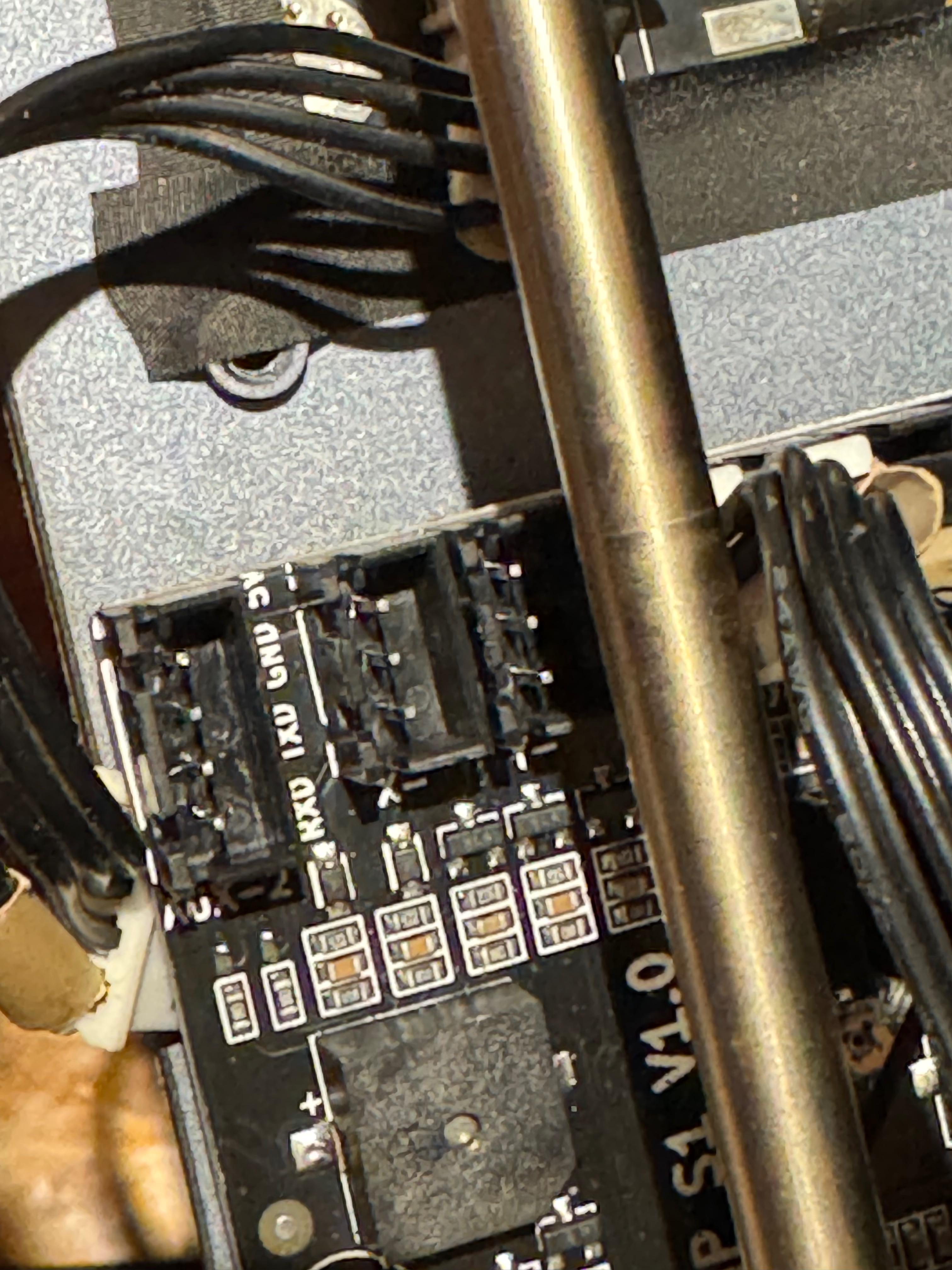
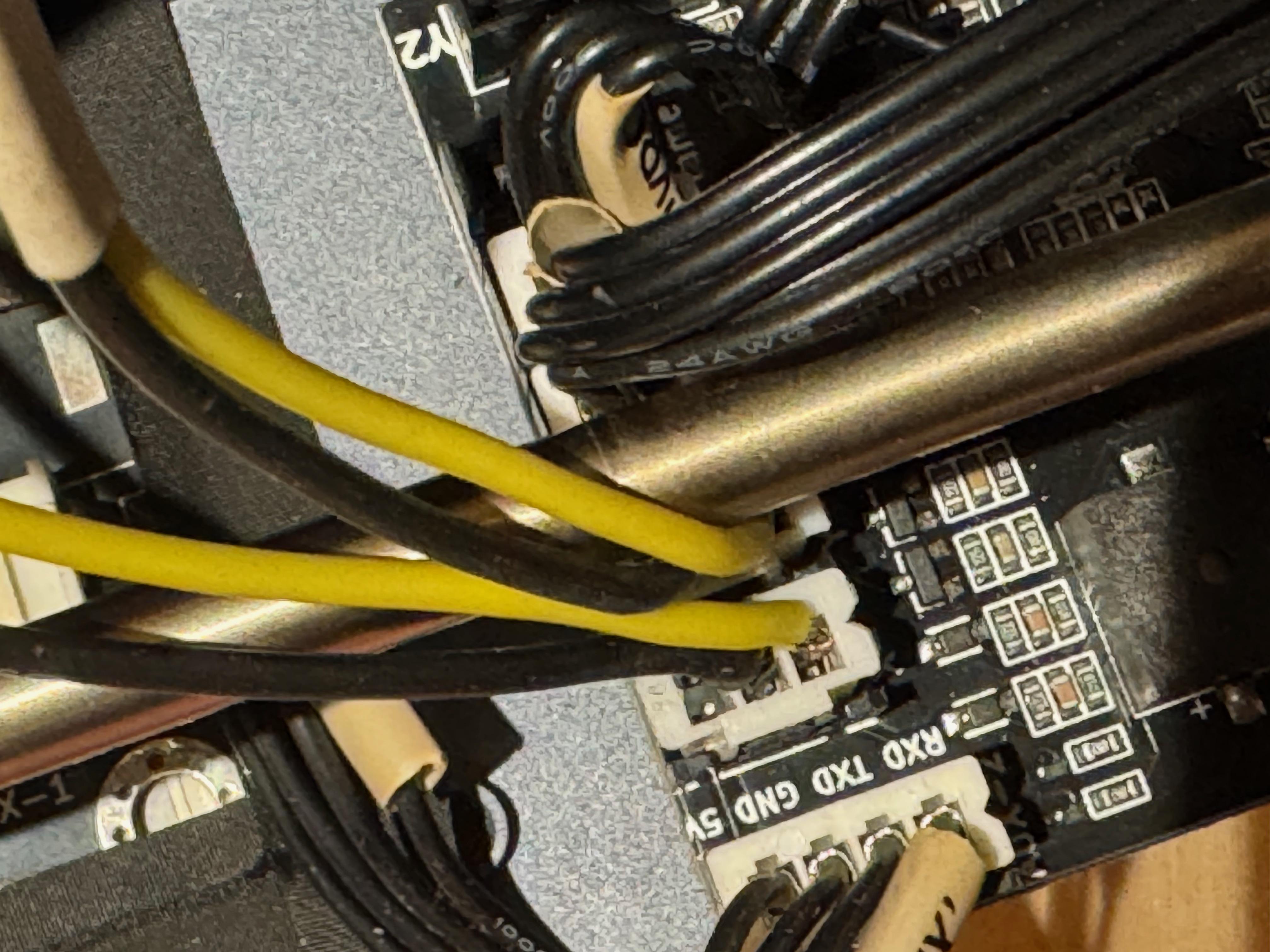
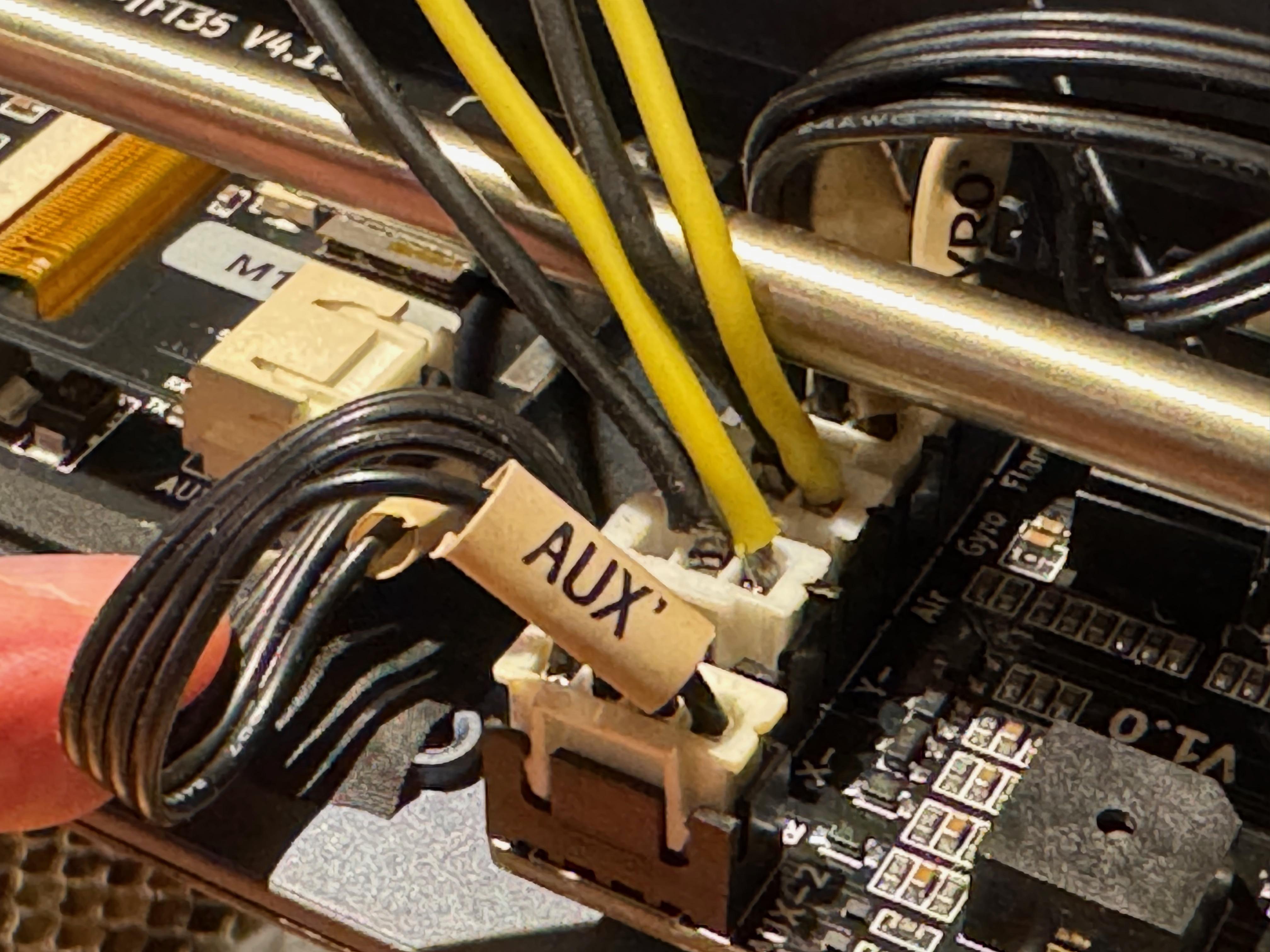
Next we need to connect the limit switches to the motherboard.
- To improve access, remove the 'AUX' cable from the front connector.
- Connect the JST XHP-3 of the shorter Y axis cable to the back port labelled Y.
- Connect the JST XHP-3 of the longer X axis cable to the back port labelled X.
- Reconnect the 'AUX' cable to the front connector.
Configure LightBurn
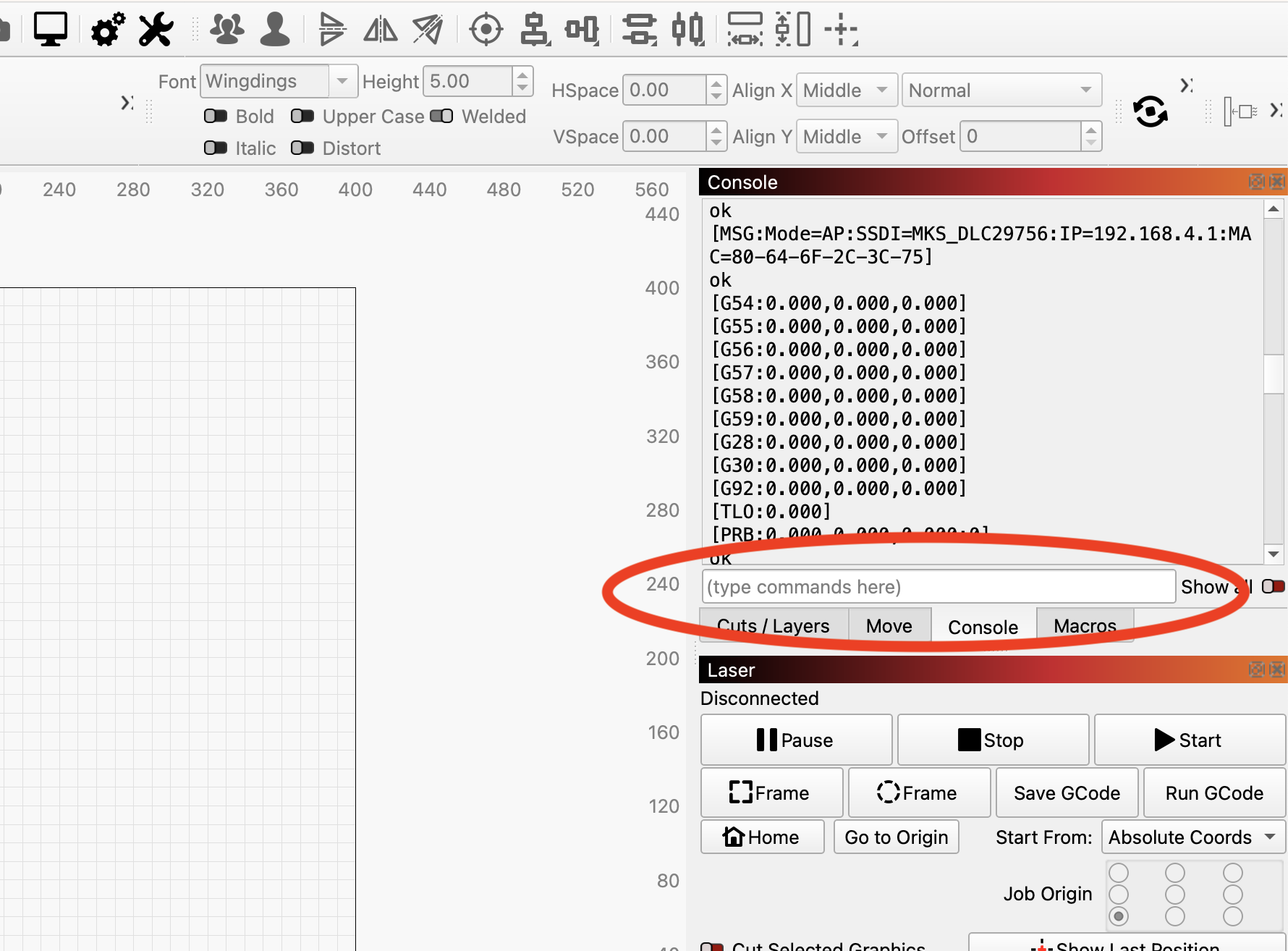
To get the limit switches working with LightBurn, the following configurations are required.
WARNING
Initially I tried configuring using the Laser Tools-->Machine Settings, but something happened and it 'permantly' set the machine to an invalid configuration. It took me quite a while to get back from that state. I *think* I fixed it by holding down the white button on the motherboard and turning on the machine, while continuing to hold the button down. I am not confident with what I did to break it, or fix it, so since getting the machine working again, I haven't tried again!
LightBurn Console
Once getting my machine back (see above WARNING), it is best to test the commands by running them in the LightBurn console.
List of commands:
- $20 - Soft limits enabled
- $21 - Hard limits enabled
- $22 - Homing cycled enabled
- $23 - Homing direction invert
- If the machine homes to the front-left: $23=0
- If it homes to the rear-left: $23=1
- If it homes to the rear-right: $23=3
- $24 - Homing feed rate (mm/min)
- $25 - Homing seek rate (mm/min)
- $27 - Homing pull-off (mm)
- $H - Home the machine
The values I am using are:
- $20=1
- $21=1
- $22=1
- $23=3
- $24=600
- $25=3000
- $27=2
Type each of the above commands into the console one at a time and hit return between each. Once all of the commands have been entered, enter $H to home the machine. If the machine head moves in the wrong direction or crashes into the frame, switch of the machine quickly and adjust the commands accordingly.
Creating a Macro
Once the settings are correct, it is possible to create a macro to store all of these commands. To set up a macro, click the 'Macros' tab, then 'Manage' and 'Add'. Enter the values you have from above and save.
To test the macros, click on the new button which should set these values. Then click on the 'Home' button in the Laser window.
Adding to GCODE
It is possible to add the above code to every GCODE that is generated to automatically set the above. To do this, go to Laser Tools-->Device Settings-->GCode. Then in the Start GCode window, enter the commands. It is possible to finsh the commands with $H to automatically home the device when starting any job. This would allow reapeatability to jobs being run from SD cards with auto homing before the job starts.
Tidying Up
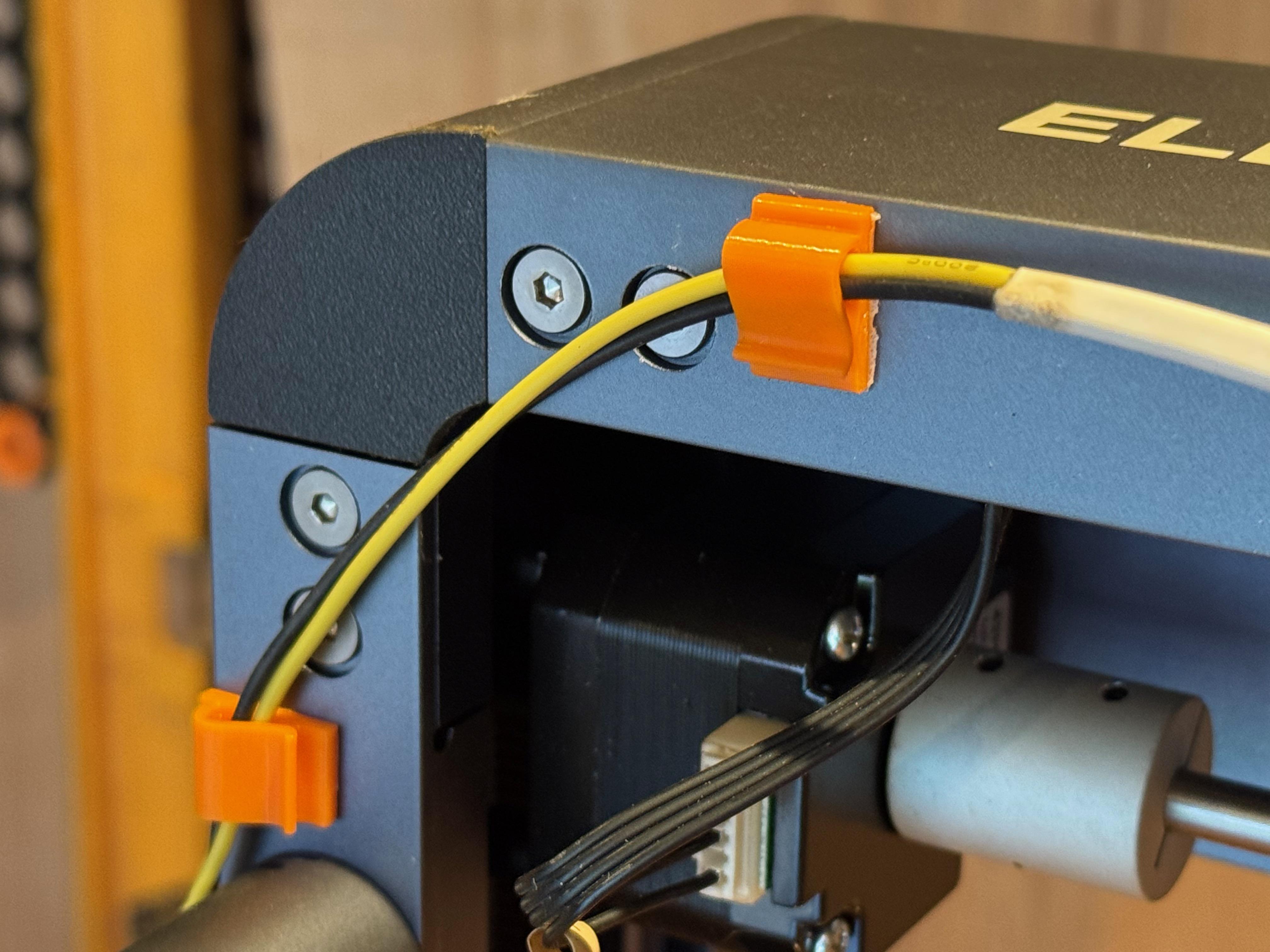
Finally, once everything has been set up and working as expected, it is wise to clip up any of the lose wires that are hanging around. I printed several of these clips from Printables. Using double sided tape, you can stick these clips to bottom of the frame of the cutter to keep the wires out of the way.