Build a Wearable Micro:bit Controller to Fly in Google Earth
86 Views, 3 Favorites, 0 Comments
Build a Wearable Micro:bit Controller to Fly in Google Earth
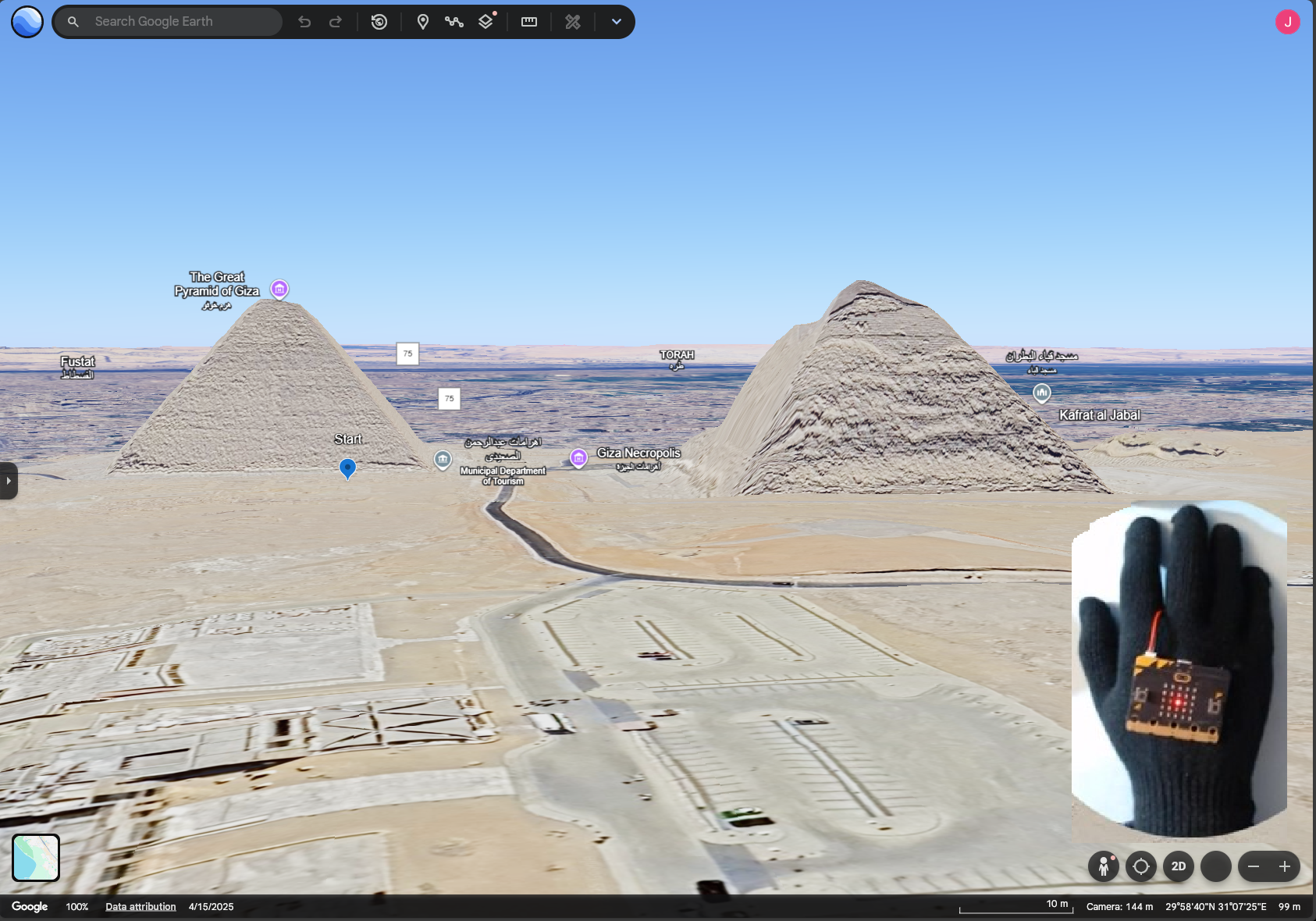
What if you could fly through Google Earth just by moving your hand?
This is a STEM project as well as Social Studies. It was inspired by this cartoon. Please add a comment to let me know if you think it hits the mark for Gen Alpha.
In this project, I built a wearable glove using a micro:bit that lets you explore places like the Pyramids and the Grand Canyon by gesture—creating the illusion of flying. Watch Now.
Source code and documentation is in GitHub at 4-R-Forum/flyearth-07: A MakeCode project
Use the back button in your browser to return here from any of the links.
Supplies
- BBC micro:bit v2 recommended, with battery box and usb cable
- PC with browser and internet connection
- One glove for your dominant hand
- Elastic thread, 1 mm or less diameter
- Darning needle
Set Up the Micro:bit
In all steps '->' indicates the expected result.
- Open https://makecode.microbit.org/ -> Make code opens
- Click the 'Import' button at center right -> Dialog opens
- Click button at middle top 'Import URL ...' -> Dialog updates
- Enter this url as 'URL of the project' https://github.com/4-R-Forum/flyearth-07
- Click 'Go Ahead!' -> Project opens showing 'on start' blocks
- Connect mbit to PC with USB cable -> mbit lights come on
- Click 'Download' button at bottom left -> Project downloads
- if download fails, remove usb cable, reconnect and try again
- Leds indicate roll and pitch, when you tilt the mbit
- Remove the usb cable -> lights go out
Connect PC to Micro:bit Via Bluetooth BLE
1. Open Windows Control Panel
2. Select Bluetooth and Devices
3. Make sure Bluetooth is turned on at top
4. Press 'Add Device' button -> dialog opens
- Click 'Bluetooth'
5. - Click 'show all devices'
6. When connected BBC micro:bit shows as connected
7. If Bluetooth connection fails, go to the TroubleShootingGuide
That's the trickiest part of setup. Once you are connected your laptop will remember BBC Microbit and connect again easily. If not, repeat all the steps.
Start Google Earth in a Browser
1. Use Chrome or Edge, both work equally well
2. Standard (free) Google Earth is all you need
- Use the web version, to fly using keystrokes.
- Google Earth Pro App is not supported
3. Login to Google is optional
4. Type https://earth.google.com/ into the address bar at top -> Google Earth opens
5. Click 'Explore Earth at top right. -> View of the globe appears
- Press ? to see what the keystokes are, press Esc to go back
FLY!
1. Turn the micro:bit on and hold it level -> checkerboard pattern displays
2. File dialog opens, select local KML file from Documentation folder in the repo
- press Cancel to type in starting point, continue in Optional step, below
3. Earth flies you to the selected location
4. Hold micro:bit level -> center led light shows
5. Tilt it forward -> second row led lights, you fly forward
6. Tilt it left -> second column led lithts, you fly left
7. Tilt more left -> left column led lights, you turn left
8. Tilt more forward -> top row center led lights, you go up
9. Tilt other directions -> opposite of above
10. Hold level -> you stop.
11. Turn micro_bit off
Optional: Type in Your Starting Point
Let's use the Pyramids as an example.
1. Type https://earth.google.com/ into the address bar at top -> Google Earth opens
2. Click 'Explore Earth at top right. -> View of the globe appears
3. Type "Great Pyramid of Giza" into the searchbox at top left and press Enter -> flies you there
4. Press letter "O", then any other key to stop rotating -> view changes from 2D to 3D and stops
5. Press and hold Shift-DownArrow until horizon appears
6. Press "?" -> Keyboard shortcut dialog is displayed, press x at top right to closeit
7. Now you are ready to fly in the FLY! step
Make the Glove
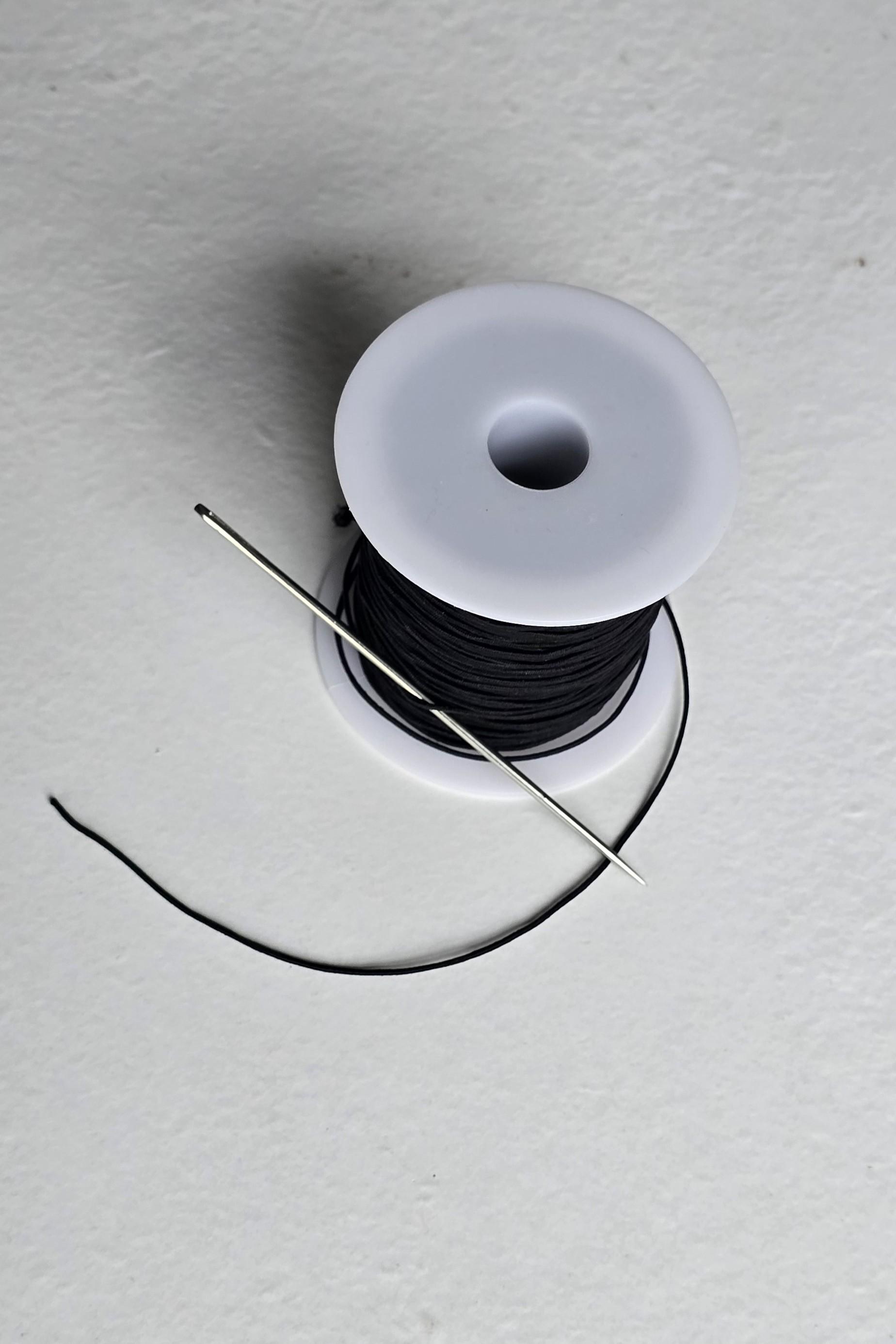


Using the elastic thread, bind or baste the micro:bit to the back of the glove and the battery box to the palm side as shown. Two loops on both sides of the wearables will make them detachable.
Create Your Own KML Files
KML files are XML which Google Earth can create when you have found a place you'd like to start flying.
1. Use the optional step above to find your starting point
2. In the File menu at top left, Create a new Map -> Name Untitled appears above File menu at top
3. Add a Placemark, give it a name, such as 'Start' -> Placemark shows in Map at left
4. Double click Placemark at left -> Dialog opens at right
5. Click Edit button at bottom left of Dialog -> Details appear in dialog
6. Scroll down in dialog and click button 'Capture this view' -> Details are updated
7. In the File menu at top left, Export as KML File -> File is dowloaded to your browser
8. If you are loggged into your Google Account, the file should also be in your Google Drive.
9. Now you need to edit your KML file, you can do this in any text editor including Notepad.
- Find the <Placemark id="123ABC..."> element.
- Nested within it is the <LookAt> element, cut and paste it to just above and outside the Placemark element.
- Save the edited KML file.
10. Use the new KML file to start flying when the File dialog opens.