FROM CODE TO RHYTHM: BUILDING a DRUM MACHINE
by Carmen Moyano in Design > 3D Design
54 Views, 0 Favorites, 0 Comments
FROM CODE TO RHYTHM: BUILDING a DRUM MACHINE
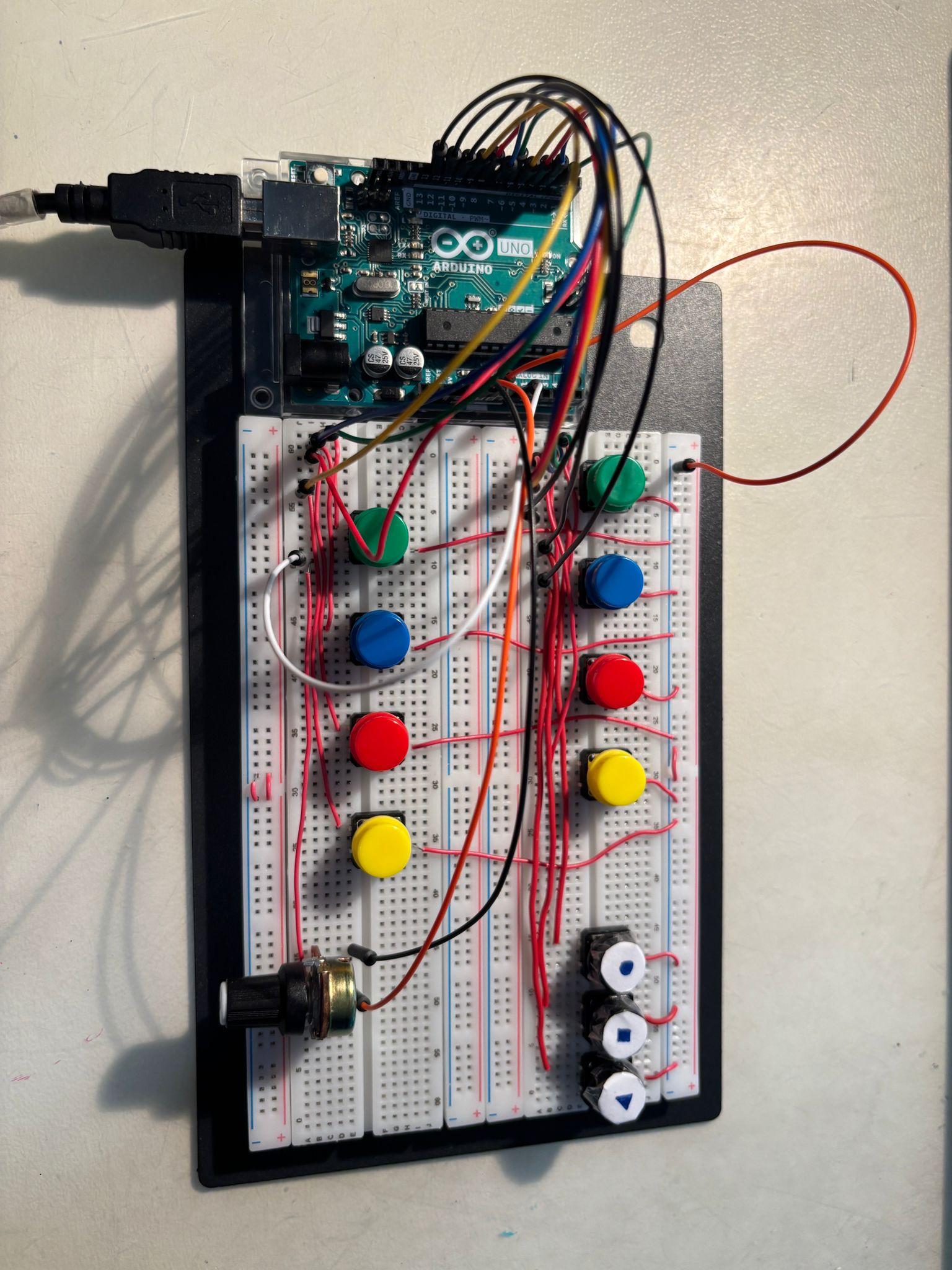
In this project, I built a custom MIDI Controller from scratch using Arduino. The goal was create a functional musical interface that allows me to control (DAW) physically
The controller features 8 drum pads for playing beats, 3 transport buttons (Play, Pause Rec) for recording workflow, and a Slide Potentiometer (Fader) to control the volume of the channel. It connects to the computer via USB and sends standard MIDI data.
Supplies
Hardware
1 Arduino Uno R3
1 Slide potentiometer
11 Pushbuttons
Jumper Wires
USB type B cable
Software
Arduino IDE (Software | Arduino)
MIDI Serial Bridge (Middleware Hairless)
loopMIDI (loopMIDI)
MPC Beats (Motor de Audio DAW)
Efectos MIDI (MIDI Library)
The Circuit & Wiring
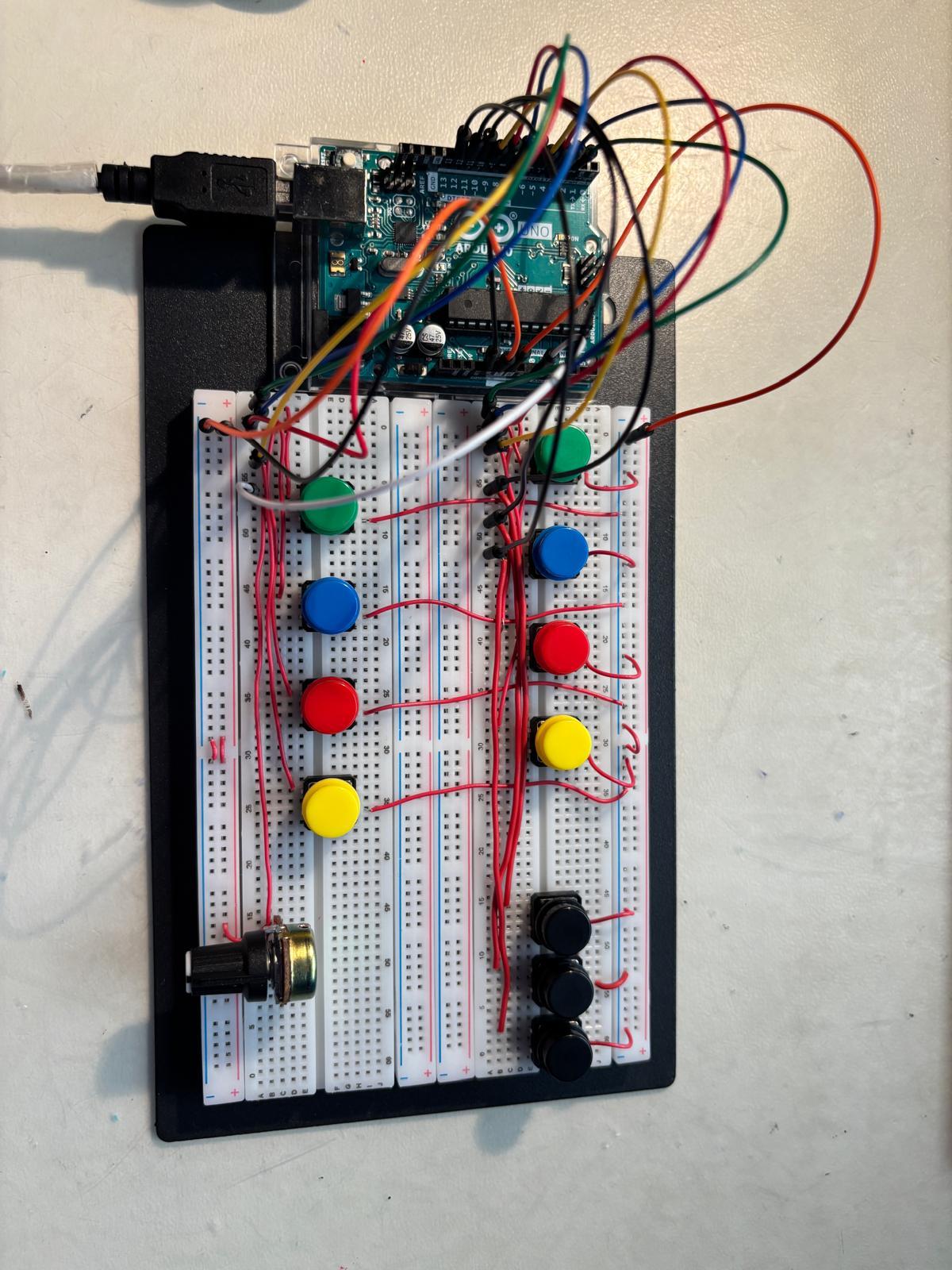
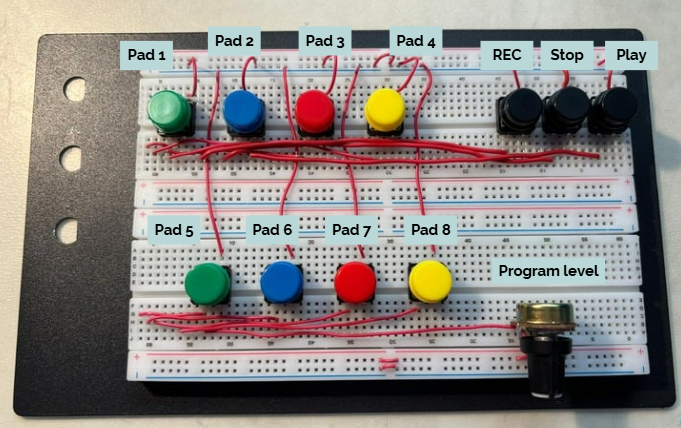
The circuit assembly is divided into three main sections
- Volume Control Sensor (Fader): The slide potentiometer acts as a voltage divider connected to the analog input A0. It is crucial to identify the pins correctly: the other pins connect to 5V and GND, while the middle pin (the wiper) sends the signal to the Arduino. This allows you to adjust the volume of your audio track
- Note Buttons (Drum Pads): The 8 pushbuttons are connected to digital pins 2 through 9. I utilize the Arduino internal pull-up resistors, connecting one leg of the button to the digital pin and the other to the ground. Each button is assigned a specific MIDI note to trigger percussion instruments.
- Transport Buttons: Three additional buttons are connected to pins 10, 11 and 12. These manage the recording and playback of the session (Play, Pause, Rec), sending specific control commands to the DAW
The Code
#include <Arduino.h>
// ================= CONFIGURACIÓN =================
// --- FADER ---
const int PIN_FADER = A0;
int faderValor = 0;
int faderMidi = 0;
int lastFaderMidi = -1;
unsigned long lastFaderTime = 0; // Para controlar la velocidad de lectura sin delay
// --- 8 PADS (PULSADORES) ---
const int PINES_PADS[8] = {2, 3, 4, 5, 6, 7, 8, 9};
const int NOTAS_PADS[8] = {36, 37, 38, 39, 40, 41, 42, 43};
int estadoPads[8] = {0};
int lastEstadoPads[8] = {0};
// --- 3 BOTONES DE CONTROL ---
const int PIN_PLAY = 10;
const int PIN_PAUSE = 11;
const int PIN_REC = 12;
const int NOTA_PLAY = 50;
const int NOTA_PAUSE = 51;
const int NOTA_REC = 52;
int estadoPlay = 0, lastEstadoPlay = 0;
int estadoPause = 0, lastEstadoPause = 0;
int estadoRec = 0, lastEstadoRec = 0;
void setup() {
Serial.begin(115200); // Mantén esta velocidad alta para Hairless MIDI
// Configurar PADS
for (int i = 0; i < 8; i++) {
pinMode(PINES_PADS[i], INPUT_PULLUP);
lastEstadoPads[i] = HIGH;
}
// Configurar BOTONES DE CONTROL
pinMode(PIN_PLAY, INPUT_PULLUP);
pinMode(PIN_PAUSE, INPUT_PULLUP);
pinMode(PIN_REC, INPUT_PULLUP);
lastEstadoPlay = HIGH;
lastEstadoPause = HIGH;
lastEstadoRec = HIGH;
}
void loop() {
// ==========================================================
// 1. LÓGICA DEL FADER (OPTIMIZADA)
// ==========================================================
// Solo leemos el fader cada 10ms para no saturar, pero SIN usar delay()
if (millis() - lastFaderTime > 10) {
faderValor = analogRead(PIN_FADER);
faderMidi = map(faderValor, 0, 1023, 0, 127);
// Umbral de 2 para evitar ruido (jitter)
if (abs(faderMidi - lastFaderMidi) > 1) {
enviarCC(1, 11, faderMidi);
lastFaderMidi = faderMidi;
}
lastFaderTime = millis();
}
// ==========================================================
// 2. LÓGICA DE LOS 8 PADS (INSTANTÁNEA)
// ==========================================================
for (int i = 0; i < 8; i++) {
estadoPads[i] = digitalRead(PINES_PADS[i]);
if (estadoPads[i] != lastEstadoPads[i]) {
if (estadoPads[i] == LOW) {
enviarNota(0x90, NOTAS_PADS[i], 127); // Nota ON
} else {
enviarNota(0x80, NOTAS_PADS[i], 0); // Nota OFF
}
// Pequeñísimo delay solo al pulsar para evitar rebote eléctrico,
// pero tan corto que es imperceptible (2ms)
delay(2);
}
lastEstadoPads[i] = estadoPads[i];
}
// ==========================================================
// 3. LÓGICA DE LOS BOTONES CONTROL
// ==========================================================
leerYEnviarBoton(PIN_PLAY, NOTA_PLAY, &lastEstadoPlay);
leerYEnviarBoton(PIN_PAUSE, NOTA_PAUSE, &lastEstadoPause);
leerYEnviarBoton(PIN_REC, NOTA_REC, &lastEstadoRec);
}
// ================= FUNCIONES AUXILIARES =================
void enviarCC(byte canal, byte control, byte valor) {
Serial.write(0xB0 | (canal - 1));
Serial.write(control);
Serial.write(valor);
}
void enviarNota(byte comando, byte nota, byte velocidad) {
Serial.write(comando);
Serial.write(nota);
Serial.write(velocidad);
}
void leerYEnviarBoton(int pin, int nota, int *lastEstado) {
int estadoActual = digitalRead(pin);
if (estadoActual != *lastEstado) {
if (estadoActual == LOW) {
enviarNota(0x90, nota, 127);
} else {
enviarNota(0x80, nota, 0);
}
// Reducido de 50ms a 10ms. Suficiente para evitar rebote,
// pero mucho más rápido al tacto.
delay(10);
}
*lastEstado = estadoActual;
}
Downloads
Software & Operation

For the controller to work with the computer, intermediate software is required, as the Arduino Uno does not natively behave as a USB MIDI device
- Connect the Arduino via USB
- Open loopMIDI to create a virtual port
- Open Hairless MIDI and select the Arduino port and the virtual port created. Don't forget to initialise the serial communication at 115200 baud. We chose this high rate instead of the standard 9600 to ensure the fastest possible data transfer and minimize latency.
- In the DAW (MPC Beats), map the pads to a Drum Rack, the fader to the master volume, and the transport buttons to the session's recording and playback.
- After this, you are ready to play with your beatbox!
In the video attached, we can see the operation of using every pad and transportation button.
Challenges & Troubleshooting
During the development process, we encountered some problems that requied specific solutions
- "Ghost Sounds" (Signal Jitter) The pads triggered sounds randomly without being touched. I initially built the circuit using 10 kOhm external resistors, but the problem persisted. The resistors had no real effect on the circuit. After several failed attempts, I realized that the solution was in the code; I modified the sketch to active Arduino's Internal Pull-Uo resistors. This change stabilized the input pins and eliminated the random noise.
- Audio latency When hitting the drum pads, there is a noticeable delay between the physical action and the sound coming from the computer. I tried to solve this problem by adding a certain delay to the signal, but this would slow down the entire process because the next sound would only play after that delay. Therefore, we assume the computer’s inherent latency.