Floating Artic Animation in Ibis Paint, Free Software
63 Views, 2 Favorites, 0 Comments
Floating Artic Animation in Ibis Paint, Free Software
.gif)
In this project I made a simple animation in Ibis paint that utilizes quick tools like liquify and airbrush for beginners to have access to animation on a free platform. I chose the iceberg and polar bear since they are what comes to mind when I think of floating :)
Supplies
Ibis Paint (free)
A device to draw on (I used an ipad but phones or computers work)
creative spirit :)
Art Base Using Airbrush
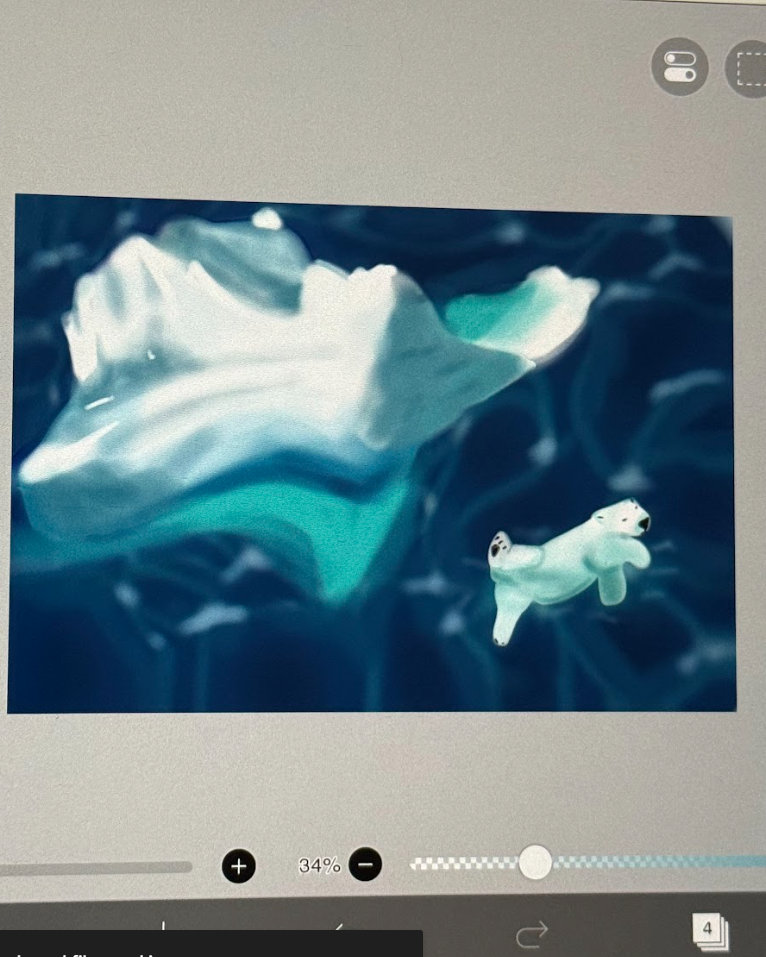

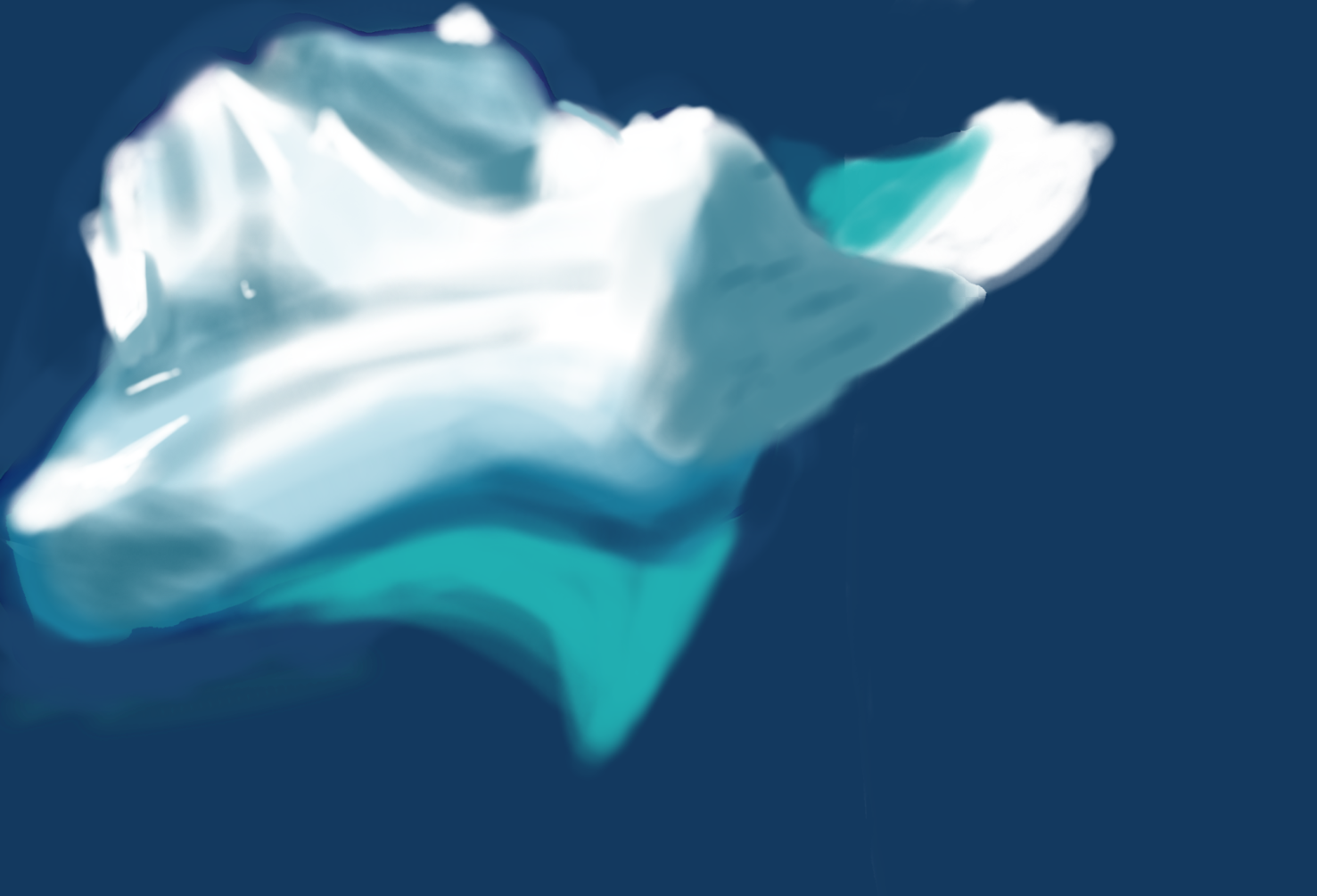
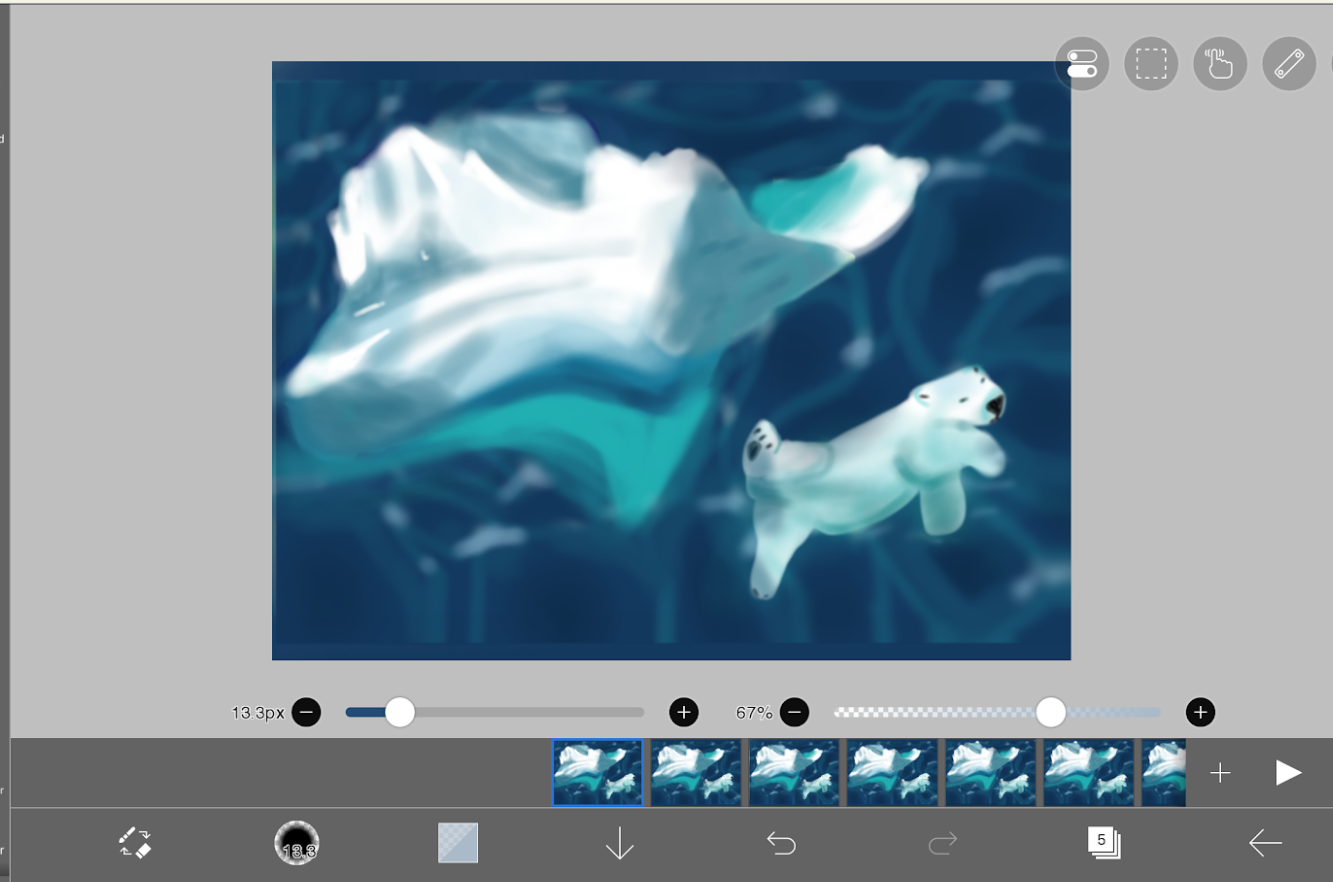
Create the base for the animation, AKA the main art peice which you will manipulate later. A reference photo is helpful for things you are not used to drawing. You can place the reference photo on the canvas on a different layers for easy comparison. I used the airbrush for a fast and artsy look (great for beginners). BE SURE TO DO THE DIFFERENT COMPONENTS ON SEPERATE LAYERS FOR THE NEXT STEP OF ANIMATION. See below for my speed paint
Downloads
Uploading Pngs of the Layers Onto an Animation Base
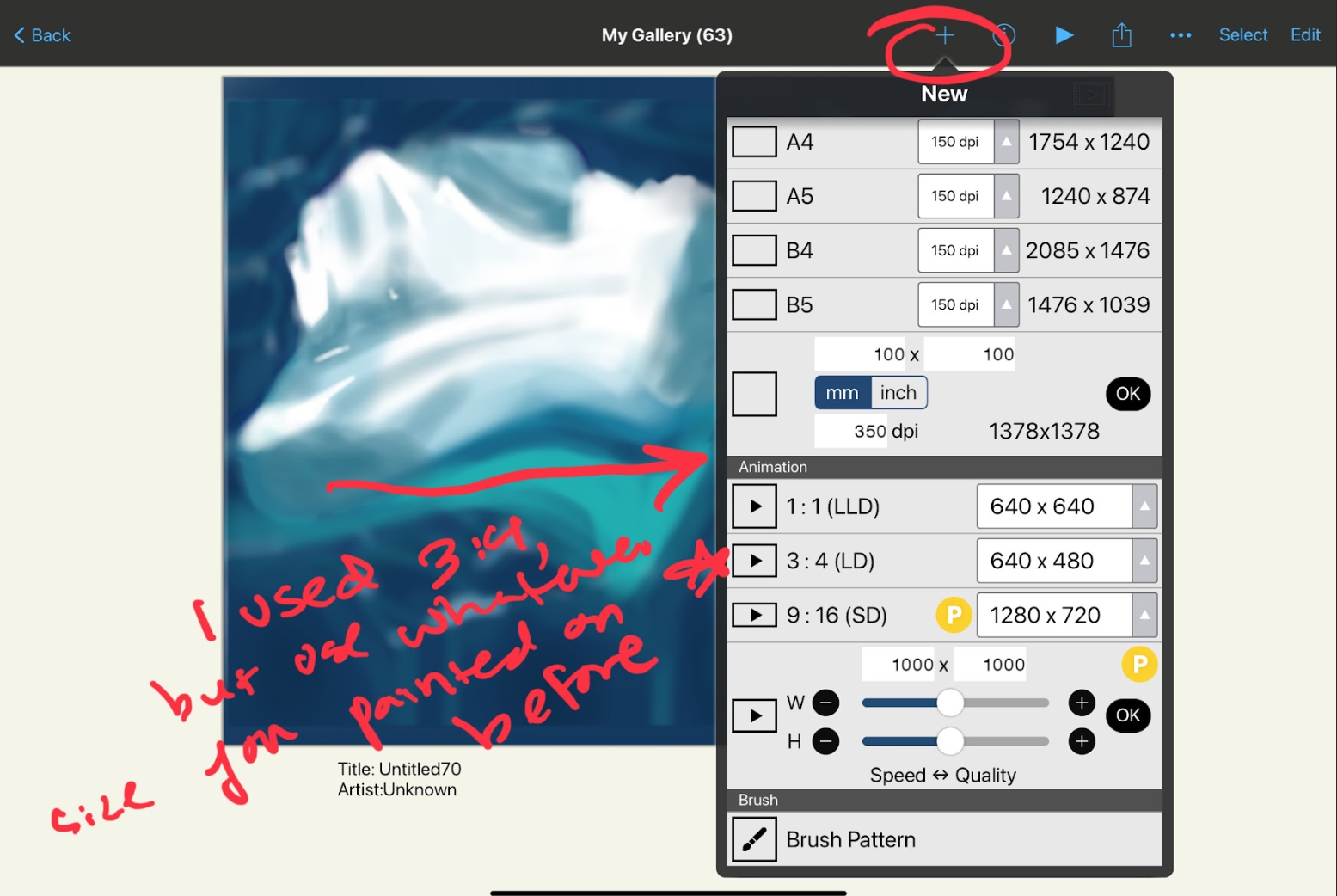
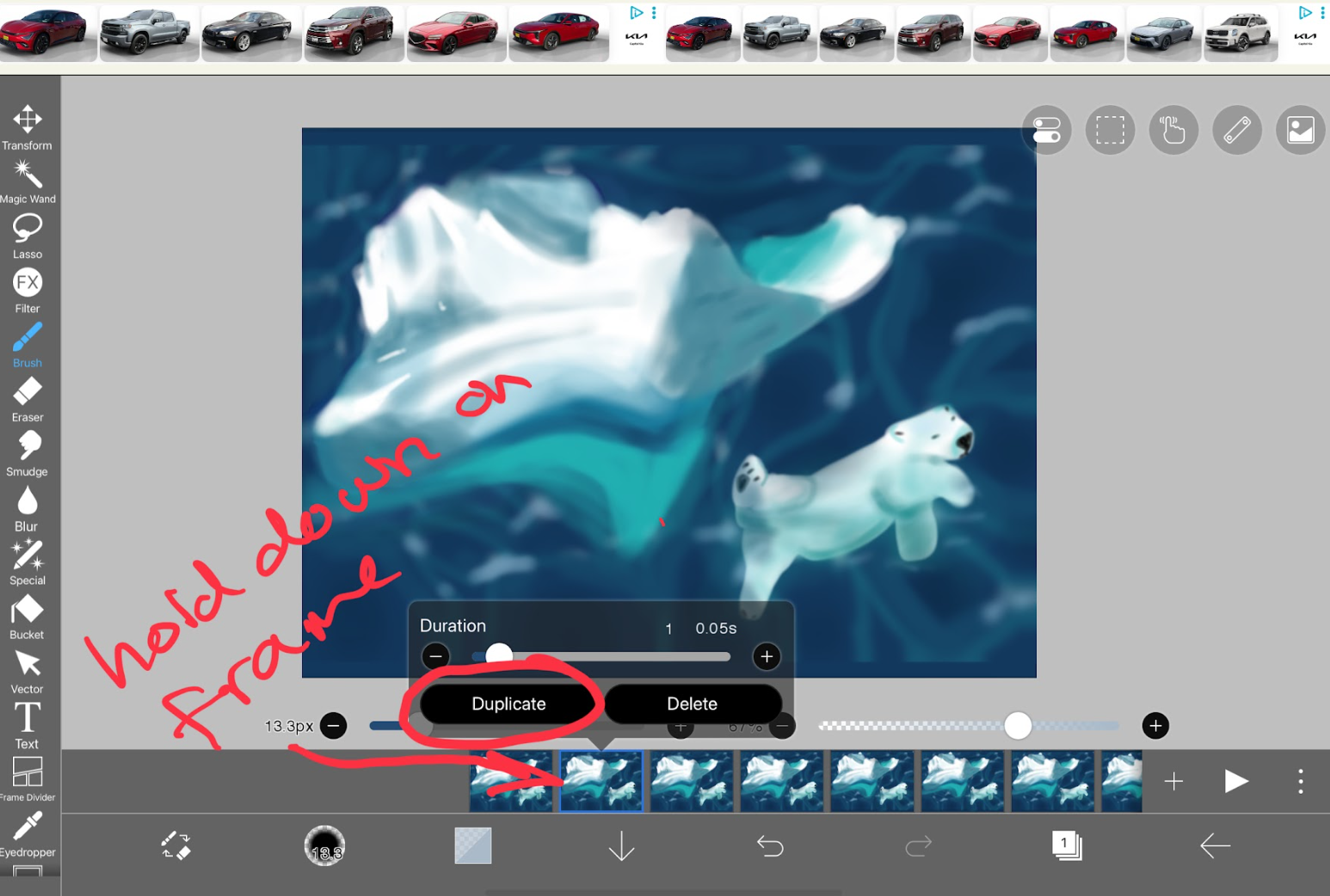
Download each layer as a png with a transparent background. Then, upload each onto an animation canvas on ibis paint. Be sure to align them as you wish for the animation and do not create the next scene until you do this. To create the next scene, duplicate the one you have set up as a base.
Use Liquify and Transform to Manipulate the Animation
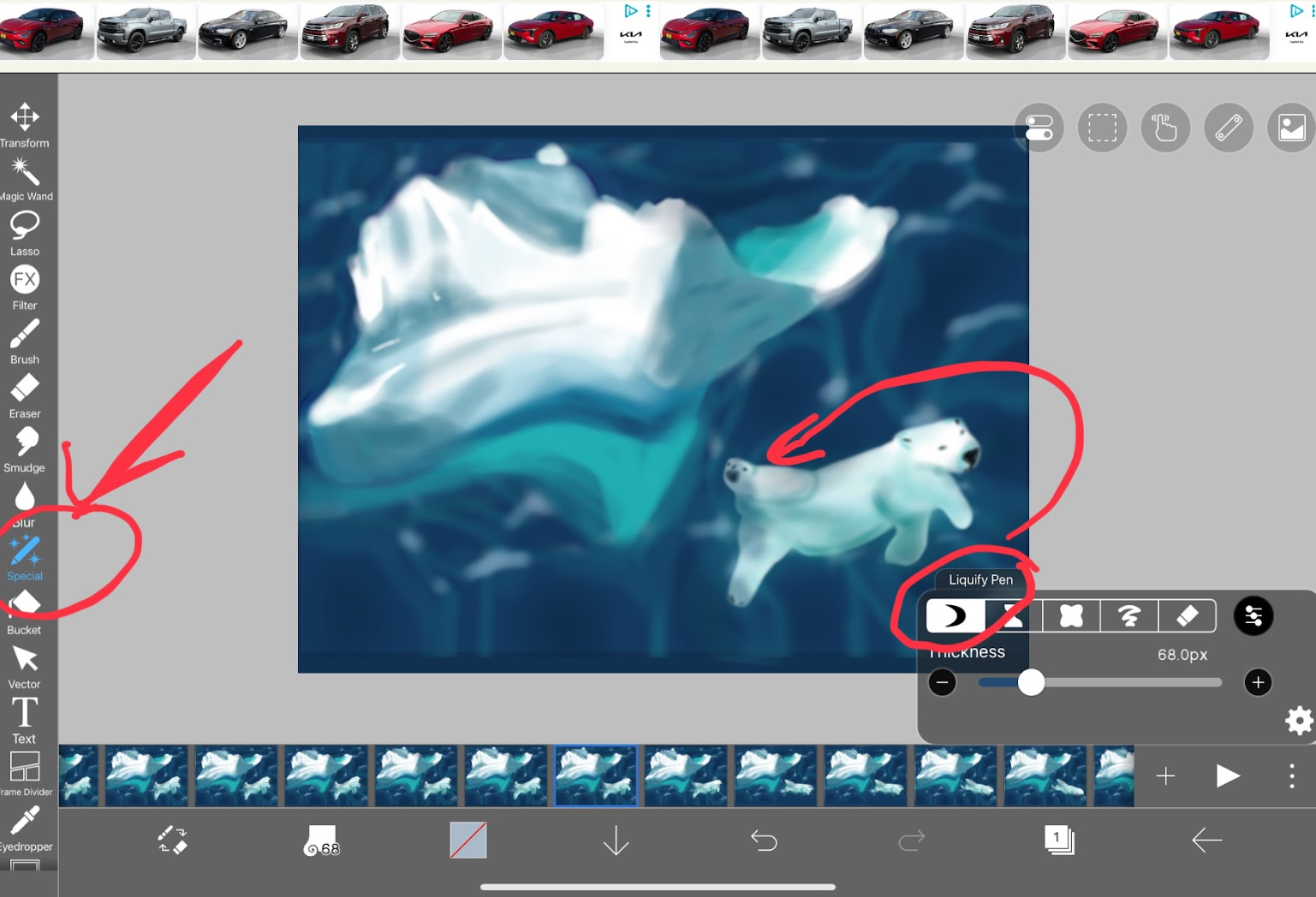
Press the "Special" tool on the tool bar and select liquify. Slowly manipulate the parts of what you want to move in each frame. For mine, I moved the arms of the polar bear and used "transform" to move him downward as you move the arms to give the appearance of swimming/diving after a period of floating. You can also use "transform" to move the iceberg up and down to give a floating effect.
If Desired: Add Coverup or Erase for Disappearing Effect

To make it seem like the polar bear dove under the water, I airbrushed a patch of water on the layer above that he gradually moved under. You can utilize this same effect by adding a layer that your object/animal moves behind!
CLick the Play Button and Make Adjustments As Needed
To check throughout the animation process if you like it, feel free to hit the play button and adjust as needed for fluidity. I will go over in the next step how to change animation settings for a better flow if needed.
Animation Settings and Downloading

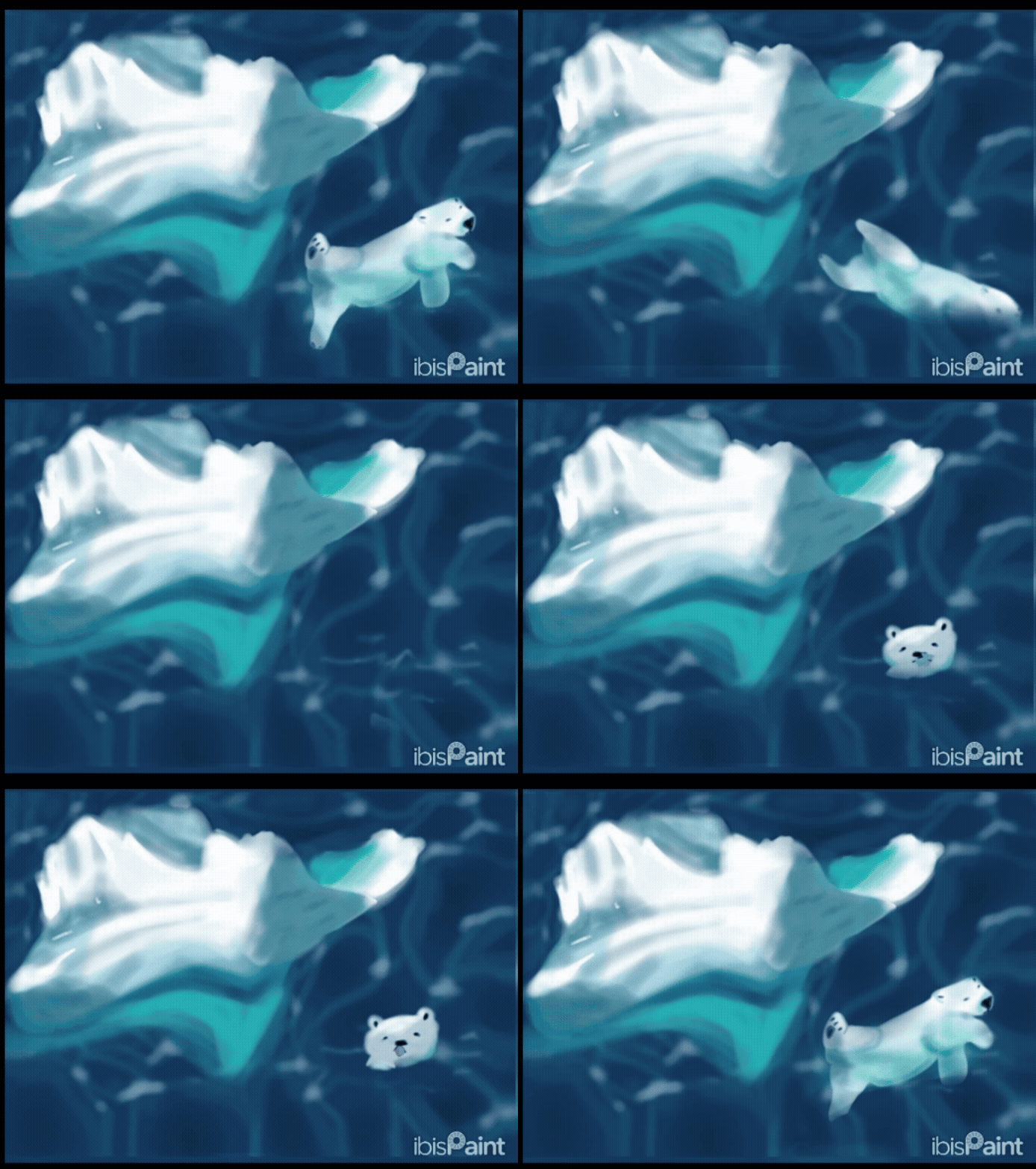
Click the 3 dots next to the play button and select "settings". Then, if you wish, click the loop arrow (the first one) so the animation loops continuously. You can also change the frames per second to accommodate the level of detail and smoothness you want. I used 20 frames per second for this quick animation. When you are ready, hit the arrow near the bottom left and click "save animated video". You will see the same settings buttons (pictured above), click to adjust the settings you want in regards to final frame rate and loop. You now have your finished animation! Enjoy :)
NOTE: What you see above is a gif created by the MOV to GIF online generator (since I was having trouble uploading the video :)