Floating Dreams - a Short Film
by AnthonySabina in Design > Animation
1008 Views, 6 Favorites, 0 Comments
Floating Dreams - a Short Film
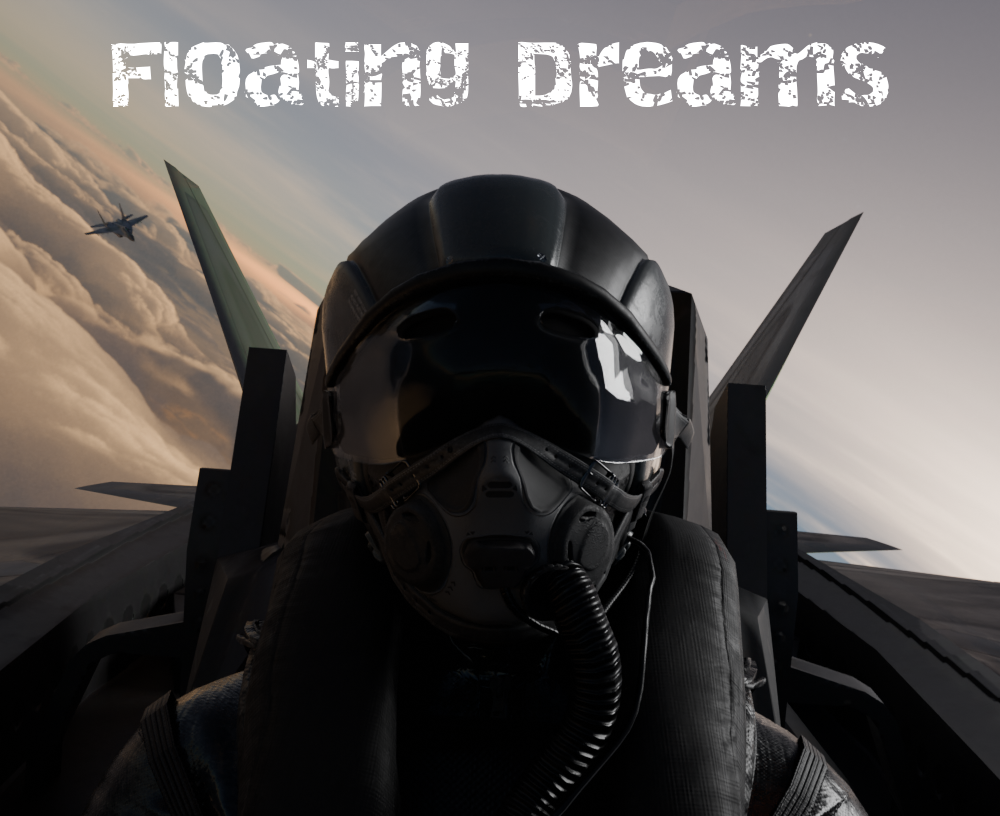

When I was younger, I dreamed of being a fighter pilot. The feeling of being so high and fast was thrilling. However, as I get older, I begin to realize I don't have the same dreams or goals I once had. It's as if my dreams "floated away from me". I hear this from many adults in my life. I realize that while we are young, we dream of growing up, having that freedom, gaining knowledge, and being driven by curiosity. On the other hand, those who are older dream of returning to the time when they were young, a period when they had less responsibility and more peace.
Growing up consists of acquiring the most powerful weapon, knowledge. As I got older, I learned about the dangers of being a fighter pilot and the difficult situations they are put in, and suddenly, the dream began to die. Reality had caught up to me. This is what I aimed to display in the short film, "Floating Dreams". The goal is to visualize this phenomenon, how dreams can float away from us over time, and how our future selves crave the past.
Symbolism:
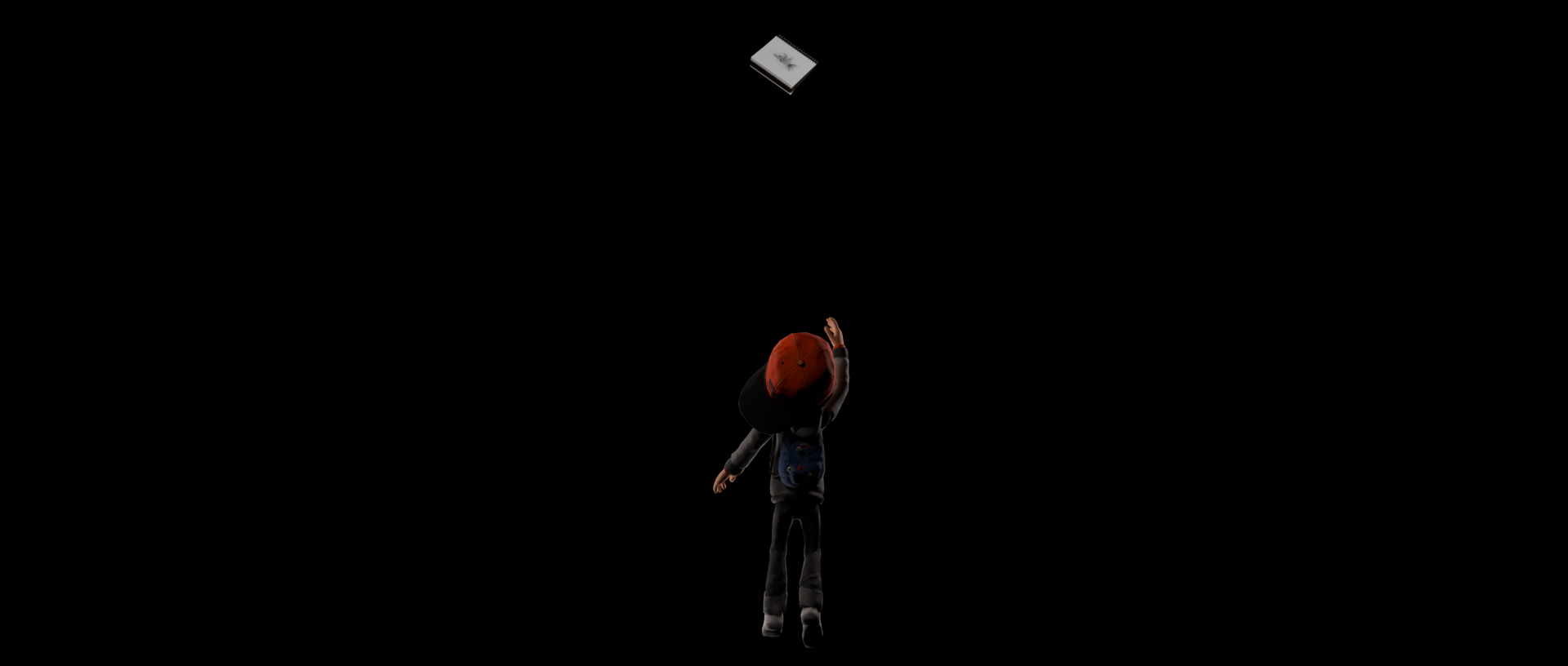
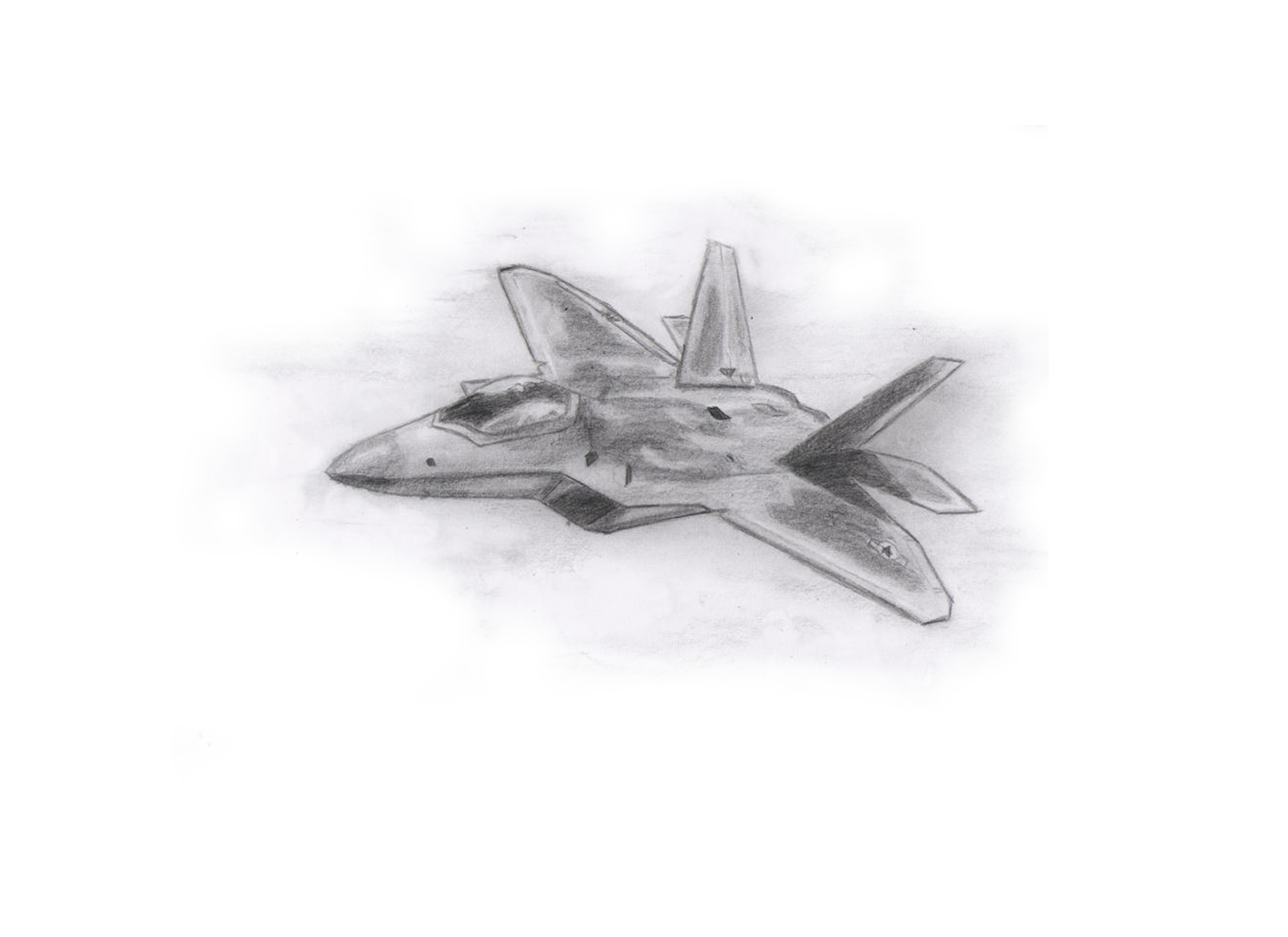
Notebook(fighter jet drawing) - Represents the boy's dreams. The notebook is a place where he can draw from his imagination, with no limits. When it floats up, it symbolizes the dream dying and slowly becoming out of reach.
Classroom(out of focus) - The boy is disconnected from reality, only focused on his notebook.
Schoolboy reaching - Represents children's desire to achieve their dreams and grow up.
Pilot reaching - Displays how older people often wish to go back to what they once had.
Pilot in danger - Foreshadows what the boy's future could be if he decides to follow his dream of being a fighter pilot.
Paper floating down - Represents how the boy's dream has come to an end due to the paper no longer being attached to his notebook, which stores his dreams.
Supplies
Tools:
Computer - Capable of running the software listed below
Software:
Blender 3D (v4.4.3) - Modeling/rigging, animating, compositor
Davinci Resolve 18 - Combine clips, add text, add effects
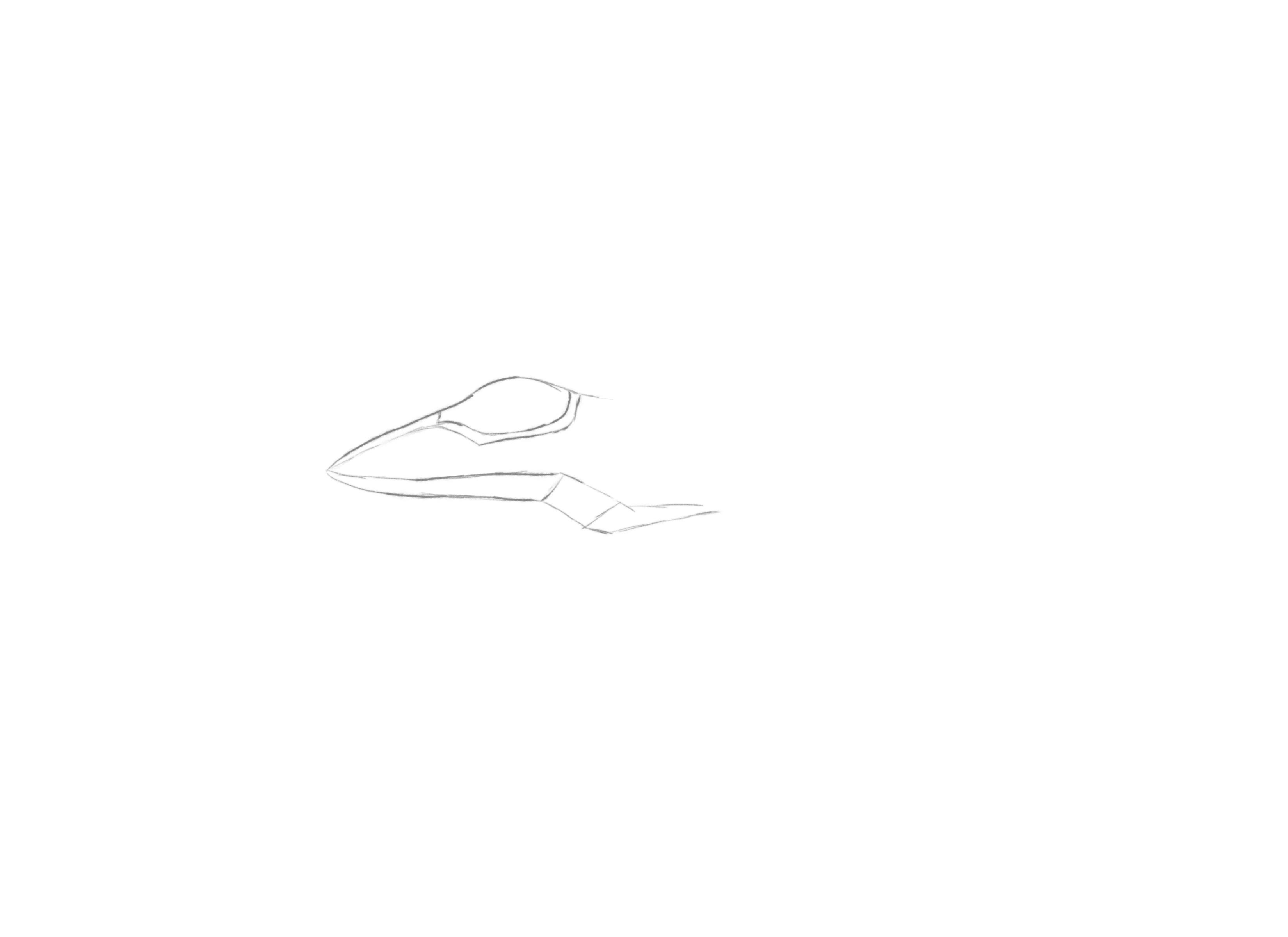
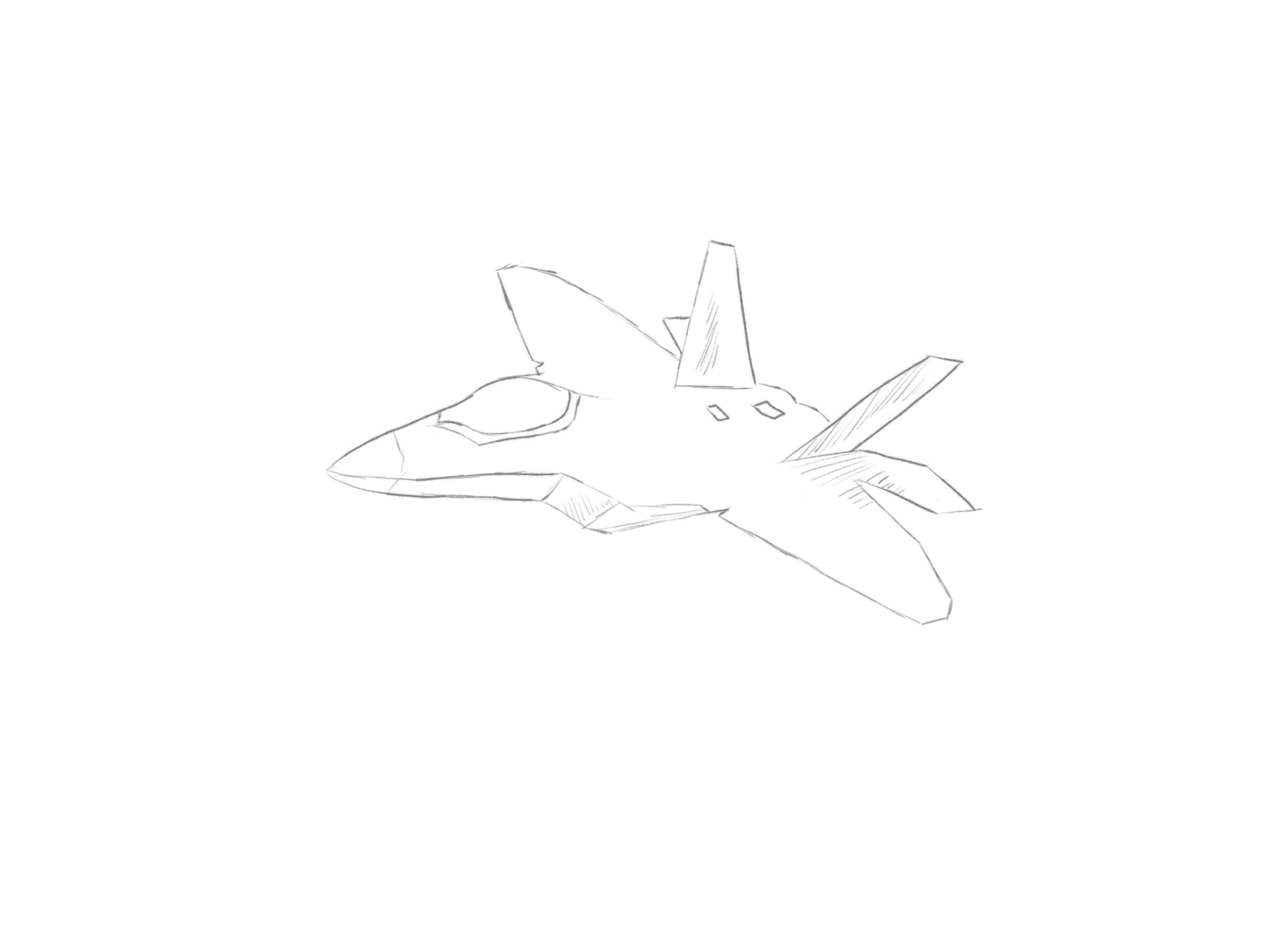
Krita (v5.1.5) - Tracing the jet
OBS Studio - Document the process!
Websites:
Sketchfab - Free models
Pixabay - Free sound effects
Blender Addons:
Rigify - Quick IK(inverse kinematics) character rigging
Node Wrangler - Faster node workflow in the shader editor
Sketchfab - Easy model imports
Blenderkit - Free asset library (materials, HDRs, etc...)
Shakify - Quick camera shaking
Drop It - Quickly place models on the nearest surface below
Sketchfab Models:
Images Used as Textures:
Importing the Models
In this video, I demonstrate my workflow for importing models, scaling them, rigging characters, and managing scene lighting, as well as some other helpful tips!
Note: Before beginning a multi-scene animation, you should have a plan. Write every scene and what you plan to animate in those scenes. This will keep you on track, organized, and speed up the process during these steps.
The first step when creating a complex animation is to create a master Blender file containing all of your models that can be used across all your animation files. This ensures all models are consistent in size, shape, and have the same materials in each project file. I used the Sketchfab addon to quickly import the models, and I adjusted them to my preferences.
Choosing Models: When choosing models, there are many factors you should consider, including:
- Vertices - The more there are, the more computing power needed, and the model is more complex, which may mean it is harder to work with.
- Rigging - If the model isn't a human, a custom rig is required and may take time to create, especially if you're IK rigging.
- Materials - Many models don't have good materials, so be cautious because you may need to retexture.
After importing all of these models into your master file, you can access them in your other Blender files by going: file→append→*select the master file*→*select the corresponding collection*
This step may take a lot of time to complete (depending on the models), but when done, it saves so much time for the rest of the project.
"Give me six hours to chop down a tree and I will spend the first four sharpening the axe" - Abraham Lincoln
The Intro Scene
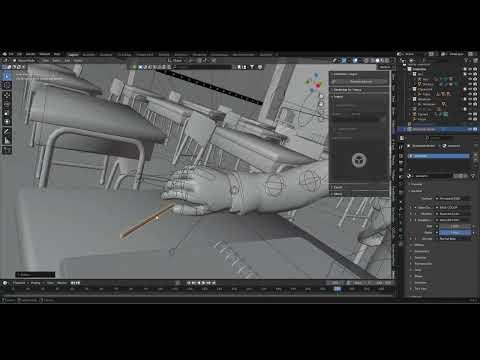

In this video, I demonstrate my workflow for bringing assets to life, including realistic camera movement, character animation, texturing, and more!
Every great story has a hook. The intro scene of an animation is one of the most important because it sets a standard, and the viewer must decide whether they want to continue watching.
When animating, it is good to act out the situation yourself. Put yourself in the character's shoes. For this scene, I pictured myself as a distracted boy in a classroom. I based the head movements and other details around this idea. Acting out the scene is really helpful for realism. For example, when the boy picks up the pencil, I actually put a pencil on my desk in real life and reached for it to observe how it is picked up, which I apply to the animation.
Important keyboard shortcuts:
- In edit mode, press 'L' to select linked geometry. This speeds up selecting parts of the mesh.
- If you are unhappy with a pose, in pose mode, you can select multiple bones at once or individual bones on a rig and click 'alt+R' to reset the rotation of the selected bone(s). You can also click 'alt+G' to reset the position of the selected bone(s).
- When in the shader editor, if you want to adjust the rotation of an image texture or HDR, without using the UV editor, you can press 'ctrl+T' to automatically add the mapping and texture coordinate nodes (only works with node wrangle enabled).
- Hold the 'grave accent button(`) and release it while hovering your mouse over *view selected* to recenter your view on the selected object. You may also use this button to access other views if you do not have a number pad on your keyboard.
- In edit mode, if you have a mesh selected, you can press 'P' to open the separate tools.
- When positioning or rotating an object after pressing 'G' or 'R', you likely know that you can lock it to an axis by clicking either 'X'/'Y'/ or 'Z'. But if you hold 'shift' while selecting one of those axes, you will lock the positioning or rotation to all axes but the selected one.
- Instead of using the hand icon to move around your scene, hold 'shift' + 'scroll wheel' to pan.
The Floating Scene
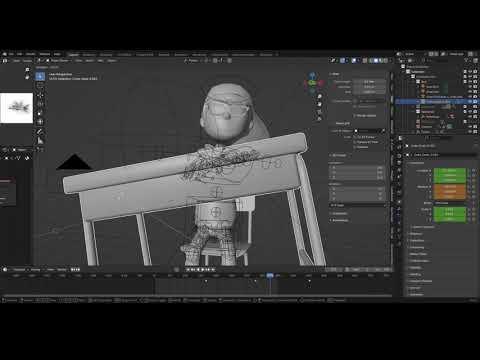
In this video, I demonstrate my workflow for animating the bodies of characters, setting up a professional camera setup, animating the camera setup, lighting based on perspective, as well as some other techniques!
Now it's time for the symbolism of the animation, the floating scene. This scene is meant to be simple and easy to process, but full of meaning.
Remember, imagine yourself as the character. If you were put in the same situation, how would you react? Then build your animation around that reaction. Small details, such as characters interacting with objects, add so much realism. Adding keyframes in Blender is a tedious process. It is important that you constantly replay your animation and make tiny adjustments. It's okay to be wrong the first time, just reset, observe, and try again.
When doing lighting, know what style you want and adjust based on that. In my case, I wanted soft lighting with a glowing outline around the characters. I knew this would create contrast between the characters and the void, while hiding unnecessary detail. To do this, I put lights across from the camera, behind the characters and objects. This creates a glow effect and fits well with the dreamy vibe. Use lighting and contrast to your advantage to manage details and direct the viewer's focus. For example, you may remember in our master file when the pipe attached to the fighter pilot's helmet was not connected properly. However, because of the lighting, it didn't matter. It is hardly noticeable without someone pointing it out. I controlled the detail, and it enhanced the realism. Sometimes less is more.
Choosing the perfect lighting for your scene:
Area lights
Point light
Spot light
Sun (only use if you need to light up a whole scene.
The Plane Scene
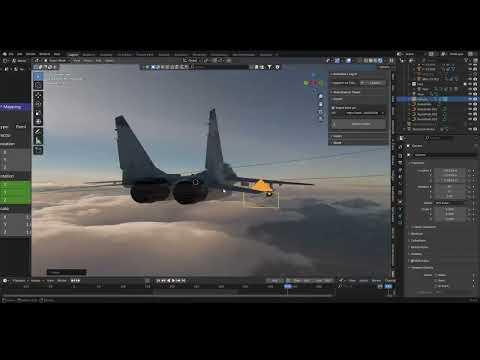
In this video, I demonstrate my workflow for animating planes, missiles, HDR techniques, and other useful tips!
Now it's time for the action scene, the scene that keeps the viewer on the edge of their chair. When making an action scene, it is important to build up to it. In this case, I used a head-on view of the pilot to transition and calmly build. From there, it is fast-paced. However, it is still important to ensure it is understandable. Too fast may make it confusing for a first-time viewer.
Techniques such as utilizing the depth of field values allow you to not only control the realism, but also give you control over what the viewer focuses on when watching, similar to lighting. This forces the viewer to focus on what is actually important rather than extra props and background assets.
To create the illusion of speed, I constantly made the pane rotate relative to the HDR environment, so that you cannot tell that it isn't physically moving.
A large part of animation is illusion. The viewer does not know what is off camera or behind the scenes, so use that to your advantage. Overall, in animation, illusion is used to create the perception of motion and other physics to bring realism to the scene. For example, during this step, the chase sequence, I did not focus on what the animation looked like before or after the visible frames, because the audience would never see it. I used that to my advantage to adjust keyframes and make the illusion that the planes are real. As the animator, you are in control. You decide what the viewer sees, feels, and believes. Managing illusions is a key concept to understand to improve your animation skills.
Rendering


(5 images attached above)
Render Engine: Cycles - More realistic results. If you are trying to achieve realism, Cycles is a must.
Device: GPU Compute - Much faster renders (only if you have a graphics card)
Render Noise Threshold: 0.02 - A higher value makes for faster renders but lower quality.
Light Paths Max Bounces - Balanced to speed up the render process without reducing quality (values depend on scene lighting).
Motion Blur Shutter: 0.3 to 0.5 - 0.3 is good for noticeable blur in fast scenes or minimal blur in slow scenes, such as the classroom scene. 0.3 works well for most scenes because it's small but noticeable. 0.5 is better for scenes where you really want to emphasize speed or have a cool effect, such as the planes flying by. 0.5 was also used for the top-down view of the pilot reaching for the notebook to emphasize the small movements. It's primarily based on preference. I recommend choosing a random frame in your animation and just rendering it as an image to see what the motion blur will look like.
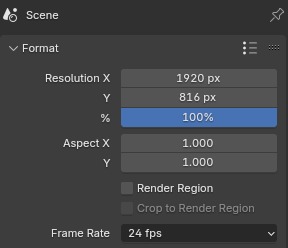
Resolution: 1920x816 - High quality, wide, and cinematic.
Frame Rate: 24 fps - Faster render, high quality for this animation. If your scene has faster objects, you may want to consider a higher frame rate.
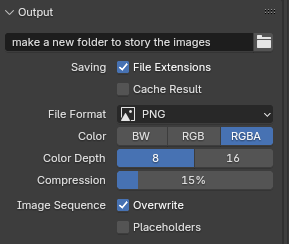
File Format: PNG - Renders each frame as an image, which makes it good in case you have to pause a render or edit specific frames.
Procedural Noise in the Compositor

Do you ever feel like your animation looks more realistic in the render viewport with Cycles? The reason for this is likely because of the grain. When you render, it denoises and removes that grain that can add more realism. You might be thinking, "Just turn denoising off." NO!!! By turning denoising off, the noise will be different every frame and will look very flickery. Instead, use this procedural noise node tree I created using the compositor. To use it, create a separate .blend file, copy these nodes (or download the file below), and import the images from your render. To preview how the noise will look if adjusting the settings, plug the mix node into the Viewer node (make sure to put it back to the composite node when rendering). Also, ensure you change the render settings to match your resolution/frame rate. Output it as a video format (FFmpeg) and click "Render Animation". You now have a more realistic animation!
Download the file here:
Editing
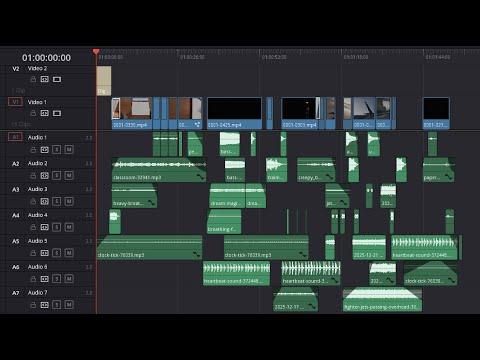
In this video, I walk you through the Davinci Resolve project for the short film, covering how I selected the audio, trimmed it, and positioned it, as well as creating smooth transitions.
To make the eye closing effect, I followed this tutorial, but instead added the keyframes from the end of my clip rather than the front to make the eyes close instead of open: How To Create An Opening Eye Effect In DaVinci Resolve
I used Pixabay for free sound effects to help bring the animation to life.
Make sure your Davinci Resolve project resolution matches your Blender render resolution: file→ project settings→ master settings→ *select or type your resolution*
Reflecting
After making an animation, you should admire all the amazing things you just made. Ask yourself what you are proud of. Personally, I'm proud of my intro scene. I feel like it came out very realistic and high quality, creating a strong foundation for the rest of the short film.
However, you should also observe what could be improved on for next time. Looking back at this short film, I could have used more physics, such as smoke trails on the planes, particles in the floating scene, and other simulations. These are all things that I will now work to include in my future projects.
It is also good to reflect on what you struggled with and want to learn for the future. For me, it is making realistic sky environments beyond HDRs. I rotated the HDR to make the illusion that the plane was moving, but that was after failing to make realistic volumetric clouds. I want to learn how to make better volume simulations for clouds to make realistic sky environments in the future.
After you reflect, share it. I am posting this Instructable to not just teach everyone how to recreate this or something similar, but also to receive feedback. Criticism is the foundation of learning. You must be able to criticize your own work, but also allow others to do so because that's how we learn as artists.
Making tutorials in a video format to share forced me to review every detail of my animation process. I now have a better understanding of what I messed up and how I can take a different approach for future animations. Videos are also much better at teaching than pictures, which is why I used them. It may take more time, but you and those you teach benefit from it.