From Above
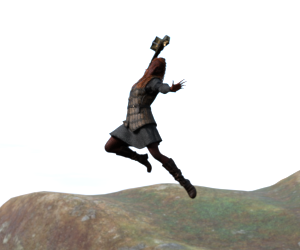
Using a free 3d software named Daz3D, I was able to create an idea of what floating means. I did this for the "make it float" contest, below I will list my resources and how I made the model
Supplies
Using a free 3d software named Daz3D and a bunch of pre-made models and poses to set this all up.
Open Up Daz3D
.png)
First off, I open up Daz3. I am then shown a canvas that is admittedly a bit overwhelming, but I've used the software for a while now, so I know where everything is.
Grabbing a Model and Sprucing Her Up
.png)
.png)
.png)
.png)
My next step is to open up Smart Content>figures>people and grab any model I wish to use. Then I want to change her hair and outfit, so I switch from Figures>hair>long and then grab the only one available to me, then I go to wardrobe and click the most battle-ready outfit there, and after that I go to props and take the battle hammer for the right arm.
Posing the Model and Rotating the Camera
.png)
.png)
Next, we pose the model and find the perfect angle to capture it. What I want to start with is to enter poses and select a pre-existing one from the software. Then, I use the camera options in the top right of the main screen to position the camera for the perfect shot.
Changing the Scenary
.png)
.png)
The background is pretty bare, so to get a better look, I chose a backdrop from render-settings. To be able to see the backdrop, I must change from texture settings>Navida Iray, which gives me the cloudy backdrop.
Rendering
.png)
.png)
Finally, I must render the scene to be fit for viewing. So first, I must go to Render Settings>editor> general>dimensions and check if everything is looking good. Afterwards, I click on the camera icon on the top right, which allows me to render everything,