GameBox Clicker: Build a Modular Magnet Key Game Console (Arduino)
by wjddnjsdnd in Workshop > Laser Cutting
1895 Views, 16 Favorites, 0 Comments
GameBox Clicker: Build a Modular Magnet Key Game Console (Arduino)


GameBox Clicker is a small DIY game console built around a 2×3 fidget clicker.
This project is a follow-up to my previous 2×2 Fidget Clicker project.
While the first project focused on creating a tactile button device,
GameBox Clicker takes that idea one step further—turning the clicker into a real game controller.
The concept is very simple:
- Use a 2×3 fidget clicker as physical keys
- Connect it to a small OLED display
- Play three classic mini games on a tiny, handmade console
Currently, the console includes:
- Pong
- Snake
- Stair Game (inspired by the mobile game Infinite Stairs, but simplified)
Why I Made This
This project is not about powerful hardware or complex graphics.
Instead, it explores:
- How far we can go with very limited input
- How simple buttons can still create fun gameplay
- How small DIY projects can grow into new ideas
The games are intentionally simple.
The hardware is intentionally minimal.
My hope is that:
Someone will see this project
and build something even better, different, or unexpected from it.
What’s Next?
You can:
- Add more games
- Change the button layout
- Improve graphics or sound
- Design a completely new enclosure
This project is meant to be remixed.
Supplies
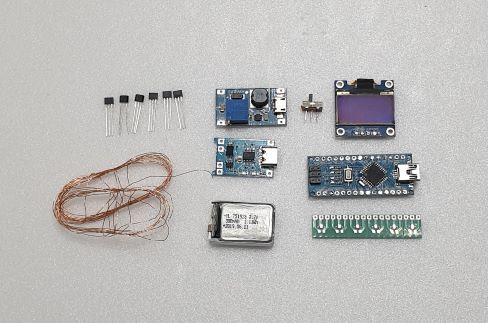

This project uses simple and affordable components.
Most parts are easy to find online or can be replaced with similar alternatives.
Housing & Mechanical Parts
- 5mm EVA Foam Sheet
- Small Hinges × 2
- (Used to open and close the GameBox)
- Neodymium Magnets (1 × 2 mm) × 30
- (For magnetic key mechanism)
- Gold Eyelets × 2
- (Decorative + functional detail)
- Keyring Chain × 1
Input (Keys)
- Magnetic Shaft Keys × 6
- Keycaps × 6
- A3144 (A3114) Hall Sensors × 6
Electronics
- Arduino Nano × 1
- OLED Display (SSD1306, I2C) × 1
- TP4056 Li-ion Charging Module (with protection circuit) × 1
- MT3608 DC-DC Step-Up Converter (2A) × 1
- 3.7V Li-ion Battery 380mAh × 1
Miscellaneous
- Coil Copper Wire0.1mm
- Solder & soldering tools
- Glue (hot glue or foam-safe adhesive)
- Cutter / hobby knife
Laser Cutting the EVA Foam Layers


In this step, we will laser cut the EVA foam layers using a 5W diode laser.
Because every laser machine is different, you may need to adjust the settings for your own equipment. Please run small test cuts to find the best speed and power for your laser.
We will use three SVG files for this step:
1. text_all.svg — Engraving Text and OLED Slot
This file is used to create engraved (negative) text and grooves.
- The text and small grooves are engraved into the EVA foam.
- The dense grid pattern is for the OLED module slot.
- After engraving the grid, use a wire cutter (or similar tool) to remove the small grid pieces.
- This creates a clean recessed pocket for the OLED to fit into.
2. in_all.svg — Key Housing (Inner Parts)
This file contains the shapes for the key housings.
- To save EVA foam, the parts are arranged inside empty spaces.
- These parts form the internal structure for each key.
3. out_all.svg — Main Body (Outer Parts)
This file is used to cut the main outer body of the project.
Laser Settings (Based on My 5W Diode Laser)
⚠️ Important: These settings are optimized for my machine.
Your laser may require different values. Always test first.
General
- Laser Mode: M4 – Dynamic Power
First: Open text_all.svg
Use these settings for engraving:
- Border Speed: 600
- S-MIN: 0
- S-MAX: 200
This will engrave the text and create the grid pattern for the OLED slot.
Next: Open in_all.svg and out_all.svg
- Change only the Border Speed to: 150
- Keep the same laser mode and power settings
- Use Append File to load these two files
These files are for cutting through the EVA foam.
Important Notes About EVA Foam
EVA foam melts easily if the laser power is too high.
Even if you are using a high-power laser cutter, it’s important to reduce the laser power and find the right balance between speed and strength.
Take time to dial in your settings so you get clean cuts without excessive melting.


Build the Charging & Power System
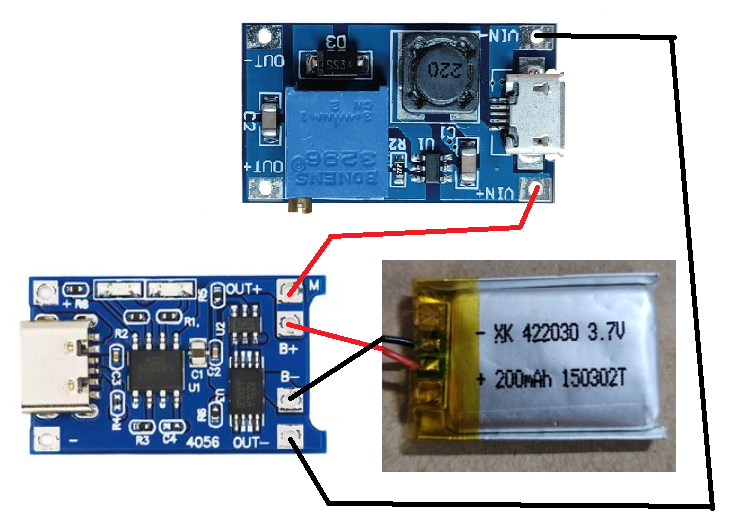

In this step, we build a compact charging and power system that provides 5V output and allows easy charging through a Type C Cable .
🔹 Components Used
- 3.7V Li-Po battery
- TP4056 lithium battery charging module (with protection)
- MT3608 DC-DC boost converter
🔹 Wiring Overview
- The 3.7V battery is connected to the TP4056 for charging and protection.
- The output of the TP4056 is connected to the MT3608 boost module.
- The MT3608 is adjusted to output 5V, which powers the entire system.
🔹 Assembly Tips
- The battery and TP4056 module can be fixed in place using a hot glue gun.
- This keeps the parts secure without adding screws or brackets.
- Make sure the MT3608 trim potentiometer is adjusted before final assembly.
🔹 Important Check
⚠️ Do not skip this step
Before moving on:
- Use a multimeter to verify:
- the battery is charging correctly
- the MT3608 output is stable at 5V
Confirming both charging and 5V output now will prevent problems later.
✅ Result
After this step, you will have:
- a rechargeable 3.7V battery system
- safe charging via TP4056
- stable 5V output for the Arduino and OLED
Wiring & Hall Sensor Installation
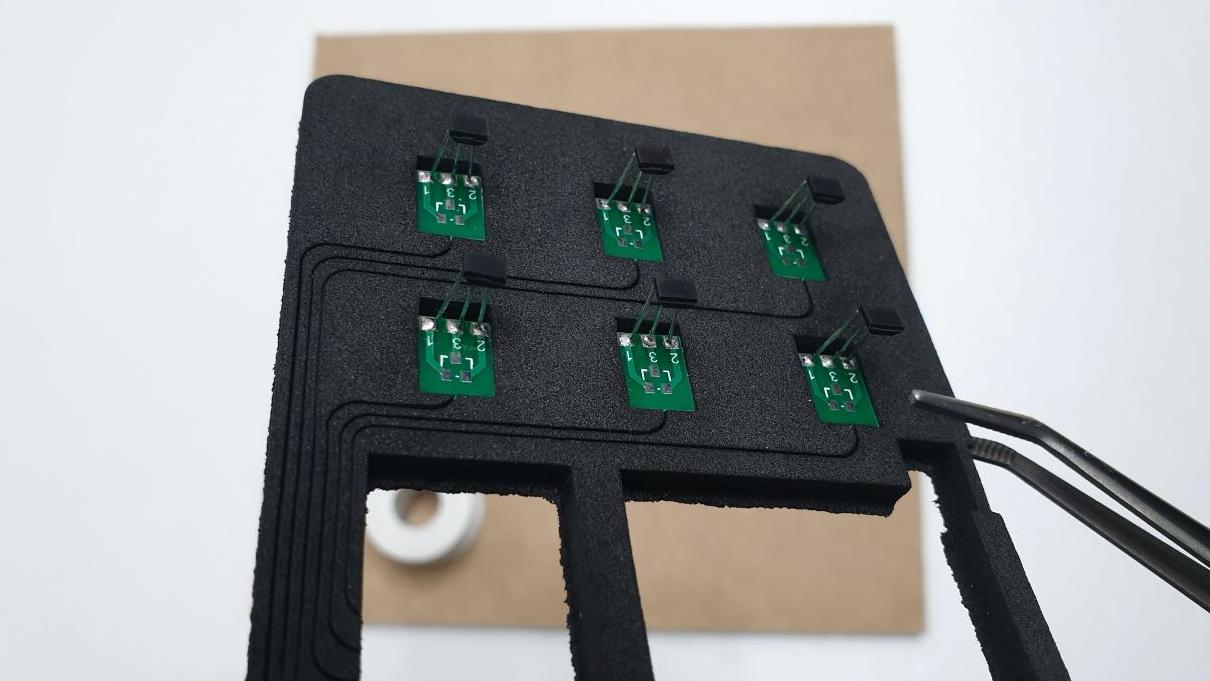

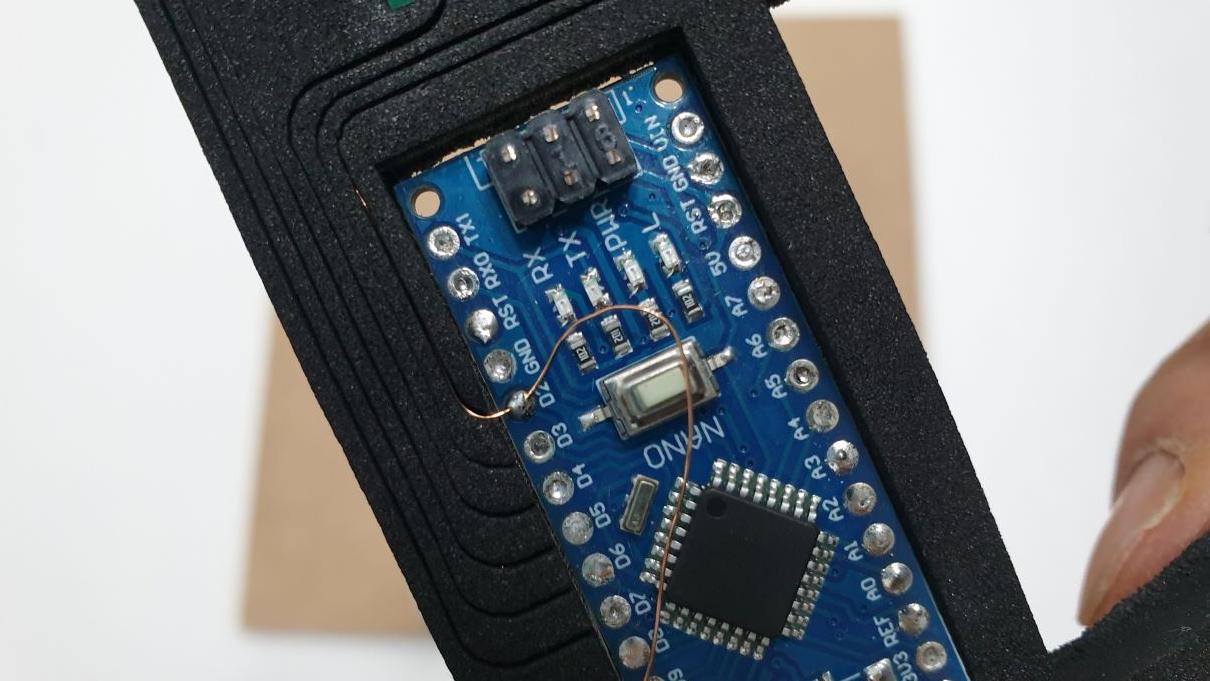
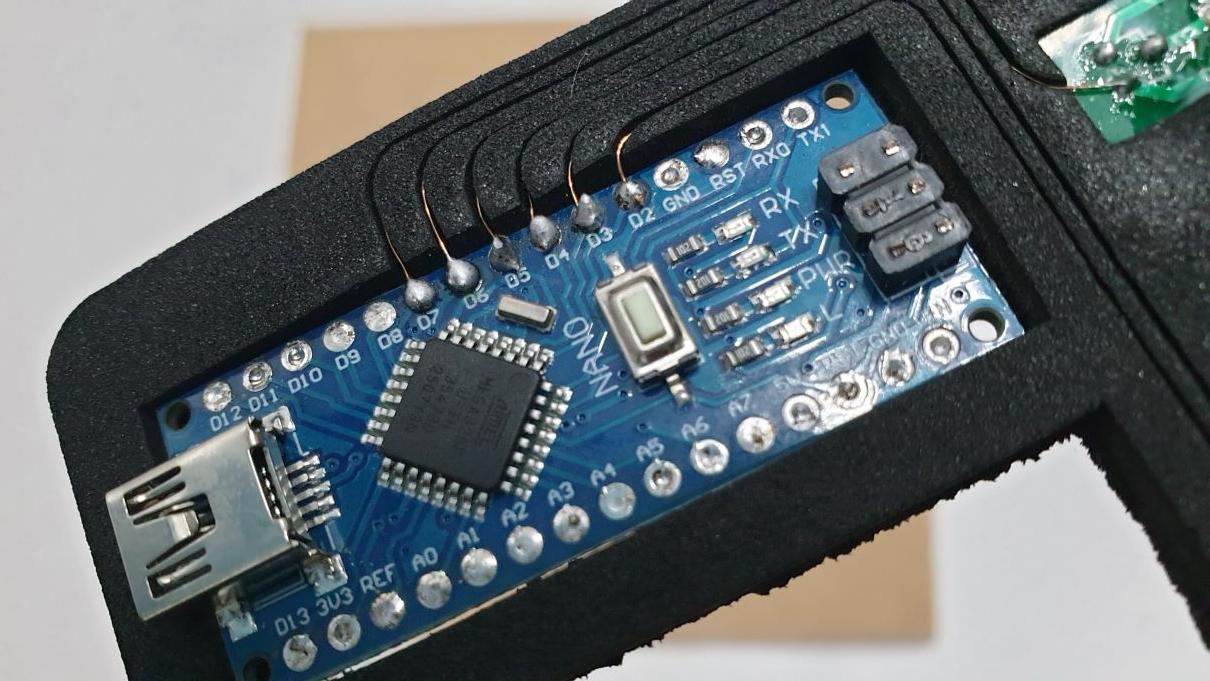


In this step, we begin the main wiring process and install the A3144 Hall sensors.
Because magnetic strength varies depending on the magnetic key used, and
A3144 sensors also differ slightly in sensing distance, this part requires manual adjustment.
Unfortunately, this is unavoidable when working with non-standardized components.
🔹 Preparing the A3144 Sensor
Before soldering:
- Bend the legs of the A3144 by 90 degrees
- Make sure the wide flat face of the sensor is facing upward
This orientation is important for:
- correct magnetic sensing direction
- proper alignment with the magnetic key
🔹 Soldering the A3144 (SOT-23)
- The A3144 Hall sensor is soldered directly onto a SOT-23 breakout footprint.
- The sensor must be positioned so it can move slightly up and down before being fixed.
- This allows fine adjustment of the sensing distance.
Installation Method
- Place Layer 1 on a hard, flat surface.
- Position the SOT-23 board at the top side of Layer 1.
- Insert the A3144 sensor from above and push it down until it touches the surface below.
- While holding it in position, solder the sensor in place.
This ensures a consistent reference height for all sensors.
🔹 Wiring
- Use 1mm coil wire for all required connections.
- Thin, flexible wire is essential due to the limited space inside the enclosure.
- Take care to keep wires short and clean to avoid interference with the moving parts.
Assemble the Keys and Key Housings


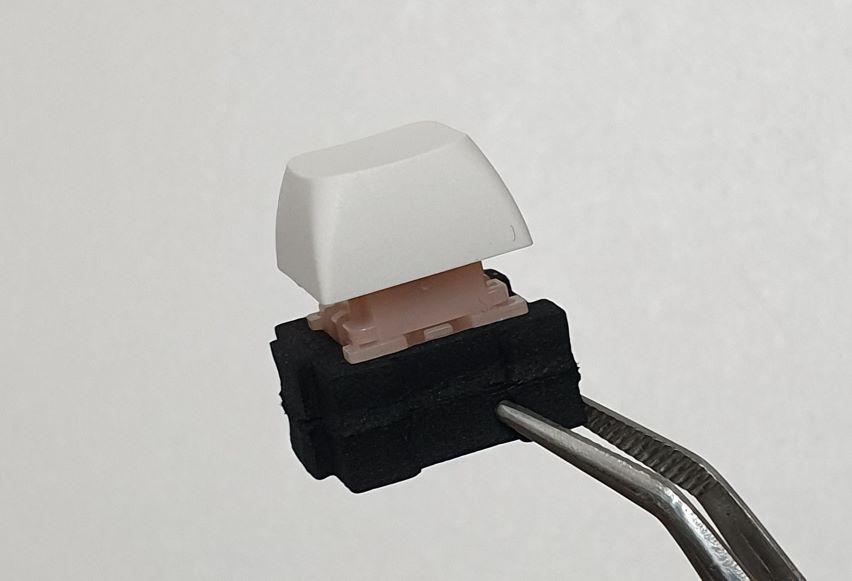
In this step, we assemble the magnetic keys and their housings.
These keys must be assembled before sensor testing.
🔹 Key Housing Structure
- Each key housing consists of two separate layers.
- Refer to the provided image to understand the orientation and alignment.
🔹 Assembly Instructions
- Align the two housing layers carefully.
- Fix them together using double-sided tape.
- Make sure the inner space remains clean so the key can move smoothly.
🔹 Quantity
- You will need to assemble 6 key housings in total.
✅ Result
After this step:
- All key housings are ready
- You can proceed to sensor testing and fine adjustment
Sensor Adjustment and Final Fixing (Most Important Step)
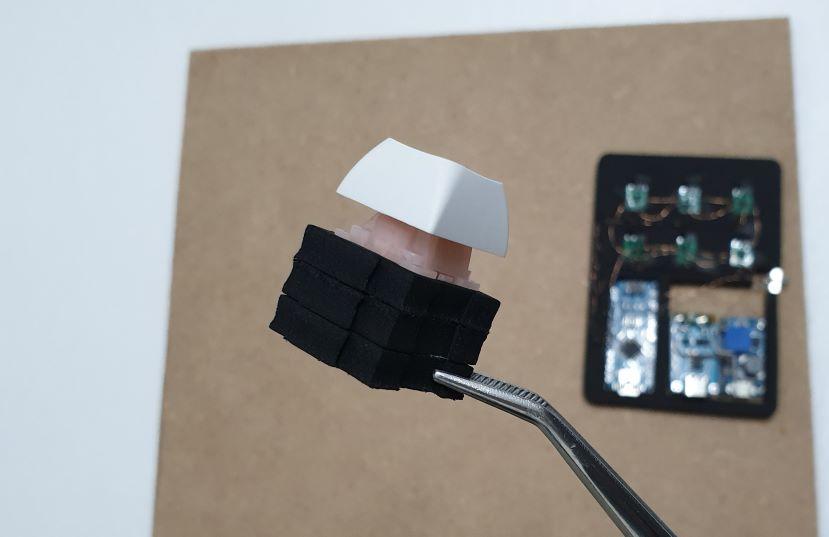
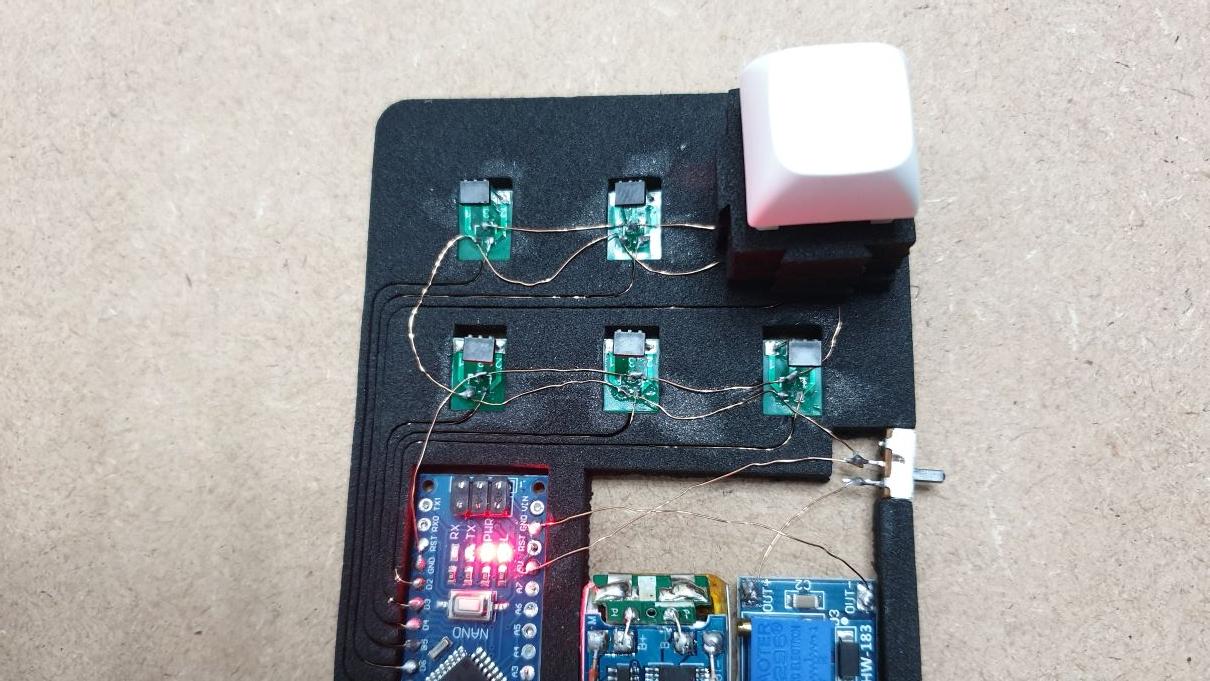
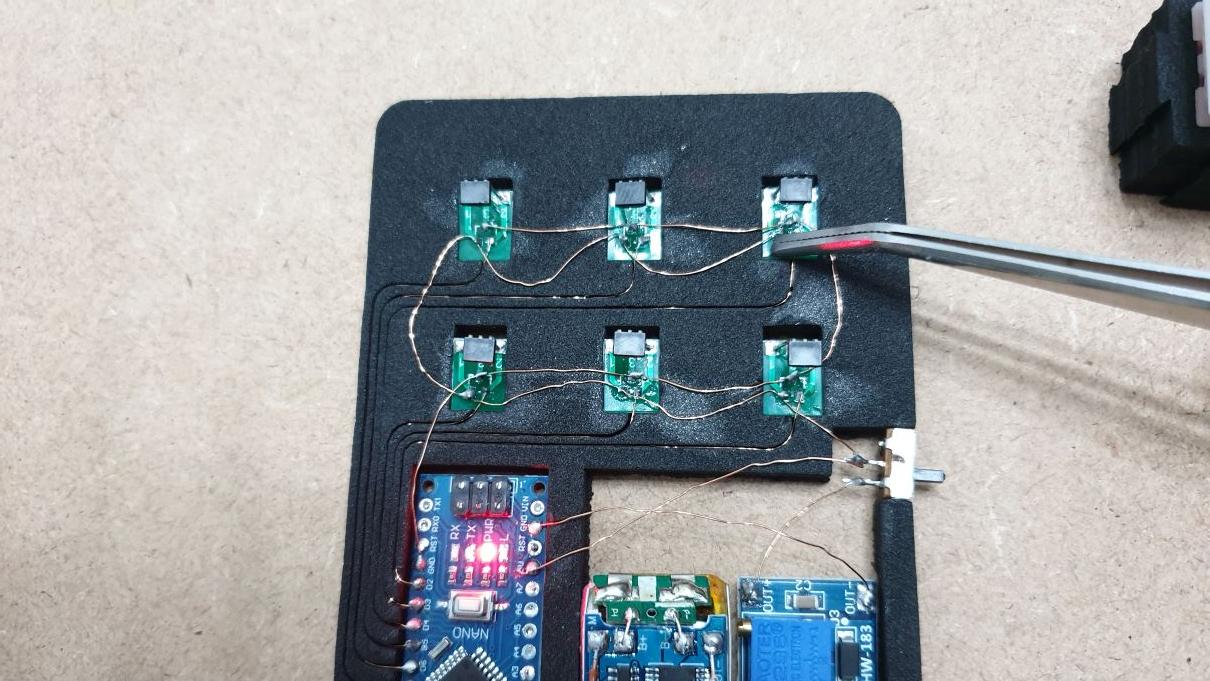


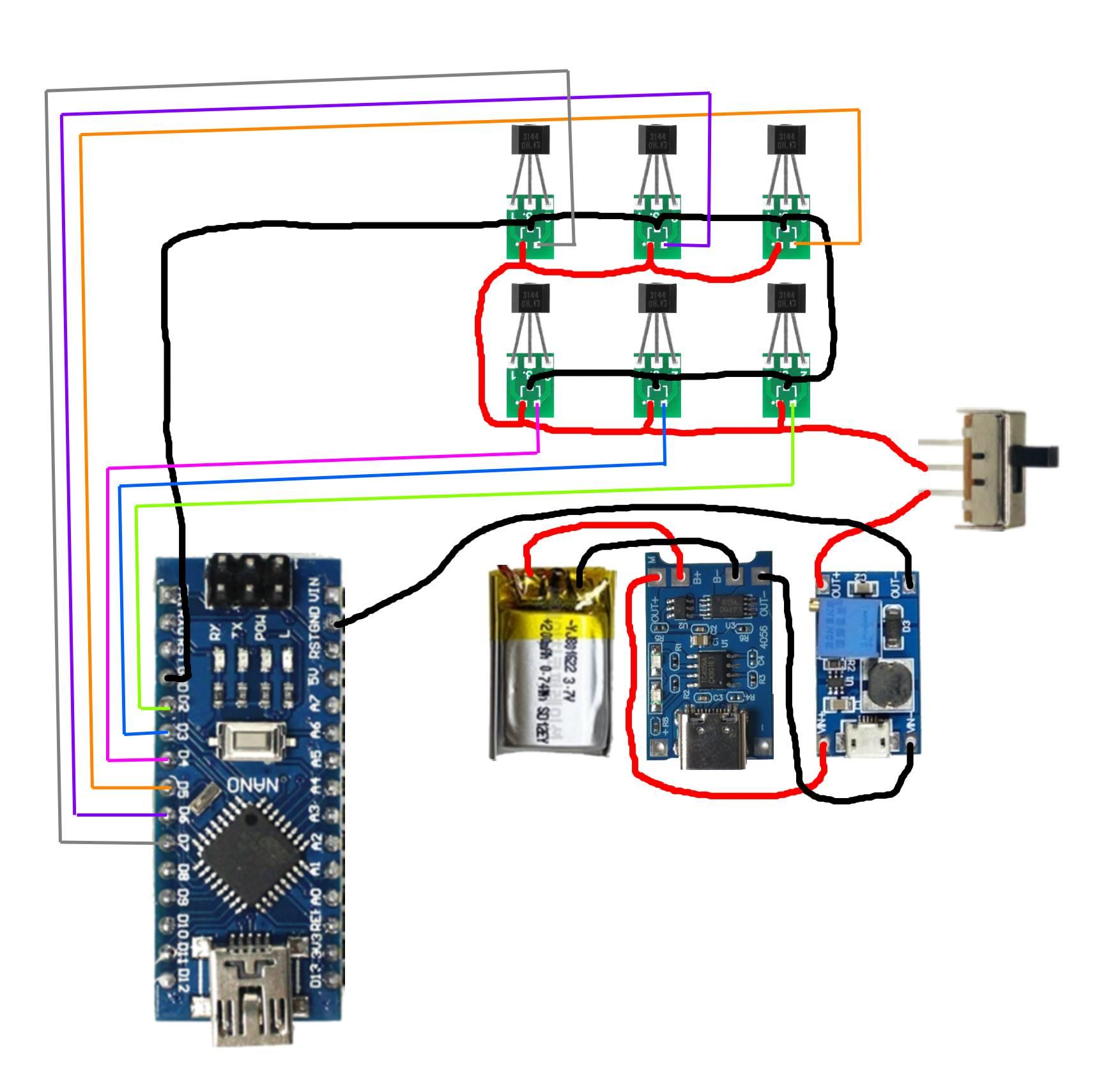
This is the most critical step of the entire project.
Here, we adjust the Hall sensor positions and fix them permanently in the correct place.
🔹 Why This Step Is Necessary
- Hall sensors are installed on Layer 1
- Normally, Layer 2 would be placed on top before testing
- However, once Layer 2 is installed, it becomes very difficult to move the sensor PCB up or down
To solve this, we use a temporary test setup.
🔹 Temporary Test Setup
- Temporarily attach one extra layer to the key housing
- This simulates the exact height and distance as if Layer 2 were already installed
- This allows accurate testing before final assembly
This method produces the same result as testing with Layer 2 installed, but keeps the sensors adjustable.
🔹 Upload the Test Code
Before testing:
- Upload a simple Arduino test sketch
- When the power switch is ON:
- one red LED turns on
- When a Hall sensor is triggered:
- LED on pin 13 turns ON
- When the sensor is released:
- LED on pin 13 turns OFF
(The code itself is simple and not covered here.)
🔹 Common Test Results & How to Fix Them
During testing, you may see one of these behaviors:
1️⃣ LED turns ON just by placing the key housing
➡️ The sensor is too high
- Gently push the sensor PCB (SOT-23) downward
- Test again
- The LED should no longer turn on just by placing the housing
2️⃣ LED turns ON when pressed, but stays ON after release
➡️ The sensor is still slightly too high
- Lower the sensor PCB a little more
- Test again
3️⃣ LED never turns ON, even when pressed
➡️ The sensor is too low (this is rare)
This usually happens if:
- the sensor legs were not bent exactly 90°
- the PCB was not positioned correctly at the top of Layer 1
🔹 Correct Adjustment Goal
✅ The correct position is when:
- the LED turns ON when the key is pressed about halfway
- the LED turns OFF again at the same halfway position when released
Take your time here.
This adjustment defines the feel and reliability of the keys.
🔹 Final Fixing
Once the sensor position is correct:
- Flip Layer 1 upside down
- Apply a small amount of strong adhesive where:
- the PCB
- and the EVA foam
- are in contact
- Let it cure completely
After this step, the sensor position is permanently fixed.
✅ Result
- Sensors are perfectly aligned
- Key response is consistent
- The system is ready for final assembly
Downloads
OLED Installation
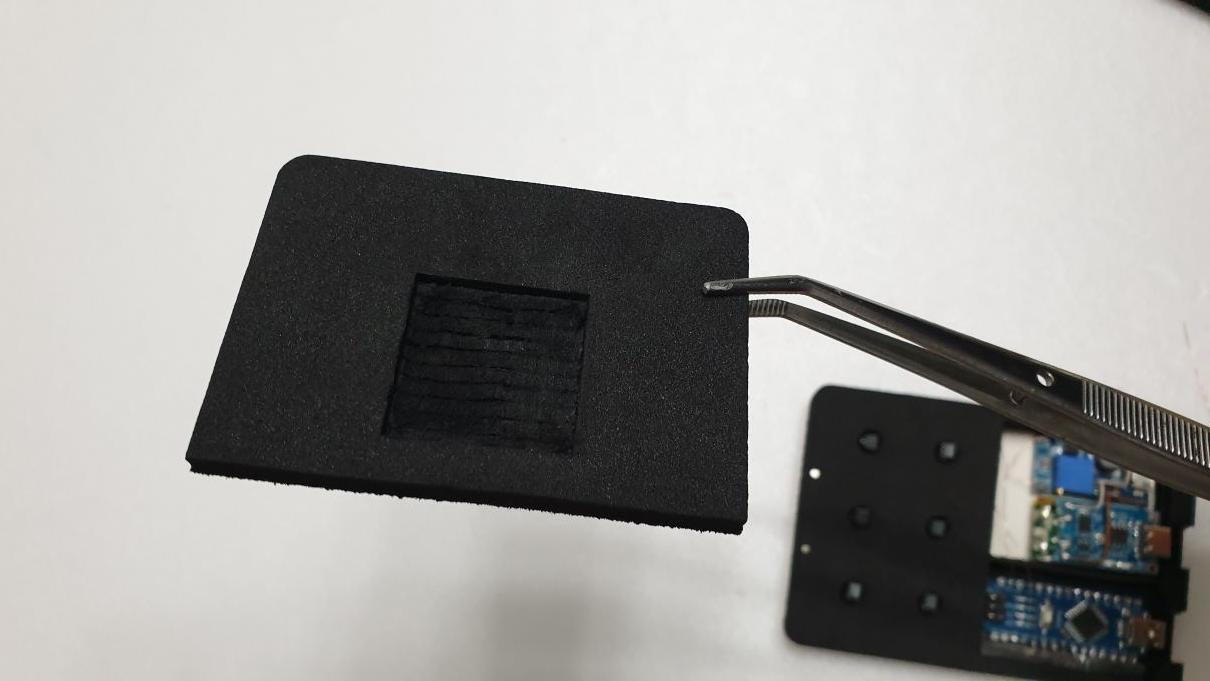


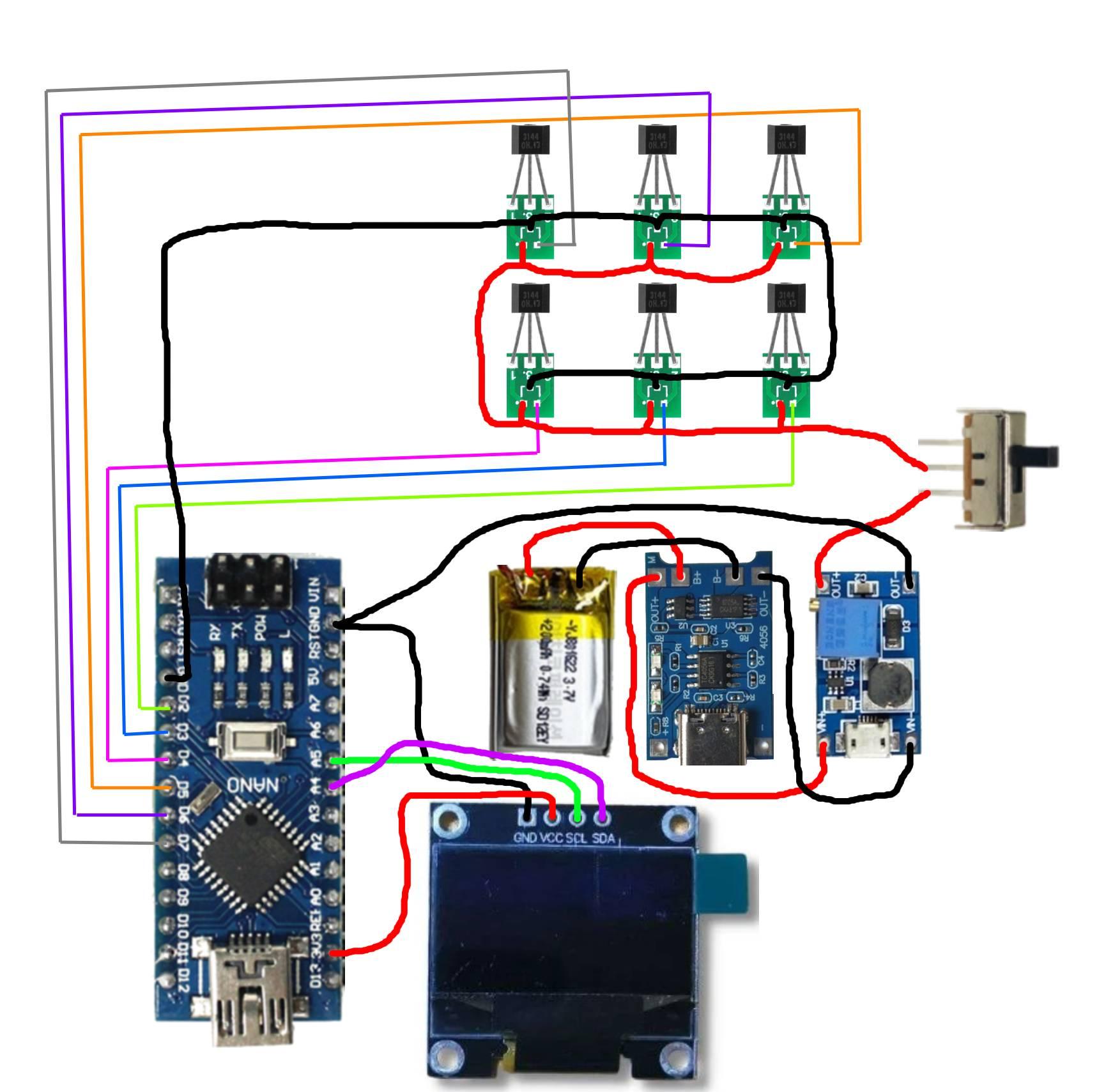
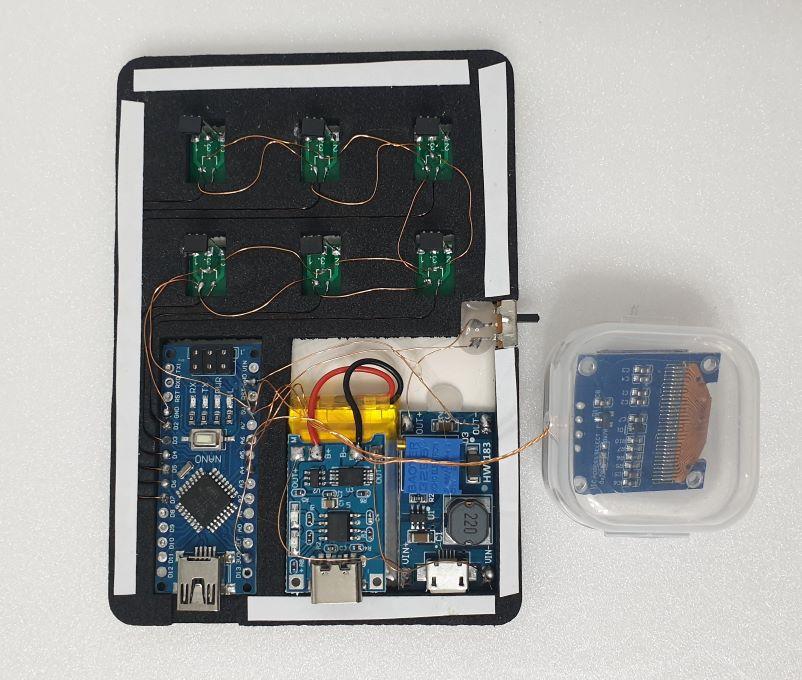
In this step, we install the OLED display and prepare the system for the final firmware upload.
🔹 Preparing the OLED
- Use 0.1mm coil wire for all OLED connections.
- The OLED must have all header pins removed.
- The pins add thickness and prevent proper installation inside the enclosure.
- Carefully desolder or cut the pins before wiring.
🔹 Wiring the OLED
- Prepare four wires, each approximately 10 cm long.
- Solder the wires directly to the OLED pads.
- Refer to the provided image for the correct pin connections.
Leave some slack in the wires so the OLED can move freely with the cover.
🔹 Arduino and the SSD1306 OLED I2C 128x64 Display
Please test the OLED first before uploading the code.
Refer to the posting by "tonygo2". (LINK)
Thank you “tonygo2”.
🔹 Final Code Upload
After wiring is complete:
- Upload the final Arduino code.
- Turn the power switch ON.
🔹 Success Check
✅ If everything is correct:
- The OLED screen will display the startup screen shown in the image
- The system is now fully operational
If the screen does not turn on:
- recheck wiring
- confirm 5V output
- verify I2C connections
Final Assembly


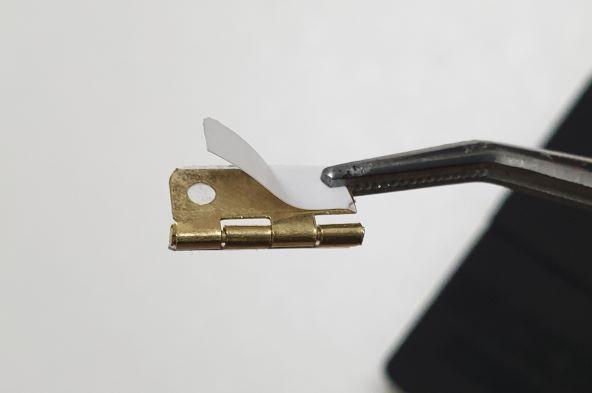


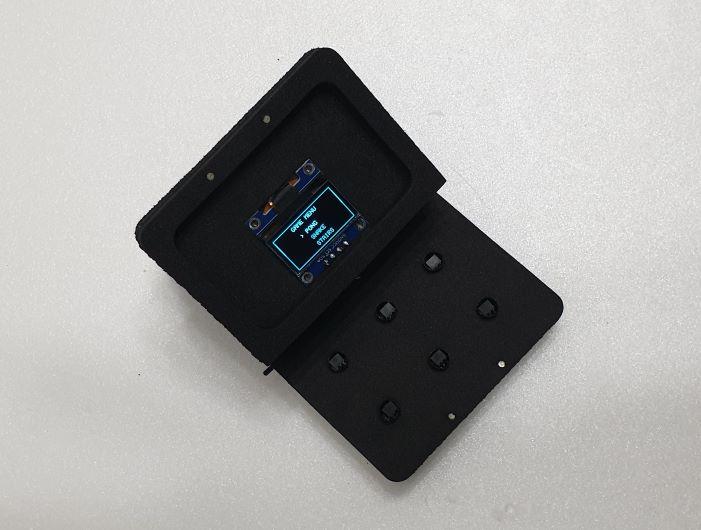


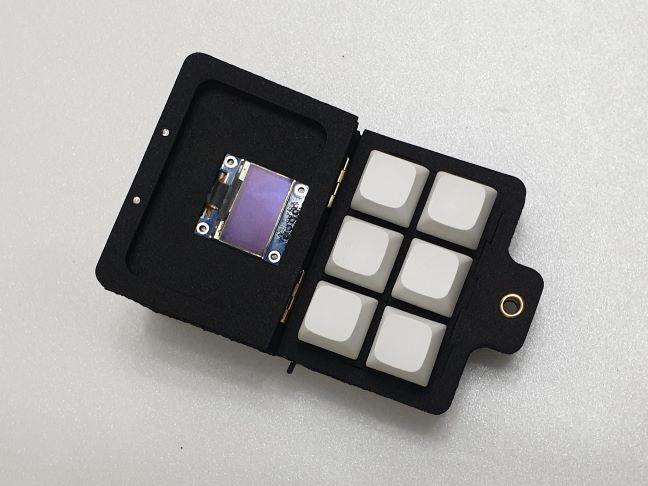
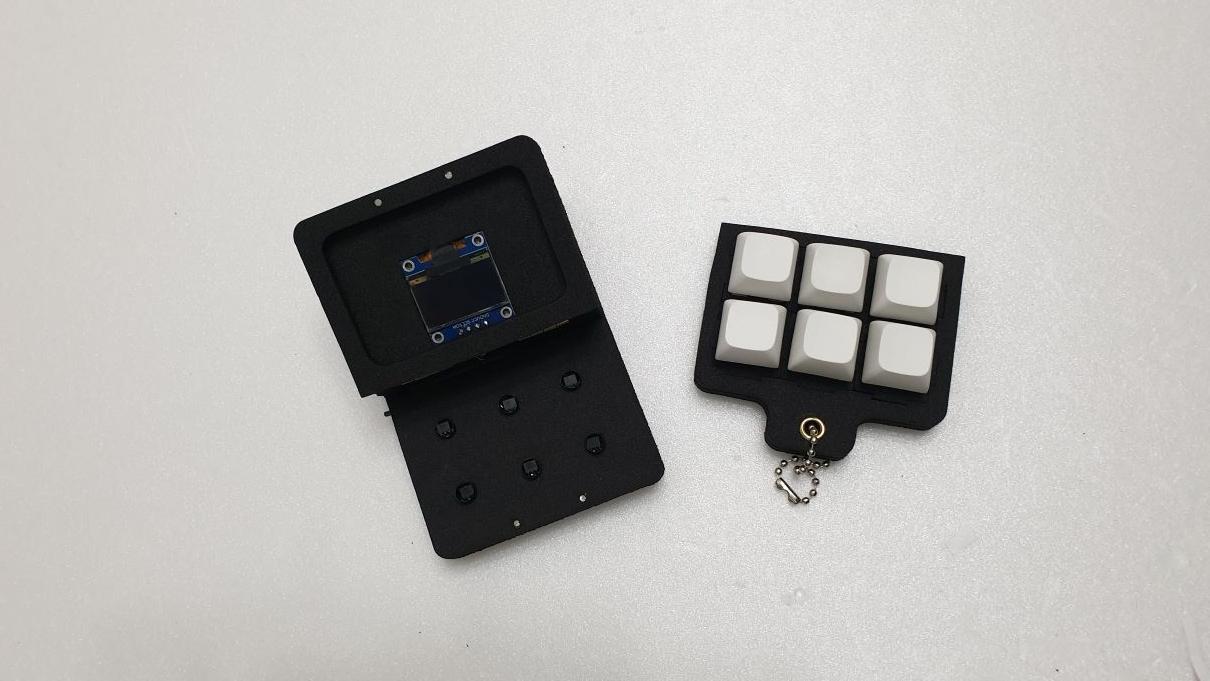

In this step, we assemble all layers and complete the physical build of the GameBox Clicker.
🔹 Layer Assembly (Using Double-Sided Tape)
- Do NOT use glue to assemble the layers.
- Use thin double-sided tape instead.
Why?
Because this allows the device to be disassembled later for repair or modification.
If you’ve ever disassembled a smartphone, you’ll recognize this method:
- very thin double-sided tape
- strong enough to hold
- but still removable
Assembly Tips
- Align the outlines carefully.
- Do it slowly.
- You can peel and reattach the layers multiple times until everything fits perfectly.
- Use your own judgment for tape placement, based on the reference images.
🔹 Installing the Magnets
- Use 1 × 2 mm neodymium magnets.
- Each EVA foam layer is 5 mm thick, so:
- stack 5 magnets per hole
- Make sure the polarity is consistent across all keys.
Fixing the Magnets
- Insert the stacked magnets into the holes.
- Apply a small amount of strong adhesive only to the visible magnet.
- No need to glue the entire stack.
🔹 Covering the Exposed Sensors
The Hall sensors are still visible from the outside.
To finish the look:
- Use black plastic straws (6 mm diameter).
- Cut them into 5 mm long pieces.
- Prepare 6 pieces in total.
Insert each piece into the sensor holes.
- Gluing is optional
- Avoid glue if possible:
- glue can look messy
- The holes were designed slightly tight, so:
- friction alone is usually enough to hold them in place
To make final assembly easier and more accurate, I updated the cutting files with alignment holes.
In earlier versions, it was difficult to perfectly line up the outlines of each EVA foam layer during assembly. To solve this, I added 2mm alignment holes in the same positions on every layer.
During assembly, insert small shafts into these holes to keep all layers aligned. This makes it much easier to match the outer edges and prevents layers from shifting.
For the alignment shafts, I used cotton swabs (Q-tips).
The plastic shaft of a cotton swab is approximately 2mm in diameter, which fits well in the alignment holes and works as a simple, low-cost alignment pin.
This small change greatly improves accuracy and makes the final assembly process faster and cleaner.
Tinkercad & Web Simulation
In this step, I’d like to introduce two ways to explore and experience the GameBox Clicker digitally.
🔹 Tinkercad Project
You can view the full Tinkercad project here:
👉 Tinkercad link
https://www.tinkercad.com/things/55P5W52bIUp-gameboxclicker
Tinkercad is widely accessible, so you can inspect the overall structure and components easily.
🔹 Web Simulation (Three.js)
I also created a web-based simulation of the GameBox Clicker:
👉 Simulation page
https://stringphoto.kr/indexgameboxmaking.html
This simulation was built using three.js and represents the GameBox Clicker in 3D.
How to use the simulation
- Press the Space bar to open the lid
- The key box will move into the correct position
- The key layout matches the real device exactly, so you can practice before building
🎮 Game Controls Overview
The w,s keys are used to select games.
Menu
- Game selection is done using the q key
Pong (2-player game)
- This is a two-player Pong game
- Controls:
- Left paddle: q & a keys
- Right paddle: e & d keys
- As rallies continue:
- paddle size decreases
- ball size decreases
- ball speed increases
- Final stage:
- paddle size: 2 pixels
- ball size: 1 pixel
- Very challenging!
- Return to menu:
- s key
Snake
- Arrow-shaped keys(w,a,s,d) control movement
- Return to menu:
- e key
Stair
- a key: change direction
- d key: climb
- Return to menu:
- s key
⚠️ Each game uses a different key layout, just like a real arcade device.
💬 Leave a Comment
There is a guestbook on my website:
If you leave a comment about GameBox Clicker, I would really appreciate it!